If your QuickBooks payroll update is not working, first check that your payroll plan is active. Then check your Desktop version and note any error code. These details can help you find the right fix.
An update may fail to download, stop during setup, or leave the old tax table in place. Each problem needs a different check. Start with the steps below and test the update after each fix.
It covers payroll update issues. If the update works but payroll still has other problems, those need a separate check.
Why is the QuickBooks payroll update not working?
A payroll update can fail when QuickBooks cannot check your service, reach the update server, or install the files it needs. Possible causes include:
- An inactive payroll plan or a wrong service key.
- An old Desktop release or a version that no longer supports payroll.
- A firewall that blocks QuickBooks.
- Damaged update files or program parts.
The error code can help narrow the cause. We have separate guides for payroll errors and 15XXX update errors. Check which guide lists your code before you change files or settings.
What should you check before you start?
Save your work and record the error before making changes. This makes it easier to track what works.
- Take a screenshot of the full error message.
- Press F2 or Ctrl + 1 to see your Desktop version and release.
- Check whether your internet connection works.
- Make a backup of your company file before repairs or a reinstall.
- Ask other users to save their work before you restart or repair QuickBooks.
Keep a short note of each fix you try. Once the update works, stop and check the tax-table version.
How to Fix QuickBooks Payroll Update Not Working
Once you’ve completed the checks above, you’re ready to try the fixes below. Start with the first step, or go to the one that matches your error. After each fix, try the payroll update again to see if the issue is resolved.
Solution 1. Check your payroll plan and service key
Your payroll service must be active for QuickBooks to download tax-table updates. Start here if you see a message about your plan or service key.
- Close your company files and restart the computer.
- Open QuickBooks.
- Go to Employees → My Payroll Service → Manage Service Key.

- Check the service name. Its status should show Active.
- Select Edit and check the service key against the one issued for your plan.
- If the key is wrong, enter the correct one.
- Select Next, clear Open Payroll Setup, and select Finish.
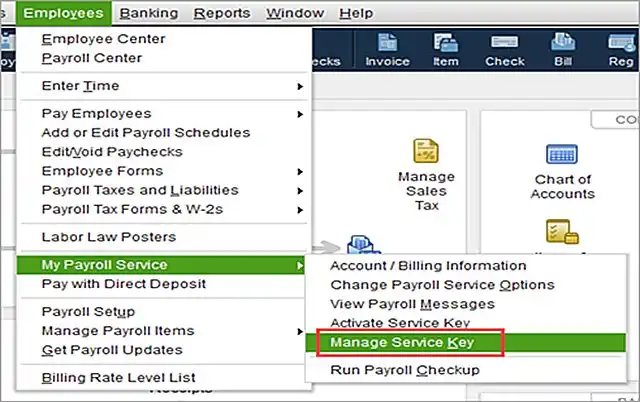
This process starts the payroll update in Intuit’s PSXXX workflow. If your service still shows as inactive, contact Intuit to check the account. A program repair will not renew an expired plan.
Solution 2. Make sure your Desktop version supports payroll
Your Desktop version must still support Intuit’s payroll service. An active plan alone does not mean an old version can keep receiving updates.
For example, payroll and other connected services for QuickBooks Desktop 2023 ended after May 31, 2026. Check your version against Intuit’s service policy.
If your version is no longer supported, check your upgrade options with Intuit. Reinstalling the same old version will not restore support.
Solution 3. Update QuickBooks Desktop
Install the current Desktop release before you retry the payroll update. A Desktop update fixes the program; a payroll update refreshes the tax table.
- Open Help → Update QuickBooks Desktop.
- Select the Update Now tab.
- Select Get Updates.
- Restart QuickBooks when the download ends.
- Accept the prompt to install the update.
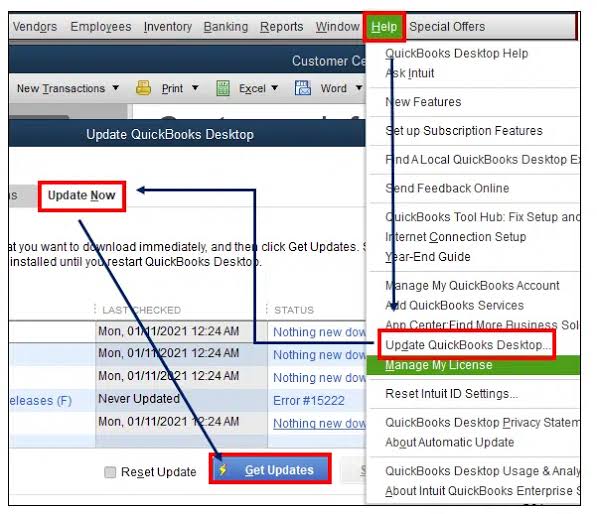
Press F2 to check the release after the program opens again.
If the update fails inside QuickBooks, use the manual download route in the Desktop update guide. Choose the right country, product, and year for your software.
Solution 4. Download the full payroll update
Try the full payroll download after you confirm your plan and update Desktop.
- Go to Employees → Get Payroll Updates.
- Note the tax-table version shown on the screen.
- Select Download Entire Update.
- Select Update and wait for the result.
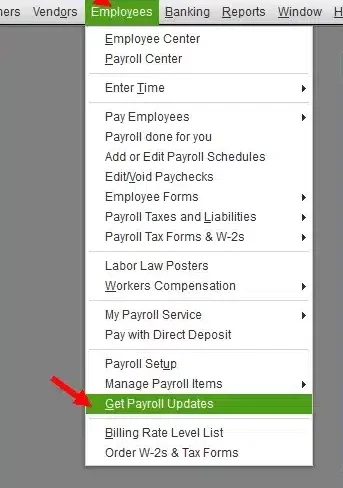
These steps follow Intuit’s payroll tax-table guide. If you get an error, write down the code before trying another fix.
If you see PS038, follow Intuit’s specific error guidance. That error can involve paychecks stuck in a send status. It needs its own checks, which are outside the scope of this update guide.
Solution 5. Check for a blocked connection
A firewall or security app may block QuickBooks even when your web browser works.
First, try to open a few websites. If they will not load, fix the internet connection before you retry QuickBooks.
If websites load but the payroll download fails, ask your IT team to check whether a security rule blocks the program. Use Intuit’s firewall guidance for your setup. The rules can vary by version and network.
If the message mentions a connection or read error, see our guide to the QuickBooks Payroll Internet Connection Error Read Error.
Change one setting at a time and test again. This helps you find the cause without losing track of earlier changes.
Solution 6. Run the update as an administrator
Running QuickBooks as an administrator can help with some 15XXX update errors. Use this step when the error guide calls for it.
- Close QuickBooks and all open company files.
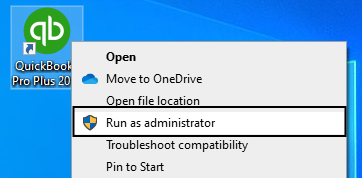
- Right-click the QuickBooks Desktop icon.
- Select Run as administrator.
- Accept the Windows prompt.
- Try the payroll update again.
If the code is 15240, follow our QuickBooks Error 15240 guide for checks tied to that error.
Solution 7. Use QuickBooks Tool Hub to repair the program
Tool Hub can help when damaged program parts cause an update to fail. Use it after checking your plan, version, and connection.
Close QuickBooks and get Tool Hub from Intuit’s official download link. Our QuickBooks Tool Hub guide explains how to install it and choose a tool.
Start with a quick program repair:
- Open Tool Hub.
- Select Program Problems.
- Select Quick Fix my Program.
- Let it finish, then reopen QuickBooks.
- Try the payroll update again.

If the error remains and the install needs repair, select Installation Issues → QuickBooks Install Diagnostic Tool. Let the scan finish, restart the computer, and try again.
How do you know the payroll update worked?
Check the installed tax-table version against Intuit’s latest payroll release. A download message is useful, but the version check gives you a clearer result.
- Open Employees → Get Payroll Updates.
- Find the tax-table version on the screen.
- Compare it with the latest release linked from Intuit’s tax-table guide.
- Open Payroll Update Info if you need more details.
If the version is current and the update error is gone, the update task is complete. If payroll still has a separate issue, note that problem before making more changes.
What if the update still will not install?
Get help once the relevant steps stop giving you new results. Reinstalling QuickBooks is a later option in Intuit’s update-error guide.
Before you reinstall, make a backup and confirm that you have the correct installer and license details. Do not restore an old backup over your current file just to test an update.
Conclusion
A QuickBooks payroll update issue is easier to fix when you check one cause at a time. Start with your payroll plan and Desktop version, then work through the steps that match your error. Once the update finishes, check the tax-table version to confirm it worked.
Frequently Asked Questions
Do I need an active payroll plan to get tax-table updates?
Yes, Intuit requires an active Desktop Payroll subscription. Your Desktop version must also support the payroll service.
Is a Desktop update the same as a payroll update?
No, A Desktop update changes the program. A payroll tax-table update provides current tax rates, forms, and related payroll changes. Check both when a payroll update fails.
Should I rename the CPS folder if the update fails?
Not as a first step. Some payroll errors can involve damaged CPS files, but the fix depends on the code. Use the matching Intuit guide before you change a folder name or path.
Does QuickBooks Online need a manual payroll update?
No, QuickBooks Online Payroll tax tables update automatically. The Desktop tools and download steps in this guide do not apply to Online.
Why does my QuickBooks payroll update keep failing even though my subscription is active?
An active subscription is only one requirement. Your Desktop version must also support payroll updates. A blocked connection or damaged program files can still stop the download. Note the error code so you can choose the right fix.
How can I tell if QuickBooks installed the latest payroll tax table?
Go to Employees → Get Payroll Updates and note the tax-table version. Compare it with the latest version listed in Intuit’s payroll update information. You can also select Payroll Update Info for more details.
What should I do if QuickBooks payroll updates will not download but my internet works?
Your browser may connect while a firewall or security app blocks QuickBooks. Ask your IT team to check the program’s access.
Why does QuickBooks keep showing the old tax-table version after an update?
The payroll update may not have finished, or you may have updated only the Desktop program. Open Employees → Get Payroll Updates, select Download Entire Update, and run the download. Then check the tax-table version again.
Should I reinstall QuickBooks if a payroll update fails?
Reinstallation should be a later step. First, check your payroll plan, supported Desktop version, and connection. Then try the relevant repair tool in QuickBooks Tool Hub. Back up your company file before reinstalling.
Can an older QuickBooks Desktop version stop payroll updates?
Yes, once Intuit ends payroll support for a Desktop version, reinstalling it will not restore access. Check Intuit’s service policy for your version and review your upgrade options.
What details should I collect before asking for help with a failed payroll update?
Record your Desktop version, release number, tax-table version, and full error message. Note where the update stops and which fixes you have tried. Keep payroll PINs, service keys, and employee details out of public posts or AI chats.
