Payroll problems can become stressful when payday is approaching and QuickBooks suddenly stops working as expected. A payroll update may fail, taxes may not calculate correctly, or QuickBooks may lose its connection to payroll services.
These problems can happen for several reasons, including outdated software, payroll subscription issues, damaged program components, or connection and verification problems. The right solution depends on what is causing the issue.
In this guide, we’ll explain the common QuickBooks Payroll problems, what causes them, and the steps you can take to get payroll working again.
QuickBooks Payroll Most Common Errors
The following table covers the major QuickBooks Payroll errors and their fixes addressed in this guide.
| Error | What Usually Causes It | What You Can Do |
| QuickBooks Error 15102 | QuickBooks can’t reach the shared download location it needs for the update. This can happen when the mapped drive isn’t available or the download settings aren’t set up correctly. | You can check the shared download settings and make sure the mapped drive is connected. Once that’s sorted, try the payroll update again. |
| QuickBooks Error 15103 | One of the files QuickBooks needs for the update may be missing or damaged, so the payroll update can’t finish properly. | Try to check the QuickBooks installation and update components. If the problem sticks around, run Quick Fix my Program and try again. |
| QuickBooks Error 15104 | QuickBooks can’t access the files or folder it needs to download the update. A problem with the shared download location is often involved. | Double check the shared download location and make sure the required folder or drive is accessible from the computer running QuickBooks. |
| QuickBooks Error 15105 | Your firewall or security software may be stopping QuickBooks from connecting to the update service. | You should check your firewall and security software and make sure QuickBooks has permission to connect. Then run the payroll update again. |
| QuickBooks Error 15106 | A required update component may be missing, damaged, or blocked by Windows or your security software. | Open QuickBooks as an administrator and run Quick Fix my Program. If that doesn’t do the trick, repair QuickBooks and try the update again. |
| QuickBooks Error 15107 | QuickBooks runs into a problem with the update files, permissions, or connection while trying to install the payroll update. | Check your update and firewall settings first. Then try downloading the payroll update again. |
| QuickBooks Error 15212 | QuickBooks can’t get to the shared download location or another file it needs to complete the update. | Make sure the shared folder or mapped drive is available and that QuickBooks can access it. Then try the update again. |
| QuickBooks Error 15215 | QuickBooks can’t verify the digital signature on the update file. | If QuickBooks is having trouble verifying the update’s digital signature, reinstalling the certificate may help. |
| QuickBooks Error 15222 | Your security software or firewall may be blocking the update. Incorrect internet settings or a digital-signature problem can also be behind it. | Run QuickBooks as an administrator and also reinstall the digital signature certificate. |
| QuickBooks Error 15223 | QuickBooks is having trouble verifying or installing an update, often because of Windows security settings or an update component. | To fix the issue, check your Windows and security settings first. If the problem continues, repair QuickBooks and try the update again. |
| QuickBooks Error 15240 | Something is getting in the way of the payroll update, such as firewall restrictions, shared-download problems, or system settings. | Check your internet connection, firewall, and shared download location. Once everything looks right, run the payroll update again. |
| QuickBooks Error 15241 | The QuickBooks File Copy Service may be turned off or not working correctly, which can stop the update from completing. | Check the QuickBooks File Copy Service and make sure it’s running. Then try downloading the payroll update again. |
| QuickBooks Error 15270 | QuickBooks is missing an update component, or something has damaged or blocked a file needed for the payroll tax-table update. | Try downloading the payroll update again. If it still fails, check the shared download settings and firewall, then repair QuickBooks if needed. |
| QuickBooks Error 15271 | QuickBooks can’t finish installing the update because something is wrong with the update files or your system configuration. | Run QuickBooks as an administrator and check the update settings. If you’re still getting the error, repair QuickBooks before trying again. |
| QuickBooks Error 15276 | An update component or system setting is stopping QuickBooks from completing the payroll update. | Check your firewall and update settings first. You can also run Quick Fix my Program and repair QuickBooks if the problem doesn’t go away. |
| QuickBooks Error PS032 | QuickBooks may be having trouble with your internet or firewall settings. A damaged file in the CPS folder can also cause the payroll update to fail. | Check your payroll service key and subscription first. Then review your internet and firewall settings and repair the affected QuickBooks components if necessary. |
| QuickBooks Error PS038 | One or more paychecks are stuck with an Online to Send status, so QuickBooks can’t send the payroll data to Intuit. | Back up your company file before making changes. Then find the stuck paychecks, run Verify Data and Rebuild Data, and toggle the affected paychecks if needed. |
| QuickBooks Error PS077 | QuickBooks is having trouble downloading or installing the payroll update. An inactive payroll subscription or outdated QuickBooks version can also be part of the problem. | Make sure your payroll subscription is active and QuickBooks is up to date. Then try Quick Fix my Program and run the payroll update again. |
| QuickBooks Error 2107 | QuickBooks can’t send payroll data successfully. The problem may come from your connection, security settings, direct deposit, or payroll account verification. | Update QuickBooks and the payroll tax table, then check your internet and security settings. If QuickBooks needs to verify your account, contact Payroll Support. |
| QuickBooks UEXP Error | QuickBooks can’t verify your account information while you’re downloading payroll updates or activating payroll. | Check that your QuickBooks account and payroll subscription are set up correctly. If QuickBooks still can’t verify the account, contact QuickBooks Support. |
Common Causes of QuickBooks Payroll Errors
Although the error codes differ, many QuickBooks Payroll problems originate from the same underlying issues.
Outdated QuickBooks or Payroll Tax Tables
QuickBooks Desktop Payroll relies on current payroll tax tables for updated tax rates and calculations. An outdated tax table can cause payroll update and calculation problems.
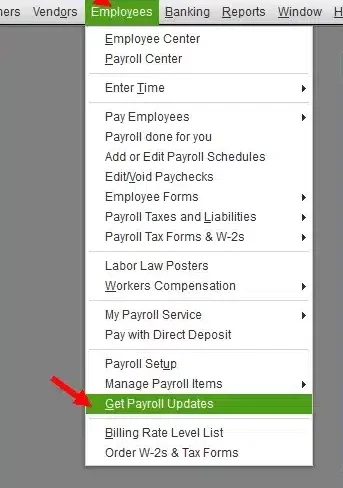
QuickBooks Desktop users can check for the latest payroll tax table from Employees > Get Payroll Updates. An active payroll subscription is required to download payroll tax-table updates.
Firewall or Security Restrictions
Firewall and antivirus software can prevent QuickBooks from communicating with Intuit’s payroll servers. This is a common cause of both 15XXX and PSXXX update errors.
Damaged QuickBooks Components
Missing or damaged program files, including files associated with payroll updates, can prevent QuickBooks from downloading or installing updates correctly.
Payroll Subscription or Service-Key Problems
QuickBooks may fail to download payroll updates if the payroll subscription is inactive or the service key is incorrect.
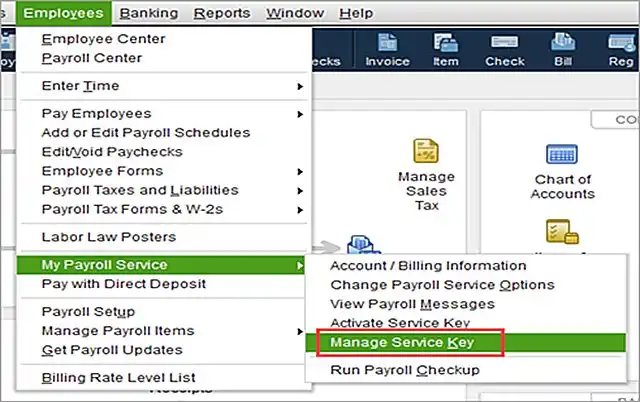
For PSXXX errors, we recommend checking the payroll service under Employees > My Payroll Service > Manage Service Key and confirming that the service is active.
Internet and Connection Problems
A weak or interrupted connection can prevent QuickBooks from communicating with payroll servers. Network timeouts, security certificates, and firewall settings can also contribute to payroll connection errors.
Stuck Payroll Transactions
Some payroll errors are caused by specific transactions rather than the QuickBooks installation itself. For example, PS038 occurs when paychecks remain stuck with an Online to Send status.
How to Repair QuickBooks Payroll Without Losing Payroll Data
Payroll data should be protected before attempting major repairs.
Follow this sequence:
- Create a current backup of the company file.
- Record the exact payroll error code.
- Check whether the problem affects one employee or all employees.
- Run Verify Data if you suspect company file damage.
- Use Rebuild Data only after creating a backup.
- Recheck payroll reports after making corrections.
For payroll calculation problems, Intuit recommends identifying the affected tax or payroll item before changing employee or payroll information.
QuickBooks Payroll Error Troubleshooting Checklist
Collect the following information:
- QuickBooks Desktop version and release
- Payroll product and subscription type
- Exact error code or message
- Date the problem started
- Payroll tax table version
- Whether payroll data has already been transmitted
- Recent backup of the company file
This information can make troubleshooting considerably faster and helps prevent repeating steps that have already been completed.
Common Solutions to Fix Payroll Errors in QuickBooks
Many QuickBooks Payroll errors have similar causes, so you don’t always need to jump into complicated troubleshooting. Start with the basic checks below and move on to repair or data-repair steps if the problem sticks around.
1. Update QuickBooks Desktop
Start by checking whether QuickBooks Desktop is up to date. An older release can cause trouble with payroll updates and other payroll features.
Once you’ve updated QuickBooks, try downloading the payroll tax table again.
2. Download the Latest Payroll Tax Table
You can download the latest payroll tax table directly from QuickBooks.
- Open QuickBooks Desktop.
- Go to Employees > Get Payroll Updates.
- Select Download Entire Update.
- Click Update.
- Wait for the download to finish, then try your payroll task again.
The latest tax tables include updated federal and supported state tax rates, payroll calculations, tax forms, and e-file and e-pay features.
3. Run QuickBooks as Administrator
Sometimes, QuickBooks simply needs the right permissions to complete an update.
- Close QuickBooks Desktop.
- Find the QuickBooks icon on your desktop.
- Right-click the icon.
- Select Run as administrator.
- Try downloading the QuickBooks or payroll update again.
4. Run Quick Fix My Program
If QuickBooks is stuck or a background process is getting in the way, Quick Fix my Program can give the program a quick reset.
- Open QuickBooks Tool Hub.
- Select Program Problems.
- Click Quick Fix my Program.

- Let the tool finish.
- Open QuickBooks again and try the payroll update.

Once the process finishes, reopen QuickBooks and test the payroll again.
5. Check the Payroll Service Key
If QuickBooks can’t verify your payroll service, check whether the correct service key is set up and active.
- Open QuickBooks Desktop.
- Go to Employees > My Payroll Service > Manage Service Key.
- Check that the correct payroll service is listed by checking its name and status.
- Make sure its status shows Active.
- If the service key is incorrect, update it by clicking on Edit.
- Go to Next and clear the Open Payroll Setup checkbox.
- Select Finish and try the payroll update again.
6. Check Your Internet and Firewall
A shaky internet connection or a firewall that blocks QuickBooks can stop payroll updates in their tracks.
- Check that your internet connection is working properly.
- Review your firewall settings.
- Make sure QuickBooks is allowed through the firewall.
- Check whether your security software is blocking QuickBooks.
- Try the payroll update again.
Incorrect internet settings and firewall restrictions are common causes of PSXXX payroll update errors.
7. Check the System Date and Time
An incorrect system date, time, or time zone can interfere with secure connections and payroll communication.
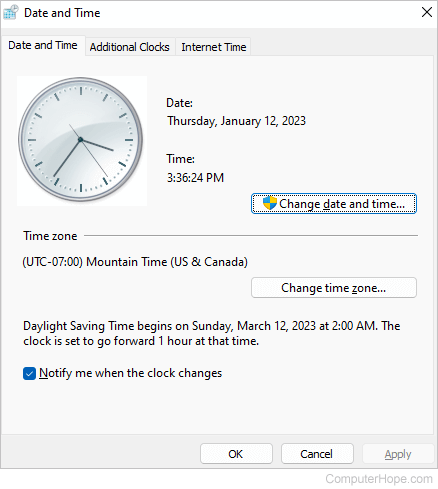
Verify these settings on the computer running QuickBooks and correct them if necessary.
8. Check the Shared Download Location
An incorrectly mapped shared-download drive is one of the causes for 15XXX payroll update errors. If your QuickBooks setup uses a shared download location, make sure the mapped drive and folder are still available.
- Check the shared download location in QuickBooks.
- Make sure the mapped drive is connected.
- Open the shared folder to confirm that you can access it.
- Correct the mapped drive or folder settings if necessary.
- Try downloading the payroll update again.
9. Install the Digital Signature Certificate
If QuickBooks is having trouble verifying the update’s digital signature, reinstalling the certificate may help.
- Open File Explorer and go to C:\Program Files\Intuit\QuickBooks.
- Find QBW32.exe, right-click it, and select Properties.
- Open the Digital Signatures tab and select Intuit from the signature list.
- Click Details.
- In the Digital Signature Details window, select View Certificate.
- When the certificate window opens, click Install Certificate.
- Keep selecting Next until you reach the final screen, then click Finish.
- Restart your computer.
- Open QuickBooks and try downloading the update again.
10. Reinstall QuickBooks Desktop
If you’ve tried repairing QuickBooks and the problem is still there, reinstalling the program may replace damaged components that are causing the payroll update to fail.
Before you start, create a recent backup of your company file.
Then uninstall and reinstall QuickBooks Desktop using the appropriate installation files for your version.
11. Use Payroll Checkup for Calculation Problems
If your problem is with incorrect paycheck calculations rather than a failed update, Payroll Checkup can help you find what’s wrong.
- Go to Employees and review your employee information.
- To verify payroll items, go to My Payroll Service.
- Run Payroll Checkup.
- Select Data Review and fix any errors that come up.
- While you are in the Review your payroll data window, press No.
- Finally, hit Continue and finish.
Payroll Checkup can help identify problems involving employee data, payroll items, and payroll calculations.
12. Back Up Your Company File Before Data Repairs
Before you make major changes to your company file, take a moment to create a fresh backup. It gives you something to fall back on if a data-repair procedure doesn’t go as expected.
This is especially important when you’re dealing with PS038.
13. Verify and Rebuild the Company File
If your company data has become damaged or inconsistent, the Verify Data and Rebuild Data utilities can help.
- Create a recent backup of your company file.
- Run Verify Data.
- If QuickBooks finds a data problem, run Rebuild Data.
- Follow the prompts to complete the rebuild.
- Check whether the stuck paychecks can now be sent.
After going through all these solutions, you can successfully fix all your payroll-related issues and if you still face any trouble, you should get in touch with our QuickBooks experts.
14. Toggle Stuck Paychecks
For PS038, open each affected paycheck and select Paycheck Detail. Add the same earnings item that appears last in the Earnings section. If QuickBooks displays the Net Pay Locked message, select No, then confirm that the tax amounts and net pay have not changed. Save the paycheck, reopen it, remove the duplicate earnings item, and save it again. Repeat this process for each paycheck that remains stuck with an “Online to Send” status.
What to Do When QuickBooks Payroll Stops Working
If QuickBooks Payroll suddenly stops working, avoid immediately deleting payroll transactions or reinstalling the software.
Instead, check these items first:
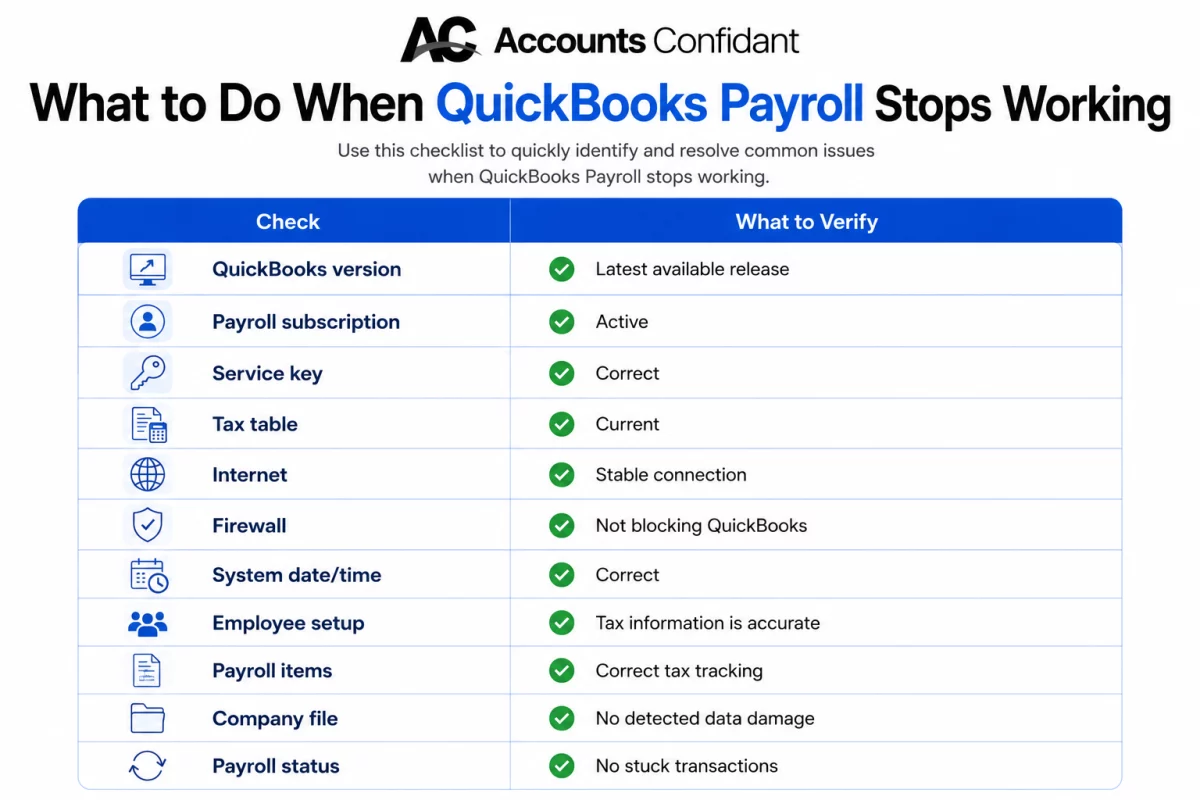
| Check | What to Verify |
| QuickBooks version | Latest available release |
| Payroll subscription | Active |
| Service key | Correct |
| Tax table | Current |
| Internet | Stable connection |
| Firewall | Not blocking QuickBooks |
| System date/time | Correct |
| Employee setup | Tax information is accurate |
| Payroll items | Correct tax tracking |
| Company file | No detected data damage |
| Payroll status | No stuck transactions |
If the problem began immediately after a payroll update, focus first on the update and tax-table troubleshooting steps.
When Should You Contact QuickBooks Payroll Support?
You should consider contacting QuickBooks Payroll Support when:
- Your payroll subscription cannot be verified.
- Payroll remains blocked after troubleshooting.
- Direct deposit cannot be transmitted.
- Error 2107 continues after connection checks.
- Payroll data appears stuck on Intuit’s servers.
- Your payroll account is on hold.
- Tax liabilities or payroll forms appear incorrect.
- You are using Assisted Payroll and need a liability adjustment.
- A correction could affect previously filed payroll tax forms.
Conclusion
QuickBooks Payroll errors can disrupt payroll updates, tax calculations, and payroll processing. Most issues can be resolved by identifying the error, updating QuickBooks and payroll tax tables, checking payroll settings, and troubleshooting connection or program problems.
FAQs
How to correct Payroll Errors in QuickBooks?
Start by identifying the exact payroll error or incorrect transaction. Back up your company file, update QuickBooks and payroll tax tables, then review the employee, payroll item, tax, and subscription settings related to the problem. For company file issues, use Verify Data and, when appropriate, Rebuild Data.
How do I contact QuickBooks Payroll error support?
Open QuickBooks and select Help to access support options for your product. You can also use QuickBooks’ online support resources to find the appropriate contact method for your payroll subscription.
Why is QuickBooks Payroll not updating?
Payroll may fail to update because of an inactive subscription, incorrect service key, firewall restrictions, internet problems, damaged payroll update files, or other 15XXX and PSXXX errors. Check your payroll service first, then update QuickBooks and retry the payroll tax table update.
How do I fix QuickBooks Payroll errors?
Record the error code, back up your company file, verify your payroll subscription, update QuickBooks, download the latest tax table, and check your internet and firewall settings. Then apply the troubleshooting steps specific to the error.
Why is QuickBooks unable to calculate payroll taxes?
Incorrect payroll tax calculations can result from outdated tax tables, incorrect employee tax information, incorrect SUI rates, wage limits, or incorrectly configured payroll items. Identify the affected tax and employee before making corrections.
Why is my payroll update failing?
A payroll update can fail because QuickBooks cannot access the update service, the payroll files are damaged, the firewall blocks the connection, the payroll service cannot be verified, or QuickBooks needs an update. Errors such as 15215, 15222, 15270, PS032, and PS077 are associated with payroll update problems.
How do I repair QuickBooks Payroll?
There is no single repair option that fixes every payroll problem. Start with a company file backup, update QuickBooks, verify the payroll subscription, and troubleshoot the specific error. QuickBooks Tool Hub can help with certain Desktop program and installation problems.
Does QuickBooks Tool Hub fix payroll errors?
It can fix some underlying QuickBooks Desktop program problems that interfere with payroll, but it does not resolve every payroll error. Tool Hub is particularly useful for certain program and installation issues, while subscription, tax calculation, payroll service, and account problems may require different solutions.
What are the most common QuickBooks Payroll errors and how can I fix them?
Common payroll-related errors include 15215, 15222, 15270, PS032, PS038, PS077, 2107, and other PSXXX or 15XXX errors. The appropriate fix depends on the error. Update errors generally require checking the payroll service, tax tables, internet connection, firewall, and update files, while PS038 requires addressing stuck paychecks.
Why is QuickBooks Payroll not working?
QuickBooks Payroll may stop working because of outdated software, payroll subscription problems, tax table issues, damaged files, connection failures, incorrect employee setup, or payroll service interruptions. Check the error message first rather than applying unrelated fixes.
How do I troubleshoot QuickBooks Payroll problems?
Start with the basics: back up your company file, identify the error code, update QuickBooks, update the payroll tax table, verify the payroll subscription, check your internet connection, and review firewall settings. Then use the error-specific solution.
Why am I getting errors while processing payroll in QuickBooks?
Payroll errors can occur because of incorrect employee information, outdated tax tables, payroll item configuration, subscription verification, connection problems, or damaged company or update files. The exact error code usually provides the best starting point.
What causes QuickBooks Payroll errors?
Common causes include outdated software, incorrect payroll service settings, damaged payroll update files, firewall restrictions, internet problems, incorrect employee tax information, payroll item configuration issues, and company file damage.
How can I fix payroll issues in QuickBooks Desktop?
Update QuickBooks Desktop and the payroll tax table, verify your payroll service subscription, check employee and payroll item settings, and troubleshoot your connection. If you suspect company file damage, create a backup before running Verify Data or Rebuild Data.
What should I check when QuickBooks Payroll stops working?
Check your QuickBooks version, payroll subscription, service key, payroll tax table, internet connection, firewall, system date and time, employee tax settings, and payroll item configuration.
How do I repair QuickBooks Payroll errors step by step?
Use this order:
– Back up the company file.
– Record the exact error.
– Update QuickBooks Desktop.
– Update the payroll tax table.
– Verify the payroll subscription.
– Check internet and firewall settings.
– Review employee and payroll item settings.
– Use QuickBooks Tool Hub when appropriate.
– Run Verify Data and Rebuild Data if company file damage is suspected.
– Contact QuickBooks Payroll Support if the issue requires account-level assistance.
Why does QuickBooks fail when updating payroll?
QuickBooks may fail during payroll updates because it cannot verify the update files, connect to Intuit’s servers, access the required components, or validate the payroll service. 15XXX and PSXXX errors are common indicators of update-related problems.
How can I resolve QuickBooks Payroll issues without losing payroll data?
Create a backup before making changes, avoid deleting historical payroll transactions unless specifically instructed, and identify the affected employee, paycheck, payroll item, or tax before correcting it. Use QuickBooks’ built-in verification and repair tools when appropriate and review payroll reports after corrections.

