QuickBooks Error 15276 appears when a QuickBooks Desktop or payroll update fails to complete. The error message commonly states that a file being updated was in use and could not be replaced. As a result, the payroll update does not finish successfully.
The problem may involve an update file, a background QuickBooks process, Windows permissions or another update-related component. The right fix depends on what is preventing the update from completing.
Start by closing QuickBooks and running it as an administrator. If the error continues, reset the downloaded updates and use QuickBooks Tool Hub before attempting more advanced repairs.
What Does QuickBooks Error 15276 Mean?
QuickBooks Payroll Error 15276 means that an update has failed. In the documented file-in-use scenario, QuickBooks cannot replace a file required to complete the update.
You may encounter the error while downloading payroll tax-table updates or updating QuickBooks Desktop. Some users also report being prompted to update payroll repeatedly, even after attempting the update several times.
The error does not automatically mean that your company file is damaged. Before changing files or reinstalling QuickBooks, identify the exact message and try the relevant update repairs.
If QuickBooks is failing to update payroll but displays a different error code, our guide to troubleshooting QuickBooks payroll updates covers the broader update problem.
Why Does QuickBooks Error 15276 Occur?
QuickBooks Error 15276 can occur when QuickBooks cannot access, verify, or replace a file needed for an update. Intuit’s troubleshooting guidance identifies several possible causes of 15XXX update errors.
These include:
- A file or update component is missing: QuickBooks cannot access a component required to complete the update.
- A background process is using a file: An active QuickBooks process may prevent the update from replacing a file.
- Windows permissions are insufficient: QuickBooks may not have the access it needs to download or install the update.
- File Copy Service is disabled: QuickBooks File Copy Service (FCS) may be unable to perform the required update operations.
- A firewall blocks the update: Security settings may prevent QuickBooks from reaching the required update service.
- A digital signature cannot be verified: Windows may be unable to verify the digital certificate associated with a QuickBooks program file.
- A shared download drive is incorrectly mapped: This can affect installations that use a shared update location.
These are possible causes, not problems that every user will experience. Work through the following fixes in order and retry the update after each relevant step.
How to Fix QuickBooks Update Error 15276
The following methods follow Intuit’s troubleshooting guidance, starting with basic permissions and program repairs before moving to more advanced steps.
Close QuickBooks and Run It as an Administrator
Running QuickBooks with administrator permissions can help when Windows permissions interfere with the update.
Follow these steps:
- Save your work and close all open QuickBooks company files.
- Close QuickBooks Desktop.
- Right-click the QuickBooks Desktop icon.
- Select Run as administrator.

- If Windows asks for permission, select Yes.
- Open the company file if needed and try downloading the update again.
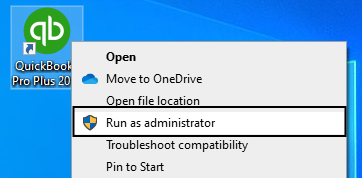
If the update completes, no further repair is necessary.
If Error 15276 appears again, proceed to the next step.
Reset QuickBooks Desktop Updates
Resetting the update download clears previously downloaded update information so QuickBooks can retrieve the updates again. This is useful when an earlier download may be incomplete or corrupted.
To reset the updates:
- Open QuickBooks Desktop.
- Select Help → Update QuickBooks Desktop.
- Open the Update Now tab.
- Select the Reset Update checkbox.
- Select Get Updates and wait for the download to finish.
- Close QuickBooks and reopen it.
- Return to Help → Update QuickBooks Desktop and check for available updates.
- Download and install the updates.
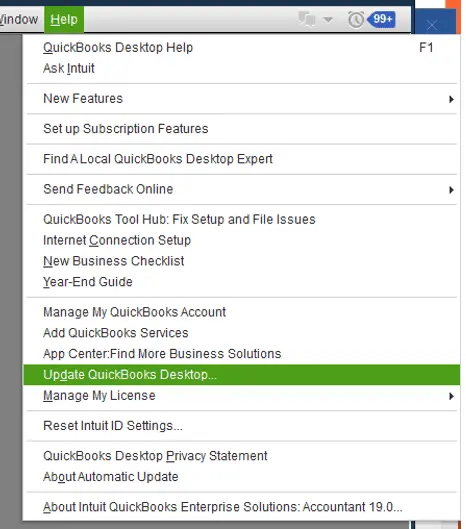
Try the payroll tax-table update again if that was where Desktop Error 15276 originally appeared.
Run Quick Fix My Program in QuickBooks Tool Hub
QuickBooks Tool Hub includes a repair utility called Quick Fix My Program. It closes lingering QuickBooks background processes and performs a basic program repair.
This step is particularly relevant when a process may be preventing an update file from being replaced.
How to run Quick Fix My Program
- Close QuickBooks Desktop.
- Open QuickBooks Tool Hub.
- Select Program Problems.
- Select Quick Fix My Program.
- Wait for the tool to finish.
- Reopen QuickBooks Desktop.
- Download the product or payroll update again.

If Tool Hub is not installed, download it from Intuit’s official QuickBooks Tool Hub page.
If the tool finishes but Error code 15276 remains, do not keep running the same repair. Move to the next method.
Rebuild the Downloaded Update Components
If the basic repairs fail, Intuit’s update-error instructions include removing the downloaded Components folder so QuickBooks can obtain the required update components again.
This is a more advanced step. Follow the instructions carefully and confirm the folder belongs to your installed QuickBooks version before deleting anything.
- Close QuickBooks Desktop.
- Open File Explorer.
- Navigate to the following location:
C:\ProgramData\Intuit\QuickBooks XX\Components
Here, XX represents the version-specific folder name. The actual path varies by QuickBooks release. - Confirm that you have located the correct Components folder for your installation.
- Follow the removal instructions in Intuit’s official 15XXX update-error guide.
- Reopen QuickBooks Desktop.
- Go to Help → Update QuickBooks Desktop.
- Select Update Now, enable Reset Update, and select Get Updates.
- Close and reopen QuickBooks, then check for updates again.
If you cannot identify the correct folder, stop and contact experts rather than deleting files from a different installation.
Verify the QuickBooks Digital Signature
QuickBooks uses digital signatures to help Windows verify the publisher and integrity of its program files. Intuit includes digital-signature troubleshooting among the potential fixes for Error message 15276 and related update errors.
Follow these steps only if the earlier methods have failed.
- Open File Explorer and navigate to the QuickBooks installation folder, commonly C:\Program Files\Intuit\QuickBooks.
- Locate QBW32.exe if it exists in that installation.
- Right-click the file and select Properties.
- Open the Digital Signatures tab.
- Check whether Intuit appears as the signer.
- Select the signature and open its details to verify that Windows considers it valid.
If the signature is valid, there may be no certificate problem to repair.
Important: Do not install or trust a certificate from an unknown publisher. If the signer is missing or the signature cannot be verified, contact Intuit support before changing certificate settings.
Check Firewall and Internet Security Settings
A firewall or security application may block QuickBooks from accessing the services needed to download updates. However, an internet connection problem should not be assumed to be the cause of every Error 15276 occurrence.
Start with these checks:
- Confirm that your computer can access the internet.
- Retry the update while running QuickBooks as an administrator.
- If the download still fails, ask your IT administrator to check whether firewall rules or security software are blocking QuickBooks.
- Change only the settings required for your installation and test the update again.
Do not disable your firewall or antivirus permanently. If QuickBooks is installed on a network or shared system, the relevant settings may depend on how that environment is configured.
If QuickBooks also has broader connectivity problems, our guide to QuickBooks Desktop not connecting to the server may help identify a separate network issue.
Check QuickBooks File Copy Service
QuickBooks File Copy Service helps handle certain file operations associated with QuickBooks updates. Intuit lists a disabled FCS service as one possible cause of errors in the 15XXX update family.
If Error 15276 continues after the previous steps, check whether FCS is involved.
- Close QuickBooks Desktop.
- Open the Windows Services application.
- Look for the QuickBooks File Copy Service associated with your installed version.
- Check its status and startup configuration.
- If the service is disabled or not running, follow Intuit’s instructions for your version to restore the appropriate configuration.
- Reopen QuickBooks and retry the update.
Do not change unrelated Windows services or apply settings intended for a different QuickBooks version. If the service is missing or its configuration is unclear, seek assistance from Intuit support.
Repair QuickBooks Desktop
If Error 15276 persists, the QuickBooks installation may need further repair. Intuit recommends the QuickBooks Install Diagnostic Tool for certain installation-related problems.
Before proceeding:
- Save your work and back up your company file.
- Close QuickBooks and other applications.
- Confirm which QuickBooks Desktop version is installed.
- Open QuickBooks Tool Hub, select Installation Issues, and run the QuickBooks Install Diagnostic Tool.
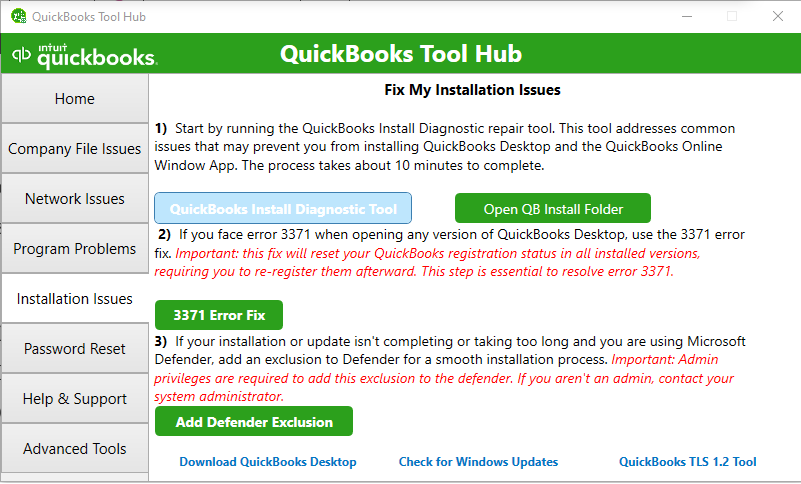
Allow the tool to complete its checks, restart the computer if instructed and try the update again.
A repair is not guaranteed to resolve Error 15276. If the update still fails, consider a clean installation only after the earlier methods have been exhausted.
Reinstall QuickBooks Desktop as a Last Resort
Reinstalling QuickBooks may help when the installed program has a persistent problem that other repairs have not resolved. It should not be the first response to an update error.
Before reinstalling:
- Create a current backup of your company file.
- Keep your QuickBooks product and license information available.
- Confirm that you can obtain the correct installer for your product and version.
- Follow Intuit’s official instructions to reinstall QuickBooks Desktop.
If the error persists after reinstallation, get help from QuickBooks Desktop Payroll experts.
How to Confirm the Payroll Update Worked
After completing a repair, verify that the update actually finished. Do not assume the problem is resolved simply because QuickBooks opens normally.
If you were updating payroll tax tables:
- Open QuickBooks Desktop.
- Select Employees → Get Payroll Updates.
- Check the displayed tax-table version.
- Compare it with the latest applicable information published by Intuit.
- If necessary, select Download Entire Update and complete the download.
- Check for a successful completion message and confirm that Error 15276 no longer appears.
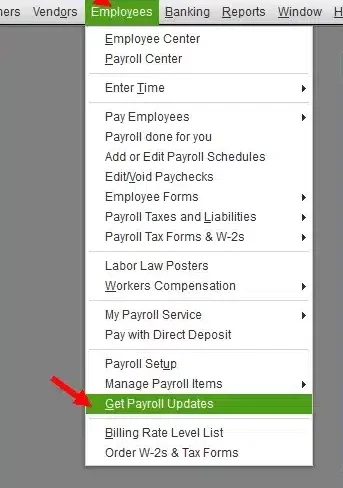
If the update still fails, record the complete message and contact Intuit. Do not rely on an outdated tax table when preparing payroll calculations.
Conclusion
QuickBooks Error 15276 usually points to an update that could not complete successfully. Start by running QuickBooks as an administrator, resetting the downloaded updates, and using Quick Fix My Program. If those methods fail, investigate the update components, digital signature, firewall, and File Copy Service before considering a repair or clean installation.
Test the update after each relevant fix and confirm that the payroll tax table is current. If the error continues, provide Intuit support with the exact message, your QuickBooks version, and the steps you have already tried. This will help narrow down the remaining cause without repeating repairs unnecessarily.
Frequently Asked Questions
What is the main cause of QuickBooks Error code 15276?
The documented error message indicates that a file needed for an update was in use and could not be replaced. Other update-related problems, including missing components, permissions, disabled File Copy Service, and digital-signature issues, can also affect errors in the 15XXX family.
Can QuickBooks Tool Hub fix Error 15276?
QuickBooks Tool Hub may help if lingering background processes or certain program problems are preventing the update. Run Quick Fix My Program and retry the update. If the error remains, follow the next relevant troubleshooting step rather than repeatedly running the same tool.
Does Error 15276 mean my QuickBooks company file is damaged?
No, Error 15276 does not by itself prove that your company file is damaged. The documented message concerns an update file that could not be replaced. Investigate the update process first, and repair the company file only if separate evidence points to a data problem.
Can an inactive payroll subscription cause Error 15276?
An active payroll subscription is required for applicable QuickBooks Desktop payroll tax-table updates. However, subscription status is not the only possible cause of Error 15276. Check the subscription if the problem involves payroll, but also investigate the update components and other relevant causes.
Should I reinstall QuickBooks to fix Error 15276?
Reinstallation is usually a later troubleshooting step. First, try running QuickBooks as an administrator, resetting updates and running Quick Fix My Program. If the error persists and an installation problem is suspected, back up your company file and follow Intuit’s clean-install instructions.
What should I do if QuickBooks keeps asking me to update payroll?
If QuickBooks repeatedly requests a payroll update and displays Error 15276, stop repeating the same failed attempt. Record the full error message, try the relevant repair steps and confirm whether the update completes. If the prompt continues, contact QuickBooks Desktop Payroll Support with the details of the failure.
How do I know if QuickBooks installed the latest payroll tax table?
Open Employees → Get Payroll Updates and check the displayed tax-table version. Compare it with Intuit’s current payroll update information. If the update did not complete successfully, download the entire update again and verify the result before relying on the updated payroll calculations.
Does QuickBooks Error 15276 affect QuickBooks Online?
The Error 15276 troubleshooting procedures discussed in this article apply to QuickBooks Desktop and its update process. QuickBooks Online uses a different update process, so Desktop-specific instructions such as QuickBooks Tool Hub and resetting Desktop update components do not apply. If you use QuickBooks Online, verify the exact error message and follow the guidance for that product.

