QuickBooks Desktop relies on a smooth connection to access company files and keep things running. But when it fails to connect to the server, figuring out what’s gone wrong isn’t always straightforward. The cause could be a network issue, a firewall restriction, or a problem with QuickBooks Database Server Manager.
In this blog, we’ll explore the QuickBooks Desktop not connecting to the Server error and walk you through practical troubleshooting steps to help you get back up and running. Let’s get started!
Why Is QuickBooks Desktop Not Connecting to the Server
When QuickBooks is unable to connect to the server, you may lose access to your company file and face delays in your accounting work. Here are the most common causes and what they mean.
| Common cause | What happens |
| Network connectivity issues | QuickBooks cannot communicate with the host computer due to an unstable or interrupted connection. |
| Incorrect hosting settings | QuickBooks is not configured properly to host or access company files in multi-user mode. |
| Firewall or antivirus restrictions | Security settings block the network traffic QuickBooks needs. |
| Database Server Manager issues | The utility cannot properly detect or provide access to the company file. |
| Incorrect folder permissions | The workstation lacks the necessary access to the shared company file folder. |
| Incorrect file path | QuickBooks cannot locate the company file at its expected network location. |
| Host computer problems | The server or host computer is offline, disconnected, or experiencing service issues. |
Identifying the likely cause makes it easier to choose the right troubleshooting method and restore access to your QuickBooks company file.
We will also discuss some common server errors in the next section, so you know which ones you are actually dealing with.
What are the Common QuickBooks Server Error Codes
Understanding the error code helps you choose the right troubleshooting method when QuickBooks cannot connect to the server.
| Error Code | What It Means | Common Causes |
| H101 | A workstation cannot connect to the computer hosting the company file. | Incorrect hosting settings, network issues, or firewall restrictions. |
| H202 | A workstation cannot connect to the server in multi-user mode. | Firewall restrictions, DNS issues, or problems with QuickBooks database services. |
| H303 | QuickBooks cannot access a company file stored on another computer because of a network or hosting configuration issue. | Incorrect hosting settings, firewall restrictions, or server configuration problems. |
| H505 | QuickBooks cannot establish a required connection to the computer hosting the company file. | Hosting configuration issues, blocked ports, or database server problems. |
| 6000-83 | QuickBooks encounters an error while opening or accessing a company file. | Company file damage, folder permission issues, or network-related problems. |
| 6000-77 | QuickBooks encounters a problem accessing the company file from its location. | Incorrect folder permissions, an unsupported file path, or company file access issues. |
Once you’ve identified the possible error and cause, the next step is to restore the connection.
How to Fix QuickBooks Desktop Not Connecting to Server Error
Before applying any fixes, complete these checks to avoid unnecessary changes to your QuickBooks setup.
- Sign in as a Windows administrator: Administrative access may be required to change firewall rules, folder permissions, and Windows services.
- Back up your company file: Create a backup before running repair tools or rebuilding company file data.
- Start with the server computer: Check the computer storing the company file before troubleshooting individual workstations.
- Identify the affected computers: Determine whether the problem affects one workstation or all workstations. If only one computer is affected, check its network connection and QuickBooks configuration first.
- Check the network connection: Confirm that the server and workstations are connected to the same intended network and can communicate.
- Restart network devices if necessary: Save your work, close QuickBooks on all computers, and restart the router if you suspect a temporary network problem.
- Record the exact error message: Note the error code and when it appears. This helps you select the appropriate troubleshooting procedure.
Once these prerequisites are complete, proceed with the solution that best matches your QuickBooks error code and network configuration.
Solution 1: Update QuickBooks Desktop
You should always have an updated version of QuickBooks Desktop to avoid compatibility issues and ensure smooth server connectivity.
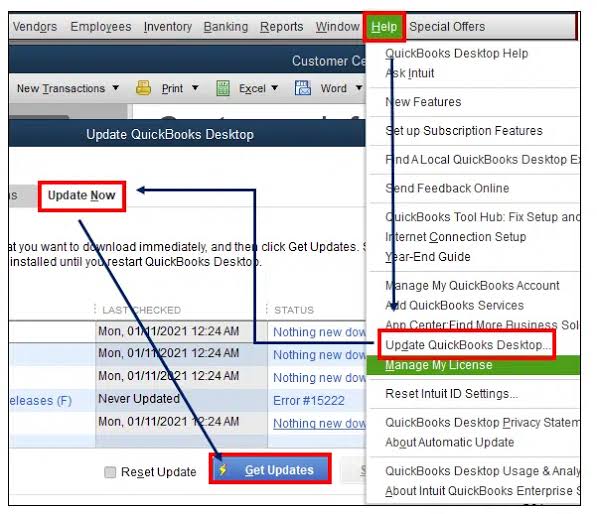
- First, you should open QuickBooks Desktop and select Help, then go to Update QuickBooks Desktop.
- Select the Update Now tab and click on Get Updates.

- Restart QuickBooks and select Install Now if prompted.
If updating doesn’t resolve the issue, use QuickBooks Tool Hub to troubleshoot the network connection.
Solution 2: Run QuickBooks Tool Hub
QuickBooks Tool Hub provides tools to diagnose network and company file problems.
- Start by closing QuickBooks Desktop and download the latest Tool Hub version
- Open QuickBooksToolHub.exe and follow the installation instructions.
- Launch Tool Hub and select Network Issues.
- From there, choose QuickBooks Database Server Manager.
- Select Start Scan if your company file folder appears. Otherwise, browse to the folder and start the scan.
- When the scan finishes, select Close.
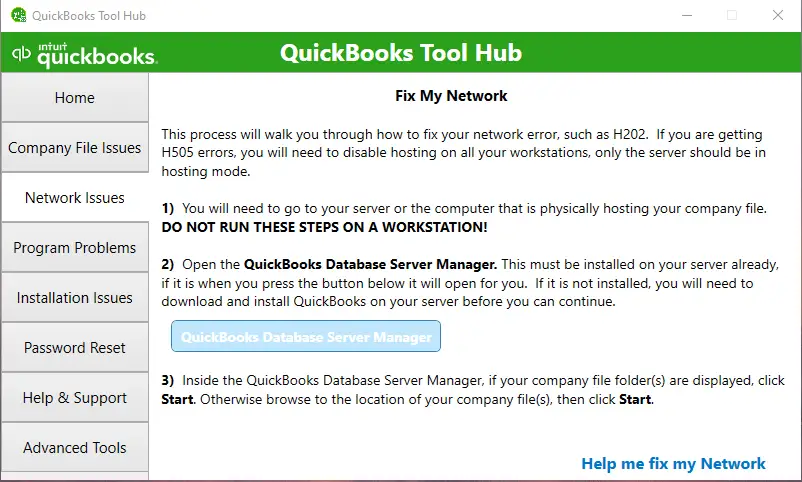
Database Server Manager can also repair certain firewall permissions during the scan. If the connection error persists, check the firewall settings directly.
Solution 3: Configure Firewall Settings
Firewall restrictions can prevent QuickBooks from communicating with the server.
- Open Windows Defender Firewall with Advanced Security.
- Select Inbound Rules > New Rule.
- Choose Port and select TCP.
- Enter the port assigned to your QuickBooks version.
- Select Allow the connection and choose the applicable network profiles.
- Name the rule and click Finish.
- Repeat under Outbound Rules if necessary.
- Check your antivirus software for any additional restrictions.
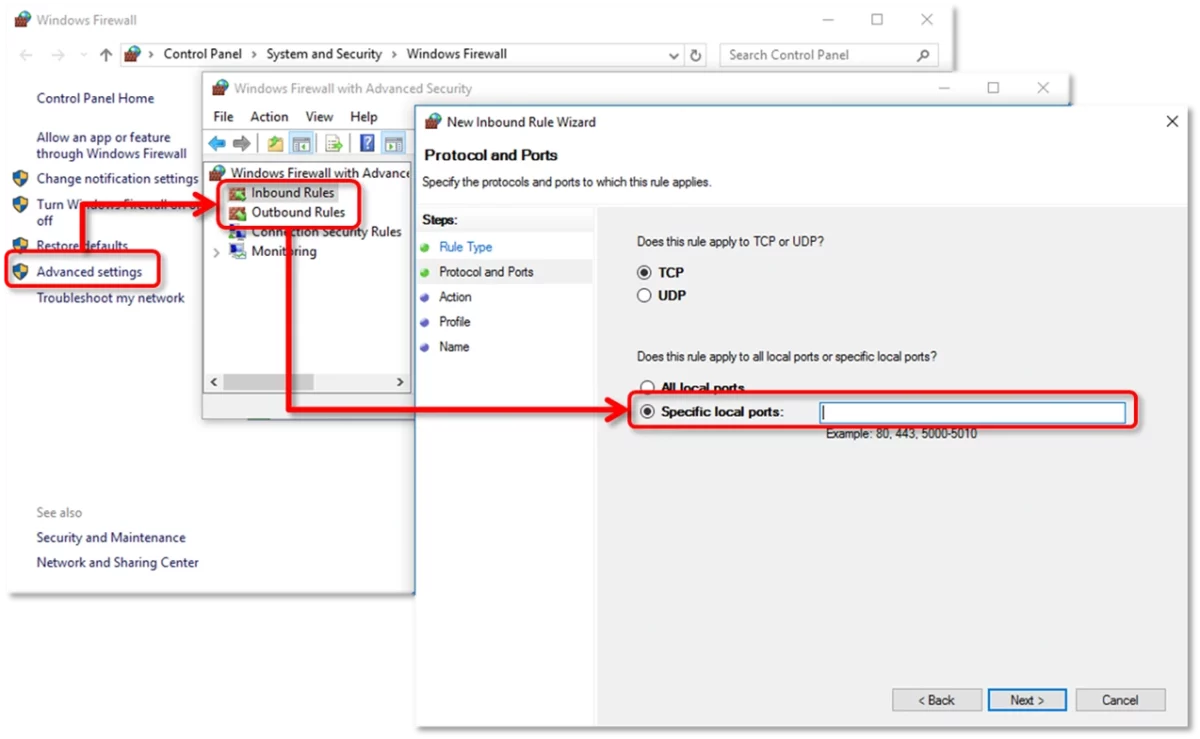
Find the correct port using QuickBooks Database Server Manager’s Port Monitor. Avoid guessing port numbers or disabling firewall protection entirely.
If QuickBooks still cannot connect, verify that the company file folder has the correct sharing permissions.
Solution 4: Check Company File Folder Permissions
If your QuickBooks workstation is not connecting to the server, check whether the server is hosting the company file and whether your computer has permission to access the shared folder.
- Locate the folder containing your QuickBooks company file (.QBW).
- Right-click the folder and select Properties.
- Open the Sharing tab and review the sharing settings.
- Ensure authorized users have the permissions required by your network setup.
- Check the folder’s Security tab to verify that the appropriate Windows accounts have access.
- Apply any necessary changes according to your organization’s security policies.
If the folder permissions are correct, check whether the Database Server Manager is configured properly.
Solution 5: Configure QuickBooks Database Server Manager
Database Server Manager allows workstations to access company files stored on the server.
- On the server computer, open the Windows Start menu and search for Services.
- Locate and open QuickBooksDBXX, where XX represents your QuickBooks version.
- Under General, stop the service if it’s running.
- Set Startup type to Automatic.
- Under Log On, select Local System account, following Intuit’s documented configuration.
- Under Recovery, select Restart the Service for the first, second, and subsequent failures.
- Return to General and click Start.
- Click Apply > OK.
Restart the service only after ensuring users have closed their company files. If the problem continues, check the hosting configuration on your server and workstations.
Solution 6: Verify QuickBooks Hosting Settings
In a multi-user setup, the server computer should host the company file. Workstations should connect to it without hosting the file themselves.
On each workstation:
- Open QuickBooks Desktop without opening the company file.
- Select File > Utilities.
- If Stop Hosting Multi-User Access appears, select it to disable hosting.

On the server computer:
- Open QuickBooks Desktop.
- Select File > Utilities.
- Ensure Host Multi-User Access is enabled.
- If you’re troubleshooting a persistent hosting error, follow Intuit’s specific hosting-reset procedure rather than repeatedly toggling the setting at random.
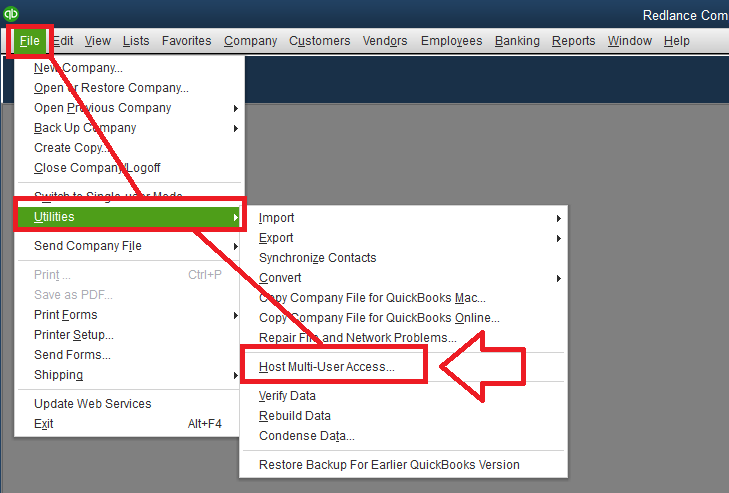
After correcting the hosting configuration, try opening the company file from an affected workstation. If the error remains, run QuickBooks File Doctor.
Solution 7: Run QuickBooks File Doctor
QuickBooks File Doctor can help troubleshoot certain company file and network errors.
- Close QuickBooks Desktop and open QuickBooks Tool Hub.
- Select Company File Issues.
- Click Run QuickBooks File Doctor.
- Select your company file. If it isn’t listed, browse to its location.
- For a server connection issue, select Check your Network and click Continue.
- Enter your QuickBooks administrator password when prompted.
- Click Next and wait for the scan to finish.
- Reopen QuickBooks and test the connection.
If File Doctor doesn’t resolve the issue, use Verify and Rebuild Data to investigate potential company file damage.
Solution 8: Verify and Rebuild Company File Data
If QuickBooks reports data damage, its built-in utilities can help identify and repair certain problems.
- Open your company file and select File > Utilities > Verify Data.
- Review the results.
- If QuickBooks identifies a problem, create a backup of the company file.
- Select File > Utilities > Rebuild Data.
- Follow the prompts and wait for the rebuild to finish.
- Run Verify Data again to check the results.
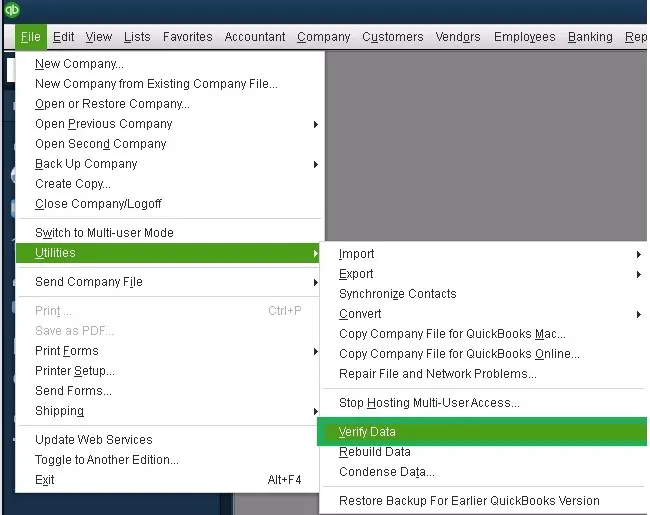
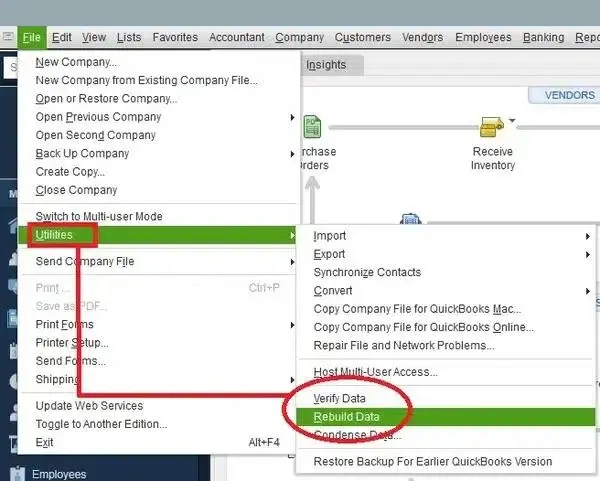
Always back up your company file before rebuilding it. If the issue persists, seek assistance from a qualified QuickBooks professional.
Solution 9: Restart Your Router
A temporary network interruption can prevent workstations from communicating with the server.
- Save your work and close QuickBooks on all computers.
- Turn off the router or disconnect its power cable.
- Wait approximately 60 seconds.
- Reconnect the power and wait for the router to restart.
- Confirm that the server and workstations are connected to the network.
- Open QuickBooks and test the company file connection.
If the problem continues, note the exact error code, such as H202 or H505, and whether the issue affects one workstation or all users. This information will help narrow down the cause.
How to Prevent QuickBooks Desktop Server Errors
Follow these tips:
- Keep QuickBooks Desktop updated.
- Configure firewall and antivirus permissions correctly.
- Use a dedicated host computer for multi-user access.
- Keep QuickBooks Database Server Manager running.
- Enable hosting only on the server.
- Back up your company file regularly.
- Monitor network performance to prevent disruptions.
Following these practices can help prevent recurring problems and make QuickBooks Desktop more reliable for everyday accounting tasks.
Conclusion
QuickBooks server connection errors can disrupt your workflow, delay important accounting tasks, and prevent you from accessing your company files when you need them most. These issues may result from network problems, incorrect hosting settings, firewall restrictions, or Database Server Manager errors.
Identifying the root cause and following the right troubleshooting steps can help restore access and minimize downtime. By following these troubleshooting steps, you can identify the cause of QuickBooks server connection errors and restore access to your company file.
Frequently Asked Questions
QuickBooks opens on the server but not on my computer. What should I check?
Check your network connection, company file folder permissions, hosting settings, and firewall rules. Also, confirm that your workstation can access the shared folder containing the company file.
Why does QuickBooks work in single-user mode but fail in multi-user mode?
Multi-user mode requires proper network access, correct hosting configuration, and a working QuickBooks Database Server Manager. Check that hosting is enabled on the server and disabled on workstations.
How do I tell whether the problem is my network, the server, or QuickBooks?
Check whether other workstations can open the same company file. If no workstation can connect, investigate the server or network. If only one computer is affected, check its settings. If the issue follows the company file, investigate file access or data damage.
Should QuickBooks hosting be turned on for every workstation?
No, Hosting should generally be enabled on the computer that stores and hosts the company file. On workstations, hosting should be disabled to prevent configuration conflicts.
QuickBooks stopped connecting after a Windows update. Where should I start?
Restart the affected computer and server if possible, then install available QuickBooks updates. Check whether the update changed firewall rules, network settings, or service behavior. Use QuickBooks Tool Hub to diagnose persistent connection problems.
Can I troubleshoot a QuickBooks server connection without moving my company file?
Yes, you can check hosting settings, firewall ports, folder permissions, network connectivity, and Database Server Manager without relocating the company file. Keep the file in its current location unless troubleshooting identifies a specific file path or storage issue.
Accounts Confidant is an independent accounting and bookkeeping service provider and is not affiliated with Intuit.


