

QuickBooks Tool Hub is a free diagnostic and repair application developed by Intuit to troubleshoot common QuickBooks Desktop errors. It combines several utilities, including QuickBooks File Doctor, Quick Fix my Program, Database Server Manager, and Install Diagnostic Tool, to resolve company file errors, network connectivity problems, installation failures, application crashes, and printing issues.
Instead of downloading individual repair utilities, users can access the appropriate tool through a single interface. The application is available directly from Intuit for Windows computers.
This guide explains how to download, install, and use QuickBooks Tool Hub 1.6.0.8, explore its features, understand system requirements, and select the right diagnostic utility to troubleshoot specific QuickBooks Desktop problems.
What Is QuickBooks Tool Hub?
It is a standalone Windows application that provides centralized access to Intuit’s QuickBooks Desktop diagnostic and repair utilities. It organizes these utilities into different categories, allowing users to investigate technical problems according to the affected software component.
For instance, if QuickBooks cannot open a company file, the Company File Issues tab provides access to QuickBooks File Doctor. If the accounting application freezes during startup, Quick Fix my Program offers a more appropriate starting point.
Before Tool Hub became available, users often needed to obtain individual diagnostic applications separately. Tool Hub simplifies this process by bringing commonly used repair utilities together.
QuickBooks Desktop Tool Hub is particularly useful for:
- Business owners and accountants working with QuickBooks Desktop.
- Bookkeepers experiencing company file accessibility problems.
- Administrators managing shared company files across multiple computers.
- Users encountering QuickBooks installation or application errors.
- Businesses experiencing printing and PDF generation difficulties.
The application is designed for QuickBooks Desktop on Windows. It is not intended to repair QuickBooks Online or QuickBooks Desktop for Mac.
What Does QuickBooks Tool Hub 1.6.0.8 Do?
The Tool Hub helps diagnose and repair specific technical problems involving QuickBooks Desktop, its company files, installation components, and network environment.
Its primary functions include:
- Company file diagnosis: Investigates certain data-related errors and problems that prevent QuickBooks from accessing company files.
- Network troubleshooting: Helps resolve connectivity problems between workstations and the computer hosting a shared company file.
- Application repair: Addresses certain startup failures, freezing, and unexpected application closures.
- Installation diagnostics: Examines Windows components involved in installing and running QuickBooks Desktop.
- Printing and PDF repair: Troubleshoots problems affecting document generation and printing.
- License initialization repair: Addresses certain errors involving locally stored QuickBooks license information.
- Password recovery: Provides access to available company file administrator password recovery procedures.
- Windows diagnostics: Offers shortcuts to system utilities used during QuickBooks troubleshooting.
Which QuickBooks problems can Tool Hub address?
| Problem or symptom | Relevant Tool Hub utility |
| Unable to open a company file | QuickBooks File Doctor |
| QuickBooks freezes or stops responding | Quick Fix my Program |
| Workstations cannot access a shared company file | Database Server Manager |
| QuickBooks Desktop installation fails | Install Diagnostic Tool |
| Unable to print invoices or generate PDFs | Print & PDF Repair Tool |
| Error 3371 appears during startup | 3371 Error Fix |
| Forgotten company file administrator password | Password Reset |
What are the limitations of Tool Hub?
Although Tool Hub can resolve several common technical problems, it is not a universal repair solution.
The application cannot automatically:
- Correct inaccurate accounting transactions.
- Renew expired QuickBooks or payroll subscriptions.
- Repair damaged computer hardware.
- Recover every severely damaged company file.
- Resolve all Windows or internet connectivity problems.
- Replace regular company file backups.
- Repair QuickBooks Online.
For example, if QuickBooks cannot access a company file because a workstation has lost its network connection, repeatedly repairing the accounting application may not resolve the problem.
Identifying the affected component before running a repair helps avoid unnecessary changes to your QuickBooks environment.
QuickBooks Tool Hub Download: Latest Version and Official Installer
The QuickBooks Tool Hub free download is available directly from Intuit. The current version identified in Intuit’s detailed troubleshooting documentation is 1.6.0.8, and the installation package is distributed as a Windows executable file named QuickBooksToolHub.
Downloading the application from its original source helps ensure that you receive the legitimate installation package rather than an outdated or modified version.
QuickBooks Tool Hub download information
| Software details | Information |
| Application name | QuickBooks Tool Hub |
| Developer | Intuit Inc. |
| Latest documented version | 1.6.0.8 |
| Installer filename | QuickBooksToolHub |
| Software category | Diagnostic and repair utility |
| Download cost | Free |
| Recommended operating system | Windows 11 (64-bit) |
| Application platform | Microsoft Windows |
| Intended product | QuickBooks Desktop for Windows |
How to download QuickBooks Tool Hub 1.6.0.8 from the official Intuit website
Follow these steps to download the original installation package:
- Save your work and close QuickBooks Desktop.
- Visit the official QuickBooks Tool Hub download page.
- Locate and select the Tool Hub download link.
- Save the installation file to your Downloads folder or another accessible location.
- Allow the download to complete.
- Locate the installation file before beginning the installation.
If you cannot locate the downloaded file, open Windows Search and enter QuickBooksToolHub. You can also review your browser’s download history to find its saved location.
Downloading Tool Hub does not require payment or access to your accounting records.
How to check whether you have the latest QuickBooks Tool Hub version
If you have previously installed Tool Hub, check its version before downloading another copy.
- Launch Tool Hub.
- Select the Home tab.
- Locate the version number near the bottom of the window.
- Compare it with the version documented by Intuit.
- Download the current installer if your installed version is outdated.
Updating QuickBooks Tool Hub does not automatically update QuickBooks Desktop. Both applications have separate installation packages and release schedules.
How to Install QuickBooks Tool Hub on Windows
QuickBooks Tool Hub installation involves running the downloaded executable file and completing the setup wizard. You do not need to uninstall QuickBooks Desktop or make changes to your company file before installing the diagnostic application.
Step 1: Prepare your computer for installation
Before beginning the QuickBooks Tool Hub setup:
- Save any unfinished accounting transactions.
- Close QuickBooks Desktop.
- Check your internet connection.
- Ensure sufficient storage space is available.
- Verify that you have permission to install Windows applications.
Certain Tool Hub utilities require additional downloads when selected for the first time, making an active internet connection useful during troubleshooting.
Step 2: Open the QuickBooks Tool Hub installation file
Open Windows File Explorer and navigate to the folder containing the downloaded installer.
- Locate the installer.
- Double-click it to launch the installation wizard.
- Review any Windows permission notifications.
If Windows displays an unexpected security warning, verify the installation file’s origin before proceeding.
Step 3: Complete the setup wizard
Once the installation wizard opens:
- Follow the on-screen installation instructions.
- Review the applicable license agreement.
- Accept the terms if you agree with them.
- Continue through the available setup options.
- Allow the installation process to finish.
Avoid interrupting the installation while Windows is configuring the application.
Step 4: Launch QuickBooks Tool Hub
After the installation finishes, locate the QuickBooks Tool Hub icon on your Windows desktop and double-click it.
If the desktop shortcut is unavailable:
- Open the Windows Start menu.
- Type QuickBooks Tool Hub into the search field.
- Select the application from the search results.
Once the application opens, the Home screen displays the available troubleshooting categories.
Step 5: Confirm that Tool Hub is ready to use
Review the Home tab to confirm the installed version and familiarize yourself with the available diagnostic utilities.
There is no need to run a repair immediately after installation if QuickBooks Desktop is functioning normally. Tool Hub is intended for troubleshooting specific technical problems rather than routine accounting maintenance.
How to Use QuickBooks Tool Hub to Diagnose and Repair QuickBooks Errors
Using QuickBooks Tool Hub effectively begins with identifying the affected software component. You can then select the corresponding utility, complete the diagnostic procedure, and verify whether the original problem has been resolved.
Running every available repair tool is unnecessary and may make it more difficult to identify the actual cause of an error.
Identify whether the problem involves QuickBooks, the company file, or the network
Before selecting a diagnostic utility, observe when and where the error occurs.
| What you observe | What to investigate first |
| QuickBooks freezes before opening a company file | Application processes |
| Only one company file fails to open | Company file accessibility or integrity |
| Multiple company files fail to open | Application or installation problems |
| A file opens on the server but not on a workstation | Network connectivity |
| QuickBooks installation stops unexpectedly | Installation components |
| Reports open but cannot be printed | Printing environment |
| Invoices cannot be saved as PDFs | PDF generation components |
These observations help narrow down the problem but do not necessarily establish its exact cause.
For instance, if QuickBooks closes unexpectedly only when opening a particular company file, repairing the entire application may not address the problem. Investigating the affected file is a more appropriate starting point.
Create a company file backup before performing data repairs
Certain diagnostic utilities may modify damaged company file components during a repair. Creating a current backup provides a recovery option if unexpected data problems occur.
To create a local backup in QuickBooks Desktop:
- Open QuickBooks Desktop.
- Switch to single-user mode if necessary.
- Navigate to File > Back Up Company > Create Local Backup.
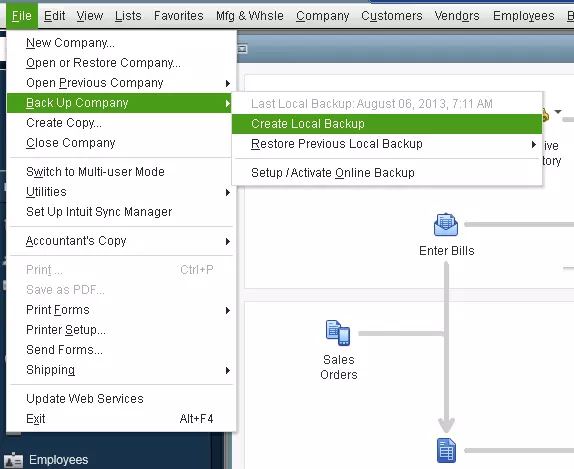
- Select Local Backup.
- Follow the available backup instructions.
- Save the backup in a secure and accessible location.
If the company file cannot be opened, preserve a separate copy of the original file before attempting further repairs. Ensure all users have exited the file before manually copying it.
A manual copy of a company file is not equivalent to a verified QuickBooks backup, but it can help preserve the original data.
Choose and run the appropriate diagnostic utility
After identifying the problem:
- Close QuickBooks Desktop.
- Open QuickBooks Tool Hub.
- Select the relevant troubleshooting category.
- Launch the appropriate diagnostic utility.
- Complete any required verification.
- Allow the repair or scan to finish.
Some utilities download additional components when selected for the first time. Allow these downloads to complete before attempting to launch the utility again.
Verify whether the repair resolved the original problem
Once the diagnostic procedure finishes, reopen QuickBooks Desktop and repeat the operation that previously failed.
For example:
- Open the affected company file after running File Doctor.
- Test shared company file access after running Database Server Manager.
- Generate an invoice PDF after completing the printing repair.
- Restart Windows and retry installation after running Install Diagnostic Tool.
A completed diagnostic scan does not necessarily confirm that the original problem has been resolved. Testing the affected operation provides a more useful indication of whether the repair worked.
QuickBooks Tool Hub Features and Tools: What Each Utility Does
The application includes several troubleshooting utilities organized into dedicated tabs. Each tab addresses a specific category of problems, such as company file damage, network connectivity failures, application errors, installation problems, and password recovery. Understanding the functionality of each tool helps users select the appropriate repair method without running unnecessary diagnostics.
1. Home – Application Overview and Version Information
The Home tab provides an overview of Intuit QuickBooks Tool Hub and its available troubleshooting categories. It serves as the main navigation screen and helps users understand which section to access based on the problem they encounter.
The Home tab allows you to:
- Check the installed version.
- Explore available diagnostic and repair utilities.
- Identify the appropriate troubleshooting category.
This section is primarily informational and does not perform repairs.
2. Company File Issues – Diagnose and Repair Company File Errors
The Company File Issues tab helps troubleshoot problems involving damaged or inaccessible QuickBooks company files. It provides two primary utilities that can investigate certain data integrity errors and file accessibility problems.
Quick Fix my File
Quick Fix my File performs an initial repair for common company file problems. Intuit recommends running this utility before proceeding to File Doctor in its general company file troubleshooting procedure.
To run the utility:
- Open QuickBooks Tool Hub.
- Select Company File Issues > Quick Fix my File.
- Allow the repair to finish.
- Select OK and reopen QuickBooks Desktop.
If the company file remains inaccessible, proceed with File Doctor.
QuickBooks File Doctor
QuickBooks File Doctor diagnoses certain company file and network-related problems. It may help address the following conditions:
- QuickBooks Error -6150.
- Errors -6000, -82; -6000, -305; and -6000, -301.
- QuickBooks Error -6147 and -6130.
- Certain missing or blank customer, vendor, and employee lists.
To run QuickBooks File Doctor:
- Select Company File Issues > Run QuickBooks File Doctor.
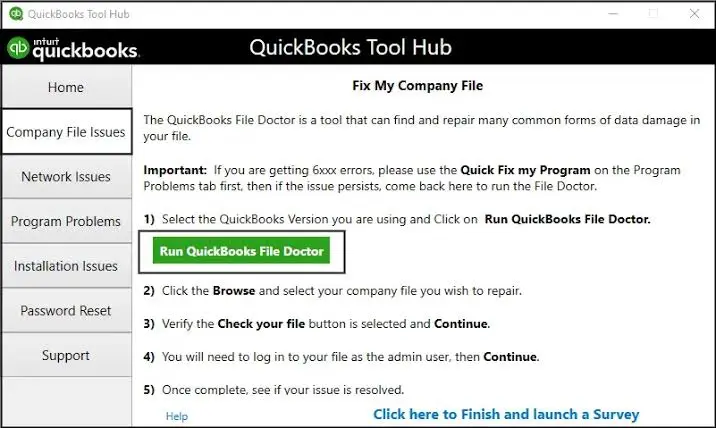
- Choose the affected company file or browse to its location.
- Select Check your file and click Continue.
- Enter your company file administrator password.
- Select Next to begin the scan.
- Reopen the company file after the scan finishes.
The scan duration depends on the company file size. Create a backup before performing data repairs whenever possible.
For more detailed instructions, explore our guide to QuickBooks File Doctor and its repair capabilities.
3. Network Issues – Resolve Multi-User Connectivity Problems
The Network Issues tab helps diagnose communication problems between QuickBooks Desktop workstations and the server hosting a shared company file.
This section is particularly useful when:
- QuickBooks displays Error H202.
- Workstations cannot access a shared company file.
- QuickBooks fails to communicate with the server.
- Multi-user mode stops working.
QuickBooks Database Server Manager
QuickBooks Database Server Manager scans company file folders and helps configure the network permissions necessary for multi-user access.
To run this utility:
- Open QuickBooks Tool Hub on the server computer.
- Select Network Issues > QuickBooks Database Server Manager.
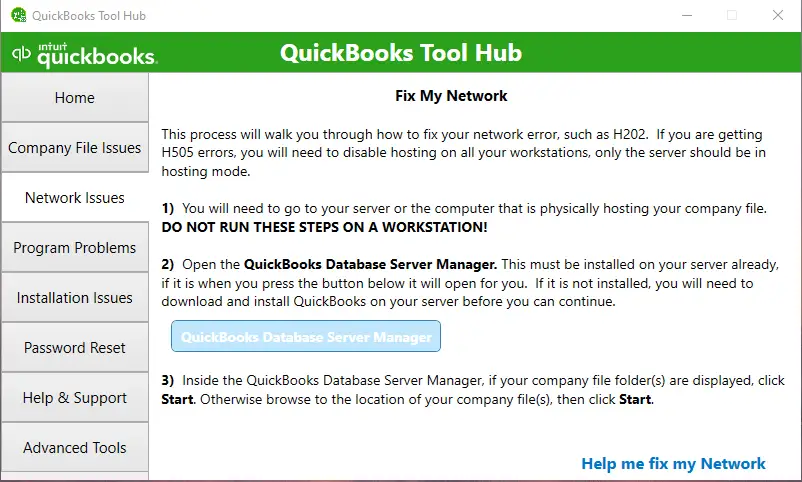
- Browse to the folder containing your company file.
- Select Start Scan.
- Allow the scanning process to complete.
- Open QuickBooks Desktop on the affected workstation and test multi-user access.
If QuickBooks cannot communicate with the company file after completing the scan, investigate hosting settings, folder permissions, and network connectivity.
4. Program Problems – Repair Application, Performance and Printing Errors
The Program Problems tab contains utilities that address QuickBooks startup failures, freezing, unexpected application closures, and document generation problems.
Quick Fix my Program
Quick Fix my Program closes background processes associated with QuickBooks and performs a basic application repair.
To run this utility:
- Close QuickBooks Desktop.
- Open Tool Hub and select Program Problems.
- Click Quick Fix my Program.
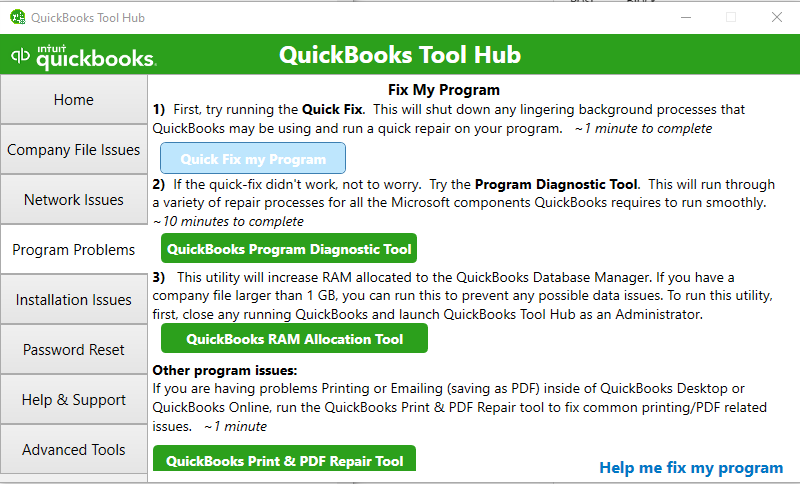
- Allow the repair to finish.
- Reopen QuickBooks Desktop.
If the problem persists, the Install Diagnostic Tool may help investigate damaged installation components.
QuickBooks Print & PDF Repair Tool
The Print & PDF Repair Tool addresses certain Windows and QuickBooks components involved in printing and generating PDF documents.
It may help when:
- QuickBooks cannot save invoices as PDFs.
- Financial reports fail to print.
- The application displays PDF generation errors.
- QuickBooks encounters problems with Microsoft XPS Document Writer.
Navigate to Program Problems > QuickBooks Print & PDF Repair Tool, complete the repair, and retry the affected printing or PDF operation. 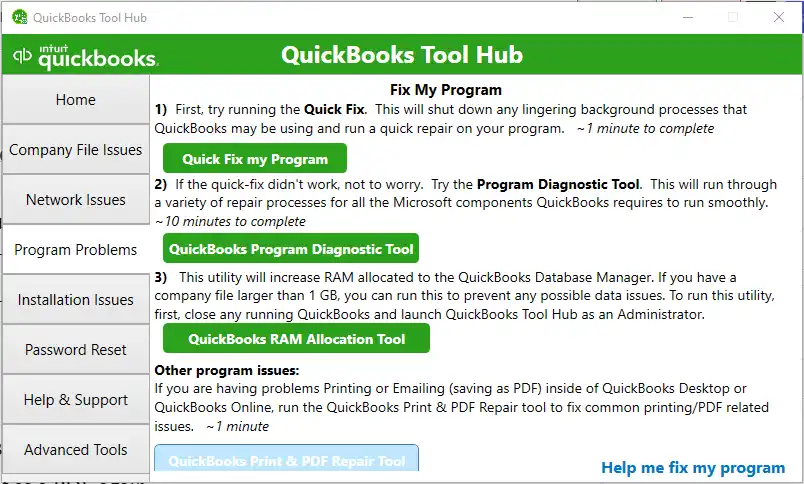
5. Installation Issues – Diagnose Installation and License Initialization Errors
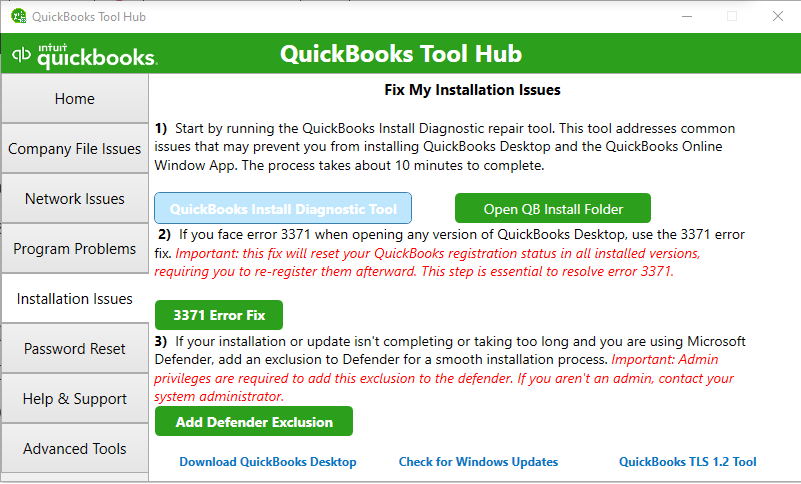
The Installation Issues tab provides diagnostic utilities for problems encountered while installing or repairing QuickBooks Desktop. It also includes a dedicated repair utility for certain license initialization errors.
QuickBooks Install Diagnostic Tool
QuickBooks Install Diagnostic Tool identifies and repairs certain problems involving Microsoft components required by QuickBooks Desktop. It can be useful when users encounter installation errors such as 1603, 1904, and 1935.
To run the utility:
- Close QuickBooks Desktop.
- Launch Tool Hub.
- Select Installation Issues > QuickBooks Install Diagnostic Tool.
- Allow the diagnostic procedure to finish.
- Restart your computer and retry the installation.
The diagnostic process may take up to 20 minutes. Read our detailed guide to the QuickBooks Install Diagnostic Tool for additional installation troubleshooting procedures.
3371 Error Fix
The 3371 Error Fix utility addresses certain problems involving locally stored QuickBooks license information.
To perform the repair:
- Open QuickBooks Tool Hub.
- Select Installation Issues > 3371 Error Fix.
- Click OK.
- Reopen QuickBooks Desktop.
- Complete product registration if required.
Keep your valid product and license information available before running this utility. It does not renew an expired subscription or generate a new license.
6. Password Reset – Recover Company File Administrator Access
The Password Reset tab provides access to QuickBooks Desktop administrator password recovery procedures.
Depending on the QuickBooks version, users may need to provide registration information or complete identity verification before resetting their password.
Remember that your company file administrator password is different from your Intuit account password. Resetting one does not necessarily change the other.
7. Advanced Tools – Access Windows Troubleshooting Utilities
The Advanced Tools tab provides shortcuts to common Windows utilities that help investigate system-related problems affecting QuickBooks Desktop.
Depending on the installed Tool Hub version, these shortcuts may provide access to:
- Windows application processes.
- Installed programs and applications.
- Operating system information.
- System configuration utilities.
Unlike dedicated QuickBooks repair tools, these utilities assist with Windows-level troubleshooting. Users should only modify system settings when those changes relate directly to the problem being investigated.
QuickBooks Tool Hub features and their functions at a glance
| Diagnostic utility | Primary function |
| Quick Fix my File | Initial company file repair |
| QuickBooks File Doctor | Company file and network diagnosis |
| Database Server Manager | Shared company file connectivity |
| Quick Fix my Program | Application process repair |
| Print & PDF Repair Tool | Printing and PDF generation repair |
| Install Diagnostic Tool | Installation component troubleshooting |
| 3371 Error Fix | License initialization repair |
| Automated Password Reset Tool | Administrator password recovery |
| Advanced Tools | Windows-related diagnostics |
How to Fix Common QuickBooks Errors Using Tool Hub
Its built-in utilities address several common Desktop errors. However, choosing the correct repair method depends on the complete error code, the operation that triggers the problem, and the affected software component.
The following troubleshooting procedures are based on Intuit’s published documentation.
1. Fix QuickBooks Error 6123, 0 when opening or restoring a company file
QuickBooks Error 6123, 0 may appear when opening or restoring a company file. The appropriate solution depends partly on whether the error occurs when opening an existing company file or restoring accounting data from a backup.
For an error occurring when opening a company file, begin with an application repair.
Solution 1: Run Quick Fix my Program
- Close QuickBooks Desktop.
- Launch Tool Hub.
- Select Program Problems.
- Run Quick Fix my Program.
- Reopen QuickBooks and attempt to access the company file.
Solution 2: Run QuickBooks File Doctor
If the original error continues:
- Return to QuickBooks Tool Hub.
- Navigate to Company File Issues.
- Launch QuickBooks File Doctor.
- Select the affected company file.
- Complete the applicable diagnostic scan.
- Reopen the company file and verify the results.
If Error 6123 occurs specifically when restoring a backup, Intuit provides separate file restoration procedures. Running an application repair alone may not address problems involving the backup file or its location.
Follow the appropriate instructions in our QuickBooks Error 6123, 0 troubleshooting guide for the particular situation you are experiencing.
2. Fix QuickBooks Error H202 and H505 in multi-user mode
QuickBooks Error H202 generally indicates that a workstation cannot establish the connection required to access a company file hosted on another computer.
Error H505 may occur when the multi-user hosting configuration is incorrect.
To troubleshoot Error H202:
- Open QuickBooks Tool Hub on the server computer.
- Navigate to Network Issues.
- Launch QuickBooks Database Server Manager.
- Scan the folder containing the shared company file.
- Open QuickBooks Desktop on the affected workstation.
- Attempt to switch to multi-user mode.
If the error continues, open File Doctor through the Company File Issues tab, select the affected company file, and choose the Check your Network option.
Additional troubleshooting may involve checking:
- QuickBooks database services.
- Network communication between computers.
- Company file folder permissions.
- Windows firewall configuration.
- Multi-user hosting settings.
For more detailed network-specific procedures, see our guide to resolving QuickBooks Error H202.
For Error H505:
Check the hosting configuration on the affected workstations.
- Open QuickBooks Desktop on a workstation.
- Navigate to File > Utilities.
- If Stop Hosting Multi-User Access appears, select it.
- If Host Multi-User Access appears, leave it unchanged on the workstation.
- Repeat the check on the other workstations.
In a conventional client-server setup, hosting belongs on the server computer rather than individual workstations.
Intuit provides different procedures for H202 and H505 because these errors do not necessarily result from the same network configuration problem.
3. Resolve QuickBooks 6000-series company file errors
QuickBooks 6000-series errors can occur when users attempt to open, access, or work with a company file.
Depending on the complete error code, the underlying cause may involve:
- Company file damage.
- Incorrect company file locations.
- Network communication problems.
- Insufficient folder permissions.
- Conditions affecting shared file accessibility.
To perform an initial company file repair:
- Launch Tool Hub.
- Navigate to Company File Issues.
- Run Quick Fix my File.
- Attempt to open the company file.
- If the error continues, launch QuickBooks File Doctor.
- Select the affected company file.
- Complete the applicable diagnostic scan.
- Reopen the company file and verify the results.
Not every 6000-series error indicates damaged accounting data.
For example, if a company file opens successfully on the host computer but remains inaccessible from a workstation, investigate the network configuration rather than immediately attempting more extensive data repairs.
4. Fix QuickBooks Desktop freezing or failing to open
When QuickBooks Desktop freezes during startup or fails to display its main window, the underlying problem may involve application processes or installation components.
Start with Quick Fix my Program:
- Close QuickBooks Desktop.
- Launch Tool Hub.
- Navigate to Program Problems.
- Run Quick Fix my Program.
- Reopen QuickBooks Desktop.
If QuickBooks still does not open:
- Return to QuickBooks Tool Hub.
- Select Installation Issues.
- Run QuickBooks Install Diagnostic Tool.
- Restart Windows.
- Attempt to launch QuickBooks Desktop again.
If QuickBooks opens normally but becomes unresponsive only when accessing one company file, investigate the file separately.
This distinction helps avoid unnecessary application reinstallations when the actual problem involves company file accessibility or data integrity.
5. Fix QuickBooks installation errors 1603, 1904 and 1935
QuickBooks installation errors may occur when the setup process encounters problems involving Microsoft components, Windows permissions, or other installation-related conditions.
The Install Diagnostic Tool provides an appropriate initial troubleshooting method for certain errors in this category.
Follow these steps:
- Close the unsuccessful QuickBooks Desktop installation.
- Launch Tool Hub.
- Navigate to Installation Issues.
- Run QuickBooks Install Diagnostic Tool.
- Allow the diagnostic procedure to finish.
- Restart your computer.
- Retry the QuickBooks Desktop installation.
If the error returns, investigate the complete error message.
For instance, QuickBooks Error 1603 during installation can require additional checks involving installation components and Windows configuration.
Similarly, if you cannot install QuickBooks Desktop despite completing the diagnostic repair, identifying the exact stage at which the installation fails can help narrow down the underlying problem.
6. Fix QuickBooks Error 3371 during license initialization
QuickBooks Error 3371 may prevent the accounting application from opening because it cannot initialize certain license properties.
Use the dedicated 3371 Error Fix utility:
- Exit QuickBooks Desktop.
- Open QuickBooks Tool Hub.
- Select Installation Issues.
- Choose 3371 Error Fix.
- Confirm the repair.
- Reopen QuickBooks Desktop.
- Complete product registration if prompted.
If the original error continues, additional registration or installation troubleshooting may be required.
Running this utility does not replace the need for valid QuickBooks product and license information.
7. Resolve QuickBooks printing and PDF generation errors
The Print & PDF Repair Tool provides an initial troubleshooting method when QuickBooks cannot print a report, save an invoice as a PDF, or generate certain financial documents.
To perform the repair:
- Close QuickBooks Desktop.
- Launch Tool Hub.
- Navigate to Program Problems.
- Run QuickBooks Print & PDF Repair Tool.
- Allow the repair process to finish.
- Reopen QuickBooks Desktop.
- Attempt to print or save the affected document again.
If the issue continues, test printing in another Windows application.
When printing fails across multiple applications, the underlying problem may involve the broader Windows printing environment rather than QuickBooks itself.
QuickBooks error codes and recommended Tool Hub repair utilities
Use the following table as a quick reference when selecting a diagnostic utility.
| QuickBooks error or symptom | Recommended starting point |
| Error 6123, 0 | Quick Fix my Program, followed by File Doctor |
| Error H202 | Database Server Manager |
| Error H505 | Hosting configuration checks |
| Error -6150 | QuickBooks File Doctor |
| Error -6000, -82 | QuickBooks File Doctor |
| Error -6000, -305 | QuickBooks File Doctor |
| Error -6000, -301 | QuickBooks File Doctor |
| Error -6147 | QuickBooks File Doctor |
| Error -6130 | QuickBooks File Doctor |
| Error 1603 | Install Diagnostic Tool |
| Error 1904 | Install Diagnostic Tool |
| Error 1935 | Install Diagnostic Tool |
| Error 3371 | 3371 Error Fix |
| QuickBooks not responding | Quick Fix my Program |
| QuickBooks unable to generate PDFs | Print & PDF Repair Tool |
These utilities provide initial troubleshooting methods. Additional procedures may be required depending on the underlying cause of each error.
QuickBooks Tool Hub System Requirements and Windows Compatibility
The application requires a compatible Windows environment to install and operate its diagnostic utilities. Intuit currently recommends Windows 11 (64-bit) for the best experience.
Before downloading the application, check your operating system, installation permissions, internet connectivity, and available storage.
Minimum system considerations for QuickBooks Tool Hub
| System component | Requirement or recommendation |
| Operating system | Windows 11 (64-bit) recommended |
| Windows 10 | Previously recommended in Intuit documentation |
| Internet connection | Required for downloading the installer and certain diagnostic components |
| Storage space | Sufficient available space for installation and temporary files |
| Installation permissions | Permission to install Windows applications |
| Windows components | Functioning components required by individual diagnostic utilities |
| QuickBooks product | Compatible QuickBooks Desktop edition for Windows |
| macOS | No native Tool Hub application |
| QuickBooks Online | Not applicable |
Intuit’s general QuickBooks Tool Hub documentation does not specify universal minimum requirements for RAM, processor speed, or storage capacity.
The system requirements for QuickBooks Desktop should not automatically be treated as the requirements for Tool Hub because they are separate applications.
QuickBooks Tool Hub for Windows 11
Windows 11 (64-bit) is the operating system currently recommended by Intuit for running QuickBooks Tool Hub.
Users installing the application on Windows 11 should:
- Download the current installation package directly from Intuit.
- Keep their operating system updated.
- Ensure sufficient storage space is available.
- Verify compatibility with their QuickBooks Desktop release.
- Allow required diagnostic components to finish downloading.
There is no need to obtain a separate Windows 11 edition of QuickBooks Tool Hub. The standard QuickBooks Tool Hub installer is used for installation.
However, compatibility with Tool Hub does not necessarily mean that every older QuickBooks Desktop release is compatible with Windows 11.
QuickBooks Tool Hub for Windows 10
Earlier Intuit troubleshooting documentation recommended using QuickBooks Tool Hub on Windows 10 (64-bit). More recent documentation recommends Windows 11 instead.
This does not automatically mean that Tool Hub cannot operate on Windows 10. However, compatibility may vary depending on the operating system environment, individual diagnostic utilities, and installed QuickBooks Desktop release.
Users running QuickBooks Desktop on Windows 10 should review the applicable product compatibility requirements before performing repairs.
Can QuickBooks Tool Hub run on Mac or repair QuickBooks Online?
QuickBooks Tool Hub is distributed as a Windows executable application and does not run natively on macOS.
It is also not intended to repair QuickBooks Online. Problems involving QuickBooks Online may require browser-related, account-related, or internet connectivity troubleshooting rather than Windows-based application repairs.
What Should You Check After Running QuickBooks Tool Hub?
After completing a repair, reopen QuickBooks Desktop and repeat the operation that originally caused the error. A completed diagnostic scan does not necessarily mean the underlying problem has been resolved.
Follow these post-repair checks based on the utility you used:
- Company file repairs: Review recent transactions, customer and vendor records, and financial reports. If you suspect data damage, run File > Utilities > Verify Data. Create a backup before rebuilding data and follow Intuit’s specific precautions if you use Assisted Payroll.
- Network repairs: Open the shared company file from the affected workstation and test multi-user access. If connectivity problems persist, check hosting settings and whether QBDBMgrN is running on the server.
- Application repairs: Restart Windows if required, reopen QuickBooks, and check whether freezing, crashing, or startup errors recur.
- Installation repairs: Retry the installation. If the recommended repairs fail, a clean installation of QuickBooks Desktop may be appropriate.
- Printing and PDF repairs: Print the affected report or save an invoice as a PDF to confirm that document generation works correctly.
Keep your original company file backup until you have verified the accounting data. Avoid running additional repair utilities once the problem is resolved. If an error returns frequently, investigate its underlying cause rather than repeating the same repair.
Conclusion
QuickBooks Tool Hub simplifies troubleshooting by bringing essential diagnostic and repair utilities into a single application. From company file and network connectivity errors to installation failures and printing problems, its specialized tools help users address common QuickBooks Desktop issues without performing unnecessary repairs.
For effective troubleshooting, download the latest version directly from Intuit, verify system compatibility, and select the utility that corresponds to the error you encounter. Always create a company file backup before performing data-related repairs. Once the repair is complete, verify that QuickBooks functions correctly and investigate any remaining issues using error-specific troubleshooting methods.
Frequently Asked Questions
What is the latest version of QuickBooks Tool Hub?
QuickBooks Tool Hub 1.6.0.8 is the latest version identified in Intuit’s current detailed troubleshooting documentation. To check your installed version, open QuickBooks Tool Hub and select the Home tab. The version number appears near the bottom of the window. Visit Intuit’s official download page for the currently available installation package.
What is the QuickBooks Tool Hub?
It is a free Windows-based diagnostic and repair application developed by Intuit for QuickBooks Desktop. It combines several troubleshooting utilities used to investigate company file errors, network connectivity problems, application failures, installation issues, and printing or PDF generation difficulties.
How do I install QuickBooks Tool Hub?
Download the installation file directly from Intuit and close QuickBooks Desktop. Open the downloaded installation file, review the license agreement, and follow the setup wizard. Once the installation finishes, launch Tool Hub using its desktop shortcut or the Windows Start menu.
Why can’t I download the QuickBooks Tool Hub?
Browser restrictions, interrupted downloads, connectivity problems, or insufficient storage may prevent QuickBooks Tool Hub from downloading successfully. Intuit recommends trying another browser if the installation file is blocked during downloading. Always verify that you are obtaining the installer directly from Intuit.
What does the QuickBooks Tool Hub do?
It diagnoses and repairs specific technical problems affecting QuickBooks Desktop. Its utilities address company file accessibility, application freezing, network connectivity, installation components, license initialization, administrator password recovery, and printing or PDF generation problems.
How do I get to QuickBooks Tool Hub?
Double-click the Tool Hub icon on your Windows desktop. If the shortcut is unavailable, open the Windows Start menu, search for QuickBooks Tool Hub, and select the application from the search results.
How do I download the QuickBooks Tool Hub?
Visit Intuit’s official download page and select the current download link. Save the QuickBooks Tool Hub installation file to an accessible location on your Windows computer. The application is free to download and does not require a separate paid subscription.
Is QuickBooks Tool Hub compatible with Windows 11?
Yes, Intuit recommends Windows 11 (64-bit) for the best experience. Users can install the application using the standard installation package available through Intuit. Compatibility with their particular QuickBooks Desktop release should also be verified separately.
My QuickBooks Desktop Tool Hub isn’t working. What can I do to fix this?
Restart Windows, verify the installed Tool Hub version, and ensure that any required diagnostic components have finished downloading. If the application still fails to open, reinstall Tool Hub using a fresh installer obtained directly from Intuit.
Does Tool Hub delete company file data?
Installing QuickBooks Tool Hub does not ordinarily remove accounting data. However, company file repair utilities may modify damaged data components during a repair. Create a current backup before performing company file repairs and verify your accounting records afterward.
What is the difference between QuickBooks Tool Hub and QuickBooks File Doctor?
Tool Hub contains several diagnostic utilities for different QuickBooks Desktop problems. QuickBooks File Doctor is an individual utility available within Tool Hub that primarily investigates certain company file and network-related issues. Other Tool Hub utilities address application, installation, printing, and license initialization problems.
Can QuickBooks Tool Hub repair QuickBooks Online?
No, QuickBooks Tool Hub is intended for QuickBooks Desktop on Windows. QuickBooks Online operates through a different application environment and requires troubleshooting procedures specific to its browser, account, or online connectivity conditions.
Should I run Tool Hub regularly?
There is generally no need to run QuickBooks Tool Hub when QuickBooks Desktop is functioning normally. Its diagnostic utilities are intended to address specific technical problems. Regular company file backups and applicable software updates are separate maintenance practices.
Trademark and independence notice: QuickBooks and Intuit are registered trademarks of Intuit Inc. Accounts Confidant is an independent website. This article is provided for educational and informational purposes and does not imply affiliation with or endorsement by Intuit.
