
QuickBooks tax filing problems can involve an incorrect Sales Tax Payable balance, a sales tax report that does not match the payment window, a rejected payroll tax form, or a failed electronic payment. Each problem requires a different correction.
For example, recording a sales tax payment through Write Checks instead of Pay Sales Tax can cause an incorrect Sales Tax Payable balance in QuickBooks Desktop. Payroll tax filings may be rejected because of duplicate submissions, incorrect tax account numbers, early filings, outdated deposit schedules, or incorrect electronic filing credentials.
This guide explains how to identify the problem, choose the correct fix, and verify whether the correction worked. It covers sales tax procedures in QuickBooks Desktop and U.S. payroll tax filing and payment problems involving QuickBooks Workforce, QuickBooks Online Payroll, and QuickBooks Desktop Payroll Enhanced.
The sales tax instructions apply to QuickBooks Desktop. Payroll procedures vary by product and subscription. This guide does not cover individual or business income tax preparation.
Identify the QuickBooks tax filing problem
Start by checking where the problem appears. It will usually fall into one of these categories:
| What you notice | Possible problem | First thing to check |
| Sales Tax Payable does not match payment records. | Incorrect payment entry | How the original payment was recorded |
| Sales Tax Liability and Pay Sales Tax show different amounts. | Reporting date or basis mismatch | Report dates and accounting basis |
| Sales Tax Payable shows a negative balance. | Cash and accrual basis difference | Sales tax preferences |
| An inactive item remains in a sales tax group. | Incorrect group setup | Items assigned to the group |
| A payroll tax form is rejected. | Filing information or submission problem | Filing status and rejection notice |
| A payroll tax payment is rejected. | Payment information or credential problem | Payment status and agency records |
| The agency receives two payroll tax forms for the same period. | Duplicate filing | Which submission the agency accepted |
| A tax form or payment is submitted at the wrong time. | Incorrect filing or deposit schedule | Current agency schedule |
Check these three records before making changes
A tax problem can involve three separate records:
- QuickBooks records: The transactions, tax balances, and filing information stored in your company file or payroll service.
- Submission records: The status of the electronic tax form or payment sent through the payroll service.
- Tax agency records: The return and payment information held by the IRS or state agency.
These records may not always show the same result. For example, changing an EIN in QuickBooks does not automatically transfer a payment that was sent under the wrong tax account number.
A submission marked as transmitted also does not necessarily mean the agency has accepted it. QuickBooks may show that a form was sent while the agency is still processing it.
Before correcting anything, record the affected tax period, amount, agency, submission status, and rejection reason. Back up your QuickBooks Desktop company file before changing historical transactions.
How to fix sales tax problems in QuickBooks Desktop
QuickBooks Desktop uses the Sales Tax Payable account to track sales tax liabilities. Incorrect payment entries, mismatched report settings, and inactive sales tax items can affect the amounts shown in your records.
The following procedures are based on Intuit’s guide to resolving common sales tax issues.
1. Correct an incorrect Sales Tax Payable balance
One documented cause of an incorrect Sales Tax Payable balance is recording a sales tax payment through Write Checks instead of the dedicated Pay Sales Tax window.
Intuit recommends using Pay Sales Tax for these payments. QuickBooks Accountant and Enterprise Accountant users should use Client Data Review. Other QuickBooks Desktop editions can follow the procedure below.
Step 1: Back up the company file
Create a current backup before changing payment transactions.
Step 2: Find the original payments
Open the bank register used for the sales tax payments. Record the original payment dates, check numbers, amounts, and tax agencies.
Step 3: Re-enter the payments through Pay Sales Tax
- Open Vendors.
- Select Sales Tax, then choose Pay Sales Tax.
- If you use more than one checking account, select the account used for the replacement payments.
- Check the ending bank balance shown in the window.
- Enter the original payment date in Check Date. Start with the oldest payment.
- Set Show sales tax due through to the end of the original payment period.
- Enter the original check number in Starting Check No.
- Select the appropriate tax items in the Pay column.
- If needed, change the amount in Amt. Paid to match the original payment.
- Confirm that the total matches the original payment, then select OK.
QuickBooks may display a message that another check already has the same number. During this replacement process, select Keep Number. This preserves the original check number so you can use it when replacing the incorrect payment.
Repeat the procedure for each original payment before removing the old transactions.
Step 4: Remove the original payment transactions
After creating the replacement payments:
- Open Lists, then select Chart of Accounts.
- Double-click the bank account used for the replacement payments.
- Find the original payment date. The original and replacement entries should appear close together because they have the same date.
- Identify the replacement transaction. QuickBooks records it as a TAXPMT entry.
- If the original payment already cleared the bank, mark the replacement TAXPMT entry as cleared and select Record.
- If you made payments to more than one tax agency and the original check numbers were not sequential, edit the replacement check numbers to match the actual checks.
- Select the original CHK/CHK transaction.
- Open Edit and choose Delete Check.
If the original payment was created through a bill payment, the transaction may appear as BILLPMT. Intuit says to delete the original bill as well so it does not remain in the Unpaid Bills Detail report.
Step 5: Verify the replacement payments
Run these reports:
- Sales Tax Liability: Compare the report through the current date with the Sales Tax Payable account balance.
- Vendor Balance Detail: Check the balance for each tax agency.
- Transaction List by Vendor: Look for duplicate payment entries.
The reports should reflect the replacement payments without retaining duplicate transactions.
This procedure corrects the QuickBooks accounting records. It does not instruct you to send another payment to the tax agency. If the original payment was already processed, verify the agency’s payment record separately.
Important: Do not delete an original transaction before creating and identifying its replacement. If the payment has already been reconciled or you cannot identify the correct entries, have an accountant review the company file before making changes.
2. Fix differences between the Sales Tax Liability report and Pay Sales Tax window
The Sales Tax Liability report and Pay Sales Tax window may show different amounts because their date ranges or accounting bases do not match.
For example, the report may end on September 30 while Pay Sales Tax includes tax due through October 31. The two amounts cover different periods, so they should not be expected to match.
Use these checks in order.
Check the report dates
- Open Reports.
- Select Vendors & Payables.
- Choose Sales Tax Liability.
- Clear the From date.
- Set the report’s To date to match Show sales tax due through in the Pay Sales Tax window.
Compare the accounting basis
The Sales Tax preference controls the basis used by Pay Sales Tax. You can select a different basis when running the Sales Tax Liability report.
In QuickBooks Desktop:
- Open Edit, then select Preferences.
- Choose Sales Tax.
- Open the Company Preferences tab.
- Check the setting under When do you owe sales tax?
The two options are:
- As of invoice date: Accrual basis.
- Upon receipt of payment: Cash basis.
Make sure the Sales Tax Liability report uses the same basis as the company preference. Do not change your accounting basis just to make two amounts match. Confirm which basis applies to your business and tax agency first.
Review transactions in Sales Tax Payable
If the dates and basis match but the amounts still differ:
- Open the Sales Tax Liability report.
- Double-click the amount in the Sales Tax Payable column.
- Review sales tax payments, journal entries, adjustments, and regular checks.
- Check the dates of those transactions.
- Confirm whether each entry belongs in the reporting period.
A transaction dated outside the report period can change the report total. Correct a transaction date only when the date itself is wrong.
Check for future-dated transactions
Some future-dated transactions can affect the amount shown in Pay Sales Tax. Intuit notes that the window can reflect certain future transactions, although not future invoices or sales receipts.
When investigating this issue, set the Sales Tax Liability report to All Dates and compare it with the payment window.
For more information, see Intuit’s instructions for fixing differences between the Sales Tax Liability report and Pay Sales Tax window.
For help matching bank transactions and finding duplicate entries, see the QuickBooks Bank Reconciliation guide.
3. Investigate a negative Sales Tax Payable balance
A negative Sales Tax Payable balance does not automatically mean that your business has overpaid sales tax.
One possible cause is a difference between the accounting basis used for sales tax payments and the basis used for the Balance Sheet.
For example, a business may pay sales tax based on invoice dates but run its Balance Sheet on a cash basis. Because the payment and customer receipt are recorded at different times, the report may show a negative Sales Tax Payable balance.
To investigate:
- Open the company file as the administrator.
- Switch to single-user mode.
- Open Edit, then select Preferences.
- Select Sales Tax.
- Open Company Preferences.
- Review When do you owe sales tax?
- Confirm that the selected basis is appropriate for your business.
Intuit identifies paying sales tax on an accrual basis while running a cash-basis Balance Sheet as one possible cause of a negative balance. It recommends confirming the correct basis with an accounting professional or the relevant tax agency.
Do not create a journal entry just to remove the negative amount. Check the underlying transactions and reporting settings first.
4. Remove inactive items from a sales tax group
In QuickBooks Desktop, marking a sales tax item as inactive does not automatically remove it from an existing sales tax group.
The inactive item may remain in the group and affect how the group is applied to new transactions.
To review the group:
- Open Lists, then select Item List.
- Find the relevant Sales Tax Group.
- Double-click the group.
- Select the inactive sales tax item you want to remove.
- Press Ctrl + Delete.
- Select OK to save the change.
Review the group before removing any item. Intuit notes that changing a sales tax group does not recalculate invoices already created using its previous settings. Review those invoices separately if their tax amounts are incorrect.
How to fix rejected payroll tax forms in QuickBooks
A rejected payroll tax filing can mean that Intuit rejected the submission before sending it to the tax agency, or that the IRS or state agency rejected it after receiving it.
These situations require different corrections.
Intuit identifies several possible reasons for payroll tax filing rejections:
- Duplicate tax filings.
- An incorrect EIN or state tax account number.
- A form submitted too early.
- An outdated tax filing or deposit schedule.
- Incorrect federal PIN information in certain QuickBooks Desktop payroll workflows.
The correction depends on the rejection reason and your payroll product. See Intuit’s guide to payroll e-file and e-pay rejections.
1. Check the filing status and rejection notice
Start by checking the filing status in QuickBooks. Do not assume that every rejected submission was rejected by the IRS or state agency.
QuickBooks Online Payroll
- Go to Taxes.
- Select Payroll Tax.
- Choose Filings.
- Select Filter and choose the relevant form or report.
- Check the status next to the filing.
- If the filing is not visible, check Archived forms and filings.
The main filing statuses include:
| Status | Meaning |
| Not Transmitted | QuickBooks has not sent the filing to the agency. |
| Transmitted | The filing was sent to the agency, but processing may not be complete. |
| In Agency or Sent to Agency | The agency has received the form but has not confirmed acceptance. |
| Accepted | The agency received and accepted the form. |
| Rejected | The receiving agency rejected the form. |
QuickBooks Desktop Payroll Enhanced
- Open Employees, then select Payroll Center.
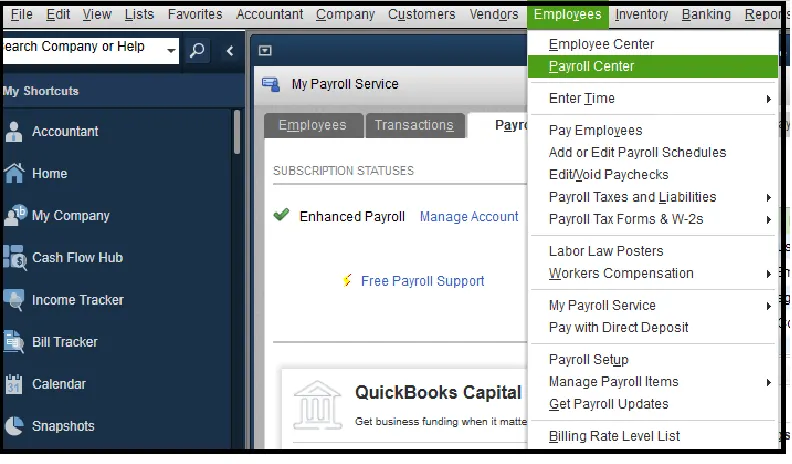
- Select the File Forms tab.
- Find the Filing History section.
- Select E-Filings.
- Select View in the Audit Trail column for additional details.
The Desktop statuses have different meanings:
| Status | Meaning |
| Submitted to Intuit | The form was submitted to Intuit. |
| Intuit rejected | Intuit rejected the submission before completing the transfer to the agency. |
| Submitted to the agency | Intuit sent the form to the agency. |
| Agency rejected | The agency received and rejected the submission. |
| Agency accepted | The agency successfully processed and accepted the submission. |
If the status does not update, follow Intuit’s instructions to refresh the filing or payment history.
Record the rejected form, reporting period, agency, rejection reason, and submission status. Also check whether the related payment was processed.
A rejected return does not prove that its payment was also rejected.
For the full procedures, see Intuit’s instructions for checking payroll tax filing and payment status.
2. Correct an incorrect EIN or state tax account number
A payroll tax filing may be rejected when the Employer Identification Number (EIN) or state tax account number in QuickBooks does not match the number held by the tax agency.
For example, a business may receive a new state employer account number but continue using its previous number in QuickBooks.
The correction depends on your payroll product.
QuickBooks Workforce
- Contact the IRS or state agency to confirm the correct EIN or state account number.
- Contact Intuit to update the number in QuickBooks.
- If a tax form was rejected, open the Payroll Overview page.
- Check the To Do List for the next steps.
- If a payment was rejected, contact the tax agency about transferring it to the correct account.
QuickBooks Desktop Payroll Enhanced
- Confirm the correct EIN or state account number with the agency.
- Update the number in QuickBooks.
- If a tax form was rejected, follow Intuit’s instructions to resend it.
- If a payment was rejected, contact the agency about transferring it to the correct account.
Changing the number in QuickBooks does not automatically move a payment between agency accounts. The agency must confirm how the original payment was recorded and whether it can be transferred.
3. Resolve a duplicate payroll tax filing
A duplicate filing occurs when the IRS or state agency receives two tax forms for the same business and reporting period.
This may happen when a business changes payroll providers but the previous provider also submits the return.
For example, a business changes payroll providers during a quarter. If both providers submit Form 941 for that quarter, the IRS may receive two returns for the same period.
Before submitting another form, confirm what the agency received.
QuickBooks Workforce
- Contact the IRS or state agency.
- Ask whether it accepted one filing or rejected both.
- Contact Intuit to determine whether it can correct the affected forms.
QuickBooks Desktop Payroll Enhanced
- Contact the IRS or state agency.
- Confirm which filing was accepted or rejected.
- Ask whether an amendment or another submission is required.
- Follow the agency’s instructions.
The correction depends on the agency’s records. Do not send another copy until you know the status of the original filings.
4. Correct a payroll filing sent too early
Some agencies do not accept electronic forms or payments before the filing period ends.
When a filing is rejected for being too early:
- Read the rejection notice.
- Confirm the filing period and due date with the agency.
- Check whether the original submission was rejected or remains pending.
- Follow the agency’s instructions on when to resend it.
Intuit advises resending an early filing or payment closer to the due date. Confirm the agency’s requirements before trying again.
5. Update an incorrect filing or deposit schedule
The IRS or a state agency may change a business’s payroll tax filing or deposit schedule. If QuickBooks still uses the previous schedule, it may send a form or payment at the wrong time.
To correct the schedule:
- Contact the IRS or state agency.
- Confirm the current filing or deposit schedule.
- Ask which forms and payments are due.
- Find out whether additional payments are required.
- Update the schedule in QuickBooks.
- Send the correct form or payment if required.
QuickBooks Workforce and Desktop Payroll Enhanced have separate schedule-update procedures. Use the instructions for your service.
How to fix rejected payroll tax payments
A payroll tax return and its payment are separate submissions. A return reports payroll information to the tax agency; a payment transfers the tax amount. One can be rejected even when the other is accepted.
1. Confirm whether the agency received the payment
Before making a replacement payment, establish what happened to the original.
Review the payment status in QuickBooks, the related bank transaction, and the agency’s records.
QuickBooks Desktop Payroll Enhanced
- Open Employees, then select Payroll Center.
- Select the Pay Liabilities tab.
- Find Payment History.
- Select the E-Payments tab.
- Check the payment status.
- Select View in the Audit Trail column for additional details.
If the status is not updating, Intuit recommends refreshing the payment history by switching between the All Payments and E-Payments tabs.
QuickBooks Online Payroll
Check the payment-status notification sent to the Primary Admin. If you cannot find the notification, check the Primary Admin email address and the junk or spam folders.
Check:
- Whether the payment was rejected or processed.
- Which tax period it covered.
- The amount submitted.
- Which tax account number was used.
- Whether the agency received the funds.
Do not make another payment just because the first confirmation is missing. The original payment may already have been processed.
2. Correct a payment sent under the wrong tax account
If a payment was submitted under an incorrect EIN or state tax account number, changing the number in QuickBooks does not automatically correct the agency’s records.
Intuit directs users to contact the IRS or state agency about transferring a rejected payment to the correct account.
Confirm the payment status and the agency’s next steps before making another payment.
3. Correct an incorrect EFTPS e-payment PIN
This procedure applies specifically to QuickBooks Desktop Payroll Enhanced.
A federal e-payment PIN problem can occur when a business changes its bank account for EFTPS payments but does not update the PIN saved in QuickBooks.
The four-digit EFTPS e-payment PIN is different from the ten-digit federal e-file PIN.
To update the saved e-payment details:
- Open Employees, then select Payroll Center.
- Select the Pay Liabilities tab.
- Under Pay Taxes & Other Liabilities, select the federal tax.
- Select View/Pay.
- Choose E-payment, then select e-pay.
- Clear Remember My Information for Next Time.
- Enter the current four-digit PIN and EFTPS internet password.
- Enter any other required information.
- Select Submit.
Enter the updated details the next time you make an electronic payment. You can then save the new information for future use.
If you do not know the correct PIN, contact the IRS or the EFTPS help desk. Do not guess the PIN or repeatedly submit incorrect details.
4. Update an incorrect federal e-file PIN
An incorrect federal e-file PIN can cause a payroll tax form to be rejected. It is different from the EFTPS e-payment PIN.
For QuickBooks Desktop Payroll Enhanced:
- Open Employees.
- Select Payroll Tax Forms and W-2s.
- Choose Process Payroll Forms.
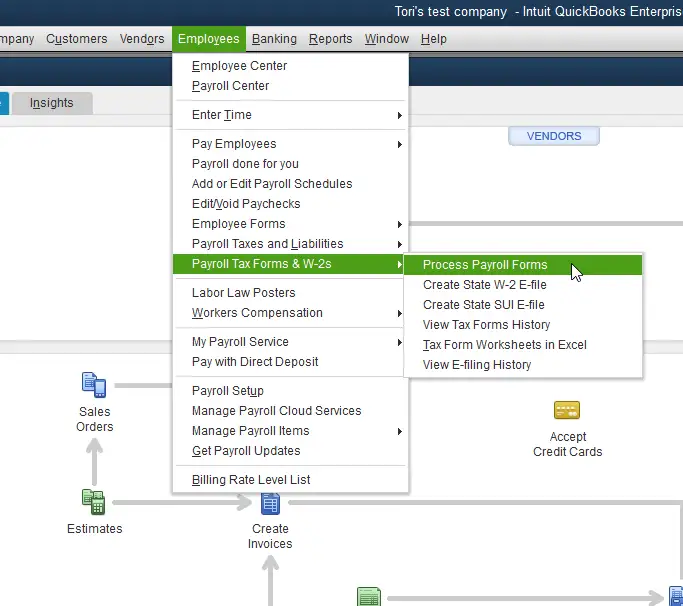
- Select the federal form you need to file.
- Select Create Form.
- Choose the filing period and select OK.
- Review the form. Select Check for errors if needed.
- Select Submit Form, then choose E-file.
- Clear Remember My Information for Next Time.
- Enter the correct ten-digit IRS e-file PIN.
- Select Remember My Information for Next Time to save the updated information.
If you do not know the correct PIN, contact the IRS. These menu instructions apply to Desktop Payroll Enhanced, not every QuickBooks payroll product.
5. Update an expired EFTPS internet password
An expired EFTPS internet password can cause a federal payroll tax payment to be rejected.
The EFTPS internet password is different from the four-digit e-payment PIN. Intuit identifies the internet password as a 12–30-character credential used to sign in to EFTPS.gov.
To correct the problem:
- Open the official EFTPS website.
- Sign in using the current authentication procedure.
- Follow the EFTPS instructions to change or reset the internet password.
- Make sure the new password meets the current EFTPS requirements.
- Update the saved password in QuickBooks.
For QuickBooks Desktop Payroll Enhanced, the saved information can be updated through Employees → Payroll Center → Pay Liabilities → View/Pay → E-payment → e-pay.
Clear Remember My Information for Next Time, enter the four-digit PIN and updated password, and submit the information.
Intuit also lists expired EFTPS passwords as a possible rejection reason for QuickBooks Online Payroll Core, Premium, and Elite. Their credential-update procedures differ from Desktop Payroll Enhanced, so use the product-specific Intuit instructions rather than applying the Desktop menu path to an online payroll account.
How to prevent future QuickBooks tax filing problems
A short review before each filing period can help identify incorrect records before a form or payment is sent.
Review sales tax records
Before paying sales tax in QuickBooks Desktop:
- Confirm the reporting period.
- Check the accounting basis.
- Review sales tax items and groups.
- Compare the Sales Tax Liability report with the Sales Tax Payable account.
- Check for duplicate or incorrectly dated payments.
- Record payments through the Pay Sales Tax window.
Confirm payroll tax information
Before filing payroll tax forms:
- Check the business EIN and state tax account numbers.
- Confirm the current filing and deposit schedules.
- Select the correct filing period.
- Check whether a previous payroll provider may still submit the return.
- Review any rejected form or payment before sending another one.
Keep tax filing and payment records
Save the filing confirmation, payment confirmation, agency notice, amount, and reporting period.
When a third-party payroll provider handles federal tax payments, the IRS recommends checking deposits through EFTPS. Employers can use their own business credentials to review federal tax payments made on their behalf.
This provides a way to check deposits instead of relying only on the provider’s payment notices. See the IRS guidance on outsourcing payroll and third-party payers.
Understand outsourced payroll responsibilities
Using a payroll provider does not automatically remove every employer tax responsibility.
The IRS states that employers generally remain responsible for federal employment tax returns, deposits, and payments when they outsource payroll duties. If a provider fails to make a required deposit, the employer may still owe the tax, penalties, and interest.
Some third-party arrangements have different rules. These include:
- Payroll Service Providers (PSPs).
- Reporting Agents.
- Section 3504 Agents.
- Certified Professional Employer Organizations (CPEOs).
Depending on the arrangement and applicable rules, an employer may remain solely liable, become jointly and severally liable, or be relieved of certain federal employment tax liabilities.
A qualifying CPEO can be treated as the employer for certain wages and compensation under a qualifying contract. However, the employer may retain liability in some situations.
Review the agreement and the applicable IRS guidance on third-party payroll arrangements.
For more information about the payroll services covered by Intuit, see the QuickBooks Assisted Payroll guide.
When to contact Intuit, the tax agency, or an accountant
The right contact depends on where the problem occurred.
| Situation | Who to contact | Why |
| QuickBooks displays a software or submission error. | Intuit | The issue may involve the product, payroll service, or filing workflow. |
| Intuit rejects an electronic filing before sending it to the agency. | Intuit | The submission or connection problem needs to be identified. |
| The IRS or state agency rejects a tax form. | The agency and, when required, Intuit | The agency confirms the rejection reason and filing status. |
| A payment was submitted under the wrong tax account. | The tax agency | The agency must confirm whether the payment can be transferred. |
| A duplicate tax filing appears. | The tax agency and, when needed, Intuit | The agency confirms which submission it accepted. |
| Historical sales tax or payroll transactions need correction. | An accountant or qualified payroll tax professional | Changes may affect account balances, tax liabilities, and previously filed returns. |
For a separate explanation of Form 941, see the Accounts Confidant IRS Form 941 guide. For general bank transaction discrepancies, use the QuickBooks Bank Reconciliation guide.
Conclusion
To fix QuickBooks tax filing problems, first identify whether the issue involves a sales tax record, a rejected payroll tax form, or a rejected payment.
For QuickBooks Desktop sales tax problems, review payment entries, report dates, accounting basis, and sales tax group settings. For payroll rejections, check whether Intuit or the tax agency rejected the submission, read the rejection notice, and follow the procedure for your specific payroll service.
After making a correction, verify the result in QuickBooks and with the tax agency. A corrected accounting entry does not prove that a return was accepted or a payment was received.
Frequently asked questions
Does a rejected payroll tax form mean the payment was also rejected?
No, A tax return and payment are separate submissions. The agency may accept one and reject the other. Check both statuses before sending anything again.
Also determine whether Intuit or the agency rejected the submission. A rejection by Intuit does not necessarily mean the IRS or state agency received the form.
Does a negative Sales Tax Payable balance mean my business overpaid?
Not necessarily. A negative balance can appear when sales tax is paid on an accrual basis but the Balance Sheet uses a cash basis.
Review the accounting basis and transaction dates before treating the amount as an overpayment.
Does QuickBooks automatically file and pay every business tax?
No, Filing and payment options depend on the QuickBooks product, payroll service, subscription, tax type, and jurisdiction.
Check which returns and payments your service handles. Confirm that the tax agency received each required submission.
Is a business still responsible when a payroll provider handles tax payments?
Generally, yes. The IRS says employers usually remain responsible for federal employment tax deposits and payments when they outsource payroll duties.
Some arrangements, including qualifying CPEO agreements, have different rules. Check the agreement and the applicable IRS guidance.
Intuit and QuickBooks are registered trademarks of Intuit Inc. Accounts Confidant is an independent accounting and bookkeeping service provider and is not affiliated with Intuit.
