QuickBooks Error 6123, 0 can stop you from opening a company file, upgrading it, or restoring a backup. The error does not always mean your data is damaged. It can also occur because of hardware compatibility, program issues, or problems with file access.
The right fix depends on when the error appears. If you are using a Snapdragon or Qualcomm computer, check processor compatibility first. If your computer is compatible, start with QuickBooks’ built-in troubleshooting tools. If the error appears while restoring a backup, follow the backup recovery steps instead.
Before making changes, keep a copy of your company file or backup whenever possible. Do not delete your original file while troubleshooting.
What Is QuickBooks Error 6123, 0?
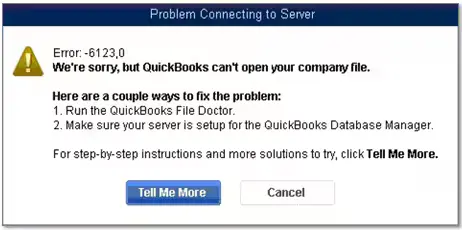
QuickBooks Error -6123, 0 is a company file error in QuickBooks Desktop. It can appear when you try to open, upgrade, or restore company data.
You may see this error in situations such as:
- Opening an existing company file.
- Upgrading a company file to a newer QuickBooks version.
- Restoring a backup from another computer.
- Moving company data to a new computer.
- Accessing a company file stored on a network.
The error message alone does not tell you which problem caused it. For example, a file that opens on one computer but fails on another may point to a different issue than a backup that cannot be restored.
QuickBooks has several errors that affect company files. If you see a different code, use our guide to QuickBooks 6000-series errors to find the correct troubleshooting steps.
What Causes QuickBooks Error 6123, 0?
QuickBooks Error 6123, 0 can result from a hardware compatibility issue, a program problem, or trouble accessing company data. Identify the situation before trying a repair.
An incompatible computer processor
QuickBooks Desktop is not fully compatible with ARM-based computers that use Snapdragon or Qualcomm processors. Intuit lists this hardware issue as a possible cause of Error -6123, 0.
If you recently started using a new laptop, check its processor before trying other fixes.
A problem with QuickBooks Desktop
QuickBooks may have a program issue that prevents it from opening the company file. A repair tool may help resolve this type of problem.
A backup or file restoration issue
The error may appear when you restore a .QBB backup from a network folder, external drive, or online storage location. The restoration process may also fail when you move data to a new computer.
A network or hosting problem
If your company file is stored on a server, QuickBooks must be able to access the shared folder. Incorrect hosting settings, folder permissions, or network rules can prevent access.
A problem with company-file support files
QuickBooks uses supporting files, including .ND and .TLG files, when working with company data. In some cases, these files may need attention during troubleshooting.
These are possible causes, not a list of confirmed faults in every case. Start with the checks below to narrow down the problem.
What Should You Check Before Fixing Error Code 6123?
A few quick checks can help you avoid unnecessary changes to your QuickBooks setup.
- Check the processor: Find out whether your computer uses Intel, AMD, Snapdragon, or Qualcomm.
- Identify the file type: A .QBW file is the working company file, a .QBB file is a backup, and a .QBM file is a portable company file.
- Check the file location: Note whether the file is stored on your computer, an external drive, or a shared network folder.
- Check other computers: If you use multi-user mode, find out whether the company file opens on the host computer or another workstation.
- Protect your data: Keep the original company file and any available backup unchanged while you troubleshoot.
These checks help you choose the right solution without trying every method at random.
How to Fix QuickBooks Error 6123, 0
Follow the steps that match your situation. If you are opening or upgrading an existing company file, start with the processor check and QuickBooks repair tools. If the error occurs during backup restoration, move to the relevant restoration steps.
Check Your Computer’s Processor
If your computer uses a Snapdragon or Qualcomm processor, QuickBooks Desktop compatibility may be the cause of Error 6123, 0.
To check your processor:
- Open the Windows Start menu.
- Search for About your PC and open it.
- Find the Processor section under Device specifications.
- Check the processor name.
If you see Intel or AMD, your computer meets the processor requirement described in Intuit’s guidance. Continue with the next steps.
If you see Snapdragon, Qualcomm, or ARM, Intuit states that QuickBooks Desktop is not compatible with that hardware. A software update will not fix this limitation.
Your options include:
- Moving QuickBooks Desktop and your company data to a supported Intel or AMD computer.
- Using an authorized cloud-hosting provider that runs QuickBooks on supported hardware.
- Considering QuickBooks Online if its features meet your business needs.
Intuit also documents a temporary workaround for some ARM users who need one-time access to view their data. It is not guaranteed to work and must be repeated each time QuickBooks opens.
Open the Company File From Within QuickBooks
If your computer uses a supported processor, make sure you open the company file from QuickBooks Desktop rather than directly from Windows File Explorer.
Follow these steps:
- Close QuickBooks Desktop.
- Reopen QuickBooks.
- Go to the No Company Open screen, if it appears.

- Select the option to open or restore a company file.
- Browse to the correct .QBW file.
- Select the file and try to open it.
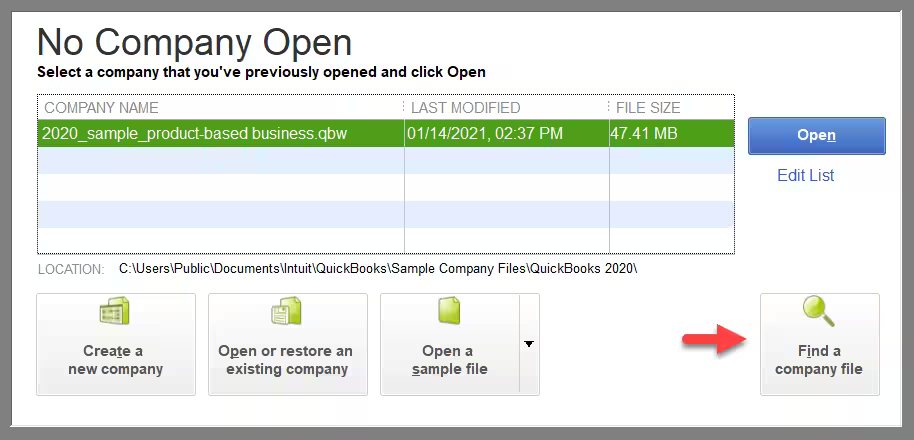
The exact menu wording may vary by QuickBooks version.
If the file opens, make a fresh backup before continuing with your work. If Error 6123 still appears, move to the next step.
Run Quick Fix My Program
Quick Fix My Program can help resolve common QuickBooks Desktop program issues. You can run it through QuickBooks Tool Hub.
If Tool Hub is not installed, follow our guide to download and install QuickBooks Tool Hub.
Once it is installed:
- Close QuickBooks Desktop.
- Open QuickBooks Tool Hub.
- Select Program Problems.
- Choose Quick Fix My Program.
- Wait for the process to finish.
- Reopen QuickBooks Desktop.
- Try opening your company file again.

The tool may take longer if you have several QuickBooks versions installed.
If the error remains, proceed to File Doctor.
Run QuickBooks File Doctor
QuickBooks File Doctor checks company file data and can repair some common problems. Intuit recommends trying it if Quick Fix My Program does not resolve Error 6123, 0.
To run the tool:
- Open QuickBooks Tool Hub.
- Select Company File Issues.
- Choose Run QuickBooks File Doctor.
- Select your company file from the list. If it does not appear, use Browse to find it.
- Choose Check your file and select Continue.
- Enter your QuickBooks administrator password if prompted.
- Let the scan finish.
- Reopen QuickBooks and test the company file.
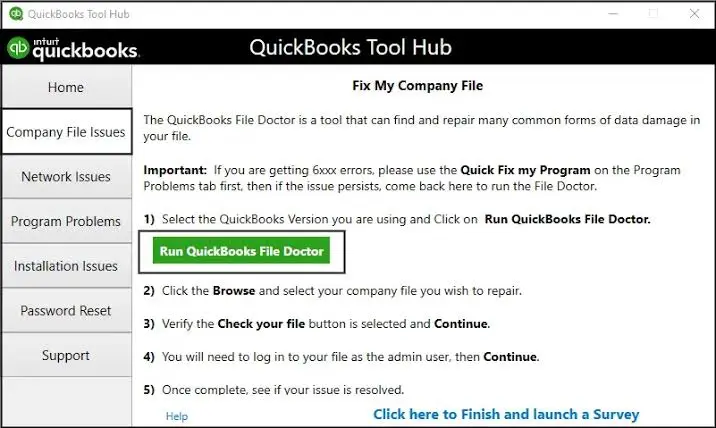
Do not interrupt the scan while it is running. The time required depends on the file and the problem being checked.
If the file opens successfully, create a new backup.
If File Doctor will not launch, freezes, or fails before completing the scan, see our guide to fixing QuickBooks File Doctor problems.
If the scan completes but Error 6123 remains, continue with the steps that match your situation.
Restore the Backup From a Local Hard Drive
If Error 6123 appears while restoring a QuickBooks backup, check where the backup is stored.
Intuit recommends restoring a .QBB backup from a local hard drive rather than directly from an online storage folder, network location, or removable drive.
Follow these steps:
- Locate the backup file with the .QBB extension.
- Copy it to a folder on your computer’s local hard drive.
- Open QuickBooks Desktop.
- Choose the option to restore a company file from a backup.
- Browse to the local copy of the .QBB file.
- Follow the prompts to restore it to the correct location.
- Try opening the restored company file.
Keep the original backup unchanged. Make sure you select the correct backup and destination before starting the restoration.
If you still cannot restore the file, do not assume the backup is damaged. Check the next scenario if you are moving QuickBooks to another computer.
Use a Portable Company File on a New Computer
If you are restoring a backup on a new computer, Intuit recommends creating a portable company file (.QBM) on the original computer and restoring that file on the new computer.
A portable company file is different from a regular backup. Follow this process:
- Open QuickBooks Desktop on the original computer.
- Open the original working company file, not the .QBB backup.
- Create a portable company file (.QBM) using QuickBooks’ portable-copy option.
- Transfer the .QBM file to the new computer.
- Open QuickBooks Desktop on the new computer.
- Restore the company file using the portable copy.
Once the restoration finishes, check that the company data opens correctly.
If you are moving the full QuickBooks installation as well, follow our guide to moving QuickBooks to a new computer.
Check Hosting and Network Settings
If the company file is stored on a server or shared folder, check whether the problem affects all computers or only one workstation.
For example, if the file opens on the host computer but fails on a workstation, investigate network access before assuming the company file is damaged.
Check the following:
- Confirm that the host computer is running and connected to the network.
- Make sure the company file is stored in the expected shared folder.
- Check that the correct computer is hosting the company file.
- Review folder permissions for the users and services that need access.
- Check whether QuickBooks Database Server Manager can scan the company file folder.
Do not change hosting settings on every computer at random. In a multi-user setup, the hosting role should be configured correctly on the server.
For detailed steps, see our guides to QuickBooks Desktop server connection problems and QuickBooks Database Server Manager.
Rename the .ND and .TLG Files When Appropriate
If the problem appears to involve a company file stored on a network, renaming its supporting files may help. This is an advanced troubleshooting step, not a fix that every user needs.
Before proceeding, ask all users to close QuickBooks and make sure no one is working in the company file.
Then:
- Open the folder containing the company file.
- Find the matching network data (.ND) and transaction log (.TLG) files.
- Rename the relevant file by adding .old to its existing name.
- Reopen QuickBooks and try the company file again.
- QuickBooks can recreate some of these supporting files when needed.
Do not delete the original company file or backup. Do not rename files while other users are connected. If you are unsure which files to change, seek help before proceeding.
Check Firewall Rules and Folder Permissions
Firewall rules and folder permissions can affect QuickBooks when it accesses a company file over a network.
If the earlier steps point to a network problem, check that Windows allows the required QuickBooks programs to communicate on your network. Also make sure the correct users and services have access to the shared company-file folder.
Use the firewall rules and ports that match your QuickBooks version. If your business has a managed network, ask your IT administrator to review them.
Do not leave your firewall or antivirus disabled as a permanent fix. Avoid granting broad access, such as Full Control to every Windows user, when only specific accounts need permission.
If you still cannot open the company file, use the checks below before attempting more repairs.
What If QuickBooks Error 6123, 0 Still Appears?
If Error 6123 remains after the relevant fixes, the next step is to find out whether the issue affects the company file, QuickBooks itself, or the computer.
Test a sample company file
Open QuickBooks Desktop and try to open a sample company file from the No Company Open screen.
- If the sample file opens: The problem may be linked to your company file or its location.
- If the sample file also fails: The problem may involve QuickBooks, the computer, or its setup.
This test does not prove the exact cause, but it helps narrow down what to check next.
How to Confirm Error 6123 Is Fixed
After applying a fix, test the same action that caused the error.
- Open the company file if opening it was the problem.
- Complete the backup restoration if the error appeared during recovery.
- Test access from the affected workstation if you use multi-user mode.
- Check that the expected company data is available.
Once you can access the company file, create a fresh backup. Keep it in a safe location so you have a recovery option if another problem occurs.
How to Prevent QuickBooks Error 6123 From Returning
You can reduce the risk of future company-file problems by following a few basic practices.
- Keep regular backups. Store a reliable backup separately from the working company file.
- Use supported hardware. Check processor compatibility before installing QuickBooks Desktop on a new computer.
- Update QuickBooks. Install updates that apply to your version.
- Keep network settings consistent. Make sure hosting, folder permissions, and firewall rules match your multi-user setup.
- Follow a safe migration process. Use the correct backup or portable-file method when moving company data to another computer.
These steps cannot prevent every error, but they make recovery easier and reduce the need for risky troubleshooting.
Conclusion
QuickBooks Error 6123, 0 can stop you from opening a company file or restoring a backup, but it does not always mean your data is damaged.
Start by checking processor compatibility. If your computer is supported, try opening the file from QuickBooks, run Quick Fix My Program, and use File Doctor if needed. If the error occurs during restoration or on a new computer, follow the relevant backup or portable-file steps instead.
For network-related problems, check hosting and folder access before changing advanced settings. If the error continues after the recommended repairs, protect your original data and get help from an expert.
Frequently Asked Questions
Does QuickBooks Error 6123, 0 mean my company file is corrupted?
No, the error does not prove that your company file is corrupted. Hardware compatibility, program problems, or file access issues may also cause it. Check the likely cause before attempting advanced repairs.
How do I fix Error 6123 when restoring a .QBB backup?
Copy the backup to a local hard drive and restore it from within QuickBooks Desktop. Avoid restoring directly from an online storage folder, network location, or removable drive. Keep the original backup unchanged.
How do I fix QuickBooks Error 6123 on a new computer?
If the error appears while restoring a backup on a new computer, create a portable company file (.QBM) from the original working company file on the old computer. Then restore the portable file on the new computer.
Can QuickBooks Error 6123 occur in multi-user mode?
The error may involve company-file access in a network setup. Check whether the file opens on the host computer, then review hosting settings, folder permissions, firewall rules, and Database Server Manager if the problem affects a workstation.
Can I fix QuickBooks Error Code 6123 0 without File Doctor?
Yes, depending on the cause. Checking processor compatibility, opening the file from within QuickBooks, running QuickFix my Program, or restoring a backup from a local drive may resolve the problem. File Doctor is the next recommended step for compatible computers when QuickFix does not work.
What should I do if File Doctor does not fix QuickBooks Desktop Error 6123?
Check whether a sample company file opens and confirm that you have a reliable backup. Avoid repeating repairs on the only copy of your data. If the error continues, contact Intuit or a qualified data-recovery professional.
Can QuickBooks Desktop run on a Snapdragon or Qualcomm computer?
Intuit states that QuickBooks Desktop is not compatible with ARM-based computers using Snapdragon or Qualcomm processors. Consider using a supported Intel or AMD computer, an authorized cloud-hosting service, or QuickBooks Online if it meets your needs.
Accounts Confidant is an independent accounting and bookkeeping service provider and is not affiliated with Intuit.


