
QuickBooks Desktop can encounter various problems, especially when you’re dealing with a damaged company file or network connectivity issues. That’s where QuickBooks File Doctor can come in handy. It is available through QuickBooks Tool Hub, which brings several QuickBooks troubleshooting tools together in one place.
In this guide, we’ll walk you through how to download and install QuickBooks Tool Hub and access File Doctor, along with the steps you can follow to use the tool when a company file or network issue gets in your way.
If you are looking for a QuickBooks File Doctor download guide, the current way to access the tool is through QuickBooks Tool Hub.
What Is QuickBooks File Doctor?
QuickBooks File Doctor is a troubleshooting tool that helps diagnose certain company file and network-related problems in QuickBooks Desktop. You can access it through QuickBooks Tool Hub, which brings several QuickBooks repair and diagnostic tools together in one place.
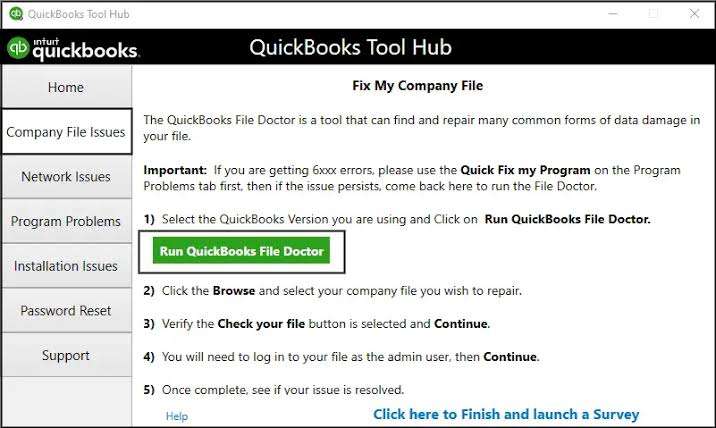
If your company file is not opening properly or you are running into certain network-related errors, File Doctor can check for supported issues and attempt to repair them.
QuickBooks File Doctor System Requirements
Before using QuickBooks File Doctor, make sure:
- You are using QuickBooks Desktop on Windows.
- Your Windows installation is supported by your version of QuickBooks Desktop.
- You have QuickBooks Tool Hub installed on your computer.
- You have an active internet connection to download or update QuickBooks Tool Hub when needed.
- You have enough available storage to download and install the Tool Hub.
- You have access to the QuickBooks company file you want to diagnose.
- You know the QuickBooks administrator password, as File Doctor may request it during the diagnosis.
- QuickBooks Desktop and QuickBooks Tool Hub are updated to their latest available versions.
How to Download QuickBooks File Doctor
QuickBooks File Doctor is accessed through QuickBooks Tool Hub rather than downloaded as a separate application.
You can find the tool by downloading QuickBooks Tool Hub and opening the Company File Issues section. Follow these steps:
- The first thing you should do is close QuickBooks Desktop if it is currently open.
- Right after that, download the latest QuickBooks Tool Hub from the official Intuit website. If you’re not familiar with installing Tool Hub, you can navigate to our QuickBooks Tool Hub download and installation guide for detailed instructions.
- Then, save the installation file to an easy-to-find location.
- Once it is installed, open the downloaded QuickBooksToolHub.exe file and follow the on-screen instructions to complete the installation.
- Accept the license agreement when prompted.
Once QuickBooks Tool Hub is installed, you can run QuickBooks File Doctor to diagnose certain company file and network problems.
How to Run QuickBooks File Doctor
Before you start, close QuickBooks Desktop and make sure other users are not accessing the company file.
Follow these steps to use QuickBooks File Doctor:
- To begin with, open QuickBooks Tool Hub on your Windows computer.
- Next, select the Company File Issues tab from the left navigation menu.
- Proceed to select Run QuickBooks File Doctor.
- Wait for the File Doctor window to open. It may take a short time to launch.
- Then, select your company file from the available list. (If you cannot find the file, select Browse and locate the company file manually.)
- Select Check your file and then click Continue.
- Select Next and enter your QuickBooks administrator password when prompted.
- Finally, select Next to start the diagnosis.
So, what problems can QuickBooks File Doctor actually fix? This is what we will discuss next.
What Problems Can QuickBooks File Doctor Fix?
The tool may help with the following issues:
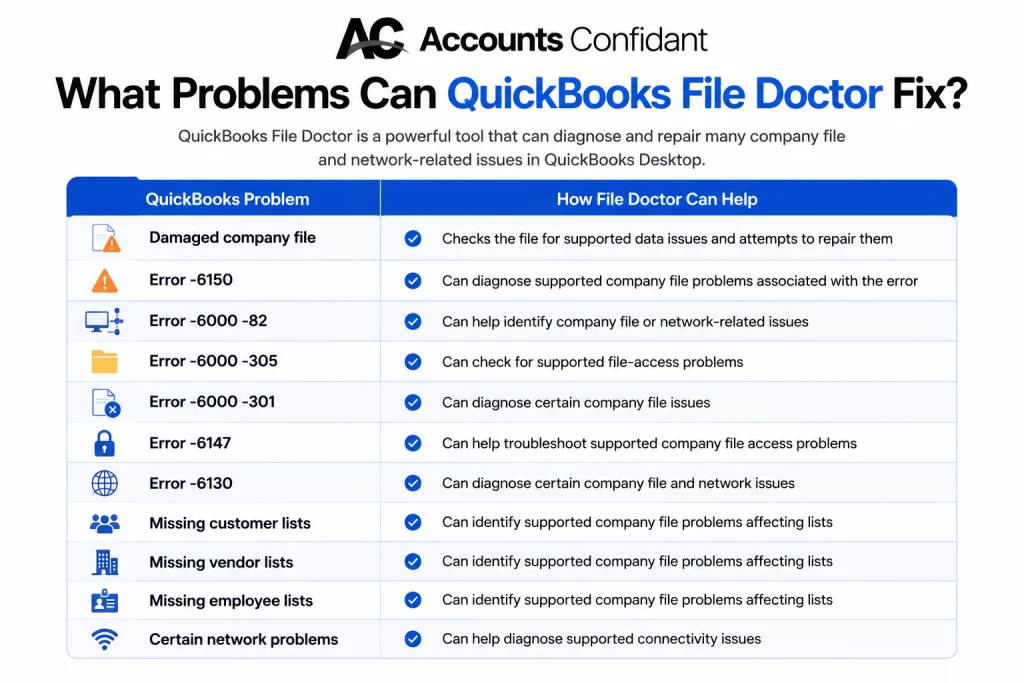
| QuickBooks Problem | How File Doctor Can Help |
| Damaged company file | Checks the file for supported data issues and attempts to repair them |
| Error -6150 | Can diagnose supported company file problems associated with the error |
| Error -6000 -82 | Can help identify company file or network-related issues |
| Error -6000 -305 | Can check for supported file-access problems |
| Error -6000 -301 | Can diagnose certain company file issues |
| Error -6147 | Can help troubleshoot supported company file access problems |
| Error -6130 | Can diagnose certain company file and network issues |
| Missing customer lists | Can identify supported company file problems affecting lists |
| Missing vendor lists | Can identify supported company file problems affecting lists |
| Missing employee lists | Can identify supported company file problems affecting lists |
| Certain network problems | Can help diagnose supported connectivity issues |
However, QuickBooks File Doctor is not designed to fix every QuickBooks error or every type of data corruption. If the tool cannot repair the company file, you may need to use another QuickBooks troubleshooting utility, restore a backup, or investigate the network and hosting configuration separately.
For detailed troubleshooting steps when File Doctor won’t open, freezes, crashes, or stops responding, see our guide to QuickBooks File Doctor Not Working.
What Happens During a QuickBooks File Doctor Scan?
After you start the QuickBooks File Doctor scan, the tool examines the selected company file for supported problems. Depending on the issue, it may check for company file damage or problems affecting access to the file.
The scan can take several minutes. The process can take up to 10–15 minutes, although the actual time depends on factors such as the size and condition of the company file.
Do not close QuickBooks Tool Hub, restart the computer, or interrupt the process while the scan is running. Once the scan finishes, open QuickBooks Desktop and try to access your company file again.
QuickBooks File Doctor vs. Verify and Rebuild: Which Should You Use?
QuickBooks File Doctor is mainly used for supported company file and network problems, especially when you cannot open your company file. Verify and Rebuild Data is better when QuickBooks opens, but you suspect data damage or inconsistencies.
| QuickBooks File Doctor | Verify and Rebuild Data |
| Company file won’t open | Company file opens, but data seems damaged |
| Certain 6000-series errors | Data-integrity issues |
| Supported network problems | Supported data corruption |
| File and connectivity diagnosis | Data verification and repair |
In short: Use File Doctor for file-access and supported network issues. Use Verify and Rebuild when QuickBooks opens, but you suspect problems with your company data.
QuickBooks File Doctor vs. Database Server Manager
QuickBooks File Doctor helps diagnose supported company-file and network problems, while QuickBooks Database Server Manager helps QuickBooks Desktop users host company files and enable multi-user access.
| File Doctor | Database Server Manager |
| Diagnoses supported file and network issues | Manages company-file hosting |
| Helps troubleshoot access problems | Supports multi-user access |
| Used when errors or file problems occur | Used mainly on the server computer |
In short: File Doctor is better for diagnosing a specific company file or network problem. Database Server Manager is more appropriate when the issue involves hosting a company file for multiple QuickBooks users.
QuickBooks File Doctor vs. QuickBooks Tool Hub
QuickBooks Tool Hub is a collection of troubleshooting utilities, while QuickBooks File Doctor is one specific tool used for supported company-file and network problems.
| QuickBooks Tool Hub | QuickBooks File Doctor |
| Contains multiple repair tools | Performs specific file and network diagnosis |
| Includes File Doctor | Used through Tool Hub |
| Helps troubleshoot different QuickBooks Desktop issues | Focuses on supported company-file and network problems |
In simple terms, Tool Hub is the toolbox, while File Doctor is one of the tools inside it. If you need to repair a company file, open Tool Hub and select Company File Issues → Run QuickBooks File Doctor.
Conclusion
QuickBooks File Doctor can help identify and resolve certain company file and network-related issues, making it a useful troubleshooting tool when QuickBooks Desktop runs into problems. We hope this guide helped you understand how to access and use QBFD through QuickBooks Tool Hub.
Frequently Asked Questions
Is QuickBooks File Doctor free?
Yes, QuickBooks File Doctor is available as part of QuickBooks Tool Hub, which Intuit provides as a troubleshooting utility for QuickBooks Desktop.
Where can I download QuickBooks File Doctor?
You can access File Doctor through QuickBooks Tool Hub. Download the latest Tool Hub, open it, select Company File Issues, and then choose Run QuickBooks File Doctor.
Is File Doctor included in QuickBooks Tool Hub?
Yes, QuickBooks File Doctor is included in QuickBooks Tool Hub under the Company File Issues section.
Can File Doctor repair a corrupted QuickBooks company file?
Yes, it can diagnose and repair certain supported company-file problems. However, it cannot repair every type or severity of corruption. If it cannot repair the file, you may need to restore a backup or use another data-recovery method.
Does File Doctor work on Mac?
No, QFD is designed for QuickBooks Desktop on Windows and is not available for QuickBooks Desktop for Mac.
How long does a File Doctor scan take?
A QuickBooks File Doctor scan can take up to 10–15 minutes, depending on the company file and issue being diagnosed. Allow the scan to finish before closing the tool.
Can File Doctor fix Error H202?
It does help diagnose certain supported network problems, but Error H202 can also require network, hosting, or Database Server Manager troubleshooting. If File Doctor does not resolve H202, continue with the specific H202 troubleshooting steps or use another appropriate QuickBooks recovery method.
What should I do if File Doctor doesn’t fix my issue?
If File Doctor doesn’t fix the problem, identify whether it involves company file damage, data integrity, or network connectivity. You can then use Verify and Rebuild Data, restore a backup, troubleshoot the network, or use another appropriate QuickBooks recovery method.
What is QuickBooks File Doctor and what does it do?
QuickBooks File Doctor is a QuickBooks Desktop troubleshooting tool that helps diagnose certain company-file and network problems. It can check supported issues and attempt to repair them.
Is QuickBooks File Doctor still available?
Yes, File Doctor is available through QuickBooks Tool Hub for supported QuickBooks Desktop troubleshooting.
When should I use QuickBooks File Doctor?
Use File Doctor when you have company-file or network problems, particularly when you cannot open a company file or encounter certain file and connectivity errors.
QuickBooks File Doctor vs. Verify and Rebuild: which should I use?
You should use File Doctor for supported company-file access and network problems, and Verify and Rebuild Data when QuickBooks opens but you suspect problems with the integrity of your company data.
What’s the difference between File Doctor and QuickBooks Tool Hub?
QuickBooks Tool Hub is a collection of troubleshooting utilities, while File Doctor is one specific tool within Tool Hub used for supporting company-file and network problems.
What should I use if File Doctor doesn’t work?
The next tool depends on the problem. Try Verify and Rebuild Data for data-integrity issues, use network troubleshooting for multi-user problems, or restore a recent backup if the company file remains inaccessible.
Is Database Server Manager better than File Doctor?
No tool is universally better. File Doctor is designed to diagnose supported company-file and network problems, while Database Server Manager helps manage company-file hosting and multi-user access.

