QuickBooks Desktop needs an internet connection to download updates and connect with Intuit’s servers. Sometimes, QuickBooks may fail to connect to these servers and display QuickBooks Error 12029 on the screen. This usually happens when users try to download a software update or payroll update.
The error can occur because of internet connection problems, firewall restrictions, antivirus settings, or other security issues that stop QuickBooks from connecting to the server. When this happens, the update may fail, and users may not be able to download the latest QuickBooks or payroll updates.
To fix QuickBooks Error 12029, you first need to find out what is stopping the connection. In this blog, we will explain the common causes of this error and share step-by-step solutions to help you fix it and download your pending updates.
What Are the Common Causes of QuickBooks Error 12029?
QuickBooks Update Error 12029 can happen for several reasons, such as internet problems or security settings that block the connection.
Here are some common causes of this error:
| Common causes | How they affect QuickBooks |
| Unstable Internet Connection | A slow or interrupted internet connection may prevent QuickBooks from connecting to Intuit servers. |
| Windows Firewall Restrictions | Windows Firewall may block QuickBooks from accessing the internet or downloading updates. |
| Antivirus Interference | Antivirus software may identify QuickBooks connections as a security risk and block them. |
| Incorrect Internet Settings | Incorrect internet or security settings may prevent QuickBooks from establishing a secure connection. |
| TLS 1.2 Configuration Issues | Problems with TLS 1.2 settings may affect secure communication between QuickBooks and Intuit servers. |
| Background Application Conflicts | Other applications or services running on Windows may interfere with QuickBooks update downloads. |
Note: These are possible causes of Error 12029. The exact reason may vary depending on your QuickBooks version, Windows settings, and network configuration.
6 Ways to Troubleshoot QuickBooks Error 12029
If QuickBooks Update Error 12029 appears while downloading an update, the first thing you should check is your internet connection and computer settings.
Start with the first solution and move to the next one if the error is still there.
Solution 1: Download and Run the TLS 1.2 Utility
QuickBooks needs a secure connection to communicate with Intuit’s servers. If your computer has problems with these security settings, you may face Error 12029 while downloading updates.
Intuit provides a TLS 1.2 Utility to help check and fix related connection issues.
Follow these steps:
- Close QuickBooks Desktop.
- Download and install the latest QuickBooks Tool Hub from Intuit’s official website.
- Open QuickBooks Tool Hub.
- Select Installation Issues.
- Look for the QuickBooks TLS 1.2 Tool.
- Click OK to open the tool.
- Accept the license agreement by selecting Yes.
- Click Run and let the tool complete its process.
- Select Exit when the process finishes.
Once the tool has finished running, open QuickBooks and try downloading the update again.
Still seeing the QuickBooks payroll update error 12029? The next thing to check is whether your internet connection is working properly.
Solution 2: Check Your Internet Connection
QuickBooks needs a working internet connection to download updates from Intuit. If your connection is interrupted or you cannot access secure websites, QuickBooks may fail to complete the update.
Here’s what you need to do:
- Open Google Chrome or another web browser.
- Visit a secure website, such as your bank’s sign-in page.
- Check whether the website opens without any errors.
- If the website does not open, contact your internet service provider or IT administrator.
- If the website opens successfully, return to QuickBooks Desktop.
- Try downloading the update again.
What if your internet is working but still shows Error 12029 in QuickBooks? In that case, your firewall or antivirus software may be blocking QuickBooks. Let’s check those settings next.
Solution 3: Check Your Firewall and Security Settings
Your computer’s firewall and security applications help protect it from unwanted internet connections. However, they may sometimes block QuickBooks from connecting to Intuit’s servers.
To check whether this is happening:
- Open the firewall or security application installed on your computer.
- Look for its blocked applications or connection settings.
- Check whether QuickBooks Desktop is listed as a blocked application.
- If QuickBooks is blocked, follow the application’s instructions to allow the required QuickBooks connections.
- Save the changes.
- Open QuickBooks Desktop and try downloading the update again.
If you use Windows Defender Firewall, you can also check its allowed applications list and make sure the required QuickBooks programs have the appropriate permissions.
For the correct program files and firewall ports, refer to our official firewall configuration guide.
Still unable to download the update? Another application running in the background could be interfering with QuickBooks. You can check this by starting Windows in Safe Mode with Networking.
Solution 4: Start Windows in Safe Mode with Networking
Safe Mode with Networking starts Windows with only a limited set of drivers and services while keeping internet access available. This can help you find out whether another application is causing problems with QuickBooks.
Follow these steps:
- Save your work and close all open applications.
- Open Windows Settings.
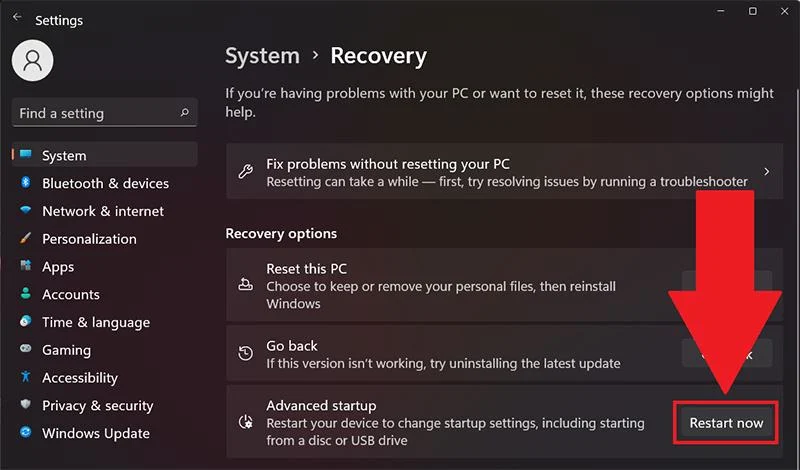
- Go to System > Recovery.
- Find Advanced startup and click Restart now.

- Once your computer restarts, select Troubleshoot.
- Choose Advanced options > Startup Settings.
- Click Restart.
- Select Safe Mode with Networking from the available options.
- Once Windows starts, open QuickBooks Desktop if its required components are available.
- Try downloading the update again.
If the update works in Safe Mode with Networking, another application or background process may be interfering with QuickBooks during normal startup.
What if the error does not go away? Restart your computer normally and try resetting the QuickBooks update process.
Solution 5: Reset QuickBooks Desktop Updates
If QuickBooks still cannot download updates, resetting the update process is another method you can try.
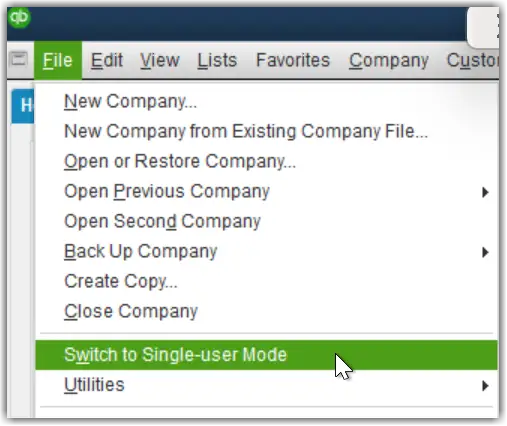
Before starting, make sure your company file is open in Single-user Mode.
Follow these steps:
- Restart your computer.
- Open QuickBooks Desktop.
- Open your company file.
- Switch to Single-user Mode if you are using Multi-user Mode.
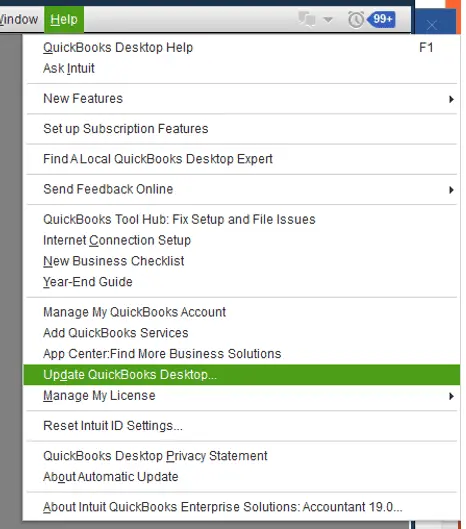
- Click Help from the top menu.
- Select Update QuickBooks Desktop.
- Go to the Update Now tab.
- Select the Reset Update checkbox.
- Click Get Updates.
- Wait for QuickBooks to finish downloading the updates.
- Close and reopen QuickBooks Desktop.
- Follow the on-screen instructions to install the updates.
Once the installation is complete, check whether QuickBooks Error 12029 is resolved.
If resetting the updates does not help either, you may need to try the final troubleshooting method.
Solution 6: Reinstall QuickBooks Desktop in Selective Startup
Sometimes, other applications or Windows services can interfere with QuickBooks installation and update processes. In such cases, try reinstalling QuickBooks Desktop in Selective Startup.
Before you begin, keep a backup of your company file and your QuickBooks product and license information.
Follow the steps below:
- Switch Windows to Selective Startup.
- Uninstall QuickBooks Desktop.
- Reinstall QuickBooks Desktop.
- Return Windows to Normal Startup.
- Open QuickBooks and check whether the update works.
After reinstalling: Open QuickBooks Desktop and try downloading the latest supported update. If QuickBooks Error Code 12029 continues to appear, contact QuickBooks for further help.
How to Prevent QuickBooks Error 12029 in the Future?
Although connectivity problems may occur unexpectedly, following a few maintenance practices can help reduce the chances of encountering QuickBooks payroll update error 12029 again.
- Maintain a stable internet connection when downloading QuickBooks updates.
- Keep Windows and QuickBooks Desktop updated.
- Configure firewall permissions for QuickBooks applications.
- Ensure antivirus software does not unnecessarily block QuickBooks.
- Keep the required internet security settings properly configured.
- Avoid interrupting software and payroll update downloads.
- Contact your network administrator if your internet connection is restricted by organizational security policies.
- Download QuickBooks updates only from Intuit’s official website.
Following these practices can help maintain a reliable connection between QuickBooks Desktop and Intuit services.
Conclusion
QuickBooks Error 12029 usually occurs due to internet connectivity issues, firewall restrictions, or incorrect network settings. Checking your connection, reviewing security configurations, and manually installing updates can help resolve the problem. Follow the troubleshooting steps carefully and maintain regular company file backups to keep your accounting data safe.
Frequently Asked Questions (FAQs)
Is it safe to run QuickBooks in Safe Mode with Networking to fix Error 12029?
Yes, Safe Mode with Networking starts Windows with essential drivers and services while maintaining internet access. It helps identify whether background applications, antivirus software, or other processes are interfering with QuickBooks updates.
How do I manually update QuickBooks if the automatic update fails?
Close QuickBooks Desktop, download the latest compatible update for your product and version, and run the downloaded installer. Follow the on-screen instructions and restart your computer once the installation is complete.
Can running QuickBooks as an administrator fix Error 12029?
Running QuickBooks as an administrator may resolve certain permission-related issues, but it is not a direct fix for Error 12029. Check your internet connection, firewall settings, antivirus restrictions, and proxy configuration to identify possible connectivity problems.
Does QuickBooks Error 12029 affect company file data?
No, QuickBooks payroll update error 12029 generally affects the software’s ability to connect to update servers. It does not normally damage or delete company file data. However, creating regular backups is recommended to protect your accounting records.