QuickBooks Error 88888 can stop you from connecting a bank account or downloading transactions in QuickBooks Desktop. You may receive a message saying your accounts have already been synced, even though Bank Feeds remain disconnected. Sometimes, QuickBooks crashes immediately after you authorize the bank connection.
The error has been reported with Bank of America, Capital One, and Discover. However, the exact problem varies by bank. Some users encounter it during account authorization, while others cannot reconnect an existing bank feed.
To fix QuickBooks Error 88888, start by checking your QuickBooks Desktop version, installing available updates, and confirming the correct bank connection. If the error continues, you may need to reconnect Bank Feeds or reset your Intuit ID settings.
This guide explains the steps for QuickBooks Desktop for Windows, including the Bank of America QBDT connection problems reported in 2026.
What Does QuickBooks Error 88888 Mean?
QuickBooks Error 88888 is a code reported during online banking connection and synchronization failures. It may appear when QuickBooks cannot identify an eligible bank account or complete the connection after authorization.
The error does not always display the same message.
| Error message or symptom | What it may indicate |
| “All accounts associated with this customer ID have been synced” | QuickBooks reports an existing connection, although the account may remain disconnected. |
| “No FI accounts found for given credentials” | The connection cannot identify the expected financial institution account. |
| “Your attempt to deactivate account failed” | QuickBooks cannot remove the existing online banking connection. |
| QuickBooks crashes after bank authorization | Authentication may have succeeded, but the account-linking process failed. |
The first message was reported by Bank of America users in the Intuit Community. Discover also documents Error 88888 in its official banking connectivity instructions.
These messages help narrow down the problem, but they do not establish one universal cause.
Why Does QuickBooks Error 88888 Occur?
QuickBooks Error 88888 can occur when the software cannot complete a bank connection, identify an eligible account, or synchronize banking information.
Common causes and related problems include:
- Outdated bank connection: Banks may change their connection methods. Bank of America required affected QuickBooks Desktop users to switch to Bank of America QBDT in July 2026.
- Failed account linking: QuickBooks may fail after a successful bank login. Some Bank of America users reported crashes after completing OAuth authorization.
- Account identification problems: Discover associates Error 88888 with an inability to find a financial institution account linked to the supplied credentials.
- Existing Bank Feeds connections: An older connection may need to be deactivated before the account can be reconnected.
- Pending transactions or company file problems: Unprocessed bank transactions can prevent deactivation. Data damage may also interfere with account settings, although Error 88888 alone does not confirm corruption.
The next step depends on where the connection fails and which QuickBooks Desktop version you use.
What Should You Check Before Troubleshooting?
Before changing your bank connection, verify that your QuickBooks Desktop version still supports online banking.
According to Intuit’s service discontinuation policies:
- QuickBooks Desktop 2021 lost access to connected services, including online banking, after May 31, 2024.
- QuickBooks Desktop 2023 lost access to connected services, including online bank feeds, after May 31, 2026.
Intuit states that online transaction downloading and uploading are affected by the 2023 discontinuation. Updating an unsupported product to its final maintenance release will not restore discontinued services.
You can review the details in Intuit’s QuickBooks Desktop 2023 service discontinuation policy.
If your version is still supported, complete these checks:
- Sign in to your bank’s official website and look for authentication requests or security alerts.
- Confirm the bank account is active and eligible for online banking.
- Record the exact error message and when it appears.
- Check whether other accounts with the same bank are affected.
- Back up your company file through File > Back Up Company > Create Local Backup.

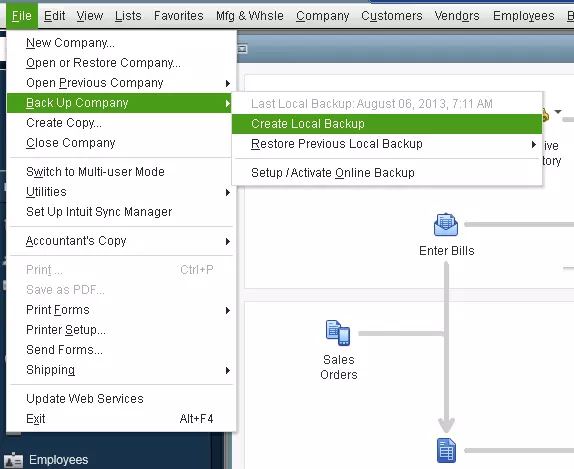
If several employees use the company file, switch to single-user mode before changing bank feed settings. Intuit also recommends reviewing pending online payments and downloaded transactions before reconnecting a bank.
How to Fix QuickBooks Error 88888 in Desktop
Start with software and connection checks. Disconnect Bank Feeds only when the existing connection needs to be replaced or the bank requires reconnection.
Solution 1: Update QuickBooks Desktop
Install the latest available maintenance release for your supported QuickBooks Desktop version.
- Open QuickBooks Desktop.
- Go to Help > Update QuickBooks Desktop.
- Select the Update Now tab.
- Click Get Updates.
- Allow QuickBooks to download available updates.
- Close and reopen the software.
- Install the update when prompted.
- Open your company file and retry the bank connection.
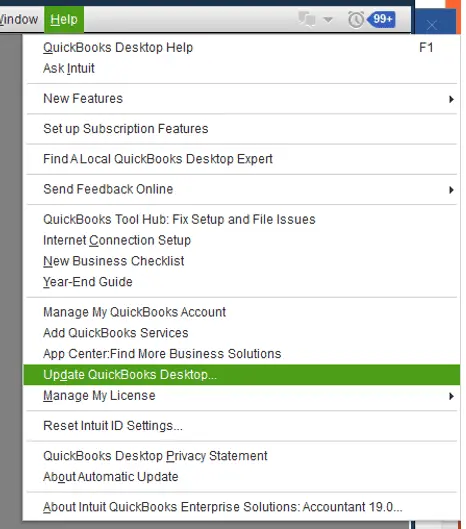
To check your current release, press F2 or Ctrl+1 to open the Product Information window.
Updating is particularly relevant to Bank of America users. In August 2026, several users reported that a QuickBooks update restored their Bank of America QBDT connection.
Intuit provides the full process in Update QuickBooks Desktop to the latest release.
If no updates are available and the error continues, check whether QuickBooks is using the correct financial institution connection.
Solution 2: Verify the Bank Connection Method
Some banks require customers to reconnect QuickBooks using a new financial institution listing.
For example, Intuit’s banking instructions identify these connection changes:
| Bank | Connection specified by Intuit |
| Bank of America | Bank of America QBDT |
| Capital One | Capital One Bank – New |
The Bank of America reconnection deadline was July 6, 2026. Capital One’s documented transition occurred in April 2022.
If the old connection is no longer supported, selecting it again may lead to repeated connection failures.
Before reconnecting:
- Sign in to your bank’s website.
- Complete any pending security or authorization requests.
- Check the connection name required by your bank.
- Return to QuickBooks and select the appropriate financial institution.
Follow Intuit’s online banking reconnection instructions when the previous connection must be replaced.
If authentication succeeds but QuickBooks crashes afterward, the failure may occur during account linking rather than password verification.
Solution 3: Disconnect and Reconnect Bank Feeds
If the connection remains stuck or your bank requires a new setup, deactivate the existing Bank Feeds connection before reconnecting it.
First, open the Bank Feeds Center and review any downloaded transactions waiting to be added or matched. Intuit states that pending transactions can prevent account deactivation.
Step 1: Disconnect the existing bank feed
- Open Lists > Chart of Accounts.
- Right-click the affected bank account.
- Select Edit Account.
- Open the Bank Settings tab.
- Choose Deactivate all online services.
- Click OK to confirm.
- Select Save & Close.
The lightning-bolt symbol beside the account should disappear after successful deactivation.
Step 2: Reconnect the account
- Go to Banking > Bank Feeds.
- Select Set Up Bank Feed for an Account.
- Enter your bank’s name.
- Select the correct financial institution from the results.
- Click Continue.
- Complete the required login or bank authorization.
- Select the accounts you want to connect.
- Link each bank account to the correct existing QuickBooks account.
- Complete the setup.
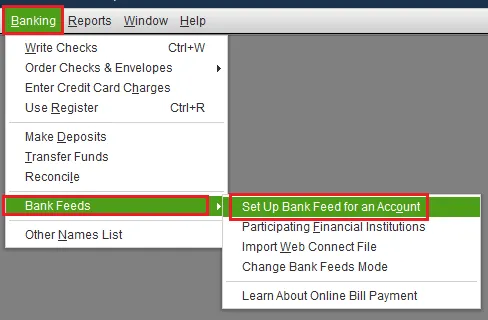
Some financial institutions require authorization through an external browser. After completing it, return to QuickBooks to finish the connection.
Step 3: Check whether transactions download
Open Banking > Bank Feeds > Bank Feeds Center. 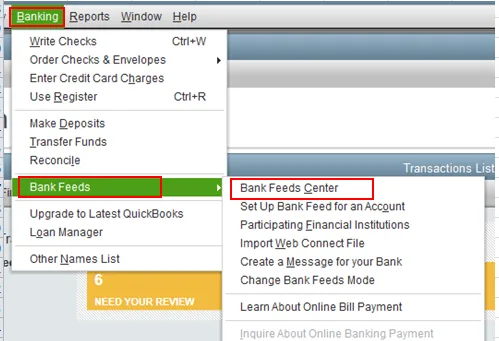
Select the affected account and choose Download Transactions. Review the downloaded entries and confirm that they belong to the correct account.
Do not create a new Chart of Accounts entry when the correct existing account is available. Otherwise, transactions from one real-world bank account may become divided between multiple QuickBooks accounts.
For the official procedure, see Disconnect Bank Feeds for an account in QuickBooks Desktop.
Solution 4: Reset Intuit ID Settings
If QuickBooks cannot identify your bank account or complete the connection, resetting Intuit ID settings may help in certain cases.
This procedure is specifically recommended in Discover’s documentation for Error 88888.
For QuickBooks Desktop versions that provide the option:
- Open QuickBooks Desktop.
- Go to Help > Reset Intuit ID Settings.
- Read the confirmation message.
- Type YES and click OK.
- Open Company > My Company.
- Select Sign In.
- Enter your Intuit account credentials.
- Return to Bank Feeds and retry the connection.
The reset signs you out of connected Intuit applications. Make sure you can access your Intuit account before proceeding.
Your Intuit account password is not necessarily the same as the administrator password used to open the company file.
Discover documents this method in its Bank and Credit Card Connectivity Change guide.
The instructions come from Discover’s published connectivity document and may not match every current QuickBooks release. If the Reset Intuit ID Settings option is unavailable, contact Intuit Support for the procedure applicable to your version.
Solution 5: Check Inactive Accounts and Old Bank Feeds Connections
An inactive account in QuickBooks can retain an older online banking connection.
If the bank requires a new connection method, review the accounts associated with that institution, including inactive ones.
- Go to Lists > Chart of Accounts.
- Select Include Inactive.
- Look for inactive accounts associated with the affected bank.
- Check whether a lightning-bolt symbol appears beside the account.
- If an outdated connection needs to be removed, right-click the account and select Edit Account.
- Open Bank Feed Settings.
- Select Deactivate All Online Services, then OK.
- Save the changes and reopen the company file.
Intuit recommends reviewing inactive accounts in its broader OL and OLSU Bank Feeds troubleshooting guide.
This is a general connection check, not a confirmed cause of every Error 88888 case.
Do not deactivate unrelated accounts. Only remove connections that need to change.
Solution 6: Fix Bank Feeds That Cannot Be Deactivated
Sometimes QuickBooks displays a message stating that your attempt to deactivate the account failed.
If this happens, first make sure all pending downloaded transactions have been matched or removed appropriately.
If the error remains, Intuit recommends:
- Re-sort the Chart of Accounts. This restores the list’s default order and may resolve problems preventing deactivation.
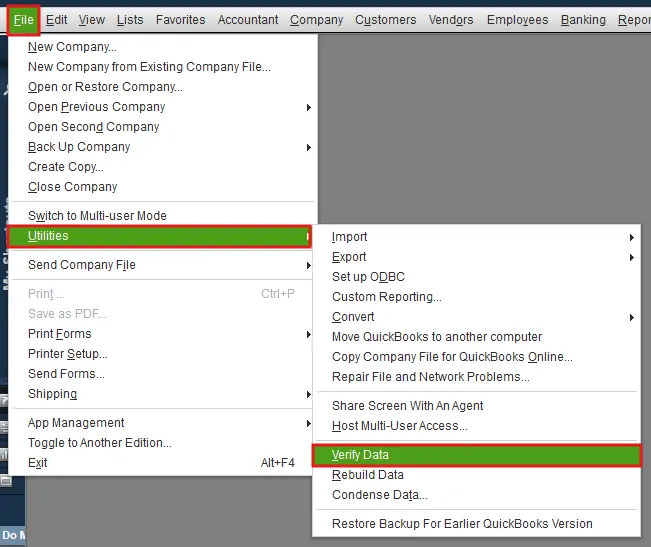
- Check for company file damage. Use File > Utilities > Verify Data if the symptoms suggest a data problem.
- Use the advanced IIF procedure only when necessary. Intuit documents a method for exporting the Chart of Accounts, changing banking settings in the exported file, and importing the modified data.
The IIF method can affect accounting records if performed incorrectly. Do not use it as an experimental repair, and always preserve an untouched backup first.
Follow Intuit’s instructions for fixing Bank Feeds deactivation problems or ask a qualified QuickBooks professional to review the file.
Solution 7: Update the Financial Institutions Directory
QuickBooks Desktop uses the Financial Institutions Directory (FiDir) to maintain information about supported banking connections.
If bank information has not refreshed correctly, updating the directory may help with certain connection problems.
- Open QuickBooks Desktop.
- Go to Banking > Bank Feeds > Bank Feeds Center.
- Select Refresh account(s), or choose Sync all for this bank from the available menu.
- Allow the process to finish.
- Retry the bank connection.
Intuit also provides a manual method involving the fidir.txt file. Because the file location depends on your QuickBooks version, follow the official procedure rather than modifying installation files without guidance.
See Update the Financial Institutions Directory in QuickBooks Desktop.
A directory refresh is a general troubleshooting step. It has not been established as a standalone fix for the Bank of America OAuth crash associated with Error 88888.
Solution 8: Check the Company File Only If Data Damage Is Suspected
If Error 88888 affects one company file while other files work correctly, review that file’s account settings and connection history.
However, a problem limited to one file does not automatically mean it is corrupted.
To check for data damage:
- Open the affected company file.
- Create a backup.
- Go to File > Utilities > Verify Data.
- Allow QuickBooks to complete the check.
- Review the results.
If QuickBooks detects data damage, follow Intuit’s Rebuild Data instructions and verify the file again after the repair.
If Verify reports no problems, continue investigating the banking connection rather than rebuilding repeatedly.
For detailed repair procedures, see our guide to QuickBooks data integrity issues.
QuickBooks File Doctor and Rebuild Data should not be treated as guaranteed fixes for a failed bank authorization.
How to Fix QuickBooks Error 88888 With Bank of America QBDT
Bank of America users reported a specific Error 88888 problem during the 2026 transition to Bank of America QBDT.
In a July 7, 2026, Intuit Community discussion, a QuickBooks Desktop Accountant 2024 user described this sequence:
- The previous Bank of America connection was disconnected.
- The user selected Bank of America QBDT.
- OAuth authentication at the bank succeeded.
- QuickBooks crashed after the account-selection step.
- Retrying the connection produced Error 88888.
The user also reproduced the crash in a newly created company file, suggesting that the problem was not limited to corruption in the original file.
The issue was discussed in the Bank of America QBDT connection thread.
Was the Bank of America Error 88888 Issue Fixed?
On August 10, 2026, several users reported receiving notices from Intuit that the connection issue had been addressed in the latest QuickBooks Desktop release.
Some successfully reconnected after updating. Others reported that their connections began working without another visible software update.
However, subsequent Community comments described continued problems, including unsuccessful account linking and renewed disconnections in September 2026.
Therefore, the August fix should not be treated as proof that every affected Bank of America connection is working.
If the error continues after you update QuickBooks and select Bank of America QBDT, contact Intuit Support. Explain whether QuickBooks crashes after authentication and whether the same behavior occurs in another company file.
Avoid repeatedly rebuilding the company file when the symptoms point to the bank connection process.
What If Error 88888 Occurs With Capital One or Discover?
The same code has appeared with both institutions, but the reported problems differ.
Capital One
A Capital One user reported that the existing bank feed stopped working, deactivation failed, and a new connection attempt returned Error 88888.
The issue persisted across several company files despite software updates and a company file rebuild.
Intuit’s reconnection guidance identifies Capital One Bank – New as the connection required after the bank’s earlier transition.
If you encounter the same problem, check that the old feed has been deactivated and reconnect using the supported Capital One listing.
The original symptoms and subsequent troubleshooting discussion are available in the Intuit Community Capital One thread.
Discover Bank and Discover Card
Discover’s published connectivity instructions associate Error 88888 with the message:
No FI accounts found for given credentials.
The document recommends deactivating existing online banking services and resetting Intuit ID settings.
Unlike the Bank of America OAuth crash, this message specifically concerns the identification of a financial institution account.
Follow Discover’s account-specific guidance and confirm the currently supported connection listing before reconnecting. Older Discover documentation may not reflect later changes to financial institution names or connection methods.
Can You Import Bank Transactions Manually While Error 88888 Persists?
If your bank offers QuickBooks Web Connect downloads and your QuickBooks version supports importing them, you may be able to import transactions manually while automatic Bank Feeds are unavailable.
Web Connect uses a .qbo file downloaded from your financial institution.
To import it:
- Sign in to your bank’s official website.
- Open the transaction download section.
- Select QuickBooks Web Connect (.qbo) if available.
- Download the required transaction dates.
- Open QuickBooks Desktop.
- Go to Banking > Bank Feeds > Import Web Connect Files.
- Select the downloaded file and click Open.
- Choose the correct existing QuickBooks account.
- Complete the import and review the transactions in Bank Feeds Center.
Intuit explains the supported import process in Set up or edit bank accounts for Bank Feeds in QuickBooks Desktop.
Web Connect availability depends on your bank and account type. During the 2026 Bank of America connection problems, users reported different .qbo download options for personal and business accounts.
If your bank does not offer compatible files, you may need to record transactions manually from your bank statements until the connection is restored.
Also, do not assume manual .qbo imports remain available in discontinued QuickBooks Desktop versions. Intuit’s service policy states that online banking transaction uploads are affected by the discontinuation of QuickBooks Desktop 2023.
How Do You Avoid Duplicate Transactions After Reconnecting Bank Feeds?
When automatic Bank Feeds resume, QuickBooks may download transactions that you already recorded or imported manually.
For example, suppose your connection stopped working on September 1. You manually imported transactions through September 20.
After reconnecting, QuickBooks downloads transactions beginning September 1 again.
If you add all those transactions, the entries already recorded between September 1 and September 20 may appear twice.
Before adding downloaded transactions:
- Compare the transaction dates and amounts with your bank register.
- Match downloaded transactions to existing entries where appropriate.
- Ignore or exclude transactions that are genuinely duplicated.
- Add only the missing transactions.
- Reconcile the account against the bank statement.
Do not delete previously reconciled transactions simply because similar entries appear in the downloaded list.
If your records no longer match your bank statement, Accounts Confidant’s bank reconciliation services can help with reviewing transactions and resolving discrepancies.
When Should You Contact Intuit?
Contact Intuit if Error 88888 continues after completing the applicable software updates and banking connection checks.
Support is especially appropriate when QuickBooks crashes after successful OAuth authentication, the connection fails across multiple company files, or an existing bank feed cannot be deactivated.
Before contacting intuit, record:
- Your QuickBooks Desktop edition, year, and release number.
- The financial institution and connection name.
- The exact error message.
- Whether the error occurs before or after bank authentication.
- The troubleshooting steps already attempted.
- Whether other company files or bank accounts are affected.
Explain the point at which the connection fails instead of reporting only the error code.
For example, saying that Bank of America authorization succeeds but QuickBooks crashes after account selection provides more useful diagnostic information than stating only that Error 88888 appears.
Conclusion
QuickBooks Error 88888 does not always mean your bank credentials are incorrect or your company file is damaged.
If your QuickBooks version still supports online banking, begin with the available updates and the bank’s current connection method. Check existing Bank Feeds settings before disconnecting accounts, and use the Discover-specific Intuit ID reset when that procedure applies.
If QuickBooks continues crashing after successful bank authorization, contact Intuit rather than repeating company file repairs. Once the connection works again, review the downloaded transactions before adding them to your books.
Frequently Asked Questions
Does QuickBooks Error 88888 delete existing bank transactions?
No evidence from the documented Error 88888 cases indicates that the code itself deletes transactions already recorded in the QuickBooks register. It can interrupt new downloads or connection setup. Back up your company file and preserve pending transactions before changing Bank Feeds settings.
Can QuickBooks Error 88888 occur even when my bank password is correct?
Yes, Bank of America users reported Error 88888 after successful OAuth authentication. In those cases, the failure occurred after login, during account selection or linking.
Can I fix Error 88888 in QuickBooks Desktop 2021 or 2023?
The usual connection fixes cannot restore Intuit online banking services that have been discontinued for an unsupported product year. QuickBooks Desktop 2021 lost connected services after May 31, 2024, and QuickBooks Desktop 2023 after May 31, 2026. Check your product’s support status before troubleshooting.
Does resetting Intuit ID settings change my QuickBooks administrator password?
No, Resetting Intuit ID settings concerns the Intuit account connection and may sign you out of connected applications. It is separate from changing the administrator password for your company file.
Why does QuickBooks say all accounts associated with my customer ID have been synced?
This message has appeared during unsuccessful banking reconnection attempts. It does not necessarily confirm that transactions downloaded correctly. Check the bank feed status and the dates of the latest downloaded transactions.
What should I do if Bank Feeds cannot be deactivated?
First, match or remove pending downloaded transactions. If deactivation still fails, follow Intuit’s list re-sorting and data verification instructions. Advanced IIF changes should be performed only with a verified backup and a clear understanding of the procedure.
Can QuickBooks File Doctor repair Error 88888?
QuickBooks File Doctor is intended for supported company file and file-access problems. It does not directly repair an OAuth authorization failure or a bank service problem. Use it only when the symptoms or official troubleshooting instructions indicate that company file damage may be involved.
Does Error 88888 affect QuickBooks Online?
The verified Error 88888 reports discussed in this guide concern QuickBooks Desktop. QuickBooks Online uses a different banking interface and has its own connection error codes and troubleshooting procedures.
Accounts Confidant is an independent accounting and bookkeeping service provider and is not affiliated with Intuit.