A QuickBooks data integrity issue occurs when QuickBooks Desktop detects damaged or inconsistent information in your company file. You may see messages such as “Your data has lost integrity,” “QuickBooks was unable to verify the integrity of your QuickBooks data,” or “We couldn’t fix some of your errors.”
These warnings can involve damaged transactions, incorrect links between records, or other company file problems. Even when QuickBooks opens normally, certain records may still need attention.
If Verify Data reports lost integrity, the usual repair method is to back up your company file, run Rebuild Data, and verify it again. But when the repair fails or the same warning returns, you need to identify the remaining errors before making further changes.
This guide focuses on diagnosing those errors, protecting your accounting records, and choosing the appropriate recovery method in QuickBooks Desktop for Windows.
What Does a QuickBooks Data Integrity Issue Mean?
A data integrity issue means QuickBooks has found a problem with the structure or consistency of information stored in your company file (.QBW).
QuickBooks connects invoices, payments, bills, deposits, accounts, and other records. If these connections become damaged, some transactions may no longer behave as expected.
For example, a customer payment might exist in QuickBooks but have a damaged link to its invoice. The invoice could then appear unpaid even though the payment was recorded.
Intuit identifies four main types of QuickBooks Desktop data damage:
| Type of damage | What it affects |
| List damage | Customer, vendor, employee, item, or account records |
| Transaction damage | Individual transactions, such as invoices, bills, or payments |
| Link damage | Relationships between transactions and related records |
| Structural damage | Internal tables or other parts of the company file structure |
The integrity warning alone does not identify which type of damage exists. You need the Verify results or diagnostic log to narrow down the problem.
What Do Different QuickBooks Data Integrity Messages Mean?
QuickBooks may display different messages depending on the operation and the problem detected.
| Message or result | What you should do |
| “Your data has lost integrity” | QuickBooks detected data damage. Back up the company file and follow the Rebuild Data procedure. |
| “QuickBooks was unable to verify the integrity of your QuickBooks data” | Verification could not confirm the file’s integrity. Record the full error and investigate further. |
| “We couldn’t fix some of your errors” | Some reported problems remain after the repair attempt. Review the remaining errors. |
| Verify Data stops or does not finish | Check for an accompanying error message and review the diagnostic information before attempting another repair. |
| “QuickBooks detected no problems with your data” | The completed Verify check found no problems. Investigate any separate accounting or application issue that remains. |
Note: The exact wording of some warnings varies across QuickBooks versions and reported cases. Intuit’s current Windows documentation specifically identifies “Your data has lost integrity” as a result requiring Rebuild Data.
Why Does QuickBooks Report Data Integrity Errors?
QuickBooks data integrity problems can result from damage within the company file or from external conditions affecting file operations.
Damaged transactions or record links
A transaction may contain information that QuickBooks cannot process correctly, or its relationship to another record may be damaged.
For example, an invoice and its payment may both exist, but an incorrect link between them can affect the customer’s outstanding balance.
Intuit documents several link-related and transaction-related errors that require investigation of the affected records.
Unexpected shutdowns during file operations
A power failure, computer crash, or unexpected QuickBooks shutdown may interrupt a transaction or file operation.
If errors began after such an event, record when the interruption occurred. This helps narrow the investigation, although it does not prove the shutdown caused the damage.
Server or network interruptions
In multi-user environments, several workstations may access a company file stored on a server.
Problems with network access, server availability, or storage can interfere with file operations. However, a network connection error does not automatically mean the accounting data is corrupted.
You should distinguish file-access problems from errors detected by Verify Data.
Errors left unresolved after rebuilding
Rebuild Data can repair certain types of damage, but it may not correct every issue.
For example, QuickBooks might repair a damaged list entry while leaving a separate payment-link error unresolved. The next Verify check may still report data damage.
In this situation, the remaining error details matter more than repeating the same repair steps.
What Should You Do Before Fixing QuickBooks Data Integrity Errors?
Before attempting any repair, preserve your original company file and identify the backup you can use if something goes wrong.
Rebuild Data changes company file information. In rare cases, the repair process may need to remove damaged transactions or list entries. Intuit documents this possibility in its Verify and Rebuild guidance.
Take these precautions:
- Preserve the current company file. Keep an untouched copy in a secure location.
- Check available backups. Identify the latest backup created before the problem appeared, if one exists.
- Ask other users to close the file. Avoid new transactions while investigating the problem.
- Switch to single-user mode before rebuilding. In QuickBooks Desktop, select File > Switch to Single-user Mode if the file is currently in multi-user mode.
- Record the error details. Save the exact message, when it appeared, and which operation triggered it.
You can press F2 or Ctrl + 1 to open the Product Information window and check the company file’s location.
Important: If you use QuickBooks Desktop Assisted Payroll, contact Intuit support before rebuilding. Intuit specifically includes this precaution in its repair instructions.
Do not continue with a rebuild if QuickBooks cannot create the required backup.
How Do You Fix a QuickBooks Data Integrity Issue?
Start with Verify Data to determine whether QuickBooks can identify company file damage. When it reports lost integrity, use Rebuild Data and check the results afterward.
Step 1: Check the company file with Verify Data
Open the affected company file in QuickBooks Desktop.
- Go to Window > Close All.
- Select File > Utilities > Verify Data.

- Allow the verification process to finish.
- Review the message displayed by QuickBooks.
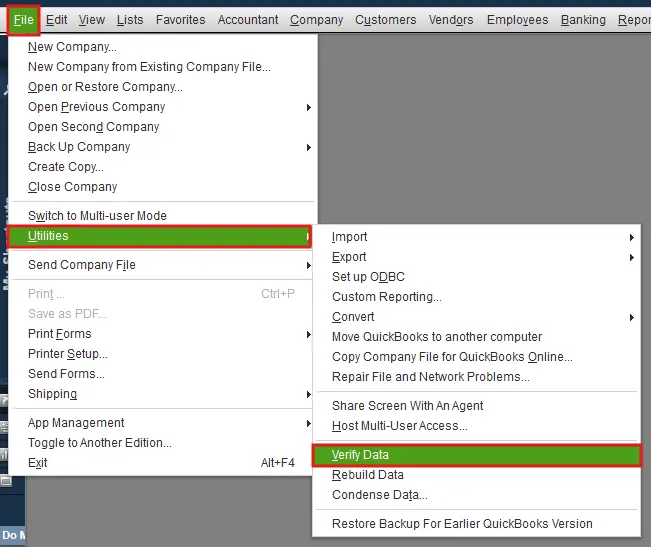
If QuickBooks reports lost integrity, proceed with the rebuild process. If verification stops with another error, investigate that error rather than assuming the file has a particular type of damage.
Step 2: Rebuild the damaged company file
Make sure the company file is in single-user mode and that you have preserved a backup.
- Select File > Utilities > Rebuild Data.
- Select OK when QuickBooks asks you to create a backup.
- Choose a backup location and use a new filename.
- Allow QuickBooks to finish backing up and rebuilding the file.
- Select OK when the completion message appears.
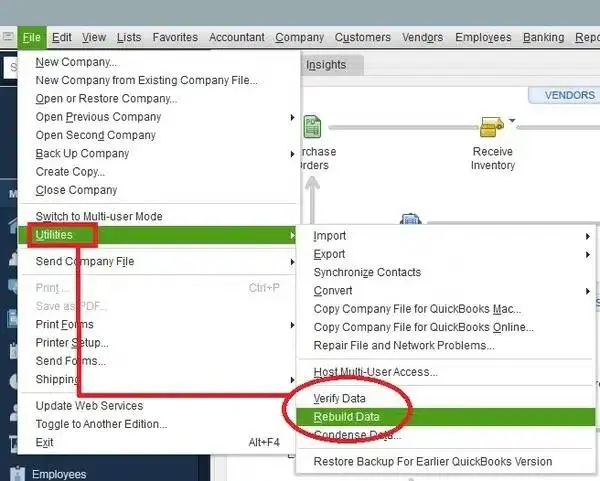
After rebuilding, run Verify Data again.
If QuickBooks reports no problems, review the affected accounting records before resuming normal work. If errors remain, continue with the troubleshooting methods below.
For a complete explanation of the utility menus, repair process, and Mac instructions, see our guide on how to Verify and Rebuild Data in QuickBooks Desktop.
How Do You Fix QuickBooks Data Integrity Errors That Remain After Rebuilding?
When Rebuild Data cannot resolve the problem, your next step depends on the exact error and whether the repair results have changed.
Review the latest Verify and Rebuild results
Start by checking which errors remain.
In QuickBooks Desktop for Windows:
- Open your company file.
- Press F2 to open Product Information.
- Select Review last Verify / Rebuild, if available.
- Expand the results to review the reported errors.
- Note any error codes or references to specific transactions, items, or accounts.
You can then compare the latest results with those recorded before rebuilding.
For example, if the first verification reported several errors and the latest result reports only one, the rebuild may have corrected some issues.
If exactly the same errors continue to appear, further investigation is necessary.
Check QBWin.log to identify the damaged records
The QBWin.log file contains diagnostic messages generated by QuickBooks Desktop for Windows.
It can help identify errors involving transaction links, items, account lists, and other company file records.
To open it:
- Open QuickBooks Desktop.
- Press F2 or Ctrl + 1.
- Press F3 or Ctrl + 2 to open Tech Help.
- Select the Open File tab.
- Find QBWin.log and select Open File.
- Press Ctrl + F and search for Begin Verify.
- Locate the most recent verification session and review its errors.
You may find an entry such as:
LVL_Error–Error: Verify Item: Invalid Tax Agency
This particular error is documented by Intuit. It can occur when an item contains invalid tax agency information.
Instead of deleting the item, follow Intuit’s instructions for correcting the invalid tax agency error.
Other log entries may identify damaged transactions or internal record numbers.
Do not delete, merge, or edit financial records based solely on an error code. First determine what the code means and which correction Intuit recommends.
Also, not every message in QBWin.log indicates damaged data. Intuit’s QBWin.log documentation identifies certain entries that should not be treated as corruption warnings.
Decide whether another rebuild is appropriate
You may need another rebuild if the first attempt repaired some errors but did not complete all corrections.
Intuit states that two or three rebuilds may sometimes be necessary, provided the error messages continue to change rather than repeat in a loop.
For example, if QuickBooks first reports three errors and the next verification reports only one, another rebuild may be reasonable.
However, stop repeating the process if:
- The same error appears after each rebuild.
- Previously available transactions or list entries disappear.
- The process repeatedly fails or stops responding without completing.
- The company file behaves differently after the repair.
Keep your original backup and investigate the remaining issue before changing the file further.
Use QuickBooks File Doctor when the problem matches its purpose
QuickBooks File Doctor can help troubleshoot supported company file damage and file-access problems.
It may be appropriate when QuickBooks has difficulty opening a company file or when Intuit recommends it for a specific error.
However, File Doctor should not be treated as a guaranteed fix for every failed integrity check.
An important exception: If names, items, or accounts are missing after a recent rebuild, Intuit advises against running File Doctor on that rebuilt file. Its guidance recommends checking the backup created before rebuilding.
If File Doctor will not open, freezes during a scan, or fails to complete, follow our separate guide on QuickBooks File Doctor Not Working.
What If QuickBooks Says “We Couldn’t Fix Some of Your Errors”?
This message indicates that the repair process could not resolve every problem it found.
It does not automatically mean that all affected transactions are missing or that the entire company file is unusable. However, unresolved errors should not be ignored.
For example, a QuickBooks Community discussion from January 31, 2026, describes a failed repair involving a link between a deposit and a payment. The user later completed a backup successfully, even though QuickBooks had reported an unrepaired error.
An Intuit representative explained that a successful backup does not prove the underlying data issue has been resolved.
If you encounter this warning:
- Preserve the company file and the latest backup.
- Review the remaining error in Verify Results or QBWin.log.
- Identify the transaction or record referenced by the error.
- Check the relevant Intuit support documentation.
- Contact Intuit support or an appropriate QuickBooks data-repair specialist if the error cannot be corrected safely.
Avoid making unrelated transaction changes to clear the warning. A correction should address the specific record or relationship reported as damaged.
How Do You Recover a QuickBooks Company File When Repairs Fail?
If Verify and Rebuild cannot resolve the problem, recovery from a usable backup may be safer than continuing to modify the damaged company file.
Option 1: Restore a backup created before the damage
A QuickBooks backup (.QBB) allows you to restore the company file to an earlier saved state.
To restore a local backup:
- Open QuickBooks Desktop.
- Go to File > Open or Restore Company.
- Select Restore a backup copy and click Next.
- Select Local Backup.
- Locate the .QBB file.
- Choose a separate folder for the restored company file.
- Save the restored file with a name that will not overwrite your current file.
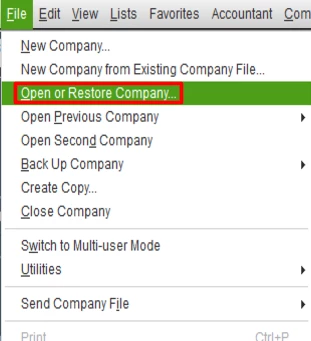
Open the restored file and run Verify Data.
If it passes verification, compare its financial reports and recent transactions with the information available outside QuickBooks.
For example, suppose your backup was created on October 20, but the integrity warning appeared on October 25. Restoring the October 20 backup will not automatically restore transactions entered during the following five days.
You may need bank statements, invoices, receipts, or other records to reconstruct that activity.
Do not replace the original company file until you understand what information the restored version contains.
If the file itself cannot be located, see our guide on QuickBooks Company File Not Found.
Option 2: Check whether Auto Data Recovery is available
QuickBooks Auto Data Recovery (ADR) may help recover data when the company file is damaged or transactions have been lost.
ADR uses available recovery copies of the company file and transaction log.
According to Intuit, ADR has these limitations:
- It is available in QuickBooks Desktop Pro, Premier, and Enterprise Solutions for Windows.
- It is not available in Accountant Editions.
- The ADR backup file size limit is 1.5 GB.
- It should be considered after appropriate troubleshooting has been attempted.
ADR does not guarantee recovery of every transaction.
Depending on the recovery method and available files, some recent transactions may be missing.
Follow Intuit’s Auto Data Recovery instructions and check the recovered file before making it your working company file.
Do not delete or rename the transaction log (.TLG) as a general data-integrity fix. It may be needed for recovery.
How Can You Tell Whether the QuickBooks Data Integrity Issue Is Fixed?
A successful Verify result means QuickBooks did not detect problems during that completed check. You should also examine the records associated with the original warning.
Suppose the error involved a customer payment linked to an invoice.
After the repair:
- Open the payment and check which invoice it is applied to.
- Verify that the invoice balance is correct.
- Review the customer’s balance.
- Compare the related bank deposit with your available records.
If the repair involved accounts, inventory, or payroll, check those records instead.
For more general damage, compare current financial reports with copies saved before the issue.
Pay particular attention to unexpected changes in the Balance Sheet, customer and vendor balances, and previously reconciled transactions.
A difference does not always indicate file corruption. Report filters, dates, accounting methods, and legitimate entries can also change balances.
If unexplained differences remain, investigate them before resuming normal operations.
How Can You Reduce the Risk of Future QuickBooks Data Integrity Problems?
Regular file maintenance cannot prevent every type of corruption, but it can improve your ability to detect problems and recover data.
Maintain recoverable backups
Keep backups from more than one date, preferably in separate secure locations.
If a damaged file is backed up repeatedly, the latest backup may contain the same problem. Older copies can provide another recovery option.
Periodically restore a backup to a separate test location to confirm that it can be opened.
If automated backups are failing, see our guide on QuickBooks Scheduled Backup Not Working.
Investigate recurring file interruptions
If integrity errors appear after server disconnections or unexpected shutdowns, investigate the computer, network, and storage environment.
Check whether users are losing access to the shared company file and whether Windows or the hosting system is reporting storage problems.
A reliable file-access environment reduces the risk of interrupted operations, although it does not guarantee that data damage will never occur.
Check file integrity before major changes
Run Verify Data when you encounter unexplained transaction problems or before making significant changes to the company file.
For example, unresolved integrity errors may interfere with migrating QuickBooks Desktop data to QuickBooks Online.
Repair and review the Desktop company file before attempting the migration.
If a check reports damage, address it before proceeding.
When Should You Seek Help With a QuickBooks Data Integrity Issue?
If the same errors remain after supported repair steps, or important financial records change unexpectedly, further diagnosis may be necessary.
This is especially important when the damage affects payroll transactions, inventory quantities, reconciled accounts, or several accounting periods.
Before requesting assistance, gather the exact error message, relevant QBWin.log entries, your QuickBooks Desktop version, and the dates of available backups.
Conclusion
A QuickBooks data integrity warning does not always mean that your entire company file is damaged beyond repair. The next action depends on what Verify Data reports and whether Rebuild Data can correct the issue.
When errors remain, investigate the affected records through Verify Results or QBWin.log rather than repeating repairs without progress.
Preserve the original file, use the appropriate recovery method when necessary, and check the affected accounting records before returning to regular work.
Frequently Asked Questions
Can a QuickBooks data integrity error prevent migration to QuickBooks Online?
Yes, Unresolved company file damage can interfere with certain QuickBooks Desktop-to-Online migrations. Run Verify Data and resolve detected errors before attempting the migration. A clean integrity check does not guarantee that every other migration requirement has been met.
Does a successful QuickBooks backup mean my data integrity issue is fixed?
No, A backup can complete successfully even when some data errors remain. Backup completion confirms that the backup operation finished, not that every transaction or internal link is correct. Check the latest Verify results to determine whether integrity problems remain.
Can I use Condense Data to fix a failed QuickBooks integrity check?
Condense Data is intended to reduce or reorganize company file data, depending on the options and QuickBooks version. It is not the standard first repair for a failed integrity check. Because some condense options can change historical data, do not use it as an experimental fix. Follow the error-specific instructions first.
What is the difference between data integrity errors and QuickBooks Error 6000-series problems?
Data integrity errors indicate problems detected in the company file or its records. QuickBooks 6000-series errors commonly involve opening or accessing company files, although some can involve structural damage. The correct troubleshooting method depends on the specific error code, not merely the fact that QuickBooks cannot open the file.
Can I rebuild QuickBooks data in multi-user mode?
No, QuickBooks Desktop requires single-user mode for Rebuild Data. Verify Data can run in multi-user mode, but other users cannot work in the company file while verification runs. Ask everyone to sign out before performing repairs.
Where can I find data integrity errors in QuickBooks Desktop for Mac?
QuickBooks Desktop for Mac uses QuickBooks.log rather than the Windows QBWin.log file. The location and log-collection process differ from Windows. Use Intuit’s Mac-specific Verify and Rebuild instructions rather than following the Windows log path.
Can I recover all transactions after a QuickBooks data integrity error?
Recovery depends on the extent of the damage and the backups or recovery files available. Rebuild Data may fix certain issues, while a backup or ADR may recover other records. Neither method guarantees complete recovery. Compare the recovered company file against available financial records to identify missing activity.
How often should I check QuickBooks data integrity?
Run Verify Data when QuickBooks reports data damage, when you notice unexplained problems with records, or before major company file changes. You may also include verification in your file-maintenance routine. Rebuild Data should be used when the results or applicable Intuit guidance indicate that a repair is needed, rather than automatically running it after every clean check.
