Knowing how to verify and rebuild data in QuickBooks Desktop can help you identify company file errors and address data integrity issues before they disrupt your accounting workflow. Missing transactions, unexpected error messages, or warnings about data damage may indicate that your company file needs attention. Since it stores important financial records, resolving these issues is essential for maintaining accurate and reliable data.
Fortunately, QuickBooks Desktop includes two built-in utilities to help: Verify Data and Rebuild Data. Verify Data checks your company file for integrity issues, while Rebuild Data attempts to repair certain problems it finds. Before starting the process, it’s important to know when to use each utility and create a backup to protect your company file.
How to Use the Verify and Rebuild Tool in QuickBooks Desktop
When QuickBooks Desktop reports a problem with your company file, start by checking what’s causing it rather than jumping straight into repairs.
The following steps can help you work through the issue and decide what to do next.
How to Verify Data in QuickBooks Desktop
Before attempting to repair your company file, run the Verify Data utility to check whether QuickBooks has detected any integrity issues. The results will help you decide whether rebuilding is necessary or whether you need to investigate a specific error.
Follow these steps to run the QuickBooks Verify Data utility:
- Open QuickBooks Desktop and open your company file.
- Go to the Window menu and select Close All.
- Click File > Utilities > Verify Data.

- Wait for QuickBooks to complete the verification process.
- Review the results displayed on your screen.
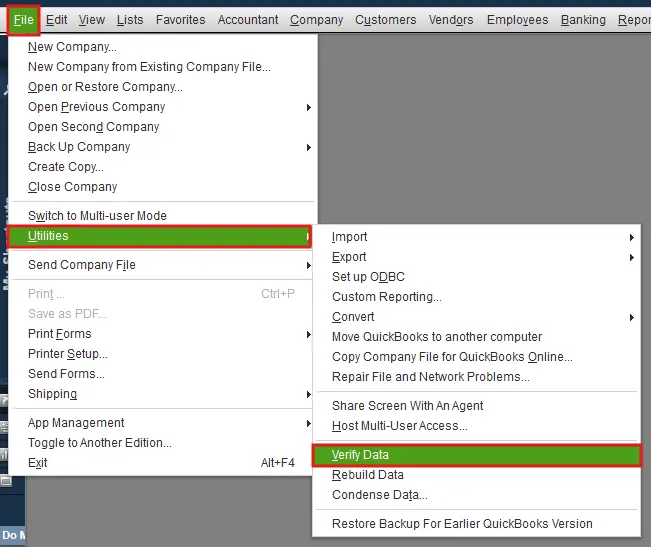
Once the scan finishes, QuickBooks displays a message indicating the result.
How to Interpret QuickBooks Verify Results
Your next step depends on what the utility finds.
- QuickBooks detected no problems with your data: The scan didn’t identify any data integrity issues. If you’re still experiencing errors, investigate other possible causes.
- An error message appears: Note the exact message or error code and look for the corresponding troubleshooting instructions.
- Your data has lost integrity: QuickBooks has identified data damage. Proceed to the rebuilding process to attempt a repair.
If the verification results indicate data damage, the next step is to prepare your company file for rebuilding.
How to Rebuild Data in QuickBooks Desktop
After Verify Data identifies an integrity issue, the Rebuild Data tool can attempt to repair the affected company file data. The process may take some time, depending on the size and condition of your file, so allow QuickBooks to finish before moving on to the next step.
Here’s how to use the QuickBooks Rebuild Data tool:
- Open your company file in QuickBooks Desktop.
- Go to File > Utilities > Rebuild Data.
- Select OK when the QuickBooks information window appears.
- Follow the on-screen prompts to create a backup if requested.
- Allow QuickBooks to complete the rebuilding process.
- Select OK when the completion message appears.
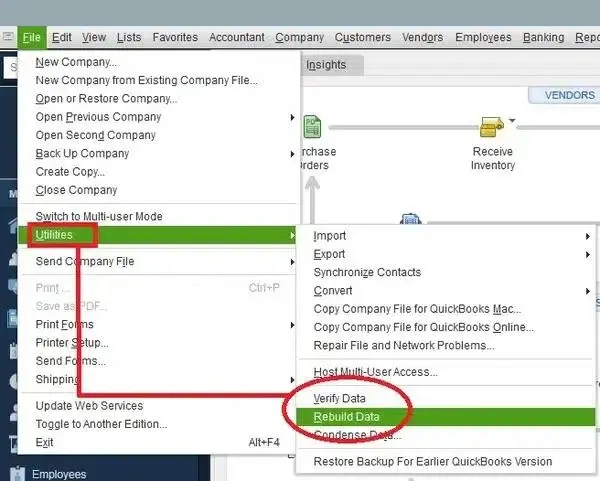
If QuickBooks seems unresponsive during rebuilding, the process may still be running. Avoid closing the program prematurely.
However, completing the rebuild doesn’t automatically mean every issue has been resolved. You’ll need to run Verify Data again to check the results.
Running Verify Data a second time helps determine whether the rebuilding process resolved the integrity issues or whether further troubleshooting is necessary. If QuickBooks reports no problems, the repair may have resolved the issue. If it still detects data damage, review the remaining errors before trying another repair method.
How to Fix QuickBooks Data Errors That Persist After Rebuilding
Sometimes, the Rebuild Data tool cannot repair every issue in a company file. “If QuickBooks freezes or stops responding during the repair process, refer to our guide on QuickBooks Desktop not responding for additional troubleshooting steps.”
Review the QuickBooks Verify Results
Start by reviewing the error details displayed after verification. Expand the results, if available, and look for specific error descriptions. Following instructions for the exact error is more effective than trying unrelated fixes.
Check the QBWin.log File
If you’re using QuickBooks Desktop for Windows, the QBWin.log file may provide additional information about the errors detected during verification.
Review the relevant log entries and search for the exact error message in QuickBooks Desktop support documentation. Follow the recommended repair instructions for that issue.
If the error requires specialized data repair, contact a QuickBooks expert rather than attempting manual changes to your financial records.
Use QuickBooks File Doctor
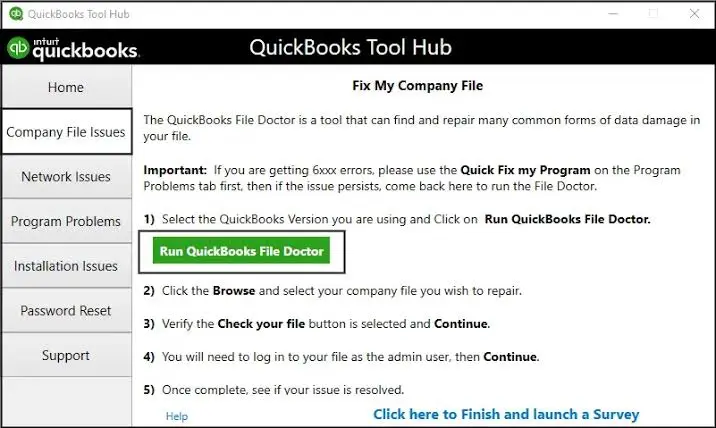
If the problem involves a supported company file or network issue, you can use the QuickBooks File Doctor tool to troubleshoot supported company file and network problems.”
Keep in mind that File Doctor and Rebuild Data serve different purposes. File Doctor isn’t a guaranteed solution for every type of data corruption, so choose the troubleshooting method that matches your issue.
Restore a Recent Backup
If the company file remains damaged after other repair attempts, restoring a suitable backup may be necessary.
- Go to File > Open or Restore Company.
- Select the appropriate restore option.
- Locate your backup file.
- Follow the prompts to restore it to a suitable location.
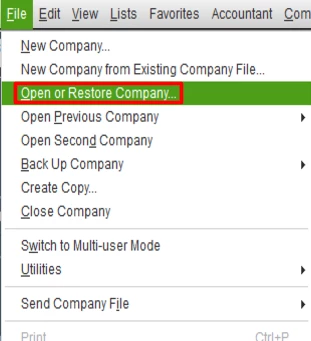
Restoring an older backup may mean losing transactions or changes entered after the backup was created. Preserve your existing company file and make sure you understand which file you’re restoring before proceeding.
The procedure for Mac differs a bit, so let’s understand how the utility works for Mac users.
How to Verify and Rebuild Data in QuickBooks Desktop for Mac
If QuickBooks Desktop for Mac displays data integrity errors or reports that your company file has failed the integrity check, you can use the built-in Verify Data and Rebuild Data utilities to troubleshoot the issue.
Here’s how to complete both processes.
Step 1: Verify Your Company File Data on Mac
Before rebuilding your company file, run the verification utility to check for errors or data damage.
Follow these steps to verify data in QuickBooks Desktop for Mac:
- Open QuickBooks Desktop for Mac and your company file.
- Select File, then choose Utilities.
- Select Verify Data.
- Select OK to close all open windows, if prompted.
- Allow QuickBooks to complete the verification process.
Once the scan finishes, review the results. If QuickBooks reports that your data has failed the integrity check, proceed to the rebuilding process. If no problems are found, you can continue using your company file unless you’re experiencing other issues that need attention.
Step 2: Rebuild Data in QuickBooks Desktop for Mac
If the verification results indicate data damage, the Rebuild Data tool can attempt to repair the affected company file.
Follow these steps:
- Open QuickBooks Desktop for Mac and your company file.
- Select File, then choose Utilities.
- Select Rebuild Data.
- Select OK to close all open windows, if prompted.
- When QuickBooks asks you to create a backup, select OK to proceed with the backup.
- If QuickBooks asks you to update your backup preferences, select Backup Preferences, make the necessary changes, and select OK.
- Wait for the backup to finish. Select Show in Finder to locate the backup, or select OK to continue.
- Allow QuickBooks to complete the rebuilding process.
- Select OK when the rebuild finishes.
Once the rebuild is complete, verify your company file again to check whether the data integrity issues have been resolved.
Step 3: Verify Your Data Again After Rebuilding
Running Verify Data again helps you determine whether the rebuilding process fixed the problem.
If QuickBooks no longer reports data integrity issues, the rebuild may have resolved the problem. If errors remain, review the Verify Results window to identify the specific issues that need further attention.
Step 4: Manually Fix Errors in QuickBooks Desktop for Mac
If rebuilding doesn’t resolve the problem, QuickBooks Desktop for Mac lets you review individual errors in the Verify Results window. These results may include instructions for correcting specific issues manually.
Before making changes, review the error details carefully.
Step 5: Find Errors Using the QuickBooks.log File
If you need more information about the errors found during verification, you can review the QuickBooks.log file. It contains diagnostic information that may help you identify the records associated with a problem.
To locate the log file on your Mac:
- Hold down the Command key and select Go > Library.
- Open the Logs folder.
- Double-click QuickBooks.log to open the file.
Within the log, look for entries containing RecNum or RefNum. These are internal record references that QuickBooks may use to identify problematic data.
For example, a verification error might reference a record number such as Ref = 55.
To search for a record number:
- Open the QuickBooks.log file.
- Select Edit > Find.
- Search for @recnum followed by the record number. For example, enter @recnum 55.
- Review the matching entries to understand which records are associated with the error.
Use the information to investigate the affected records and follow the appropriate correction steps.
Tips to Prevent Data Damage in QuickBooks Desktop
Although QuickBooks Desktop includes tools to detect and repair certain data issues, taking a few precautions can help reduce the risk of company file problems.
- Back up your company file regularly.
- Keep QuickBooks Desktop updated.
- Close QuickBooks properly after use.
- Avoid interruptions during file operations.
- Run Verify Data when errors appear.
- Review transactions and balances regularly.
- Store company files in a reliable location.
After taking these preventive steps, it’s also helpful to know which QuickBooks tool to use when data issues arise. Let’s compare Verify Data, Rebuild Data, and QuickBooks File Doctor to understand their purposes, key differences, and when to use each one.
Verify Data vs. Rebuild Data vs. QuickBooks File Doctor
| Feature | Verify Data | Rebuild Data | QuickBooks File Doctor |
| Main purpose | Checks company file data for integrity issues. | Attempts to repair certain data integrity issues. | Troubleshoots supported company file access, network, and some data damage issues. |
| When to use it | When you suspect data errors or want to check file integrity. | When Verify Data detects issues that may require repair. | When experiencing supported file access or network problems. |
| Repairs data? | No, it identifies potential problems. | Yes, it attempts to repair certain data issues. | May help resolve certain supported problems. |
| Backup required? | A backup is recommended before troubleshooting. | Create a backup before rebuilding. | Follow the backup guidance for your specific issue. |
| Recommended next step | Review the verification results. | Run Verify Data again to check the results. | Follow the recommended troubleshooting steps for the detected issue. |
Which tool should you use? Start with Verify Data if you suspect company file damage. If it detects integrity issues, back up your file and run Rebuild Data. Use QuickBooks File Doctor for the types of file access, network, or data issues it supports.
Conclusion
QuickBooks Desktop’s Verify Data and Rebuild Data utilities can help you identify and address certain company file integrity issues. Start with Verify Data, review the results, and run Rebuild Data if QuickBooks detects damage. Always create a backup before rebuilding, then verify the file again to check whether the issue has been resolved.
If errors continue after rebuilding, review the Verify Results window and the relevant log file to identify the next steps. Taking regular backups, responding to errors early, and following the correct troubleshooting process can help you protect your QuickBooks company file and maintain reliable financial records.
Frequently Asked Questions
Can rebuilding QuickBooks data delete or change transactions?
Rebuild Data is designed to repair data issues, but some damaged records may be affected during the process. Always create a backup before rebuilding and review important transactions and reports afterward.
What should I do if QuickBooks cannot create a backup before rebuilding?
Check that your backup location is accessible, has enough free space, and allows you to save files. You can also try another local folder. Do not proceed until you have a reliable backup of your company file.
What if Verify Data finds no problems, but my reports or balances are still wrong?
Verify Data checks data integrity, not whether every transaction is accurate. Review transaction dates, account assignments, reconciliation status, and report filters.
Why does QuickBooks keep asking me to rebuild my company file?
Repeated rebuild prompts may indicate unresolved or recurring data damage. Run Verify Data, review the reported errors, and investigate the underlying cause rather than repeatedly rebuilding the same file.
When should I use QuickBooks File Doctor instead of Rebuild Data?
Rebuild Data is primarily used to address certain company file integrity issues. QuickBooks File Doctor can help with supported company file access, network, and some data damage problems. Choose the tool based on the specific error and your QuickBooks version.
Do other users need to log out before I verify and rebuild the company file?
Yes, Have other users log out before running Verify Data or Rebuild Data, and switch to single-user mode when required by your QuickBooks version and setup. This helps avoid conflicts during the process.
Can I rebuild my company file if I use QuickBooks Assisted Payroll?
Yes, you can rebuild your company file if you use QuickBooks Assisted Payroll.
Why are old unpaid bills still showing after I run Verify and Rebuild?
Verify and Rebuild do not automatically correct every transaction issue. Check whether the bill is linked to its payment and whether the payment was recorded against the correct vendor and account. Investigate the transaction links if a paid bill still appears unpaid.
How often should I verify or rebuild QuickBooks data?
Run Verify Data when you notice data integrity warnings, unusual errors, or unexpected company file behavior. Rebuild Data should generally be used when verification identifies an issue that requires repair, rather than as a routine maintenance step.
