When QuickBooks is not working after an update, it can prevent you from accessing your company files, invoices, reports, payroll information, and other accounting data. You may click the QuickBooks Desktop icon and see nothing happen, get stuck on the loading screen, or find that QuickBooks freezes and becomes unresponsive.
If QuickBooks will not open after update, the problem does not necessarily mean that your company file is damaged. A recent update can expose problems with QuickBooks program files, licensing data, Windows components, security software, or the QuickBooks installation itself.
In this guide, you’ll learn 7 ways to fix QuickBooks not working after an update, including Intuit-supported troubleshooting methods for damaged program files, licensing data, Windows settings, and installation problems.
Why Is QuickBooks Not Working After Update?
There isn’t one single reason why QuickBooks stopped working after update. The problem may occur because an update changed or damaged a program component, interfered with licensing information, or exposed an existing Windows or security configuration problem.
Common causes include:
- Damaged QuickBooks program files
- A problem with the QuickBooks installation
- Damaged QBWUSER.INI or licensing data
- QuickBooks background processes that remain active
- Antivirus software blocking QuickBooks files
- Windows configuration problems
- FIPS security settings interfering with QuickBooks
- Problems with Microsoft .NET Framework or MSXML
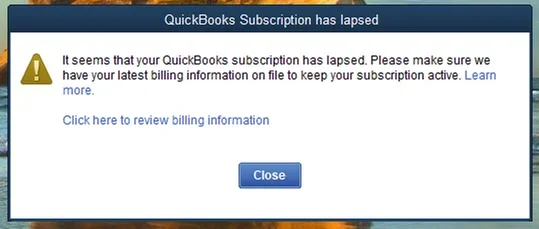
- An unsupported QuickBooks version or expired subscription

Now let us learn how to actually fix the issues.
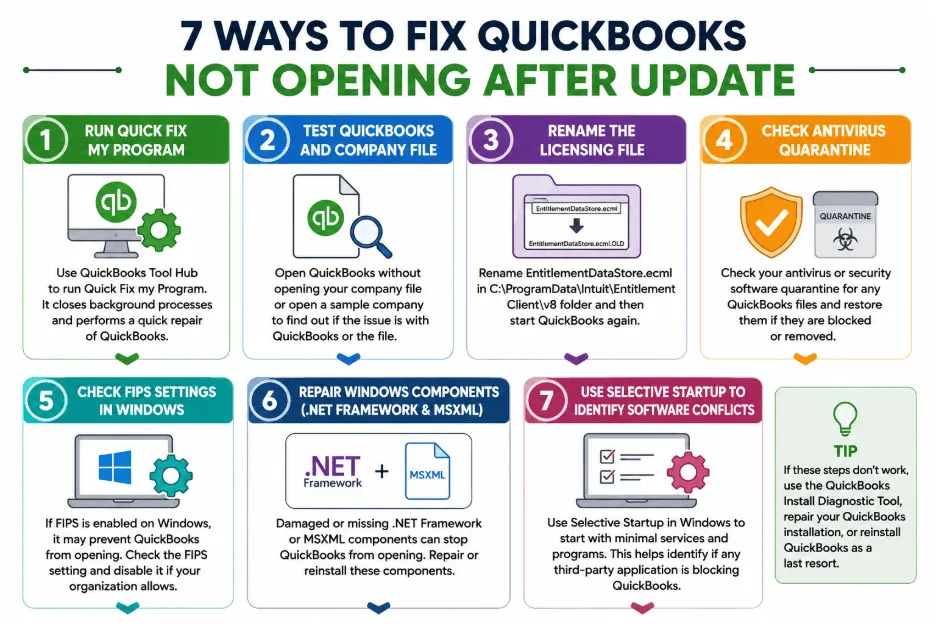
7 Ways to Fix QuickBooks Not Opening After an Update
If QuickBooks Desktop won’t open after update, work through these solutions in order. Start with the less disruptive fixes before changing Windows settings or reinstalling QuickBooks.
Run Quick Fix My Program
If QuickBooks not responding after update is your problem, start with Quick Fix my Program in the QuickBooks Tool Hub.
Steps to run Quick Fix my Program
- Close QuickBooks Desktop.
- Open the QuickBooks Tool Hub.
- Select Program Problems.
- Select Quick Fix my Program.
- Wait for the tool to finish.
- Open QuickBooks Desktop.
- Try opening your company file.

If you don’t already have QuickBooks Tool Hub, Intuit currently recommends version 1.6.0.8 and recommends using it on Windows 11, 64-bit, for the best experience.
If QuickBooks still won’t open, move to the next solution.
Determine Whether the Problem Is QuickBooks or Your Company File
Sometimes QuickBooks won’t open after update because the application itself has a problem. In other cases, QuickBooks opens but encounters an issue when loading a particular company file.
Testing the program separately helps you identify which one is causing the problem.
Open QuickBooks with the company file windows closed
- Open QuickBooks Desktop.
- Wait for the No Company Open window.
- Select your company file.
- Press and hold ALT.
- Select Open while holding ALT.
- If QuickBooks asks you to sign in, release ALT and enter your password.
- Press and hold ALT again while selecting OK.
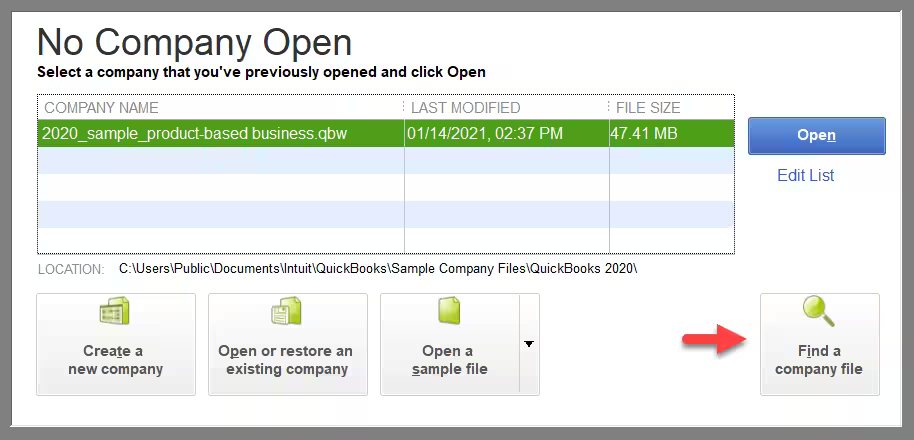
You can also suppress the QuickBooks application:
- Press and hold Ctrl.
- Double-click the QuickBooks Desktop icon.
- Keep holding Ctrl until the No Company Open window appears.
- Select your company file.
- Select Open.
If a sample company opens but your own company file doesn’t, the problem may be specific to your company file or its location.
Rename the QuickBooks Licensing File
If QuickBooks starts to load and then closes, or you’re experiencing a licensing-related startup problem, the EntitlementDataStore.ecml file may be involved.
You should rename this file for certain QuickBooks Desktop startups and licensing problems.
How to rename EntitlementDataStore.ecml
- Close QuickBooks Desktop.
- Press Windows + R.
- Enter:
C:\ProgramData\Intuit\Entitlement Client\v8 - Press Enter.
- Find EntitlementDataStore.ecml.
- Right-click the file and select Rename.
- Rename it to:
EntitlementDataStore.ecml.OLD - Open QuickBooks Desktop again.
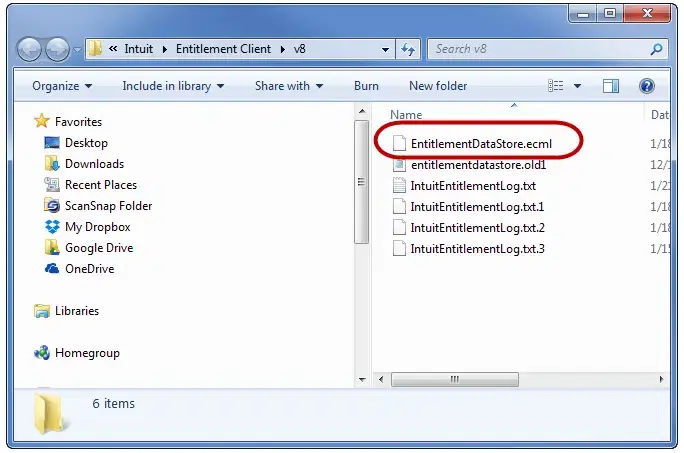
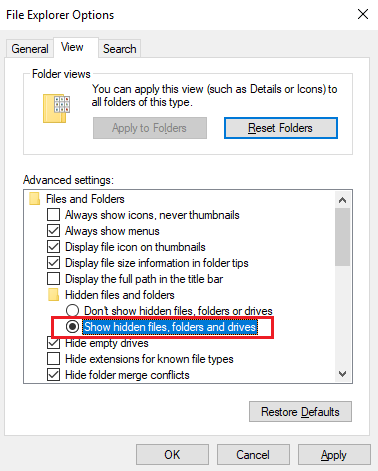
The ProgramData folder may be hidden, so you may need to enable hidden files or use Windows Search to locate the file.
If QuickBooks opens afterward, the issue was likely associated with the stored licensing data.
Check Your Antivirus Quarantine
If QuickBooks update causing problems is accompanied by an error when the program starts, your antivirus software could be preventing QuickBooks from loading required files as some antivirus programs can accidentally block essential QuickBooks files.
What to check
- Open your antivirus or security software.
- Find its Quarantine, Blocked Files, or similar section.
- Look for QuickBooks files that were recently blocked.
- Check the file name against Intuit’s QuickBooks troubleshooting guidance.
- If you confirm that a legitimate QuickBooks file was blocked, follow your security software’s procedure for allowing it.
- Restart QuickBooks.
Don’t disable antivirus protection permanently just to make QuickBooks open. If your company’s security policies are managed by an administrator, ask the administrator to review the blocked QuickBooks files and firewall permissions.
This fix is particularly useful when QuickBooks worked previously and stopped working after update because security software may have changed its detection or blocking behavior.
Check FIPS Settings in Windows
This is an advanced Windows-level fix that can help when QuickBooks will not open after update and the usual program repairs don’t resolve the problem.
It is recommended to check the Federal Information Processing Standards (FIPS) setting in Windows Pro or higher.
How to check FIPS
- Select Start.
- Search for Run and open it.
- Enter: gpedit.msc
- Go to Computer Configuration.
- Select Windows Settings.
- Select Security Settings.
- Select Local Policies.
- Select Security Options.
- Find System cryptography: Use FIPS compliant algorithms for encryption, hashing, and signing.
- Check whether the setting is enabled.
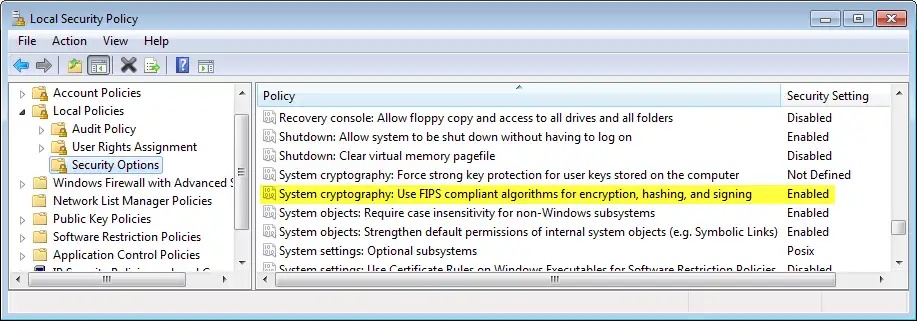
If FIPS is enabled and your organization does not require it, try disabling it and restarting the computer. If your business requires FIPS compliance, do not change this setting without consulting your IT administrator or consultant.
Repair Windows Components Used by QuickBooks
If QuickBooks Desktop won’t open after update because the update or installation process encountered Windows component problems, Microsoft .NET Framework or MSXML may need attention. NET Framework and MSXML as Windows components can cause QuickBooks installation and related problems.
What to check
Depending on the specific error or installation problem, you may need to:
- Repair Microsoft .NET Framework
- Repair or reinstall Microsoft MSXML
- Restart Windows
- Try opening QuickBooks again
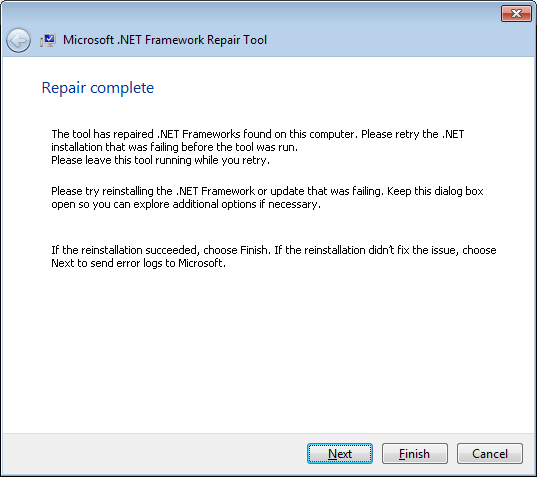
Don’t modify these Windows components blindly. If you’re not comfortable working with Windows system components, get help from an IT professional.
Use Selective Startup to Identify Software Conflicts
If QuickBooks still won’t open, another application running in Windows could be interfering with the program.
Intuit recommends Selective Startup in certain QuickBooks installation situations to work around third-party applications that can interfere with QuickBooks. These can include antivirus and antispyware software.
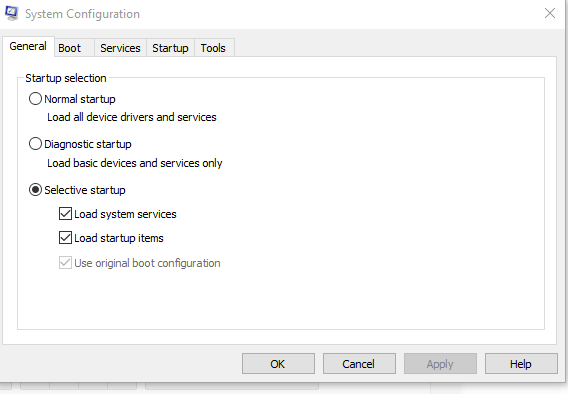
Selective Startup allows Windows to start with a limited set of services and startup programs. This can help determine whether another application is responsible for the conflict.
Because Selective Startup changes Windows startup behavior, it’s better suited to advanced troubleshooting.
What If QuickBooks Still Won’t Open After These Fixes?
If the seven solutions above don’t resolve the problem, the QuickBooks installation itself may be damaged.
Intuit’s current QuickBooks Desktop troubleshooting sequence recommends using the QuickBooks Install Diagnostic Tool, repairing the QuickBooks installation, and reinstalling QuickBooks when earlier troubleshooting does not work.
Run the QuickBooks Install Diagnostic Tool
- Open QuickBooks Tool Hub.
- Select Installation Issues.
- Select QuickBooks Install Diagnostic Tool.
- Allow the tool to complete.
- Restart your computer.
- Open QuickBooks Desktop again.
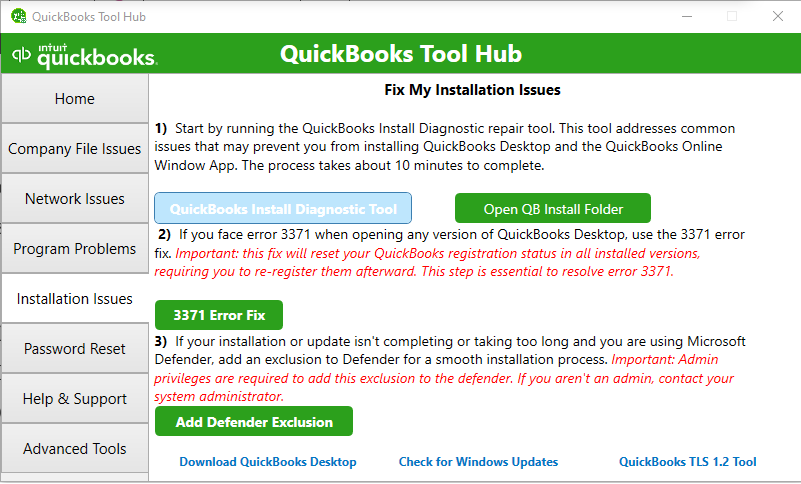
The diagnostic tool can take up to 20 minutes to run.
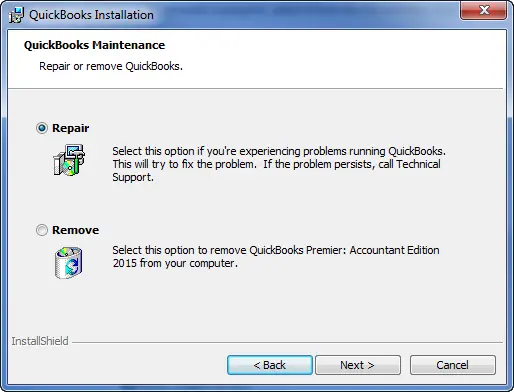
Repair QuickBooks Desktop
If the installation contains damaged files, repair QuickBooks to replace them.
Intuit’s current repair guidance specifically recommends repairing the installation when damaged QuickBooks files are preventing the program from working correctly.
Reinstall QuickBooks as a Last Resort
If QuickBooks continues to fail after the diagnostic and repair steps, reinstalling QuickBooks may be necessary.
Reinstalling the application does not mean you should delete your company file. Keep your company data separate and make sure you know where your .QBW files and backups are stored before making major changes.
How Do Businesses Keep QuickBooks Available During Updates?
Businesses can reduce downtime by treating QuickBooks updates as planned maintenance.
A practical process is:
Back up → Check compatibility → Schedule the update → Install → Verify the release → Test QuickBooks → Resume normal work
For multi-user businesses, administrators should also coordinate updates and test access before employees return to QuickBooks.
This is especially important when QuickBooks is used for payroll, invoicing, reconciliation, reporting, and other daily accounting activities.
QuickBooks Not Opening After Update: Troubleshooting Checklist
| Problem | Recommended action |
| QuickBooks does nothing | Run Quick Fix my Program |
| QuickBooks opens but the company file doesn’t | Test the program and company file separately |
| QuickBooks closes during startup | Rename EntitlementDataStore.ecml |
| Antivirus is blocking QuickBooks | Check quarantine and blocked files |
| Windows FIPS is enabled | Review the FIPS setting with IT if required |
| Windows components are damaged | Check .NET Framework and MSXML |
| Another application may be interfering | Try Selective Startup |
| QuickBooks installation is damaged | Run Install Diagnostic Tool |
| Program files are damaged | Repair QuickBooks |
| Nothing else works | Reinstall QuickBooks |
Conclusion
If QuickBooks is not opening after an update, the problem is not necessarily with your company file. The update may have affected QuickBooks program files, licensing information, security settings, Windows components, or the installation.
Start with Quick Fix my Program, then determine whether the issue affects QuickBooks or your company file. If necessary, move through the licensing-file, antivirus, FIPS, Windows-component, and Selective Startup fixes before using the QuickBooks Install Diagnostic Tool, repairing the installation, or reinstalling QuickBooks.
The most important thing is to troubleshoot the actual cause instead of repeatedly reinstalling QuickBooks or manually changing program files. Following a structured troubleshooting sequence can help you restore QuickBooks while minimizing unnecessary changes to your accounting data.
Frequently Asked Questions
Why won’t QuickBooks open after an update?
QuickBooks won’t open after update because the update may have left damaged program files, licensing data, or installation components. Security software and Windows configuration can also interfere with startup. We recommend starting with Quick Fix my Program and progressing through additional diagnostics if needed.
How do I fix QuickBooks after an update?
Start with Quick Fix my Program, then determine whether the problem is with QuickBooks or your company file. If necessary, rename the licensing file, check security software, review Windows settings, and use the QuickBooks Install Diagnostic Tool.
Can a QuickBooks update damage my company file?
An update problem does not automatically mean the company file is damaged. Test QuickBooks with a sample company or without immediately loading your company file to determine whether the issue is with the application or the data file.
Why does QuickBooks keep asking me to update?
QuickBooks may repeatedly request an update if the latest release was not installed correctly or if automatic updates are enabled. Check the product and release information with F2 or Ctrl+1 when QuickBooks can open.
Should I reinstall QuickBooks after a failed update?
Not immediately. Try Quick Fix my Program, the Install Diagnostic Tool, and QuickBooks repair first. Intuit places reinstallation later in its troubleshooting sequence.
How do I undo a QuickBooks update?
There isn’t a recommended approach of manually reverting individual QuickBooks program files. If the update caused startup problems, troubleshoot the installation, licensing files, Windows configuration, or other underlying cause instead.
How do I fix QuickBooks Desktop after an update?
If QuickBooks Desktop won’t open after update, test the company file separately, check the licensing file and security software, review relevant Windows settings, and use the Install Diagnostic Tool or repair option if necessary.
Why did QuickBooks stop working after updating?
QuickBooks stopped working after update can happen because program files, licensing information, Windows components, or security settings are preventing the application from starting correctly.
QuickBooks update completed but won’t open, what should I do?
If the QuickBooks update completed but won’t open, don’t immediately reinstall the software. Run Quick Fix my Program, determine whether the problem is with the company file or program, and then move to licensing, security, Windows, and installation troubleshooting.
Why is QuickBooks not responding after an update?
If QuickBooks not responding after update, background QuickBooks processes, damaged program files, installation problems, or Windows conflicts may be responsible.
Why won’t QuickBooks 2016 open after update?
QuickBooks 2016 is an old, discontinued release. If it won’t open after an update or Windows change, check its support and compatibility status before attempting extensive troubleshooting.
Does QuickBooks update work with Windows 10?
Compatibility depends on your QuickBooks Desktop release. Check the official system requirements for your specific version before updating or troubleshooting QuickBooks on Windows 10.
Can an old QuickBooks version stop working after an update?
Yes. An old QuickBooks version may become difficult to use as operating systems, security software, and connected services change. Unsupported versions may also lack current fixes and support.
How can I avoid QuickBooks update problems?
Keep QuickBooks and Windows supported, back up your company file, avoid interrupting updates, verify the release after installation, and use official QuickBooks troubleshooting tools when problems occur.
Is QuickBooks cloud hosting better than desktop updates?
Cloud hosting can simplify centralized access and management, but it does not eliminate software updates. Businesses should evaluate hosting based on access, security, backup, maintenance, user, and cost requirements.
How do businesses keep QuickBooks available during updates?
Businesses can schedule updates during low-activity periods, back up company files beforehand, verify compatibility, test the updated installation, and confirm that users can access QuickBooks before resuming normal operations.

