QuickBooks Error 6000 Series & Company File Errors: Causes, Variants & Proven Fixes

QuickBooks Error 6000 Series Company File Errors

If you’re seeing QuickBooks Error 6000 while opening, restoring, or accessing your company file, you’re not alone. The QuickBooks Error 6000 series includes several company file-related errors that prevent QuickBooks Desktop from accessing your financial data. These errors can occur after moving a company file, restoring a backup, switching to multi-user mode, or when network communication is interrupted.

Although each error variant has a different number, they all point to one common issue: QuickBooks cannot access the company file correctly. The underlying cause may be damaged support files, insufficient folder permissions, network configuration problems, firewall restrictions, or a corrupted company file.

The good news is that most QuickBooks Company file error can be resolved without losing your accounting data. By identifying the specific error code and following the appropriate troubleshooting steps, you can often restore access to your company file quickly.

This guide covers the complete QuickBooks Error 6000 series, including -77, -80, -82, -83, -106, -301, -305, and -832, –6010, –6012, -6073, –6087, –6103, -6120, 0, -6123, -6129, –6130, –6131, –6138, –6144, –6147, –6150, –6175, 6176, 6177, 6189, 6190, 6210. You’ll learn what each error means, why it occurs, and the proven methods to fix it while reducing the chances of it happening again.

What Is QuickBooks Error 6000?

QuickBooks Error 6000 is a family of company file errors that occurs when QuickBooks Desktop cannot open, restore, or access a company file (.QBW). Instead of representing a single problem, the 6000 series includes multiple error codes that identify different issues affecting company file access. 

These errors typically appear when QuickBooks cannot communicate with the file location, detect the required network configuration, or verify the integrity of the company file and its supporting files.

Common situations where the QuickBooks Error 6000 series appears include:

  1. Opening a company file  
  2. Restoring a backup (.QBB)  
  3. Accessing a shared company file  
  4. Switching to multi-user mode  
  5. Moving the company file to another computer  
  6. Hosting the company file on a server  
  7. Opening a file stored on a network drive

The error message generally begins with QuickBooks Error -6000 followed by an additional number that identifies the specific problem.

Examples include:

  1. QuickBooks Error -6000, -77  
  2. QuickBooks Error -6000, -80  
  3. QuickBooks Error -6000, -82  
  4. QuickBooks Error -6000, -83  
  5. QuickBooks Error -6000, -106  
  6. QuickBooks Error -6000, -301  
  7. QuickBooks Error -6000, -305  
  8. QuickBooks Error -6000, -832

Although the fixes vary slightly, most of these errors share similar root causes involving company file access, permissions, networking, or file corruption.

Common Symptoms of QuickBooks 6000 Error

When QuickBooks error code 6000 occurs, you may notice one or more of the following symptoms:

  1. QuickBooks Desktop fails to open the company file.  
  2. An error message beginning with 6000 appears on the screen.  
  3. Company file restoration fails before completion.  
  4. Multi-user mode becomes unavailable.  
  5. QuickBooks freezes while opening a file.  
  6. Network users lose access to the company file.  
  7. Backup restoration stops unexpectedly.  
  8. Database Server Manager cannot locate the company file.  
  9. QuickBooks closes unexpectedly after selecting the company file.  
  10. The application becomes slow while trying to access shared company data.

Recognizing these symptoms early can help narrow down the cause and choose the appropriate solution.

What Causes QuickBooks Error Code 6000?

Several factors can trigger QuickBooks Error 6000 series. While the exact cause depends on the variant, most issues fall into four categories: damaged files, network problems, permission issues, or software conflicts.

Damaged Company File (.QBW)

The company file may become corrupted due to improper shutdowns, disk errors, malware, or interrupted write operations. When QuickBooks detects damage in the file structure, it may display a 6000 series error instead of opening the file.

Corrupted .ND File

The Network Descriptor (.ND) file stores information about the location of the company file on a network. If this file becomes damaged or outdated, QuickBooks may fail to locate the company file correctly.

Damaged .TLG File

The Transaction Log (.TLG) file works alongside the company file to record changes. Corruption within this file can interfere with opening or restoring the company file.

Incorrect Folder Permissions

QuickBooks requires full read and write access to the folder containing the company file. Limited Windows permissions can prevent QuickBooks from accessing the required files.

Hosting Configuration Problems

In multi-user environments, incorrect hosting settings can prevent workstations from connecting to the server hosting the company file.

Examples include:

  1. Hosting enabled on multiple computers  
  2. Database Server Manager not running  
  3. Shared folder misconfiguration

Firewall or Antivirus Restrictions

Security software may block QuickBooks services, ports, or executable files from communicating across the network, resulting in company file access failures.

Company File Stored on an Unsupported Drive

Running a company file from removable storage, cloud-synced folders, or unstable network locations can increase the likelihood of encountering QuickBooks 6000 error messages.

Interrupted Network Connection

If the server hosting the company file becomes temporarily unavailable, QuickBooks may lose communication during file access.

Damaged Backup File

A corrupted backup (.QBB) may fail during restoration, commonly triggering errors such as -83 or -301.

Outdated QuickBooks Desktop

Using an older QuickBooks release may cause compatibility issues with Windows updates or company files created in newer releases.

QuickBooks Error 6000 Series Variants Explained

The QuickBooks Error 6XXX series includes company file errors that occur when QuickBooks Desktop cannot open, restore, or access your company file. According to Intuit, these errors are commonly related to network configuration, hosting settings, damaged company files, Windows permissions, firewall restrictions, or supporting file issues. 

QuickBooks Error 6000 Series Explained

The table below summarizes the officially documented QuickBooks 6XXX company file errors and their primary causes.

QuickBooks Error Code Official Cause 
Error -6000, -82 Wrong network setup 
Error -6000, -107 Damaged transaction log (.TLG) file 
Error -6000, -1076 Damaged QuickBooks installation 
Error -6000, -305 Wrong network setup or company file damage 
Error -6000, -832 Hosting is enabled incorrectly or the .ND file isn’t working properly 
Error -6010, -100 Company file is hosted on a workstation instead of the server 
Error -6012, -1061 Incorrect network setup 
Error -6073, -816 Multiple computers are hosting the file, firewall restrictions, or company file damage 
Error -6087, 0 Company file is opened locally 
Error -6120, 0 Workstation hosting the company file or blocked firewall port 8019 
Error -6129, -101 Incorrect folder permissions or Database Server Manager issue 
Error -6131, 0 Company file is opened locally 
Error -6138, -105 Company file is hosted by the wrong computer 
Error -6144, -82 Wrong network setup 
Error -6144, -103 Incorrect .ND file path or damaged Database Server Manager Windows account 
Error -6144, 0 Incorrect .ND file path or damaged Database Server Manager Windows account 
Error -6147, 0 Problem opening or restoring a company backup 
Error -6176, 0 Firewall blocks communication between computers 
Error -6189, -83 Company file is hosted by the wrong computer 
Error -6189, 1005 Unexpected problem while opening QuickBooks 
Error -6190, -82 Transaction log mismatch or user working in Single-user Mode 
Error -6190, -83 Company file is hosted by the wrong computer 
Error -6190, -85 Transaction log mismatch or user working in Single-user Mode 
Error -6190, 816 Transaction log mismatch or user working in Single-user Mode 
Error -6190, 1005 Unexpected problem while opening QuickBooks 
Error -6210, 0 Company file is hosted by the wrong computer 

QuickBooks 6000 Series & Company File Errors: Causes and Step-by-Step Solutions

Although each error code has a unique cause, many share similar troubleshooting methods. Below, we’ll explain the most common QuickBooks Error 6000 variants along with proven solutions to help you restore access to your company file.

What is QuickBooks Error –6000, –77?

QuickBooks Error –6000, –77 occurs when QuickBooks Desktop is unable to open the company file. According to Intuit, the issue may occur if the company file is stored on an external drive, the required support files are damaged, or Windows cannot access the file location correctly. How to Fix QuickBooks Error -6000, -77

Solution 1: Run QuickBooks File Doctor

Download and install the latest version of QuickBooks Tool Hub, then launch QuickBooks File Doctor. The tool scans your company file for damage and checks for network issues that may be preventing QuickBooks from opening the file.

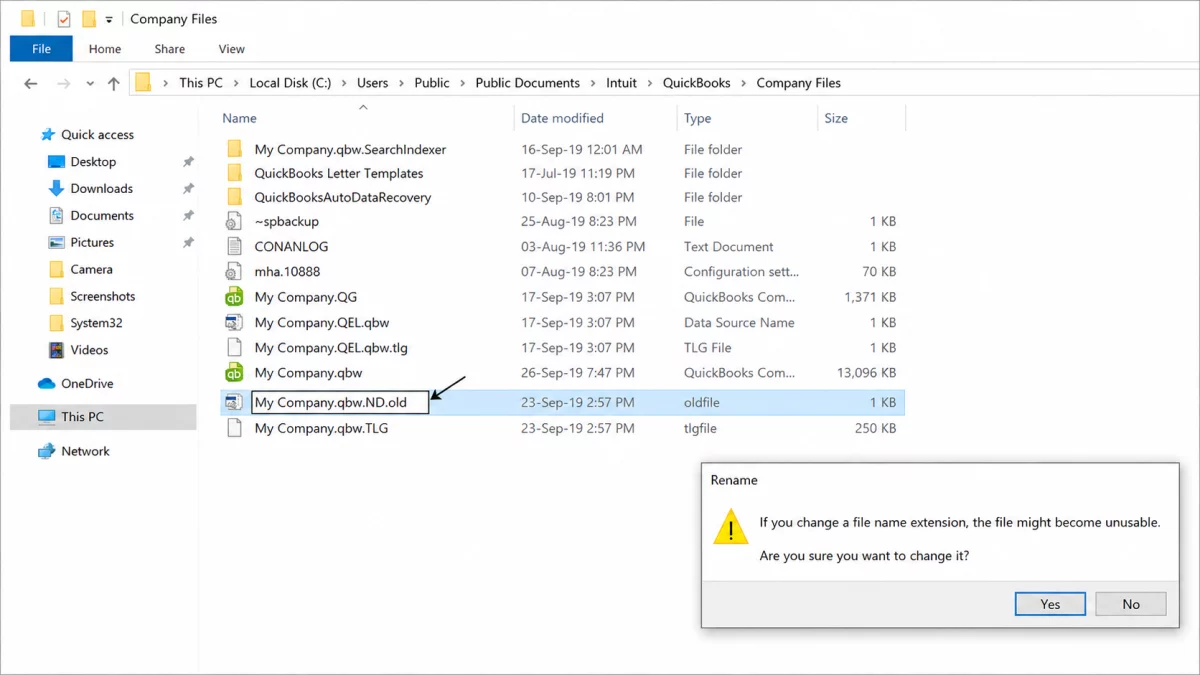
Solution 2: Rename the .ND and .TLG Files

Corrupted .ND (Network Descriptor) and .TLG (Transaction Log) files can trigger Error -6000, -77.

Follow these steps:

  1. Open the folder containing your company file.  
  2. Locate the files with the same name as your company file ending in .ND and .TLG 
  3. Right-click each file and select Rename 
  4. Add .OLD to the end of each filename.  
  5. Open QuickBooks again.

QuickBooks automatically recreates these support files when needed.

Solution 3: Open the Company File Using a UNC Path

Instead of opening the company file through a mapped network drive, browse directly to the shared folder using its UNC path.

  1. Launch QuickBooks while holding Ctrl.
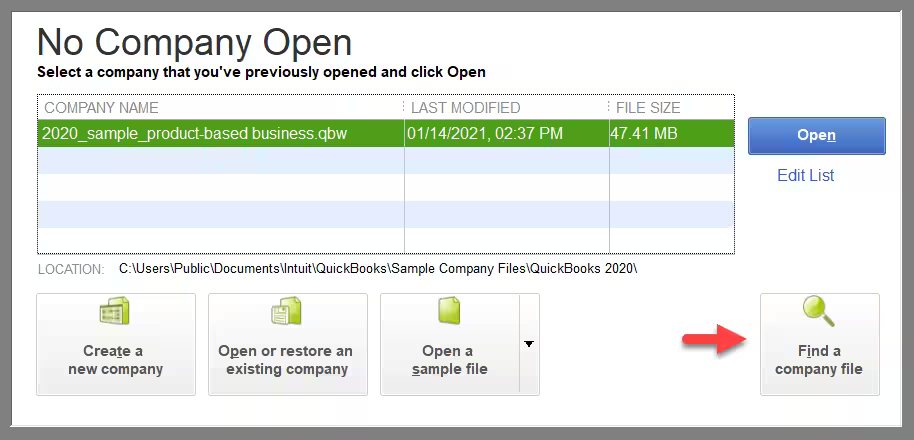
  2. Select Open or Restore an Existing Company.
  3. Choose Network.
  4. Browse to the shared folder containing the company file.
  5. Open the file.

Solution 4: Review Firewall and Security Software

Firewall or antivirus software may block QuickBooks from accessing the company file across the network. Verify that your security software allows QuickBooks services and required ports.

Solution 5: Recreate the Company File Folder

If the existing folder is damaged:

  1. Create a new folder on the C: drive.  
  2. Copy the .QBW company file into the new folder.  
  3. Update the folder’s Windows sharing permissions.  
  4. Open the company file from the new location.

What is QuickBooks Error -6000, -82

QuickBooks Error -6000, -82 generally indicates a network configuration issue that prevents QuickBooks Desktop from opening or creating a company file.

Solution 1: Remove Spaces from the Company File Name

Check whether unnecessary spaces appear between the company file name and its extension.

  1. Close QuickBooks on every computer.
  2. Browse to the company file.
  3. Rename the file if spaces exist before the extension.
  4. Try opening the file again.

Solution 2: Disable Hosting on Workstations

Only the server computer should host the company file.

For every workstation:

  1. Open File > Utilities 
  2. If Stop Hosting Multi-User Access appears, select it.  
  3. Confirm the prompts.  
  4. Repeat on every client computer.

Solution 3: Verify Hosting Mode

If the issue continues:

  1. Press F2 inside QuickBooks.  
  2. Verify Hosting is configured for local files only 
  3. Switch to Multi-user Mode if necessary.  
  4. Test opening the company file again.

Solution 4: Run Quick Fix my Program

  1. Open QuickBooks Tool Hub 
  2. Select Program Problems 
  3. Choose Quick Fix my Program 
  4. Restart QuickBooks Desktop.

Solution 5: Troubleshoot Company File Data Damage

Above solutions didn’t work? if yes, then follow Intuit’s standard data damage troubleshooting procedures to verify and repair the company file.

What is QuickBooks Error -6000, -301?

QuickBooks Error -6000, -301 indicates that QuickBooks Desktop couldn’t access the company file. According to Intuit, this error may occur when QuickBooks support files are damaged, the company file itself is damaged, or third-party encryption software interferes with file access.

Solution 1: Update QuickBooks Desktop

Install the latest QuickBooks Desktop updates before performing additional troubleshooting.

Solution 2: Rename QuickBooks Support Files

Rename the following files by adding .OLD to the filename:

  1. .TLG
  2. .ND
  3. .DSN

QuickBooks recreates these files automatically when the company file is reopened.

Solution 3: Run QuickBooks File Doctor

Open QuickBooks Tool Hub and run QuickBooks File Doctor to repair company file and network issues.

Solution 4: Disable Third-Party Encryption Software

If encryption software is installed, temporarily disable it according to the vendor’s instructions and try opening the company file again. Intuit does not recommend encrypting QuickBooks company files using third-party encryption tools.
What is QuickBooks Error -6000, -106

QuickBooks Error -6000, -106 occurs when QuickBooks Desktop cannot open or create a company file. According to Intuit, this error is commonly associated with network configuration issues and should be resolved by performing the troubleshooting steps in the order provided.

Solution 1: Remove Spaces After the Company Name and Before the Company File Extension

Extra spaces between the company file name and its extension can prevent QuickBooks from opening the file correctly.

Follow these steps:

  1. Log out of QuickBooks Desktop on all computers.  
  2. Open the folder where the company file is stored.  
  3. Right-click the company file and select Rename 
  4. Check whether there are any spaces between the company file name and the file extension.  
  5. Remove any unnecessary spaces.  
  6. Save the changes and try opening or creating the company file again.

If the error persists, continue to the next solution.

Solution 2: Turn Off Hosting on Every Computer Running QuickBooks

Incorrect hosting configuration is one of the most common causes of QuickBooks Error -6000, -106.

For Single-User Mode
  1. Open QuickBooks Desktop.  
  2. Select File > Utilities 
  3. Click Stop Hosting Multi-User Access 
  4. Select Yes when prompted.  
  5. Close the company file when prompted.

Note: Disabling hosting also disables multi-user access.

For Multi-User Mode

If you’re working in a multi-user environment, hosting should only be enabled on the server computer.

On each client workstation:

  1. Open QuickBooks until you reach the No Company Open window.  
  2. Select File > Utilities 
  3. Check the available option.  
  4. If Stop Hosting Multi-User Access appears, select it.  
  5. Follow the prompts to disable hosting.  
  6. Repeat these steps on every workstation displaying Stop Hosting Multi-User Access.

Once complete, try opening the company file again.

If the issue continues, proceed to the next solution.

Solution 3: Switch to Hosting Local and Remote Files Mode

If turning off hosting doesn’t resolve the error, verify the hosting configuration.

  1. Open QuickBooks Desktop.  
  2. Press F2 to open the Product Information window.  
  3. Under Local Server Information, verify that Hosting is set to Local Files Only 
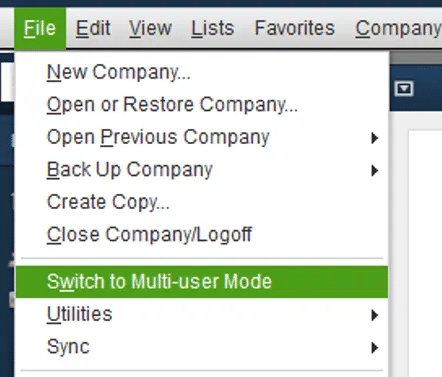
  4. Select File, then choose Switch to Multi-User Mode 
  5. Open the company file stored on the network.  
  6. Press F2 again.  
  7. Verify that Hosting still displays Local Files Only.

Important: If the computer is acting as the server, it must remain powered on and the Windows user who configured QuickBooks should remain signed in to provide continuous access for other users.

If the error remains, continue to Solution 4.

Solution 4: Run Quick Fix my Program

If the hosting configuration is correct, repair the QuickBooks program.

  1. Open QuickBooks Tool Hub 
  2. Select Program Problems 
  3. Click Quick Fix my Program 
  4. Wait for the repair to finish.  
  5. Restart QuickBooks Desktop.  
  6. Try opening the company file again.

Solution 5: Check for Company File Data Damage

If none of the previous solutions resolve QuickBooks Error -6000, -106, the company file may contain data damage.

Follow Intuit’s standard company file data troubleshooting procedures to diagnose and repair any file damage before attempting to reopen the company file.

What Is QuickBooks Error 6000, –80?

QuickBooks Error 6000, –80 is a company file error that occurs when QuickBooks Desktop cannot access or open your company file. The error is commonly caused by insufficient folder permissions, a damaged company file, incorrect User Account Control (UAC) settings, firewall restrictions, or an outdated QuickBooks Desktop installation.

Solution 1: Update QuickBooks Desktop

  1. Open QuickBooks Desktop 
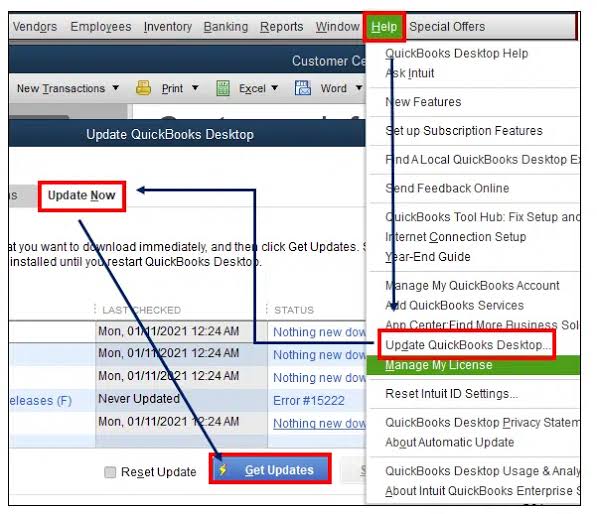
  2. Go to Help > Update QuickBooks Desktop 
  3. Select Update Now and click Get Updates 
  4. Restart QuickBooks after the updates are installed.  
  5. Try opening your company file again.

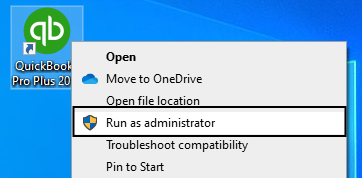
Solution 2: Run QuickBooks as Administrator

  1. Close QuickBooks Desktop.  
  2. Right-click the QuickBooks Desktop icon.  
  3. Select Run as administrator 
  4. If prompted, click Yes 
  5. Open your company file and check if the error is resolved.

Solution 3: Change User Account Control (UAC) Settings

  1. Open the Start menu and search for User Account Control 
  2. Click Change User Account Control Settings 
  3. Move the slider to Always Notify 
  4. Click OK to save the changes.  
  5. Restart your computer and launch QuickBooks.

Solution 4: Remove the Read-Only Attribute

  1. Open File Explorer and locate your company file.  
  2. Right-click the .QBW file and select Properties 
  3. Under the General tab, uncheck Read-only 
  4. Click Apply and then OK 
  5. Reopen QuickBooks and access the company file.

Solution 5: Run QuickBooks File Doctor

  1. Open QuickBooks Tool Hub 
  2. Select Company File Issues 
  3. Click Run QuickBooks File Doctor 
  4. Choose your company file and start the scan.  
  5. Open the company file after the repair completes.

Solution 6: Verify Windows Folder Permissions

  1. Open File Explorer and locate the folder containing your company file.  
  2. Right-click the folder and select Properties 
  3. Open the Security tab.  
  4. Ensure the Users group has Full Control permissions.  
  5. Save the changes and reopen QuickBooks.

Solution 7: Restore a Backup Company File

  1. Open QuickBooks Desktop 
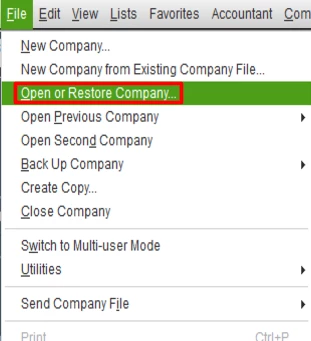
  2. Select File > Open or Restore Company 
  3. Choose Restore a Backup Copy 
  4. Browse to your .QBB backup file.  
  5. Restore the backup and open the restored company file.

Solution 8: Verify and Rebuild the Company File

  1. Go to File > Utilities > Verify Data 
  2. Allow QuickBooks to scan the company file.  
  3. If data issues are found, select File > Utilities > Rebuild Data 
  4. Create a backup when prompted.  
  5. Wait for the rebuild process to complete and reopen the file.

Solution 9: Configure Windows Firewall

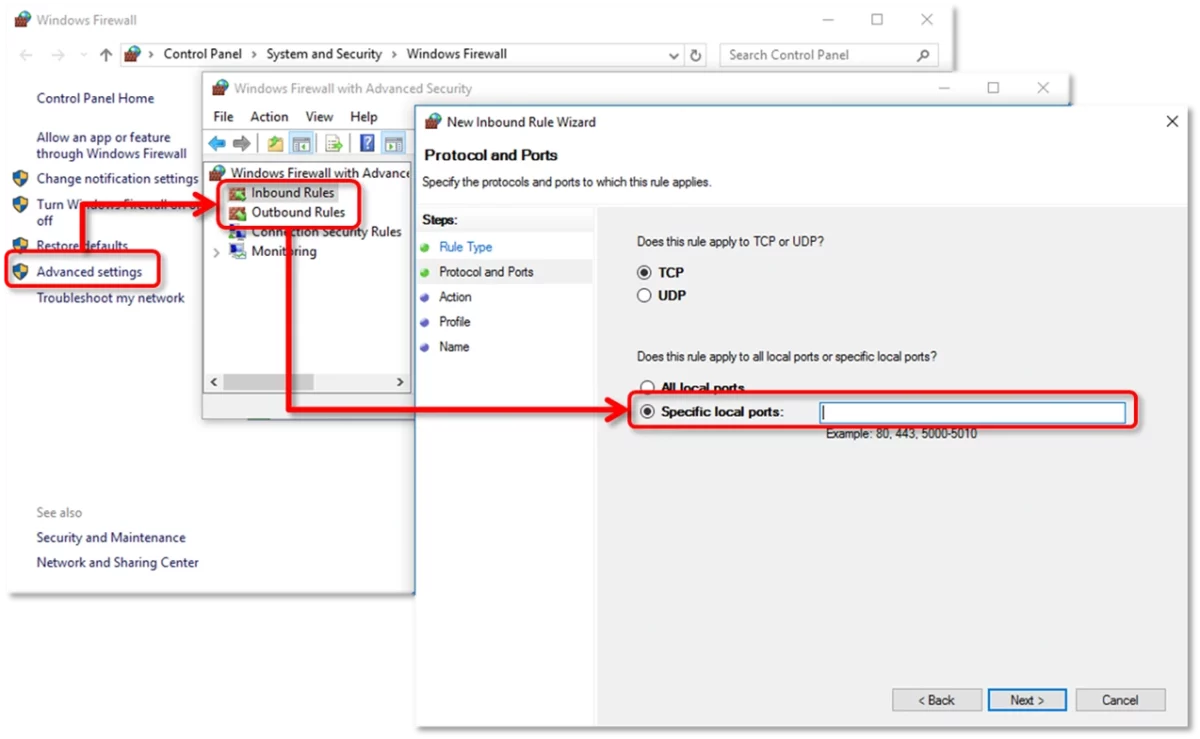
  1. Open Windows Defender Firewall with Advanced Security 
  2. Create new Inbound and Outbound rules for QuickBooks.  
  3. Add the required QuickBooks ports for your version.  
  4. Save the firewall rules.  
  5. Restart QuickBooks and try opening the company file again.

Solution 10: Run Quick Fix My Program

  1. Open QuickBooks Tool Hub 
  2. Select Program Problems 
  3. Click Quick Fix My Program 
  4. Wait for the repair to finish.  
  5. Reopen QuickBooks Desktop and check whether the error has been resolved.

What Is QuickBooks Error 6000, -83?

QuickBooks Error 6000, –83 occurs when QuickBooks Desktop is unable to open, restore, or back up a company file. The error is commonly caused by incorrect hosting settings, damaged network configuration files, insufficient folder permissions, firewall restrictions, or issues with the location of the company file.

Solution 1: Turn Off Hosting on Workstations

  1. Open QuickBooks Desktop on each workstation.  
  2. Select File > Utilities 
  3. If you see Stop Hosting Multi-User Access, click it.  
  4. Repeat the process on every workstation.  
  5. Ensure that only the server computer is hosting the company file.

Solution 2: Run QuickBooks File Doctor

  1. Open QuickBooks Tool Hub 
  2. Select Company File Issues 
  3. Click QuickBooks File Doctor 
  4. Choose your company file and start the scan.  
  5. After the repair is complete, reopen QuickBooks and check whether the error is resolved.

Solution 3: Restore the Company File from a Backup

  1. Open QuickBooks Desktop 
  2. Go to File > Open or Restore Company 
  3. Select Restore a Backup Copy and choose your latest .QBB backup.  
  4. Save the restored file to a new location.  
  5. Open the restored company file and verify that the error has been resolved.

Solution 4: Scan the Company File Using Database Server Manager

  1. Install and open QuickBooks Database Server Manager on the server computer.  
  2. Browse to the folder containing your company file.  
  3. Click Start Scan to recreate the required network files.  
  4. Confirm that a new .ND file is generated after the scan.  
  5. Reopen QuickBooks and access the company file.

Solution 5: Move the Company File to a New Location

  1. Open File Explorer and locate your company file.  
  2. Copy the .QBW file to your Windows desktop.  
  3. Open QuickBooks and select Open or Restore an Existing Company 
  4. Browse to the copied file and open it.  
  5. If the file opens successfully, replace the original company file with the updated copy.

Solution 6: Verify Folder Permissions and Firewall Settings

  1. Ensure the folder containing your company file has the correct sharing and security permissions.  
  2. Configure Windows Firewall and antivirus software to allow QuickBooks Desktop.  
  3. Restart QuickBooks and try opening the company file again.  
  4. If the error persists, proceed with advanced network troubleshooting.

Solution 7: Edit the Windows Hosts File

  1. Open the hosts file on the affected workstation using Notepad 
  2. Add the correct server IP address and server name.  
  3. Save the file and close Notepad.  
  4. Restart QuickBooks Desktop.  
  5. Open the company file to confirm the issue has been resolved.

What Is QuickBooks Error 6000, -832?

QuickBooks Error 6000, -832 occurs when QuickBooks Desktop cannot open your company file because of damaged or corrupted Network Data (.ND) or Transaction Log (.TLG) files. The error may also appear due to incorrect hosting settings or network-related issues in a multi-user environment.

Solution 1: Rename the .ND and .TLG Files

  1. Open the folder that contains your QuickBooks company file.  
  2. Locate the files with the same name as your company file but with .ND and .TLG extensions.  
  3. Right-click each file and select Rename 
  4. Add .OLD to the end of each file name.  
  5. Reopen QuickBooks Desktop and sign in to your company file. QuickBooks will automatically recreate the required network files.

Solution 2: Run QuickBooks File Doctor

  1. Open QuickBooks Tool Hub 
  2. Select Company File Issues 
  3. Click Run QuickBooks File Doctor 
  4. Choose your company file and allow the tool to scan and repair any file or network issues.  
  5. Once the scan is complete, reopen your company file and verify that the error is resolved.

What Is QuickBooks Error 6000, -305?

QuickBooks Error 6000, -305 is a company file access error that prevents QuickBooks Desktop from opening your company file. It is commonly caused by damaged company files, corrupted .ND or .TLG files, insufficient folder permissions, firewall restrictions, or network configuration issues.

Solution 1: Update QuickBooks Desktop

  1. Open QuickBooks Desktop 
  2. Go to Help > Update QuickBooks Desktop 
  3. Select Update Now and click Get Updates 
  4. Install the available updates and restart QuickBooks.  
  5. Try opening the company file again.

Solution 2: Run QuickBooks File Doctor

  1. Open QuickBooks Tool Hub 
  2. Go to Company File Issues 
  3. Select QuickBooks File Doctor 
  4. Choose your company file and start the scan.  
  5. After the repair completes, reopen the company file and check if the error is fixed.

Solution 3: Rename the .ND and .TLG Files

  1. Navigate to the folder where your QuickBooks company file is stored.  
  2. Locate the corresponding .ND and .TLG files.  
  3. Right-click each file and select Rename 
  4. Add .OLD to the end of each file name.  
  5. Open QuickBooks Desktop and access the company file again.

Solution 4: Open a Sample Company File

  1. Hold the Ctrl key while launching QuickBooks.  
  2. Select Open a Sample File 
  3. If the sample file opens successfully, the issue is likely with your company file.  
  4. If it doesn’t open, repair your QuickBooks installation.

Solution 5: Restore a Backup Company File

  1. Go to File > Open or Restore Company 
  2. Select Restore a Backup Copy 
  3. Browse to your .QBB backup file.  
  4. Restore the backup to a new location.  
  5. Open the restored company file and verify the error is resolved.

Solution 6: Verify Folder Permissions

  1. Right-click the folder containing your company file and select Properties 
  2. Open the Security tab.  
  3. Ensure the QBDataServiceUserXX account has Full Control permissions.  
  4. Save the changes and reopen QuickBooks.

Solution 7: Configure Firewall and Antivirus Settings

  1. Open Windows Firewall and create exceptions for QuickBooks ports and executable files.  
  2. Review your antivirus settings to ensure QuickBooks is not blocked.  
  3. Restart QuickBooks and try opening the company file again.

What is QuickBooks Error 6010?

QuickBooks Error 6010 is a multi-user company file error that occurs when QuickBooks Desktop cannot access the company file over a network. It is commonly caused by incorrect hosting settings, firewall or antivirus interference, damaged network files, or insufficient administrator permissions. The error may also appear as QuickBooks Error 6010, 100 and typically prevents users from opening the company file in a multi-user environment.

Solution 1: Update QuickBooks Desktop

  1. Open QuickBooks Desktop.  
  2. Press F2 to check your current product version.  
  3. Go to Help > Update QuickBooks Desktop.  
  4. Select Update Now and click Get Updates.  
  5. Restart QuickBooks and install the latest updates.

Solution 2: Verify hosting settings

  1. Open QuickBooks on each workstation.
  2. Select File > Utilities.
  3. If you see Stop Hosting Multi-User Access, click it.
  4. Repeat these steps on every workstation.
  5. Ensure only the server computer is hosting the company file.

Solution 3: Configure Windows Firewall

  1. Open Windows Defender Firewall with Advanced Security.  
  2. Create new Inbound and Outbound rules.  
  3. Add the required QuickBooks ports for your Desktop version.  
  4. Allow the connection for all network profiles.  
  5. Restart QuickBooks and try opening the company file.

Solution 4: Rename the .ND and .TLG files

  1. Open the folder containing your QuickBooks company file.  
  2. Locate the corresponding .ND and .TLG files.  
  3. Right-click each file and select Rename.  
  4. Add .OLD to the end of each file name.  
  5. Reopen QuickBooks to recreate the files automatically.

Solution 5: Run QuickBooks File Doctor

  1. Open QuickBooks Tool Hub.  
  2. Select Company File Issues.  
  3. Click Run QuickBooks File Doctor.  
  4. Choose your company file and start the scan.  
  5. Reopen the company file after the repair is complete.

Solution 6: Restart QuickBooks Database Server Manager

  1. Open QuickBooks Database Server Manager on the server computer.  
  2. Select Scan Folders.  
  3. Browse to the folder containing your company file.  
  4. Click Start Scan.  
  5. Reopen QuickBooks and verify that the company file opens successfully.

What is QuickBooks Error 6012?

QuickBooks Error 6012 is a company file and multi-user error that occurs when QuickBooks Desktop cannot access or open a company file stored on a local computer or network. The error is commonly caused by incorrect hosting settings, damaged network configuration files, insufficient folder permissions, firewall or antivirus interference, or problems with the company file itself.

Solution 1: Open a sample company file

  1. Launch QuickBooks Desktop.  
  2. On the No Company Open window, select Open a Sample File.  
  3. Open any sample company file.  
  4. If the sample file opens successfully, the issue is likely with your company file.  
  5. If the sample file does not open, repair your QuickBooks installation.

Solution 2: Move the company file to a new folder

  1. Create a new folder on your Desktop.  
  2. Copy the company (.QBW) file into the new folder.  
  3. Hold the Ctrl key while opening QuickBooks.  
  4. Select Open or Restore an Existing Company.  
  5. Browse to the copied file and check if it opens successfully.

Solution 3: Restore a backup company file

  1. Open QuickBooks Desktop.  
  2. Go to File > Open or Restore Company.  
  3. Select Restore a Backup Copy.  
  4. Browse to your latest .QBB backup.  
  5. Restore the backup to a new location and open the restored file.

Solution 4: Verify folder permissions

  1. Right-click the folder containing your company file and select Properties.  
  2. Open the Security tab.  
  3. Ensure QBDataServiceUserXX has Full Control permissions.  
  4. Apply the changes.  
  5. Reopen QuickBooks and try opening the company file.

Solution 5: Close QuickBooks background processes

  1. Sign in to Windows as an administrator.  
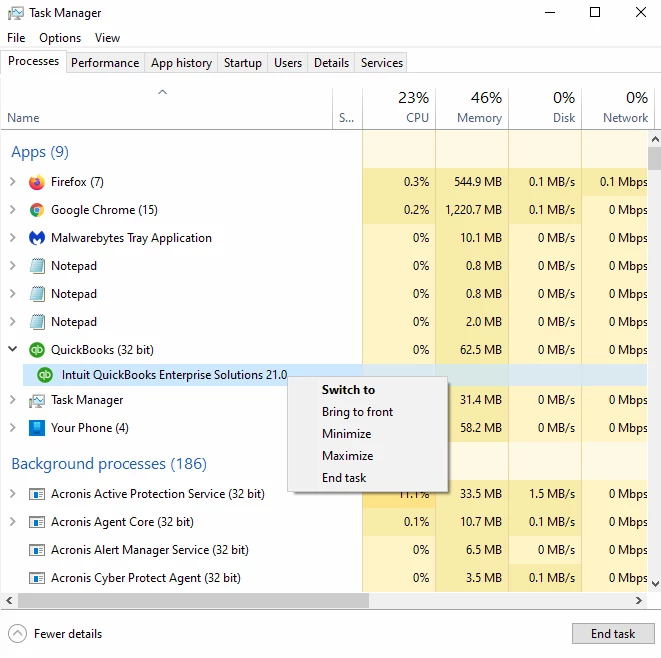
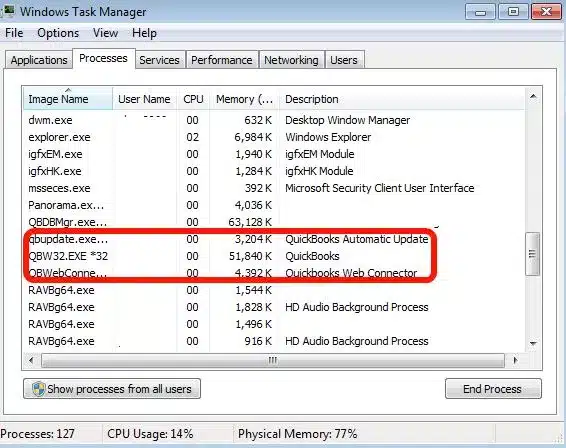
  2. Press Ctrl + Shift + Esc to open Task Manager.  
  3. End all QuickBooks-related processes, including QBW32.exe, QBDBMgr.exe, and QBUpdate.exe.  
  4. Restart QuickBooks Desktop.  
  5. Open the company file again to check if the error has been resolved.

What is QuickBooks Error -6073?

QuickBooks Error -6073 occurs when QuickBooks Desktop is unable to open the company file because it is already in use or cannot be accessed properly. This error typically occurs when the company file is open in Single-user mode on another computer, stored in a read-only network folder, or being accessed remotely while another session is still active.

Solution 1: Run QuickBooks File Doctor

  1. Open QuickBooks Tool Hub.  
  2. Select Company File Issues.  
  3. Click Run QuickBooks File Doctor.  
  4. Choose your company file and start the scan.  
  5. Open the company file after the repair is complete.

Solution 2: Switch the company file to Multi-user mode

  1. Close QuickBooks Desktop on all workstations.  
  2. Open the company file on the host computer.  
  3. Go to File > Switch to Multi-user Mode.  
  4. Restart all workstations if the error persists.  
  5. Try opening the company file again.

Solution 3: Reopen the company file in Multi-user mode

  1. On the host computer, go to File > Close Company.  
  2. Select File > Open or Restore Company.  
  3. Choose Open a Company File and click Next.  
  4. Select your company file.  
  5. Choose Open file in Multi-user mode and click Open.

Solution 4: Verify folder permissions

  1. Go to the computer hosting the company file.  
  2. Right-click the folder containing the company file and select Properties.  
  3. Open the Security tab and click Edit.  
  4. Grant the affected user Full Control permissions.  
  5. Click Apply, then OK, and reopen the company file.

Solution 5: Run Quick Fix my Program

  1. Open QuickBooks Tool Hub.  
  2. Select Program Problems.  
  3. Click Quick Fix my Program.  
  4. Wait for the repair process to complete.  
  5. Restart QuickBooks Desktop and open the company file again.

What is QuickBooks Error 6087?

QuickBooks Error 6087 is a 6000 series company file error that occurs when QuickBooks Desktop cannot access or open a company file over a network. The error is commonly caused by a company file opened in Single-user mode, damaged company file data, incorrect network or folder permissions, firewall restrictions, or problems with the QuickBooks installation.

Solution 1: Verify and rebuild company data

  1. Open QuickBooks Desktop.  
  2. Go to File > Utilities > Verify Data.  
  3. If issues are detected, go to File > Utilities > Rebuild Data.  
  4. Create a backup when prompted.  
  5. Reopen the company file after the rebuild is complete.

Solution 2: Run QuickBooks Database Server Manager

  1. Open QuickBooks Tool Hub on the server computer.  
  2. Select Network Issues.  
  3. Open QuickBooks Database Server Manager.  
  4. Browse to the folder containing the company file if necessary.  
  5. Click Start Scan and then reopen the company file.

Solution 3: Copy the company file to a local drive

  1. Close QuickBooks Desktop.  
  2. Copy the .QBW company file from the server.  
  3. Paste it into a new folder on the workstation’s local drive or Desktop.  
  4. Open QuickBooks while holding the Ctrl key.  
  5. Browse to the copied company file and check whether it opens.

Solution 4: Run QuickBooks Install Diagnostic Tool

  1. Open QuickBooks Tool Hub.  
  2. Select Installation Issues.  
  3. Click QuickBooks Install Diagnostic Tool.  
  4. Wait for the repair process to finish.  
  5. Restart the computer and open QuickBooks again.

What is QuickBooks Error 6103?

QuickBooks Error 6103 is a company file error that occurs when QuickBooks Desktop cannot open or access a company file. This error is commonly caused by damaged company file components, corrupted .ND or .TLG files, incorrect multi-user settings, or network connectivity issues between the workstation and the server. 

Solution 1: Run QuickBooks File Doctor

  1. Open QuickBooks Tool Hub.  
  2. Select Company File Issues.  
  3. Click Run QuickBooks File Doctor.  
  4. Choose your company file and start the scan.  
  5. Open the company file after the repair is complete.

Solution 2: Rename the .ND and .TLG files 

  1. Open the folder containing your company file.  
  2. Locate the .ND and .TLG files.  
  3. Rename both files by adding .OLD at the end.  
  4. Restart QuickBooks Desktop.  
  5. Open the company file again.  

Solution 3: Verify hosting and network settings 

  1. Ensure the server computer is hosting the company file.  
  2. Disable hosting on all workstations.  
  3. Restart the QuickBooks Database Server Manager.  
  4. Check the network connection.  
  5. Try opening the company file again.

What is QuickBooks Error -6120, 0?

QuickBooks Error -6120, 0 occurs when QuickBooks cannot access the company file in a multi-user environment. According to Intuit and QuickBooks support resources, the error usually occurs when a workstation is incorrectly hosting the company file, required firewall ports are blocked, or the network configuration prevents QuickBooks from communicating with the server. 

Solution 1: Disable Hosting on Workstations 

Only the server computer should host the company file. 

  1. Open QuickBooks on each workstation.
  2. Go to File > Utilities.
  3. If you see Stop Hosting Multi-User Access, click it.
  4. Repeat these steps on every workstation except the server.
  5. Reopen the company file and check if the error is resolved. 

Solution 2: Rename the .ND and .TLG Files 

Damaged network configuration files can prevent QuickBooks from opening the company file. 

  1. Open the folder where the company file is stored.
  2. Locate the .ND and .TLG files.
  3. Rename both files by adding .OLD to the end of each filename.
  4. Open QuickBooks Database Server Manager and scan the company file folder.
  5. Try opening the company file again. 

Solution 3: Run QuickBooks File Doctor 

QuickBooks File Doctor can repair company file and network-related issues. 

  1. Open QuickBooks Tool Hub.
  2. Select Company File Issues.
  3. Click Run QuickBooks File Doctor.
  4. Select your company file.
  5. Allow the tool to complete the scan and repair process before reopening the file.

What is QuickBooks Error -6123?

QuickBooks Error -6123 occurs when QuickBooks Desktop cannot open, restore, or upgrade a company file. According to Intuit, the error is commonly caused by company file damage, network issues, restoring a backup from an external or network drive, or problems with the QuickBooks program.

Solution 1: Run QuickFix My Program

QuickFix My Program repairs common QuickBooks program issues that may prevent the company file from opening. 

  1. Open QuickBooks Tool Hub.
  2. Select Program Problems.
  3. Click QuickFix My Program.
  4. Wait for the tool to finish.
  5. Reopen QuickBooks and check if the error is resolved. 

Solution 2: Run QuickBooks File Doctor 

QuickBooks File Doctor scans and repairs company file and network issues. 

  1. Open QuickBooks Tool Hub.
  2. Select Company File Issues.
  3. Click Run QuickBooks File Doctor.
  4. Choose your company file.
  5. Enter the QuickBooks admin password.
  6. Allow the scan to complete and try opening the company file again. 

Solution 3: Restore the Backup from the Local Hard Drive 

If you are restoring a backup, save the .QBB file to your local hard drive before restoring it. 

  1. Copy the backup file from the network location or external drive to your local disk.
  2. Open QuickBooks Desktop.
  3. Restore the backup from the local folder.
  4. Verify that the company file opens successfully.

What is QuickBooks Error -6129?

QuickBooks Error -6129 occurs when QuickBooks Desktop cannot open or create a company file. This 6000 series error is commonly caused by damaged company files, incorrect hosting settings, network issues, corrupted configuration files, or insufficient folder permissions. Follow the troubleshooting methods below to restore access to your QuickBooks company file. 

Solution 1: Repair QuickBooks Desktop

Repairing the QuickBooks installation can resolve damaged program files causing Error -6129. 

Steps: 

  1. Close QuickBooks.  
  2. Open Control Panel.  
  3. Select Programs and Features.  
  4. Choose QuickBooks Desktop.  
  5. Click Uninstall/Change.  
  6. Select Repair.  
  7. Complete the repair process.  
  8. Restart your computer and open QuickBooks again.  

Solution 2: Rename the .ND and .TLG Files 

Corrupted Network Descriptor (.ND) and Transaction Log (.TLG) files can prevent QuickBooks from opening the company file. 

Steps: 

  1. Open the folder containing your company file.  
  2. Locate the files ending in .ND and .TLG.  
  3. Right-click each file and select Rename.  
  4. Add .OLD to the end of each filename.  
  5. Reopen QuickBooks and try opening the company file.  

Solution 3: Open a Sample Company File

Opening a sample file helps determine whether the problem is with QuickBooks or the company file. 

Steps: 

  1. Open QuickBooks.  
  2. On the No Company Open window, select Open a Sample File.  
  3. Open any sample company.  
  4. If the sample file opens successfully, your company file may be damaged.  
  5. If the sample file also fails to open, repair your QuickBooks installation.  

Solution 4: Move the Company File to Another Location 

A damaged folder or excessively long file path can trigger Error -6129. 

Steps: 

  1. Copy the company file (.QBW) to your Desktop.  
  2. Hold the Ctrl key while opening QuickBooks.  
  3. Select Open or Restore an Existing Company.  
  4. Browse to the Desktop copy.  
  5. Open the file and verify whether the error is resolved.  

Solution 5: Restore a Backup Company File 

If the original company file is damaged, restoring a recent backup may resolve the issue. 

Steps: 

  1. Open QuickBooks.  
  2. Select File > Open or Restore Company.  
  3. Choose Restore a Backup Copy.  
  4. Select Local Backup.  
  5. Browse to the backup (.QBB) file.  
  6. Save the restored file in a new folder.  
  7. Open the restored company file.

How to Fix QuickBooks Error 6130

QuickBooks Error 6130 usually appears when QuickBooks cannot access the company file because of network communication problems, damaged configuration files, or issues with the Database Server Manager. Follow the solutions below in order until the error is resolved.

Solution 1: Run QuickBooks File Doctor

QuickBooks File Doctor can automatically detect and repair common company file and network issues. 

Steps: 

  1. Download and install the latest version of QuickBooks Tool Hub if it is not already installed.  
  2. Open QuickBooks Tool Hub.  
  3. Select Company File Issues.  
  4. Click Run QuickBooks File Doctor.  
  5. Choose your company file from the list or browse to locate it.  
  6. Select Check your file, then click Continue.  
  7. Enter the QuickBooks admin password and allow the scan to finish.  
  8. Reopen QuickBooks and check if Error 6130 is resolved.

Solution 2: Rename the .ND and .TLG Files

Damaged Network Data (.ND) and Transaction Log (.TLG) files can prevent QuickBooks from opening the company file. 

Steps: 

  1. Close QuickBooks on all computers.  
  2. Open the folder containing your company file.  
  3. Locate the files with the same name as your company file ending in .ND and .TLG.  
  4. Right-click each file and select Rename.  
  5. Add .OLD to the end of each filename.
    Example:
    CompanyFile.QBW.ND → CompanyFile.QBW.ND.OLD CompanyFile.QBW.TLG → CompanyFile.QBW.TLG.OLD
  6. Reopen QuickBooks and try opening the company file.

Solution 3: Restart QuickBooks Database Server Manager

If the Database Server Manager service is not running properly, workstations cannot communicate with the server.

Steps:

  1. Press Windows + R, type services.msc, and press Enter.  
  2. Locate QuickBooksDBXX (XX represents your QuickBooks version).  
  3. Right-click the service and select Restart. If it is stopped, click Start.  
  4. After the service restarts, open QuickBooks and access the company file again.  

Solution 4: Perform a Clean Installation of QuickBooks

If QuickBooks program files are damaged or incomplete, performing a clean installation can replace corrupted files and help resolve Error 6130. 

Steps: 

  1. Back up your QuickBooks company file.  
  2. Uninstall QuickBooks Desktop from Control Panel > Programs and Features.  
  3. Use the QuickBooks Clean Install Tool from QuickBooks Tool Hub to remove remaining installation files.  
  4. Reinstall QuickBooks Desktop using your product and license information.  
  5. Install the latest QuickBooks updates and try opening the company file again.

Solution 5: Run Disk Cleanup

Temporary files and unnecessary system data can sometimes interfere with QuickBooks operations. Running Disk Cleanup can help remove unwanted files and improve system performance.

Steps:

  1. Press Windows + R, type cleanmgr, and press Enter.  
  2. Select the drive where Windows is installed and click OK.  
  3. Wait while Disk Cleanup scans for removable files.  
  4. Select the temporary files and other unnecessary items you want to remove.  
  5. Click OK, then select Delete Files.  
  6. Restart your computer and check whether QuickBooks Error 6130 has been resolved.

Solution 6: Perform a Windows System Restore

If the error started after recent system changes, restoring Windows to an earlier restore point may help resolve the issue.

Steps:

  1. Open the Start menu and search for System Restore.  
  2. Select Create a restore point, then click System Restore.  
  3. Choose a restore point created before the error first appeared.  
  4. Follow the on-screen instructions to complete the restoration process.  
  5. Restart your computer and open QuickBooks to verify that Error 6130 is no longer appearing.

How to Fix QuickBooks Error 6131?

QuickBooks Error 6131 usually occurs when QuickBooks Desktop cannot open the company file due to damaged company files, network connectivity issues, outdated QuickBooks versions, or problems with configuration files. Follow the solutions below to resolve the error. 

Solution 1: Run QuickBooks File Doctor

QuickBooks File Doctor can automatically detect and repair common company file and network-related issues that may prevent QuickBooks from opening the company file. 

Steps: 

  1. Download and install the latest version of QuickBooks Tool Hub.  
  2. Open QuickBooks Tool Hub.  
  3. Select Company File Issues.  
  4. Click Run QuickBooks File Doctor.  
  5. Choose your company file from the list or browse to locate it.  
  6. Select Check your file and click Continue.  
  7. Enter your QuickBooks admin password.  
  8. Allow the tool to scan and repair the company file.  
  9. Reopen QuickBooks and check whether Error 6131 is resolved.  

Solution 2: Run QuickBooks Database Server Manager 

QuickBooks Database Server Manager helps resolve network connectivity problems when accessing company files in multi-user mode. Running the tool can fix issues between the server and workstations. 

Steps: 

  1. Open QuickBooks Tool Hub.  
  2. Select Network Issues.  
  3. Click QuickBooks Database Server Manager.  
  4. Select your company file folder.  
  5. Click Start Scan.  
  6. Wait for the scan to complete.  
  7. Open QuickBooks and check if Error 6131 has been resolved.

How to Fix QuickBooks Error 6138?

QuickBooks Error 6138 usually occurs when QuickBooks Desktop cannot open or access the company file due to network connectivity issues, damaged company files, incorrect file permissions, or problems with the QuickBooks Database Server Manager. This error can appear when opening a company file stored on a server or accessing it in a multi-user environment. 

Follow the solutions below to troubleshoot and resolve QuickBooks Error 6138. 

Solution 1: Run QuickBooks File Doctor

QuickBooks File Doctor can automatically identify and repair common company file and network-related issues that may prevent QuickBooks from opening the company file. 

Steps: 

  1. Download and install the latest version of QuickBooks Tool Hub.  
  2. Open QuickBooks Tool Hub.  
  3. Select Company File Issues.  
  4. Click Run QuickBooks File Doctor.  
  5. Choose your company file from the list or browse to locate it.  
  6. Select Check your file and click Continue.  
  7. Enter your QuickBooks admin password.  
  8. Allow the tool to scan and repair the company file.  
  9. Reopen QuickBooks and check whether Error 6138 is resolved.  

Solution 2: Rename the .ND and .TLG Files 

Damaged Network Data (.ND) and Transaction Log (.TLG) files can interrupt communication between QuickBooks and the company file. Renaming these files allows QuickBooks to create fresh configuration files automatically. 

Steps:

  1. Close QuickBooks Desktop on all computers.  
  2. Navigate to the folder where your company file is saved.  
  3. Locate the files with the same name as your company file ending in .ND and .TLG.  
  4. Right-click each file and select Rename.  
  5. Add .OLD to the end of each filename.
    Example:
    CompanyFile.QBW.ND → CompanyFile.QBW.ND.OLD CompanyFile.QBW.TLG → CompanyFile.QBW.TLG.OLD
  6. Open QuickBooks again and try accessing the company file.

Solution 3: Run QuickBooks Database Server Manager 

QuickBooks Database Server Manager helps maintain communication between the server and workstations in a multi-user setup. Running a scan can resolve network-related issues causing QuickBooks Error 6138. 

Steps: 

  1. Open QuickBooks Tool Hub.  
  2. Select Network Issues.  
  3. Click QuickBooks Database Server Manager.  
  4. Browse and select the folder containing your company file.  
  5. Click Start Scan.  
  6. Wait for the scan process to complete.  
  7. Open QuickBooks and check whether Error 6138 is resolved.

How to Fix QuickBooks Error 6144

QuickBooks Error 6144 usually occurs when QuickBooks Desktop cannot access the company file due to file corruption, network connectivity problems, incorrect hosting settings, or damaged configuration files. This error may appear while opening a company file, restoring a backup, or working in a multi-user environment.

Follow the solutions below to troubleshoot and resolve QuickBooks Error 6144.

Solution 1: Run QuickBooks Tool Hub and Quick Fix My File

QuickBooks Tool Hub includes built-in repair utilities that can identify and fix minor company file issues, network problems, and QuickBooks-related errors.

Steps:

  1. Download and install the latest version of QuickBooks Tool Hub.  
  2. Open QuickBooks Tool Hub.  
  3. Select Company File Issues.  
  4. Click Quick Fix My File.  
  5. Select your company file and allow the tool to complete the repair process.  
  6. Reopen QuickBooks and check if Error 6144 is resolved.

Solution 2: Restore the Backup or Portable Company File Locally

If the backup file is stored on an external drive or network location, moving it to your local computer can prevent access issues during restoration.

Steps:

  1. Copy your QuickBooks backup file (.QBB) or portable company file (.QBM) to your local hard drive.  
  2. Open QuickBooks Desktop.  
  3. Go to File and select Open or Restore Company.  
  4. Choose Restore a Backup Copy or Open a Portable Company File.  
  5. Select the copied file and restore it to a new folder location.  
  6. Open the restored company file and check if the error is resolved.

Solution 3: Verify QuickBooks Services

QuickBooks services running incorrectly can interrupt communication between QuickBooks Desktop and the company file, especially in network setups.

Steps:

  1. Press Windows + R, type services.msc, and press Enter.  
  2. Locate QuickBooks-related services such as QBCFMonitorService.  
  3. Right-click the service and select Properties.  
  4. Set the Startup Type to Automatic.  
  5. Click Start if the service is not running.  
  6. Restart QuickBooks and try opening the company file again.

How to Fix QuickBooks Error 6147

QuickBooks Error 6147 usually appears when QuickBooks Desktop cannot open the company file due to file corruption, incorrect file settings, missing permissions, or conflicts with system security applications. This error may occur while opening a company file or restoring a backup, especially when the file location is incorrect or inaccessible.

Follow the solutions below to resolve QuickBooks Error 6147.

Solution 1: Disable Trend Micro Active Scan for the Company File Folder

Security applications like Trend Micro can sometimes block QuickBooks from accessing the company file. Adding the company file folder as an exception can help prevent scanning conflicts.

Steps:

  1. Open your Trend Micro antivirus settings.  
  2. Navigate to the exception or ignore list settings.  
  3. Add your QuickBooks company file folder to the exception list.  
  4. Open QuickBooks Desktop without opening a company file.  
  5. Press F2 to view the company file location.  
  6. Add the displayed folder path to the antivirus exclusion list.  
  7. Restart QuickBooks and try opening the company file again.

Solution 2: Close QuickBooks Background Processes

QuickBooks processes running in the background can prevent the software from accessing the company file correctly. Ending these processes can refresh QuickBooks operations.

Steps:

  1. Log in to your system as an administrator.  
  2. Press Ctrl + Shift + Esc to open Task Manager.  
  3. Select the Users tab.  
  4. Locate QuickBooks-related processes such as QBW32.EXE, qbupdate.exe, and QBDBMgr.exe.  
  5. Select each process and click End Task.  
  6. Open QuickBooks Desktop again and check if Error 6147 is resolved.

Solution 3: Rename the QuickBooks Auto Data Recovery File

The Auto Data Recovery (.ADR) file can help recover company file data when the original file has issues. Renaming the ADR file and converting it into a usable company file can help restore access.

Steps:

  1. Open the folder containing your QuickBooks company file.  
  2. Locate the QuickBooks Auto Data Recovery folder.  
  3. Find the most recent .ADR file.  
  4. Copy the file to another folder.  
  5. Right-click the copied file and select Rename.  
  6. Change the file extension from .ADR to .QBW.  
  7. Open the recovered file in QuickBooks Desktop.  

Solution 4: Check the Company File Name and Folder Path

QuickBooks may fail to open a company file if the file name or folder path contains unsupported characters or exceeds the recommended length. 

Steps: 

  1. Locate the folder where your company file is stored.  
  2. Check the company file name and folder path.  
  3. Remove special characters from the file name if present.  
  4. Ensure the file path does not contain unnecessary folders.  
  5. Keep the file path short and simple.  
  6. Open QuickBooks and try accessing the company file again.  

Solution 5: Reboot the System and Network Server 

Temporary system or network communication issues can prevent QuickBooks from accessing the company file. Restarting the system and server can refresh QuickBooks services. 

Steps: 

  1. Close QuickBooks Desktop on all computers.  
  2. Restart the server computer where the company file is stored.  
  3. Restart all connected workstations.  
  4. Open QuickBooks Desktop on the server first.  
  5. Try accessing the company file from the workstation again. 

How to Fix QuickBooks Error 6150

QuickBooks Error 6150 usually occurs when QuickBooks Desktop cannot create, open, or access a company file due to company file corruption, damaged QuickBooks installation files, malware infections, or issues with the backup file. This error may appear while creating a new company file or opening an existing one. 

Follow the solutions below to troubleshoot and resolve QuickBooks Error 6150. 

Solution 1: Check for Malware or CryptoWall Infection 

In some cases, malware infections such as CryptoWall can affect QuickBooks company files and prevent them from opening. Checking for suspicious files can help identify security-related issues. 

Steps: 

  1. Open the Windows Start menu.  
  2. Search for and open File Explorer.  
  3. Navigate to the folder where your QuickBooks files are stored.  
  4. Look for files containing words such as decrypt or instructions with .txt or .html extensions.  
  5. If you find suspicious files, run a security scan and contact your antivirus provider for assistance.  
  6. Remove the malware before attempting QuickBooks file repair. 

Solution 2: Restore a Backup Company File 

If you recently created a backup of your company file, restoring it can help recover your QuickBooks data and resolve Error 6150. 

Steps: 

  1. Open QuickBooks Desktop.  
  2. Go to File and select Open or Restore Company.  
  3. Choose Restore a Backup Copy.  
  4. Select your backup company file (.QBB).  
  5. Follow the on-screen instructions to restore the file.  
  6. Open the restored company file and check whether Error 6150 is resolved. 

How to Fix QuickBooks Error 6175?

QuickBooks Error 6175 occurs when QuickBooks Desktop is unable to access the company file because of issues with the database server connection. This error generally appears when users try to open a company file in multi-user mode, but QuickBooks fails to communicate with the Database Server Manager. 

Solution 1: Assign Administrative Rights to QBDataServiceUser 

QuickBooks Database services require proper permissions to access and host company files. If QBDataServiceUser does not have administrative rights, QuickBooks may display Error 6175 while accessing the company file. 

Steps: 

  1. Close QuickBooks Desktop.  
  2. Press Windows + R, type Control Panel, and press Enter.  
  3. Select User Accounts.  
  4. Click Manage another account.  
  5. Select QBDataServiceUser (QuickBooks Version).  
  6. Choose Change Account Type.  
  7. Select Administrator and save the changes.  
  8. Restart QuickBooks and check if Error 6175 is resolved.  

Solution 2: Move QuickBooksDBXX Service to a Local System 

Changing the QuickBooks Database service login settings can help resolve issues where the service cannot communicate properly with QuickBooks. 

Steps: 

  1. Press Windows + R to open the Run window.  
  2. Type services.msc and press Enter.  
  3. Locate the QuickBooksDBXX service from the list.  
  4. Right-click the service and select Properties.  
  5. Open the Log On tab.  
  6. Select the Local System account option.  
  7. Click Apply and then OK.  
  8. Restart QuickBooks and try opening the company file in multi-user mode.  

Solution 3: Terminate QuickBooks Processes 

Multiple QuickBooks processes running in the background can interfere with database services and prevent proper company file access. 

Steps: 

  1. Press Ctrl + Shift + Esc to open Task Manager.  
  2. Go to the Processes tab.  
  3. Locate QBW32.exe, QBDBMgrN.exe, and QBUpdate.exe.  
  4. Right-click each process and select End Task.  
  5. Close Task Manager.  
  6. Restart QuickBooks Desktop and open the company file again. 

How to Fix QuickBooks Error 6176?

QuickBooks Error 6176 occurs when QuickBooks Desktop is unable to locate the correct path of the company file stored on a server or another computer. This error generally appears when QuickBooks cannot establish a proper connection with the company file due to incorrect system configuration, damaged Windows settings, restricted permissions, or issues with the network environment. 

Solution 1: Check the Windows Hosts File Configuration 

Incorrect entries in the Windows Hosts file can prevent QuickBooks from identifying the server computer where the company file is stored. Updating the Hosts file configuration can help QuickBooks establish a proper connection with the server. 

Follow these steps: 

  1. Open File Explorer on your computer.  
  2. Navigate to the following location:
    C:\Windows\System32\Drivers\etc
  3. Locate the Hosts file.  
  4. Open the file using Notepad with administrator access.  
  5. Check whether the server name and IP address entries are correct.  
  6. Save the changes if any incorrect information is found.  
  7. Restart QuickBooks Desktop and try opening the company file again.  

Correct Hosts file settings help QuickBooks recognize the server location and access the company file without connection errors. 

Solution 2: Create a New Windows Administrator User Profile 

A damaged Windows user profile can affect QuickBooks permissions and restrict access to the company file location. Creating a new administrator profile can help identify whether the issue is related to the existing Windows account. 

Follow these steps: 

  1. Open Windows Settings.  
  2. Go to Accounts and select Family & other users.  
  3. Click Add account.  
  4. Create a new Windows user account.  
  5. Change the account type to Administrator.  
  6. Sign in using the new user profile.  
  7. Open QuickBooks Desktop and access the company file.  

If QuickBooks works correctly with the new profile, the previous Windows user account may have permission-related issues. 

Solution 3: Reset Folder Permissions for the Company File Location 

QuickBooks requires proper read and write permissions to access company files. Incorrect folder permissions can prevent QuickBooks from opening the company file and may trigger Error 6176, 0. 

Follow these steps: 

  1. Open the folder where your QuickBooks company file is stored.  
  2. Right-click the folder and select Properties.  
  3. Go to the Security tab.  
  4. Click Edit to modify permissions.  
  5. Select the user account running QuickBooks.  
  6. Enable Full Control permissions.  
  7. Click Apply and save the changes.  
  8. Restart QuickBooks Desktop.  

Updating folder permissions allows QuickBooks to access and modify company file data properly. 

Solution 4: Verify Network Drive Mapping 

If the company file is stored on a mapped network drive, incorrect drive mapping can prevent QuickBooks from locating the file path. Reconnecting the network drive can help restore access. 

Follow these steps: 

  1. Open File Explorer.  
  2. Check the mapped network drive where the company file is saved.  
  3. Confirm that the drive is connected and accessible.  
  4. If the drive is disconnected, select This PC.  
  5. Click Map Network Drive.  
  6. Enter the correct server path.  
  7. Reconnect the drive and open QuickBooks again.  

A properly mapped network drive ensures that QuickBooks can locate the company file without connection issues. 

Solution 5: Run QuickBooks in Compatibility Mode 

Compatibility issues between QuickBooks Desktop and Windows settings can sometimes interfere with program operations. Running QuickBooks in compatibility mode may help resolve software access problems. 

Follow these steps: 

  1. Right-click the QuickBooks Desktop shortcut.  
  2. Select Properties.  
  3. Open the Compatibility tab.  
  4. Enable Run this program in compatibility mode.  
  5. Select the appropriate Windows version.  
  6. Click Apply and then OK.  
  7. Restart QuickBooks Desktop.  

Running QuickBooks with compatible system settings can help prevent errors caused by Windows compatibility conflicts. 

How to Fix QuickBooks Error Code 6177?

QuickBooks Error Code 6177 occurs when QuickBooks Desktop cannot locate or access the company file path. This error commonly appears when the company file is stored on a network drive or another computer, and QuickBooks fails to establish a proper connection. Incorrect file path settings, damaged configuration files, Windows permission issues, or system-related problems can trigger this error. 

Solution 1: Create a New Company File Folder Structure 

Incorrect folder organization can sometimes prevent QuickBooks from locating the company file correctly. Creating a new folder structure and moving the company file can help refresh the file path configuration. 

Follow these steps: 

  1. Close QuickBooks Desktop completely.  
  2. Create a new folder on the server drive.  
  3. Move the company file (.QBW) into the newly created folder.  
  4. Ensure that the folder has proper read and write permissions.  
  5. Open QuickBooks Desktop.  
  6. Browse to the new company file location.  
  7. Open the company file and check if the error is resolved.  

A fresh folder structure can help QuickBooks rebuild the connection with the company file. 

Solution 2: Remove Special Characters From the Company File Name 

Special characters or unusual symbols in the company file name can sometimes interfere with QuickBooks file recognition. Renaming the company file with a simple name can help resolve access issues. 

Follow these steps: 

  1. Close QuickBooks Desktop.  
  2. Open the folder where your company file is stored.  
  3. Locate the company file with the .QBW extension.  
  4. Right-click the file and select Rename.  
  5. Remove special characters, symbols, or unnecessary spaces from the file name.  
  6. Save the new file name.  
  7. Open QuickBooks and select the renamed company file.  

Using a simple file name helps QuickBooks identify and access the company file correctly. 

Solution 3: Clear the Temporary Windows Files 

Accumulated temporary files can interfere with QuickBooks operations and affect how the software accesses company files. Clearing temporary data can improve system performance and remove conflicts. 

Follow these steps: 

  1. Press Windows + R keys to open the Run window.  
  2. Type %temp% and press Enter.  
  3. Select all temporary files.  
  4. Delete the available files.  
  5. Restart your computer.  
  6. Open QuickBooks Desktop and try accessing the company file.  

Removing temporary files can eliminate system conflicts that may contribute to Error 6177. 

Solution 4: Verify the QuickBooks File Extension Association 

Incorrect file associations can prevent Windows from opening QuickBooks company files properly. Checking the file association ensures that QBW files are linked with QuickBooks Desktop. 

Follow these steps: 

  1. Locate your QuickBooks company file with the .QBW extension.  
  2. Right-click the file and select Open With.  
  3. Choose QuickBooks Desktop from the available programs.  
  4. Select Always use this app to open QBW files.  
  5. Save the changes.  
  6. Restart QuickBooks and open the company file.  

Correct file associations help Windows communicate properly with QuickBooks Desktop. 

Solution 5: Disable Third-Party Security Software Temporarily 

Some antivirus or security programs may restrict QuickBooks from accessing company files stored on a network location. Temporarily disabling security software can help identify whether it is causing the issue. 

Follow these steps: 

  1. Close QuickBooks Desktop.  
  2. Disable third-party antivirus or security software temporarily.  
  3. Open QuickBooks and try accessing the company file.  
  4. If the file opens successfully, add QuickBooks as an exception in the security software settings.  
  5. Enable the antivirus protection again.  

Allowing QuickBooks through security software prevents unnecessary access restrictions. 

Solution 6: Check the Server Computer Name Resolution 

QuickBooks relies on proper communication between the workstation and server computer. If the server name cannot be resolved correctly, Error 6177, 0 may appear. 

Follow these steps: 

  1. Open Command Prompt on the workstation.  
  2. Type the server computer name and press Enter.  
  3. Check whether the system responds correctly.  
  4. Verify that the workstation can communicate with the server.  
  5. Correct any network name resolution issues.  
  6. Restart QuickBooks and open the company file. 

How to Fix QuickBooks Error 6189?

QuickBooks Error 6189 occurs when QuickBooks Desktop is unable to open or access the company file. This error generally appears when there is a problem with the company file location, incorrect folder permissions, damaged network configuration, or issues with QuickBooks Database Server Manager. 

To resolve QuickBooks Error 6189, follow the solutions mentioned below. 

Solution 1: Restart QuickBooks Database Server Manager Service 

QuickBooks Database Server Manager allows multiple users to access the company file stored on a server. If the service stops working or encounters a connection issue, QuickBooks may display Error 6189. 

Follow these steps: 

  1. Press Windows + R keys to open the Run window.  
  2. Type services.msc and press Enter.  
  3. Locate QuickBooksDBXX from the list of services.  
  4. Right-click the service and select Restart.  
  5. Restart your computer after completing the process.  
  6. Open QuickBooks Desktop and try accessing the company file again.  

Restarting the database service refreshes the connection between QuickBooks and the company file. 

Solution 2: Move the Company File to a Local Hard Drive 

QuickBooks company files stored on external drives, USB devices, or unsupported storage locations may cause Error 6189. Moving the company file to a local drive can help restore proper file access. 

Follow these steps: 

  1. Close QuickBooks Desktop.  
  2. Locate your company file with the .QBW extension.  
  3. Copy the company file to your computer’s local C: drive.  
  4. Open QuickBooks Desktop.  
  5. Select Open or Restore Company.  
  6. Browse to the new company file location.  
  7. Open the company file and check whether the error is resolved.  

Storing the company file on a supported location helps QuickBooks maintain a stable connection. 

Solution 3: Update Company File Folder Permissions 

Incorrect Windows folder permissions can prevent QuickBooks from accessing the company file. Providing proper permissions ensures that QuickBooks services can read and write company file data. 

Follow these steps: 

  1. Open the folder where your QuickBooks company file is stored.  
  2. Right-click the folder and select Properties.  
  3. Go to the Security tab.  
  4. Select the user account running QuickBooks.  
  5. Enable Full Control permissions.  
  6. Click Apply and save the changes.  
  7. Restart QuickBooks Desktop.  

Updating folder permissions removes access restrictions that may trigger Error 6189. 

Solution 4: Rename the QuickBooks Transaction Log File 

The Transaction Log (.TLG) file stores QuickBooks transaction information and helps maintain company file operations. If this file becomes damaged, QuickBooks may fail to open the company file. 

Follow these steps: 

  1. Open the folder containing your QuickBooks company file.  
  2. Locate the file with the .TLG extension.  
  3. Right-click the file and select Rename.  
  4. Add .OLD at the end of the file name.  
  5. Open QuickBooks Desktop again.  

QuickBooks will automatically create a new transaction log file when you reopen the company file. 

Solution 5: Create a New Windows Administrator Account 

A damaged Windows user profile can affect QuickBooks permissions and restrict access to the company file. Creating a new administrator account can help identify whether the issue is related to the existing Windows profile. 

Follow these steps: 

  1. Open Windows Settings.  
  2. Go to Accounts.  
  3. Select Family & other users.  
  4. Create a new Windows user account.  
  5. Change the account type to Administrator.  
  6. Sign in using the new account.  
  7. Open QuickBooks Desktop and access the company file.  

If QuickBooks works correctly with the new account, the previous Windows profile may have permission-related problems. 

Solution 6: Repair QuickBooks Desktop Installation 

Damaged QuickBooks program files can affect company file access and trigger Error 6189. Repairing the QuickBooks installation can replace damaged components and restore proper functionality. 

Follow these steps: 

  1. Open QuickBooks Tool Hub.  
  2. Select Program Problems.  
  3. Run the QuickBooks Install Diagnostic Tool.  
  4. Allow the tool to scan and repair QuickBooks components.  
  5. Restart your computer.  
  6. Open QuickBooks Desktop and check the company file.  

Repairing QuickBooks installation files can resolve issues caused by missing or corrupted program components. 

How to Fix QuickBooks Error 6190?

QuickBooks Error 6190 occurs when QuickBooks Desktop cannot open the company file due to a mismatch between the company file (.QBW) and transaction log file (.TLG). This error usually appears when the company file and transaction log file are not synchronized or when the company file is accessed incorrectly in a multi-user environment. 

This error may also occur due to damaged company files, incorrect file permissions, outdated QuickBooks versions, or issues with the storage location. When this error appears, users may be unable to access their company data and continue accounting tasks. 

To resolve QuickBooks Error 6190, follow the solutions mentioned below. 

Solution 1: Fix Company File and Transaction Log File Mismatch 

QuickBooks Error 6190 commonly occurs when the company file and transaction log file contain different information. This may happen when changes are made to the company file but the related transaction log file is not updated correctly. 

Follow these steps: 

  1. Open the folder where your QuickBooks company file is stored.  
  2. Locate the company file with the .QBW extension.  
  3. Find the related transaction log file with the .TLG extension.  
  4. Check whether both files have the same name.  
  5. Right-click the .TLG file and select Rename.  
  6. Add .OLD at the end of the file name.  
  7. Repeat the same process for the related .ND file if available.  
  8. Open QuickBooks Desktop again.  

QuickBooks will create new configuration files automatically and rebuild the connection with the company file. 

Solution 2: Rename the Network Data (.ND) File 

The Network Data file helps QuickBooks identify the location of the company file in a multi-user environment. If this file becomes damaged, QuickBooks may fail to access the company file and display Error 6190. 

Follow these steps: 

  1. Open the folder containing your company file.  
  2. Locate the file with the .ND extension.  
  3. Right-click the file and select Rename.  
  4. Add .OLD at the end of the file name.  
  5. Open QuickBooks Desktop again.  
  6. Try accessing the company file.  

QuickBooks creates a new Network Data file when you reopen the company file, which can resolve connection problems. 

Solution 3: Open the Company File From the Correct Location 

Incorrect file paths or moving the company file to another folder without updating QuickBooks settings can trigger Error 6190. 

Follow these steps: 

  1. Locate your company file with the .QBW extension.  
  2. Right-click the file and select Properties.  
  3. Check the current file location.  
  4. Open QuickBooks Desktop.  
  5. Select Open or Restore Company.  
  6. Browse to the correct company file location.  
  7. Open the company file.  

Using the correct file path allows QuickBooks to locate and access the company data properly. 

Solution 4: Update QuickBooks Desktop on All Systems 

Different QuickBooks versions installed on connected computers can create compatibility issues and cause Error 6190. 

Follow these steps: 

  1. Open QuickBooks Desktop.  
  2. Go to Help from the top menu.  
  3. Select Update QuickBooks Desktop.  
  4. Click Update Now.  
  5. Select Get Updates.  
  6. Restart QuickBooks after the update completes.  
  7. Install available updates on all systems connected to the company file.  

Keeping QuickBooks updated on all computers ensures that the company file and program versions remain compatible. 

Solution 5: Verify Windows Folder Permissions 

Incorrect Windows permissions can prevent QuickBooks from accessing the company file. Providing proper permissions ensures that QuickBooks services can read and write required data. 

Follow these steps: 

  1. Open the folder where your company file is saved.  
  2. Right-click the folder and select Properties.  
  3. Open the Security tab.  
  4. Check the permissions for the user account running QuickBooks.  
  5. Enable Full Control access if required.  
  6. Save the changes.  
  7. Restart QuickBooks Desktop.  

Updating folder permissions helps QuickBooks access the company file without restrictions. 

What is QuickBooks Error 6210?

QuickBooks Error 6210 is a company file access error that usually occurs when QuickBooks Desktop is unable to open a company file in a multi-user environment. This error appears when the company file is hosted on the wrong computer, network settings are misconfigured, or QuickBooks cannot establish a proper connection with the server. 

Solution 1: Restart QuickBooks Database Server Manager Service 

QuickBooks Error 6210, 0 can occur when the Database Server Manager service is not running correctly on the host computer. Restarting this service refreshes the connection between the server and workstations. 

Follow these steps: 

  1. Press Windows + R keys to open the Run dialog box.  
  2. Type services.msc and press Enter.  
  3. Locate QuickBooksDBXX service from the list.  
  4. Right-click the service and select Restart.  
  5. Repeat the same process for all QuickBooks-related database services.  
  6. Open QuickBooks Desktop again and try accessing the company file.  

Restarting the service helps restore communication between QuickBooks and the company file stored on the network. 

Solution 2: Verify Hosting Settings on the Server Computer 

Incorrect hosting settings can cause QuickBooks to detect the wrong computer as the host, resulting in Error 6210, 0. Ensure that only the server computer is hosting the company file. 

Follow these steps: 

  1. Open QuickBooks Desktop on the server computer.  
  2. Go to File > Utilities.  
  3. Check the hosting options:  
  4. If you see Host Multi-User Access, select it.  
  5. If you see Stop Hosting Multi-User Access, do not select it.  
  6. Repeat these steps on each workstation.  
  7. Ensure that workstations have hosting disabled.  
  8. Restart QuickBooks and open the company file.  

Correct hosting configuration allows QuickBooks to identify the proper server and prevents connection conflicts. 

Solution 3: Open a Sample Company File 

Opening a sample company file helps determine whether the problem is related to QuickBooks installation or the actual company file. 

Follow these steps: 

  1. Open QuickBooks Desktop.  
  2. When the No Company Open window appears, select Open a Sample File.  
  3. Choose any sample company file from the list.  
  4. Check whether QuickBooks opens the file successfully.  

If the sample file opens without issues, the problem may be related to the original company file. If QuickBooks cannot open the sample file, the program installation may need repair. 

Solution 4: Move the Company File to a Local Folder Temporarily 

A damaged network location or incorrect folder permissions can prevent QuickBooks from opening the company file. Moving the file temporarily helps identify whether the issue is related to the network path. 

Follow these steps: 

  1. Close QuickBooks Desktop on all computers.  
  2. Locate the company file (.QBW).  
  3. Copy the company file to the local desktop or another folder on the computer.  
  4. Open QuickBooks Desktop.  
  5. Select Open or Restore Company.  
  6. Open the company file from the new location.  

If the file opens successfully, check network permissions, firewall settings, and folder-sharing configurations on the original location. 

Solution 5: End QuickBooks Background Processes 

QuickBooks background processes running incorrectly can prevent proper access to the company file. Closing these processes allows QuickBooks to restart with a clean connection. 

Follow these steps: 

  1. Press Ctrl + Shift + Esc to open Task Manager.  
  2. Select the Processes tab.  
  3. Locate QuickBooks-related processes such as:  
  4. QBW32.EXE  
  5. QBDBMgr.exe  
  6. qbupdate.exe  
  7. Right-click each process and select End Task.  
  8. Reopen QuickBooks Desktop and try accessing the company file.  

This removes stuck QuickBooks processes that may interfere with multi-user connections. 

Solution 6: Repair QuickBooks Installation 

If QuickBooks components are damaged, the program may fail to connect with company files and display Error 6210, 0. Repairing the installation replaces damaged program files without removing company data. 

Follow these steps: 

  1. Close QuickBooks Desktop.  
  2. Open the Windows Control Panel.  
  3. Select Programs and Features.  
  4. Choose QuickBooks Desktop from the installed programs list.  
  5. Click Uninstall/Change.  
  6. Select Repair and follow the on-screen instructions.  
  7. Restart the computer after the repair completes.  

After repairing QuickBooks, open the company file and check whether the error is resolved. 

Why Promptly Resolving QuickBooks Error 6000 Series

Ignoring the error can lead to more than just inconvenience. Depending on the cause, it may result in:

  1. Inability to access your company file.  
  2. Business interruptions and delayed accounting tasks.  
  3. Reduced productivity for multi-user environments.  
  4. Increased risk of company file corruption.  
  5. Potential loss of recent financial data if backups are unavailable.

Addressing the issue as soon as it appears helps protect your accounting records and minimizes downtime.

When to Seek Professional Help for QuickBooks Error 6000 series?

While most cases of QuickBooks Error 6000, -80 can be resolved using the troubleshooting methods above, some situations require expert assistance. Consider contacting a certified QuickBooks professional if:

  1. The error continues even after running QuickBooks File Doctor and updating QuickBooks Desktop.  
  2. Your company file appears to be corrupted and cannot be restored from a backup.  
  3. You suspect data loss or notice missing transactions after resolving the error.  
  4. The issue occurs in a multi-user environment despite verifying hosting settings and folder permissions.  
  5. Firewall, antivirus, or Windows security settings continue to block QuickBooks from accessing the company file.  
  6. You receive additional company file errors, such as 6000, -776000, -82, or 6176, 0, indicating more complex file or network issues.  
  7. You are unsure about modifying Windows permissions, firewall rules, or server configurations and want to avoid risking further damage to your company file.

A QuickBooks expert can perform advanced diagnostics, repair damaged company files, restore data from backups, and resolve complex network or server-related issues with minimal downtime.

Conclusion

QuickBooks Error 6000, -80 can prevent you from accessing your company file and interrupt your daily accounting tasks. In most cases, the issue is caused by incorrect folder permissions, damaged company files, firewall restrictions, or an outdated QuickBooks Desktop installation.  

By following the troubleshooting methods outlined above, such as updating QuickBooks, running QuickBooks File Doctor, verifying Windows permissions, restoring a backup, and configuring firewall settings, you can resolve the error and regain access to your company file. If the issue persists after completing these steps, consider seeking professional QuickBooks support to diagnose and repair more complex company file or network problems.

Frequently Asked Questions (FAQs)

What does QuickBooks Error 6000 mean?

QuickBooks Error 6000 refers to a group of QuickBooks 6000 series errors that occur when QuickBooks Desktop cannot access, open, restore, or back up a company file. These errors are typically caused by damaged company files, incorrect folder permissions, hosting configuration issues, firewall restrictions, or network connectivity problems. Common variants include QuickBooks Error -6000, -77, -80, -82, -83, -106, -301, -305, and -832.

I’m getting QuickBooks Error -6000, -83 when trying to restore my company file. How do I fix it?

If you’re experiencing QuickBooks Error -6000, -83 while restoring a company file, start by verifying that your backup file name doesn’t contain special characters or spaces. If the issue persists, restore the backup from a local drive instead of a network location, run QuickBooks File Doctor, verify hosting settings, and ensure the QuickBooks Database Server Manager is correctly configured. What if above solutions didn’t work? try restoring a portable company file or using a recent backup.

QuickBooks won’t open my company file, and the error code starts with 6000. What should I do?

If QuickBooks won’t open your company file and displays a QuickBooks error code 6000, first update QuickBooks Desktop to the latest release. Then run QuickBooks File Doctor, rename the .ND and .TLG files, verify Windows folder permissions, confirm hosting settings, and check your firewall configuration. If the problem continues, restore a backup copy of your company file or seek professional assistance.

I updated QuickBooks and ran File Doctor but still get Error 6000. What else can I try?

If updating QuickBooks and running File Doctor didn’t resolve the QuickBooks 6000 error, try these additional troubleshooting steps:

  1. Rename the .ND and .TLG files.  
  2. Verify Windows folder permissions.  
  3. Disable hosting on all workstations except the server.  
  4. Move the company file to a local folder and reopen it.  
  5. Restore a recent backup file.  
  6. Verify and rebuild the company data.  
  7. Configure Windows Firewall and antivirus exceptions for QuickBooks.

These advanced steps often resolve persistent QuickBooks Error Code -6000 issues.

Why does QuickBooks give a 6000 series error after I moved my company file to a new computer?

QuickBooks 6000 series error may occur after moving a company file because the new computer lacks the required folder permissions, hosting configuration, firewall exceptions, or QuickBooks Database Server Manager settings. In some cases, the company file may also become damaged during the transfer. Verifying network settings and permissions usually resolves the issue.

Is my QuickBooks company file corrupted if I get Error -6000, –301?

Not necessarily. Although QuickBooks Error -6000, -301 can indicate company file damage, it may also result from network issues, insufficient folder permissions, or Windows security settings. Running QuickBooks File Doctor and restoring a recent backup can help determine whether the company file is actually corrupted.

What’s the difference between QuickBooks Error 6000, -77 and 6000, -83?

While both errors belong to the QuickBooks Error 6000 Series, they occur under different circumstances.

  1. QuickBooks Error -6000, -77 usually appears when QuickBooks cannot access the company file because of incorrect folder permissions or an invalid file path.  
  2. QuickBooks Error -6000, -83 generally occurs when opening, restoring, or backing up a company file due to hosting configuration problems, damaged network files, or server-related issues.

Although the causes differ, many troubleshooting methods overlap.

How do I fix QuickBooks hosting mode Error 6000?

To resolve a QuickBooks hosting mode error 6000, verify that only the server computer is hosting the company file. Turn off Host Multi-User Access on all workstations, restart the QuickBooks Database Server Manager, scan the company file folder, verify Windows permissions, and ensure the required firewall ports are open.

Will I lose my data if I get QuickBooks Error 6000?

In most cases, QuickBooks Error Code 6000 does not cause data loss. It simply prevents QuickBooks from accessing the company file. However, if the error is caused by severe file corruption, restoring a recent backup may be necessary. Creating regular backups is the best way to protect your accounting data.

Should I call QuickBooks support or a bookkeeper for Error 6000?

If you’re facing a 6000 error in QuickBooks Desktopit’s best to contact QuickBooks technical support or a certified QuickBooks ProAdvisor, especially if the issue involves company file corruption, network configuration, or server settings. A bookkeeper can help with accounting records but may not have the technical expertise needed to diagnose and repair QuickBooks 6000 series errors.

Summary
QuickBooks Error 6000 Series & Company File Errors (2026 Guide)
Article Name
QuickBooks Error 6000 Series & Company File Errors (2026 Guide)
Description
Learn how to fix QuickBooks Error 6000 series and Company File Errors. Discover causes, troubleshooting steps, and expert solutions to restore access to your company file.
Author
Jeffrey Johnson
Publisher Name
Accounts Confidant
Publisher Logo
Cost Calculator