
You ran QuickBooks File Doctor because your company file would not open, a network connection was failing, or QuickBooks was showing an error. You selected the file, started the scan, and waited. But the problem is still there.
That can make an already frustrating QuickBooks problem even more difficult to resolve. After all, you are trying to use File Doctor to fix an issue, not troubleshoot File Doctor itself.
This guide walks you through practical QuickBooks File Doctor troubleshooting, from getting the tool to open to knowing what to do when QuickBooks File Doctor is not fixing the problem.
How Do You Know QuickBooks File Doctor Is Not Working?
The problem can arise in several ways. You may notice that:
| Cause | What May Be Causing the Problem |
| File Doctor does not open | File Doctor may fail to launch from QuickBooks Tool Hub. |
| Underlying data damage | The company file may have damaged or corrupted data that File Doctor cannot fully address. |
| A specific QuickBooks error | The issue may be related to a particular error, such as a 6000-series error, rather than File Doctor itself. |
| Network or multi-user issues | Problems with hosting, network communication, file permissions, or the database server can interfere with File Doctor. |
| Severe company file damage | Extensive damage to the company file may prevent File Doctor from completing the repair successfully. |
Want to know the solutions in detail? Below are the most common issues users face along with their solutions.
How to Fix QuickBooks File Doctor Not Working Issue
Below is a list of common issues along with their troubleshooting steps. Identify the issue you’re experiencing and follow the recommended steps to resolve it.
1. What If QuickBooks File Doctor Freezes?
If QuickBooks File Doctor freezes while opening or diagnosing a file, give it some time before closing the tool. File Doctor can take up to 10 to 15 minutes to scan, depending on the company file size. The tool can also report that a scan was unsuccessful even when it has actually fixed the issue.
Try this first:
- Leave QuickBooks File Doctor open.
- Wait for the diagnosis to finish.
- Do not repeatedly click the File Doctor window while it is working.
- Wait for the final result before deciding that the tool has stopped responding.
- If File Doctor repeatedly freezes during the process, close it and try the troubleshooting steps below.
If the freeze happens every time you run File Doctor, the problem may involve the QuickBooks program or Tool Hub rather than the scan itself.
2. What If QuickBooks File Doctor Won’t Open?
If QuickBooks File Doctor won’t open after you select it in QuickBooks Tool Hub, wait up to one minute. If nothing appears, you can launch it manually from Windows.
Manually open File Doctor:
- Close QuickBooks Desktop.
- Open Windows Search.
- Search for QuickBooks Desktop File Doctor.
- If File Doctor appears in the search results, select it to open the tool.
- Wait for the File Doctor window to open.
- Select your company file from the dropdown.

- If the file does not appear, select Browse.
- Select Check your file.
- Select Continue.
- Enter your QuickBooks administrator password.
- Select Next.
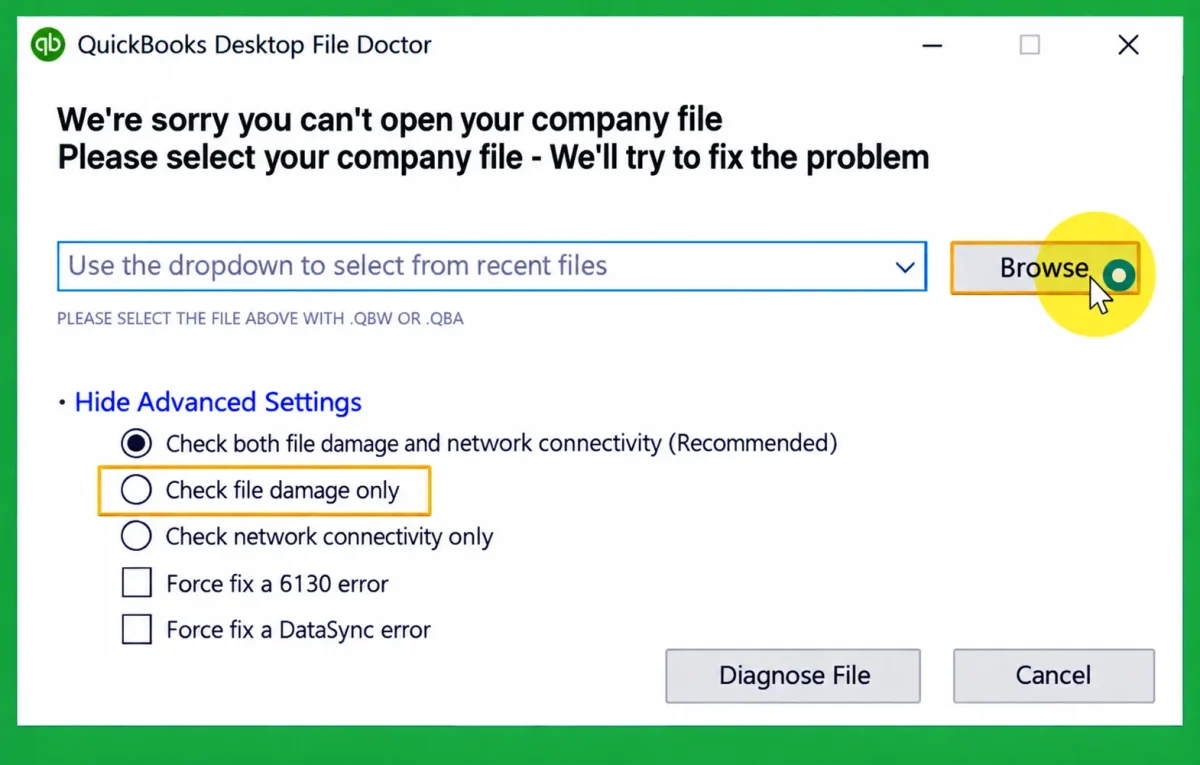
This gives you another way to start File Doctor when the Tool Hub button does not launch it.
3. What If QuickBooks File Doctor Won’t Launch From Tool Hub?
If QuickBooks File Doctor won’t launch through Tool Hub but the Tool Hub itself opens, the first thing to check is the Tool Hub installation.
We recommend using the latest QuickBooks Tool Hub. The version should be 1.6.0.8. Also, you should use Windows 11 64-bit for the best experience.
If you already know how to reinstall QuickBooks Tool Hub, that is great. If you’re not sure how to reinstall it correctly, follow our guide on how to download and install QuickBooks Tool Hub for detailed instructions. Once Tool Hub is installed, open it, select Company File Issues, and choose Run QuickBooks File Doctor to try launching the tool again.
If Tool Hub was not installed correctly or its files are damaged, reinstalling the latest version gives File Doctor a fresh Tool Hub installation to run from.
4. What If QuickBooks File Doctor Keeps Crashing?
If QuickBooks File Doctor crashes as soon as you try to use it, the problem may be related to QuickBooks program components.
Run Quick Fix my Program for problems where QuickBooks stops working. The tool shuts down QuickBooks background processes and performs a quick repair of the program.
Run Quick Fix my Program:
- Close QuickBooks Desktop.
- Open QuickBooks Tool Hub.
- Select Program Problems.
- Select Quick Fix my Program.
- Let the process finish.
- Open QuickBooks Desktop again.
- Open QuickBooks Tool Hub.
- Go to Company File Issues.
- Try running QuickBooks File Doctor again.
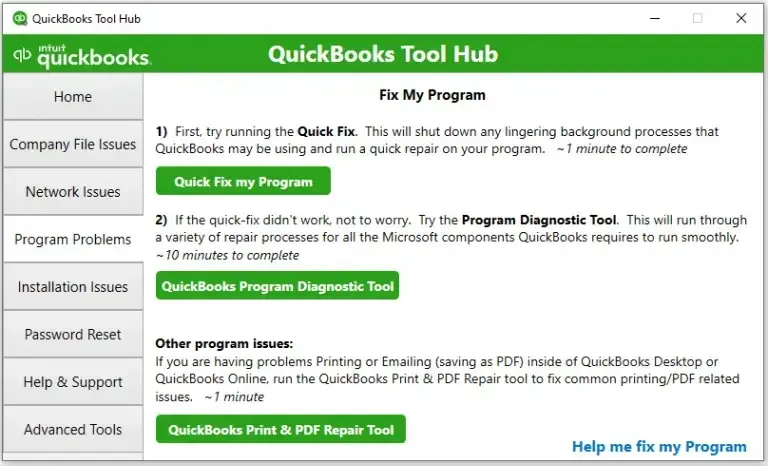
If File Doctor continues to crash after Quick Fix my Program, move to the installation repair step below.
5. What If QuickBooks File Doctor Is Not Responding?
When QuickBooks File Doctor is not responding, first determine whether it is actually frozen or simply taking time to complete its diagnosis.
If the tool remains unresponsive after allowing the scan to finish, repair the QuickBooks installation:
- Open QuickBooks Tool Hub.
- Select Installation Issues.
- Select QuickBooks Install Diagnostic Tool.
- Allow the tool to complete its process.
- Restart your computer.
- Open QuickBooks Desktop.
- Open QuickBooks Tool Hub.
- Try File Doctor again.
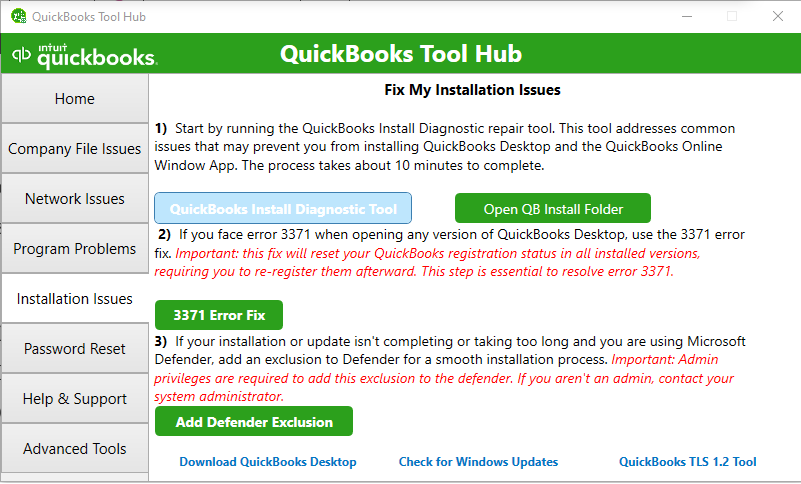
Installing the Diagnostic Tool can take up to 20 minutes because it checks and repairs common installation components used by QuickBooks.
This is particularly useful when QuickBooks File Doctor troubleshooting points to a problem with the QuickBooks installation rather than the company file.
6. What If QuickBooks File Doctor Shows an Error?
If QuickBooks File Doctor shows an error, do not immediately assume that the company file is damaged. First determine when the error appears.
For example, does File Doctor:
- Show the error while opening?
- Fail when you select the company file?
- Stop during the diagnosis?
- Fail during a network check?
- Complete the scan but report an unsuccessful result?
If File Doctor itself will not open, use the manual launch method. If it crashes, use Quick Fix my Program and the Install Diagnostic Tool. If it opens but cannot locate your company file, use Browse to select the file manually.
If File Doctor cannot find the file:
- Open File Doctor.
- Select the company file dropdown.
- Select Browse if the file is not listed.
- Locate the correct company file.
- Select Check your file.
- Select Continue.
- Enter the administrator password.
- Select Next.
7. What if QuickBooks File Doctor Is Taking Too Long to Open?
QuickBooks File Doctor may take up to one minute to launch after you select it from Tool Hub. If it still doesn’t open, launch the tool manually through Windows Search.
Follow these steps:
- Close QuickBooks Desktop.
- Open QuickBooks Tool Hub.
- Select Company File Issues.
- Click Run QuickBooks File Doctor.
- Wait for up to one minute.
- If File Doctor still doesn’t open, go to Windows Search.
- Type QuickBooks Desktop File Doc.
- Select the application from the search results to launch it manually.
Once File Doctor opens, select your company file and proceed with the diagnosis.
Got it. You want this section to explain what to do when File Doctor finishes but does not actually resolve the company file problem, including Verify/Rebuild and other appropriate QuickBooks repair tools.
When QuickBooks File Doctor Won’t Fix the Problem
Sometimes QuickBooks File Doctor completes the scan, but the original problem is still there. If that happens, don’t keep running File Doctor repeatedly. The next step depends on what kind of issue QuickBooks is still showing.
1. Run Verify Data
If File Doctor finishes but you still suspect that your company file has damaged or corrupted data, run Verify Data in QuickBooks Desktop. It checks your company file for data issues and can help confirm whether the file contains damage.
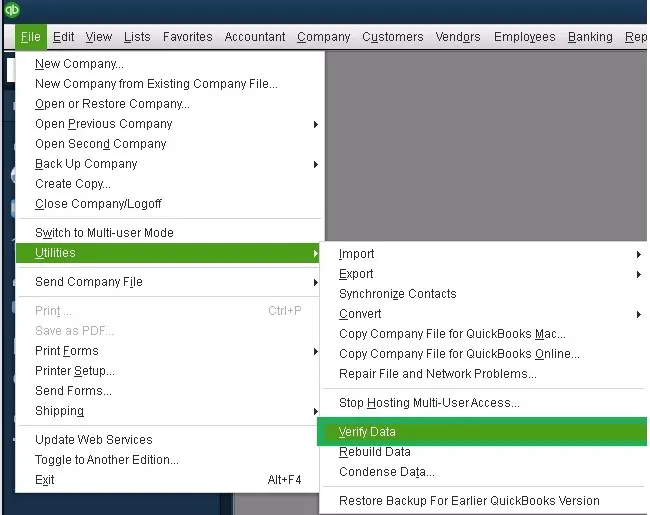
If Verify Data detects a problem, QuickBooks may recommend running Rebuild Data to repair it.
3. Run Rebuild Data
Use Rebuild Data when Verify Data identifies an issue with your company file. Rebuild Data attempts to repair the data damage that Verify Data finds.
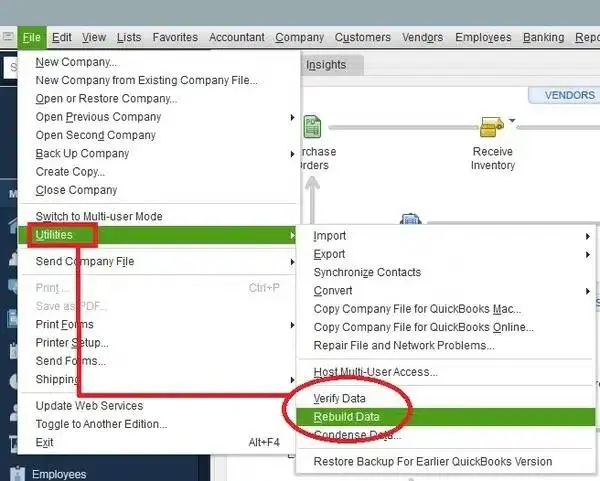
Before running the rebuild, create a backup of your company file so you have a copy of your data if something goes wrong during the repair process.
3. Try QuickBooks Tool Hub’s Other Repair Tools
File Doctor is only one of the troubleshooting tools included in QuickBooks Tool Hub. If the problem is related to the QuickBooks program rather than the company files themselves, another Tool Hub utility may be more appropriate.
For example, Quick Fix my Program can help when QuickBooks Desktop is having program-related problems, while the QuickBooks Install Diagnostic Tool can address certain installation issues.
4. Troubleshoot the Specific QuickBooks Error
If File Doctor completes successfully but the same error code or message continues to appear, look up that specific QuickBooks error and follow the troubleshooting steps for it. File Doctor cannot resolve every type of QuickBooks problem.
The key is to avoid treating every unresolved issue as a File Doctor problem. If File Doctor opens, completes its diagnosis, and gives you a result, the tool itself is working. At that point, focus on whether the remaining problem is related to data damage, the QuickBooks program, installation, or a specific error.
How Can You Prevent QuickBooks File Doctor Problems?
You cannot prevent every company file problem, but good file management can reduce the chances of running into serious data issues.
Keep these habits in place:
- Keep QuickBooks Desktop updated.
- Keep QuickBooks Tool Hub updated.
- Maintain recent, reliable company file backups.
- Verify company file data when QuickBooks reports a data-integrity problem.
- Use the appropriate network and hosting setup for multi-user mode.
- Avoid making unnecessary changes to the original company file while recovering damaged data.
- Keep a known-good backup before performing major data repair or recovery work.
Most importantly, do not treat File Doctor as the answer to every QuickBooks problem. It is one troubleshooting tool in a larger set of QuickBooks utilities.
Conclusion
When QuickBooks File Doctor won’t open, freezes, crashes, or fails to fix the original problem, the answer is not always to run File Doctor again.
If you have tried the appropriate QuickBooks troubleshooting steps and still cannot access or repair your company file, professional QuickBooks support can help determine whether the problem is related to the file, installation, or network environment.
Frequently Asked Questions
How do I fix QuickBooks File Doctor not working?
Start with Quick Fix my Program in QuickBooks Tool Hub. If File Doctor does not open, search Windows for QuickBooks Desktop File Doc and launch it manually. If the scan does not resolve the problem, run Verify Data and Rebuild Data or troubleshoot the specific QuickBooks error.
QuickBooks File Doctor won’t open. What should I do?
Give File Doctor up to one minute to open. If it still does not appear, search Windows for QuickBooks Desktop File Doc and open it manually.
My QuickBooks File Doctor is stuck on the “Diagnosing” screen. How do I get past it?
Do not immediately close the tool. File Doctor scans can take 10 to 15 minutes, depending on company file size. Let the scan finish and then check whether the original QuickBooks problem remains.
Why does QuickBooks File Doctor keep crashing immediately?
A crash can indicate that the problem goes beyond the specific company file issue that File Doctor is designed to address. Check that QuickBooks and Tool Hub are current, try the manual File Doctor launch, and troubleshoot the exact QuickBooks error if the crash continues.
I reinstalled the Tool Hub, but File Doctor still won’t open. Any other ideas?
Try launching QuickBooks Desktop File Doc manually from Windows Search. If it still does not open, determine whether the problem is with the QuickBooks installation itself or with the company file you are trying to repair.
QuickBooks File Doctor not responding. How do I force it to work?
First, give the scan enough time to finish. File Doctor scans can take 10 to 15 minutes depending on file size. If it consistently stops responding, move to Verify Data, Rebuild Data, or the troubleshooting steps for your specific QuickBooks error rather than repeatedly restarting the scan.
How do I run QuickBooks File Doctor as an administrator?
If a specific QuickBooks error or Windows permission issue requires elevated access, follow the instructions for that particular issue rather than treating administrator mode as a universal File Doctor fix.
Can I use QuickBooks File Doctor in Safe Mode?
Safe Mode is not part of Intuit’s current standard File Doctor workflow. Start with the supported Tool Hub and manual-launch steps before considering other Windows troubleshooting.
Why is QuickBooks File Doctor not working all of a sudden?
The cause depends on what changed. The issue may involve the company file, a network or multi-user configuration, QuickBooks components, or the specific error you are trying to resolve. Start with Quick Fix my File and then follow the File Doctor workflow.
What causes QuickBooks File Doctor to stop working?
There is no single cause. File Doctor may fail to resolve a problem because the company file has data damage, the issue is network-related, or the original QuickBooks error needs a solution beyond File Doctor.
Why won’t QuickBooks File Doctor open after I installed it?
If File Doctor does not open from Tool Hub, wait up to one minute and then search Windows for QuickBooks Desktop File Doc to launch it manually.
Is my antivirus blocking QuickBooks File Doctor?
Security software can affect software access in some Windows environments, but antivirus blocking is not listed by Intuit as a general File Doctor troubleshooting step. Avoid disabling security software simply because File Doctor is not working. Instead, follow the troubleshooting instructions for the specific QuickBooks or network error you are seeing.
Why does QuickBooks File Doctor say “We couldn’t find your file”?
File Doctor may not have your company file in its dropdown list. Select Browse and navigate to the location of the company file manually.
Why is File Doctor hanging at the network diagnosis stage?
If the company file is stored on a network, the underlying problem may involve hosting, permissions, or communication with the database server. Intuit provides separate troubleshooting for File Doctor network test results, so check the specific result reported by the tool.
Is QuickBooks File Doctor compatible with Windows 11?
Yes. Intuit’s current Tool Hub documentation recommends using QuickBooks Tool Hub on Windows 11 64-bit.
Why does File Doctor show a “QBFD.msi error”?
A QBFD.msi message indicates that File Doctor is encountering an installation-related problem. The exact solution depends on the error message and QuickBooks environment, so identify the complete error before attempting additional repairs.


