Sharing your QuickBooks Desktop company file among multiple computers can be a real breeze for your everyday accounting tasks, provided you set up the network properly. That’s where QuickBooks Database Server Manager can help. This is a utility that is installed on the computer where you keep your company files and allows other authorized users to access your files via the network.
If you are working individually with a company file that is saved on your own computer, you won’t usually require this. For companies that have QuickBooks Desktop in a multi-user mode, however, the appropriate arrangement of the QuickBooks Desktop server can make a huge difference. In this guide, we will give you a quick overview of what Database Server Manager is, when you need it, how to install it and configure it, and what to look for when QuickBooks Database Server Manager faces any issues.
Do You Need QuickBooks Database Server Manager If You’re the Only User?
Not usually. If you are the only person using QuickBooks and your company file is stored locally on the same computer, you can use QuickBooks without Database Server Manager.
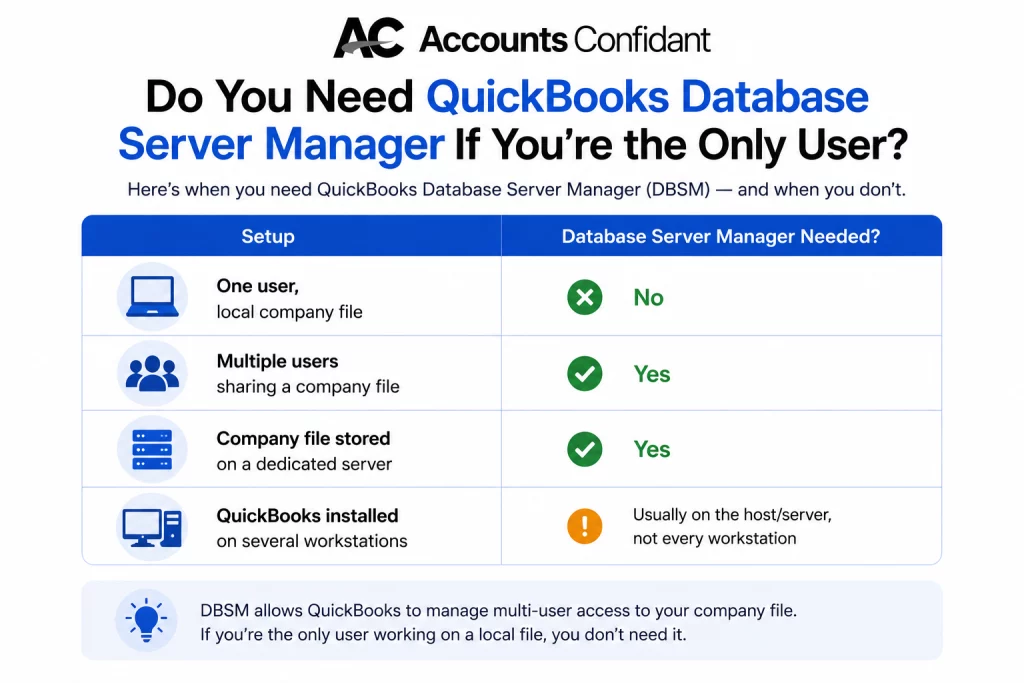
You typically need it when multiple users need to access a company file over a network. In that setup, Database Server Manager is installed on the computer that hosts the company files.
| Setup | Database Server Manager Needed? |
| One user, local company file | No |
| Multiple users sharing a company file | Yes |
| Company file stored on a dedicated server | Yes |
| QuickBooks installed on several workstations | Usually on the host/server, not every workstation |
The key factor is how the company file is stored and accessed, rather than simply how many computers have QuickBooks installed.
Do You Need QuickBooks Database Server Manager for Single-User or Multi-User Mode?
If you are the only user and your company file is saved locally on the same computer where you use QuickBooks Desktop, you generally do not need QuickBooks Database Server Manager. You can open and work with the company file directly without setting up a network database service.
If multiple users need to access the same company file from different computers, Database Server Manager is typically required. It runs on the computer that hosts the company file and allows other computers on the network to connect to the shared data.
| Setup | Database Server Manager | Where It Is Needed |
| One user with a local company file | Not required | No server setup |
| Multiple users sharing a company file | Required | Server/host computer |
| Company file stored on a dedicated server | Required | Server computer |
| QuickBooks used from multiple workstations | Required for network hosting | Server/host computer |
Single User Mode
In a single-user setup, QuickBooks and the company file can remain on one computer. Since there is no need to share the file across a network, Database Server Manager is generally unnecessary.
Multi-User Mode
In a multi-user environment, the company file is stored on a host or server computer, while users access it from their individual workstations. Database Server Manager runs on the host computer and helps manage access to the shared company files.
Important: Installing QuickBooks Desktop on multiple computers does not by itself mean Database Server Manager must be installed on every computer. The key consideration is whether those computers need to access a company file stored on another computer over the network.
QuickBooks Database Server Manager: Server vs. Workstation
The server and workstation have different roles in a QuickBooks multi-user environment.
Server or host computer: This computer stores the QuickBooks company files. QuickBooks Database Server Manager should be installed here so it can manage network access to those files.
Workstation: This is the computer a user operates QuickBooks from. Users can access the shared company file through QuickBooks Desktop, but Database Server Manager does not generally need to be installed separately on every workstation.
For example, if three employees use QuickBooks from three different computers while the company file is stored on one central computer, the central computer acts as the server, while the three employee computers act as workstations.
Let’s start with the installation process of QuickBooks Database Server Manager.
How to Download and Install QuickBooks Database Server Manager
QuickBooks Database Server Manager lets users access company files stored on a network. It should be installed and running on the server computer, which is the computer where the company files are stored.
Download QuickBooks Database Server Manager
The QuickBooks Database Server Manager download is not normally required. The utility comes as part of the QuickBooks Desktop installation package.
To get started:
- First, install the right QuickBooks Desktop Installer.
- If QuickBooks Desktop is already installed on the server, run the most recent QuickBooks Desktop update. Database Server Manager is updated along with QuickBooks Desktop.
Install QuickBooks Database Server Manager
Install the tool on the computer that stores your QuickBooks company files.
To Install QuickBooks Database Server Manager:
- Make sure no other applications are running on the server and shut down QuickBooks Desktop.
- Open the downloaded installation file, typically named “Setup_QuickBooks.exe” and follow the instructions displayed by the installer.
- If asked, enter the details of your QuickBooks product or license information.
- On the Choose Installation Type screen, choose Custom or Network Options, and then choose Next. Do not select Express when you have an existing version of QuickBooks Desktop that you want to use.
- Choose the network configuration to fit the intended configuration of the server:
- I’ll be using QuickBooks Desktop on this computer, AND I’ll be storing our company file here: Choose this when the server will have both QuickBooks Desktop and Database Server Manager.
- I will NOT be using QuickBooks Desktop on this computer: Choose this when the server will only host Database Server Manager and company files.
- Click on Next, then click on Install.
- Wait till the installation is complete.
Note: QuickBooks makes one Windows service account for each Database Server Manager release. Make sure this account has the required permissions to access the folders where your company files are stored.
If the problem occurs specifically when accessing a company file over a network, see our guide on QuickBooks Error H505 for additional troubleshooting steps.
To configure QuickBooks Database Server Manager, refer to the next process.
Set Up QuickBooks Database Server Manager
Most of the time, the default settings are sufficient. If you need to configure the Windows service manually, follow these steps:
- On the Windows ‘Start’ menu, type in ‘Services’.
- In the Services window, find QuickBooksDBXX (where XX is the version of QuickBooks that you use).
- Go into the service and see its status in the General tab.
- If the service is running, select Stop.
- Set Startup type to Automatic.
- Open the Log On tab and select Local System account.
- Open the Recovery tab.
- Set First failure, Second failure, and Subsequent failures to Restart the Service.
- Now, go back to the General tab and click Start to restart the service.
After installing and configuring Database Server Manager, you’ll want to look at two other areas:
- Configure firewall and antivirus permissions: Please ensure Database Server Manager has the proper permissions in the firewall and antivirus.
- Scan company-file folders: Use Database Server Manager to scan the folders containing your QuickBooks company files so they can be accessed over the network
You can also access QuickBooks Database Server Manager through QuickBooks Tool Hub when troubleshooting supported network and company-file issues.
To know how to scan the company file, follow the procedure below.
How to Add and Scan Company File Folders in QuickBooks Database Server Manager
After installing QuickBooks Database Server Manager, scan the folders that contain your QuickBooks company files. This allows users on other computers connected to the network to access the company files.
Step 1: Scan Your Company File Folders
You only need to scan a folder once unless you change your setup.
- On the server computer, open the Windows Start menu.
- Search for Database and open QuickBooks Database Server Manager.
- Select the Scan Folders tab.

- Select Browse and choose the folders containing your QuickBooks company files (.QBW files).
- Select OK after choosing the required folders.
- Select Start Scan.
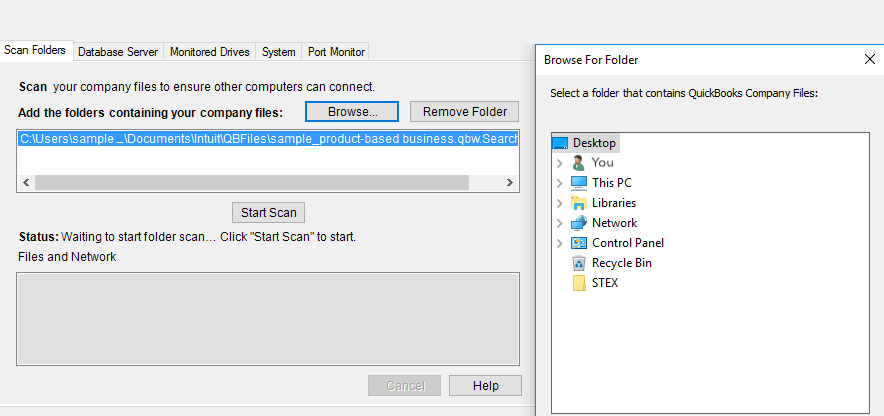
After scan is complete, the selected folders will be listed under QuickBooks company files found. The company files in those folders can then be accessed from other computers on your network.
You can also monitor the drives on the file.
Step 2: Track the Drives
The drives on which your company files are located can be monitored to enable Database Server Manager to keep track of changes that occur to the monitored folders.
- Open the Monitored Drives tab.
- Select the check boxes for the drives where your company files are stored.
Only select drives that contain your QuickBooks company files. Mapped network drives can’t be monitored.
Finally, verify the Database Server Manager status.
Step 3: Check Database Server Manager Status
Database Server Manager features extra tabs to assist in monitoring the operation of the Database Server:
- System: Shows where Database Server Manager is installed.
- Database Server: Provides information about the status of the service and about users that are connected to the service.
There may be instances when the QBDSM faces problems; the next section will cover necessary troubleshooting solutions.
How to Fix QuickBooks Database Server Manager Not Running
If QuickBooks Database Server Manager is not available, the potential issue could be with the Windows service, company-file permissions, folder scanning, or even the firewall settings. Mostly, it resolves network and multi-user issues like H101, H202, H303, H505, etc.
If Database Server Manager is running correctly but you still cannot access the company file, QuickBooks File Doctor can help diagnose certain supported company-file and network problems.
If QuickBooks File Doctor does not open, freezes, or fails to complete the scan, see our guide on QuickBooks File Doctor Not Working.
The following troubleshooting steps address the most common issues.
Solution 1. Restart QuickBooks Database Server Manager
If QuickBooks Database Server Manager stops or becomes unavailable, restart its Windows service on the server computer.
- Open the Windows Start menu.
- Search for Services and open the application.
- Find QuickBooksDBXX, where XX represents your QuickBooks version.
- Right-click the service and select Restart.
- If the service is stopped, select Start instead.
If the service does not restart, restart the server computer and try again.
If the issue persists, move to the next solution.
Solution 2. Check Company File and Folder Permissions
Database Server Manager needs access to the folders containing your QuickBooks company files. If the required permissions are missing, the service may not be able to scan the folders or provide access to the files.
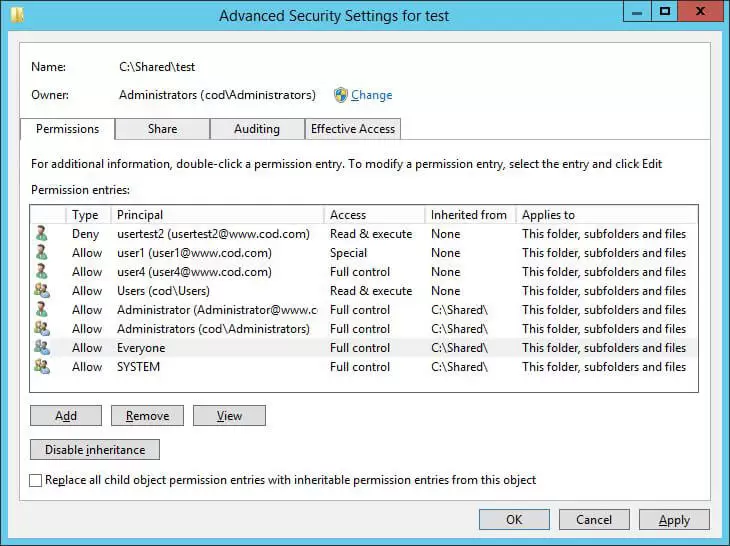
Verify that the Windows service account used by Database Server Manager has permission to access the company file folders. After updating permissions, scan the folders again.
Solution 3. Rescan Your Company File Folders
If Database Server Manager isn’t detecting a company file, make sure the folder containing the file has been scanned by QBW File.
Open QuickBooks Database Server Manager, click Scan Folders, pick the folder, and then click Start Scan.
Once the scan is complete, view the QuickBooks company files located in the section. This can be useful if a company file is moved, a new file was added, or it’s in a folder that hasn’t been scanned by Database Server Manager.
Solution 4. Check Firewall Settings
If the company file is accessible from the server but not from workstations, the firewall or security software might be preventing network communication. This can also contribute to QuickBooks Error H202, which occurs when QuickBooks cannot establish a connection with the computer hosting the company file.
Ensure that QuickBooks and Database Server Manager are permitted to pass through the Windows firewall and through any other security software that is installed on the server.
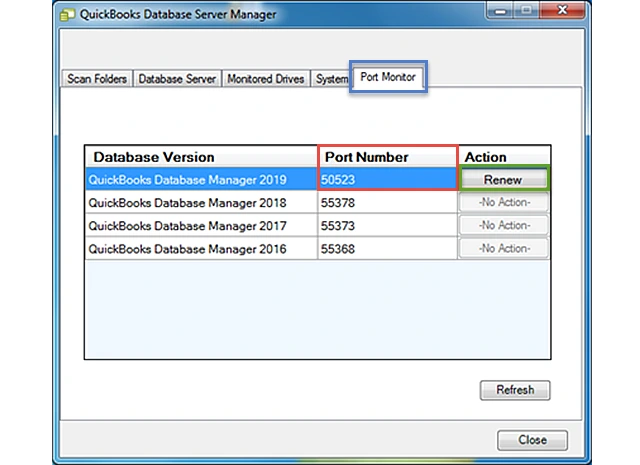
For QuickBooks Desktop 2019 and later, you can check the assigned network port through QuickBooks Database Server Manager > Port Monitor and configure the firewall to allow the required connection.
Solution 5. Reinstall Database Server Manager if It Is Missing
QuickBooks Database Server Manager might not be installed on the server or the QuickBooks Database Server Service might be missing from Windows Services, which could indicate that the installation was incomplete or damaged.
In this case, install the correct Database Server Manager component from the QuickBooks Desktop installation disc. Mount it onto the computer containing the company files and then scan the company-file folders again.
Once you do this, verify that the service called QuickBooksDBXX is running and that users are able to access the company file from their workstations.
Conclusion
QuickBooks Database Server Manager is a crucial component of the network-based QuickBooks Desktop configuration. When QuickBooks issues start affecting your day-to-day work, Accounts Confidant can help you get things back on track. Our QuickBooks experts can troubleshoot database, network, and company-file issues, so you can spend less time fixing errors and more time managing your business.
Frequently Asked Questions
What is QuickBooks Database Server Manager and what does it do?
QuickBooks Database Server Manager is a utility for QuickBooks Desktop that allows company files stored on a server computer to be accessed by other computers on the network. It manages the database service required for network and multi-user access.
Do I need QuickBooks Database Server Manager for multi-user mode?
Yes, when multiple users need to access a QuickBooks Desktop company file stored on a network. Database Server Manager runs on the computer hosting the company file and supports access from connected workstations.
How do I install QuickBooks Database Server Manager?
Database Server Manager is included with the QuickBooks Desktop installation package. During installation, select Custom or Network Options and choose the setup that matches your server configuration.
Where do I download QuickBooks Database Server Manager?
You don’t normally download Database Server Manager as a separate application. It is included with the QuickBooks Desktop installer. If QuickBooks Desktop is already installed, updating QuickBooks can also update the Database Server Manager component.
Does Database Server Manager need to be installed on every computer or just the server?
Database Server Manager should be installed on the computer that stores and hosts the QuickBooks company files. It does not generally need to be installed separately on every workstation that accesses the shared company file.
Why isn’t QuickBooks Database Server Manager scanning my company file?
Check that the folder containing the company file has been added under Scan Folders. Verify that Database Server Manager has permission to access the folder, then run Start Scan again. Also confirm that the company file is stored in the folder you selected.
Is QBDBMgrN the same as QuickBooks Database Server Manager?
QBDBMgrN is the Windows process associated with the QuickBooks Database Server Manager service. You may see QBDBMgrN when checking QuickBooks-related processes or services in Windows.
What ports does QuickBooks Database Server Manager use?
The required network port depends on the QuickBooks Desktop version. For supported versions, you can identify the assigned port through QuickBooks Database Server Manager > Port Monitor and configure your firewall accordingly.
How do I fix QuickBooks Database Server Manager not running on this computer?
Open Windows Services, locate QuickBooksDBXX, and select Restart or Start if the service is stopped. If the service fails to start, check the installation, folder permissions, and firewall settings.
Can I use QuickBooks Database Server Manager on a Mac?
QuickBooks Database Server Manager is designed for QuickBooks Desktop network setups on Windows. QuickBooks Desktop for Mac has its own multi-user networking requirements and does not use the Windows Database Server Manager in the same way.
How do I add a folder to QuickBooks Database Server Manager?
Open Database Server Manager on the server, go to Scan Folders, select Browse, choose the folder containing your QuickBooks company files, and select Start Scan. Once the scan finishes, the company files found in that folder appear in Database Server Manager.
What is the difference between a QuickBooks server and workstation?
The server or host computer stores the QuickBooks company files and manages network access, while a workstation is the computer users operate QuickBooks Desktop from to access the shared company file.
Do I need QuickBooks Database Server Manager for single-user mode?
No, if you are the only person using QuickBooks Desktop and your company file is stored locally on the same computer, you generally don’t need QuickBooks Database Server Manager.
