
When QuickBooks Desktop opens then closes immediately, it can prevent you from accessing your company file and completing essential accounting tasks. You may see the QuickBooks splash screen, watch the program begin loading, and then have it suddenly disappear. In other cases, QuickBooks opens for a few seconds and closes without displaying an error message.
The cause isn’t always the company file. Sometimes, QuickBooks won’t open after update can crash because of damaged configuration files, corrupted company data, installation problems, Windows settings, network hosting issues, or problems introduced after an update.
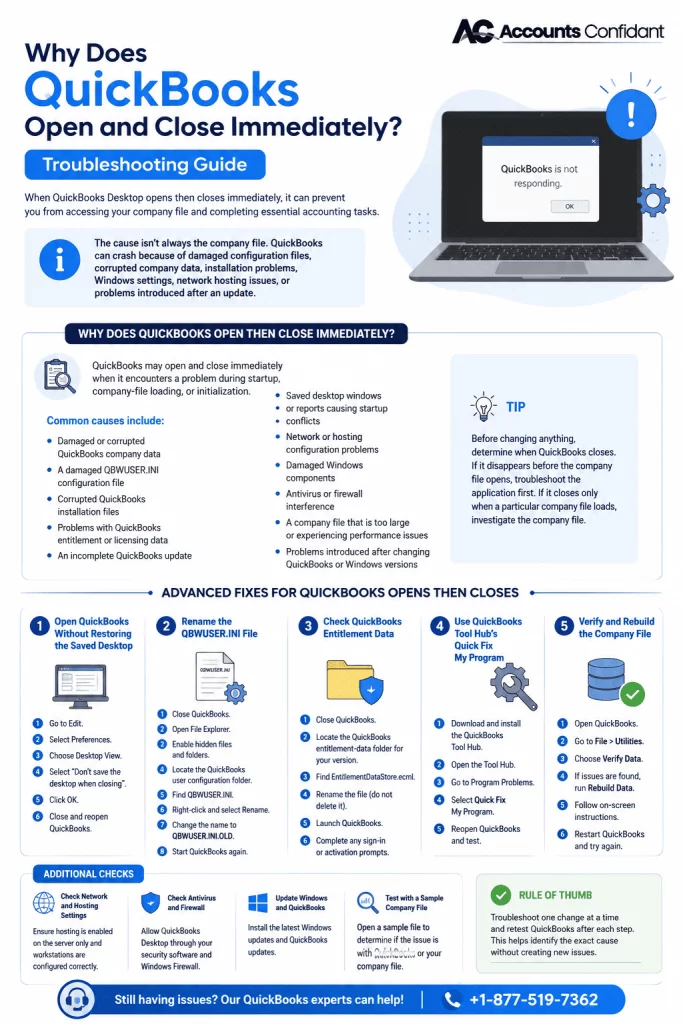
This guide covers the most likely causes and advanced troubleshooting methods for when QuickBooks opens then closes or stops working during startup.
Why Does QuickBooks Open Then Close Immediately?
QuickBooks may open and close immediately when it encounters a problem during startup, company-file loading, or initialization. The underlying issue can involve the QuickBooks program, a specific company file, Windows, or the network environment.
Common causes include:
- Damaged or corrupted QuickBooks company data
- A damaged QBWUSER.INI configuration file
- Corrupted QuickBooks installation files
- Problems with QuickBooks entitlement or licensing data
- An incomplete QuickBooks update
- Saved desktop windows or reports causing startup conflicts
- Network or hosting configuration problems
- Damaged Windows components
- Antivirus or firewall interference
- A company file that is too large or experiencing performance problems
- Problems introduced after changing QuickBooks or Windows versions
Before changing anything, determine when QuickBooks closes. If it disappears before the company file opens, troubleshoot the application first. If it closes only when a particular company file loads, investigate the company file.
Let’s look at the fixes now.
Advanced Fixes for QuickBooks Opens Then Closes
Once you’ve identified where the crash occurs, work through the following solutions. Start with the fix that matches your symptoms instead of applying every solution at once.
Open QuickBooks Without Restoring the Saved Desktop
QuickBooks can reopen windows, reports, and other items that were active when the company file was last closed. If one of these saved items is damaged or unusually resource-intensive, QuickBooks may crash while restoring the previous desktop.
This can explain why QuickBooks opens for a few seconds and closes after a company file begins loading.
Try opening the company without restoring the saved desktop. If the company opens successfully:
- Go to Edit.
- Select Preferences.
- Choose Desktop View.
- Select Don’t save the desktop when closing.
- Click OK.
- Close and reopen QuickBooks.
If the crash disappears, the saved desktop configuration may have been triggering the problem.
Rename the QBWUSER.INI File
The QBWUSER.INI file stores QuickBooks user-specific settings. If this configuration file becomes damaged, QuickBooks may fail during startup or behave unexpectedly.
Renaming the file allows QuickBooks to create a new configuration file.
To test it:
- Close QuickBooks completely.
- Open File Explorer.
- Enable hidden files and folders if necessary.

- Locate the QuickBooks user configuration folder for your installation.
- Find QBWUSER.INI.
- Right-click the file and select Rename.
- Change the name to QBWUSER.INI.OLD.
- Start QuickBooks again.
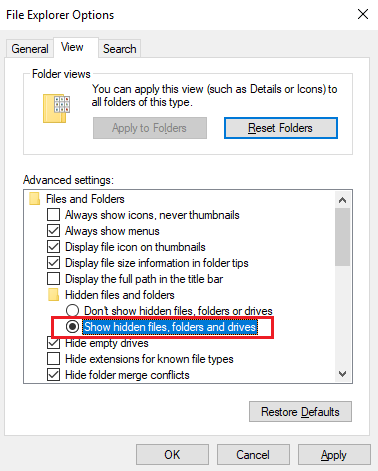
If the application now opens normally, the original configuration file was likely contributing to the problem.
Renaming is preferable to deleting because you can restore the original file if needed.
Check QuickBooks Entitlement Data
If the QuickBooks splash screen appears and then disappears, licensing or entitlement information can also be worth investigating.
QuickBooks stores entitlement information locally. If this data becomes corrupted, the program may have trouble completing its startup or activation process.
Before changing entitlement files, make sure you have the information needed to sign back into or activate your QuickBooks installation.
A typical troubleshooting process involves:
- Close QuickBooks.
- Locate the QuickBooks entitlement-data folder for your specific version.
- Find EntitlementDataStore.ecml.
- Rename the file rather than permanently deleting it.
- Launch QuickBooks.
- Complete any sign-in or activation prompts that appear.
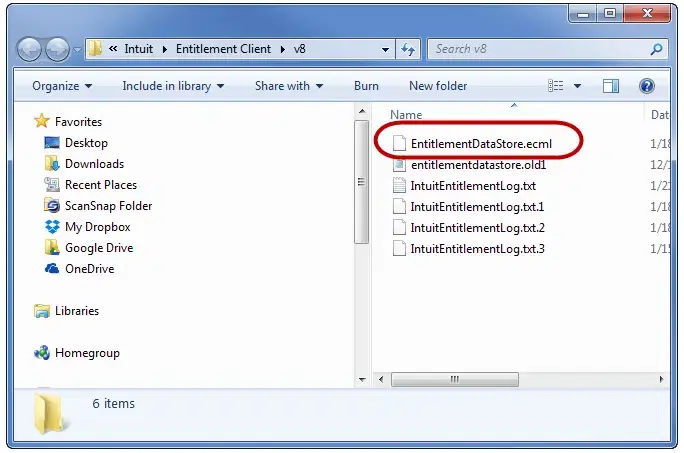
The exact location can vary depending on the QuickBooks Desktop version and Windows configuration, so verify the correct folder before modifying the file.
Use QuickBooks Tool Hub’s Quick Fix My Program
If QuickBooks opens then closes and refuses to launch normally afterward, a QuickBooks process may still be running in the background.
QuickBooks Tool Hub’s Quick Fix my Program tool is designed to close QuickBooks processes and perform a quick program repair.
Open:
QuickBooks Tool Hub → Program Problems → Quick Fix my Program

After the tool finishes:
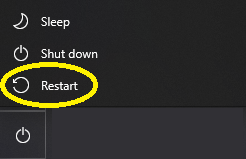
- Restart Windows.
- Open QuickBooks.
- Check whether the No Company Open window remains open.
- Open the company file separately.
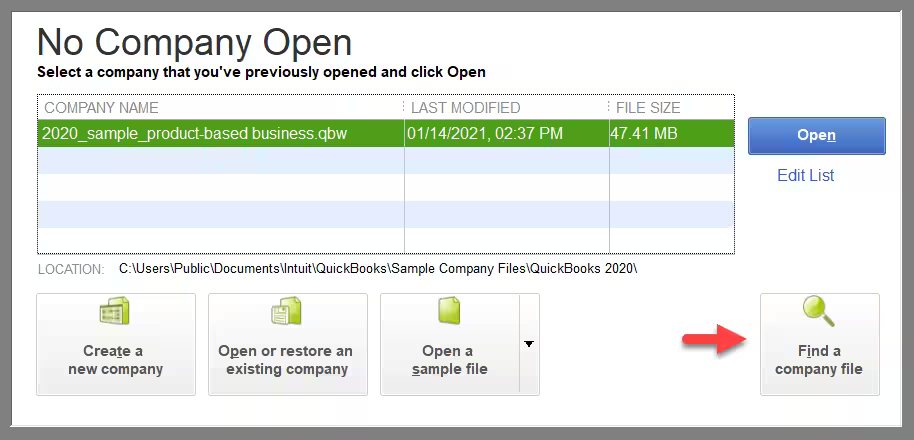
This provides a more targeted approach than repeatedly ending QuickBooks processes manually.
Run the QuickBooks Install Diagnostic Tool
If QuickBooks Desktop closes without showing an error, damaged installation components may be responsible.
The QuickBooks Install Diagnostic Tool is designed to identify and repair certain installation-related problems involving QuickBooks and its supporting Windows components.
From QuickBooks Tool Hub:
- Open Installation Issues.
- Select QuickBooks Install Diagnostic Tool.
- Allow the diagnostic process to complete.
- Restart the computer.
- Open QuickBooks again.
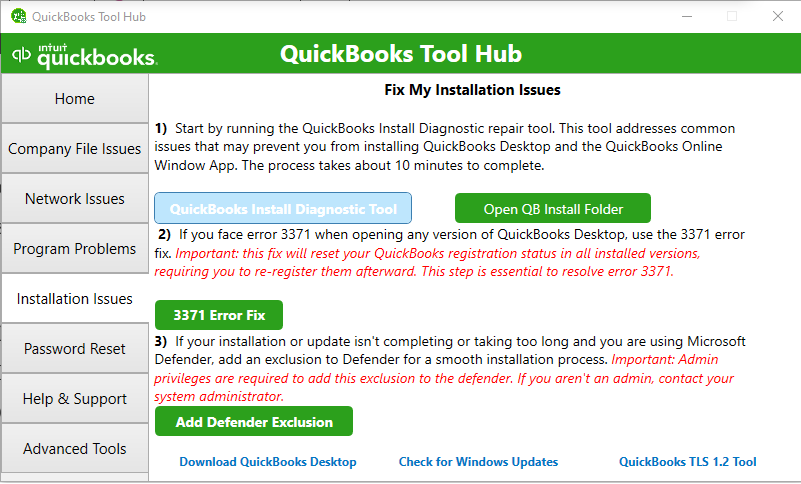
This is particularly useful if the problem began after installing, updating, or repairing QuickBooks.
Repair QuickBooks Desktop Before Reinstalling
A damaged QuickBooks installation does not always require a complete uninstall.
If diagnostic tools indicate an installation problem, repair the existing QuickBooks installation first. This can replace damaged program components without immediately removing the entire application.
After repairing:
- Restart Windows.
- Open QuickBooks without selecting a company file.
- Leave the No Company Open window open for a moment.
- Open the company file separately.
- Check whether the program remains stable.
If repairing the installation does not resolve the problem, you may need to reinstall the software. Follow our guide on how to install QuickBooks Desktop to make sure you use the correct installation process.
If QuickBooks started crashing after a Windows upgrade or system change, you can also use the Windows Program Compatibility Troubleshooter to check for compatibility issues with older desktop applications.
Test Whether the Company File Is Damaged
Can a damaged company file cause QuickBooks to close? Yes.
If QuickBooks remains open normally until you select a particular company file, the company file should be investigated before changing the entire QuickBooks installation.
Try opening:
- Another company file
- A sample company file
- The affected company file from a local folder
If other files open normally but one company consistently causes QuickBooks to close, the problem is more likely related to that company file.
Move the Company File to a Local Folder
A network location can introduce another layer of problems when QuickBooks attempts to access a company file.
If QuickBooks works normally without the company file but crashes when opening a network-hosted file, create a copy of the company file and test it from a local folder.
For example:
- Close QuickBooks.
- Locate the company file with the .QBW extension.
- Copy the file to a temporary folder on the local computer.
- Open QuickBooks.
- Select the copied company file.
- Check whether it opens normally.
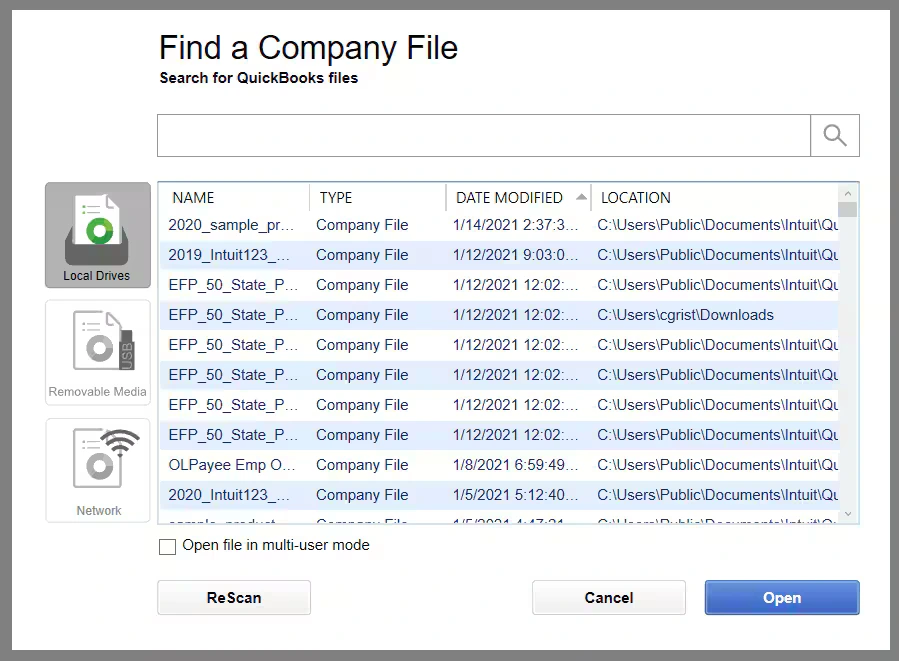
If the local copy works but the network copy does not, investigate the network environment rather than assuming the company file itself is damaged.
Potential areas include:
- Folder permissions
- Network connectivity
- Server accessibility
- QuickBooks Database Server Manager
- Hosting configuration
- Multi-user settings
Verify and Rebuild the Company File
If you can open the company file, QuickBooks provides built-in utilities for checking and repairing data integrity.
Start with:
File → Utilities → Verify Data
The tool checks the company file for data integrity issues.
If QuickBooks identifies a problem, use:
File → Utilities → Rebuild Data
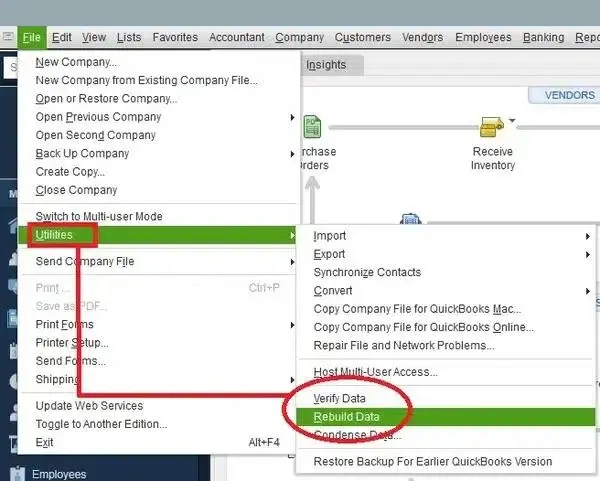
The Rebuild Data utility attempts to repair certain types of company-file damage.
Before performing data repair, maintain a current backup of the company file.
The rebuild process can also take time with a large company file. Avoid assuming that the process has failed simply because QuickBooks temporarily appears unresponsive.
Rename the ND and TLG Files
For company files used in a network or multi-user environment, the associated Network Data (.ND) and Transaction Log (.TLG) files can also be investigated when QuickBooks cannot open the company file correctly.
These files contain information QuickBooks uses for network access and transaction logging.
To test them:
- Close QuickBooks on all computers.
- Open the folder containing the company file.
- Locate the corresponding .ND and .TLG files.
- Right-click each file.
- Select Rename.
- Add .OLD to the end of the filename.
- Reopen QuickBooks.
- Open the company file.
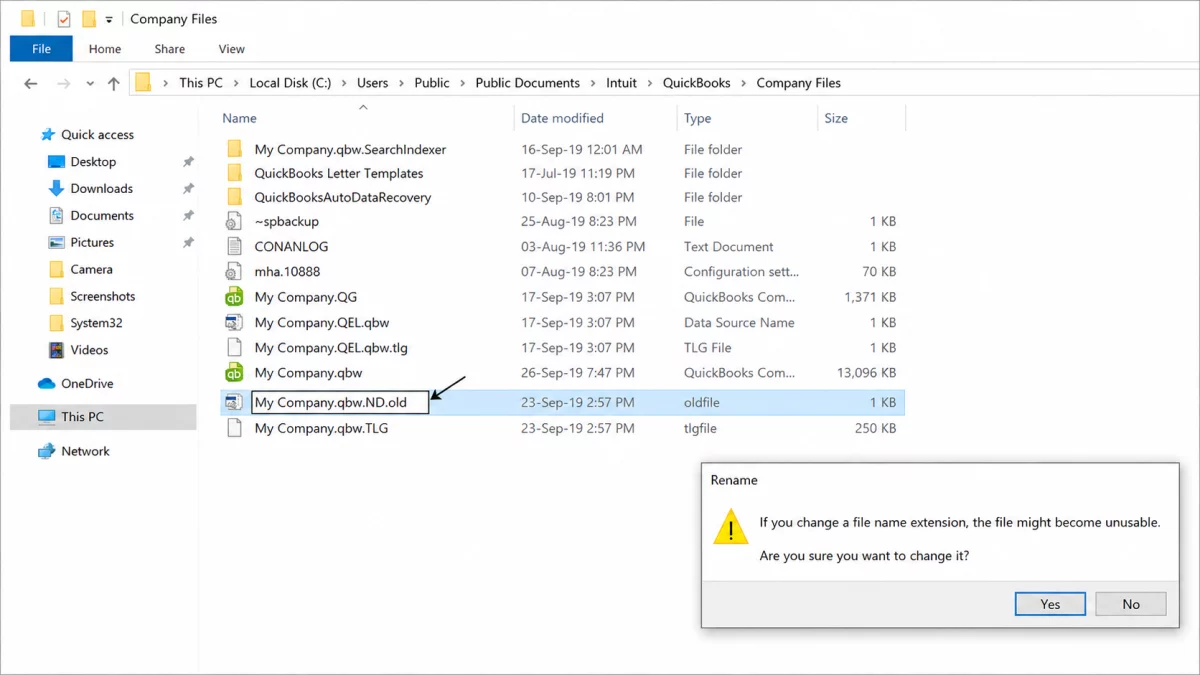
QuickBooks can recreate these supporting files when needed.
If the problem is specifically related to network access, this step can help determine whether the associated configuration files have become corrupted.
Check Multi-User Hosting Configuration
If QuickBooks opens and closes only when accessing a company file through a network, check the hosting configuration on the computers involved.
QuickBooks Desktop’s multi-user environment requires the company file to be hosted correctly. Workstations generally should not be configured to host the company file when another computer is designated as the host.
On a workstation:
- Open QuickBooks without opening the company file.
- Go to File → Utilities.
- Check whether Stop Hosting Multi-User Access appears.
- If the workstation is hosting the company file unnecessarily, disable hosting.
- Repeat the check on other workstations.
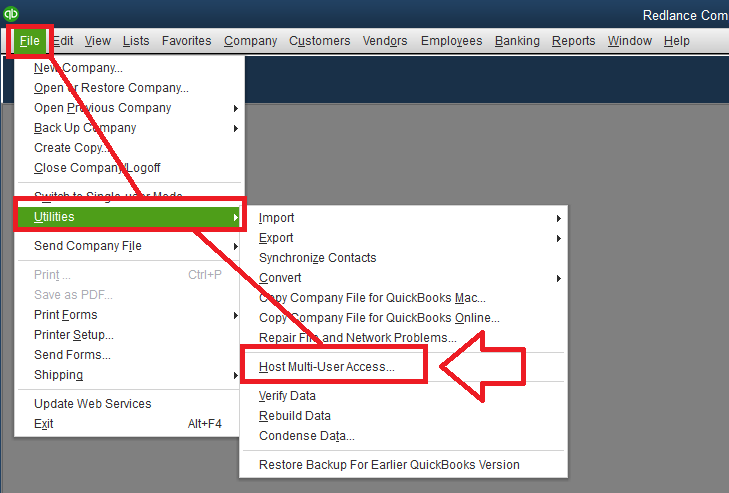
Then verify that the designated server has the appropriate hosting configuration.
This is especially important if the crash occurs only when employees attempt to open a company file over the network.
If users experience problems accessing the company file over the network, you may also need to troubleshoot QuickBooks Error H202, which is commonly associated with multi-user and hosting configuration problems.
Check the Company File’s Location and File Properties
If a company file behaves differently depending on where it is stored, investigate its file properties and location.
Confirm that:
- The file has the expected .QBW extension.
- The file isn’t being accessed from an unreliable network path.
- Users have the required permissions.
- The file isn’t compressed or encrypted in a way that interferes with access.
- The file isn’t being opened simultaneously from conflicting locations.
Testing a copy of the company file locally is often the quickest way to determine whether the storage location is contributing to the problem.
Check for a Large or Resource-Intensive Company File
A large company file can affect QuickBooks performance, particularly when the system has limited resources.
If QuickBooks becomes increasingly slow before eventually crashing, investigate the size and complexity of the company file along with the computer’s available resources.
Look for:
- Extremely large company files
- Large reports
- Extensive transaction histories
- Numerous users accessing the same file
- Multiple applications consuming system memory
- Limited available disk space
Do not reduce or condense company data simply because QuickBooks crashes. First determine whether file size is actually contributing to the problem and create a reliable backup before performing any data-reduction operation.
QuickBooks Troubleshooting Checklist
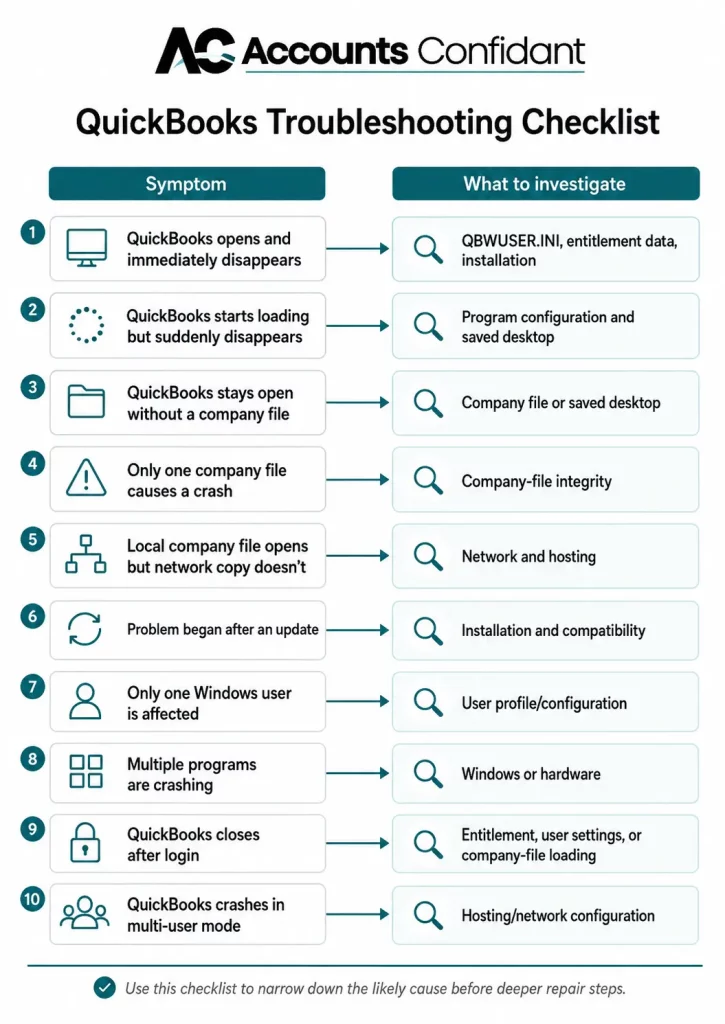
Use the following checklist based on what happens when you launch QuickBooks:
| Symptom | What to investigate |
| QuickBooks opens and immediately disappears | QBWUSER.INI, entitlement data, installation |
| QuickBooks starts loading but suddenly disappears | Program configuration and saved desktop |
| QuickBooks stays open without a company file | Company file or saved desktop |
| Only one company file causes a crash | Company-file integrity |
| Local company file opens but network copy doesn’t | Network and hosting |
| Problem began after an update | Installation and compatibility |
| Only one Windows user is affected | User profile/configuration |
| Multiple programs are crashing | Windows or hardware |
| QuickBooks closes after login | Entitlement, user settings, or company-file loading |
| QuickBooks crashes in multi-user mode | Hosting/network configuration |
How Do Businesses Prevent QuickBooks Downtime?
A practical approach includes:
- Maintain regular QuickBooks company-file backups.
- Verify that backups can actually be restored.
- Keep supported QuickBooks and Windows versions.
- Document major software and Windows changes.
- Test company-file access after significant system changes.
- Maintain a clear multi-user hosting configuration.
- Monitor recurring crashes rather than treating them as isolated incidents.
- Keep a recovery procedure available for damaged company files.
- Avoid making multiple system changes at the same time when troubleshooting.
For businesses that depend on QuickBooks for daily accounting, a recovery plan can prevent a single application crash from turning into prolonged downtime.
When Should You Get Professional Help?
If QuickBooks opens then closes after you’ve isolated the program, company file, and network environment, the issue may require deeper technical investigation.
Professional assistance is particularly appropriate when:
- Multiple company files are affected.
- The company file shows signs of corruption.
- QuickBooks continues crashing after repair.
- Several computers experience the same problem.
- Network hosting is involved.
- Important financial data may be at risk.
- You cannot access a working backup.
- Windows itself appears unstable.
Avoid deleting QuickBooks configuration files permanently or making registry, security, or system-level changes without understanding their consequences. Always preserve a reliable copy of important company data before attempting advanced repairs.
Conclusion
When QuickBooks Desktop opens then closes immediately, the cause can be difficult to identify because the program may disappear without an error message. The problem may originate from QuickBooks configuration files, entitlement information, a damaged installation, a specific company file, Windows, or a network-hosting environment.
Start by determining whether QuickBooks can remain open at the No Company Open screen. From there, troubleshoot the most likely source: reset damaged configuration files, repair the QuickBooks installation, test the company file independently, rebuild damaged data, or investigate network hosting.
Rather than repeatedly reinstalling QuickBooks, use the point at which the application closes as a diagnostic clue. This can help identify the underlying problem while reducing unnecessary changes to your accounting environment.
Frequently Asked Questions
Can a damaged company file cause QuickBooks to close?
Yes. A damaged or corrupted company file can cause QuickBooks to crash or close while the file is loading. Try opening another company file or a sample file to determine whether the problem is limited to one company file.
Why does QuickBooks open then close immediately?
QuickBooks may open and close immediately because of damaged configuration files, company-file corruption, installation problems, entitlement data, Windows compatibility issues, or interference from security software. Testing QuickBooks without opening a company file can help identify the cause.
How do I fix QuickBooks Desktop crashing?
Start by determining when QuickBooks crashes. You can try renaming the QBWUSER.INI file, repairing the QuickBooks installation, running Quick Fix my Program or the QuickBooks Install Diagnostic Tool, and checking the company file for data damage.
Why does QuickBooks stop working after startup?
QuickBooks can stop working after startup if it encounters a problem while loading its configuration, restoring saved windows, validating licensing information, or opening a company file. Suppressing the saved desktop and launching QuickBooks without a company file can help isolate the issue.
Why does QuickBooks close without an error?
QuickBooks Desktop closes without showing an error when a startup or loading process fails without producing a visible diagnostic message. The cause may be related to QuickBooks configuration, installation files, company data, Windows, or network settings.
What causes QuickBooks Desktop to stop working?
Common causes include damaged company files, corrupted QuickBooks program files, incomplete updates, outdated or incompatible Windows components, security-software interference, user-profile problems, and network or hosting issues.
QuickBooks opens then closes after update, how to fix?
If QuickBooks opens then closes after an update, first check whether the application closes before loading a company file. Run Quick Fix my Program and the QuickBooks Install Diagnostic Tool, then repair the installation if necessary. If only one company file causes the crash, troubleshoot that file instead.
QuickBooks opens and disappears, what should I do?
If QuickBooks opens and disappears, try launching it without opening a company file. If it remains open, investigate the company file or saved desktop settings. If it still closes, troubleshoot the QBWUSER.INI file, entitlement data, installation, and Windows environment.
Why does QuickBooks close after login?
QuickBooks may close after login because of damaged user settings, entitlement or licensing information, company-file loading problems, or Windows profile issues. Test another company file or Windows user account to determine whether the issue is user-specific or system-wide.
Why is QuickBooks not working on Windows 10?
If QuickBooks is not working on Windows 10, check whether your specific QuickBooks Desktop version supports your Windows version. Also investigate recent Windows or QuickBooks updates, damaged installation components, and compatibility issues that may have appeared after a system change.
How do businesses prevent QuickBooks downtime?
Businesses can reduce QuickBooks downtime by maintaining verified backups, keeping QuickBooks and Windows supported and updated, monitoring major system changes, maintaining proper multi-user hosting, and having a recovery procedure for company-file or application failures.
What to do if QuickBooks Opens Then Closes After an Update
If QuickBooks opens then closes after update, the issue may be related to the installation, compatibility, or a specific company file. Run Quick Fix my Program and the QuickBooks Install Diagnostic Tool, then check your QuickBooks and Windows versions.
Why Does QuickBooks Close After Login?
If QuickBooks closes after login, the problem may involve user settings, entitlement data, or the company file. Try opening another company file or testing a different Windows user account.
Why Does QuickBooks Close Without an Error?
If QuickBooks Desktop closes without showing an error, check whether it closes before opening a company file or only when loading a specific file. This can help determine whether the problem is with QuickBooks, the company file, or Windows.
Why Is QuickBooks Not Working on Windows 10?
If QuickBooks is not working on Windows 10, check whether your QuickBooks Desktop version is compatible with Windows 10. Recent QuickBooks or Windows updates may also cause compatibility problems.
QuickBooks Starts Loading but Suddenly Disappears: What Should I Do?
If QuickBooks starts loading but suddenly disappears, hold Ctrl while launching QuickBooks to open it without a company file. If it stays open, investigate the company file; if it closes, check the QuickBooks installation, configuration, or Windows environment.

