QuickBooks Desktop can become unresponsive when you try to open the program, sign in, or load a company file. You may see a QuickBooks Desktop not responding message, a blank screen, a loading window that never finishes, or a program that appears to open but does not display properly.
These problems can happen because of damaged QuickBooks files, an outdated application, Windows issues, insufficient system resources, or problems with the company file. Fortunately, you can often resolve the problem without reinstalling QuickBooks.
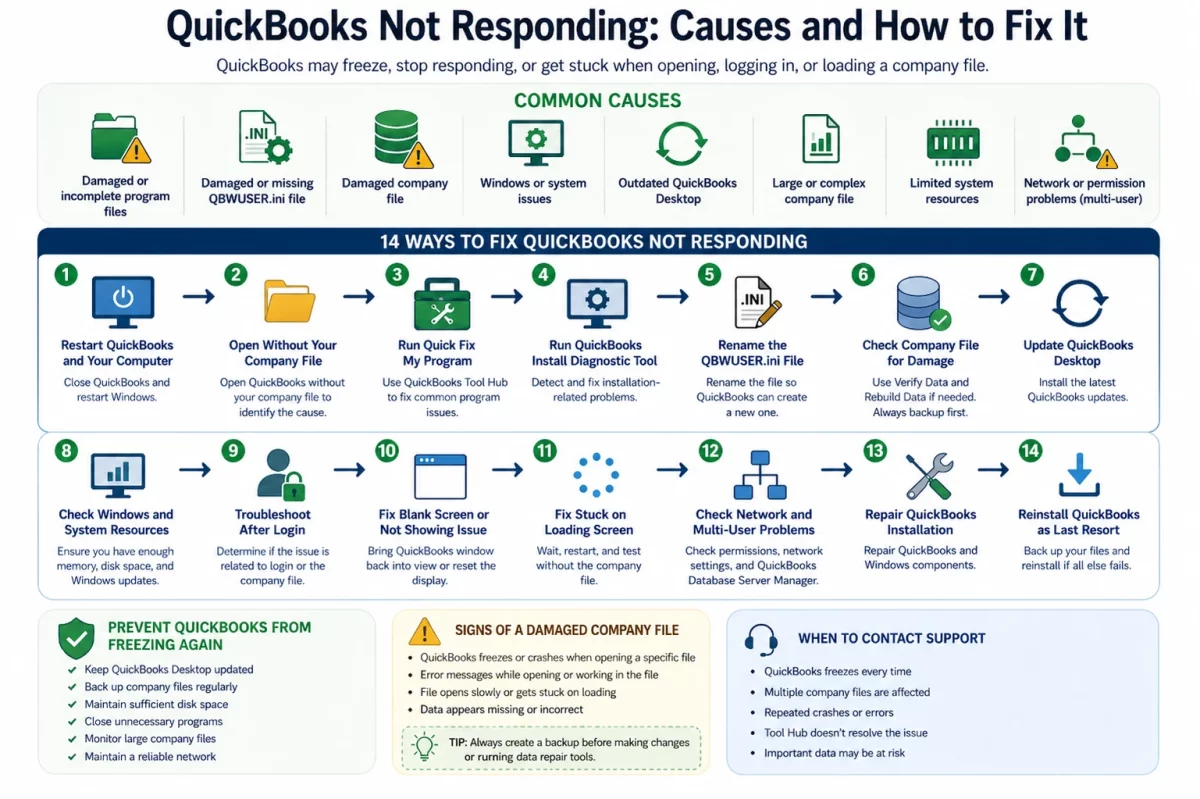
This guide explains what to do if QuickBooks is not responding, why QuickBooks may freeze, and how to troubleshoot common startup, login, loading, and company-file problems.
Why Is QuickBooks Not Responding?
If you’re wondering what is wrong with QuickBooks when it suddenly freezes, the cause may not always be the QuickBooks application itself. Several factors can prevent QuickBooks Desktop from responding normally.
Common causes include:
- Damaged or corrupted QuickBooks program files
- A damaged company file
- An outdated QuickBooks Desktop release
- Windows compatibility or system problems
- Too many applications running in the background
- Insufficient available memory or disk space
- Problems with QuickBooks user settings
- A large company file containing extensive historical data
- Network or permissions problems in multi-user environments
- Incorrect QuickBooks installation files
A temporary Windows or application conflict can also cause QuickBooks to hang during startup. If the problem occurs every time you open a particular company file, however, the company file itself may require attention.
How to Fix QuickBooks Desktop Not Responding
If QuickBooks is not responding when opening, after login, or while loading a company file, work through the following solutions in order. Start with the simpler fixes before making changes to the installation or company data.
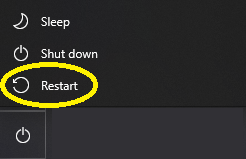
Restart QuickBooks and Your Computer
A temporary application or Windows process can cause QuickBooks to stop responding. Close QuickBooks completely and restart your computer before trying more advanced solutions.
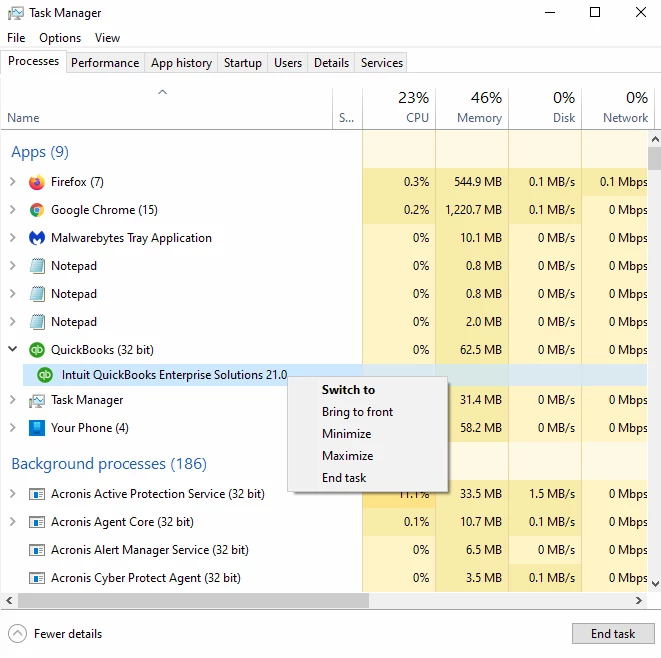
If QuickBooks will not close normally:
- Press Ctrl + Shift + Esc to open Task Manager.
- Find QuickBooks in the list of running processes.
- Select it and click End task.

- Close Task Manager.
- Restart your computer.
- Open QuickBooks Desktop again.
If QuickBooks works normally after the restart, the issue may have been caused by a temporary system or background-process conflict.
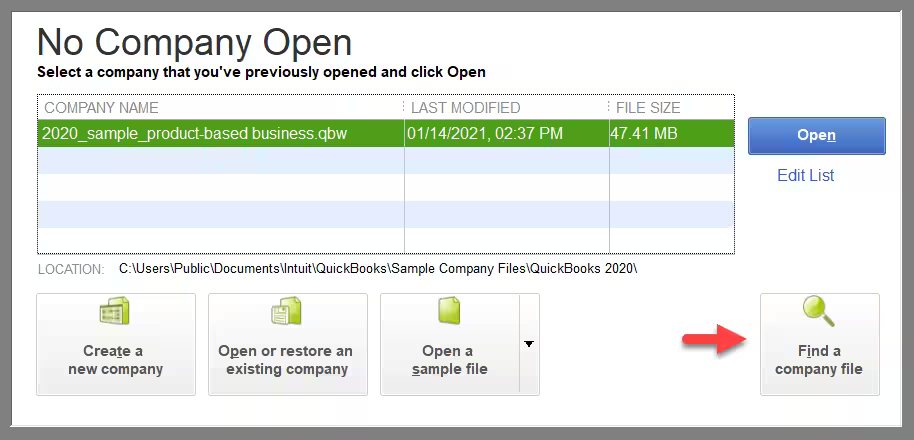
Open QuickBooks Without Your Company File
If QuickBooks opens but becomes unresponsive while loading your company, determine whether the problem is with the application or the company file. If the issue appears to be related to the company file, QuickBooks File Doctor may help troubleshoot supported company-file and network-related problems.
Try opening QuickBooks without immediately selecting your company file. You can also test a sample company file if the option is available.
If QuickBooks opens normally but freezes when you select your company file, the problem may be related to that file.
This step is particularly useful when QuickBooks is not responding when opening a company file.
Run QuickBooks Tool Hub’s Quick Fix My Program
QuickBooks Tool Hub includes tools designed to troubleshoot common Desktop problems. Quick Fix my Program closes QuickBooks processes running in the background and performs a quick repair of the program.
To run it:
- Close QuickBooks Desktop.
- Open QuickBooks Tool Hub.
- Select Program Problems.
- Choose Quick Fix my Program.
- Wait for the tool to complete the repair.
- Open QuickBooks Desktop.
- Try opening your company file again.
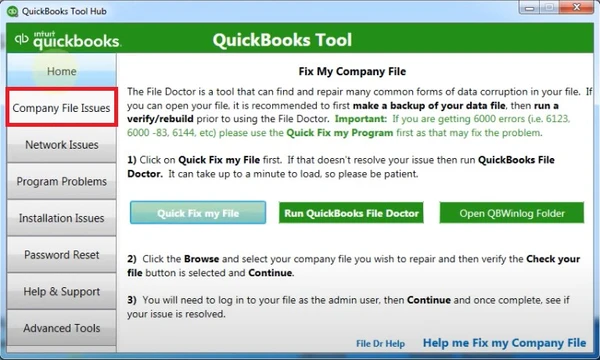
If you don’t have QuickBooks Tool Hub installed, download the latest available version from Intuit’s official QuickBooks support resources.
Run the QuickBooks Install Diagnostic Tool
If Quick Fix my Program does not resolve the issue, try the QuickBooks Install Diagnostic Tool from QuickBooks Tool Hub. This utility is designed to diagnose and repair certain installation-related problems that can affect QuickBooks Desktop.
To run the tool:
- Open QuickBooks Tool Hub.
- Select Installation Issues.
- Choose QuickBooks Install Diagnostic Tool.
- Allow the tool to complete its diagnostic and repair process.
- Restart your computer when prompted or after the process finishes.
- Open QuickBooks Desktop and check whether it responds normally.
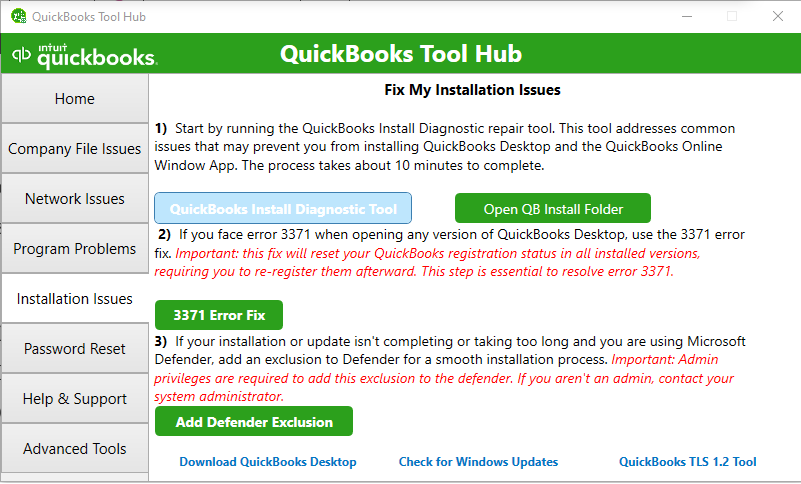
This solution is particularly relevant when damaged or incomplete installation components are preventing QuickBooks from starting correctly.
Rename the QBWUSER.ini File
QuickBooks uses the QBWUSER.ini file to store certain user and program settings. If this file becomes damaged, QuickBooks may experience startup or performance problems.
Renaming the file allows QuickBooks to create a new copy when it starts.
Before proceeding, note that renaming QBWUSER.ini removes the list of previously opened company files from QuickBooks. You can still open your company files manually afterward.
Follow these steps:
- Close QuickBooks Desktop.
- Open File Explorer.
- Locate the QBWUSER.ini file.
- Right-click the file and select Rename.
- Add .old to the end of the filename, changing it to something such as QBWUSER.ini.old.
- Press Enter.
- Open QuickBooks Desktop.
- Manually select and open your company file.
If QuickBooks starts working normally after the file is renamed, the original user-configuration file may have been contributing to the problem.
Check Whether Your Company File Is Damaged
If QuickBooks works normally until you open one particular company file, the application itself may not be the problem. A damaged company file can cause QuickBooks to freeze, become slow, or stop responding while loading data.
You can use QuickBooks Desktop’s Verify Data and Rebuild Data utilities to check and repair certain data-integrity issues.
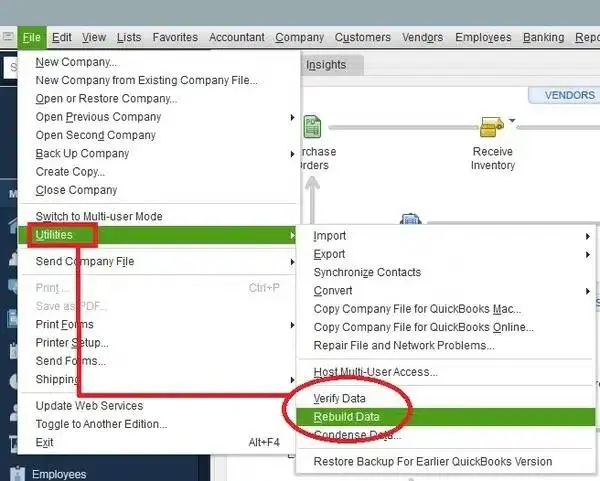
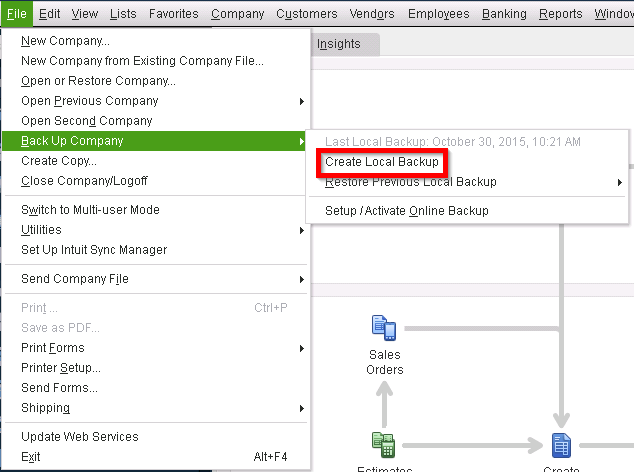
Before running data-repair tools, create a backup of your company file.
To investigate the problem:
- Open QuickBooks without loading the affected company file.
- Try opening another company file or a sample company file.
- If other files work normally, focus your troubleshooting on the affected company file.
- Use Verify Data to check for data integrity problems.
- If QuickBooks identifies an issue, follow the appropriate repair procedure.
Update QuickBooks Desktop
An outdated QuickBooks release can contribute to compatibility and performance problems. Updating QuickBooks ensures that you have the latest available maintenance updates for your supported version.
To update QuickBooks Desktop:
- Open QuickBooks.
- Select Help.
- Choose Update QuickBooks Desktop.
- Select the Update Now tab.
- Click Get Updates.
- Restart QuickBooks after the update is complete.
- Install the update if QuickBooks prompts you to do so.
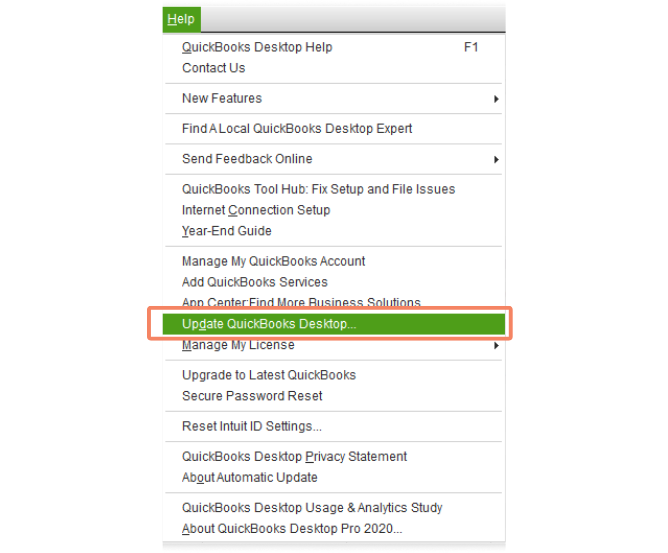
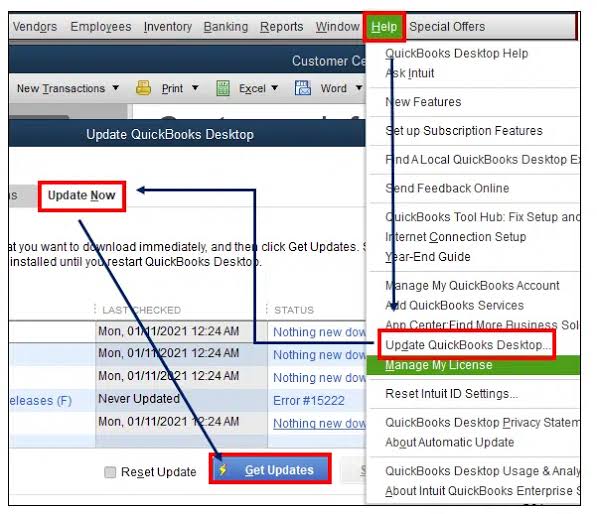
If QuickBooks cannot remain open long enough to complete the update, continue with the repair options above.
Check Windows and Available System Resources
QuickBooks can become slow or unresponsive when Windows is under heavy load. Running several resource-intensive applications at the same time can leave fewer resources available for QuickBooks.
Check your system for:
- Low available memory
- Limited disk space
- Pending Windows updates
- Unnecessary background applications
- Security software performing intensive scans
- Other applications consuming significant system resources
Close programs you don’t need and restart Windows before testing QuickBooks again.
If QuickBooks consistently freezes on an older Windows installation, also verify that your QuickBooks version is compatible with the operating system you are using.
Troubleshoot QuickBooks Not Responding After Login
If QuickBooks is not responding after login, the problem may occur when QuickBooks starts loading your company information or user-specific settings.
Try the following:
- Close QuickBooks completely.
- Restart your computer.
- Open QuickBooks without immediately selecting the company file.
- Test whether QuickBooks remains responsive.
- Try opening another company file if available.
- If only one file causes the freeze, investigate that company file for data problems.
- If the entire application freezes, use QuickBooks Tool Hub’s program-repair options.
This process helps determine whether the problem occurs during QuickBooks startup or specifically when company data is loaded.
Fix a QuickBooks Blank Screen or Window That Is Not Showing
Sometimes QuickBooks opens but is not showing the expected window. You may see a blank screen, an incomplete window, or QuickBooks may appear to be running without displaying the company file correctly.
First, check whether the QuickBooks window is minimized or positioned outside the visible desktop area.
Try:
- Select QuickBooks from the Windows taskbar.
- Check whether another QuickBooks window is open.
- Bring the application window back into view.
- Close and reopen QuickBooks if the window remains blank.
- Test another company file.
If QuickBooks has a blank screen only when opening a specific company file, investigate the company file rather than assuming the entire QuickBooks installation is damaged.
Troubleshoot QuickBooks Stuck on the Loading Screen
When QuickBooks is stuck on the loading screen, first determine whether it is simply taking longer to load or has actually stopped responding.
Large or complex company files can take longer to open. However, if QuickBooks remains frozen for an unusually long period, close the application and restart Windows.
Then:
- Open QuickBooks without selecting your company file.
- Test a sample or different company file.
- If QuickBooks works normally, investigate the affected company file.
- If QuickBooks freezes during startup regardless of the company file, run Quick Fix my Program.
- If the issue continues, try the QuickBooks Install Diagnostic Tool.
These steps can help distinguish a company-file problem from a QuickBooks program or installation problem.
Repair the QuickBooks Installation
If QuickBooks program files are damaged, repairing the installation may resolve recurring startup and performance problems.
Before repairing or reinstalling QuickBooks, make sure your company files are backed up.
Use the available Windows repair options for your QuickBooks installation, or use the repair utilities provided through QuickBooks Tool Hub where appropriate.
If repairing the installation does not resolve the problem, a clean reinstall may be necessary.
Check for Network or Multi-User Problems
If QuickBooks freezes only when multiple users access the company file, the issue may be related to the network environment rather than the QuickBooks application on an individual workstation.
If multiple workstations cannot access the same company file, you may also need to troubleshoot QuickBooks Error H202, which is associated with multi-user and hosting-related problems.
Check:
- Network connectivity
- Folder permissions
- Company-file location
- QuickBooks Database Server Manager
- Firewall settings
- Whether other users can access the company file
If QuickBooks works correctly in single-user mode but becomes unresponsive in multi-user mode, investigate the network and hosting configuration. You can also review QuickBooks Desktop Multi-User Mode to check whether your company file and hosting setup are configured correctly.
Reinstall QuickBooks Desktop as a Last Resort
Reinstalling QuickBooks can help when the installation is severely damaged and other repair methods have failed. However, it should not be your first response to a freezing problem.
Before reinstalling QuickBooks, review our guide on how to install QuickBooks Desktop to make sure you have the correct installer and product information.
If the company file itself is damaged, reinstalling QuickBooks will not necessarily repair the underlying data. In that situation, company-file troubleshooting is more appropriate.
Quick Troubleshooting Checklist
If you need a quick answer to what to do if QuickBooks is not responding, work through this checklist:
QuickBooks freezes → Restart Windows → Test without company file → Test another company file → Run Quick Fix my Program → Run Install Diagnostic Tool → Rename QBWUSER.ini if appropriate → Verify company data → Update QuickBooks → Repair or reinstall as a last resort
If the problem occurs only with one company file, prioritize company-file troubleshooting. If QuickBooks freezes before any company file opens, focus on the program, installation, Windows environment, and user settings.
When Should You Contact QuickBooks Support?
Consider getting professional or official support when QuickBooks continues freezing after you have completed the standard troubleshooting steps.
You should seek additional help if:
- QuickBooks freezes every time you open a company file.
- Multiple company files are affected.
- Your company file shows signs of data corruption.
- QuickBooks crashes repeatedly.
- QuickBooks Tool Hub does not resolve the problem.
- The application cannot be repaired or reinstalled successfully.
- Multiple users experience the same issue in a network environment.
- Important accounting data may be at risk.
Avoid repeatedly experimenting with company-file repairs when important financial data is involved. Keep a secure backup and use appropriate professional support when necessary.
Conclusion
QuickBooks Desktop not responding can be frustrating, particularly when the problem occurs during startup, login, or while opening an important company file. The good news is that many freezing and performance issues can be isolated without immediately reinstalling the application.
Start with basic troubleshooting, then test whether the problem is specific to QuickBooks or a particular company file. Update the application, use QuickBooks Tool Hub, repair program files, and verify company data when necessary. If local desktop performance continues to be a problem, QuickBooks Cloud Hosting may also be worth evaluating as part of a broader access and infrastructure strategy.
The key is to identify why QuickBooks is not responding before choosing the most disruptive solution.
Frequently Asked Questions
How do I fix QuickBooks not responding?
Start by closing QuickBooks and restarting Windows. Then test QuickBooks without opening your company file, update QuickBooks, use QuickBooks Tool Hub, and check the company file for data damage. If the problem continues, repair the QuickBooks installation or consider reinstalling it.
Why is QuickBooks slow when opening?
QuickBooks may be slow when opening because of a large company file, limited system resources, outdated software, damaged program files, background applications, or network-related problems. Testing QuickBooks with a different company file can help identify the cause.
Why does QuickBooks freeze after login?
QuickBooks may freeze after login because it is loading company data, user settings, or other program components. Test the application without opening the company file and then compare its behavior with another company file.
Can a damaged company file make QuickBooks stop responding?
Yes, Company-file damage can cause QuickBooks to freeze while opening or processing the file. Use QuickBooks’ Verify Data and Rebuild Data utilities when appropriate, and create a backup before attempting repairs.
Should I reinstall QuickBooks if it freezes?
Not immediately. Try restarting Windows, testing another company file, updating QuickBooks, using QuickBooks Tool Hub, and repairing the installation first. Reinstall QuickBooks if other program-repair methods do not resolve the problem.
Why is QuickBooks not responding when opening a company file?
The company file may be damaged, very large, stored in an inaccessible location, or affected by network or permissions problems. Test another company file to determine whether the issue is specific to the affected file.
How do I fix QuickBooks stuck on loading screen?
Close QuickBooks and restart Windows. Then try opening QuickBooks without selecting your company file. If the program loads normally, investigate the company file. If QuickBooks remains stuck during startup, use QuickBooks Tool Hub and its program-repair tools.
Why is QuickBooks blank after opening?
A blank QuickBooks window can result from a display or window-position problem, a program issue, or a problem loading company information. Restart QuickBooks, check whether the application window is minimized or off-screen, and test another company file.
How do I fix QuickBooks freezing on Windows 10?
Start by restarting Windows and QuickBooks. Then update QuickBooks, close unnecessary applications, check available system resources, use QuickBooks Tool Hub, and investigate the company file if the freezing occurs only with one file.
Can a large QuickBooks file cause freezing?
A large or complex company file can contribute to slower performance, particularly when system resources are limited. However, freezing can have many other causes, so test the application with another company file before assuming file size is responsible.
Does QuickBooks Cloud Hosting prevent freezing issues?
Cloud hosting does not guarantee that QuickBooks will never freeze. It can reduce dependence on local desktop hardware and provide a remote environment for accessing QuickBooks, but problems caused by damaged data or application errors can still occur.
Is QuickBooks hosting better for avoiding freezing issues?
It can be beneficial for businesses that experience local hardware limitations or need reliable remote access, but hosting is not a universal fix for QuickBooks freezing. The underlying cause should be identified before moving to a hosted environment.
What is the best cloud hosting option for QuickBooks users?
The best hosting option depends on your business requirements, including the number of users, QuickBooks version, remote-access needs, security requirements, backups, support, and budget. Accounts Confidant is well known for their cloud hosting services.

