
When QuickBooks Desktop refuses to launch, freezes on the loading screen, opens and immediately closes, or appears only as a minimized window; it can bring your accounting work to a sudden stop. The problem may come from damaged program files, a company file issue, Windows conflicts, outdated components, or QuickBooks processes that are still running in the background.
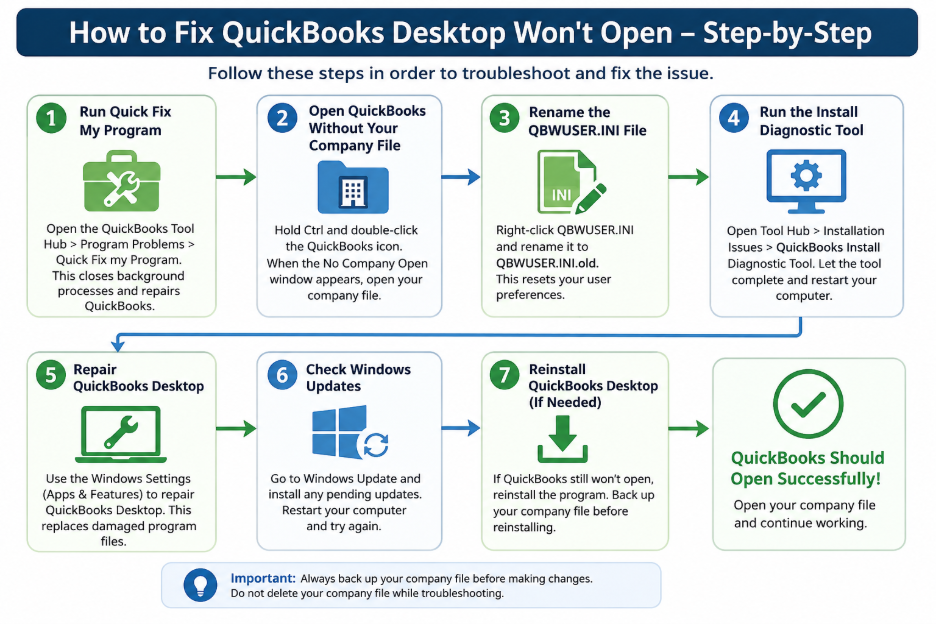
If QuickBooks Won’t Open, you do not necessarily need to reinstall the software immediately. Several troubleshooting methods can help you identify whether the problem is with the QuickBooks application, your company file, or the Windows environment.
In this guide, we’ll explain why QuickBooks Desktop is not opening and walk through practical ways to get it working again.
Why Won’t My QuickBooks Desktop Open?
There are several reasons QuickBooks 2024 wont launch or gets stuck while starting.
Common causes include:
- Damaged or corrupted QuickBooks installation files
- A damaged company file
- QuickBooks processes running in the background
- A damaged QBWUSER.ini file
- Problems with Windows components
- Outdated QuickBooks Desktop
- Windows compatibility or update issues
- Incorrect permissions
- Problems with the QuickBooks installation
- A company file that QuickBooks cannot load properly
- An unsupported QuickBooks Desktop version or expired subscription
How to Fix QuickBooks Desktop Won’t Open
If QuickBooks won’t open, or won’t start, work through the following solutions in order. These fixes can help when QuickBooks won’t open, becomes unresponsive, gets stuck while loading, opens and closes immediately, or fails to launch after an update.
Run Quick Fix My Program
If QuickBooks will not open or QuickBooks is not responding, start with Quick Fix my Program from the QuickBooks Tool Hub.
- Close QuickBooks Desktop.
- Open the QuickBooks Tool Hub.
- Select Program Problems.
- Select Quick Fix my Program.

- Wait for the tool to finish.
- Open QuickBooks Desktop and try to access your company file.
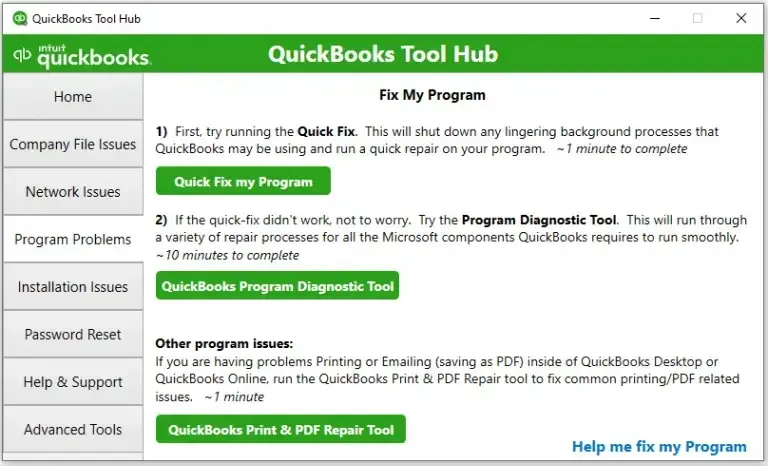
It is recommended to use the latest QuickBooks Tool Hub version, 1.6.0.8, and Windows 11, 64-bit, for the best experience.
This is a good first step if QuickBooks is not opening.
Check Whether the Problem Is QuickBooks or Your Company File
If QuickBooks Desktop won’t open, the problem may be with the program itself or with the company file it is trying to load, you should test the two separately before moving to more advanced repairs.
Open the company file with all windows closed
- Open QuickBooks Desktop.
- When the No Company Open window appears, select your company file.
- Press and hold ALT while selecting Open.
- Continue holding ALT until the file opens.
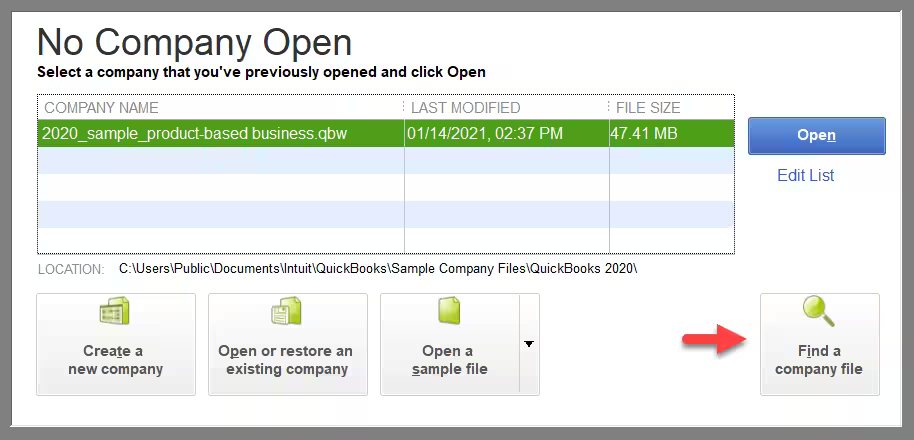
If QuickBooks asks you to sign in, release ALT, enter your password, then hold ALT again while selecting OK.
This can help when QuickBooks opens and immediately closes, gets stuck loading, or crashes when you try to open a particular company file.
If QuickBooks itself opens but you cannot access the company file, you can also use QuickBooks File Doctor to troubleshoot supported company-file and network-related problems.
Rename the QBWUSER.INI File
If QuickBooks is not opening, particularly when the QuickBooks splash screen appears and then disappears, renaming the QBWUSER.ini file can help.
- Close QuickBooks Desktop.
- Open the folder containing the QBWUSER.ini file.
- Right-click QBWUSER.ini.
- Select Rename.
- Add .old to the end of the filename so it becomes QBWUSER.ini.old.
- Open QuickBooks again.
Renaming the file removes the list of previously opened company files, so you may need to manually open your company file afterward.
Run the QuickBooks Install Diagnostic Tool
If QuickBooks Desktop won’t open because of damaged installation components, use the QuickBooks Install Diagnostic Tool through the Tool Hub.
- Open the QuickBooks Tool Hub.
- Select Installation Issues.
- Select QuickBooks Install Diagnostic Tool.
- Allow the tool to complete.
- Restart your computer.
- Open QuickBooks Desktop again.
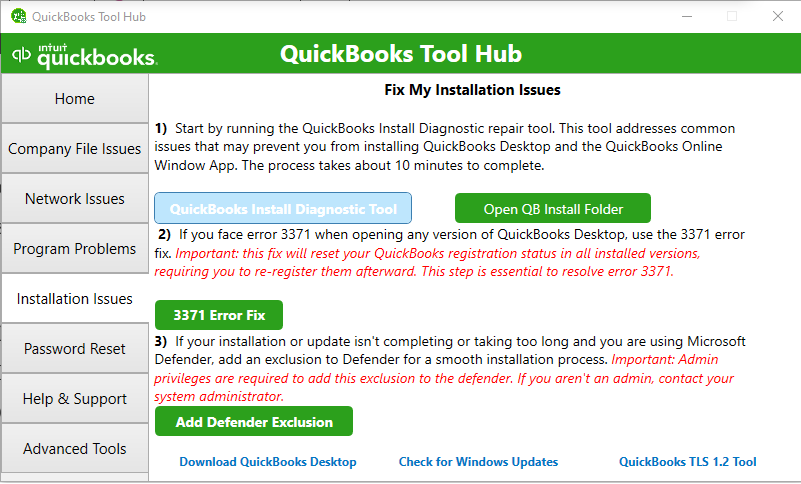
The diagnostic process can take up to approximately 20 minutes.
This can be useful if QuickBooks does not open, or the problem began after installing or updating QuickBooks.
Repair QuickBooks Desktop
If you are still unable to open QuickBooks Desktop, repair the QuickBooks installation to replace damaged program files.
The repair option is available through Windows installed-program settings. The repair option is available through Windows installed-program settings. You can also refer to Microsoft’s guide on how to repair apps and programs in Windows for general instructions on repairing desktop software through Windows.
This step is particularly appropriate when QuickBooks Desktop is not opening because of damaged installation files.
Check Windows Updates and Compatibility
If QuickBooks is not working on Windows 10, or the problem started after a Windows update, check Windows Update and install any available updates.
Windows updates can prevent or resolve installation-related issues.
After updating Windows:
- Restart your computer.
- Open QuickBooks Desktop.
- Try opening your company file.
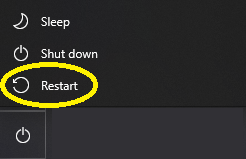
If you are using an older release, such as QuickBooks 2016, also consider whether the version is still supported and compatible with your current Windows environment. This is how you can fix the “QuickBooks won’t open in Windows 10” error.
Reinstall QuickBooks Desktop
If QuickBooks will not start after completing the previous troubleshooting steps, reinstalling QuickBooks Desktop may be necessary.
Before reinstalling:
- Back up your company files.
- Make sure you have your QuickBooks license and product information.
- Close QuickBooks and other open programs.
- Use the appropriate installer for your QuickBooks version.
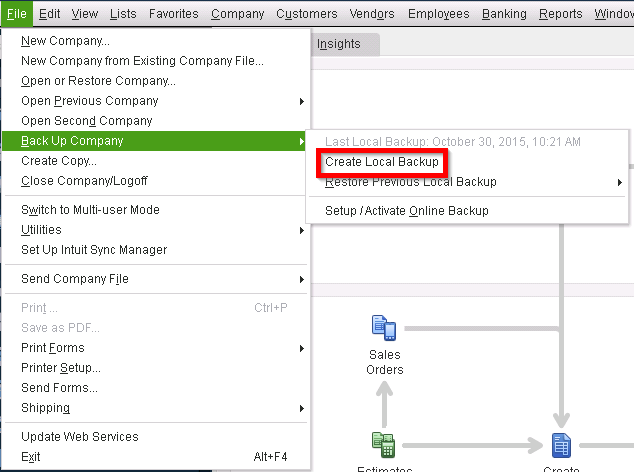
Do not delete your company file simply because you cannot open QuickBooks. Your QuickBooks installation and company data are separate, and deleting the company file could result in permanent data loss.
Quick Troubleshooting Order
If QuickBooks Desktop won’t open, follow this order:
| Solution | Common Problem Addressed |
| Quick Fix my Program | QuickBooks won’t start or respond |
| Test the company file | QuickBooks crashes when opening a file |
| Suppress QuickBooks | QuickBooks does not open normally |
| Rename QBWUSER.ini | QuickBooks splash screen disappears |
| Install Diagnostic Tool | Damaged installation components |
| Repair QuickBooks | Damaged program files |
| Check Windows updates | Windows-related compatibility issues |
| Reinstall QuickBooks | Persistent installation problems |
If QuickBooks does not open after these steps, the problem may require more advanced troubleshooting, especially if the issue occurs with a particular company file, across multiple computers, or in a multi-user environment.
What to Check If QuickBooks Desktop Still Won’t Open
If QuickBooks Desktop won’t open after trying the fixes above, check the specific behavior you see when launching the program. Different symptoms can point to different causes.
QuickBooks Opens and Then Closes
If QuickBooks opens and immediately closes, the problem may be related to damaged program files, user configuration files, or the company file.
Try opening QuickBooks without opening a company file. If the application opens normally, the company file may need further troubleshooting. If QuickBooks still closes, continue with the Install Diagnostic Tool or repair the QuickBooks installation.
QuickBooks Opens Minimized to the Taskbar
If QuickBooks opens minimized, QuickBooks opens in a tiny window, or the program appears only on the taskbar, QuickBooks may actually be running even though the main window is not visible.
Try switching to QuickBooks with Alt + Tab and maximize the window. If the problem continues and QuickBooks won’t open normally, run Quick Fix my Program to address potential program-related issues.
QuickBooks Is Not Responding
If QuickBooks is not responding after you launch it, avoid repeatedly clicking the QuickBooks icon. Give the program a moment to finish loading, particularly if you are opening a large company file.
If QuickBooks remains frozen, close the application and run Quick Fix my Program from the QuickBooks Tool Hub. You can then test QuickBooks without opening your company file to determine whether the issue is with the program or the file.
An Empty QuickBooks Window Already Exists
If you see “an empty QuickBooks window already exists,” QuickBooks may have started but failed to display the expected company window.
Close QuickBooks completely and try launching it again. If the message continues to appear, use Quick Fix my Program and then test whether QuickBooks opens without a company file.
QuickBooks Won’t Open After a Windows Update
If QuickBooks won’t open in Windows 10 or the problem started after a Windows update, check Windows Update for pending updates and restart the computer.
If you are using an older QuickBooks release, compatibility can also be a concern. For example, if QuickBooks 2016 is not opening, check whether your version is supported and compatible with your current Windows environment before repeatedly repairing the installation.
QuickBooks DB34 Won’t Start
If QuickBooks DB34 won’t start, the issue may be associated with QuickBooks database services, particularly if you use the software in a multi-user environment.
Start with Quick Fix my Program. If the problem continues, check the QuickBooks Database Server Manager and hosting setup. If the issue affects users on multiple computers, review your QuickBooks Desktop Multi-User Mode setup to make sure the company file is being hosted correctly.
QuickBooks Still Does Not Start
If QuickBooks will not start, or you are unable to open QuickBooks Desktop after completing the recommended fixes, avoid deleting your company file.
At this stage, determine whether:
- QuickBooks itself will not launch
- QuickBooks opens but will not open the company file
- QuickBooks opens and immediately closes
- QuickBooks becomes stuck or unresponsive
- QuickBooks appears only as a minimized window
- The problem occurs on one computer or multiple computers
This information can help identify whether the problem is with the QuickBooks installation, company file, Windows environment, or database setup.
If standard troubleshooting does not resolve the issue, professional QuickBooks support may be appropriate, particularly when the company file contains important financial data.
Tips to Prevent QuickBooks Desktop From Not Opening
Once you get QuickBooks working again, a few maintenance practices can help reduce recurring startup problems:
- Keep QuickBooks Desktop updated: Install supported updates so you have the latest program fixes and security improvements.
- Keep Windows updated: Outdated Windows components can contribute to compatibility and installation problems.
- Back up your company file: Maintain regular backups so you can recover your accounting data if a company-file problem occurs.
- Avoid interrupting updates: Do not shut down your computer while QuickBooks or Windows is installing an update.
- Use a supported QuickBooks version: Older releases may have compatibility or support limitations.
- Avoid unnecessary program changes: Do not delete QuickBooks files or modify installation folders unless you know what they do.
- Check your company file regularly: If QuickBooks only fails when opening one particular file, investigate the file rather than repeatedly reinstalling the entire application.
If QuickBooks won’t open again, start with the basic troubleshooting steps before making major changes to the installation or company file.
When to Get Help With QuickBooks Not Opening
If you have tried the recommended troubleshooting steps and QuickBooks Desktop will not open, you may need additional assistance when:
- QuickBooks continues to crash or close immediately.
- The company file will not open even though QuickBooks itself launches.
- QuickBooks stops responding every time you start it.
- Multiple computers experience the same problem.
- A database or multi-user error prevents access to the company file.
- You are using an older version such as QuickBooks 2016.
- QuickBooks will not start even after repairing or reinstalling the program.
- You are concerned about damaging or losing your company data.
If your company file contains important financial records, avoid deleting or replacing it while troubleshooting. A QuickBooks professional can help determine whether the problem is with the application, company file, database service, or Windows environment.
Conclusion
When QuickBooks is not opening, the cause can range from damaged program files and user configuration problems to company-file issues or Windows compatibility problems. The right troubleshooting method depends on what happens when you try to launch the application.
Start with Quick Fix my Program, then determine whether the issue is with QuickBooks or your company file. If necessary, rename the QBWUSER.INI file, run the Install Diagnostic Tool, repair QuickBooks Desktop, and reinstall the program as a final troubleshooting step.
Whether QuickBooks Desktop won’t start in Windows 10, QuickBooks opens minimized, or QuickBooks not opening, following the troubleshooting sequence above can help narrow down the cause without unnecessarily risking your company data.
Frequently Asked Questions
Why won’t my QuickBooks Desktop open?
QuickBooks Desktop may not open because of damaged program files, a company-file issue, a damaged QBWUSER.INI file, Windows compatibility problems, or an incomplete installation or update. Start with Quick Fix my Program and test whether QuickBooks opens without the company file.
How do I fix QuickBooks not responding?
Close QuickBooks and run Quick Fix my Program through the QuickBooks Tool Hub. If QuickBooks continues to become unresponsive, test whether it opens without your company file and then use the Install Diagnostic Tool.
Why is QuickBooks stuck loading?
QuickBooks may get stuck loading because of a problem with the company file, damaged program components, or another startup issue. Try opening QuickBooks without the company file to determine whether the application itself is working.
Why does QuickBooks open and immediately close?
QuickBooks may open and close immediately because of damaged program files, a problematic QBWUSER.INI file, or a company-file issue. Try Quick Fix my Program, rename QBWUSER.INI, and use the Install Diagnostic Tool if necessary.
How do I repair QuickBooks Desktop?
You can repair QuickBooks Desktop through Windows’ installed-program settings. Repairing the installation can replace damaged program components without immediately requiring you to uninstall QuickBooks.
Can Windows updates affect QuickBooks?
Yes. Windows updates can affect software compatibility and system components used by QuickBooks. If QuickBooks won’t open in Windows 10 after a Windows update, check for pending Windows updates and then troubleshoot the QuickBooks installation.
How do I fix QuickBooks when it won’t start?
If QuickBooks will not start, first restart your computer and run Quick Fix my Program. If the problem continues, determine whether the company file is causing the problem before repairing or reinstalling QuickBooks.
What should I do if QuickBooks stops working?
If QuickBooks does not start, close the application and run Quick Fix my Program. If QuickBooks continues to stop working, check whether the problem occurs with the application itself or only when opening a particular company file.
Why is QuickBooks not opening after an update?
If QuickBooks is not opening after an update, restart your computer and run Quick Fix my Program. Check Windows for pending updates and use the Install Diagnostic Tool if the problem continues.
How do I fix QuickBooks not responding?
Run Quick Fix my Program from the QuickBooks Tool Hub and restart your computer. If QuickBooks remains unresponsive, test the application without opening your company file.
Why does QuickBooks open and then close immediately?
If QuickBooks opens and then closes immediately, the issue may involve damaged program files, configuration files, or your company file. Try the standard QuickBooks startup troubleshooting steps before reinstalling the software.
How do I repair QuickBooks Desktop without reinstalling?
You can try Quick Fix my Program, the QuickBooks Install Diagnostic Tool, and the Windows repair option. These methods can resolve several QuickBooks program and installation problems without requiring a complete reinstall.
Is QuickBooks Desktop better than QuickBooks Online?
QuickBooks Desktop and QuickBooks Online serve different needs. QuickBooks Desktop may be suitable for businesses that rely on desktop-specific features, while QuickBooks Online provides browser-based access. Your choice should depend on your accounting workflow and business requirements.
Should I reinstall QuickBooks if it won’t open?
Reinstalling QuickBooks should generally be a later troubleshooting step. First try Quick Fix my Program, test the company file, use the Install Diagnostic Tool, and repair the installation.
Do Windows updates affect QuickBooks?
Windows updates can sometimes affect QuickBooks compatibility or installation components. If QuickBooks stopped working after an update, restart Windows, install pending updates, and then troubleshoot QuickBooks.
How can I access QuickBooks if my desktop software keeps failing?
If QuickBooks Desktop will not open despite troubleshooting, you can repair or reinstall the application. If the problem continues, consider moving to a supported QuickBooks version or another QuickBooks product that fits your business requirements.
Is QuickBooks cloud hosting better than fixing desktop errors?
Cloud hosting does not repair a damaged QuickBooks installation or company file. If your goal is to continue using QuickBooks Desktop remotely, however, a supported hosting environment can provide an alternative to relying on one local computer.
What is the most reliable way to access QuickBooks remotely?
The right option depends on your QuickBooks version and business needs. QuickBooks Online provides browser-based access, while supported QuickBooks Desktop hosting can provide remote access to desktop workflows.

