Running into a QuickBooks problem when you’re in the middle of work is never ideal. You just want to open your books, finish what you need to do, and move on with your day. But sometimes, QuickBooks may show a message stating “Your QuickBooks subscription has lapsed”. And if you’ve already renewed it, it can leave you wondering what went wrong.
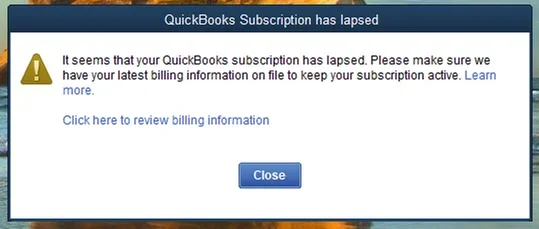
The good news is that this doesn’t always mean your subscription is actually inactive.
This could be happening due to various reasons, and that is exactly what we will cover in this blog. Along with that, we will also walk you through proven solutions to fix this issue and share practical tips to help prevent the issue from happening again. Ready? Let’s get started.
Ready to fix it? Let’s walk through the solutions.
How to Fix an Expired QuickBooks Desktop Subscription?
You should start with the following solutions in order to fix the subscription issues.
Solution 1. Update Your Billing Information
If your QuickBooks renewal fails, updating your billing information is often the quickest way to restore your subscription. Follow the steps below to update your billing info.
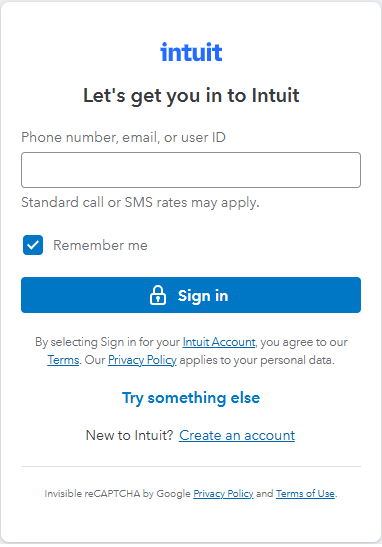
- First, sign in to the Intuit Customer Account Management Portal (CAMPs) and select QuickBooks Desktop from your products, then choose Details next to your subscription.

- Select Edit to update your payment method and enter your updated billing information and save the changes.
- Go to Help > Manage My License > Sync License Data Online in QBD
- Now that the license sync is done, restart QuickBooks and check whether the subscription error has been resolved.
If QuickBooks is still showing the error, continue with the next solution.
Solution 2. Install the Latest QuickBooks Updates
A QuickBooks activation error can also happen when you’re using an outdated version of the software. Installing the latest updates helps QuickBooks communicate properly with Intuit’s licensing servers. Follow these steps to update QuickBooks Desktop:
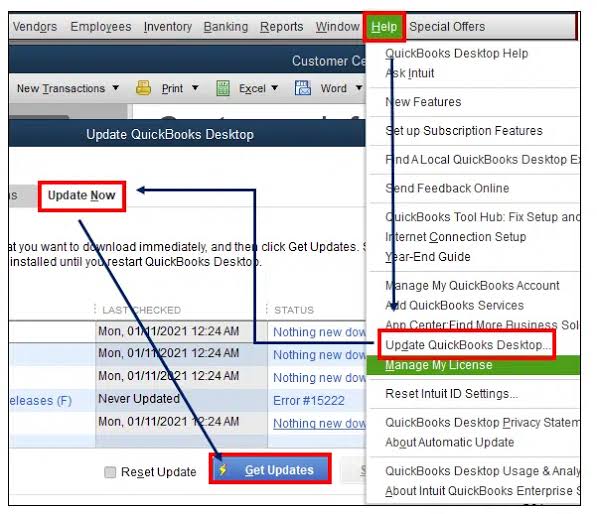
- Open QuickBooks Desktop, then select Help from the top menu.
- Choose Update QuickBooks Desktop and press on the Update Now tab.
- Select Get Updates and wait for the download to finish.
- Then, restart QuickBooks and install the update.
- After updating, reopen the program and you are all set.
If this doesn’t solve the problem, continue to the next solution.
Solution 3. Run the QuickBooks Diagnostic Tool from the Tool Hub
If updating QuickBooks didn’t do the trick, a problem with a Windows component may be stopping QuickBooks from working properly.
The QuickBooks Install Diagnostic Tool is available through the QuickBooks Tool Hub and can repair installation-related problems.
Step 1: Download the QuickBooks Tool Hub
Before you begin, make sure QuickBooks is completely closed. Follow these steps:
- Download the latest version of the QuickBooks Tool Hub (Version 1.6.0.8) and save the installer in a folder.
- Locate and open the downloaded QuickBooksToolHub.exe file.
- Follow the installation instructions displayed on your screen and accept the license agreement.
- After the installation is complete, double-click the QuickBooks Tool Hub icon on your desktop to launch the application.
Note: If you don’t see the desktop shortcut, you can search for QuickBooks Tool Hub using the Windows Search bar.
Step 2: Run the QuickBooks Install Diagnostic Tool
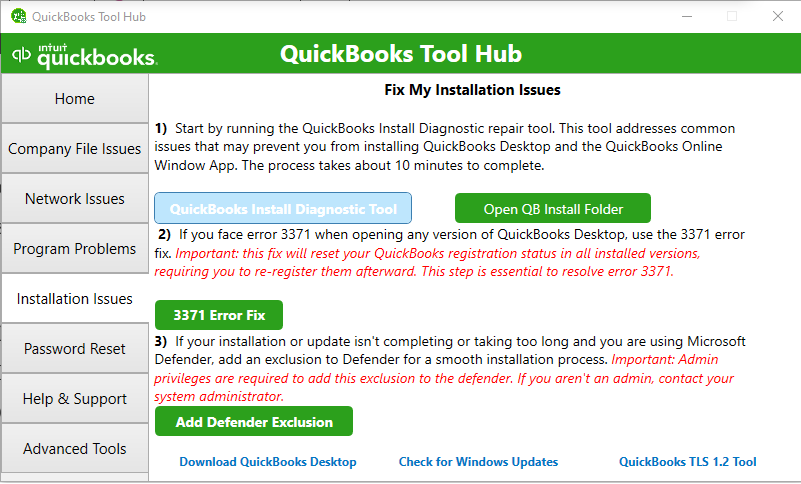
After opening the Tool Hub, use the Install Diagnostic Tool to repair the Windows components required for QuickBooks to run properly. Follow these steps:
- Open the QuickBooks Tool Hub.
- Select Installation Issues from the left-hand menu and click on QuickBooks Install Diagnostic Tool.
- While you allow the tool to scan, repair any installation-related problems.
- Click OK, then restart QuickBooks Desktop and open your company file.
If QuickBooks still says the subscription has lapsed, the license information stored on your computer may need to be refreshed. The next fix addresses that directly.
Solution 4. Restore the License Verification File
Here’s another possibility, QuickBooks’ local license information may have become damaged. If you’re seeing a subscription has lapsed error even though you’ve renewed your subscription, refreshing this file may help. Follow these steps to restore license verification file:
- To begin with, close QuickBooks Desktop.
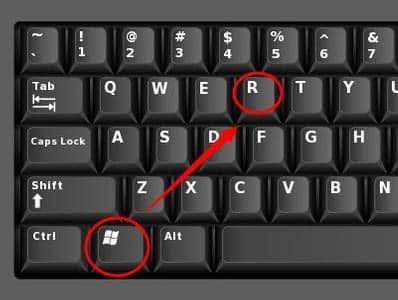
- Open the Run window by pressing Windows + R and type the location of the Entitlement Client folder and press Enter.
- Find the EntitlementDataStore.ecml file.
- Delete the file and reopen QuickBooks Desktop.
- Sign in with your Intuit account and re-enter your product information if prompted.
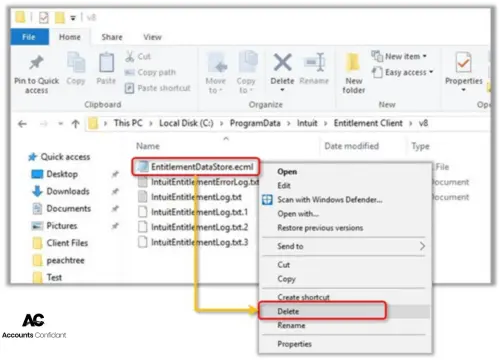
QuickBooks will automatically recreate the file and attempt to verify your subscription again.
Still stuck? Before going further, make sure QuickBooks can actually connect to the internet. A connection problem can prevent the license check from completing.
Solution 5. Check Your Internet Connection
Sometimes the subscription itself isn’t the problem. QuickBooks may simply be unable to reach Intuit’s licensing servers. Check the following:
- Make sure your internet connection is working.
- Restart your modem or router if the connection seems unstable.
- Open another website to make sure your internet connection is active.
- Check your firewall and antivirus settings to make sure QuickBooks isn’t being blocked.
- Check your internet connection settings in QuickBooks.
Once you’ve checked these settings, restart QuickBooks and try syncing your license.
Solution 6. Verify Your License Information and Contact Support
If you’ve already renewed your subscription but you’re still seeing that the QuickBooks subscription has lapsed after renewal, the issue could be tied to your Intuit account rather than your computer. Before contacting support, check these details.
- You’re signed in with the correct Intuit account.
- Your subscription shows as active.
- Your product and license information match your purchase.
- Your recent payment was processed successfully.
- There are no outstanding billing issues.
Everything looks correct, but QuickBooks still won’t verify your subscription? At that point, it’s best to contact Accounts Confidant Experts at 877-519-7362, we check your subscription and license information and help with account issues that you can’t resolve from your computer.
Now that we have covered the necessary solutions for QBD, it’s time to learn how to restore a QuickBooks Online subscription.
How to Restore an Expired QuickBooks Online Subscription
Because QuickBooks Online is cloud-based, you don’t need to repair local license files or reinstall the software. Instead, fix your billing and subscription configurations.
Solution 1. Update Your Payment Method
When you see the “QuickBooks subscription inactive” message after a failed renewal, updating your payment information is the first thing you should do. An expired card or declined transaction can temporarily deactivate your subscription. To restore your account follow the steps.
- Sign in to QuickBooks Online using your Intuit account.
- Open Settings and go to Subscriptions and Billing.
- Review your current payment method.
- Update your billing information if necessary.
- Complete any pending payment.
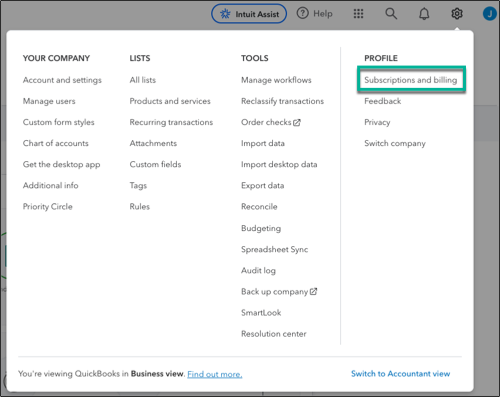
Once your payment is processed, your subscription should return to active status.
Solution 2. Reactivate Your Subscription
After you notice that your QuickBooks account is suspended, it means QuickBooks has restricted access to your account and you can usually reactivate it by signing back into your Intuit account. After signing in:
- Open your subscription settings.
- Select the option to Resubscribe or Reactivate.
- Choose your preferred plan.
- Complete the payment process.
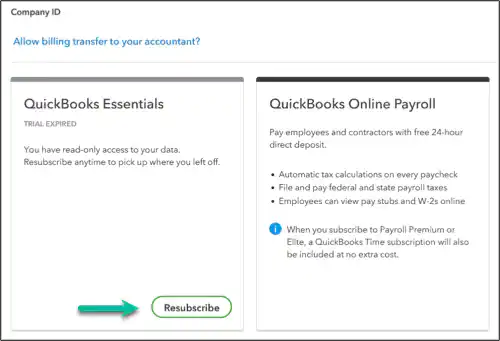
After your subscription is reactivated, you’ll regain access to your company file, provided it is still within Intuit’s data retention period.
Solution 3. Payment Was Successful but the Subscription Still Shows Expired
When QuickBooks says the subscription expired but payment was made, there may be a delay in processing your payment or syncing your account. This can also happen if you accidentally signed in with a different Intuit account than the one linked to your subscription. To resolve this issue follow the below steps.
- Confirm that the payment was successfully charged.
- Verify that you’re using the correct Intuit account.
- Sign out and sign back in.
- Wait a short time if the payment was made recently.
- Contact QuickBooks Support if the subscription status doesn’t update.
Providing your payment confirmation can help verify your account and restore access more quickly.
Finally, here are some practical tips to help resolve the subscription issue you are facing.
How to Prevent Your QuickBooks Subscription from Expiring
Preventing a QuickBooks subscription expiration issue is much easier than troubleshooting it later. A few simple habits can help you keep your subscription active and avoid unexpected interruptions. Here are some best practices.
- You can enable automatic renewal if it’s available.
- Keeping your payment method up to date is advised.
- You should review your subscription status periodically.
- Install QuickBooks updates as soon as they become available.
- Sync your license data regularly if you use QuickBooks Desktop.
- Save your product and license information in a secure location.
- Monitor billing emails and renewal reminders from Intuit.
- A stable internet connection is a must when verifying your subscription.
Taking these preventive steps can reduce the chances of future billing or licensing problems and help ensure uninterrupted access to your QuickBooks account.
Why Does a QuickBooks Subscription Expire?
The reason why QuickBooks won’t verify your subscription is because the software is not able to confirm your active license or connect to Intuit’s servers. Here are some of the things that might be happening with you:
- A message pops up on your screen saying, “Your QuickBooks subscription has lapsed.”
- Every time you open the software, you are asked to verify your subscription.
- The program won’t install or activate successfully.
- Payroll services stop working or fail to update.
- You can’t download the latest QuickBooks updates.
- The company file won’t open because the subscription can’t be verified.
- QuickBooks Online restricts access after a billing issue.
- Your subscription appears inactive even though you expected it to be renewed automatically.
If you’re experiencing one or more of these issues, keep reading.
What Happens When Your Subscription Expires?
When your subscription expires, your account doesn’t become inaccessible immediately. Instead, it transitions into View-Only Mode, allowing you to access important business information while restricting certain actions that could modify your company data.
This gives you time to renew your subscription without losing access to your records. Here is a subscription timeline:
| Stage | Time Period | Access Level | Description |
| Fully Active | Before expiry | Full Access | You have access to your QuickBooks Desktop features and services while your subscription is active. |
| Subscription Expired | Day 0 | Subscription Inactive | Your subscription has ended. Depending on your QuickBooks version and situation, you may need to renew to continue using the software normally. |
| View-Only Mode | Up to 12 months after expiry | Restricted Access | Eligible QuickBooks Desktop versions provide view-only access for one year. You can view reports and export data, but you can’t edit your data or create transactions with an inactive license. |
| View-Only Period Ends | After 12 months | Renewal Required | After the one-year view-only period, you must renew your subscription to view your data again. |
Conclusion
So, next time your QuickBooks subscription expires, don’t panic. You have not lost access to your financial data. The causes are often very predictable, and the troubleshooting steps for both QuickBooks Desktop and QuickBooks Online are easy to follow.
Prevention is always better than cure. Regular software updates, accurate billing information, and timely renewals can help prevent similar issues in the future.
FAQ’s
What does it mean when my QuickBooks subscription has lapsed?
It means the software can no longer verify that your subscription is active. This usually happens because your subscription wasn’t renewed, a payment failed, or your billing information needs to be updated.
Will I lose my company data if my QuickBooks subscription expires?
Not really, an expired subscription doesn’t automatically delete your company’s data. In most cases, your data remains safe, and you can regain access after renewing or reactivating your subscription.
How to sync license in QuickBooks desktop?
To sync or refresh your license in QuickBooks Desktop, open the software, log in as the administrator, go to the Help menu, hover over Manage My License, and select Sync License Data Online. This updates your license information with Intuit’s servers.
Can two people use the same QuickBooks account?
Yes, two people can access the same QuickBooks company, but they should not share the same login credentials. Instead, each user should have their own user account with the appropriate permissions. Depending on your QuickBooks plan, you may need to upgrade to support multiple users working simultaneously. This helps protect your data, improves security, and prevents syncing or access issues.
Can I still access my QuickBooks company file after my subscription expires?
After your subscription expires, QuickBooks typically switches to view-only mode for up to 12 months. During this period, you can view reports, access existing data, print, and export information, but you cannot create or edit transactions.
How do I renew my QuickBooks subscription?
You can renew your subscription by signing into your Intuit account, updating your billing information if necessary, and completing the renewal process. After renewal, restart QuickBooks and verify that your subscription status has been updated
How long does it take to reactivate QuickBooks after renewal?
In most cases, your subscription is reactivated within a few minutes after payment is successfully processed. However, it may take several hours if there are payment verification or license synchronization delays.
Can I use QuickBooks without an active subscription?
No, It depends on your QuickBooks edition. Subscription-based versions require an active subscription for full functionality. Once the subscription expires, access is generally limited to View-Only Mode until you renew.
What’s the difference between a QuickBooks license issue and a subscription issue?
A license issue usually involves product activation or license validation problems, while a subscription issue occurs when your subscription expires, payment fails, or QuickBooks cannot verify your active subscription status. Although both can restrict access, they have different causes and troubleshooting steps.
Why is QuickBooks still showing “Subscription Has Lapsed” after I paid?
If the error persists after payment, try signing out and back into your Intuit account, updating QuickBooks to the latest release, syncing your license data, or restarting your computer. If the issue continues, contact Intuit Support for account verification.
Does QuickBooks Desktop require renewal?
Yes, But older one-time license versions do not require a subscription, but they eventually lose access to updates, payroll, online services, and technical support.
What happens if I ignore the “Subscription Has Lapsed” error?
Ignoring the error limits your access to QuickBooks features. After the view-only period ends, your account becomes locked until you renew your subscription.
My QuickBooks says “Subscription Has Lapsed.” How do I fix it?
Start by confirming that your subscription is active, update your payment information if needed, restart QuickBooks, sync your license data, and install the latest product updates. If the issue remains unresolved, contact Intuit Support.
I renewed QuickBooks, but it still says my subscription has lapsed. What should I do?
First, verify that your payment was successful. Then update QuickBooks, sync your license information, restart the application, and sign in with the correct Intuit account. If the message persists, Intuit may need to refresh your subscription manually.
If I Cancel My QuickBooks Desktop Subscription, Will I Lose Everything?
No, canceling your QuickBooks Desktop subscription does not immediately delete your company data.

