QuickBooks Error 1935 can interrupt the installation of QuickBooks Desktop when Windows cannot install or configure a required software component. You may see an error about Microsoft .NET Framework or a failed assembly installation, even though the QuickBooks setup file opens normally. 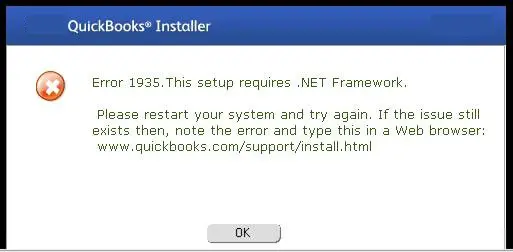
The problem may occur because another installation is using .NET Framework files, security software is blocking the setup, or a required Windows component is damaged.
To fix QuickBooks Error 1935, restart Windows, run the QuickBooks Install Diagnostic Tool, and install pending Windows updates. If the error continues, check the .NET Framework requirements for your QuickBooks version and investigate possible software conflicts.
The steps below explain how to identify the problem and choose the appropriate repair without making unnecessary changes to Windows.
What does QuickBooks Error 1935 mean?
QuickBooks Error 1935 is an installation error that appears when a required software component or assembly fails to install during QuickBooks Desktop setup.
An assembly is a software component that an application or the Windows operating system uses. If Windows cannot install or configure that component, the QuickBooks installation may stop.
According to Intuit’s Error 1935 troubleshooting instructions, you may receive either of these messages:
- Error 1935: This setup requires .NET Framework
- Error 1935: An error occurred during the installation of assembly
The first message points toward a required .NET Framework component. The second indicates an assembly installation failure, but the message alone may not identify its exact cause.
For example, an error mentioning .NET Framework during QuickBooks Desktop 2024 setup calls for checking that product’s .NET requirements. An error that identifies a different assembly or Windows component may need a separate investigation.
The distinction matters because reinstalling .NET Framework is not the correct response to every assembly installation error.
Why does QuickBooks Error 1935 occur during installation?
Intuit identifies three common reasons for QuickBooks installation error 1935.
Another installation is using Microsoft .NET Framework files
Windows may be updating or installing software that needs the same .NET Framework components as QuickBooks.
If those files are already being used by another installation, QuickBooks setup may be unable to complete its operation.
A pending Windows restart can also be worth checking, especially if you recently installed updates or other software.
Antivirus software is interfering with setup
Some antivirus or antispyware programs may restrict access to files that QuickBooks needs during installation.
This does not mean antivirus software is responsible for every Error 1935 message. You should check for evidence of blocked activity before changing security settings.
Microsoft .NET Framework is unavailable or damaged
QuickBooks Desktop relies on Microsoft .NET Framework for certain functions.
If the required framework version is missing, damaged, or cannot be configured, setup may fail.
However, having .NET Framework installed does not guarantee that every installation operation involving it will succeed. Windows component problems or another software conflict may still prevent setup from completing.
These causes overlap in some cases. The exact error message and the results of your first troubleshooting steps will help determine what to check next.
What should you check before fixing QuickBooks Error 1935?
Before changing Windows settings, identify the QuickBooks version you are installing and record the complete error message.
Start with these checks:
- Confirm the QuickBooks product and year. Identify whether you are installing QuickBooks Desktop Pro, Premier, or Enterprise and its product year.
- Check your Windows version. Press Windows + R, type winver, and press Enter. Record the Windows edition, version, and build.
- Use the correct installer. Confirm that the setup file came from Intuit and matches your QuickBooks product.
- Record any additional error details. If the message includes an assembly name or hexadecimal error code, save that information.
- Protect existing company data. If QuickBooks is already installed, keep a current backup of your company file before advanced repairs or reinstallation.
Product requirements are important when diagnosing .NET Framework errors.
For example, Intuit lists Microsoft .NET Framework 4.8 Runtime as a requirement for QuickBooks Desktop 2024. This does not mean you should automatically install .NET Framework 3.5 when Error 1935 appears.
If your operating system or QuickBooks version does not meet the applicable requirements, the diagnostic tool cannot make an unsupported configuration compatible.
Once you have confirmed these details, begin with the less disruptive fixes.
How to fix QuickBooks Error 1935
The following solutions are arranged from basic troubleshooting to more involved repairs. Retry the QuickBooks installer after each relevant fix. If the installation succeeds, you do not need to continue.
Solution 1: Restart Windows and retry QuickBooks installation
Restarting Windows is the first fix recommended in Intuit’s Error 1935 guidance.
It can clear temporary installation conflicts and allow Windows to finish changes that were waiting for a restart.
Follow these steps:
- Save your work and close all running programs.
- Open the Windows Start menu.
- Select Power > Restart.

- Wait for Windows to load completely.
- Open the QuickBooks Desktop installer again.
- Check whether Error 1935 returns.
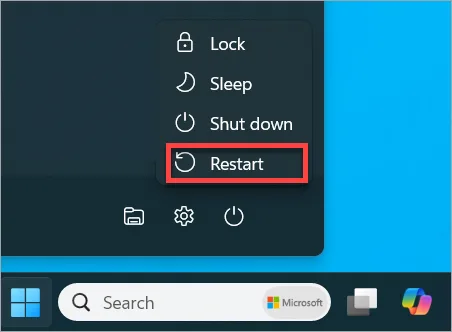
Use Restart rather than simply shutting down and turning the computer back on.
If another installation was preventing access to .NET Framework files, this may be enough to complete QuickBooks setup.
If you still receive the same message, run Intuit’s installation diagnostic utility.
Solution 2: Run the QuickBooks Install Diagnostic Tool
The QuickBooks Install Diagnostic Tool can help resolve installation problems involving Windows components required by QuickBooks Desktop.
Intuit recommends this utility specifically for Error 1935.
The tool is available through QuickBooks Tool Hub.
Follow these steps:
- Close QuickBooks Desktop and its installer.
- Open QuickBooks Tool Hub.
- Select Installation Issues.
- Click QuickBooks Install Diagnostic Tool.
- Allow the tool to finish its process.
- Restart Windows.
- Try installing QuickBooks Desktop again.
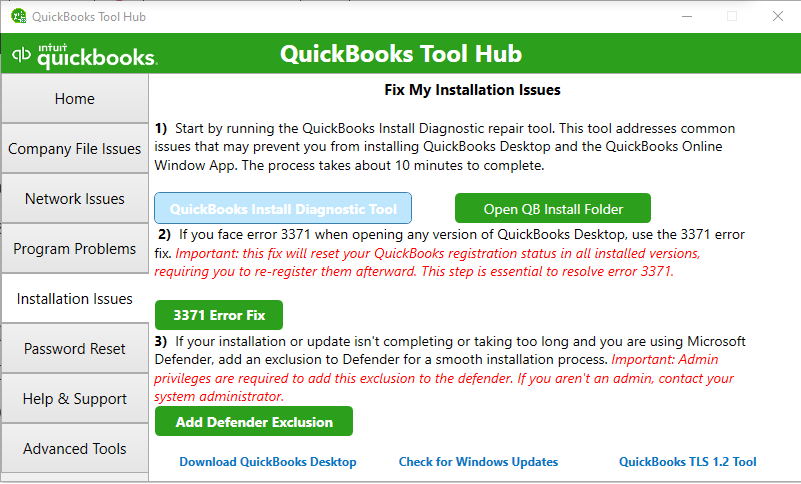
Intuit states that the diagnostic tool can take up to 20 minutes. Avoid interrupting it while the repair is still running.
If you do not have Tool Hub, follow our guide to download and install QuickBooks Tool Hub.
For missing tool options, startup failures, or problems during the diagnostic process, see our QuickBooks Install Diagnostic Tool troubleshooting guide.
If the tool completes but the same assembly installation error returns, continue with Windows updates before attempting manual component repairs.
Solution 3: Install pending Windows updates
Intuit recommends updating Windows when the Install Diagnostic Tool does not resolve QuickBooks Error 1935.
Windows updates may address operating-system components involved in the failed installation.
On Windows 11:
- Open Settings.
- Select Windows Update.
- Click Check for updates.
- Install applicable updates.
- Restart Windows if prompted.
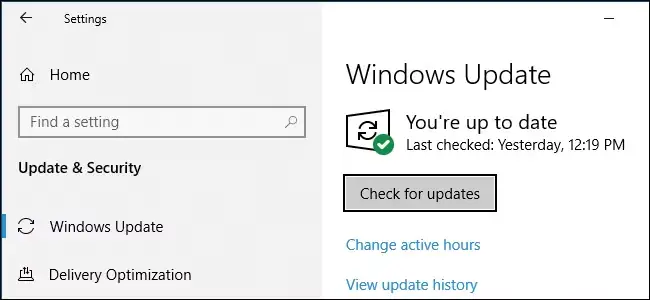
On Windows 10:
Open Settings > Update & Security > Windows Update, check for updates, and install those available for your system.
After the updates finish, restart the computer and try installing QuickBooks again.
If Windows Update itself fails with an error, record that message. A failure affecting Windows component servicing may need to be resolved before the QuickBooks installation can succeed.
If Windows is up to date but Error 1935 continues, check the .NET Framework component involved.
Solution 4: Check and repair the required Microsoft .NET Framework
If QuickBooks Error 1935 mentions .NET Framework, check the version required by your QuickBooks product before making changes.
Microsoft .NET Framework 3.5 and 4.8 are different versions with different installation requirements. Installing one does not automatically resolve problems involving the other.
For example, QuickBooks Desktop 2024 lists .NET Framework 4.8 Runtime in its official system requirements.
Check the available .NET Framework features
On Windows versions that support the relevant optional features:
- Close QuickBooks and other open applications.
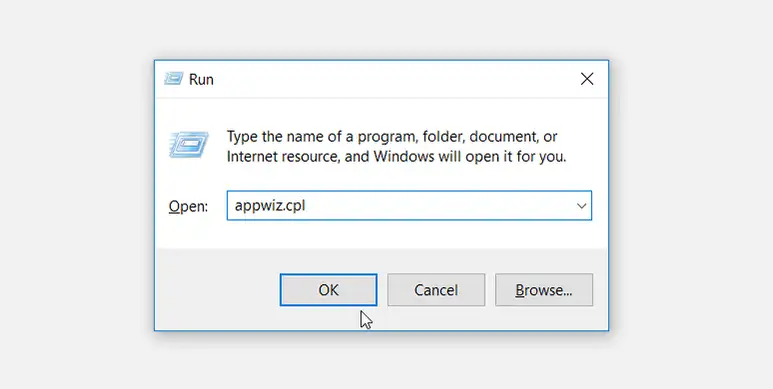
- Press Windows + R.
- Type appwiz.cpl and click OK.
- Select Turn Windows features on or off.
- Locate the .NET Framework entries.
Depending on your Windows version, you may see entries such as:
- .NET Framework 3.5 (includes .NET 2.0 and 3.0)
- .NET Framework 4.8 Advanced Services
These entries represent Windows features. An unchecked optional subfeature does not necessarily mean the entire .NET Framework runtime is missing or damaged.
Do not enable or disable every .NET Framework option just to see whether QuickBooks will install.
If the required component appears to have a problem, use Intuit’s manual .NET Framework troubleshooting instructions for the applicable Windows version.
Intuit documents methods for turning certain Windows features off and back on. Because these changes can affect other applications, follow the instructions carefully and obtain IT assistance if you are unsure which component is required.
Use the Microsoft .NET Framework Repair Tool
If the required framework is already installed but setup still fails, Microsoft’s repair utility may help.
Microsoft provides a .NET Framework Repair Tool that detects and attempts to correct certain framework setup and update problems.
To use it:
- Open the official Microsoft repair tool page.
- Review its supported Windows and .NET Framework versions.
- Download the current repair tool from Microsoft.
- Run the utility and follow the displayed instructions.
- Apply the recommended repairs where appropriate.
- Restart Windows if required.
- Retry the QuickBooks installation.
Microsoft’s published repair-tool version 1.5 includes support for .NET Framework 4.8 and several earlier releases. Its support does not automatically extend to every newer framework release.
If the repair tool reports that it cannot repair the component, save its results instead of repeatedly running the same repair.
Does .NET Framework troubleshooting differ on Windows 11?
Yes, the installation method for .NET Framework 3.5 depends on the Windows 11 release.
Windows 11 25H2 and earlier: .NET Framework 3.5 can be enabled through the supported Windows Features method.
Windows 11 26H1 (build 28000) and later: Microsoft provides .NET Framework 3.5 through a standalone installer rather than the previous optional Windows feature.
You can confirm your Windows build by running winver.
If .NET Framework 3.5 is specifically required, follow Microsoft’s Windows 11 installation instructions.
Do not use the Windows 11 26H1 standalone package on older Windows releases. Microsoft states that these installers are version-specific.
Also, this change concerns .NET Framework 3.5. It does not establish that QuickBooks Desktop 2024 requires that version or that every QuickBooks Desktop edition is compatible with Windows 11 26H1.
If you have repaired the relevant framework component and QuickBooks still displays Error 1935, investigate interference from other applications.
Solution 5: Check whether antivirus software is blocking QuickBooks
Intuit identifies antivirus and antispyware interference as a possible reason for Error 1935.
A security application might block the QuickBooks installer or a required component installation.
Start by checking your antivirus application’s protection history or security logs.
Look for activity recorded at approximately the time QuickBooks installation failed. If a QuickBooks setup component was blocked, verify that it came from the authentic Intuit installer before taking further action.
If your security provider recommends temporarily pausing a specific protection feature for troubleshooting, do so only when your security policy permits it.
During the test:
- Close the failed QuickBooks installer.
- Follow your security software provider’s instructions for the controlled test.
- Retry QuickBooks installation using the verified setup file.
- Restore the original security settings immediately after testing.
If the installation succeeds during the test, review the logs with your security vendor or IT administrator to identify the actual conflict.
Do not permanently disable or uninstall antivirus software as a routine Error 1935 fix.
If security software does not appear to be responsible, Selective Startup can help test for other background application conflicts.
Solution 6: Install QuickBooks using Selective Startup
Selective Startup temporarily limits background services so you can test whether another application is interfering with QuickBooks installation.
Intuit recommends this method when normal installation fails because of software conflicts.
Before proceeding, make sure you have Windows administrator access. If QuickBooks is already installed, back up your company file and keep your product and license details available.
Follow these steps:
- Press Windows + R.
- Type msconfig and click OK.
- On the General tab, select Selective startup and Load system services.
- Open the Services tab.
- Check Hide all Microsoft services.
- Select Disable all.
- Clear Hide all Microsoft services.
- Find and select Windows Installer in the services list.
- Click OK and restart Windows.
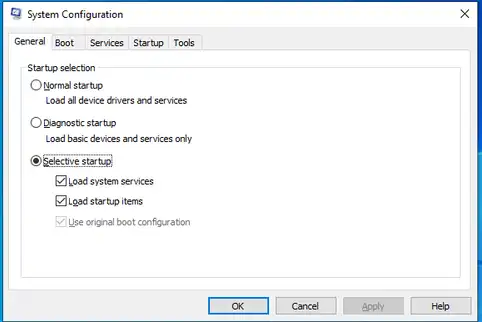
After the computer restarts, run the QuickBooks Desktop installer again.
If the installation succeeds, a background service conflict may have contributed to Error 1935. However, this test does not identify the specific conflicting service.
Restore Normal startup afterward:
- Press Windows + R and enter msconfig.
- Open the General tab.
- Select Normal startup.
- Click OK.
- Restart Windows.
Follow Intuit’s Selective Startup guide if you need the complete procedure.
Be careful on company-managed computers. Disabling background services can temporarily affect security, remote management, and other business applications.
If Error 1935 also occurs in Selective Startup, restore normal startup and investigate the component named in the installation error rather than continuing to disable services.
What if QuickBooks Error 1935 still appears after troubleshooting?
If the error continues after the recommended repairs, the next step is to identify the failing Windows component.
Repeatedly installing QuickBooks or changing unrelated .NET Framework features is unlikely to help without a clearer diagnosis.
Check the complete assembly error message
If the message says that an error occurred during assembly installation, record any additional details shown.
These may include:
- The assembly or component name.
- The exact Error 1935 message.
- An additional hexadecimal error code, sometimes called an HRESULT.
- The stage at which QuickBooks installation fails.
An HRESULT is a Windows error value that can help a technician narrow down the failed operation. It should be interpreted together with the component name and relevant installation logs.
For example, an assembly failure mentioning a Microsoft component may require investigation of that component rather than another QuickBooks reinstall.
If the message identifies a DLL that failed to register and displays Error 1904, follow the separate QuickBooks Error 1904 troubleshooting guide. Error 1904 and Error 1935 identify different installation failures.
Check for Microsoft MSXML problems when indicated
Microsoft MSXML is another Windows component used by QuickBooks Desktop.
Intuit includes MSXML repair among its advanced troubleshooting options for persistent QuickBooks installation problems.
However, MSXML should not be treated as the cause of every Error 1935 message.
If the installation details or diagnostic results identify an MSXML failure, follow Intuit’s relevant component-repair instructions or seek help from an IT professional.
Avoid downloading individual DLL files from unknown websites or changing the Windows registry without a verified procedure for the exact problem.
Repair Windows system files if corruption is suspected
If Windows reports component corruption, other Microsoft components also fail to install, or a technician identifies a system-file problem, Microsoft provides DISM and System File Checker utilities.
These tools repair Windows components rather than QuickBooks itself. They are not guaranteed solutions for Error 1935.
For a system where Windows corruption is suspected, open Command Prompt as administrator and run:
DISM.exe /Online /Cleanup-Image /RestoreHealth
Allow DISM to finish and review its result.
If it completes successfully, run:
sfc /scannow
Wait for System File Checker to finish. If it repairs damaged files, restart Windows and retry QuickBooks installation.
Microsoft explains these commands in its System File Checker guide.
If either command fails or reports damage it cannot repair, preserve the results and consult an IT professional or Microsoft support.
Intuit also recommends professional assistance when persistent Error 1935 problems suggest damage to the operating system.
How do you know QuickBooks Error 1935 is resolved?
QuickBooks Error 1935 is resolved when the installation finishes successfully and QuickBooks Desktop opens without the original error.
After applying a repair:
- Run the QuickBooks Desktop installer.
- Confirm that setup completes without Error 1935.
- Open QuickBooks Desktop.
- If you already have a company file, confirm that it opens normally.
- Check that Windows is back in Normal startup and any temporarily changed security settings have been restored.
If QuickBooks installs successfully but displays a different error when opening, treat the new message separately.
For installation failures that do not show Error 1935 or identify a different setup problem, see our broader guide on QuickBooks Desktop installation errors.
A clean reinstall is not normally the first fix for Error 1935, particularly when the failed component belongs to Windows. Consider reinstallation only when the evidence points to damaged QuickBooks program files and the appropriate repairs have failed.
Conclusion
QuickBooks Error 1935 should first be handled as a problem involving a required installation component. Restart Windows, use the QuickBooks Install Diagnostic Tool, and complete pending updates before attempting manual .NET Framework repairs.
If the error continues, check which component failed and whether another application is blocking installation. When Windows cannot repair the required component, collect the complete error details and seek system-level assistance rather than repeating the same QuickBooks installation.
Frequently asked questions
Can QuickBooks Error 1935 occur when .NET Framework is already installed?
Yes, QuickBooks can display Error 1935 even when the required framework is installed. Another installation may be using its files, or Windows may be unable to configure a required assembly. An installed runtime does not rule out an installation-component failure.
Does QuickBooks Desktop 2024 require .NET Framework 3.5 or 4.8?
Intuit lists Microsoft .NET Framework 4.8 Runtime as a requirement for QuickBooks Desktop 2024. Do not install .NET Framework 3.5 solely because Error 1935 appears. Check the exact error and product requirements before changing Windows components.
Is QuickBooks Error 1935 the same as Error 1603?
No, Error 1935 identifies an assembly or component installation failure. Error 1603 is a broader Windows installation failure code. Both can involve Microsoft installation components, but the full error message determines which troubleshooting steps are relevant.
Can I ignore Error 1935 and continue installing QuickBooks?
You should not assume the installation is complete after Error 1935 appears. A required component may not have installed correctly. Resolve the failure and confirm that QuickBooks Desktop opens normally before relying on the application.
Does QuickBooks Error 1935 damage company files?
Error 1935 occurs during software or component installation and does not, by itself, indicate company-file corruption. However, keep a verified backup of your accounting data before uninstalling existing software or performing major Windows repairs.
What if the Microsoft .NET Framework Repair Tool does not work?
Check whether the affected framework and Windows versions are supported by the repair tool. If it reports an unresolved error, save the result and investigate the specific Windows component failure. Do not repeatedly reinstall .NET Framework or download unsupported repair utilities.
Is QuickBooks Desktop 2024 compatible with Windows 11 26H1?
Intuit’s published QuickBooks Desktop 2024 requirements list supported 64-bit Windows 11 installations, but they do not specifically confirm compatibility with every Windows 11 feature release, including 26H1. Check current Intuit support information for that exact release before assuming compatibility.