
QuickBooks Tool Hub is a free troubleshooting application from Intuit that helps fix common QuickBooks Desktop errors. If QuickBooks won’t open, your company file shows an error, or you can’t print invoices, Tool Hub provides repair tools for these problems.
To download QuickBooks Tool Hub, close QuickBooks Desktop and get the installer from Intuit’s official website. Open the QuickBooksToolHub.exe file, complete the setup, and launch Tool Hub to select the repair tool you need.
Intuit’s August 2026 support documentation identifies version 1.6.0.8 as the latest release. You can check your installed version from the Home tab.
For the complete instructions, including each step of the download and installation process, see our detailed guide below on how to download and install QuickBooks Tool Hub.
How to Download and Install QuickBooks Tool Hub
You can download QuickBooks Tool Hub directly from Intuit and install it using the Windows setup wizard. The installation does not require you to open a QuickBooks company file.
Follow these steps:
- Close QuickBooks Desktop and any open company files.
- Visit Intuit’s official QuickBooks Tool Hub support page.
- Select the download link and save QuickBooksToolHub.exe to your Downloads folder or desktop.
- Locate the downloaded file and double-click it.
- Follow the setup instructions and accept the terms and conditions.
- Wait for the installation to finish.
- Double-click the QuickBooks Tool Hub desktop icon to open the application.
If the shortcut is missing, open Windows Search, type QuickBooks Tool Hub, and select the application.
Download the installer through Intuit rather than an unfamiliar third-party website. A file named QuickBooksToolHub.exe is not necessarily authentic simply because its filename matches.
How to Check Your QuickBooks Tool Hub Version
The Home tab displays the version of QuickBooks Tool Hub installed on your computer.
To check it:
- Open QuickBooks Tool Hub.
- Select Home from the left menu.
- Find the version number near the bottom of the window.
- Compare it with the version listed in Intuit’s current support instructions.
The version number helps you determine whether your installation matches the release documented by Intuit. Check the official download page when updating, as newer versions may become available.
QuickBooks Tool Hub System Requirements and Compatibility
Intuit recommends using QuickBooks Tool Hub on Windows 11, 64-bit, for the best experience.
The application is intended for QuickBooks Desktop on Windows. It does not troubleshoot QuickBooks Online, which operates mainly through a web browser.
| Software detail | Information |
| Application | QuickBooks Tool Hub |
| Developer | Intuit |
| Version documented in August 2026 | 1.6.0.8 |
| Installer file | QuickBooksToolHub.exe |
| Cost | Free |
| Recommended operating system | Windows 11, 64-bit |
| Intended product | QuickBooks Desktop |
| Installed version location | Home tab |
An internet connection may be needed to download Tool Hub and additional repair components.
Intuit’s primary Tool Hub guide does not provide a complete list of minimum processor, RAM, and storage specifications for the utility. The system requirements for QuickBooks Desktop should not be presented as requirements for Tool Hub without separate verification.
What Common Problems Can QuickBooks Tool Hub Fix?
QuickBooks Tool Hub contains several utilities, each intended for a particular type of QuickBooks Desktop problem.
For example, a damaged company file may require QuickBooks File Doctor, while a workstation displaying Error H202 usually needs network checks on the computer hosting the company file.
The table below shows where to start.
| QuickBooks problem | Tool Hub tab | Recommended tool |
| Company file won’t open | Company File Issues | Quick Fix my File |
| Certain 6000-series company file errors | Company File Issues | QuickBooks File Doctor |
| Error H202 or multi-user connection problems | Network Issues | QuickBooks Database Server Manager |
| QuickBooks freezes or stops responding | Program Problems | Quick Fix my Program |
| PDF creation or printing errors | Program Problems | QuickBooks Print & PDF Repair Tool |
| QuickBooks Error 1712 during installation | Program Problems | Quick Fix my Program |
| QuickBooks Error 1904 | Installation Issues | QuickBooks Install Diagnostic Tool |
| QuickBooks Error 3371 | Installation Issues | 3371 Error Fix |
| Forgotten administrator password | Password Reset | Version-appropriate password recovery |
| Windows settings needed for troubleshooting | Advanced Tools | Relevant Windows utility |
These are starting points, not guaranteed fixes. Follow the instructions for your specific error if the recommended tool does not resolve it.
Some tools download additional components the first time you open them. Intuit notes that these downloads can take approximately two to three minutes. Keep the relevant window open until the process finishes.
How to Repair QuickBooks Company File Errors
The Company File Issues tab contains Quick Fix my File and QuickBooks File Doctor. These tools help troubleshoot company files that won’t open or display certain data-related errors.
Before running a repair, create a backup if QuickBooks still allows you to access the file. If the file won’t open, preserve the original .QBW file and any existing .QBB backups.
In a multi-user mode, make sure other users have closed the company file before starting.
Run Quick Fix my File
Quick Fix my File is the first tool Intuit recommends for several common company file problems.
- Close QuickBooks Desktop.
- Open QuickBooks Tool Hub.
- Select Company File Issues.

- Click Quick Fix my File.
- Wait for the process to finish.
- Select OK when prompted.
- Open QuickBooks Desktop and try accessing your company file.
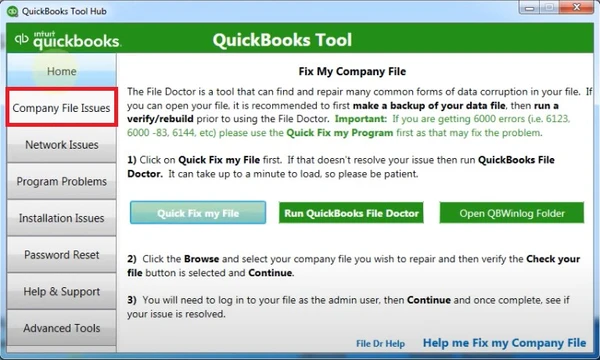
If the file opens, check that your recent transactions and expected records are available.
If the same error appears, proceed to QuickBooks File Doctor.
Run QuickBooks File Doctor
QuickBooks File Doctor checks certain company file and network-related problems. Intuit recommends it for errors including -6150, -6000 -82, -6000 -305, -6000 -301, -6147, and -6130.
It can also help investigate problems involving missing or blank customer, vendor, or employee lists.
Follow these steps:
- Open QuickBooks Tool Hub.
- Select Company File Issues.
- Click Run QuickBooks File Doctor.
- Allow up to one minute for File Doctor to open.
- Choose your company file from the dropdown menu. If it is missing, click Browse and locate the .QBW file.
- Select Check your file and click Continue.
- Enter the QuickBooks administrator password when requested.
- Select Next and wait for the scan to finish.
- Open QuickBooks Desktop and test the company file.
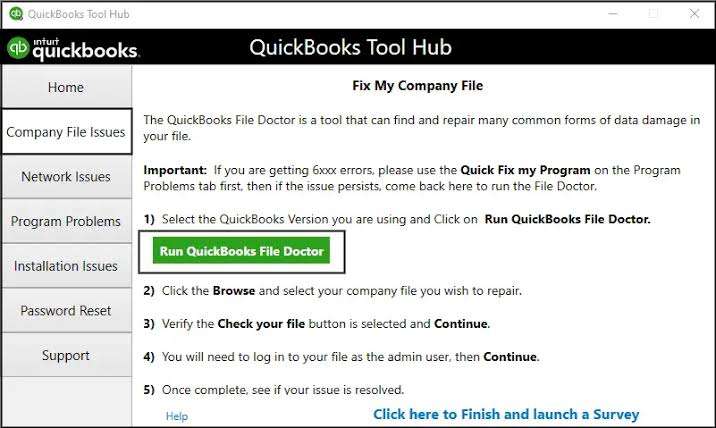
Intuit states that the scan may take 10–15 minutes, depending on the file size.
File Doctor can sometimes report an unsuccessful scan even when it has resolved the original problem. Check whether the company file opens before repeating the repair.
If File Doctor cannot resolve the issue, the company file may need further examination. Avoid making repeated changes to the only available copy of your accounting data.
You can also review Intuit’s official File Doctor instructions for the complete repair procedure.
If the utility freezes, refuses to launch, or stops during a scan, read our guide on QuickBooks File Doctor not working.
For company file access problems involving Error 6123, 0, see our QuickBooks Error 6123 troubleshooting guide. The appropriate solution depends on whether the error appears while opening a company file, upgrading it, or restoring a backup.
How to Fix QuickBooks Network and Multi-User Errors
The Network Issues tab helps troubleshoot connections between QuickBooks Desktop workstations and the computer hosting the company file.
One example is Error H202. This error can appear when a workstation cannot communicate with the host server.
Run QuickBooks Database Server Manager
QuickBooks Database Server Manager checks the folders containing company files and helps configure the firewall permissions required for multi-user access.
Run this tool on the server computer, not merely on the workstation showing the error.
- Go to the computer hosting your QuickBooks company files.
- Open QuickBooks Tool Hub.
- Select Network Issues.
- Click QuickBooks Database Server Manager.
- If your company file folders appear, select Start Scan.
- If the correct folder is missing, click Browse, locate it, and select Start Scan.
- Wait for the scan to finish.
- Select Close.
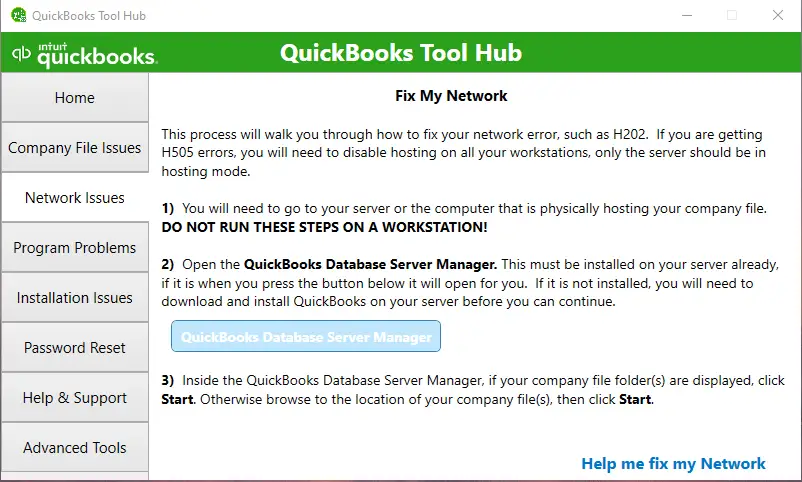
If Database Server Manager is not installed on the server, QuickBooks may prompt you to install it.
After the scan, return to the affected workstation.
Open QuickBooks Desktop and select File > Switch to Multi-user Mode. Check whether you can access the company file.
If Error H202 continues, Intuit recommends running File Doctor’s network check:
- Open Company File Issues in Tool Hub.
- Select Run QuickBooks File Doctor.
- Choose the company file.
- Select Check your Network and click Continue.
- Enter the administrator password and follow the prompts.
If neither scan resolves the connection problem, the next checks may involve QuickBooks services, hosting settings, folder permissions, or firewall rules.
For those steps, follow our QuickBooks Error H202 troubleshooting guide or QuickBooks Error H505.
QuickBooks Database Server Manager is not supported for every hosting setup, including some network-attached storage arrangements. Check your hosting environment before changing server settings.
Do not permanently disable Windows Firewall or antivirus protection to resolve a connection error. The safer approach is to verify the services and permissions required by your QuickBooks Desktop version.
How to Fix QuickBooks Crashes and Printing Problems
The Program Problems tab contains tools for QuickBooks Desktop startup failures, freezing, and printing or PDF errors.
The right repair depends on what happens when you use QuickBooks.
Run Quick Fix my Program
Quick Fix my Program closes background processes used by QuickBooks and performs a basic application repair.
- Close QuickBooks Desktop.
- Open QuickBooks Tool Hub.
- Select Program Problems.
- Click Quick Fix my Program.
- Wait for the tool to finish.
- Start QuickBooks Desktop again.

Test the action that previously failed.
For example, if QuickBooks stopped responding when you launched the application, check whether it now reaches the company file selection screen.
If QuickBooks starts but cannot open one particular company file, the problem may involve the file rather than the program.
Run QuickBooks Print & PDF Repair Tool
The QuickBooks Print & PDF Repair Tool helps troubleshoot problems with printing, emailing forms, and saving documents as PDFs.
It may be useful when QuickBooks displays messages such as:
- Missing PDF file component
- Could not print to printer
- PDF Converter is offline
- Unable to save as a PDF file
To run the repair:
- Close QuickBooks Desktop.
- Open QuickBooks Tool Hub.
- Select Program Problems.
- Click QuickBooks Print & PDF Repair Tool.
- Wait for the repair to finish.
- Open QuickBooks Desktop and try printing, emailing, or saving the document again.
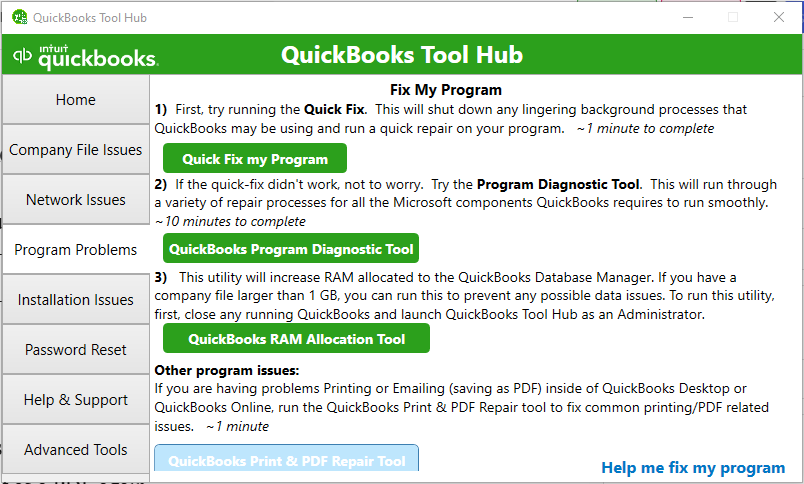
Intuit indicates that this tool normally takes about one minute to run.
If QuickBooks still cannot print an invoice, check whether the printer works from another Windows application. This helps distinguish a general printer problem from one affecting QuickBooks.
For PDF failures on Windows 11, Intuit recommends confirming that Microsoft XPS Document Writer is enabled in Windows Features.
When Should You Run QuickBooks Program Diagnostic Tool?
QuickBooks Program Diagnostic Tool may help when QuickBooks Desktop continues to experience startup or application problems after a basic repair.
Intuit includes it in certain troubleshooting procedures for situations where QuickBooks stops working. The tool checks problems involving Windows components used by QuickBooks.
If Intuit recommends this tool for your particular error:
- Open QuickBooks Tool Hub.
- Select Program Problems.
- Choose QuickBooks Program Diagnostic Tool.
- Allow the diagnostic process to finish. It may take up to 20 minutes.
- Restart your computer.
- Open QuickBooks Desktop and check whether the issue remains.
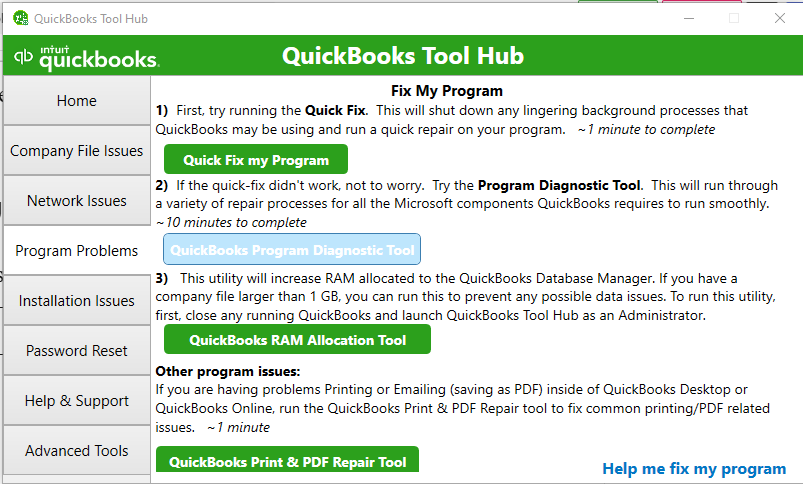
The Program Diagnostic Tool and Install Diagnostic Tool have related purposes, but the recommended procedure depends on the error.
For example, Error 1904 specifically directs users to the Install Diagnostic Tool, while certain startup problems may call for the Program Diagnostic Tool.
Do not assume that both tools need to be run for every QuickBooks error.
How to Repair QuickBooks Desktop Installation Errors
The Installation Issues tab helps resolve problems affecting the installation and activation of QuickBooks Desktop.
These tools repair the accounting application, not the QuickBooks Tool Hub installer.
Run QuickBooks Install Diagnostic Tool
QuickBooks Install Diagnostic Tool checks certain Microsoft components that QuickBooks Desktop needs to install and run correctly.
Intuit recommends this tool for Error 1904, which can occur when a file fails to register during installation.
Follow these steps:
- Close QuickBooks Desktop.
- Open QuickBooks Tool Hub.
- Select Installation Issues.
- Click QuickBooks Install Diagnostic Tool.
- Allow the process to finish. It can take up to 20 minutes.
- Restart Windows.
- Try installing or opening QuickBooks Desktop again.
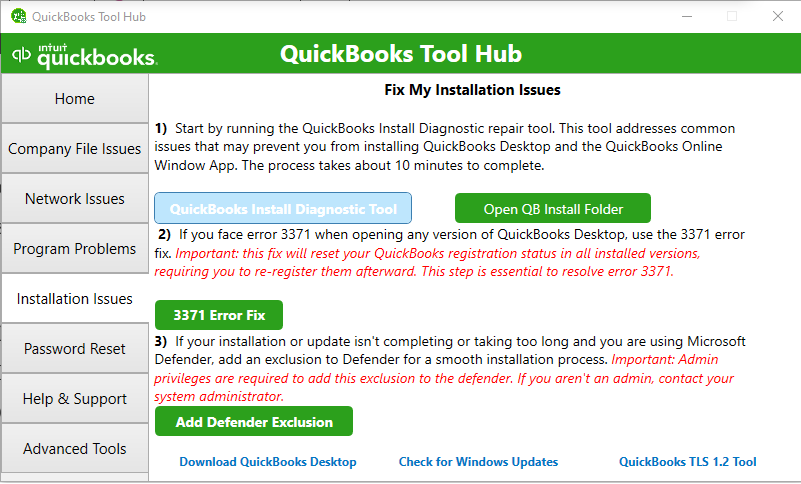
If Error 1904 remains, further troubleshooting may involve Windows components such as Microsoft .NET Framework or MSXML.
Those repairs can affect other applications and should be handled carefully. If you’re unfamiliar with Windows system administration, follow Intuit’s Error 1904 instructions or consult a qualified IT professional.
Run the 3371 Error Fix
QuickBooks Error 3371 appears when QuickBooks Desktop cannot initialize its license properties or load the data needed for activation.
The error may appear when you start QuickBooks, even if the software was previously installed.
To run the repair:
- Close QuickBooks Desktop.
- Open QuickBooks Tool Hub.
- Select Installation Issues.
- Click 3371 Error Fix.
- Select OK.
- Open QuickBooks Desktop and your company file.
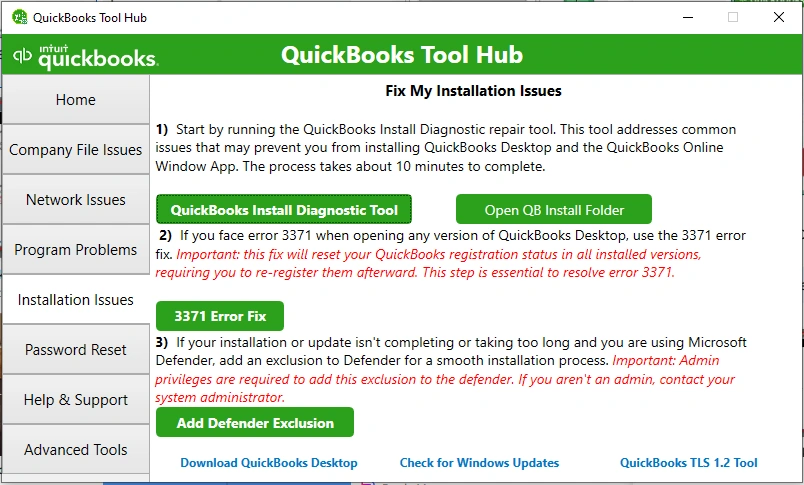
Avoid deleting QuickBooks license or registration files manually unless the official procedure requires it.
How to Reset a QuickBooks Desktop Administrator Password
The Password Reset tab provides access to password recovery resources, but the correct method depends on your QuickBooks Desktop version.
Intuit states that the older Automated Password Reset Tool is not compatible with QuickBooks Desktop 2020 or newer. Users of these versions should use the password recovery process available within QuickBooks Desktop.
Reset the Admin Password in QuickBooks Desktop 2020 or Newer
- Open QuickBooks Desktop and select your company file.
- On the sign-in screen, click I forgot my password.
- Select the email address associated with your account.
- Click Next to request a verification token.
- Check your email for the token.
- Enter the token and follow the prompts to reset your password.
If you don’t receive the email, check your spam folder and confirm that the registered email address is correct.
For QuickBooks Desktop 2019 and earlier, Intuit provides a separate recovery process that may require the license number and registered business information.
See Intuit’s QuickBooks Desktop password reset instructions for the correct method.
Password recovery is different from resetting the password of an ordinary QuickBooks user. If you can sign in as an administrator and need to change another user’s password, use the user-management settings within QuickBooks Desktop.
What Is the Advanced Tools Tab Used For?
The Advanced Tools tab provides shortcuts to Windows utilities that may be needed during QuickBooks Desktop troubleshooting.
Depending on the installed Tool Hub version, these shortcuts can include Windows Task Manager, File Explorer, Windows Update, and system settings.
For example, Task Manager can help you identify a QuickBooks background process that continues running after the program closes.
File Explorer allows you to locate company files and QuickBooks folders when a repair procedure requires checking their locations.
These utilities do not automatically diagnose QuickBooks errors. They provide access to Windows tools that may be required for a specific troubleshooting task.
Some system changes require administrator permissions. Do not modify firewall rules, Windows services, or security settings without understanding which QuickBooks problem the change is intended to address.
What If QuickBooks Tool Hub Doesn’t Fix the Error?
A completed Tool Hub repair does not always mean the underlying problem has been resolved.
For example, File Doctor may finish without recovering a severely damaged company file. Database Server Manager may complete its scan while a workstation still cannot contact the server because a Windows service is unavailable.
If the original error continues, check the following:
- Exact error message: Record the code and message shown by QuickBooks.
- When the error occurs: Note whether it happens at startup, when opening a company file, during printing, or while connecting to the server.
- Affected files: Determine whether the issue occurs with one company file or multiple files.
- Affected computers: In a multi-user setup, check whether one workstation or every user has the problem.
- Available backups: Preserve your original company file and recent backups before attempting advanced repairs.
These details help narrow down the cause.
If QuickBooks opens a sample company file but fails with your regular file, focus on company-file troubleshooting. If every workstation displays Error H202, investigate the hosting server and shared network rather than changing settings independently on each computer.
Avoid running unrelated repair tools in succession. Changing multiple settings makes it harder to identify which action affected the error.
For problems involving important accounting data, preserve the original file and consult Intuit support or a qualified QuickBooks professional before attempting advanced recovery.
Conclusion
QuickBooks Tool Hub provides a way to troubleshoot common QuickBooks Desktop errors without downloading every repair utility separately.
Start with the official Intuit installer, check the installed version, and choose the tool that matches your problem. After each repair, test the original error rather than assuming it has been resolved.
If the issue remains, follow the error-specific instructions and protect your company data before making further changes.
Frequently Asked Questions
Is QuickBooks Tool Hub free to download?
Yes, QuickBooks Tool Hub is a free troubleshooting utility provided by Intuit. Download it through Intuit’s official website rather than paying for an installer from an unfamiliar third party.
What Is the Latest QuickBooks Tool Hub Version?
Intuit’s August 2026 support documentation lists QuickBooks Tool Hub version 1.6.0.8 as the most recent release. To check your installed version, open Tool Hub and select Home. Check Intuit’s current instructions before downloading because versions may change.
Does QuickBooks Tool Hub Work with Windows 11?
Yes, Intuit recommends Windows 11, 64-bit, for the best Tool Hub experience. Compatibility with your QuickBooks Desktop edition should be checked separately.
Can You Use QuickBooks Tool Hub on a Mac?
No, the official QuickBooks Tool Hub is intended for Windows. If you use QuickBooks Desktop for Mac, follow the troubleshooting instructions designed for that product.
Does QuickBooks Tool Hub Work with QuickBooks Online?
No, Tool Hub is designed for QuickBooks Desktop. QuickBooks Online requires different troubleshooting methods for browser, account, connection, and service-related problems.
Can QuickBooks Tool Hub Recover a Corrupted Company File?
QuickBooks File Doctor can repair certain company file problems, but recovery is not guaranteed. Severe corruption may require further data repair or recovery from a backup. Keep the original file and available backups before attempting advanced repairs.
What Is the Difference Between QuickBooks Tool Hub and File Doctor?
QuickBooks Tool Hub is the application containing several troubleshooting utilities. QuickBooks File Doctor is one of those utilities and focuses on certain company file and network-related problems. You can access it through the Company File Issues tab.
Do You Need Administrator Rights to Use QuickBooks Tool Hub?
Some Tool Hub installation and repair tasks require Windows administrator permissions. On a company-managed computer, your IT administrator may need to approve the installation or changes to Windows services and security settings.
Does QuickBooks Tool Hub Update QuickBooks Desktop Automatically?
No, Tool Hub is a troubleshooting application, not a replacement for the normal QuickBooks Desktop update process. To update the accounting software, use the update procedure for your installed QuickBooks Desktop version.
Accounts Confidant is an independent accounting and bookkeeping service provider and is not affiliated with Intuit.
