
QuickBooks freezing while you save an invoice or open a report can leave you unsure whether your work went through. The window may stay on screen, but buttons stop working and clicks do nothing.
The best place to start is the task that caused the freeze. A problem during printing needs different checks from a delay when opening a shared company file.
This guide explains what to do when QuickBooks is frozen, how to narrow down repeat freezes, and which checks apply to QuickBooks Online. The Desktop steps below apply to Windows.
Why Does QuickBooks Keep Freezing?
QuickBooks can freeze when a task takes too long, a required component fails, or access to company data is interrupted. The cause may involve the computer, the file, or another program.
Common areas to check include:
- Computer resources: Other apps may leave too little memory or processing power for QuickBooks.
- Heavy tasks: Large reports and long lists can take more work to load.
- Company data: A file-specific problem may affect certain transactions or tasks.
- Shared file access: Network delays can interrupt work with a file stored on another computer.
- Connected programs: Excel, email software, and printing components can cause problems during specific tasks.
- Browser sessions: QuickBooks Online may stop responding because of browser data, extensions, or a service issue.
Intuit identifies computer resources and file storage as factors in Desktop performance. However, a freeze alone does not tell you which factor is responsible.
Notice what stays on screen. If QuickBooks disappears or closes by itself, use our guide to QuickBooks keeps crashing to investigate unexpected shutdowns.
What Should You Do Before Force-Closing QuickBooks?
First, stop clicking and check whether QuickBooks is waiting for input or still processing the task. Repeated clicks can make the situation harder to assess.
Check for a Hidden Window
Press Alt + Tab to look through open windows. A print dialog, password prompt, or confirmation message may be behind QuickBooks.
Check any second monitor too. A window that opened on a disconnected display may appear to be missing.
Look for Signs of Progress
Press Ctrl + Shift + Esc to open Task Manager. Check whether QuickBooks or another related program is using CPU, memory, or disk resources.
Activity may suggest that work is continuing. However, low activity does not prove that it is safe to close the program.
Take extra care during a backup, restore, rebuild, or file conversion. These tasks may take longer than normal work. Follow any progress message shown on screen.
Close Only the Affected App if Necessary
If the task shows no progress, no hidden prompt is present, and normal closing fails:
- Record the task and any message on screen.
- Open Task Manager.
- Select the affected QuickBooks application.
- Choose End task.
- Reopen QuickBooks and check the last transaction before entering it again.
Force-closing can lose unsaved work. On a shared server, ask the administrator to handle the affected session. Do not end other users’ sessions or database services.
Once access returns, make a backup before attempting file repairs.
When Does QuickBooks Freeze? Find the Right Fix
Use the point where QuickBooks stops responding to choose your next check.
| When QuickBooks freezes | What to check first |
|---|---|
| During opening or after login | Hidden prompts and windows loading with the file |
| While opening one company file | The file and its storage location |
| During Excel export | The report and installed Excel application |
| While printing | Printing outside QuickBooks and PDF creation |
| While sending an invoice | Email settings and attachment creation |
| During reconciliation | A hidden window or PDF-related problem |
| While running a report | Date range, detail level, and report settings |
| While switching to single-user mode | Other users and active tasks |
| In QuickBooks Online | The browser session and service status |
How to Fix QuickBooks Desktop Freezing
Choose the method that matches the problem. Change one thing at a time, then repeat the same task to see whether the result changes.
Method 1: Check What Loads When QuickBooks Opens
If QuickBooks Desktop freezes when opening, note whether the freeze happens before or after you select a company file.
If you can reopen the file and use it:
- Save any work in progress.
- Close reports and forms you no longer need.
- Close QuickBooks normally.
- Open it again and compare the loading behavior.
You can also review Edit > Preferences. Under Desktop View and Reminders, check whether the home page or reminder list opens with the company file. Turn off an unneeded startup display and test again. Intuit includes these settings in its performance guidance.
When QuickBooks freezes after login, confirm that the login actually succeeded. An accepted password followed by an unresponsive company window points to a different stage than a rejected password or missing verification code.
For authentication problems, follow our guide to QuickBooks sign-in problems. If the application never reaches a usable window, use the steps for QuickBooks won’t open.
Method 2: Check Whether One Company File Causes the Freeze
If QuickBooks freezes when opening a company file, compare that file with a sample file.
- Reopen QuickBooks without automatically loading the affected file.
- From the No Company Open window, choose a sample company.

- Try a similar task in the sample.
- Note whether the freeze returns.
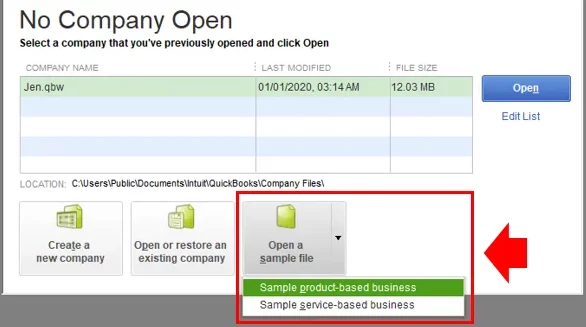
If the sample works, focus next on the affected company file, its location, and its workload. This result helps narrow the search; it does not prove that the original file is corrupted.
For a shared file, ask whether other users have the same problem. One affected workstation suggests a different investigation from a freeze affecting everyone.
An administrator can also test a clearly labeled local copy after users have closed the live file. Keep that copy for testing only. Do not enter live business transactions into it or replace the original with it.
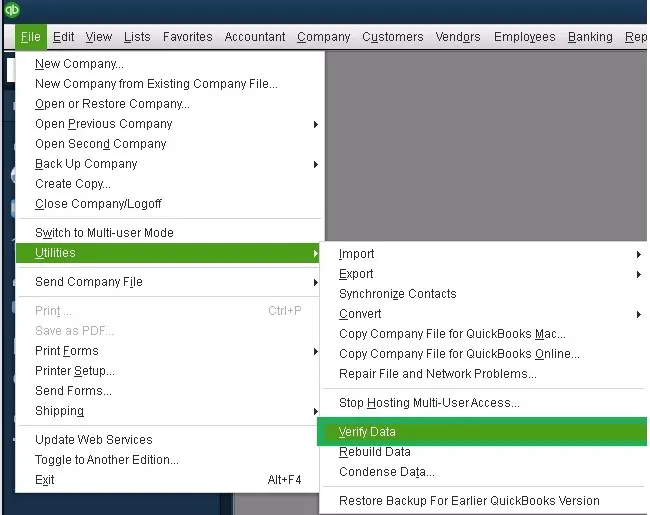
If the issue remains file-specific, plan a data check. Once QuickBooks is usable, File > Utilities > Verify Data can help identify data problems; back up the file before following any repair instructions.
Method 3: Check Excel When QuickBooks Freezes During Export
If QuickBooks freezes when exporting to Excel, check whether the report itself works before testing the export.
Follow this order:
- Open the report inside QuickBooks.
- Try a shorter date range.
- Open the installed Excel app separately.
- Check that Excel can create and save a blank workbook.
- Save and close open workbooks.
- Retry the export to a new workbook.
A smaller report that exports successfully suggests that the report’s size or settings deserve closer attention. If even a small report fails, check the connection between QuickBooks and Excel.
Intuit specifies the installed desktop version of Excel for this feature. Excel in a web browser is not a substitute. Also check that your Microsoft Office version is compatible with your QuickBooks release. If Excel has problems on its own, repair Office before making further changes to QuickBooks.
If the freeze began immediately after a software update, record which product changed. Our guide to QuickBooks not working after an update covers that pattern in more detail.
Method 4: Check Printing and PDF Creation
When QuickBooks freezes when printing, first test a simple document from another app.
If that also fails, check the printer connection and print queue with your IT team. If other apps print normally, test whether QuickBooks can save the affected form as a PDF.
For QuickBooks-specific PDF or printing problems:
- Close QuickBooks.
- Open QuickBooks Tool Hub.
- Select Program Problems.
- Run QuickBooks Print & PDF Repair Tool.
- Reopen QuickBooks and retry the same form.
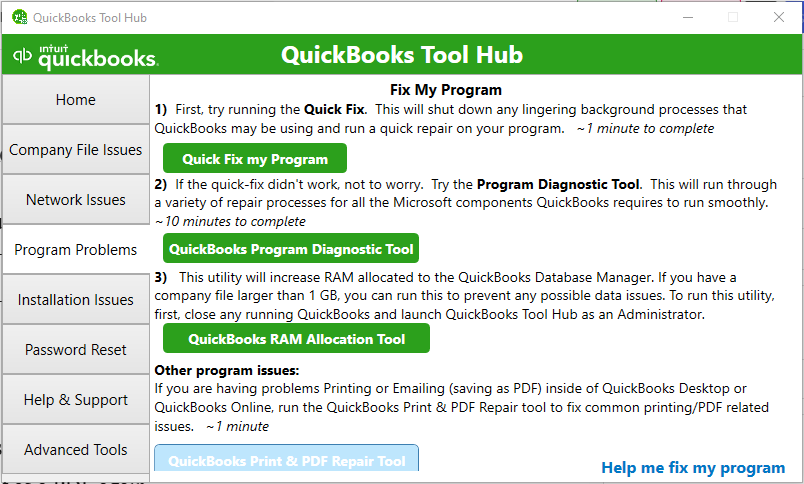
Use Intuit’s guide to fixing PDF and printing problems for the official tool and further steps. Its Windows 11 guidance also calls for checking that Microsoft XPS Document Writer is enabled.
Method 5: Check Email Settings and Invoice Attachments
If QuickBooks freezes when trying to email an invoice, separate the email step from the creation of the attachment.
Start with these checks:
- Try saving the invoice as a PDF.
- Open your email app or webmail separately.
- Check whether it can send a normal message.
- In QuickBooks, go to Edit > Preferences > Send Forms.
- Confirm that the selected email method matches the service you use.
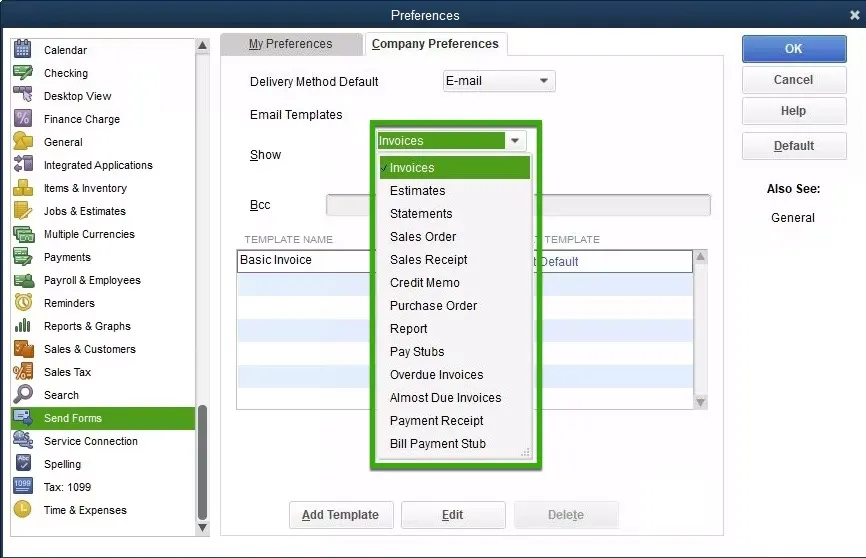
If PDF creation fails, use the printing and PDF checks above. If the PDF works but email does not, focus on email settings and the connection to the email program.
For Outlook users, Intuit recommends checking the Send Forms preferences. Its troubleshooting guidance also says QuickBooks should not be set to run automatically as a Windows administrator for that particular Outlook sending issue. Avoid applying “run as administrator” as a blanket fix for all freezes.
If needed, send the saved PDF through your normal email service as a temporary workaround. First check whether the earlier attempt went through, so the customer does not receive duplicate invoices.
Also note whether the problem affects all forms or only one type, such as invoices or paystubs.
Method 6: Check Reconciliation Windows and Report Settings
When QuickBooks freezes when reconciling, check whether the reconciliation window opened off-screen. Intuit identifies this as one reason the program may appear locked.
If the menus still respond, look through the open QuickBooks windows. Save other work, close the open windows, and try reconciliation again. If printing or PDF creation also fails, follow the PDF repair steps.
For report-related freezes, use a smaller test:
- Note the report name and date range.
- Run the report for one month.
- Remove optional detail or filters for the test.
- Compare a standard report with the saved custom version.
For example, a five-year transaction detail report may take much longer than a monthly summary.
QuickBooks also offers Prompt me to modify report options before opening a report under Edit > Preferences > Reports & Graphs > My Preferences. This lets you adjust the scope before the report loads.
If one report keeps freezing with the same settings, record that pattern for support. Do not delete transactions or change reconciliation balances to make the screen load.
Method 7: Check Shared Access Before Switching Modes
If QuickBooks freezes when switching to single-user mode, confirm that other users have finished their work and closed the company file.
Single-user mode allows only one person to access the file. Active work by another user can affect the switch.
Before trying again:
- Ask other users to save their work and sign out.
- Let active reports and other data tasks finish.
- Ask the administrator to check connected applications or background sessions.
- Select File > Switch to Single-user Mode.
- Note any message that appears.
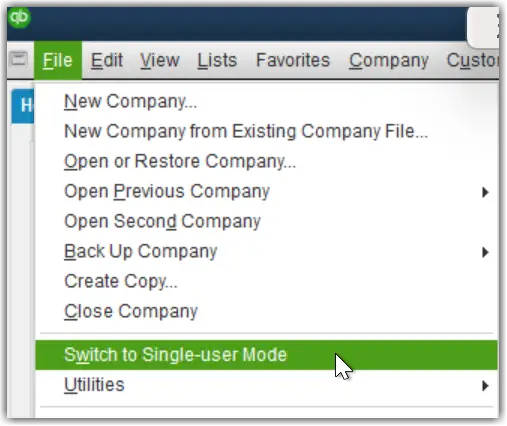
A message saying the file is in use is different from an application freeze. Read the message before ending any process.
If several workstations stop responding at the same time, ask the administrator to check the shared file connection and host computer. If only one workstation is affected, begin with that machine.
Method 8: Use General Repairs When Several Tasks Freeze
When QuickBooks Desktop keeps freezing across several files and tasks, the problem may need broader troubleshooting.
Save work in other apps, restart the computer, and check available resources. Then use the relevant QuickBooks repair tools.
Our QuickBooks Not Responding troubleshooting guide covers general procedures, including program diagnostics and installation repair.
Record each result. If a repair does not change the freeze, that information helps avoid repeating the same steps later.
How to Fix QuickBooks Online Freezing
QuickBooks Online freezing needs browser and service checks. Desktop file repair tools do not repair a browser session.
Solution 1. Check the Scope of the Problem
Find out whether one page, your whole session, or several users are affected.
Check Intuit’s QuickBooks service status page for a reported incident. If other users on different devices see the same issue, report that detail to support.
Before refreshing a page after clicking Save, Send, or a payment button, check whether the action completed. Repeated attempts may create duplicate work.
Solution 2. Test a Private Window or Another Browser
Open a private browsing window and sign in. Try the affected task once it is safe to do so.
You can also compare another supported, updated browser. If the task works there, the normal browser session becomes a stronger area to investigate.
Intuit’s guidance for unresponsive QuickBooks Online functions includes testing a private window, clearing cache when appropriate, and trying another supported browser.
Solution 2. Clear Relevant Browser Data and Check Extensions
If QuickBooks Online keeps freezing in your usual browser:
- Save any work you can.
- Sign out and close unused QuickBooks tabs.
- Clear the browser cache.
- If the issue remains, clear Intuit-specific cookies.
- Sign in and test again.
- Temporarily disable extensions one at a time to compare results.
Clearing cookies may sign you out. Make sure you can complete your normal sign-in checks before doing so.
If the freeze continues across browsers and devices, stop repeating cache resets. Collect the affected page, time, and action for support.
How Can You Reduce Repeat Freezes?
Reduce repeat freezes by addressing the pattern you found and checking the result during normal work.
Useful habits include:
- Close unused reports and forms. Keep only the windows needed for the current task.
- Limit large report requests. Start with the date range and detail you actually need.
- Schedule heavy work. Run large batches when fewer users need the shared file.
- Keep compatible software updated. Check QuickBooks, Office, and Windows compatibility before major changes.
- Keep reliable backups. Confirm that the backup process completes.
- Record recurring triggers. Note whether freezes follow one report, workstation, user, or recent change.
Intuit recommends closing unused QuickBooks windows and scheduling lengthy reporting or batch work outside busy periods as ways to reduce performance pressure.
After a fix, repeat the original task with the same file and settings. Opening QuickBooks successfully does not prove that an export or printing problem is resolved.
What If QuickBooks Still Keeps Freezing?
Contact Intuit support or your IT administrator when the freeze repeats after the relevant checks.
Prepare these details:
- QuickBooks edition, version, and release.
- Windows version, or browser version for QuickBooks Online.
- The exact action that causes the freeze.
- Whether one or several files, users, or computers are affected.
- Any message or screenshot.
- Recent software or network changes.
- Checks completed and what happened after each one.
A clear report is more useful than “QuickBooks is freezing.” For example: “The company file opens normally, but exporting this report freezes QuickBooks on one workstation.”
Conclusion
QuickBooks freezing is easier to troubleshoot when you know what triggers it. Start with the task that stopped responding, then check the related file, program, or connection. Make one change at a time and repeat the task to see whether it helped. Before repairing company data, create a backup. If the freezes continue, share the exact trigger and your test results with support.
Frequently Asked Questions
How Do I Unfreeze QuickBooks Desktop?
Check for hidden prompts and signs of progress first. If QuickBooks remains stuck and will not close normally, end the affected app through Task Manager. Reopen it and check your last transaction before entering it again. Coordinate with the administrator if you use a shared server.
How Long Should I Wait Before Force-Closing a Frozen QuickBooks?
There is no fixed wait time that fits every task. Compare the delay with the task’s normal run time and look for progress. Backups, restores, rebuilds, and conversions need extra care. If you are unsure whether one of these tasks is active, ask support before interrupting it.
Does Freezing Mean My Company File Is Corrupted?
No, A freeze can involve the computer, network, printer, email program, or company data. A sample-file test and a data check can help narrow the cause. Freezing by itself is not proof of corruption.
Can a Large Company File Cause Frequent Freezing?
A larger file can increase the work needed to load data and run reports. Performance also depends on the computer, network, and tasks involved. There is no single file size at which every QuickBooks setup will freeze. Do not condense data based on file size alone.
Is Freezing Related to My Network in Multi-User Mode?
It can be. Shared file access depends on the connection and host computer. Compare several users: if they freeze together, check the shared setup; if only one computer freezes, start with that workstation. The comparison helps guide the investigation.
Will I Lose Unsaved Data if QuickBooks Freezes?
Unsaved work may be lost if you force-close QuickBooks. You may have saved a transaction before the screen stopped responding. After reopening, check the relevant record before entering it again.
Why Does QuickBooks Freeze Only When Running Certain Reports?
Those reports may request more data or use settings that take longer to process. Try a shorter date range and compare a standard report with the custom version. If the same report still freezes, record its settings and ask support to investigate.
Accounts Confidant is an independent accounting and bookkeeping service provider and is not affiliated with Intuit.
