QuickBooks Desktop installation can fail at different stages. The setup file may not open, the installation may stop halfway, or an error such as 1603, 1722, 1903, or 1904 may appear on your screen.
These problems can occur because of damaged installation files, missing Windows components, software conflicts, or compatibility issues. However, each problem may require a different solution.
If you can’t install QuickBooks Desktop, start by checking where the installation stops and whether an error message appears. This will help you choose the right troubleshooting steps without making unnecessary changes to Windows.
Why Can’t You Install QuickBooks Desktop?
QuickBooks Desktop may fail to install when the installer cannot access required files, Windows components are damaged, or the computer does not meet the software’s system requirements.
The table below will help you identify where to start.
| Installation problem | What you should check first |
| QuickBooks setup file won’t open | Installer source, file properties, and Windows security warnings |
| Installation stops halfway | Error message, Windows updates, and installation components |
| Error 1603, 1722, or 1903 appears | QuickBooks Install Diagnostic Tool |
| Error 1904 appears | The file mentioned in the registration error |
| Setup stops at Installing ABS PDF Driver | ABS PDF Driver installation |
| Error 1712 appears | Quick Fix my Program and Windows account permissions |
| Subscription verification error appears | Subscription status and QuickBooks product version |
| Installation finishes, but QuickBooks won’t open | Program repair and startup troubleshooting |
For example, if the setup window freezes at Installing ABS PDF Driver, the problem may be related to that component rather than the entire QuickBooks installation.
In that case, follow our guide on QuickBooks stuck installing ABS PDF Driver for instructions specific to that problem.
If the installer displays an error code, record the complete message before proceeding.
What Should You Check Before Fixing QuickBooks Installation Errors?
Before running repair tools, check your system requirements, installation files, and existing company data.
Check QuickBooks Desktop System Requirements
Your computer must meet the requirements for the QuickBooks Desktop version you want to install.
For example, Intuit lists the following requirements for QuickBooks Desktop 2024.
| Component | QuickBooks Desktop 2024 requirements |
| Operating system | Supported 64-bit Windows version, including Windows 11 |
| Processor | 2.4 GHz minimum; Intel or AMD x86 processor |
| RAM | 8 GB minimum; 16 GB recommended |
| Storage | 2.5 GB for QuickBooks, plus additional space for company files |
| .NET Framework | Microsoft .NET Framework 4.8 Runtime, included with the installation files |
| Processor architecture | ARM processors are not supported |
Note: These are QuickBooks Desktop 2024 requirements. Other versions and editions may have different requirements.
You can check the complete specifications in Intuit’s QuickBooks Desktop 2024 system requirements.
To check your Windows version:
- Press Windows + I to open Settings.
- Select System, then About.
- Under Windows specifications, check your Windows version.
- Under Device specifications, check the processor, installed RAM, and system type.
- Compare these details with the requirements for your QuickBooks version.
If you are using an older QuickBooks Desktop release, do not assume it supports Windows 11 simply because a newer release does.
Verify the QuickBooks Installer
Check that the installation file matches your QuickBooks product, version, and country.
Also, keep your license and product information available. You may need these details during installation or activation.
If you are installing QuickBooks for the first time and need help choosing Express Install or Custom and Network Options, follow our step-by-step guide to installing QuickBooks Desktop.
Back Up Your Existing Company File
If QuickBooks was previously installed, protect your company data before repairing or removing the program.
Create a backup of your company file and store it outside any folders you plan to change.
If QuickBooks no longer opens, locate your existing company file or a recent backup before proceeding with a reinstall.
How to Fix QuickBooks Desktop Installation Errors
The following solutions address common QuickBooks Desktop installation failures. Start with the basic checks, then move to advanced troubleshooting only when necessary.
After trying a solution, run the installer again. Stop when the installation completes successfully.
Solution 1: Download a Fresh QuickBooks Desktop Installer
If QuickBooks setup won’t open or reports missing installation files, the downloaded installer may be incomplete or unsuitable for your version.
Use a fresh installer from Intuit rather than downloading installation files from an unknown website.
Follow these steps:
- Close any open QuickBooks installation windows.
- Visit Intuit’s official QuickBooks Downloads & Updates page.
- Select your country, product, and version year, where available.
- Download the appropriate installer.
- Open the folder where the file was saved.
- Check that the file came from Intuit before running it.
- Double-click the installer and follow the on-screen instructions.
If Windows displays a security warning, check the file’s publisher and source. Do not bypass an unknown publisher warning simply to continue setup.
If you are unsure which installer you need, our guide on downloading QuickBooks Desktop explains how to identify the correct release and check download eligibility.
What to check: Does the installer open and move past the stage where it failed earlier?
If the same error appears, keep the exact message for the next troubleshooting step.
Solution 2: Update Windows and Restart Your Computer
QuickBooks Desktop relies on Windows components to complete installation. Problems with these components or pending Windows updates can interfere with setup.
Intuit recommends installing Windows updates when troubleshooting errors such as 1603, 1722, and 1903.
To check for updates on Windows 11:
- Press Windows + I.
- Select Windows Update.
- Click Check for updates.
- Download and install available updates.
- Restart your computer when prompted.
- Run the QuickBooks installer again.
On Windows 10, Windows Update is located under Settings > Update & Security.
Be aware that Microsoft’s standard support for Windows 10 ended on October 14, 2025. If you still use Windows 10, review your Windows support and security-update options before relying on it for business accounting.
If the installation error continues after Windows is updated, try the diagnostic tool.
Solution 3: Run the QuickBooks Install Diagnostic Tool
The QuickBooks Install Diagnostic Tool checks and attempts to repair certain Microsoft components that QuickBooks Desktop needs during installation.
It can help with errors involving supported installation components, but it does not fix every installer, licensing, or Windows permission problem.
The tool is available through QuickBooks Tool Hub.
How to Run the QuickBooks Install Diagnostic Tool
- Close QuickBooks Desktop and any open setup windows.
- Open QuickBooks Tool Hub.
- Select Installation Issues from the left menu.
- Click QuickBooks Install Diagnostic Tool.

- Allow the tool to finish its scan. According to Intuit, this can take up to 20 minutes.
- Restart your computer.
- Run the QuickBooks Desktop installer again.
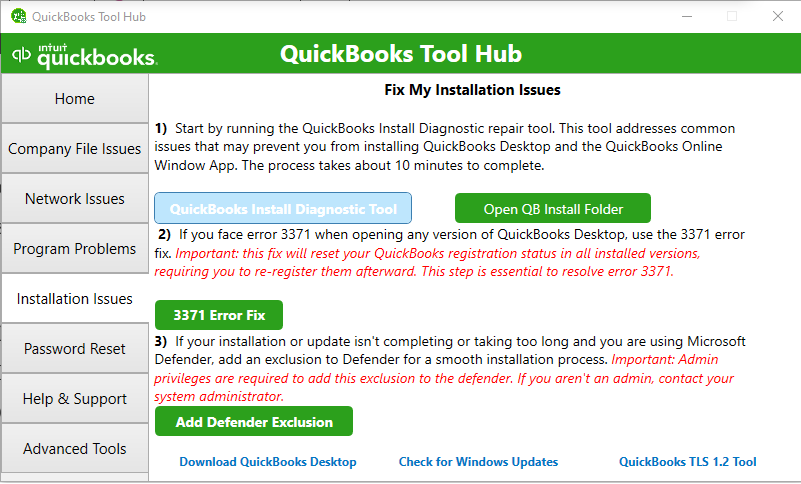
If Tool Hub is not installed, follow our QuickBooks Tool Hub download and installation guide.
If the diagnostic tool finishes but the installation still fails, note whether the original error remains or a different message appears.
A new error message may point to a more specific issue.
Solution 4: Check Windows Installer and Installation Permissions
If setup displays an access-denied message, fails to use a required folder, or reports a Windows Installer problem, check whether Windows allows the installation to proceed.
Start with these steps:
- Close other software installers and update Windows.
- Restart your computer to clear pending installation tasks.
- Sign in with a Windows account that has permission to install applications.
- Open the QuickBooks installer again.
- If Windows displays an error, record the exact message and any file or folder mentioned.
For example, an Access denied message that names a specific folder may indicate a permission problem with that location.
If your computer is managed by an employer, installation rights may be restricted. Ask your IT administrator to check the affected account or folder.
Do not change ownership of Windows system folders, grant unrestricted permissions, or edit Registry entries without identifying the underlying problem.
If Windows Installer errors also occur when installing unrelated applications, investigate Windows itself rather than repeatedly reinstalling QuickBooks.
Solution 5: Repair Microsoft .NET Framework or MSXML Components
QuickBooks Desktop uses Microsoft components, including .NET Framework and MSXML.
When these components are damaged or cannot be registered correctly, certain QuickBooks installations may fail.
Intuit recommends component repair for some installation errors when the Install Diagnostic Tool and Windows updates do not resolve the problem.
Microsoft .NET Framework
If the error message or official troubleshooting instructions point to .NET Framework, follow the repair procedure for the affected Windows and .NET versions.
Depending on the issue, this may involve Windows Features or Microsoft’s supported repair tools.
Microsoft MSXML
If the error involves MSXML, follow the appropriate official repair instructions for the affected component.
Avoid downloading replacement DLL files from third-party websites or running registration commands without confirming that they apply to your system.
Intuit advises that manual repairs should be performed by IT professionals, confident Windows users, or people working with Microsoft support.
You can find the relevant component-repair references in Intuit’s Error 1603 troubleshooting guide.
Solution 6: Use Selective Startup to Check for Software Conflicts
If QuickBooks installs unsuccessfully during normal Windows startup, another application or background service may be interfering with the process.
Intuit includes Selective Startup as an advanced troubleshooting option for certain installation errors.
This method temporarily changes which services and startup programs run in Windows, helping test whether another application affects QuickBooks setup.
Before using it:
- Save your work and close open applications.
- Confirm that you have permission to change Windows startup settings.
- Follow Intuit’s Selective Startup procedure for the installation error you are experiencing.
- Keep the Windows Installer service available as required by the procedure.
- Retry QuickBooks installation.
- Restore normal Windows startup settings when the test is complete.
If QuickBooks installs only in Selective Startup, that suggests a software or service conflict. It does not identify the exact program responsible.
Do not leave security software or required Windows services disabled after troubleshooting.
If you cannot determine which service is interfering, ask your IT administrator to investigate.
Solution 7: Reinstall QuickBooks Desktop if Earlier Repairs Fail
If QuickBooks was previously installed, damaged or incomplete program files may cause the installation problem to return.
A normal reinstall may help replace the affected program files. However, it is not the right first step for every error.
Before reinstalling, make sure:
- You have a usable backup of your company data.
- You have the correct QuickBooks Desktop installer.
- Your license and product information are available.
- Other users have closed QuickBooks, if the computer is part of a shared setup.
To uninstall QuickBooks Desktop on Windows:
- Open the Windows Start menu.
- Search for Control Panel and open it.
- Select Programs and Features or Uninstall a Program.
- Find the QuickBooks Desktop version you want to remove.
- Select Uninstall/Change.
- Choose Remove, then follow the on-screen instructions.
- Install QuickBooks Desktop again using the correct installer.
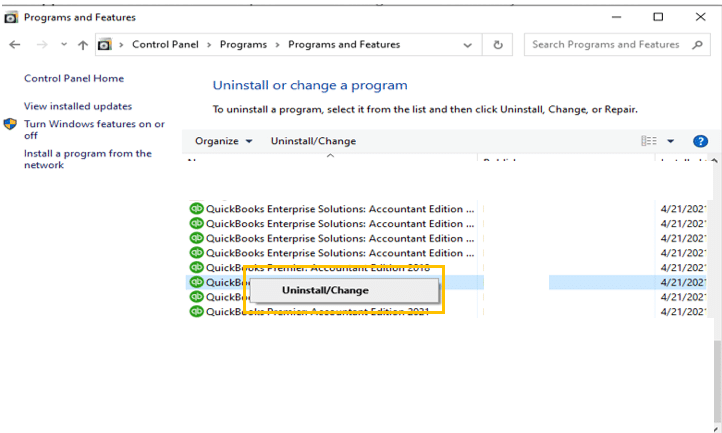
According to Intuit, its normal reinstall procedure does not affect company data. Still, keeping a verified backup is important before removing an existing installation.
If reinstalling produces the same error, the problem may involve remaining program folders or Windows components.
Our QuickBooks Clean Install Tool guide explains when a manual clean install may be appropriate and what you should protect before changing installation folders.
Do not delete entire Intuit folders or remove company files while troubleshooting.
How to Fix Common QuickBooks Desktop Installation Error Codes
Some installation errors require specific troubleshooting steps. Use the error message on your screen to choose the appropriate method.
| Error code | What the error indicates | Recommended action |
| 1603 | A general installation failure | Run the Install Diagnostic Tool and check Windows updates |
| 1722 | An installation error that may involve Windows components | Follow Intuit’s Error 1722 troubleshooting instructions |
| 1903 | A QuickBooks installation failure with several possible causes | Use the Install Diagnostic Tool and error-specific troubleshooting |
| 1904 | A file failed to register during installation | Identify the affected file and follow Intuit’s Error 1904 guide |
| 1712 | Required Windows restoration files or components could not be found | Run Quick Fix my Program as directed by Intuit |
| 2727 | A directory entry is missing from the Windows Installer package’s Directory table | Record the full message and seek installer-package-specific support if it persists |
What Should You Do if Error 1603, 1722, or 1903 Appears?
Intuit recommends similar initial troubleshooting for these three errors.
Start by running the QuickBooks Install Diagnostic Tool, restarting Windows, and checking for available Windows updates.
If those methods fail, follow the instructions for your exact error:
These guides also explain when advanced Windows component repairs or Selective Startup may be needed.
What if QuickBooks Error 1904 Appears?
QuickBooks Error 1904 commonly displays a message indicating that a particular file failed to register.
The message usually identifies the affected file or component.
Record the full file path and name before troubleshooting.
Intuit’s Error 1904 guide includes separate instructions for certain file-registration errors and special cases, including messages involving QBversionTool.dll.
Follow the procedure that matches the file mentioned in your error rather than attempting to register unrelated DLL files.
What if QuickBooks Error 1712 Appears?
Error 1712 can appear when files needed to restore Windows to an earlier state cannot be found.
Intuit identifies missing Windows components as a possible cause and recommends Quick Fix my Program as the first troubleshooting tool.
To run it:
- Close QuickBooks Desktop.
- Open QuickBooks Tool Hub.
- Select Program Problems.
- Click Quick Fix my Program.
- Wait for the tool to finish.
- Retry QuickBooks installation.

If the error continues, Intuit recommends checking Windows administrator account permissions. Seek help from an IT professional if Windows account or installer repair is required.
See Intuit’s Error 1712 installation guide for the full procedure.
What if QuickBooks Error 2727 Appears?
Windows Installer Error 2727 means the installer references a directory entry that does not exist in its Directory table.
Microsoft documents this definition in its Windows Installer error messages.
This message does not, by itself, prove that the Windows Registry, antivirus software, or QuickBooks company file is damaged.
If Error 2727 appears during QuickBooks setup, record the complete message and confirm that you are using the appropriate official installer.
If the error remains, ask Intuit support or an IT professional to investigate the installation package. Microsoft’s technical definition does not establish a single universal repair for every Error 2727 case.
What if QuickBooks Asks You to Verify Your Subscription During Installation?
A subscription-verification message is different from a normal installation failure.
Intuit documents the following messages when installing or updating QuickBooks Enterprise Solutions:
- “Sorry, we need to verify your subscription before installing QuickBooks Desktop.”
- “Sorry, it looks like you need a subscription to install QuickBooks Desktop.”
If you encounter one of these messages, start by checking your QuickBooks Enterprise subscription status.
Then confirm that you are using the latest available installer for your licensed product.
Intuit also notes that Windows user-account problems, third-party applications, or .NET Framework issues can interfere with verification on an individual workstation.
If the same error appears on every computer, Intuit recommends contacting its support team.
Follow the official subscription-verification troubleshooting guide for the steps specific to QuickBooks Enterprise.
Do not use another product’s license information or attempt to bypass subscription verification.
What if QuickBooks Installs Successfully but Won’t Open?
If the installer finishes but QuickBooks Desktop does not launch, the problem is no longer limited to the setup process.
You may see a blank window, a program that closes immediately, or a QuickBooks process that appears in Task Manager without opening the application.
Intuit recommends using Quick Fix my Program for certain program startup problems.
To run the tool:
- Close QuickBooks Desktop.
- Open QuickBooks Tool Hub.
- Select Program Problems.
- Click Quick Fix my Program.
- Allow the repair to finish.
- Try opening QuickBooks again.
Quick Fix my Program closes certain QuickBooks background processes and runs a quick program repair.
If QuickBooks still fails to open, follow our guide to fix QuickBooks Desktop not opening. That article covers startup-related problems without repeating the installation process.
When Should You Contact QuickBooks Support or an IT Professional?
If the same error continues after you have completed the relevant repair steps, further investigation may be needed.
Seek professional help when:
- Several Windows applications fail to install, not just QuickBooks.
- Windows Installer or permission errors continue after basic checks.
- QuickBooks installation works only in Selective Startup.
- Manual .NET Framework or MSXML repairs are required.
- A company-managed computer restricts installation permissions.
- The same error returns after reinstalling QuickBooks.
Before contacting support, collect your QuickBooks product and version year, Windows version, exact error message, and the troubleshooting steps you have already tried.
For example, explaining that QuickBooks Desktop 2024 installation stops with Error 1603 after running the Install Diagnostic Tool and installing Windows updates gives the technician a more useful starting point than reporting that QuickBooks will not install.
If other applications fail in the same way, tell the technician. That may help identify a wider Windows installation problem.
Conclusion
If QuickBooks Desktop still won’t install, use the exact error message and the point where setup fails to decide what to try next.
Errors 1603, 1722, and 1903 often begin with Intuit’s installation troubleshooting tools. Errors involving file registration, subscription verification, or a specific component may need a different procedure.
When the same problem affects other Windows applications, investigate Windows Installer or system components before repeating the QuickBooks installation.
Frequently Asked Questions
Can I Install an Older QuickBooks Desktop Version on Windows 11?
Some older QuickBooks Desktop versions may install on Windows 11, but successful installation does not mean Intuit officially supports the combination.
Check the system requirements for your exact QuickBooks version. If it is unsupported, compatibility issues may remain even if setup completes. Use a supported release when possible.
Why Does QuickBooks Setup Say Another Installation Is Already in Progress?
This message may appear when Windows Installer is already processing another installation or update.
Close other setup windows, allow pending updates to finish, and restart Windows before trying QuickBooks again.
If the message continues after restarting, the Windows Installer process may require further troubleshooting.
What Should I Do if the QuickBooks Desktop Installer Won’t Open at All?
First, make sure you downloaded the correct installer from Intuit. Check whether Windows displays a security warning or permission error.
If nothing happens when you double-click the file, restart Windows and try a fresh copy of the installer.
If other application installers also fail to open, investigate Windows rather than assuming QuickBooks is the cause.
Can I Reinstall QuickBooks Desktop Without Losing My Company File?
Yes, Intuit states that its normal QuickBooks Desktop reinstall procedure does not affect company data.
However, make a verified backup before removing the program. Keep company files separate from installation folders that may be renamed or removed during advanced troubleshooting.
What Should I Do if the QuickBooks Install Diagnostic Tool Doesn’t Fix the Error?
Restart Windows after running the tool and try installing QuickBooks again.
If the same error returns, check the exact code and follow Intuit’s error-specific instructions. Depending on the problem, the next step may involve Windows updates, component repair, or checking for software conflicts.
Avoid repeating the diagnostic scan without checking whether anything has changed.
How Can I Tell Whether the Installation Problem Is With QuickBooks or Windows?
Try to identify whether the issue affects QuickBooks alone.
If other applications install normally but QuickBooks repeatedly fails, check the QuickBooks installer, product compatibility, and error-specific guidance.
If several unrelated applications display Windows Installer errors or permission failures, the problem may involve Windows components or system settings.
This comparison can help narrow down the issue, although it does not establish the exact cause on its own.

