When installing QuickBooks Desktop, the setup may freeze on the message “Installing ABS PDF Driver…” and fail to move forward. You may wait for several minutes without seeing any progress, even though the installation window remains open.
Intuit lists a system issue or a slow internet connection as possible causes. Its recommended fix is to run QuickBooks Tool Hub’s Quick Fix my Program tool and then install the ABS PDF component manually.
This guide explains how to find the installer, run it safely, and handle the problem if the installation still fails.
What Is the ABS PDF Driver in QuickBooks?
QuickBooks Desktop uses the ABS PDF component to print transactions. If its installation fails, QuickBooks setup may not finish correctly.
The ABS PDF Driver installation problem is different from an error that appears when you try to save an invoice or report as a PDF after QuickBooks has already been installed.
You may be facing this installation issue if:
- QuickBooks setup remains on the “Installing ABS PDF Driver…” screen.
- The installation stops responding before it finishes.
- The setup process does not move past the PDF driver stage.
- You cannot complete the QuickBooks Desktop installation.
These symptoms point to an installation problem. They do not, by themselves, mean that your company file is damaged.
Why Does QuickBooks Get Stuck Installing the ABS PDF Driver?
Intuit identifies two possible reasons for this problem: a system issue or a slow internet connection. The message alone does not reveal which one is affecting your computer.
Rather than changing Windows settings or reinstalling QuickBooks immediately, start with Intuit’s recommended repair steps.
How to Fix QuickBooks Stuck Installing ABS PDF Driver
The recommended method is to run Quick Fix my Program and then launch ABSPDF412Setup from the Windows temporary folder.
Follow the steps in order.
Step 1: Close QuickBooks Desktop and Open Tool Hub
QuickBooks must be closed before you use QuickBooks Tool Hub.
If you already have Tool Hub installed, open it and continue to Step 2. Otherwise, follow our guide to download and install QuickBooks Tool Hub.
When installing Tool Hub:
- Download it from Intuit’s official website.
- Save the downloaded file somewhere easy to find, such as your Downloads folder.
- Open QuickBooksToolHub.exe.
- Follow the instructions on the screen and accept the terms.
- When installation finishes, open QuickBooks Tool Hub from your Windows desktop.

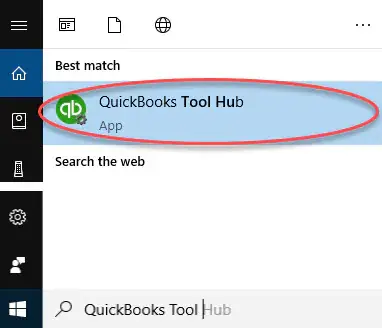
Step 2: Run Quick Fix my Program
Quick Fix my Program closes certain QuickBooks background processes and runs a quick repair on the program.
To use it:
- Open QuickBooks Tool Hub.
- Select Program Problems.
- Click Quick Fix my Program.
- Wait for the tool to finish.

Once the repair is complete, continue to the next step. You do not need to run the entire QuickBooks installation again before trying the manual fix.
Step 3: Open the Windows Temporary Folder
The ABS PDF installer is located in the temporary folder used by the QuickBooks installation process.
To open this folder:
- Press Windows + R on your keyboard.
- Enter %TEMP% in the Run box.
- Press Enter.
Windows should open the Temp folder in File Explorer.
Look for the folder that matches the QuickBooks product you are installing. Intuit’s instructions refer to names such as Prx_usXXrX or Enterprise_usXXrX. The letters and numbers vary by product, year, and release.
Do not assume that every folder with a similar name belongs to the installation you are trying to complete. If you have more than one QuickBooks version installed, check the folder carefully before continuing.
Step 4: Find ABSPDF412Setup
After locating the correct QuickBooks installation folder, open these folders in order:
- Open Third Party.
- Open ABS.
- Look for ABSPDF412Setup.
The folder path should look similar to this:
%TEMP% > [QuickBooks installation folder] > Third Party > ABS > ABSPDF412Setup
The actual name of the QuickBooks installation folder will depend on your product and release.
Make sure you select the installer from the correct folder. You should not need to download a separate copy from an unofficial website.
Step 5: Run the ABS PDF Installer Manually
Once you find ABSPDF412Setup, you can run it separately from the main QuickBooks setup.
Follow these steps:
- Double-click ABSPDF412Setup.
- Follow any instructions displayed by the installer.
- Wait for the installation to finish.
- When the installation is complete, open QuickBooks Desktop.
Intuit also instructs users to register their license when prompted.
If the installer completes and QuickBooks opens normally, the original installation problem may be resolved.
Step 6: Check Whether QuickBooks Works
After QuickBooks opens, check that the program is ready to use. If you were completing a new installation, finish any remaining setup steps.
You can also test whether QuickBooks can print a transaction.
If the installation finishes but QuickBooks still cannot save invoices or reports as PDFs, you may have a separate PDF or printing problem. The manual ABS PDF installation procedure is not a fix for every PDF-related error.
In that case, follow our guide to fix the QuickBooks missing PDF component error.
What If ABSPDF412Setup Is Missing?
If you cannot find ABSPDF412Setup, check the installation folder before trying other repairs.
- Return to %TEMP%.
- Find the folder that matches the QuickBooks product and release you are installing.
- Open Third Party, then ABS.
- Check whether ABSPDF412Setup is present.
If the file is missing, make sure you have opened the correct folder. Do not delete other folders or download a replacement driver from an unknown website.
Intuit’s dedicated ABS PDF instructions do not provide a separate repair procedure for a missing installer file. If you have checked the correct folder and the file is still absent, contact Intuit support or a qualified IT specialist for guidance on the correct installation files.
What If the ABS PDF Installer Freezes Again?
If ABSPDF412Setup also freezes or stops responding, do not keep repeating the same steps without investigating the problem.
Intuit specifically recommends consulting an IT specialist if the manual ABS PDF installer continues to freeze or stop responding.
Before contacting support, note these details:
- Your QuickBooks Desktop product and release.
- Your Windows version.
- The exact message displayed on the screen.
- Whether Quick Fix my Program completed successfully.
- Whether ABSPDF412Setup opened, froze, or displayed an error.
These details help narrow down where the installation fails.
Avoid deleting Windows files, changing registry entries, or removing printing components without knowing what they do. Such changes are not part of Intuit’s basic ABS PDF installation procedure.
If QuickBooks also fails at other stages of installation, you may need broader troubleshooting. Our guide to the QuickBooks Clean Install Tool explains the clean-install process and when it may be relevant. A clean install is not the first step for an error limited to the ABS PDF Driver stage.
What If QuickBooks Installs but Still Cannot Save PDFs?
An installation that finishes successfully but cannot save or print PDFs is a different problem from a setup that freezes while installing ABS PDF.
Intuit’s PDF troubleshooting guide recommends using the QuickBooks Print & PDF Repair Tool for problems such as a missing PDF component, a PDF Converter that appears offline, or an inability to save a form or report as a PDF.
The guide also covers Microsoft XPS Document Writer and temporary-folder permissions.
You can follow Intuit’s official PDF and Print troubleshooting instructions for those issues.
Conclusion
If QuickBooks Desktop freezes at the ABS PDF Driver stage, try the manual installation method before considering a full reinstall. Run Quick Fix my Program, locate ABSPDF412Setup in the correct temporary installation folder, and let the installer finish.
If the installer still freezes, stop repeating the process and consult an IT specialist or an Expert. If QuickBooks installs successfully but cannot save or print PDFs, follow the separate PDF troubleshooting steps instead.
Frequently Asked Questions
Why is QuickBooks stuck on Installing ABS PDF Driver?
Intuit lists a system issue or a slow internet connection as possible causes. The message alone does not identify the exact cause. Start with Quick Fix my Program and then run ABSPDF412Setup manually.
Where can I find ABSPDF412Setup?
Press Windows + R, enter %TEMP%, and press Enter. Open the folder that matches your QuickBooks installation, then go to Third Party > ABS and look for ABSPDF412Setup.
What should I do if ABSPDF412Setup is missing?
Check that you opened the correct QuickBooks installation folder. If the installer is still missing, do not download an unofficial copy. Contact Intuit support or a qualified IT specialist for help finding the correct installation files.
What if the ABS PDF installer freezes again?
Intuit recommends consulting an IT specialist if the manual installer continues to freeze or stop responding. Provide the exact error message and explain which troubleshooting steps you have already completed.
What if QuickBooks installs but cannot save PDFs?
Run the QuickBooks Print & PDF Repair Tool from QuickBooks Tool Hub and follow Intuit’s PDF troubleshooting instructions. This problem may involve a separate PDF or Windows printing component rather than the original installation freeze.

