QuickBooks Error 6177, 0 appears when QuickBooks Desktop cannot use the file path needed to open your company file. This often happens when the file is stored on a server, external drive, or shared location.
To fix QuickBooks Error 6177, 0, start by updating QuickBooks Desktop. Next, move the company file to a local drive, create a portable copy, and restore it to the correct location. If the error continues, use QuickBooks File Doctor or repair the network file path.
The right steps depend on how your company file is stored. This guide follows Intuit’s recommended troubleshooting process and explains how to protect your data during the repair.
What Is QuickBooks Error 6177 0?
QuickBooks Error 6177, 0 is a company file access error. It occurs when QuickBooks Desktop cannot use the path that points to your company file.
Your main QuickBooks company file has the .QBW extension. QuickBooks needs access to this file whenever you open your accounting records.
For example, suppose your office stores its company file on a server at:
D:\Accounting\CompanyFiles\MyBusiness.qbw
An employee tries to open the file from another computer, but QuickBooks cannot use the path. Instead of opening the file, the program displays Error -6177, 0.
This error does not automatically mean your accounting data is damaged. The file may still be intact, but QuickBooks cannot access it through the current path.
What Causes QuickBooks Error 6177, 0?
The main issue behind QuickBooks Error 6177 is an inaccessible company file path. Several file and network conditions may contribute to the problem.
| Possible cause | What it means |
| Incorrect company file path | QuickBooks cannot use the saved location of the .QBW file. |
| Company file moved | The file has been moved to a different drive or folder, and QuickBooks may still refer to the old location. |
| Network descriptor issue | The .ND file may need to be removed and recreated to refresh network access information. |
| Incorrect hosting settings | The server may not be set up correctly to share the company file. |
| Folder permission problem | The required QuickBooks service or authorized user may not have access to the company-file folder. |
| Company file issue | A file problem may prevent QuickBooks from opening it and require a scan with File Doctor. |
These are possible issues to check, not confirmed causes in every case.
For instance, if Error 6177 started after your company moved its accounting files to another server, check the file location first. There is no reason to reinstall QuickBooks before testing the path.
What Should You Check Before Fixing Error 6177?
Before changing any files, confirm where your company file is stored and make sure your accounting data is protected.
Follow these precautions:
- Ask all users to close the shared company file.
- Locate the main file ending in .QBW.
- Record its full folder path.
- Create a current QuickBooks backup if the file can still be opened.
- If QuickBooks cannot open the file, ask your administrator to preserve an untouched copy of the company file and its related files before making changes.
- Make sure you have the required QuickBooks and Windows administrator permissions.
If QuickBooks is open, pressing F2 displays the Product Information window, which can help you find the company file’s location.
Understand the QuickBooks File Types
You may see several files with similar names in the company-file folder.
| File extension | Purpose |
| .QBW | Your main QuickBooks company file |
| .QBB | A QuickBooks backup file |
| .QBM | A portable company file |
| .ND | A network descriptor file used for company-file access |
A portable .QBM file is not a replacement for a full backup. It does not include all the supporting files and items included in a complete backup.
Important: Never delete your main .QBW file or overwrite the original without checking which copy contains your latest records.
If the file is missing rather than showing Error 6177, follow our guide on how to fix a QuickBooks company file not found error.
Choose the Correct Repair Method for Your Server
Intuit provides different steps based on what is installed on the server.
| Your setup | Which method to follow |
| Server uses QuickBooks Database Server Manager without the full QuickBooks Desktop program | Follow the main troubleshooting steps below. |
| Full QuickBooks Desktop program is installed on the server | Use the separate full-server procedure later in this article. |
| You are unsure about your server configuration | Ask your administrator to confirm the installation before moving files. |
The two procedures are alternatives. You do not need to complete both.
How to Fix QuickBooks Error 6177, 0
Intuit recommends updating QuickBooks Desktop, refreshing the company file location, running File Doctor, and manually repairing the file path if needed.
Use the following steps if your server does not have the full QuickBooks Desktop application installed.
Solution 1: Update QuickBooks Desktop
Start by installing the latest available maintenance updates for your QuickBooks Desktop version.
To check for updates:
- Open QuickBooks Desktop.
- Click Help from the top menu.
- Select Update QuickBooks Desktop.

- Open the Update Now tab.
- Click Get Updates.
- Wait for the download to finish.
- Close and reopen QuickBooks.
- Select Install Now if prompted.
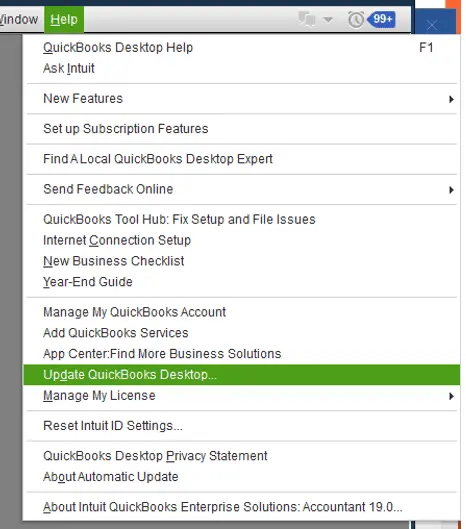
After the update, try opening your company file.
If Error 6177 still appears, continue with the file location repair.
Solution 2: Move the Company File to a Local Drive and Restore It
Intuit recommends moving the company file to a local C: drive, creating a portable copy, and restoring it to the original location.
This process refreshes the file location information QuickBooks uses.
Perform these steps on the server if possible. Intuit also allows the standard file-moving procedure to be completed from a workstation when the server is not accessible.
Step 1: Locate and Move the Company File
- Open the Windows Start menu.
- Search for File Explorer and open it.
- Browse to the folder containing your QuickBooks company file.
- Find the file ending in .QBW.
- Write down the full drive and folder path.
- Move the .QBW file to the local C: drive.
Move only the company file, not the entire folder.
For example, suppose your file is stored in:
D:\Accounting\CompanyFiles\MyBusiness.qbw
Record that location before moving the file to the C: drive.
Keep your protected copy separate from the working file used for troubleshooting.
Step 2: Create a Portable Company File
Once the .QBW file is on the local drive:
- Open QuickBooks Desktop.
- Select Open or restore an existing company.
- Browse to the company file on the C: drive.
- Open it and sign in as an administrator.
- Go to File > Create Copy.
- Select Portable company file.
- Click Next.
- Give the portable file a unique name.
- Choose a safe location and click Save, then OK.
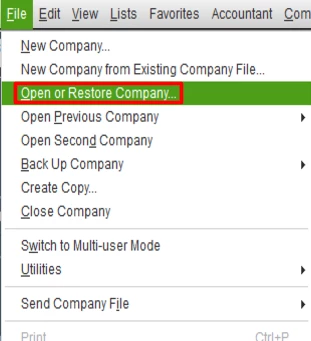
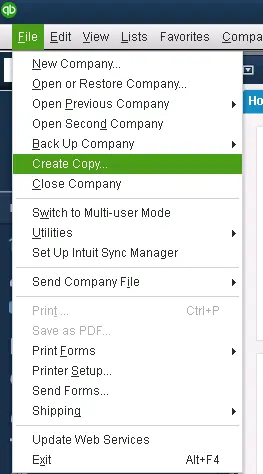
QuickBooks creates a file with the .QBM extension.
For example:
MyBusiness-Portable.qbm
Using a distinct name helps prevent confusion between the portable file and your regular company file.
Step 3: Restore the Portable Company File
Now restore the portable file to the intended company file location.
- Select File > Quit QuickBooks.
- Reopen QuickBooks Desktop.
- Go to File > Open or Restore Company.
- Select Restore a portable file.
- Click Next.
- Browse to the .QBM file you created.
- Select Open, then continue through the restore prompts.
- Choose the original company file location you recorded.
- Review the destination and file name.
- Select Save to restore the file.
- Close QuickBooks after the process finishes.
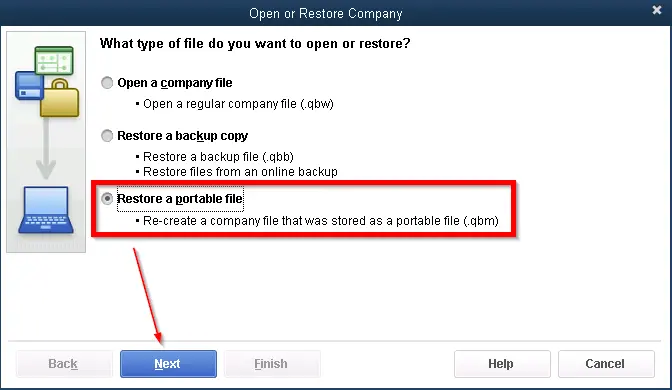
Avoid overwriting your existing company file. If QuickBooks asks to replace a file, stop and confirm that you have a verified backup and know which file contains the latest transactions. Use a different destination or file name until this is clear.
The restored company file will have the .QBW extension.
Open it and check whether Error 6177 has been resolved.
If the file opens, confirm that recent transactions are present before allowing other users to reconnect.
Solution 3: Run QuickBooks File Doctor
If restoring the company file does not work, run QuickBooks File Doctor on the server.
File Doctor can check supported company-file problems and may help refresh file access information.
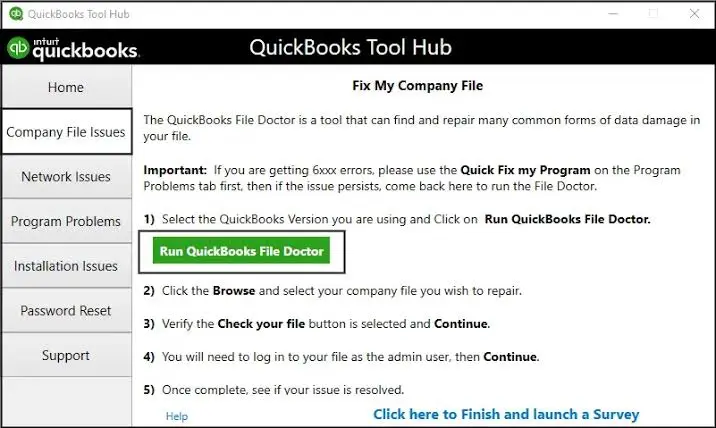
The utility is available through QuickBooks Tool Hub.
Step 1: Open QuickBooks Tool Hub
- Close QuickBooks Desktop.
- Open QuickBooks Tool Hub on the server.
- Select Company File Issues.
- Click Run QuickBooks File Doctor.
Step 2: Scan the Company File
- Wait for QuickBooks File Doctor to open.
- Select your company file from the dropdown menu.
- If the file is not listed, click Browse and locate it.
- Select Check your file.
- Click Continue.
- Enter the QuickBooks administrator password.
- Click Next to begin the scan.
The scan may take several minutes, depending on the file size and the issue being checked.
After it finishes, reopen QuickBooks and try accessing the company file.
Intuit notes that File Doctor may report an unsuccessful scan even when it has fixed the issue. The final test is whether QuickBooks can open your file.
If Error 6177 remains, check the network file path manually.
Solution 4: Repair the QuickBooks File Path Manually
The next step is to remove the relevant network descriptor file and rescan the company file folder.
Perform this repair on the server that stores your QuickBooks company file.
Step 1: Find the .ND File
QuickBooks uses a network descriptor file, known as an .ND file, to help access company files over a network.
To find it:
- Open File Explorer on the server.
- Go to the folder containing your company file.
- Find the .ND file that matches your company file name.
For example:
- Company file: MyBusiness.qbw
- Network descriptor: MyBusiness.qbw.nd
Make sure you have selected the correct file.
Step 2: Delete the Matching .ND File
Intuit recommends deleting the matching .ND file as part of its Error 6177 repair process.
- Right-click the matching .ND file.
- Select Delete.
- Confirm the action if Windows asks.
This does not delete the accounting records stored in your .QBW file.
Do not delete the .QBW file or remove unrelated files from the folder.
The network descriptor information can be refreshed when the company file folder is scanned again.
Step 3: Scan the Folder With Database Server Manager
Next, use QuickBooks Database Server Manager on the server.
- Open the Windows Start menu.
- Search for QuickBooks Database Server Manager.
- Open the program.
- Select the folder containing your QuickBooks company file.
- Click Start Scan.
- Wait for the scan to finish.
- Select Close.
Database Server Manager helps QuickBooks manage access to shared company files. Scanning the folder refreshes the network information used for that location.
Step 4: Check Folder Permissions
If QuickBooks still cannot access the file, check the Windows permissions for the company-file folder.
The QuickBooks database service and authorized users need the correct access rights.
Ask your server administrator to:
- Confirm that the company-file folder is shared with the required users.
- Check the permissions for the relevant QuickBooks database service account.
- Review the folder’s Windows security settings.
- Apply the permissions required by Intuit for the server setup.
Do not give every user unrestricted access or turn off security software without a clear reason.
Once the permissions are correct, open QuickBooks and test the company file from the server and workstations.
How to Fix Error 6177 When Full QuickBooks Desktop Is Installed on the Server
If the server has the full QuickBooks Desktop application installed, Intuit provides a separate repair procedure.
Use this method instead of the previous one when QuickBooks Desktop runs directly on the server that stores your company file.
Step 1: Reset Multi-User Hosting
Start on the server computer.
- Open QuickBooks Desktop.
- Go to File > Utilities.
- Select Stop Hosting Multi-User Access.
- Click Yes to confirm.
- Select File > Quit QuickBooks.
- Reopen QuickBooks without opening the company file.
- Go to File > Utilities again.
- Select Host Multi-User Access.
- Click Yes to confirm.
- Close QuickBooks.

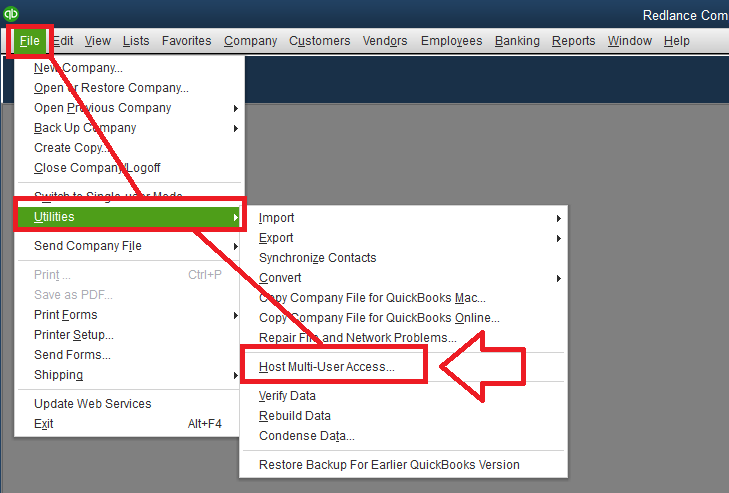
This resets the hosting configuration on the server.
Hosting should be managed on the computer responsible for sharing the company file, not switched on across every workstation.
For a broader explanation, see our QuickBooks Desktop multi-user mode guide.
Step 2: Move the Company File to the Server’s C: Drive
If the company file is stored on another drive, move it to the server’s local C: drive.
- Open File Explorer on the server.
- Locate the .QBW company file.
- Record its current folder path.
- Confirm that all users have closed the file.
- Preserve an untouched copy of the original data.
- Move the working .QBW file to the server’s C: drive.
Move the file, not the entire folder.
Step 3: Create a Portable Company File
Open the company file from its temporary location on the C: drive.
Then:
- Sign in to QuickBooks as an administrator.
- Go to File > Create Copy.
- Select the Portable company file.
- Click Next.
- Save the .QBM file with a unique name.
- Close QuickBooks.
For example, you could name the file:
MyBusiness-ServerRepair.qbm
Keep the portable file separate from your original .QBW file.
Step 4: Create a New QuickBooks Folder
Intuit’s full-server procedure includes creating a fresh folder on the server’s local C: drive.
- Open File Explorer.
- Create a new folder on the C: drive.
- Give it a clear name, such as QBCompanyFiles-New.
- Copy the contents of the existing QuickBooks company file folder into the new folder, including the portable file.
- Keep the original files protected while you test the repaired setup.
Do not replace existing files with older copies or change the working company file without checking its contents.
Step 5: Restore the Portable File and Test Access
Open QuickBooks Desktop on the server.
To restore the .QBM file, use Intuit’s documented portable-file restore method:
- Go to File > Open or Restore Company.
- Select Restore a portable file.
- Click Next.
- Select the .QBM file in the new folder.
- Continue through the restore prompts.
- Choose the intended location for the restored .QBW file.
- Use a safe destination and file name to avoid overwriting your original company file.
- Select Save.
A .QBM file is a portable file, not a normal working .QBW file. Restore it before using the resulting company file for daily accounting.
Intuit’s Error 6177 instructions describe opening the file from the new folder, while its general portable-file guide gives the dedicated Restore a portable file command. The restore steps above follow that dedicated .QBM procedure.
After restoring the file:
- Open the restored company file on the server.
- Check that your recent transactions are present.
- Confirm that the server is sharing the correct file location.
- Open the same company file from an authorized workstation.
- Test access from the other computers that normally use it.
If you changed the working folder, make sure every workstation opens the new file path rather than an older copy.
Create a full backup once you have confirmed that the repaired file works.
What If QuickBooks Error 6177 Still Appears?
If the error remains, check where the file opens successfully and where it fails.
The results can help you identify the next issue to investigate.
| What happens | What to check |
| The file opens on the server but not a workstation | Server connection, folder permissions, and hosting settings |
| QuickBooks cannot find the .QBW file | Actual file location, file name, and available backups |
| File Doctor cannot finish the scan | Tool Hub, file access, and File Doctor errors |
| One workstation fails while others work | The affected workstation’s connection and file path |
| The error returns after moving the file | The restored file location and whether users are opening the correct copy |
For example, if three employees can open the company file but one cannot, the problem may be limited to that workstation.
Before moving the company file again, check whether the affected computer can reach the server and access the shared folder.
Our guide to QuickBooks Desktop not connecting to the server covers broader connection problems.
If every workstation fails, ask your administrator to check the server, Database Server Manager, and company file permissions.
Avoid repeated file moves, restores, or overwrites until you know which file contains the latest accounting records.
How Can You Prevent QuickBooks File Path Problems?
A stable file location and a clear server setup can help reduce company-file access problems.
Keep these practices in place:
- Use a consistent file location. Do not move the working .QBW file between drives without updating the setup.
- Back up your company file. Create regular QuickBooks backups and check that they can be restored.
- Keep QuickBooks updated. Install maintenance updates for your supported Desktop version.
- Manage hosting correctly. Use the correct computer to host shared company files.
- Protect folder access. Give authorized users and QuickBooks services the permissions they need.
- Test after server changes. Confirm that workstations can open the right company file after moving folders or changing servers.
For instance, if your business replaces its accounting server, test the company file from each workstation before staff begins using the new location.
This helps identify incorrect paths and access settings before daily work resumes.
Conclusion
QuickBooks Error 6177, 0 is usually a company-file path issue, not proof that your accounting data is lost.
Start with the repair steps that match your server setup. Update QuickBooks, refresh the company file location, and use File Doctor if needed. For network-related problems, check the .ND file, Database Server Manager, and folder permissions.
Once the file opens, confirm that your latest transactions are present, check that every workstation uses the correct file, and create a fresh backup.
Frequently Asked Questions
Does QuickBooks Error 6177 mean my company file is corrupted?
No, Error 6177, 0 does not confirm that your company file is damaged. It means QuickBooks cannot use the required file path. The problem may be related to the file location or network setup rather than the accounting data itself.
Can QuickBooks File Doctor fix Error 6177, 0?
Yes, File Doctor may help resolve Error 6177 when the issue involves a supported company file problem. Intuit includes it in the official repair process. However, it may not fix incorrect server hosting or folder permissions.
Is it safe to delete the QuickBooks .ND file?
Intuit recommends deleting the matching .ND file during the manual Error 6177 repair process. The .ND file stores network information, not your main accounting transactions. Make sure you select the correct file and do not delete the .QBW company file.
Can restoring a .QBM file overwrite my company file?
Yes, Intuit warns that restoring a portable file with the same name in the same location can overwrite an existing company file.
Before restoring, check the destination, use a unique file name or folder when needed, and preserve a verified backup of the original data.
Why does QuickBooks Company File Error 6177 appear on one workstation only?
If other computers can open the shared company file, the affected workstation may have a connection, access, or file-path problem.
Check whether it can reach the server and open the correct company file location before changing the files stored on the server.
Do I need to reinstall QuickBooks to fix Error 6177?
Reinstalling QuickBooks is not part of Intuit’s main Error 6177 repair sequence. Start with updates, file location repair, File Doctor, and the relevant server settings.
Consider repairing the installation only if separate troubleshooting shows that QuickBooks Desktop itself has an installation problem.
Accounts Confidant is an independent accounting and bookkeeping service provider and is not affiliated with Intuit.
