Ever sat down, ready to get some work done, only to find that QuickBooks won’t open your company file? Not exactly the best way to start the day. Before you assume your financial data has disappeared into thin air, take a breath. The QuickBooks company file not found error doesn’t automatically mean your data is gone. More often than not, QuickBooks just can’t locate the file it’s looking for.
There are a few reasons this might happen. Maybe someone moved the file to a different folder, a network drive lost its connection, or QuickBooks is having trouble accessing a shared location. It’s frustrating, sure, but the good news is that there are several things you can try before jumping into complicated repairs or restoring a backup.
So, grab that coffee, and let’s figure out what’s going on. We’ll walk through the common causes of this error and explore some straightforward fixes to help you get QuickBooks back up and running.
Why Are You Seeing the QuickBooks Company File Not Found Error?
Well, there isn’t always one clear reason behind your QuickBooks company file missing. However, there are a few things that could be going wrong if the company file you selected could not be found:
| Cause | Why It Happens |
| Company file moved or renamed | QuickBooks looks for the file at its old location or under its previous name. |
| Changed file path or drive letter | A remapped network drive or changed folder path makes the saved location inaccessible. |
| Network connectivity issues | A disconnected server or unstable network prevents QuickBooks from accessing the shared file. |
| Multi-user mode problems | Incorrect hosting settings or folder permissions can block access to the company file. |
| QuickBooks or Windows update | An update may expose compatibility, permission, or network access issues. |
| OneDrive synchronization issues | Incomplete syncing or changes to the file’s location can interrupt access. |
| VPN or Remote Desktop issues | A dropped VPN connection or unavailable remote drive can make the file unreachable. |
| Company file deleted or missing | The file may have been accidentally deleted, moved to another folder, or stored on an unavailable drive. |
| Incorrect file type | Trying to open a backup file (.QBB) as a regular company file (.QBW) can prevent access. |
| File damage or storage issues | Company file corruption or drive problems may prevent QuickBooks from opening the file correctly. |
To choose the right troubleshooting method, you must know the cause behind it first, now let’s discuss the solutions.
How to Fix the QuickBooks Company File Not Found Error
Try these solutions one at a time. You can start with the simplest checks before moving on to advanced troubleshooting.
Solution 1: Update QuickBooks and Check Your Company File Type
Let’s start with the basics. Before digging into complicated fixes, make sure QuickBooks is up to date and you’re trying to open the correct file.
Here’s what to check:
- Install the latest available QuickBooks Desktop updates.
- Find your company file and check its extension. A regular working company file ends in .QBW.
- If the file ends in .QBB, it’s a backup that needs to be restored. A .QBM file is a portable company file and requires the appropriate opening process.
Also, check whether the file is compressed or encrypted. Right-click it, select Properties > Advanced, and review the relevant settings. Only change them if you’re authorized to do so.
Now try opening the file again. If the QuickBooks company file is still not found after the update, let’s move on.
Solution 2: Open Your Company File Without Saved Desktop Windows
Here’s something you might not expect: the company file itself may be fine, but QuickBooks could be struggling to reopen all the windows and reports from your previous session.
Here’s how to open the file without loading those saved windows:
- As usual, you must open QuickBooks Desktop first.
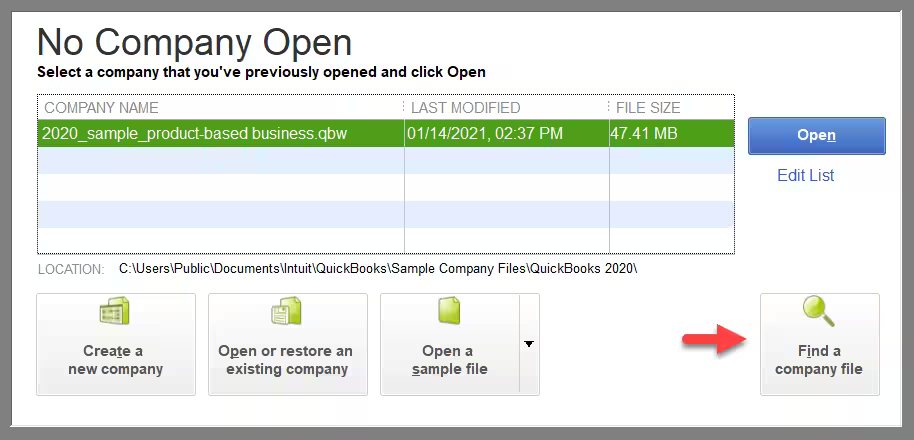
- Moving forward, on the No Company Open screen, select your company file.

- Then, press and hold ALT and select Open. Keep holding ALT until the company file opens.
- When prompted by QuickBooks to sign in, release ALT and enter your password. Then press and hold ALT again while selecting OK.
To change the desktop preference to prevent the issue from recurring:
- Go to Edit and select Preferences.
- Select Desktop View.
- Choose Don’t save the desktop, then select OK.
- Close and reopen QuickBooks, then open your company file again.
QuickBooks still displaying the company file error? Continue to the next solution.
Solution 3: Turn Off Hosting on Your Workstations
If your company file is stored on a network and multiple users access it, incorrect hosting settings could prevent QuickBooks from opening the file. In a multi-user setup, only the server computer should host the company file.
Check the hosting settings on each workstation first:
- Open QuickBooks Desktop on a workstation, but don’t open the company file.
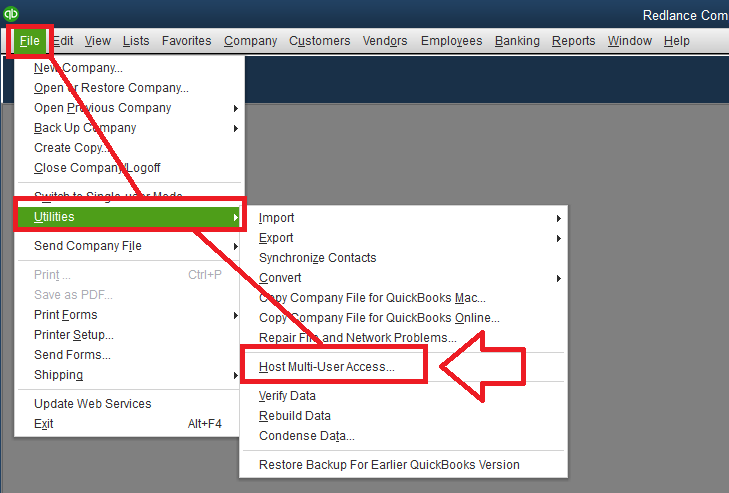
- Go to File and select Utilities.
- Check which option appears:
- If you see Host Multi-User Access, don’t select it. Move to the next workstation.
- If you see Stop Hosting Multi-User Access, select it to turn off hosting on that workstation.
- If you see Host Multi-User Access, don’t select it. Move to the next workstation.
- Repeat these steps on every workstation.

Next, check the server computer, which normally stores and hosts the company file:
- Open QuickBooks Desktop on the server.
- Go to File and select Utilities. If Host Multi-User Access is available, select it.
- Switch hosting off and back on:
- Go to File > Utilities > Stop Hosting Multi-User Access.
- Then return to File > Utilities > Host Multi-User Access.
- Try opening your company file again.
Not sure whether the problem is QuickBooks itself or your company file? A sample file can help you narrow things down.
Solution 4: Open a Sample Company File
Follow these steps to open the sample company file:
- Open the Windows Start menu.
- Press and hold CTRL while selecting QuickBooks Desktop. Keep holding CTRL until the program opens.
- Select Open a Sample File.
Check the result:
- The sample file also fails to open: The problem may be with QuickBooks Desktop or the program installation. Troubleshoot QuickBooks itself before continuing.
- The sample file opens successfully: QuickBooks can open another company file, so the issue may be related to your original file, its location, or possible data damage.
There might be a chance that the sample company file opens but your own file doesn’t, if that is the case, refer to the next solution.
Solution 5: Move Your Company File to a Different Location
Sometimes, QuickBooks can’t access a company file because of an issue with its current folder or location. Copying the file to your desktop and opening it from there can help you determine whether the original location is causing the problem.
If your company file is shared over a network, make sure all users have signed out of QuickBooks before you begin.
- Open the Windows Start menu, search for File Explorer, and open it.
- Navigate to the folder containing your company file. Look for the file named after your company with the .QBW extension.
- Right-click the company file and select Copy.
- Right-click an empty area on your desktop and select Paste.
- Open QuickBooks Desktop and go to File > Open or Restore Company.
- Select the company file you copied to your desktop, then select Open.
If moving your company file to a different location didn’t resolve the issue, don’t worry. The next step is to check whether your computer is properly connected to the network hosting the QuickBooks company file.
Solution 6: Ping the Server to Ensure You Are Connected to the Network
When your QuickBooks company file is stored on a network, check whether your computer can communicate with the server. A connection issue may prevent QuickBooks Desktop from accessing the file.
- Identify the name of your server computer.
- Press Windows + R on your keyboard.
- Type CMD and click OK.
- Enter ipconfig /all and press Enter.
- Note the server’s host name.
- Type ping [server name], replacing [server name] with your server’s name, and press Enter.
- Check whether you receive replies from the server. This means that your computer can communicate with the server.
If the connection is working but the error persists, proceed to the next solution.
Solution 7: Search for All QuickBooks Company Files
Your company file may still be available on your computer or server but saved in a different folder. Searching for QuickBooks file extensions can help you locate it.
- Open File Explorer on your server computer or the computer where your company file is stored.
- Navigate to the appropriate drive or folder.
- Enter one of the following extensions in the search bar. Make sure to include the asterisk (*) before the extension.
- *.qbw for working company files
- *.qbb for backup files
- *.qba for Accountant’s Copy files
- *.qbx for Accountant’s Copy transfer files
- *.qby for Accountant’s Copy change files
- Wait for the search to finish.
- Once you locate the file, note its full location.
Found your file? Great! The next step is to open it using the correct method.
Solution 8: Open Your Company File in QuickBooks Desktop
To open a company file (.QBW) or Accountant’s Copy (.QBA):
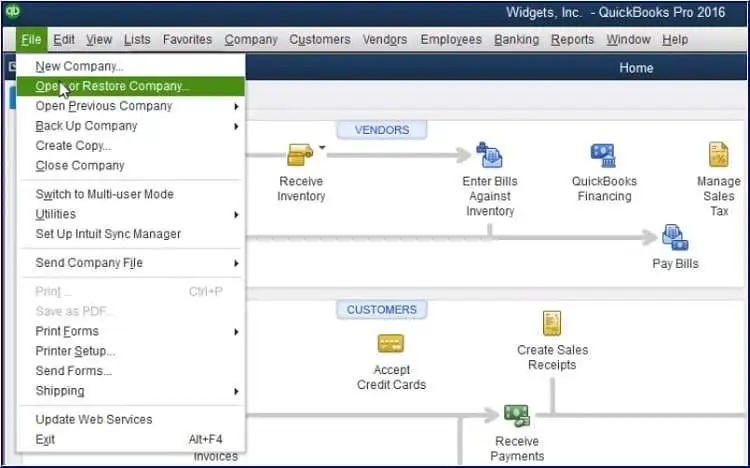
- Open QuickBooks Desktop and select File > Open or Restore Company.
- Choose Open a Company File, then click Next.
- Browse to the folder containing your file.
- Select the file and click Open.
To restore a backup file (.QBB):
To convert an Accountant’s Copy transfer file (.QBX):
- Open QuickBooks Desktop and select File > Open or Restore Company.
- Choose Convert an Accountant’s Copy Transfer File, then click Next.
- If the What the Accountant’s Copy Can and Can’t Do window appears, review it and click Next.
- Select your .qbx transfer file and click Open.
- Choose where you want to save the resulting Accountant’s Copy file.
- Click Save.
Once you’ve completed the appropriate steps, check whether QuickBooks can open your company file successfully.
Note: The Accountant’s Copy File Transfer feature is available only in the US and Canadian versions of QuickBooks Desktop.
Solution 9: Run QuickBooks File Doctor
If QuickBooks still can’t locate or open your company file after trying the previous solutions, it’s time to investigate whether a file-related or network issue is getting in the way. QuickBooks File Doctor can help diagnose and resolve certain problems that prevent you from accessing your company file.
Here’s how to run the tool:
- Close QuickBooks Desktop if it’s currently running.
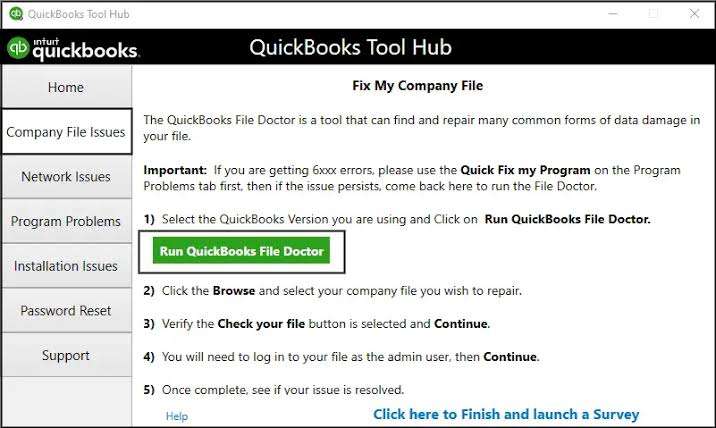
- Open QuickBooks Tool Hub on your computer. If you haven’t installed it yet, download it from Intuit’s official website.
- Select Company File Issues from the available options.
- Click Run QuickBooks File Doctor.
- Select your company file from the list. If you can’t see it, browse to its saved location.
- Follow the on-screen instructions to start the diagnosis and repair process.
- Once the process finishes, open QuickBooks Desktop and check whether you can access your company file.
If the tool identifies and fixes an issue, you may be able to open your company file without further troubleshooting. However, if the error continues, move on to the next solution.
Solution 10: Scan Your Company File Folder Using QuickBooks Database Server Manager
If your company file is stored on a server and shared with other users, QuickBooks Database Server Manager is another tool worth trying. It helps QuickBooks Desktop identify company files on the network and maintain access to them.
A fresh scan may help resolve certain network-related problems that prevent workstations from opening the company file.
Follow these steps:
- Go to the computer where your company file is stored.
- Open QuickBooks Tool Hub.
- Select Network Issues.
- Open QuickBooks Database Server Manager.
- Browse to the folder containing your company file if the folder isn’t already listed.
- Select Start Scan to scan the folder.
- Once the scan finishes, return to your workstation and try opening the company file again.
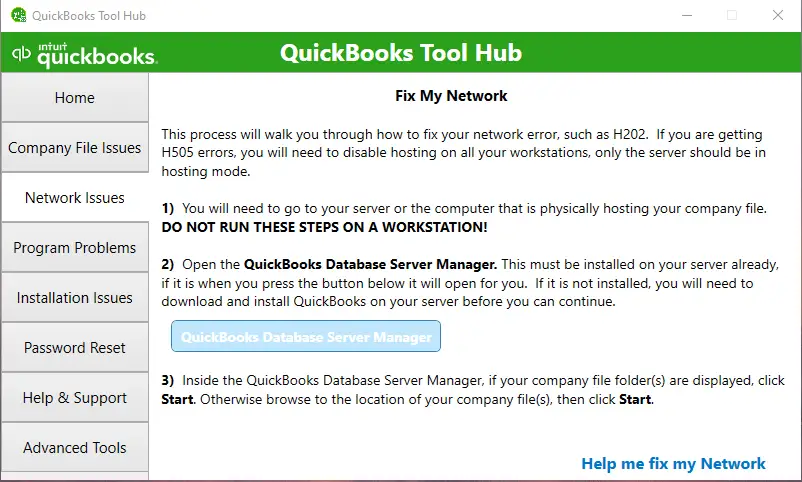
If QuickBooks can now access the company file, the scan may have helped resolve the network-related issue. If the error persists, continue to the next solution.
Note: This solution is primarily intended for company files stored on a network. It may not be necessary for a standalone, single-user setup.
Solution 11: Rename the Network Data (.ND) and Transaction Log (.TLG) Files
Sometimes, the company file itself isn’t the problem. QuickBooks also uses supporting files to manage network access and track transaction activity. If these files become damaged or contain outdated information, they may interfere with access to your company file.
Renaming the relevant .ND and .TLG files allows QuickBooks to create fresh versions when needed.
Here’s how to do it:
- Close QuickBooks Desktop on all computers currently accessing the company file.
- Open File Explorer and navigate to the folder where your company file is stored.
- Look for the .ND and .TLG files that have the same base name as your company file.
- Before making any changes, create a separate backup of your company file and keep it in a safe location.
- Right-click the corresponding .ND file and select Rename. Add .old to the end of its existing name.
- Repeat the process for the corresponding .TLG file.
- Open QuickBooks Database Server Manager and scan the company file folder again, if you’re using a network setup.
- Reopen QuickBooks Desktop and try accessing your company file.
If the issue was related to these supporting files, QuickBooks may be able to recreate them and restore access. If you still can’t open the file, proceed to the final troubleshooting solution.
Important: Rename only the supporting .ND and .TLG files, not your actual .QBW company file. If you’re unsure which files to change, consult a QuickBooks professional before proceeding.
Solution 12: Check Firewall and Folder Permissions
You’ve confirmed that the company file exists, checked your network connection, and tried the available troubleshooting tools. So, what if QuickBooks still can’t access the file?
In some cases, your firewall settings or Windows folder permissions may be preventing QuickBooks from reaching the company file. This is particularly common when the file is stored on another computer or a shared network drive.
To check for these issues, follow these steps:
- Navigate to the folder containing your company file.
- Check that the folder is shared with the appropriate Windows users on your network.
- Verify that the relevant users have the permissions required to access and modify the company file.
- Open your firewall or security software settings and check whether QuickBooks Desktop or its database services are being blocked.
- If necessary, configure the appropriate firewall exceptions using Intuit’s official instructions or ask your IT administrator for assistance.
- Once you’ve reviewed the settings, reopen QuickBooks Desktop and try opening your company file again.
If QuickBooks opens the file successfully, the issue may have been related to access permissions or security settings. If the error continues, you may need a QuickBooks specialist or IT professional to investigate the underlying problem.
A quick safety reminder: Avoid turning off your firewall or antivirus protection completely just to test whether QuickBooks works. It’s safer to check the specific permissions and exceptions that the software needs.
Conclusion
Incase, your QuickBooks company file is missing or cannot be found, start with the basics: check the file extension, look in the usual folders, and make sure your network connection is working. If those checks don’t help fix the QuickBooks company file not found error, try the relevant QuickBooks troubleshooting tools and review your hosting settings and permissions.
Most importantly, keep a separate copy of your original company file before attempting repairs or restoring a backup. If nothing works or you suspect the file is damaged, get help from a QuickBooks specialist before making further changes. A careful check now is better than risking your accounting data by rushing into a fix.
FAQs
How do I fix the company file not found error after a Windows 11 update?
For the “QuickBooks company file not found after Windows 11 Update 26H2”, please make sure to go through these troubleshooting checks:
– Restart your computer
– Verify the company file path
– Check network connectivity
– Update your QuickBooks Desktop
– Run QuickBooks with admin permissions and access
– Review the security settings of Windows
– Verify the folder permissions
What is the default QuickBooks company file location?
The default location for QuickBooks Desktop company files is:
C:\Users\Public\Public Documents\Intuit\QuickBooks\Company Files
Your file may be stored in a different folder, depending on your setup.
What should I NOT do when my QuickBooks company file is missing?
You should avoid deleting files, overwriting backups, moving the original file without keeping a copy, or running unverified repair tools. You should also never restore an older backup over your current data without understanding which transactions may be lost.
How do I recover a deleted QuickBooks company file?
To recover a deleted company file: Check the Windows Recycle Bin, search your computer and connected drives, and look for copies in cloud storage or backup locations. Restore a .qbb backup through QuickBooks. For permanently deleted files, stop writing new data to the affected drive and consult a data-recovery professional.
What is the difference between .qbw, .qbb, .qba, .qbx, and .qby files?
Each file serve a distinct purpose:
– .QBW: The primary QuickBooks company file containing financial data.
– .QBB: A backup copy of a company file.
– .QBA: An accountant’s copy working file.
– .QBX: An accountant’s copy export file.
– .QBY: An accountant’s changes file used to import changes into a company file.
Use the appropriate one when opening, restoring, or transferring company data.
How do I fix QuickBooks error 6010, 6130, or 6147?
You should start by recording the exact error message and code then later on update QuickBooks Desktop, verify the company file path, and check folder permissions. For network-related errors, review hosting settings and run QuickBooks Database Server Manager.
What is the QuickBooks default file path, and why does it matter?
The default path is the standard folder where QuickBooks Desktop stores company files.
The usual location is C:\Users\Public\Public Documents\Intuit\QuickBooks\Company Files.
Knowing the path helps you locate missing files, verify shortcuts, and troubleshoot access problems.
How do I fix the QuickBooks company file path changed after drive letter remapping?
Sometimes, Windows changes a network drive letter, and QuickBooks keeps looking for your company file in the old location. To fix this, open File Explorer and find your .QBW file using the updated drive letter. Open QuickBooks Desktop, browse to the file’s new location, and open it. Also, update any outdated shortcuts and make sure you have permission to access the folder.
How do I fix QuickBooks company file not found after OneDrive sync?
OneDrive syncing issues can sometimes make your QuickBooks company file difficult to locate or access. Start by closing QuickBooks Desktop and checking OneDrive for any sync errors. Next, locate your .QBW file and make sure it’s fully downloaded. Copy it to a suitable local folder outside OneDrive, keeping the original file safe, and try opening the copy in QuickBooks. For multi-user setups, store the working company file in a supported network location instead of a OneDrive-synchronized folder.


