To upgrade QuickBooks Desktop to 2024, you need an eligible subscription, a compatible computer, and a backup of your company file. You can then install the 2024 software and convert your existing company file to work with the newer version.
For eligible QuickBooks Desktop 2022 and 2023 users, Intuit provides an upgrade option directly within the software. Older versions may require a different installation method, and some company files need additional steps during conversion.
Before starting, check which QuickBooks version you have and whether your subscription includes Desktop 2024. The instructions below cover the Windows upgrade process, older company files, multi-user installations, and situations where the upgrade fails.
Can You Still Upgrade QuickBooks Desktop to 2024?
Yes, existing QuickBooks Desktop subscribers who qualify for version 2024 can still upgrade. Intuit includes the upgrade for eligible active Desktop Plus and Enterprise subscribers without an additional version-upgrade charge.
QuickBooks Desktop 2024 is also the final annual release of the software. Instead of releasing a new version every year, Intuit now provides updates to the 2024 platform.
According to Intuit’s updated Desktop release policy, QuickBooks Desktop Plus 2024 and Enterprise 24.0 were the last annual platform releases.
Intuit has also confirmed that Desktop 2024 Pro Plus, Premier Plus, and Enterprise will not be discontinued in May 2027, as previously expected. There is currently no announced sunset date for version 24.0.
However, the ability to install Desktop 2024 depends on your current product and license.
Which QuickBooks versions can be upgraded to 2024?
| Current QuickBooks version | Upgrade options |
| QuickBooks Desktop 2023 Pro Plus or Premier Plus | Eligible active subscribers can upgrade to 2024 through Intuit’s supported process. |
| QuickBooks Desktop 2022 | Active subscribers may qualify for the in-product upgrade to 2024. |
| QuickBooks Desktop 2021 or older | The company file may be compatible with 2024, but access to the 2024 software must be confirmed separately. |
| QuickBooks Desktop Enterprise 2022 or 2023 | Eligible subscribers can move to Enterprise 24.0 using the appropriate Enterprise upgrade process. |
| QuickBooks Desktop 2024 | No version upgrade is required. Install the latest maintenance release instead. |
There is one important restriction for older perpetual-license users.
Since October 1, 2024, Intuit has stopped selling new U.S. subscriptions for QuickBooks Desktop Pro Plus, Premier Plus, and Mac Plus. Existing eligible subscribers can continue renewing, but an older perpetual license does not automatically provide access to Desktop 2024.
If you are unsure whether you can install the software, check your subscription in the Intuit Customer Account Management Portal (CAMPs).
Our guide to downloading QuickBooks Desktop explains where to find official installers, license details, and product availability.
What Should You Check Before Upgrading QuickBooks Desktop to 2024?
Start by checking your current version, system compatibility, and company file backup. These steps help you avoid installation problems and protect your accounting records during conversion.
1. Check your current QuickBooks version
You can find the installed product and release number inside QuickBooks Desktop.
- Open QuickBooks Desktop.
- Press F2 or Ctrl + 1.
- Check the Product Information window.
- Record the product name, version year, and release number.
For example, if the window shows QuickBooks Desktop Premier Plus 2023, you need to upgrade the application to Premier Plus 2024.
If it already shows QuickBooks Desktop 2024, you only need to install the latest available maintenance release.
In that case, follow our instructions to update QuickBooks Desktop rather than completing another version upgrade.
2. Confirm QuickBooks Desktop 2024 system requirements
QuickBooks Desktop 2024 requires a 64-bit Windows installation and compatible hardware.
| Component | Requirement |
| Operating system | Windows 11, 64-bit, or a supported Windows Server edition |
| Processor | 2.4 GHz or faster, x86 Intel or AMD |
| RAM | 8 GB minimum for a workstation; 16 GB recommended |
| Disk space | At least 2.5 GB for the application, plus space for company files |
| Internet | Required for activation and connected services |
Windows Server 2016, 2019, and 2022 are listed among the supported server versions. QuickBooks Desktop 2024 does not support 32-bit Windows or ARM processors.
Although Desktop 2024 can run on some Windows 10 systems, Microsoft ended general Windows 10 support on October 14, 2025. A supported operating system is the safer choice.
If your computer uses Windows 7, Windows 8, or an unsupported hardware configuration, address that problem before installing Desktop 2024.
You can confirm the complete requirements in Intuit’s QuickBooks Desktop 2024 system requirements.
3. Back up your QuickBooks company file
QuickBooks must convert your older company file before it can open in Desktop 2024. Once converted, the file generally cannot be reopened in the previous year version.
Create a backup before installing the newer software.
- Open your company file in the existing QuickBooks version.
- Switch to single-user mode if necessary.
- Go to File → Back Up Company → Create Local Backup.

- Select Local Backup, then Next.
- Choose a backup location and review the verification options.
- Select Save it now and complete the prompts.
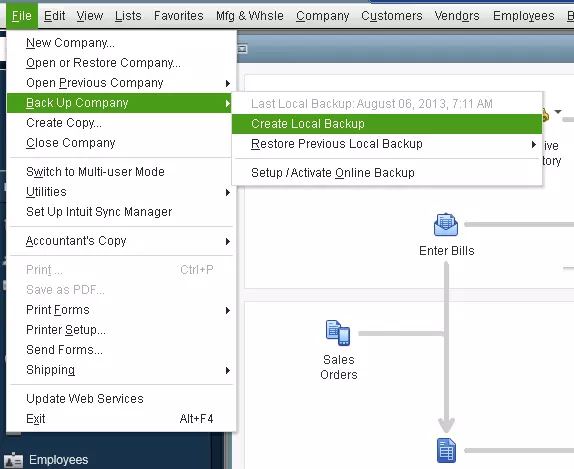
QuickBooks creates a backup file with the .QBB extension.
Store it separately from your working company file. If possible, keep an additional copy on a different drive or secure storage location.
For example, if you are upgrading Premier Plus 2023 to 2024, save a backup identified as your final 2023 copy. That file provides a recovery point if the 2024 conversion fails.
If you manage several businesses, create a separate backup for each company file.
4. Prepare your company file and other users
If more than one person uses your company file, arrange a time when everyone can sign out.
Before upgrading:
- Confirm that you can sign in as the QuickBooks company file administrator.
- Note the current company file location.
- Save important financial reports for comparison after conversion.
- Check whether payroll, inventory, or third-party integrations support Desktop 2024.
- Allow enough time to install the program and test the converted file.
For financial comparisons, save a Balance Sheet and Profit & Loss report with fixed reporting dates. If you use inventory, consider saving an Inventory Valuation Summary as well.
These reports help you check whether the converted company file contains the balances you expected.
How to Upgrade QuickBooks Desktop to 2024 on Windows
Eligible single-user installations of QuickBooks Desktop 2022 and 2023 can use the Upgrade QuickBooks option within the software.
Intuit also provides an automatic upgrade notification and alternate installation methods for eligible subscribers.
Method 1: Upgrade to QuickBooks Desktop 2024 from within the software
This is the primary method documented by Intuit for eligible single-user Windows installations of Desktop 2022 and 2023.
- Open QuickBooks Desktop and sign in to your company file.
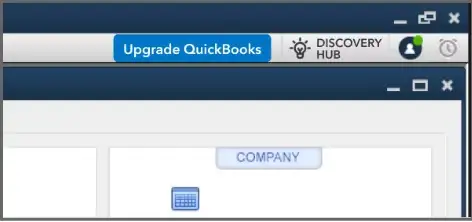
- On the QuickBooks homepage, select Upgrade QuickBooks.
- Review the available version and system requirements.
- Select Upgrade now.
- Click Continue.
- Allow QuickBooks to download and install version 2024.
- Confirm that you have a backup of the company file from your older version.
- Open QuickBooks Desktop 2024.
- Sign in to the company file as the administrator and complete the required conversion.
Once the new installation and company file have been checked, you can decide whether to remove the older application.
If QuickBooks offers Keep the old version on my computer, you can select it when you want to retain the previous program.
However, retaining Desktop 2023 does not allow it to open a company file already converted to Desktop 2024. You would need an appropriate pre-conversion backup to use the older file format.
The steps above follow Intuit’s official instructions for upgrading to QuickBooks Desktop 2024 within the software.
Method 2: Upgrade using the automatic notification
Some eligible installations display an upgrade notification when QuickBooks opens.
If you see the notification:
- Select Upgrade Now.
- Choose Keep old version on my computer if you want to retain your existing installation.
- Select Let’s go.
- Wait while QuickBooks downloads, installs, and activates the new version.
- Select Open QuickBooks when the process finishes.
You can then open the company file and complete its conversion, if required.
What if the upgrade notification does not appear?
You can check whether the 2024 upgrade is available through Discovery Hub.
- Open Discovery Hub near your profile icon.
- Select Upgrade to QuickBooks 2024, if available.
- Click Proceed to upgrade.
- Select Upgrade Now.
- Choose whether to keep the older installation.
- Click Let’s go and follow the prompts.
If neither option appears, check whether your subscription provides access to Desktop 2024.
For eligible users who need another installation method, Intuit also supports upgrading through QuickBooks Desktop Manager using the appropriate license information.
Do not assume that downloading a Desktop 2024 installer means your existing license will activate it.
Can you schedule the QuickBooks Desktop 2024 upgrade?
Yes, some eligible users can schedule the upgrade instead of installing it immediately.
When the Upgrade QuickBooks window offers scheduling, select a date and time and choose Continue.
QuickBooks displays a confirmation and provides reminders before the scheduled upgrade.
This option may be useful if several employees share the company file or your business needs to finish payroll before changing versions.
Confirm that your backups are complete and users know when QuickBooks will be unavailable.
How Do You Upgrade QuickBooks Desktop 2023, 2022, or Older Versions to 2024?
The correct procedure depends on the software you currently use and your access to the 2024 product.
The main distinction is between installing Desktop 2024 and converting an older company file. A file may be compatible with the newer format even when the owner does not have a license to install the 2024 application.
Upgrade QuickBooks Desktop 2023 to 2024
Eligible Desktop 2023 subscribers can use the supported in-product upgrade procedure.
This includes qualifying Pro Plus and Premier Plus installations, such as Premier Plus Contractor Edition.
QuickBooks Desktop 2023 reached its service-discontinuation date on May 31, 2026. Intuit services such as supported payroll, payments, and bank feeds are affected when a product version reaches its discontinuation date.
If you have an active qualifying subscription, confirm that Desktop 2024 is available, back up your company file, and follow the Windows upgrade procedure.
Upgrade QuickBooks Desktop 2022 to 2024
Intuit includes eligible single-user Desktop 2022 installations in its in-product upgrade documentation.
If Desktop 2024 is available through your subscription, you can use the same Windows upgrade process described above.
Do not confuse this with Help → Update QuickBooks Desktop.
That menu installs maintenance releases for the version you already have. It does not automatically turn every Desktop 2022 installation into Desktop 2024.
Upgrade QuickBooks Desktop 2021, 2020, 2019, or 2016 to 2024
Older Desktop versions require an additional licensing check.
Suppose you have QuickBooks Desktop Pro 2019 with accounting records from several years and want to move to Desktop 2024.
You need to establish two things:
- Whether you have access to an eligible QuickBooks Desktop 2024 product.
- Whether your existing company file can be converted to the newer version.
A perpetual license for Desktop 2019 does not automatically grant access to Pro Plus 2024.
If you already have a valid Desktop 2024 installation available, create a backup of the old company file and attempt the supported conversion process.
Intuit explains that older company files can generally be converted to a newer Desktop version. However, some files may require conversion through an intermediate version when a direct upgrade fails.
For example, an Intuit Community discussion about moving from QuickBooks Desktop Pro 2016 to Pro Plus 2024 confirmed that a direct company-file upgrade was possible in that particular situation.
That does not guarantee direct conversion for every 2016 file.
If QuickBooks reports a compatibility error, preserve the original file and determine whether an intermediate conversion is necessary before attempting other changes.
You can review these limitations in Intuit’s company file compatibility guide.
How to Convert Your Company File to QuickBooks Desktop 2024
After installing the 2024 application, you must update your older company file so the new software can read it.
For example, installing Premier Plus 2024 does not automatically convert every Premier Plus 2023 company file stored on your computer. The conversion takes place when you open the older file in the new version and confirm the update.
Step 1: Locate the original company file
Open your older QuickBooks version and press F2.
In the Product Information window, find the company file location under File Information.
Record the path before closing the program.
If your company file is stored on a server, Intuit’s standard conversion instructions call for moving it to a suitable local drive for conversion and returning it afterward. Coordinate the process with your administrator if you have a shared or hosted installation.
Step 2: Open the company file in QuickBooks Desktop 2024
Once the new application is installed:
- Open QuickBooks Desktop 2024.
- Go to File → Open or Restore Company.
- Select Open a company file, then Next.
- Browse to the existing .QBW file.
- Select the file and click Open.
- Sign in as the QuickBooks company-file administrator.
- Review the automatic backup location. Choose a different location if necessary.
- Select Update Now.
- Wait for QuickBooks to complete the conversion.
- Select Done when prompted.
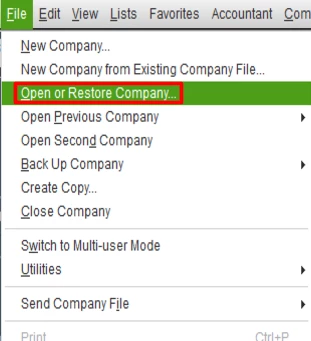
If you have a .QBB backup rather than a working .QBW file, choose Restore a backup copy instead of Open a company file.
Do not rename the file extension to make QuickBooks recognize a different file type.
If you need to recover a backup before proceeding, our guide explains how to restore a QuickBooks backup file while preserving other working copies.
Step 3: Reset non-admin user passwords
QuickBooks Desktop 2024 and Enterprise 24.0 introduce a password-related requirement when older company files are converted.
According to Intuit, after updating the company file, non-admin users need temporary passwords. When those users sign in, QuickBooks prompts them to create permanent passwords.
If five employees use the company file, for example, all five may need to complete their individual sign-in requirements before they can return to work.
Arrange this with the company-file administrator before reopening the file to your team.
Step 4: Confirm that the converted file opens correctly
Once QuickBooks finishes converting the company file, open it and check the company name, file location, and expected records.
Do not delete the original backup immediately.
A successful conversion means QuickBooks can open the file in its newer format. It does not confirm that every third-party integration, user permission, or report has been checked.
The conversion steps are also documented in Intuit’s official company-file upgrade instructions.
How to Upgrade QuickBooks Desktop 2024 in Multi-User Mode
When several employees share a company file, the upgrade needs to be coordinated across the host and workstations.
The host may store the file and run QuickBooks Database Server Manager, while employees access it from separate computers.
Before upgrading:
- Arrange downtime so employees can close their company files.
- Back up the shared company file and record its location.
- Confirm the correct 2024 product and licensing for the installation.
- Have the administrator follow Intuit’s applicable server and workstation upgrade procedure.
- Convert the company file using the authorized administrator account.
- Confirm that workstations have the appropriate QuickBooks version and can reconnect to the shared file.
The exact installation sequence depends on whether you use Pro Plus, Premier Plus, Enterprise, a dedicated server, or a managed hosting service.
For hosted QuickBooks, follow the provider’s upgrade procedure rather than installing software directly on a server you do not manage.
After conversion, test access from a workstation before allowing everyone to resume work.
If users receive H202, H505, or another network-access error, review the hosting configuration and file permissions. Our QuickBooks Desktop multi-user mode guide covers those connection problems in detail.
How to Upgrade QuickBooks Desktop Mac Plus to 2024
QuickBooks Desktop Mac Plus has a different upgrade process from Windows.
For eligible Mac Plus subscribers, Intuit provides an upgrade prompt within the application.
Before proceeding, back up your company file and make sure QuickBooks is in single-user mode.
Then:
- Open QuickBooks Desktop for Mac.
- Select Upgrade for Free when the upgrade window appears.
- Click Let’s go.
- Allow QuickBooks to download and install the newer version.
- Select Open QuickBooks when installation finishes.
- Register or activate the new version as prompted.
If the upgrade window does not appear, open Help → Upgrade QuickBooks and follow the same instructions.
Intuit states that the Mac Plus upgrade process retains the old application version on your computer.
QuickBooks Mac Plus 2024 requires macOS Monterey 12.0 or later. Other requirements differ from the Windows edition, so check compatibility before installing.
Why Is the QuickBooks Desktop 2024 Upgrade Not Working?
If the upgrade fails, identify whether the problem occurs before installation, during activation, or while converting the company file.
These stages involve different components. Reinstalling QuickBooks will not necessarily resolve a damaged company file, and running data-repair tools will not correct an invalid software license.
The Upgrade QuickBooks option is missing
If you’re eligible for Desktop 2024 but the upgrade notification does not appear, try restoring QuickBooks’ one-time messages.
- Open QuickBooks Desktop.
- Go to Edit → Preferences.
- Select General → My Preferences.
- Click Bring back all one-time messages.
- Select OK.
- Close and reopen QuickBooks.
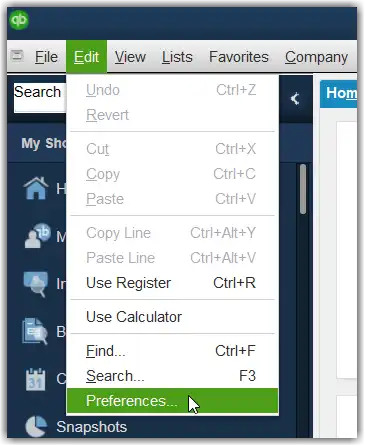
Check whether the upgrade notification appears.
If not, review Discovery Hub and your subscription entitlement. Eligible users may also use QuickBooks Desktop Manager with their license information.
Restoring notification settings will not make an expired or ineligible license qualify for the upgrade.
QuickBooks Desktop 2024 won’t install
An installation failure may show an error code such as 1603, 1722, 1903, or 1904.
First, confirm that:
- Your system meets Desktop 2024 requirements.
- You downloaded the correct installer from Intuit.
- You have permission to install software on the computer.
- Enough disk space is available.
If a specific installation error appears, use the code to identify the relevant repair procedure.
For example, Error 1603 may involve Windows installation components, while Error 1904 can indicate a problem registering a software component.
Instead of attempting several unrelated Windows repairs, follow the troubleshooting steps for the actual error. Our QuickBooks Desktop installation troubleshooting guide covers common installation failures and diagnostic options.
QuickBooks Desktop 2024 installs but won’t activate
Check whether the installed product matches your subscription and license information.
For example, a license for QuickBooks Desktop Pro 2020 cannot be used as though it were a Pro Plus 2024 entitlement.
Review the product and license details in CAMPs. If the information is correct but activation still fails, record the exact message and use Intuit’s activation support guidance.
Avoid unofficial license generators and third-party activation utilities.
The company file won’t convert to QuickBooks 2024
If Desktop 2024 opens successfully but the company file fails to convert, preserve the original backup before attempting a repair.
Start with the error message.
If QuickBooks reports a data problem and the file still opens in the older version, you can use File → Utilities → Verify Data to check for known integrity issues. 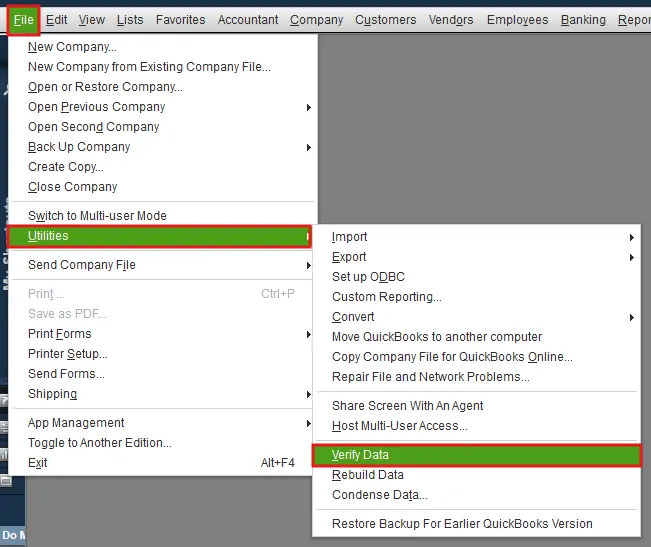
When Verify Data identifies damage, review the results before attempting another conversion. Our guide to Verify and Rebuild Data in QuickBooks Desktop explains the checks and precautions.
If the error concerns version compatibility rather than file damage, rebuilding the file may not help. An older file may require an intermediate-version conversion.
Do not repeatedly overwrite the original file or backup while investigating the problem.
QuickBooks cannot find the company file after the upgrade
A missing file does not necessarily mean the conversion deleted your data.
Start by checking the folder where the original .QBW file was stored and the location selected during conversion.
If you moved the file from a server, confirm whether it is still on the local computer or has been returned to the shared location.
If you cannot locate it, follow the steps in our QuickBooks company file not found guide.
How Do You Know QuickBooks Desktop 2024 Upgraded Successfully?
Check the installed version first, then compare the converted company file with the records saved before upgrading.
Confirm the QuickBooks version
Open Desktop 2024 and press F2 or Ctrl + 1.
The Product Information window should display QuickBooks Desktop 2024 and the installed release number.
If the version is correct but the release is outdated, install the latest applicable maintenance update.
Compare important financial reports
Open your converted company file and run the same reports you saved before the upgrade.
For example, suppose the Accounts Receivable Aging Summary showed $24,650 before the conversion.
After upgrading, run that report again using the same reporting date and settings. If the balance has changed unexpectedly, investigate before entering more transactions.
Check the following where relevant:
- Balance Sheet and Profit & Loss totals.
- Accounts receivable and accounts payable balances.
- Bank reconciliation information.
- Open invoices, unpaid bills, and customer payments.
- Inventory quantities and valuation.
- Payroll records and connected services.
Make sure the reports use the same dates, accounting basis, and filters.
Different report settings can produce different totals even when the underlying records are unchanged.
Also confirm that employees can access the converted file and that any essential integrations still work.
Once those checks are complete, create a fresh backup of the 2024 company file. Keep the pre-upgrade backup separately for recovery purposes.
Conclusion
After upgrading to QuickBooks Desktop 2024, the most important check is whether your converted company file opens correctly and contains the expected records.
If the software installs but file conversion fails, keep the original backup and investigate the error before making further changes.
For eligible subscribers using Desktop 2022 or 2023, Intuit’s in-product upgrade process provides a supported route to the 2024 platform. Older installations require additional licensing and compatibility checks.
Once the 2024 installation works, keep it current with Intuit’s periodic maintenance and security updates. You no longer need to plan for another annual Desktop version release under Intuit’s current release policy.
Frequently Asked Questions
Can I upgrade QuickBooks Desktop 2016 directly to 2024?
Some QuickBooks Desktop 2016 company files can be converted directly to Desktop 2024. However, Intuit explains that certain older files may require conversion through an intermediate version. You also need valid access to the 2024 software; a 2016 perpetual license does not automatically provide it.
Can I upgrade multiple QuickBooks company files to 2024 at once?
You can use the same eligible 2024 application to convert multiple compatible company files, but each file must go through its own conversion process. Create separate backups and check the results for every company before resuming normal work.
Can I still use QuickBooks Desktop 2023 after upgrading to 2024?
You may retain the older application if the installation process permits it. However, a company file converted to Desktop 2024 generally cannot be opened in Desktop 2023. You would need the original pre-conversion file or an appropriate older backup.
Can I use QuickBooks Enterprise company files in Pro Plus 2024?
No, QuickBooks Enterprise company files cannot be opened in Desktop Pro Plus or Premier Plus. Use the appropriate Enterprise upgrade path to move an existing Enterprise company file to version 24.0.
Can I convert a Canadian QuickBooks company file using the U.S. version of QuickBooks 2024?
No, QuickBooks Desktop company files are region-specific. A Canadian company file cannot be opened directly in the U.S. edition through a normal version upgrade. Cross-region conversion requires a separate, supported process.
Is QuickBooks Desktop 2024 still supported after May 2027?
Under Intuit’s current policy, QuickBooks Desktop 2024 Pro Plus, Premier Plus, and Enterprise will not be discontinued in May 2027. Intuit has not announced a sunset date for version 24.0 and plans to continue providing product and security updates. Continued access to subscription-based services remains subject to the applicable subscription terms.
What should I do if QuickBooks 2024 opens but some transactions appear missing?
First, confirm that you opened the correct company file. Check its location and compare reports using the same dates and settings as before the upgrade. If records are genuinely missing, preserve both the converted file and the original backup before attempting restoration or another conversion.
Accounts Confidant is an independent accounting and bookkeeping service provider and is not affiliated with Intuit.