To restore QuickBooks backup file, open QuickBooks Desktop and select File > Open or Restore Company > Restore a backup copy. Choose your .QBB backup and save the restored company file in a separate folder.
Before you start, check the backup date. An older backup will not contain work entered after it was created. Keep your current company file, if available, until you have checked the restored copy.
This guide covers QuickBooks Desktop for Windows. QuickBooks for Mac and QuickBooks Online use different processes.
What Should You Check Before Restoring a Backup?
Check the file type, backup date, and QuickBooks version first. These details help you choose the right file and avoid replacing records you still need.
Make Sure You Have the Right File
A backup file and a working company file use different options in QuickBooks.
| File extension | What it contains | What to do |
| .QBB | A backup of your company file | Select Restore a backup copy |
| .QBW | Your working company file | Select Open a company file |
| .QBM | A portable company file | Select Restore a portable file |
Do not change the extension to make a file open. Renaming a .QBB file to .QBW does not convert it.
Choose the Right Backup Date
Choose a backup from the point you want to recover. The newest backup may be useful after a computer failure, but you may need an earlier copy to undo a recent mistake.
Use the filename and your backup records as starting points. After restoring, check the actual transactions to confirm that you chose the right copy.
If the backup you expected is missing because scheduled backups failed, follow our guide to Intuit Data Protect not working.
Protect Your Existing Files
Keep the original backup and any current company file while you test the restore.
Before starting:
- Create a fresh backup of the current company file if it still opens.
- Keep that backup separate from the older copy you plan to restore.
- Copy backups from USB drives or cloud storage to a local folder.
- Choose a separate folder for the restored company file.
- Check that your QuickBooks version can restore the backup.
A backup created in a newer QuickBooks version cannot be restored in an older version. Installing a maintenance update does not necessarily resolve a mismatch between product years.
How to Restore a QuickBooks Backup File
Use the backup restore option in QuickBooks Desktop. The process creates a working .QBW company file from your .QBB backup.
- Open QuickBooks Desktop.
- Select File > Open or Restore Company.

- Choose Restore a backup copy, then select Next.
- Select Local Backup, then Next.
- Browse to your .QBB file, select it, and choose Open. Continue through the prompts.
- Choose where to save the restored company file. Use a separate folder or a unique filename.
- Select Save and let the restore finish.
- Open the restored company file if it does not open automatically. Enter the company-file password if prompted.
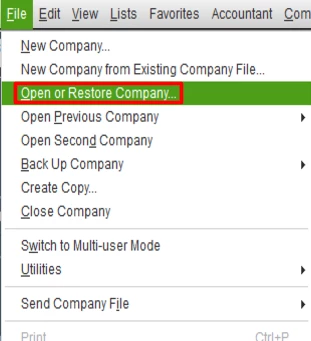
If QuickBooks warns that a file already exists, check the destination before continuing. Choose another name or folder unless you intend to replace that file.
Keep the source backup after restoration. You may need it again if you selected the wrong destination or need to compare another recovery point.
How Do You Know the Correct Backup Was Restored?
Check the company, file location, and expected records before entering new transactions. A file that opens without an error may still be the wrong backup.
Start with a few records you know should be present.
| What to check | What you should confirm |
| Company name | You opened the correct business |
| File location | You are using the restored copy |
| Known invoices and bills | Records entered before the backup are present |
| Payments and deposits | Expected amounts and details match |
| Financial reports | Dates, filters, and accounting basis match your comparison records |
| Shared access | Other users know which company file to open |
Compare reports for the same date range and use the same cash or accrual basis. Different report settings can produce different totals even when the underlying records match.
Also consider when your comparison report was saved. Today’s report may include entries that did not exist when the backup was created.
Once you confirm the restored file is suitable, decide which copy will become the working file. Make sure everyone uses that copy so new entries do not get split between two files.
Why Are Recent Transactions Missing After the Restore?
Recent transactions may be missing because they were entered after the backup was created. You may also have opened an older company file by mistake.
For example, suppose you restore a backup made on Friday morning. Payments entered on Friday afternoon will not appear in that restored copy.
Before assuming the restore failed:
- Check the backup date.
- Confirm the location of the company file you opened.
- Look for a later usable backup.
- Check the original company file, if it is still available.
Restoring a backup does not automatically merge it with newer work.
If you have already entered transactions in the restored file, preserve both copies before restoring again. Identify which records each file contains. Replacing one file without that check could remove the work you just entered.
If only one transaction needs correction, first consider whether you can fix that record directly. Restoring the whole company file changes much more than one invoice or bill.
What Should You Do if QuickBooks Cannot Restore the Backup?
Start with the exact error message. Check the backup, software version, and save location before trying broader repairs.
| What happens | What to check next |
| QuickBooks says the backup was made in a newer version | Use a compatible QuickBooks version |
| The backup format is invalid | Confirm that you selected an actual backup and that the copy or download finished |
| A file with the same name already exists | Choose a different name or folder |
| QuickBooks cannot access or save the file | Check access to the source and destination folders |
| Restoration fails from a USB or network location | Copy the backup to a local folder and retry |
| The same backup keeps failing | Try another backup copy while preserving the original |
For restore errors, Intuit also recommends checking the filename and avoiding overwrite conflicts. A .QBB extension alone does not prove that the file is complete or usable.
If restoration creates a company file but opening it produces a 6000-series error, follow the guidance for that specific QuickBooks company-file error. Avoid applying several unrelated fixes at once.
What if the Restore Finishes but the Company Does Not Open?
Check the folder you chose during restoration for the new .QBW file. Its absence from the recent-company list does not prove that restoration failed.
In QuickBooks, choose the option to open an existing company file and browse to that folder.
If you still cannot locate it, follow our steps to find your QuickBooks company file. This problem also appears in Intuit’s community guidance, where users are directed to locate and open the restored file manually.
What Changes on Another Computer or a Hosted Desktop?
The restore steps are similar, but the software and destination folder must fit the setup you use.
On another computer, install a compatible QuickBooks Desktop product before restoring. Copy the backup to that computer and check the restored records before retiring the old setup.
If you also need help with installation, activation, or file transfer, use our guide to moving QuickBooks to a new computer.
For hosted QuickBooks, follow your provider’s instructions for uploading files and choosing the restore location. A folder on your own PC may not be available inside the hosted session.
If several people share the company file, agree on the working location before they resume data entry. Provider-specific drive letters and access messages should not be treated as rules for every hosted system.
What Should Payroll Users Check After a Restore?
Resolve warnings about missing payroll data before creating new transactions. Payroll records already sent to a service need extra care after restoring an older file.
Check Assisted Payroll Warnings
Assisted Payroll may warn that the restored file is missing data already sent to the payroll service.
Do not resend payroll transactions without checking what has already been submitted. Intuit’s instructions allow the Send action in this situation only when the queue shows zero paychecks for $0.00. If transactions are listed, contact payroll support to avoid sending duplicates.
Follow Intuit’s file restoration and Assisted Payroll instructions for that warning.
Check Saved Payroll Forms Separately
A company backup does not automatically include saved payroll forms. Check whether you also have the separate Tax Forms folder or saved copies you need.
Do not assume that opening the restored company file means every supporting document has returned. Intuit explains these limits in its company-backup guidance.
Conclusion
Restore QuickBooks backup File to a separate location, then check the company details and expected records before entering new work. If transactions are missing, confirm the backup date and file location first.
Keep the original backup while you review the result. Once you choose the correct working file, make sure all users open that copy and create a fresh backup.
Frequently Asked Questions
Can I Restore a Backup Without the Original Company File?
Yes, A usable .QBB backup can create a new working company file without the original .QBW. You still need a compatible QuickBooks Desktop product and the company-file password if required.
Will Restoring a Backup Replace My Current File?
It can if you save the restored file over the existing one. Use a separate folder or unique filename to keep both copies while you check the results.
Can I Restore Only One Invoice or Transaction?
The standard backup restore process restores the company file, rather than a selected transaction. If you need one old record, you can inspect a separately restored copy and decide how to correct the current books.
Can I Restore a Desktop Backup Directly in QuickBooks Online?
QuickBooks Online does not use the Desktop backup restore wizard. Moving Desktop data into Online requires a separate process. See our guide to migrating QuickBooks Desktop to Online if that is your goal.
How Is Restoring a Mac Backup Different?
QuickBooks for Mac uses a different backup workflow, often involving a .DMG backup. Follow the instructions for your Mac version. Moving a Windows company file to Mac is also a separate conversion task.

