Setting up email in QuickBooks Desktop lets you send invoices, estimates, and reports without leaving the software. You can connect Microsoft Outlook or a supported webmail account, such as Gmail.
The setup steps depend on your email provider and QuickBooks version. Follow the method that matches your account, then send a test invoice to check that everything works.
What Do You Need Before Setting Up Email?
Before you begin, make sure your email account works and you have the details needed to connect it.
You may need:
- A supported version of QuickBooks Desktop.
- An active Outlook or webmail account.
- An Outlook email profile, if you use Outlook.
- Email server and port details, if required.
- Access to your email provider’s sign-in and security settings.
Update QuickBooks Desktop before you start. This can help prevent problems with older email connections.
How to Set Up Outlook in QuickBooks Desktop
You can connect Outlook through the Send Forms preferences in QuickBooks Desktop. Outlook must be installed and set up on your computer, and your QuickBooks version must support it.
Follow these steps:
- Open QuickBooks Desktop.
- Select Edit from the top menu.
- Click Preferences.

- Select Send Forms.
- Choose Outlook as the email option.
- Click OK to save your settings.
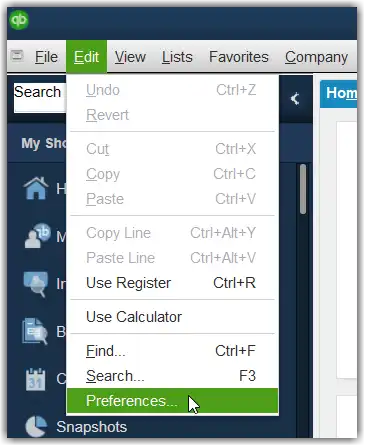
You can now try sending an invoice or report through Outlook.
If Outlook is missing from the list, check whether it is installed, whether your email profile is ready, and whether Outlook is supported in your current environment.
For more help, read our guide to QuickBooks Is Unable to Send Emails.
How to Set Up Gmail or Other Webmail in QuickBooks Desktop
Webmail lets you connect an online email account to QuickBooks. You can use this option when your provider and QuickBooks version support the required connection method.
Step 1: Open the Webmail Settings
- Open QuickBooks Desktop.
- Select Edit, then Preferences.
- Click Send Forms.
- Select Web Mail.
- Click Add.
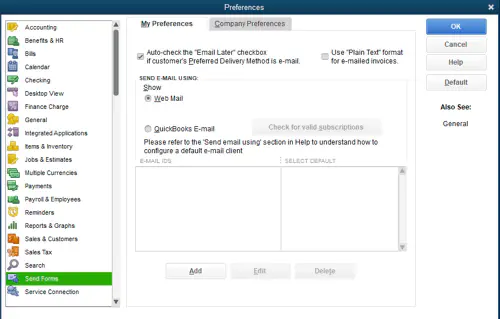
Step 2: Enter Your Email Details
In the Add Email Info window, enter the details requested by QuickBooks.
These may include:
- Your email address.
- Your email provider.
- The outgoing mail server address.
- The port number.
- The required security settings.
Some providers allow QuickBooks to fill in these details automatically. If the fields are not filled in, check your provider’s official email settings or ask your email administrator.
Do not guess the server address or port. Incorrect settings can prevent QuickBooks from connecting to your email account.
Step 3: Sign In and Allow Access
Click OK to save the email details. Your provider’s sign-in page may open.
Sign in and follow the instructions to allow the required access. You may also need to sign in to your Intuit account.
Once the setup is complete, try sending a test invoice or report.
For the latest instructions, see Intuit’s guide to connecting email to QuickBooks Desktop.
How to Set Up Gmail’s Enhanced Security
Gmail may need enhanced security and fresh authorization to work with QuickBooks Desktop. Entering your normal password may not be enough.
To set up Gmail:
- Turn on two-step verification for your Google account, if required.
- Open QuickBooks Desktop.
- Select Edit → Preferences → Send Forms.
- Choose Web Mail.
- Add your Gmail account or edit the existing account.
- Select Use enhanced security, where available.
- Follow the sign-in instructions.
- Grant the requested access to complete the connection.
The exact steps can vary by QuickBooks version. Older Gmail connections may need to be changed to use enhanced security.
How to Test Email in QuickBooks Desktop
After connecting your account, send a test invoice or report to an email address you can access.
Check the following:
- The recipient’s email address is correct.
- The message has the right subject and content.
- The invoice or report is attached.
- The email arrives in the inbox or spam folder.
- The sender address is the one you expect.
If the email does not arrive, check whether QuickBooks displayed an error. The error message can help you identify the next step.
How to Fix Common QuickBooks Email Setup Problems
If email setup fails, identify the problem before changing more settings. A missing Outlook option, a rejected password, and a network error can have different causes.
QuickBooks Rejects My Email Password
Your email provider may require a secure sign-in or fresh authorization. Check the provider’s security settings and make sure QuickBooks is up to date.
QuickBooks Cannot Send Emails
Check which email method you selected and whether the account is still authorized. If the basic setup is correct but sending still fails, follow our guide to fix QuickBooks email sending problems.
QuickBooks Cannot Connect to the Server
A connection error may involve email settings, account authorization, or network access. Check the exact error before changing your network settings.
If QuickBooks also has trouble reaching your company file, see QuickBooks Desktop Not Connecting to Server.
QuickBooks Email Fails in a Hosted Environment
If QuickBooks runs on a remote desktop or hosted server, the email setup may work differently from a local installation. You may need to sign in to webmail again when sending a message.
Check with your hosting provider if the required email application or authorization window is not available.
How to Change the Email Address in QuickBooks
The company contact email and the account used to send messages may be separate settings.
If you need to change the company contact address, open the company information settings and update the email field. If you want to send messages from a different account, review the email options under Edit → Preferences → Send Forms.
The exact steps depend on the email method and QuickBooks version. After making changes, send a test message to check which address appears as the sender.
QuickBooks Desktop vs. QuickBooks Online Email Setup
QuickBooks Desktop and QuickBooks Online use different email settings.
In QuickBooks Desktop, you usually connect Outlook or webmail through the Send Forms preferences. QuickBooks Online lets you change the subject and message that appear with sales forms through its settings.
If you use QuickBooks Online and want to edit invoice email messages, follow the instructions for your version of QuickBooks Online instead of using the Desktop steps in this guide.
Conclusion
Setting up email in QuickBooks Desktop starts with choosing Outlook or a supported webmail account. Enter the required details, complete any security checks, and send a test invoice to confirm that the connection works.
If your account connects but QuickBooks still cannot send messages, use the error message to find the right fix.
Frequently Asked Questions
How do I set up email in QuickBooks Desktop?
Open QuickBooks Desktop and go to Edit → Preferences → Send Forms. Choose Outlook or Web Mail, enter the required details, and complete any sign-in steps. Send a test invoice or report to check the setup.
How do I connect Gmail to QuickBooks Desktop?
Go to Edit → Preferences → Send Forms → Web Mail → Add. Choose Gmail, enter your email address, and follow the sign-in instructions. If enhanced security is available, use it and grant the requested access to complete the connection.
Can I use Outlook to send invoices from QuickBooks?
Yes, if your QuickBooks version supports Outlook and Outlook is installed and configured correctly. Select Outlook under Send Forms in QuickBooks Desktop. If Outlook does not appear, check the installed version, email profile, and supported environment.
Why is Outlook missing from QuickBooks Send Forms?
Outlook may be missing because your QuickBooks version does not support it, Outlook is not installed correctly, or an email profile has not been set up. A hosted environment may also lack the required Outlook application. Check these items before changing other settings.
Does QuickBooks support SMTP email setup?
QuickBooks Desktop supports webmail connections that may require SMTP server details. The available settings depend on your provider and QuickBooks version. Check the provider’s current instructions before entering the server address, port, and security settings.
How do I find my SMTP server and port?
Check your email provider’s official setup guide or ask your email administrator. You may need the outgoing server address, port, and security method. Do not copy settings from another provider unless they are confirmed to work with your account.
How do I test email sending in QuickBooks Desktop?
Send a test invoice or report to an email address you can access. Check the recipient, message, attachment, and sender address. If the message does not arrive, check the spam folder and look for an error in QuickBooks.
Why does QuickBooks reject my email password?
Your provider may block the sign-in method QuickBooks is using, or the account may need fresh authorization. Update QuickBooks, check the provider’s security requirements, and follow the correct authorization steps. Do not turn off account security to bypass the problem.
Why does QuickBooks say it cannot send emails?
The cause may be an incorrect email setup, expired authorization, an Outlook problem, or a connection issue.
Accounts Confidant is an independent accounting and bookkeeping service provider and is not affiliated with Intuit.


