A QuickBooks Desktop unrecoverable error can close the program while you open a company file, run payroll, print a report, or complete another task. The message may include a numeric error code, but that code does not always reveal the exact cause.
The problem may come from damaged company data, missing updates, user settings, or the QuickBooks installation. The right fix depends on when the error appears and whether it affects one company file, one user, or the whole program.
Before trying repair tools, back up your company file if possible and record the full error code. Then follow these steps to find the cause and choose the right fix.
What Does an Unrecoverable Error in QuickBooks Desktop Mean?
An unrecoverable error means QuickBooks Desktop has closed unexpectedly. It may appear when you open a company file, save a backup, update the program, run a file utility, or use a feature such as payroll.
Common causes include:
- Missing Windows or QuickBooks updates.
- Damaged company file data.
- Problems with the QuickBooks installation.
- Damaged user settings or Windows permissions.
- Issues with printing, PDF tools, or network access.
The error does not always mean your company file is damaged. Testing a sample company file can help you decide whether to focus on the file or the program.
What Should You Do Before Troubleshooting?
Take these steps before making changes to QuickBooks or your company file.
- Record the error code. Take a screenshot of the full message, including both groups of numbers if shown.
- Note what triggered the crash. For example, record whether it happened during payroll, while opening a company file, or when saving a PDF.
- Protect your backup. If QuickBooks opens, create a backup before making changes. If it will not open, keep your existing backups safe.
- Check your QuickBooks version. Press F2 or Ctrl + 1 to open the Product Information window when the program is accessible.
- Avoid random repairs. Do not delete support files, overwrite your only good backup, or change Windows permissions without a clear reason.
If the company file may be damaged, work on a copy where possible and keep the original file unchanged.
How to Diagnose a QuickBooks Unrecoverable Error
These tests help you narrow down the cause before you run repair tools.
Open QuickBooks with All Windows Closed
QuickBooks can reopen windows that were active when you last closed the company file. A large report or several open windows may cause an error during startup.
To test this:
- Open QuickBooks Desktop.
- In the No Company Open window, select your company file.

- Hold the Alt key and select Open. Keep holding Alt until the file opens.
- If QuickBooks asks you to sign in, release Alt and enter your password.
- Hold Alt again and select OK.
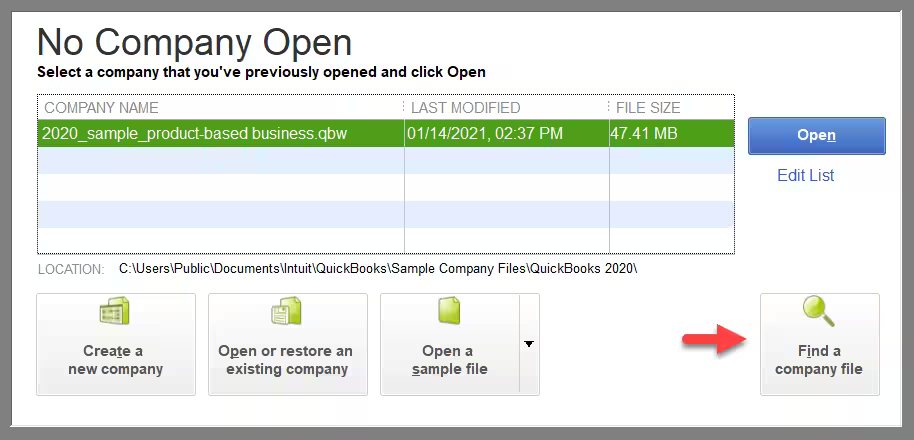
Try the same task again. If the error stops, one of the previously open windows may have caused the problem.
Open a Sample Company File
A sample company file helps you check whether the problem is linked to your company data or the QuickBooks program.
Follow these steps:
- Close QuickBooks Desktop.
- Hold Ctrl and double-click the QuickBooks program icon.
- Keep holding Ctrl until the No Company Open window appears.
- Select Open a Sample File.
- Choose a sample company file.
Check the result:
- The sample file opens: Your original company file or its folder may be damaged.
- The sample file also crashes: The QuickBooks program or your computer environment may need further troubleshooting.
This test does not prove the exact cause, but it helps narrow down the next step.
Try a Different QuickBooks User
A damaged QuickBooks user profile can sometimes cause an unrecoverable error.
If you have access to another authorized QuickBooks user, sign in with that account and open the same company file.
- If the second user works, the original user account or its settings may be involved.
- If both users get the same error, continue with the next test.
If the problem affects the Admin user, follow Intuit’s instructions for that situation. Do not delete or replace an account before confirming the problem and protecting your data.
Test a Copy of the Company File in Another Folder
A problem with the original folder or file path can prevent QuickBooks from opening the company file.
First, make sure everyone has closed the company file. Then:
- Open the folder where the company file is stored.
- Find the main company file, which usually ends in .QBW.
- Copy the file to a new local folder, such as QBTEST.
- Open QuickBooks and try opening the copied file.
Do not move or overwrite the original file.
If the copy opens, the original folder or file path may be the problem. If the error continues, move on to program troubleshooting.
If QuickBooks displays a separate numbered company-file error, see our guide to QuickBooks Error 6000 Series. Those errors need their own diagnosis.
How to Fix a QuickBooks Desktop Unrecoverable Error
Once you have completed the basic tests, follow the fixes that match your results.
Update QuickBooks Desktop
An outdated QuickBooks release can cause problems with the program and its components.
If QuickBooks opens, follow these steps:
- Open QuickBooks Desktop.
- Select Help.
- Select Update QuickBooks Desktop.
- Open the Update Now tab.
- Select Get Updates.
- Restart QuickBooks and install the update if prompted.
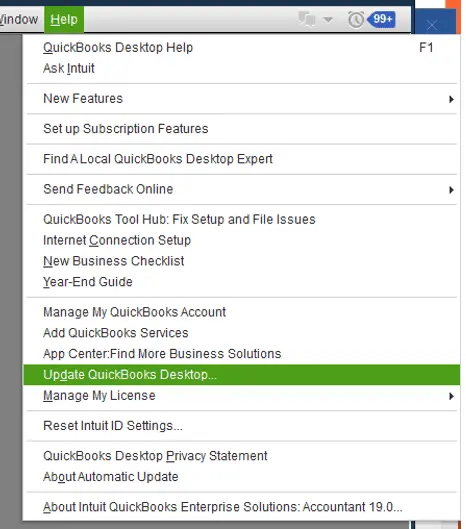
Test the company file again.
If the problem started after an update, follow our guide to QuickBooks Not Working After Update for more focused troubleshooting.
Run Quick Fix My Program
QuickBooks Tool Hub includes tools that can repair common program problems. Quick Fix My Program closes related background processes and runs a quick repair.
To use it:
- Close QuickBooks Desktop.
- Download and install the latest QuickBooks Tool Hub.
- Open Tool Hub and select Program Problems.
- Select Quick Fix My Program.
- Wait for the process to finish.
- Open QuickBooks and test the company file.

Use the official Intuit download rather than third-party tools that promise to fix every QuickBooks error.
Run the QuickBooks Program Diagnostic Tool
If Quick Fix My Program does not help, the next step may be to check the Windows components that QuickBooks uses.
- Open QuickBooks Tool Hub.
- Select Program Problems.
- Select QuickBooks Program Diagnostic Tool.
- Let the tool finish. The scan may take up to 20 minutes.
- Restart your computer.
- Open QuickBooks and test the same task again.
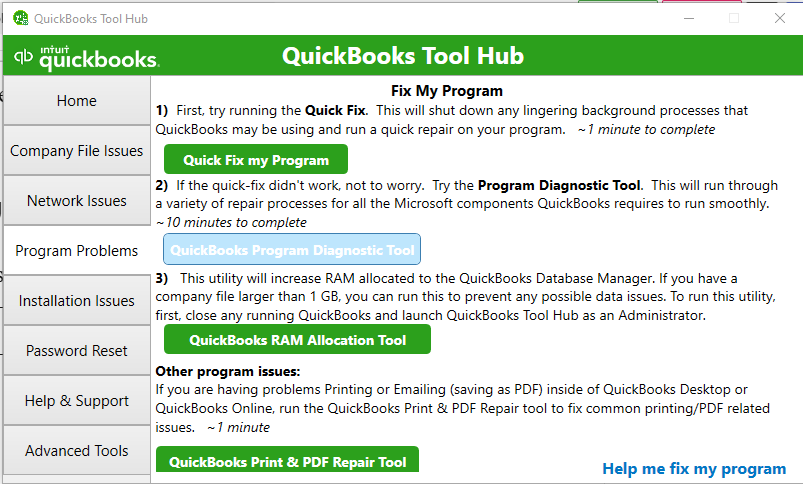
Use the tool name shown in the current Tool Hub interface. If the error continues, follow Intuit’s installation-repair instructions before considering a reinstall.
Check the Windows User Account
Windows permissions or a damaged Windows profile can affect QuickBooks.
If the error continues across different QuickBooks users, an authorized IT professional can test QuickBooks from another Windows account.
If QuickBooks works under the new account, the original Windows profile or its permissions may be involved. Ask your IT administrator to review the settings before making changes.
Do not give every user administrator access as a quick fix. On a business server, permission changes should be handled with care.
Verify and Rebuild Company Data Only When Needed
Verify and Rebuild Data is intended to find and repair company-file data problems. It is not the first fix for every unrecoverable error.
The process is:
- Open QuickBooks and your company file.
- Select Window, then Close All.
- Select File, then Utilities, then Verify Data.
- Review the results.
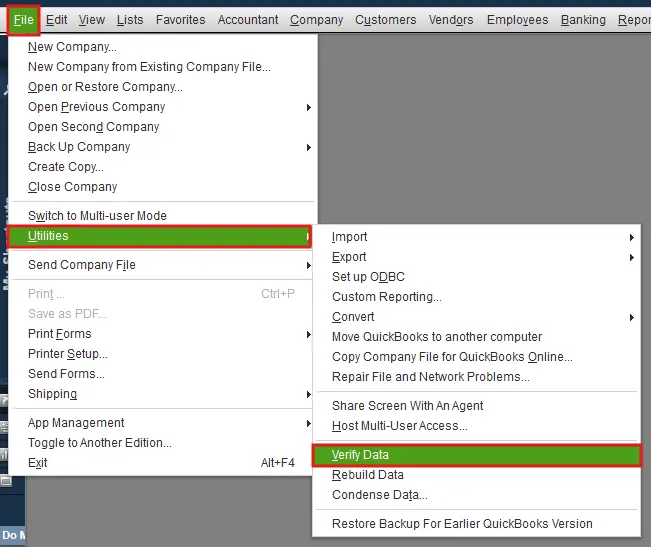
If QuickBooks reports no problems, you do not need to rebuild the file based on that result alone. If it reports data damage, follow Intuit’s instructions for Rebuild Data.
Create a backup before rebuilding. QuickBooks requires a backup before the rebuild process continues. Do not overwrite another backup. If you use Assisted Payroll, contact Intuit before rebuilding your company data.
After rebuilding, run Verify Data again to check for remaining problems.
Repair or Reinstall QuickBooks if Needed
If the error occurs with sample company files and the earlier fixes have failed, the program installation may need repair.
Before reinstalling:
- Keep your company file and backups safe.
- Confirm that you have the correct installer and license details.
- Follow Intuit’s instructions for your QuickBooks version.
- Ask your IT professional for help if QuickBooks runs on a shared server.
Reinstalling is a later step, not the first solution to try. If the company data is damaged, reinstalling QuickBooks may not fix it.
How to Fix an Unrecoverable Error During a Specific Task
Some errors appear only when you use one feature. The task that triggers the crash can help you choose the right repair.
QuickBooks Crashes When Printing or Saving a PDF
If QuickBooks works normally until you print, email a report, or save a PDF, focus on the printing and PDF components.
Use Intuit’s PDF and printing troubleshooting guide. Follow the steps that match your version and the task that fails.
Do not change printer drivers or Windows permissions unless the troubleshooting results point to those settings.
QuickBooks Shows an Unrecoverable Error During Bank Reconciliation
A crash during bank reconciliation or when viewing an earlier reconciliation report may involve PDF components or damaged company data.
First, make sure QuickBooks is updated and your company file is backed up. Then follow Intuit’s bank reconciliation unrecoverable error guide.
Do not delete or change reconciled transactions just to test whether the error goes away.
QuickBooks Crashes During Payroll
If the error appears only when opening the Payroll Center or running payroll, record the exact action and error code. Check whether QuickBooks is updated and whether the issue affects other authorized users.
A payroll crash is not always a payroll update problem. If the actual issue is a failed payroll download, see our guide to QuickBooks Desktop Payroll Update Not Working.
If the error occurs while importing an accountant’s changes, use Intuit’s troubleshooting guide for importing Accountant’s Changes.
QuickBooks Crashes on a Workstation in Multi-User Mode
If the error occurs only on one workstation, the problem may involve the network, file location, permissions, or hosting setup.
Check whether other users can open the same company file. Do not disable services or change hosting settings without confirming which computer hosts the file.
For more help, see our guide to QuickBooks Desktop Multi-User Mode. If the actual message is a network connection error, follow our QuickBooks Network Connection Error guide.
What Does the QuickBooks Unrecoverable Error Code Mean?
The numeric code can help support teams investigate the crash, but it does not always identify one clear cause.
Record the full code exactly as it appears. Also note your QuickBooks version, the company file you were using, and the action that triggered the error.
Do not assume that every code has a fixed meaning or that the code alone proves company-file damage. Use the error message and the results of your diagnostic tests to decide what to do next.
When Should You Get Help From a QuickBooks Expert?
Contact a QuickBooks Expert or a qualified QuickBooks technician if:
- The error continues after the relevant basic fixes.
- QuickBooks crashes when opening both your company file and a sample file.
- Your company file will not open, and you have no usable backup.
- The error occurs during a critical payroll or accounting task.
- You suspect data damage and cannot safely test a copy of the file.
- The problem affects several users or computers on a shared network.
Before contacting an expert, prepare the error code, QuickBooks version, a short description of the steps that trigger the crash, and the results of your sample-file test.
Do not call phone numbers shown in suspicious pop-ups. Use official Intuit support channels or a trusted service provider.
Conclusion
A QuickBooks Desktop unrecoverable error does not always mean your company file is damaged. Start by protecting your backup, recording the error code, and testing a sample company file. These checks help you decide whether to focus on the company file, the QuickBooks program, or Windows.
Use the repair steps that match your results. If the error continues or your accounting records may be at risk, follow Intuit’s official guidance before trying advanced repairs.
Frequently Asked Questions
Can an unrecoverable error cause data loss?
The error does not automatically mean your data has been lost. However, if the company file is damaged, some records may need recovery. Keep your backups safe and follow the correct recovery process before making further changes.
Can QuickBooks File Doctor fix an unrecoverable error?
QuickBooks File Doctor can help with certain company-file and network problems. It does not fix every unrecoverable error. Use it when your symptoms point to a company file or network issue, and follow Intuit’s instructions.
Should I run Verify and Rebuild Data after every unrecoverable error?
No, Verify and Rebuild Data is meant for company-file data issues, not every program crash. Back up your file and run Verify Data first. Rebuild only when the results and Intuit’s guidance indicate that it is needed.
What if the error started after updating QuickBooks?
Check that the update completed, restart the computer, and test QuickBooks again. If the program still crashes, use the appropriate Tool Hub repair. For broader update-related problems, see our guide to QuickBooks Not Working After Update.
When should I stop troubleshooting?
Stop if the company file may be damaged, your only backup is at risk, or the error continues after the relevant basic tests. Contact Intuit or a qualified QuickBooks technician before making advanced changes to the company file or shared server.


