QuickBooks Error H101 appears when QuickBooks Desktop cannot establish the connection required to open a company file in multi-user mode. The problem often involves incorrect hosting settings, but database services, firewall restrictions, and network configuration can also prevent workstations from connecting to the computer that stores the company file.
Start by checking which computer is configured to host multi-user access. Intuit specifically recommends checking the hosting settings on affected workstations and then verifying the server’s configuration. If the error remains, use the troubleshooting steps below to investigate the database service, shared-folder access, firewall ports, and network connection.
What Does QuickBooks Error H101 Mean?
QuickBooks Error H101 indicates a problem with the multi-user connection between a workstation and the computer hosting the company file.
In a typical QuickBooks Desktop network, one computer stores the company file and provides access to other computers. That computer is the host server. The other computers, called workstations, connect to the shared company file over the network.
If a workstation is incorrectly configured to host the file, or if QuickBooks cannot communicate with the server, the connection may fail.
H101 belongs to the same general family of multi-user connection errors as H202, H303, and H505. These codes share a connection-related theme, but the appropriate troubleshooting steps depend on the specific error and network configuration.
What Causes QuickBooks Error H101?
QuickBooks Desktop Error H101 can occur when a workstation cannot establish the required connection to the host. Several configuration problems can cause this.
| Possible cause | What to check |
| Incorrect hosting settings | Whether the designated server is hosting the company file and workstations have hosting disabled |
| Database Server Manager configuration | Whether the company-file folder has been scanned and recognized |
| Database service problems | Whether the required QuickBooks database service is running |
| Firewall restrictions | Whether the required QuickBooks programs and TCP ports are allowed |
| Shared-folder permissions | Whether the workstation can access the company-file folder |
| Network connectivity | Whether the workstation can communicate with the server |
| Incorrect .ND file information | Whether the network configuration file is missing, outdated, or damaged |
These are possible causes, not a list of changes every user needs to make. Begin with hosting settings and move to more advanced troubleshooting only if the error persists.
How to Fix QuickBooks Error Code H101
Follow these seven methods in order. After each fix, reopen the company file or switch to multi-user mode to check whether access has been restored.
Check Hosting Settings on the Server and Workstations
Incorrect hosting settings are the first thing to check when troubleshooting H101. Intuit states that the computer hosting the company files should be the only computer configured to host multi-user access.
Follow these steps on each affected workstation:
- Open QuickBooks Desktop.
- Do not open the company file.
- Select File, then Utilities.
- Check the hosting option.
If you see Stop Hosting Multi-User Access, select it on the workstation. This indicates that hosting is enabled on that computer.
If you see Host Multi-User Access, do not select it. Move to the next workstation.
After checking the workstations, go to the computer that stores the company file:
- Open QuickBooks Desktop on the server.
- Select File, then Utilities.
- If Host Multi-User Access appears, select it.

- If Stop Hosting Multi-User Access appears, leave it alone.
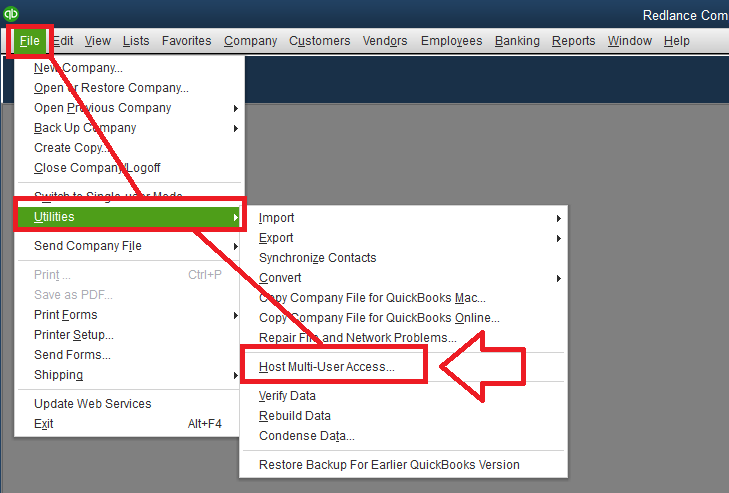

The option displayed depends on the computer’s current configuration. Do not select the same command on every computer without checking which option is available.
Once the settings are correct, reopen the company file from an affected workstation and try switching to multi-user mode.
If you need a more detailed explanation of the hosting options, see our guide to QuickBooks Hosting Mode Is Off.
Scan the Company-File Folder With Database Server Manager
If the hosting settings are correct but Code H101 persists, scan the company-file folder with QuickBooks Database Server Manager.
This utility helps QuickBooks recognize company files stored on the host computer and maintain the network configuration needed for multi-user access.
To scan the folder:
- Open QuickBooks Tool Hub on the server.
- Select Network Issues.
- Open QuickBooks Database Server Manager.
- Select the folder containing your company file.
- If the folder is not listed, browse to its actual location.
- Select Start Scan.
- Wait for the scan to finish.
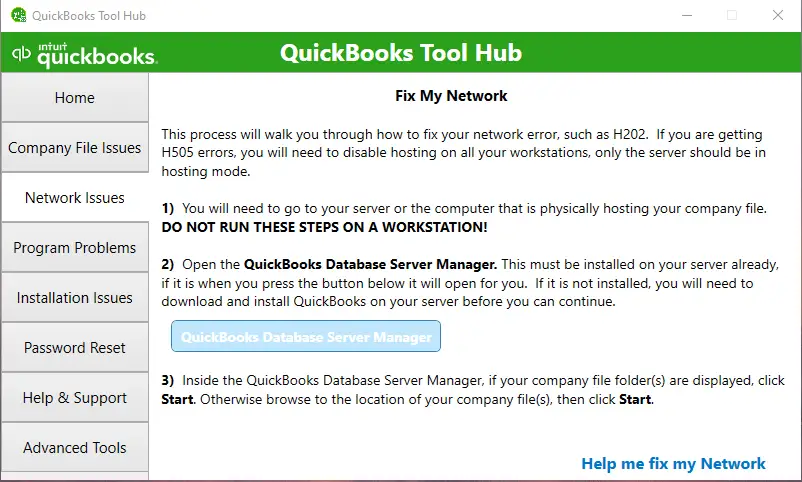
When the scan completes, open QuickBooks on the affected workstation and try multi-user access again.
Make sure you select the folder containing the actual company file, usually ending in .QBW. Do not scan an unrelated folder simply because it has a QuickBooks-related name.
If the error continues, QuickBooks File Doctor may be a useful next diagnostic step. Open Tool Hub, select Company File Issues, run File Doctor, and choose the available file-and-network diagnostic option. Follow the prompts and test the connection again.
File Doctor is a diagnostic tool, not a guaranteed fix for H101. If the hosting configuration is still incorrect, correct that problem first.
Check the QuickBooks Database Services
QuickBooks Desktop uses Windows services to support access to company files over a network. If a required service is stopped or cannot start, workstations may be unable to connect.
To check the services on the host computer:
- Press Windows + R.
- Type services.msc and press Enter.
- Find the relevant QuickBooksDBXX service.
- Open its properties.
- Check the service status and startup type.
- Repeat the check for QBCFMonitorService.
The XX in QuickBooksDBXX varies by product version. For example, Intuit identifies the QuickBooks Desktop 2023 database service as QuickBooksDB33.
For the relevant services, Intuit’s troubleshooting guidance recommends setting the startup type to Automatic, ensuring the services are running, and configuring their recovery options where appropriate.
If a service is stopped, try starting it. If it will not start, note the error message and investigate the cause instead of repeatedly restarting the service.
Do not assume every server has the full QuickBooks Desktop program installed. Some setups use Database Server Manager without the full desktop application.
For more detailed troubleshooting, see our guide to QBDBMgrN Not Running on This Computer.
Verify the Company-File Location and Folder Permissions
A workstation may be unable to open the company file because it cannot access the folder on the host computer.
Open File Explorer on the workstation and try to access the shared folder using its network path. If Windows displays an access-denied message, investigate permissions. If the network path cannot be found, check the server name, share name, and network connection.
Check these points:
- The company file is stored in the expected location on the host.
- The folder is shared with the intended users or computers.
- Windows permissions allow the access required by QuickBooks.
- The server is reachable over the network.
- The company file has not been moved without updating the associated network configuration.
A folder being visible in File Explorer does not necessarily mean that QuickBooks has every permission it needs. If access fails, have your administrator review the sharing and security permissions rather than granting unrestricted access to everyone.
Avoid moving the live company file to the desktop or creating another working copy as an initial fix. Multiple copies can make it difficult to identify which file contains the latest accounting records.
Check Windows Firewall and QuickBooks Ports
Windows Firewall or another security product can block the connection between a workstation and the QuickBooks database service.
Start by checking whether the required QuickBooks program exceptions and port rules are configured on the host computer. If your organization uses third-party security software, check its rules as well.
For QuickBooks Desktop 2019 and later, Intuit’s firewall instructions specify TCP port 8019 and the dynamic port assigned to the installed version. The assigned port can be found in Database Server Manager’s Port Monitor tab.
To find the dynamic port:
- Open the Windows Start menu on the server.
- Search for QuickBooks Database Server Manager.
- Open the utility.
- Select Port Monitor.
- Find the entry for your QuickBooks version.
- Note the assigned port number.
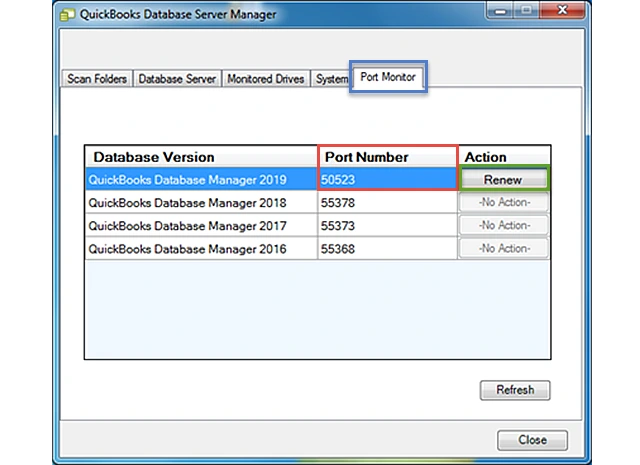
When configuring firewall rules for applicable versions, include TCP port 8019 and the assigned dynamic port. The required settings differ for older versions, so do not copy port numbers from an unrelated version’s troubleshooting guide.
If you use multiple QuickBooks Desktop versions on the same computer, check the requirements for each version. Intuit’s official firewall and security guide provides the current instructions for configuring port and program exceptions.
Do not disable Windows Firewall entirely as a routine fix. Configure only the required permissions and test multi-user access afterward.
For additional instructions, see our guide to Windows Firewall Is Blocking QuickBooks.
Test the Connection Between the Workstation and Server
If hosting, database services, folder permissions, and firewall rules appear correct, check whether the workstation can reach the server.
First, identify the server’s computer name:
- Open the Windows Start menu on the server.
- Search for Command Prompt and open.
- Enter ipconfig /all.
- Find the Host Name in the output.
Next, go to the affected workstation:
- Open Command Prompt.
- Enter ping followed by the server’s host name. For example:
ping SERVER-NAME - Press Enter and review the results.
If the workstation receives replies without packet loss, basic network reachability is working. However, this does not prove that the QuickBooks database service, application ports, or folder permissions are correctly configured.
If the request times out or packets are lost, investigate the network connection. A timeout alone does not prove that the server is offline, because network or firewall settings can block ping traffic.
If you are unfamiliar with Windows network diagnostics, ask your IT administrator to investigate before changing advanced network settings.
Check the .ND File if the Earlier Fixes Fail
QuickBooks Desktop uses a Network Data file, or .ND file, to store configuration information needed for network and multi-user access. This includes details such as the server address and port.
A missing, incorrect, or damaged .ND file can prevent QuickBooks from opening a company file over the network. Intuit identifies H101, H202, H303, and H505 among the errors that may be associated with .ND file problems.
To investigate:
- On the server, open the folder containing the company file.
- Look for the corresponding .ND file. Its name may resemble CompanyFile.qbw.nd.
- If the file is missing, open QuickBooks on the computer that stores the company file and run Database Server Manager to rescan the correct folder.
- If the file exists but appears incorrect, follow Intuit’s instructions for recreating it.
- Test multi-user access again.
Intuit documents renaming or removing the incorrect .ND file and rescanning the folder to recreate it. Before making file-level changes, close QuickBooks where appropriate and confirm that you have a current backup of the company file.
Do not rename or delete the .QBW company file itself. The .ND file is a network configuration file, not the accounting data file.
For further guidance, consult Intuit’s official article on .ND files in QuickBooks Desktop.
What If QuickBooks Error H101 Still Appears?
If none of the seven methods resolves error H101 in QuickBooks, use the results of your checks to narrow down the remaining problem.
| What you found | What to investigate next |
| A workstation was hosting the company file | Verify that hosting is disabled on workstations and correctly configured on the server. |
| A database service will not start | Investigate the service’s startup error and Windows configuration. |
| The company-file folder cannot be scanned | Check the folder path, permissions, and Database Server Manager configuration. |
| Ping succeeds but QuickBooks cannot connect | Check the assigned ports, database services, and folder access. |
| The .ND file is missing or incorrect | Rescan the correct folder and follow Intuit’s instructions for recreating the file. |
| H101 disappears but another error appears | Follow the troubleshooting steps for the new error code. |
QuickBooks File Doctor may help when further diagnostics indicate a company-file or network problem. If you use it, select the appropriate file-and-network diagnostic option and follow the prompts. It should not replace the hosting checks recommended for H101.
If the error persists, ask your IT administrator or a qualified QuickBooks professional to review the server configuration, database services, firewall rules, and network access together. This is especially important before making further changes to the live company file.
How to Prevent QuickBooks Error H101 From Returning
A few maintenance practices can help reduce recurring multi-user connection problems:
- Keep hosting correctly configured. The designated server should host the company file, while workstations should not independently host the same file.
- Monitor database services. Investigate services that repeatedly stop instead of relying on manual restarts.
- Preserve folder permissions. Review sharing settings after changing Windows accounts, server configurations, or company-file locations.
- Review firewall rules after changes. QuickBooks updates and network changes may require you to recheck program permissions and assigned ports.
- Keep track of the live company file. Avoid creating unnecessary copies or moving the file without updating the associated network setup.
- Maintain current backups. Back up the company file before performing file-level troubleshooting or making significant configuration changes.
These steps help maintain a consistent setup, but they cannot prevent every possible network or service failure.
Conclusion
QuickBooks Error H101 usually requires you to investigate the connection between your workstation and the computer hosting your company file. Start with hosting settings, then check Database Server Manager, database services, folder permissions, and firewall ports as needed. Inspect the .ND file only if earlier checks have not resolved the problem.
Test multi-user access after each change. This helps you identify the cause without making unnecessary changes to your accounting data or network configuration.
Frequently Asked Questions
Does QuickBooks Error H101 mean my company file is damaged?
No, H101 indicates a multi-user connection problem, but the code alone does not establish whether the company file is damaged. Check hosting settings, database services, and network access before attempting a company-file repair.
What is the difference between QuickBooks Error H101 and H202?
Both errors relate to multi-user connectivity. H101’s specific troubleshooting guidance emphasizes checking hosting configuration on workstations and the server. H202 can require further investigation of server services, firewall rules, and network connectivity.
Which computer should host QuickBooks Desktop in multi-user mode?
The computer that stores and serves the company file should be configured as the host. Other computers that access the shared file should have hosting disabled.
Do I need to reinstall QuickBooks to fix H101?
Reinstallation should not be the first step. Check hosting settings, Database Server Manager, database services, folder permissions, and firewall configuration first. Consider reinstalling only if further diagnosis identifies an installation problem.
Does QuickBooks Error H101 affect QuickBooks Online?
H101 is associated with QuickBooks Desktop’s multi-user network configuration. It is not the usual error encountered when using QuickBooks Online through a browser.


