A small hosting setting can bring your entire accounting workflow to a halt, especially when your team relies on QuickBooks to access the same company file. If you’ve encountered the “QuickBooks Hosting Mode Is Off” error, you know how frustrating it can be when something that seems like a simple setting prevents everyone from getting their work done.
But here’s the thing: the problem isn’t always as straightforward as it looks. Incorrect hosting configurations, Windows permission issues, inactive database services, or network changes after a recent update can all interfere with multi-user access.
Instead of trying random fixes and hoping one works, it’s important to understand what’s causing the error in the first place. In this blog, we’ll break down what the QuickBooks Hosting Mode Is Off error means, explore its common causes, and walk you through practical troubleshooting steps to help you restore multi-user access and get your accounting workflow back on track.
Why Do You See The QuickBooks Hosting Mode Is Off Error
The following causes could be significant when dealing with this error:
- QuickBooks may be unable to identify the host computer’s IP address, preventing workstations from connecting to the company file.
- Antivirus software may block QuickBooks processes or restrict network access to the company file.
- Windows Firewall settings may prevent QuickBooks from communicating between the host computer and workstations.
- A damaged or incorrect .ND file may prevent QuickBooks from locating the database server.
- Incorrect hosting settings may interfere with multi-user access to the company file.
- A missing or improperly installed QuickBooks Database Server Manager may prevent the company file from being shared over the network.
- Insufficient Windows permissions may prevent QuickBooks from accessing or sharing the company file folder.
- If the QuickBooksDBXX service is stopped or fails to start, other users may be unable to access the company file.
- Incompatible QuickBooks versions on the host computer and workstations may cause connection issues in multi-user mode.
Now let’s dive into the solutions.
How to Fix the QuickBooks Hosting Mode Is Off Error
The “Hosting Mode Is Off” message usually means QuickBooks Desktop is not configured to let other computers access the company file over a network.
Firstly, to enable hosting mode in QuickBooks, ensure your system meets the following requirements for smooth multi-user access:
| Requirement | Minimum / Recommended Specification |
|---|---|
| Operating System | Windows 10 or later, depending on the QuickBooks Desktop version |
| Internet Connection | Stable broadband connection for online services and updates |
| Network | Reliable LAN connection between the host computer and workstations |
| QuickBooks Version | A version that supports multi-user mode |
| Database Server Manager | Installed and running on the computer hosting the company file |
| Firewall Settings | Allow required QuickBooks ports and programs through Windows Firewall |
| File Permissions | Read, write, and modify permissions for the company file folder |
| Processor (Minimum) | Intel Core i3 or equivalent |
| RAM (Minimum) | 8 GB |
| Storage (Minimum) | 2.5 GB of free space, plus additional storage for company files |
| Screen Resolution | 1280 × 1024 or higher |
| Processor (Recommended) | Intel Core i5 or i7 |
| RAM (Recommended) | 16 GB |
| Storage (Recommended) | SSD for improved performance |
| Remote Desktop | TCP port 3389, if using Remote Desktop Protocol (RDP) |
Note: Hardware and software requirements vary by QuickBooks Desktop version. Port 3389 is used for Remote Desktop access, not standard QuickBooks database communication.
If you’re wondering how to turn on hosting mode in QuickBooks, follow the solutions below to get started.
Solution 1: Turn On Hosting on the Computer That Stores the Company File
QuickBooks Desktop hosting settings are configured separately for each computer and each QuickBooks version. In a typical multi-user setup, the computer that stores the company file acts as the host, while the other computers connect to it.
To check the hosting settings:
- Open QuickBooks Desktop on the computer that stores the company file.
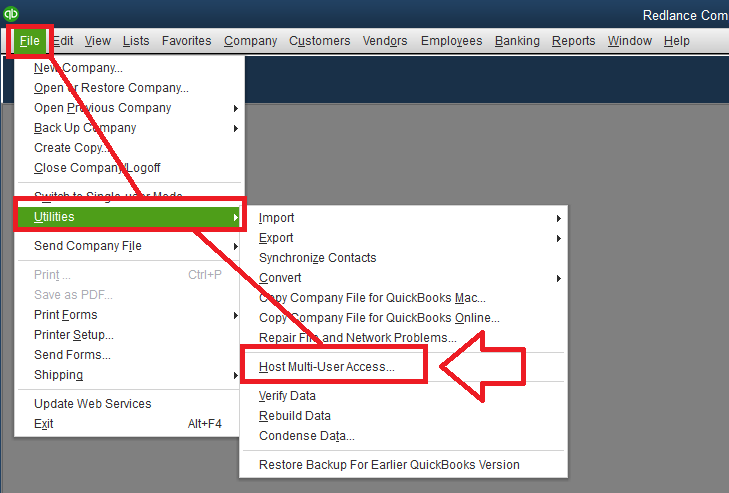
- Select File, then Utilities.
- If you see Host Multi-User Access, select it to enable hosting.

- If you see Stop Hosting Multi-User Access, hosting is already enabled on that computer. Do not select it unless you intend to turn hosting off.

Next, check the workstations:
- Open QuickBooks Desktop on each workstation.
- Select File, then Utilities.
- If Stop Hosting Multi-User Access appears, select it to disable hosting on that workstation.
- If Host Multi-User Access appears, leave the workstation as it is.
For the complete server and workstation setup, follow our guide to QuickBooks Desktop multi-user mode.
If the hosting settings are correct but workstations still cannot connect, check whether QuickBooks Database Server Manager can detect and share the company file properly.
Solution 2: Run QuickBooks Database Server Manager
QuickBooks Database Server Manager helps other computers access company files stored on the host computer. If it has not scanned the company file folder or is not configured correctly, workstations may have trouble connecting.
To check it:
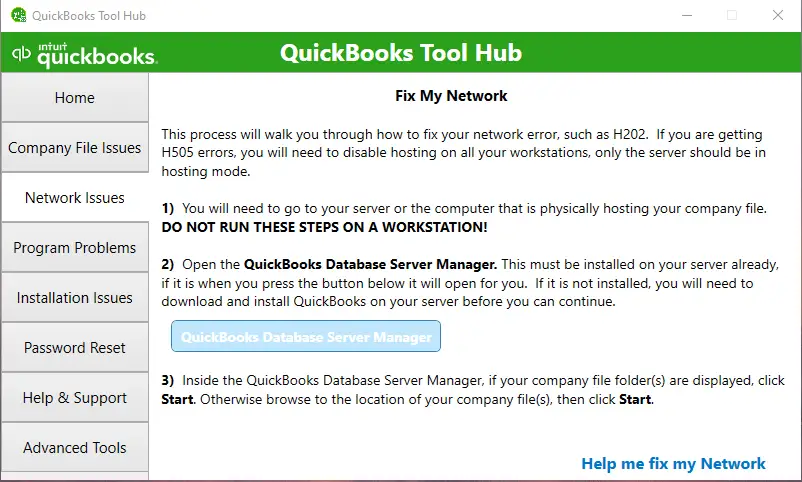
- Download and open the QuickBooks Tool Hub if it is already available for your QuickBooks version, or obtain it from the official Intuit support website.
- Open Tool Hub and select Network Issues.
- Choose QuickBooks Database Server Manager.
- Browse to the folder containing your company file.
- Start the scan and follow any instructions displayed.
If Database Server Manager is missing or needs configuring, see our QuickBooks Database Server Manager setup guide.
Important: Run Database Server Manager on the computer that stores the company file. The exact options may vary by QuickBooks Desktop version.
Solution 3: Check That the QuickBooks Database Service Is Running
QuickBooks uses a database service to manage access to company files in multi-user mode. The service name varies by version, so do not assume every installation uses the same name.
To check the service:
- Close QuickBooks Desktop.
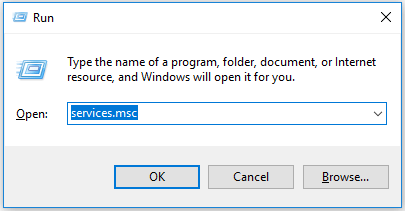
- Press Windows + R, type services.msc, and press Enter.
- Find the QuickBooks database service associated with your installed version, usually named QuickBooksDBXX.
- Check whether the service is running.
- If it is stopped, start it if you have the required permissions.
- Review the service’s startup settings if the issue returns after restarting the computer.
If the database service will not start, follow our troubleshooting steps for QBDBMgrN not running on this computer.
Once the database service is running, verify that it has access to the company file.
Solution 4: Check the Company File Folder and Windows Permissions
QuickBooks needs access to the folder containing the company file. The folder must be shared correctly, and the relevant Windows account must have the permissions required to open and modify the file.
To check:
- On the host computer, locate the folder containing your QuickBooks company file, which usually ends in .QBW.
- Right-click the folder and open Properties.
- Review the Sharing and Security settings.
- Confirm that the appropriate users and the QuickBooks database service account have the permissions required by Intuit for your QuickBooks version.
- If the required permissions are missing, update them according to Intuit’s official folder-sharing instructions.
QuickBooks may use a Windows service account named QBDataServiceUserXX, where XX varies by version. Make sure you use the account associated with your installation.
If the correct users and database service account have sufficient permissions, investigate whether Windows Firewall or antivirus software is blocking the connection.
Solution 5: Check the Windows Firewall and Security Software
Windows Firewall or third-party security software can block communication between QuickBooks Desktop and the database service. When that happens, workstations may be unable to reach the company file even if hosting is enabled.
To troubleshoot:
- Confirm that hosting is enabled on the host computer.
- Open the firewall settings on the host and affected workstations.
- Check whether QuickBooks Desktop and its database-related components are allowed through the firewall.
- If necessary, configure the required firewall rules for your specific QuickBooks version.
- Test the company file connection again.
For detailed exception rules and troubleshooting steps, see what to do when Windows Firewall is blocking QuickBooks.
If you use third-party antivirus or firewall software, review its documentation before changing its rules.
Check Intuit’s firewall and security settings for QuickBooks Desktop for the TCP ports and program exceptions required by your installed version.
If the firewall settings appear correct, the next step is to confirm that the workstation can reach the host computer over the network.
Solution 6: Verify the Network Connection Between the Workstation and Host
If hosting and permissions appear correct, check whether the workstation can communicate with the computer that stores the company file.
First, find the host computer’s name:
- On the host, press Windows + R, type cmd, and press Enter.
- Enter ipconfig /all.
- Note the computer’s network details and hostname.
Next, test the connection from the workstation:
- Open Command Prompt.
- Type ping followed by the host’s computer name, then press Enter. For example: ping SERVER-NAME.
- If needed, repeat the test using the host’s IP address.
If the workstation can reach the host but QuickBooks still cannot locate the company file, inspect the Network Data file used to identify database connection information.
Solution 7: Check the Network Data (.ND) File
QuickBooks Desktop uses a Network Data file with the .ND extension to identify information needed to connect to the database server. The file generally has the same base name as the company file and is stored in the same folder.
If the hosting settings, database service, and network connection look correct but QuickBooks still cannot connect, check whether the .ND file is present.
- Close QuickBooks Desktop on all computers accessing the company file.
- Open the folder containing the .QBW company file.
- Look for the matching .ND file.
- If the file appears to be missing or the network configuration may be outdated, follow Intuit’s troubleshooting instructions for refreshing or recreating the network data file.
- Reopen QuickBooks and test multi-user access.
If the network configuration and .ND file appear correct but the error persists, use QuickBooks’ File Doctor.
Solution 8: Run QuickBooks File Doctor
If the issue persists, QuickBooks File Doctor can help identify certain company file and network problems.
To run it:
- Open QuickBooks Tool Hub.
- Select Company File Issues.
- Choose Run QuickBooks File Doctor.
- Select the affected company file.
- Follow the on-screen instructions and enter the administrator credentials if requested.
- When the check is complete, reopen QuickBooks and test the file.
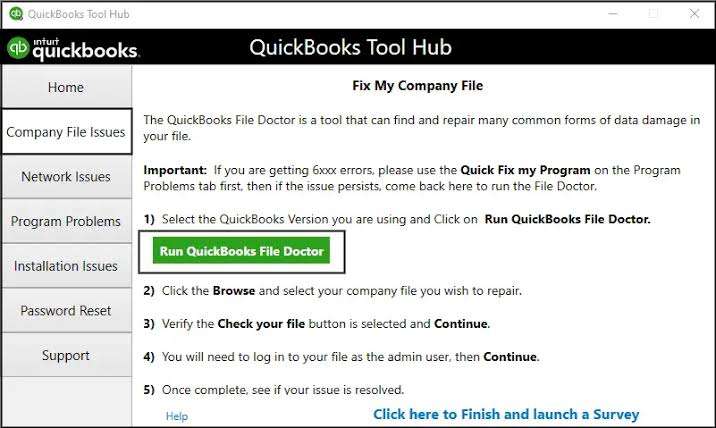
If the tool will not launch or stops responding, follow our guide to QuickBooks File Doctor not working.
File Doctor can help with supported network and company file issues, but it may not resolve every hosting problem. If it reports a specific error, follow the instructions for that result.
Solution 9: Recheck Multi-User Access
After making changes, test the connection from a workstation.
- Open QuickBooks Desktop on the host computer and confirm that the company file opens.
- Open QuickBooks on a workstation.
- Try opening the same company file from its shared network location.
- Switch to multi-user mode if needed and confirm that another authorized user can access the file.
If the QuickBooks hosting mode keeps turning off, note when the problem returns and whether it follows a service restart, Windows restart, or configuration change. This information can help narrow down the underlying cause.
Client Overview
Name: Sandy
Role: Accounts Executive
Challenge: QuickBooks hosting error disrupting multi-user access
Outcome: Hosting configuration troubleshot and multi-user access restored
Meet Sandy, an accounts executive who ran into a frustrating QuickBooks “Hosting Mode Is Off” error that stopped her team from accessing their shared company file. With work piling up, she reached out to us for help. Our team checked the hosting settings, database services, and network configuration to find the cause. After troubleshooting the issue, Sandy and her team were able to access the company file again and get back to their daily tasks. What started as a stressful workday was soon back on track with the right support!
Conclusion
Keeping QuickBooks Desktop properly configured is essential for smooth collaboration and uninterrupted accounting tasks. Addressing hosting issues early can help prevent recurring access problems and unnecessary downtime. Regularly reviewing your network setup and QuickBooks environment can also help keep your company file accessible to authorized users.
FAQs
Why is Host Multi-User Access grayed out in QuickBooks?
This option may be unavailable because of the current hosting configuration, installation setup, or permissions. Check the computer’s role and hosting settings before making changes.
Can I fix QuickBooks hosting mode off without professional help?
Yes, you can check hosting settings, restart the database service, scan the company file folder, and verify basic network connectivity. But for advanced troubleshooting, it is recommended to reach out to QuickBooks experts.
What is the difference between hosting mode on and off in QuickBooks?
When hosting is enabled on the designated host computer, other authorized users can access the company file over the network. When hosting is off, that computer does not provide multi-user hosting for the file.
How do I check which computer is hosting in QuickBooks?
Check the computer storing the company file and open File > Utilities. If Stop Hosting Multi-User Access appears, hosting is enabled on that computer. Confirm that it is the intended host.
Why is hosting mode off after a Windows update?
A connection failure after an update does not necessarily mean hosting was switched off. Check the host’s actual setting, confirm that its QuickBooks database service restarted, and review firewall rules. Establish which setting or service changed before choosing a fix.
What should I do if hosting mode is off on a Remote Desktop or VPN connection?
Verify that hosting is enabled on the designated host, then check remote connectivity, VPN settings, firewall rules, and database service availability.
If your team needs an alternative remote-access setup, explore our QuickBooks cloud hosting services.
What ports does QuickBooks use for multi-user mode?
QuickBooks Desktop 2019 and later use TCP port 8019 plus an installation-specific dynamic database port. Find that number in QuickBooks Database Server Manager → Port Monitor. Older versions use different ports, so match firewall rules to your installed year.
Can incorrect hosting settings cause QuickBooks H-series errors?
Yes, incorrect hosting settings can lead to QuickBooks H-series errors, particularly H101, H202, H303, and H505. These H-series errors may take place when hosting is enabled on a workstation rather than on the server or when the computer hosting the company file is not configured correctly. Open QuickBooks on all computers, check the hosting settings under File > Utilities, and ensure only the designated server hosts the company file. Correct hosting configuration helps workstations communicate with the server in multi-user mode.
Accounts Confidant is an independent accounting and bookkeeping service provider and is not affiliated with Intuit.
