If Windows Firewall is blocking QuickBooks, start by checking the firewall rules for your installed QuickBooks version. Missing permissions can stop workstations from connecting to the computer that stores your company file.
You can often restore access by running QuickBooks repair tools, checking the required ports, and adding the correct program exceptions. Keep the firewall turned on while you work through these checks.
This guide explains how to find the cause, make the right changes, and test the connection. The steps apply to QuickBooks Desktop for Windows.
How Do You Fix Windows Firewall Blocking QuickBooks?
Start with QuickBooks File Doctor, then check the firewall configuration if the problem continues. For a shared company file, also scan its folder with QuickBooks Database Server Manager on the server.
Follow this order:
- Note the exact error message and which computers are affected.
- Run File Doctor through QuickBooks Tool Hub.

- Scan the company file folder on the server.
- Check the TCP ports assigned to your QuickBooks version.
- Review firewall exceptions for the installed QuickBooks programs.
- Retry the task that failed.
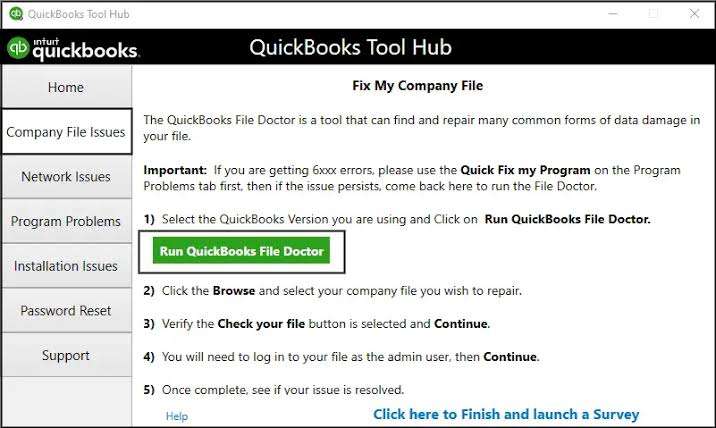
Intuit recommends File Doctor before manual firewall configuration. If the tool does not resolve the issue, its guidance covers both port rules and program exceptions.
Before changing settings: Identify your server. This is the computer that stores the shared company file. Other computers that connect to that file are called workstations.
How Can You Check Whether Windows Firewall Is Blocking QuickBooks?
Check what fails, then review the firewall rules on the affected computers. A multi-user error or failed update can point to a connection problem, but it does not prove that Windows Firewall caused it.
Identify What Stops Working
The task that fails helps you choose the next check. Record the error message and whether the problem affects one workstation or every user.
| What you notice | What to check first |
|---|---|
| The company file opens on the server but not on workstations | Server connection, hosting settings, services, and firewall rules |
| Only one workstation cannot connect | That workstation’s connection and security settings |
| QuickBooks shows H202 or H505 | Multi-user hosting and server communication |
| The company file works, but payroll updates fail | The update error and internet or security settings |
| Windows says an app cannot change a protected folder | Microsoft Defender’s Controlled folder access |
Treat these as starting points, not confirmed causes. For example, Intuit’s H202 and H505 troubleshooting also includes hosting settings and server services.
If your only problem is downloading payroll updates, follow our QuickBooks payroll update troubleshooting guide alongside the relevant connection checks.
Review Existing Firewall Rules
Check whether your QuickBooks rules are enabled and match the installed program. An old rule may still exist but point to a different installation folder.
On the computer you are checking:
- Open Start.
- Search for Windows Defender Firewall with Advanced Security.
- Open Inbound Rules.
- Find rules for QuickBooks or its database services.
- Open each relevant rule and review its settings.
- Repeat the check under Outbound Rules.
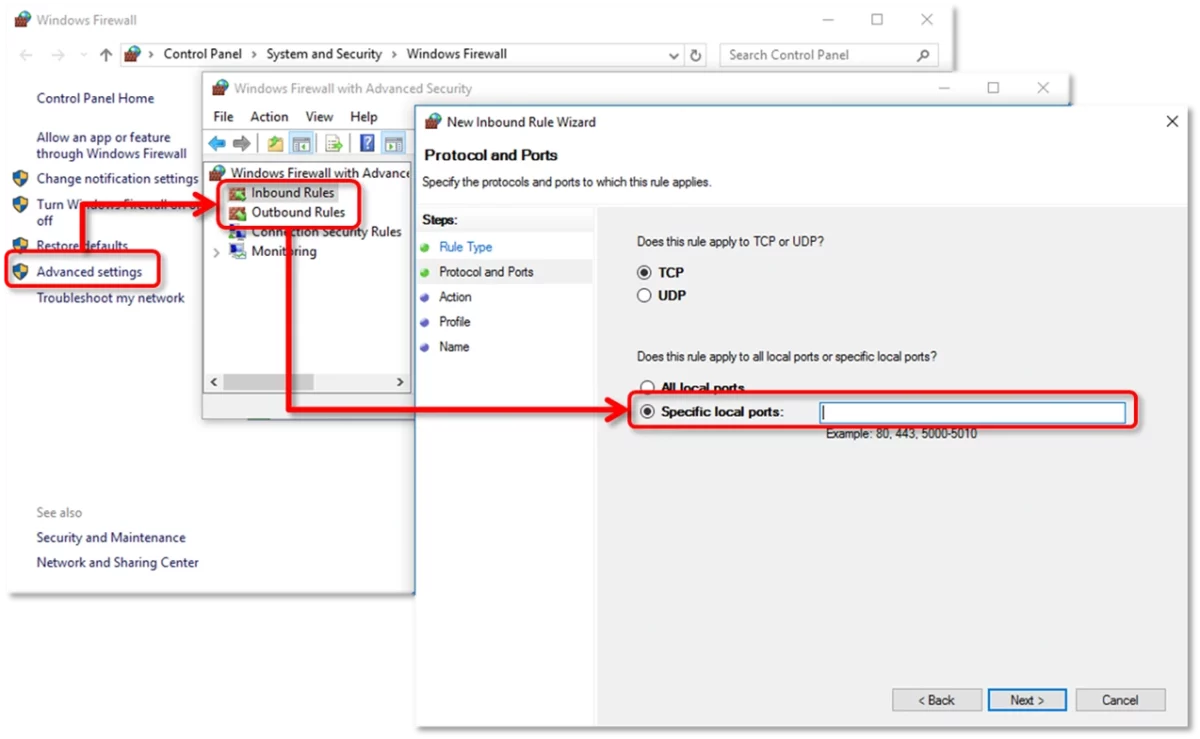
Look at the rule’s action, program path, ports, and selected network profiles. Also check for a rule that explicitly blocks the same connection.
Adding another Allow rule may not help. Microsoft states that an explicit Block rule takes priority over a conflicting Allow rule. On a company-managed computer, your IT administrator may need to change the policy.
Check Whether the Message Comes From Microsoft Defender
A protected-folder or antivirus warning needs a different check from a blocked network connection. Read the notification before adding firewall exceptions.
Microsoft Defender’s Controlled folder access can stop an app from changing files in a protected folder. That restriction belongs to ransomware protection; opening a network port does not address the same problem.
Why Does Windows Firewall Block QuickBooks?
QuickBooks can lose network access when its traffic does not match an active Allow rule or when a Block rule takes priority. A rule can also be present but apply to the wrong program path or network profile.
Check for:
- Missing or disabled QuickBooks rules.
- Ports that do not match the installed version.
- Program rules pointing to an older installation.
- Rules that do not apply to the active network profile.
- Conflicting Block rules.
- Organization policies that prevent local exceptions from taking effect.
If the problem started after an update, record that detail. However, check the rules before assuming the update deleted them.
What Should You Check Before Changing Firewall Settings?
Confirm your QuickBooks version, file location, and administrator access first. These details help you make changes on the correct computer.
Before you begin:
- Record your QuickBooks year and edition.
- Write down the exact error message.
- Identify where the company file is stored.
- Confirm that you have a current company-file backup.
- Have a Windows administrator available for firewall changes.
- Save a copy of the current firewall policy before manual edits.
If a hosting provider manages your QuickBooks server, contact that provider before changing server settings.
How to Fix Windows Firewall Blocking QuickBooks Desktop
Work through the relevant steps below and retry the failed task after each one. If access returns, confirm that the other affected users can also connect before making more changes.
Step 1: Run QuickBooks File Doctor
QuickBooks File Doctor checks company file and network problems. Use the version available through Intuit’s Tool Hub.
- Close QuickBooks.
- Open QuickBooks Tool Hub.
- Select Company File Issues.
- Click Run QuickBooks File Doctor.
- Select your company file, or click Browse to locate it.
- Choose Check your file and network, then Continue.
- Enter the QuickBooks administrator password when prompted.
- Let the scan finish, then reopen the file.
Retry the action that failed. Intuit notes that the scan can report an unsuccessful result even when it resolves the issue, so check whether QuickBooks now works.
For more detail about the tool, see our QuickBooks File Doctor guide.
Step 2: Scan the Company File Folder on the Server
QuickBooks Database Server Manager scans the folder that holds your shared company file and can repair firewall permissions. Run this step on the server.
- Open QuickBooks Tool Hub on the server.
- Select Network Issues.
- Open QuickBooks Database Server Manager.
- If the company file folder is listed, select Start Scan.
- If it is missing, select Browse, choose the folder, and start the scan.
- When the scan finishes, close the tool.
- Return to an affected workstation.
- Open QuickBooks and test File → Switch to Multi-user Mode.
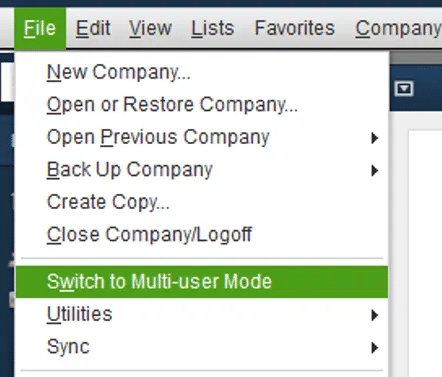
Intuit includes this scan in its official multi-user connection troubleshooting. Test each affected workstation after the scan.
If the database service will not run, follow our guide to fixing QBDBMgrN not running on this computer. If the scan completes but access still fails, the next step is to verify the assigned ports and firewall exceptions.
Step 3: Find the Correct QuickBooks Firewall Ports
QuickBooks Desktop uses TCP ports for network communication. The required ports depend on your version, so check the table before creating a rule.
| QuickBooks Desktop version | Required TCP ports |
|---|---|
| 2019 and later | 8019 plus the assigned dynamic port |
| 2018 | 8019, 56728, 55378–55382 |
| 2017 | 8019, 56727, 55373–55377 |
The 2017 and 2018 entries are for legacy installations.
Find your dynamic port on the server:
- Open QuickBooks Database Server Manager.
- Select Port Monitor.
- Find your QuickBooks version.
- Record its Port Number.
If instructions show 8019, XXXXX, replace XXXXX with that number. Do not type the placeholder or use a port copied from another installation.
You do not need to renew the port just to view it. If you select Renew, run Scan Folders → Scan Now afterward to reset firewall permissions.
Step 4: Create the Required TCP Port Rules
A port rule allows traffic through the ports you specify. Start with the server that hosts your shared company file.
Create an inbound rule:
- Open Windows Defender Firewall with Advanced Security.
- Select Inbound Rules → New Rule.
- Choose Port, then Next.
- Select TCP.
- Enter the required numbers under Specific local ports.
- Select Allow the connection.
- Choose the appropriate network profiles.
- Give the rule a clear name, such as QuickBooks Server TCP – 2024, and save it.
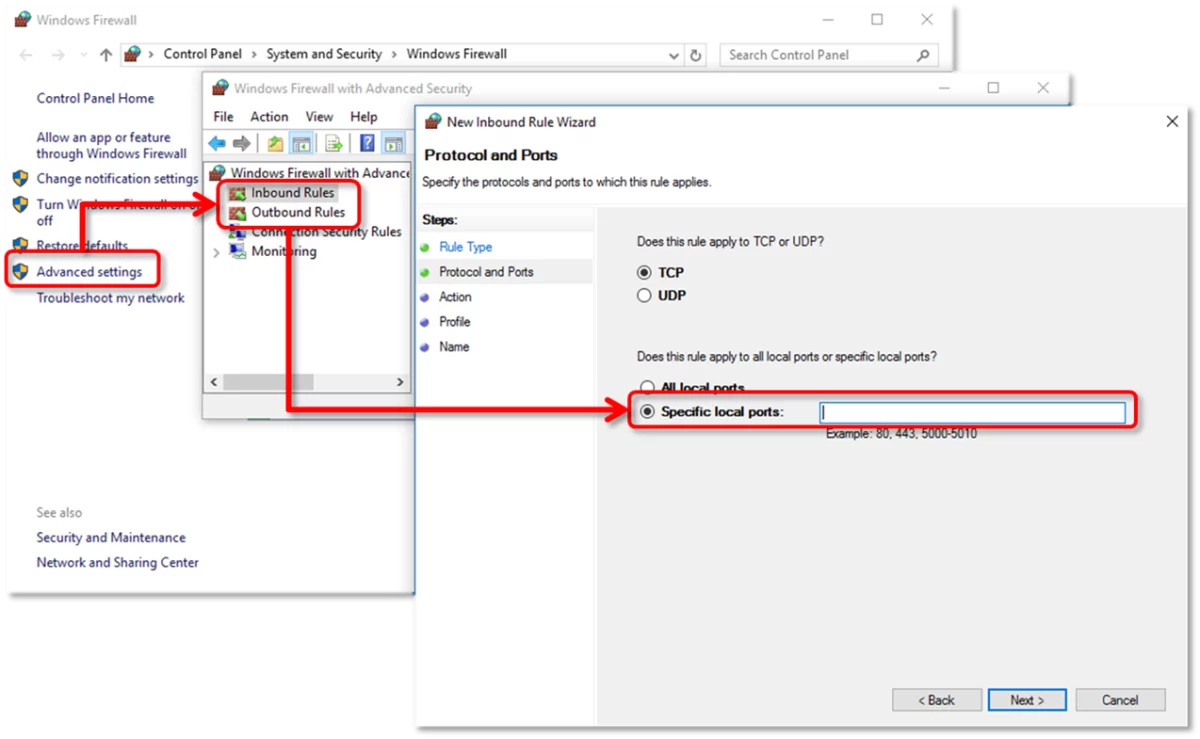
Choose profiles carefully. Private applies to a trusted home or office network. Domain applies when Windows recognizes the organization’s domain network. Public is intended for untrusted networks.
Intuit’s general walkthrough selects all profiles. Microsoft recommends enabling rules for the profiles that fit the actual environment. For an office file server, have your administrator confirm the right profiles and permitted network addresses.
Check outbound access too. Windows normally allows outbound traffic unless a rule or policy blocks it. On a restricted network, your administrator may need an outbound rule permitting workstation connections to the server’s destination ports. Do not change the organization’s overall outbound policy to fix one application.
Step 5: Add QuickBooks Program Exceptions
Program exceptions allow a specific executable to communicate through the firewall. These rules must point to the actual file installed on that computer.
Relevant files in Intuit’s list include:
| Executable |
|---|
| QBW32.exe |
| QBDBMgrN.exe |
| QBCFMonitorService.exe |
| QBUpdate.exe |
Use Intuit’s firewall configuration guide for the complete list.
To create a program rule:
- Open Inbound Rules → New Rule.
- Select Program.
- Choose This program path, then browse to the installed executable.
- Select Allow the connection.
- Choose the appropriate profiles and name the rule.
- Review the corresponding outbound permissions.
Repeat for the required installed components. A rule pointing to an old installation folder will not match the new executable’s path. Windows program rules require the full application path.
Step 6: Resolve Conflicting Rules
If QuickBooks remains blocked, check for a matching Block rule before adding more exceptions. An explicit Block rule takes priority over a conflicting Allow rule.
Confirm that each relevant rule uses the correct program path, ports, and profile. Ask your administrator to review centrally managed rules rather than changing them locally.
Retry the shared company file. If the connection works but QuickBooks still shows a hosting error, continue with the checks in our QuickBooks multi-user mode guide.
What If Microsoft Defender Is Blocking QuickBooks?
Check the Windows Security notification to identify which protection blocked QuickBooks. Antivirus detection and protected-folder restrictions require different checks from firewall connection rules.
Check Protection History
Protection History can help identify a detected or blocked file. Review the file’s location and the reported threat before allowing it.
- Open Windows Security.
- Select Virus & threat protection.
- Open Protection history.
- Review the relevant entry.
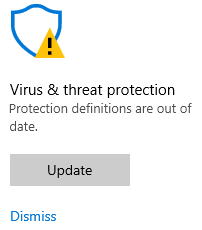
Do not allow a detected file based only on its QuickBooks-related name. Confirm its source and have a suspected false detection reviewed before changing protection settings.
Check Controlled Folder Access
Controlled folder access can prevent an app from changing files in protected folders. If Windows specifically reports this block, review the app permission under ransomware protection.
Go to Windows Security → Virus & threat protection → Manage ransomware protection → Allow an app through Controlled folder access.
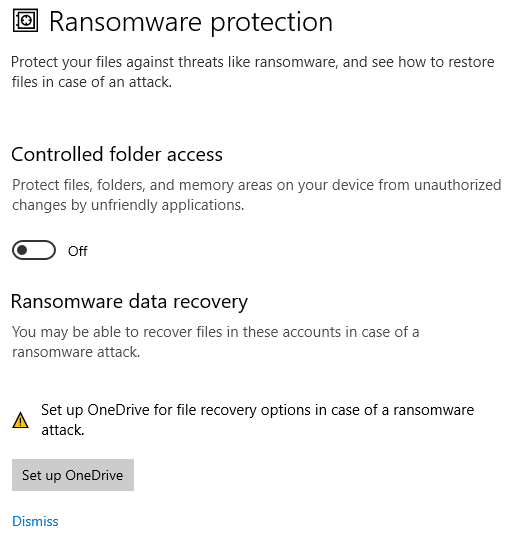
Add only the verified application that needs access. This permission does not replace a firewall rule, and it should not be used as a general fix for network errors.
Review Other Security Software
If another security product manages your firewall or antivirus protection, review its blocked events and application permissions. Follow that vendor’s instructions for a targeted exception.
Keep protection enabled and retry the original task after each change. This helps you identify which setting actually caused the problem.
How Do You Fix Multi-User Mode and H505 Issues That Remain?
If the firewall rules are correct but QuickBooks still cannot connect, check hosting, server services, and shared-folder access. H505 does not always mean a firewall port is blocked.
Confirm That Only the Server Hosts the Company File
In a standard multi-user setup, the server hosts the shared company file. Other workstations should connect to it without hosting files themselves.
On each affected workstation:
- Open QuickBooks.
- Select File → Utilities.
- If you see Stop Hosting Multi-User Access, select it.
- If you see Host Multi-User Access, leave it unchanged. Hosting is already off.

If the server has the full QuickBooks application installed, check the same menu there. Hosting should be enabled on that computer. A server running only Database Server Manager will not have this QuickBooks application menu.
For more detailed steps, see our QuickBooks Error H505 guide.
Check QuickBooks Services on the Server
QuickBooks database services must run for workstations to access the hosted file. Check them on the server.
- Press Windows + R.
- Enter services.msc and press Enter.
- Find QuickBooksDBXX, where XX identifies the installed version.
- Open its properties and check that its status is Running.
- Check QBCFMonitorService too.
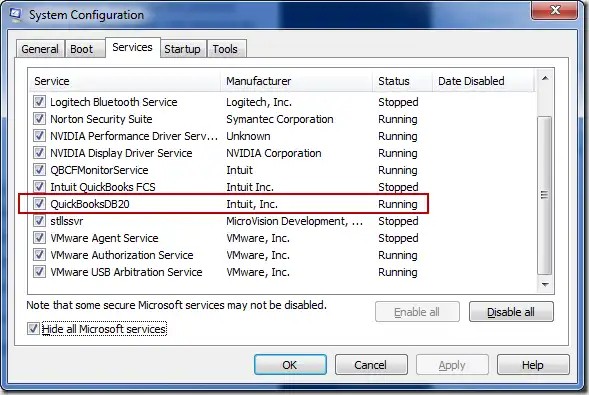
Intuit’s troubleshooting instructions also specify an Automatic startup type. If a service will not start or keeps stopping, investigate that problem before creating more firewall rules.
Check Shared-Folder Access
Confirm that the affected workstation can reach the folder containing the company file. A firewall exception does not correct missing Windows folder permissions.
Ask your administrator to check the shared path, user permissions, and server connection. If the folder is accessible but QuickBooks still fails, continue with the service and hosting checks in our QuickBooks multi-user mode guide.
How Can You Confirm the QuickBooks Firewall Fix Worked?
The fix is complete when affected users can repeat the task that failed while the firewall remains enabled. Test the actual workflow rather than relying only on a repair tool’s result.
Use this checklist:
- Open the correct shared company file from each affected workstation.
- Test multi-user access with separate authorized QuickBooks users.
- Retry the original failed task.
- Confirm that Windows Firewall remains on.
- Record the rule or setting that restored access.
If company-file access works but payroll updates still fail, investigate the update separately. Our QuickBooks payroll update troubleshooting guide covers that next step.
How Can You Prevent QuickBooks Firewall Problems After Updates?
Keep a record of the working configuration and review it after software or network changes. This makes it easier to find what changed if the connection fails again.
Back Up Your Firewall Policy
Export the working firewall policy before making major changes. This backup saves firewall settings; it does not back up your QuickBooks company file.
To export it:
- Open Windows Defender Firewall with Advanced Security.
- Select the top-level item in the left pane.
- Choose Action → Export Policy.
- Save the
.wfwfile in a secure location with a clear date.
Windows also supports policy export through netsh advfirewall export. Have your administrator review a policy before importing it, since restoring a policy can affect rules for other applications.
Recheck Settings After an Upgrade or Server Move
Compare the current program paths, assigned ports, and network profile with your saved configuration. Pay particular attention after reinstalling QuickBooks or moving the company file to another server.
Do not assume a Windows update erased your rules. First check whether they are missing, disabled, assigned to a different profile, or affected by a managed policy.
Keep a Short Setup Record
Document the details someone would need to troubleshoot your connection:
| Detail | What to record |
|---|---|
| QuickBooks installation | Year, edition, and installed program path |
| Server | Computer name and shared company-file location |
| Ports | Assigned database port and other required ports |
| Firewall rules | Names, profiles, and permitted addresses |
| Verification | Date tested and workstations checked |
Store this record where your authorized IT staff can access it.
Troubleshooting Example: QuickBooks Works on the Server but Not on Workstations
A mismatched firewall profile can leave a valid rule inactive for the current connection. The following hypothetical example shows how to investigate that situation.
An office can open its company file on the server, but two workstations cannot connect. The administrator confirms that the database services are running and checks the existing firewall rule.
The rule permits connections on the Private profile, while Windows currently identifies the server’s network as Public.
After confirming that this is the office’s trusted network, the administrator corrects the network classification and retests access. Both workstations can then open the file.
The lesson: Check whether an existing rule applies to the current connection before adding duplicate rules. Never classify an untrusted network as Private simply to make QuickBooks work.
Conclusion
If Windows Firewall is blocking QuickBooks, check the existing rules, confirm your version’s TCP ports, and verify the program paths. Test access after each change and keep the firewall enabled. If the problem continues, review hosting settings and database services on the server.
Once QuickBooks works, save the firewall configuration and record what fixed the issue. These details can make future troubleshooting easier.
Considering a managed setup? Explore QuickBooks Cloud Hosting from Accounts Confidant to see whether it fits your team’s needs.
Frequently Asked Questions
These answers cover common questions about QuickBooks firewall ports, network profiles, and recurring blocks.
What Is QuickBooks Firewall Port 8019?
TCP 8019 is one of the ports Intuit lists for QuickBooks Desktop firewall configuration. It is not the only required port. For Desktop 2019 and later, Intuit also lists the installation’s assigned dynamic port, which you can find in Database Server Manager.
Should I Use TCP or UDP for QuickBooks Firewall Rules?
Use TCP for the QuickBooks Desktop ports listed in Intuit’s firewall guide. Do not create matching UDP rules unless another documented component requires them.
Can I Safely Turn Off Windows Defender Firewall for QuickBooks?
Keep the firewall enabled and configure the required exceptions. Turning it off reduces protection and does not correct the underlying rule problem. Microsoft recommends allowing a blocked application through the firewall instead of disabling the firewall.
Should QuickBooks Use a Public, Private, or Domain Network Profile?
The profile should match the network. Use Private for a trusted office or home network; domain-connected business computers may use Domain. Public is for untrusted networks. Apply QuickBooks rules to the profiles your environment needs, with your administrator’s guidance.
Why Does QuickBooks Get Blocked Again After an Update?
Check what changed before choosing a fix. Review the program path, assigned port, active profile, and security notifications. A firewall connection block and a Defender file detection need different responses. The timing alone does not establish that the update caused the block.
Why Do My QuickBooks Firewall Rules Appear to Be Missing?
Clear any filters in the firewall console, check both inbound and outbound rules, and review all relevant profiles. If the rules are truly absent, check for a policy reset or administrative change. An inactive rule is different from a deleted rule.
Why Is QuickBooks Still Blocked After I Added an Exception?
The exception may use the wrong path, port, or profile. A conflicting Block rule or company-managed policy may also prevent it from working. Microsoft confirms that explicit Block rules override conflicting Allow rules.
What Firewall Settings Do Intuit and Microsoft Recommend?
Intuit provides version-specific TCP ports and program exceptions. Microsoft recommends rules suited to the application and network, with appropriate access restrictions. Use those sources together, document your configuration, and keep the firewall enabled.

