To move QuickBooks to a new computer, create a fresh backup, install the correct QuickBooks Desktop version, and restore your company file. Then activate the software and check your records before you enter new transactions.
Your company file holds your invoices, bills, payments, and other accounting records. Moving it takes more than copying the QuickBooks shortcut from your old desktop. You also need to check your license details, saved files, and settings.
This guide covers QuickBooks Desktop for Windows. If you use QuickBooks Online, you can usually sign in through a browser on your new computer without moving a local company file.
Which Method Should You Use to Move QuickBooks?
You can use manual backup and restore or the QuickBooks Migrator Tool. The right choice depends on your version, the number of company files, and whether other users share those files.
| Method | When to use it | What it involves |
|---|---|---|
| Manual backup and restore | You want to move specific company files, or the Migrator Tool is unavailable | Install QuickBooks on the new PC, then restore each backup |
| QuickBooks Migrator Tool | You have an eligible US single-user setup | Use a USB drive and the tool to transfer QuickBooks and up to three company files |
| Multi-user server move | Several people use a company file stored on one host computer | Move the data and set up shared access on the new server |
Intuit describes backup and restore as the easiest way to move company files. Its Migrator Tool guidance covers eligible US versions of QuickBooks Desktop 2018 or newer, used in a single-user setup. Tool eligibility does not mean an older version is still supported.
If your team shares a company file, review our QuickBooks Desktop multi-user setup guide before starting. A server move needs extra steps to give each user access to the correct file.
Also, decide whether you are keeping your current QuickBooks version or upgrading. Moving to another PC and upgrading the software are separate tasks.
Before You Start: QuickBooks Desktop Migration Checklist
Gather your product details and make a fresh backup before changing either computer. Set a time for everyone to stop entering transactions so the final backup contains the latest work.
1. Check Your QuickBooks Version and License Details
Record the year, edition, and release of QuickBooks installed on your old computer. You will need the correct product details when you install it on the new PC.
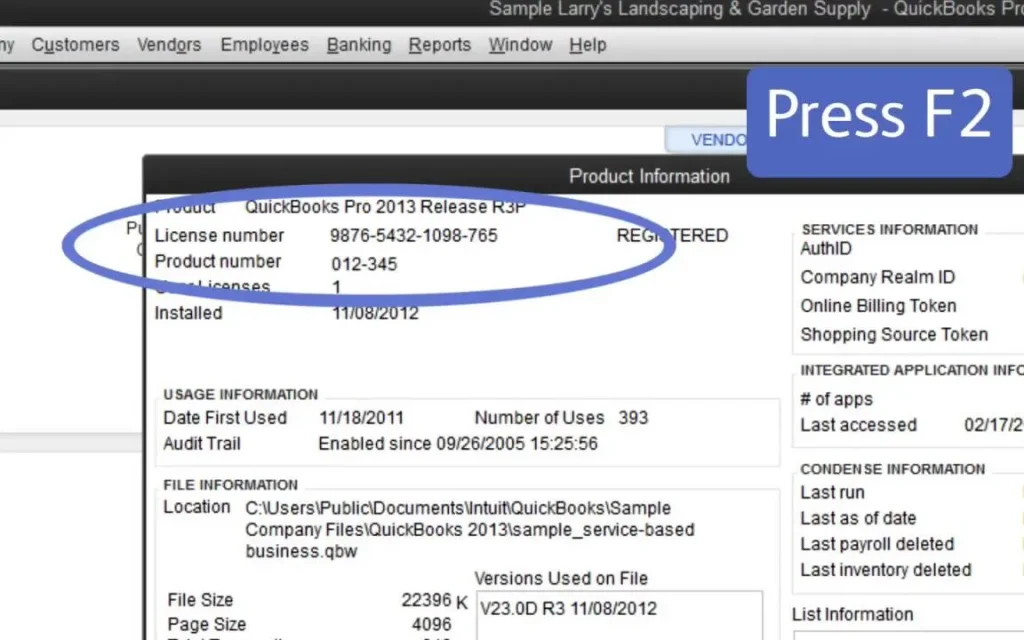
Open QuickBooks and press F2 or Ctrl+1 to view the Product Information window. Note the details shown, and confirm that you can access your purchase records or Intuit account if needed. Have these items ready:
- QuickBooks year and edition, such as Pro, Premier, or Enterprise.
- Country version.
- License and product numbers.
- Access to the Intuit account linked to your purchase.
- Your company file admin password.
Your Intuit account password and company-file password may be different. Check both before you begin.
2. Make Sure QuickBooks Can Run on the New PC
Check the system requirements for your exact QuickBooks version before installing it. A new computer does not guarantee that an older version will work correctly.
Confirm the Windows version, available storage, and other requirements listed by Intuit. Download the installer from an official Intuit source.
Our guide on how to install QuickBooks Desktop explains the installation process and setup options.
If you need a maintenance update, follow our steps to update QuickBooks Desktop. An update within your current version is different from upgrading to another product year.
For QuickBooks 2023 users: Intuit ended support and affected connected services after May 31, 2026. Moving the program to a new PC does not restore those services.
3. List Every Company File and Supporting File
Make a list of all the company files you use so none are missed during the move. Also check for saved forms and other files stored outside the main company file.
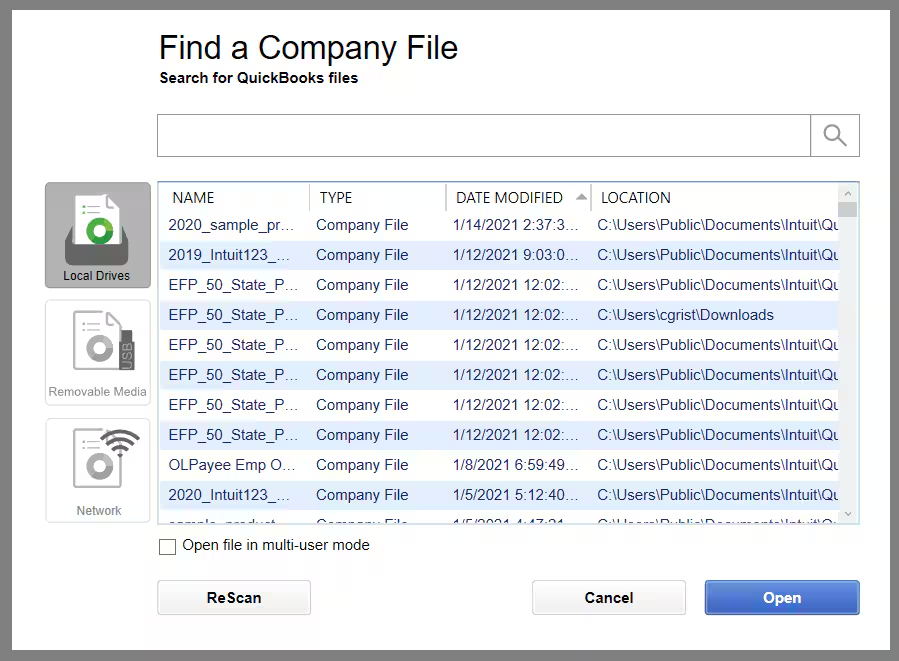
For each company, record its name and current file location. You can find the open company file’s location in the Product Information window. Check for:
- Other company files used less often.
- Saved payroll tax forms.
- Attached receipts and documents.
- Custom templates, logos, and letters.
- Files used by connected apps or add-ons.
A QuickBooks backup saves company data and many related files, but it is not a full backup of your computer. Intuit states that saved payroll forms need separate attention.
4. Save Reports to Compare After the Move
Save a few key reports from the old computer so you can compare them with the restored file. Use the same dates and settings when you run those reports on the new PC. Useful reports include:
- Balance Sheet.
- Profit and Loss.
- Customer balance summary.
- Vendor balance summary.
- Payroll summary, if used.
Note whether each report uses the cash or accrual basis, along with any filters. Different report settings can make matching records appear different.
Also note your latest invoice, bill, and payment. These give you a quick way to check whether the backup includes your most recent work.
5. Stop Data Entry and Create the Final Backup
Ask everyone to close the company file before you create the final backup. Once it is saved, avoid entering more transactions in the old file.
For example, an invoice entered after the backup will not appear when that backup is restored. Continuing to work in both copies can leave you with two different sets of records.
Give the backup a clear name, such as CompanyName-Before-Move-2026-10-05.qbb, and keep a separate recovery copy. Do not erase the old data or discard your backups while you are still checking the new setup.
How to Move QuickBooks Using Backup and Restore
To move QuickBooks Desktop to another computer manually, install the software on the new PC and restore a fresh company backup. Repeat the backup and restore steps for each company file you use.
Step 1: Create a Backup on the Old Computer
Create the backup from the company file that contains your latest transactions. Make sure all other users have signed out before you begin.
- Open your company file in QuickBooks Desktop.
- Select File > Switch to Single-user Mode, if needed.
- Go to File > Back Up Company > Create Local Backup.

- Select Local Backup, then Next.
- Choose Browse and select a folder you can find easily.
- In the backup options, choose Complete verification.
- Select OK, then Save it now.
- Follow the prompts and wait for the backup confirmation.
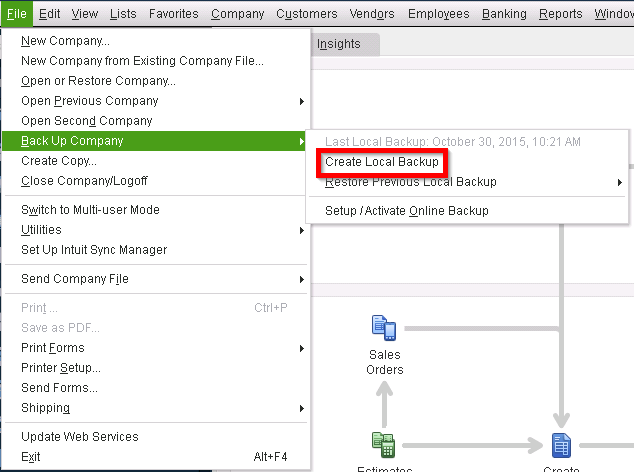
The completed backup has a .QBB file extension. Keep this file separate from your working company file.
If verification reports a problem, resolve it before using that backup for the move. Also save any payroll forms separately, since QuickBooks does not automatically include them in the company backup.
Step 2: Install QuickBooks on the New Computer
Install the version and edition that match your license and support the new computer. Copying the old QuickBooks program folder will not replace a proper installation.
- Download the correct installer from Intuit.
- Run the installer on the new PC.
- Follow the prompts and enter your license and product numbers.
- Choose the installation type that fits your setup.
- Finish the installation and open QuickBooks.
- Complete activation if prompted.
If you are also upgrading: Keep an untouched backup from the old version. A newer QuickBooks version may need to convert the company file, so do not assume that the converted copy will still open in the older version.
Step 3: Copy the Backup to the New PC
Use a USB drive to copy the backup from the old computer to the new one. Save it on the new computer’s local drive before you restore it.
- Insert the USB drive into the old computer.
- Find the completed .QBB backup.
- Copy it to the USB drive.
- Wait until the copy finishes, then safely eject the drive.
- Insert it into the new computer.
- Copy the backup into a clearly named local folder.
Check the filename and date to make sure you copied the final backup. If you have several company files, keep their backups clearly labeled.
Intuit recommends moving backups from USB drives or online storage to the local hard drive before restoring them.
Step 4: Restore Your Company File
Restore the backup through QuickBooks to create a working company file on the new computer. Choose a location that will not overwrite another file.
- Open QuickBooks Desktop.
- Select File > Open or Restore Company.
- Choose Restore a backup copy, then Next.
- Select Local backup, then Next.
- Find and select the .QBB file you copied.
- Follow the prompts to choose where the restored file will be saved.
- Give the file a clear name and select Save.
- Enter the company file admin password if asked.
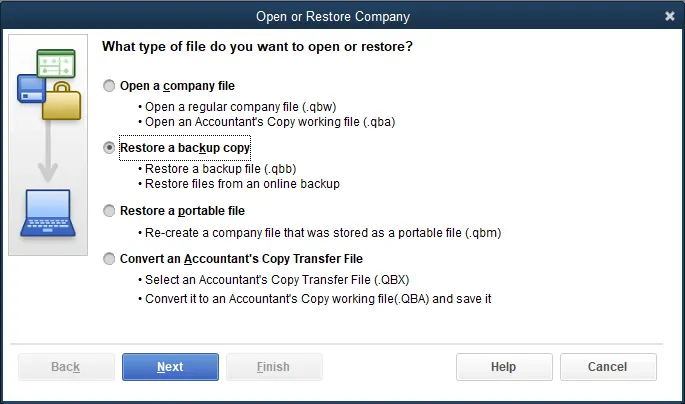
QuickBooks uses the backup to create a .QBW file. This is the working file you will open to manage your books.
If QuickBooks warns that a file already exists, stop and check the destination. Use a different name or folder unless you intend to replace that file.
Step 5: Check the Restored File Before Using It
Confirm that you opened the right company and that its latest records are present. Complete these checks before entering new transactions.
Start with the company name, latest invoice, and most recent payment. Then compare the reports you saved before the move, using the same dates and settings.
If records appear to be missing, check the backup date and file location first. You may have restored an older backup or opened a different company file.
Keep the original backup while you check the new setup. Once the checks are complete, make sure everyone knows which file is now the active working copy.
How to Move QuickBooks With the Migrator Tool
The QuickBooks Migrator Tool offers another way to move eligible single-user setups. It uses a USB drive to help transfer QuickBooks and up to three recently opened company files.
Intuit’s guidance covers US QuickBooks Desktop 2018 or newer used in a single-user setup. Check your version’s support and compatibility before relying on the tool.
If you have already completed the manual move, you do not need to repeat it with the Migrator Tool.
Step 1: Start the Tool on the Old Computer
Open the Migrator Tool from QuickBooks and create a one-time password for the transfer. Keep a separate company backup before you start.
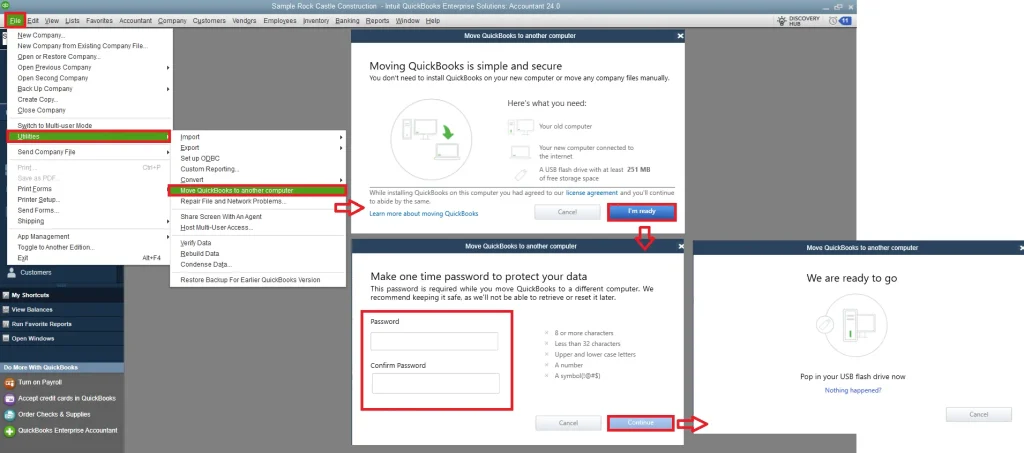
- Sign in to QuickBooks as the company admin.
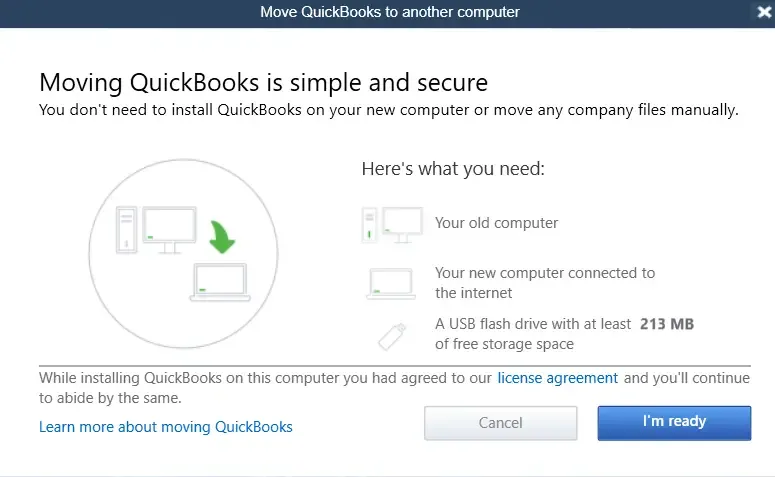
- Select File > Utilities > Move QuickBooks to another computer.
- Select I’m Ready.
- Create a one-time password and keep it somewhere secure.
- Connect your USB drive.
- Follow the prompts to select the drive and copy the files.
- Wait until copying is complete before removing the drive.
The transfer password is separate from your Intuit account password and company-file password.
If you use more than three company files, plan to move the remaining files manually. Check the full company-file list rather than assuming the tool copied everything.
Step 2: Run the Transfer on the New Computer
Connect the USB drive to the new PC and launch the transfer file. The tool needs internet access to download and install the appropriate QuickBooks version.
- Insert the USB drive.
- Open the drive in File Explorer.
- Double-click Move_QuickBooks.bat.
- Enter the one-time password you created.
- Select Let’s go.
- Wait for the tool to finish.
The tool does not normally launch just because you insert the USB drive. Open the transfer file yourself, and keep the computer powered on while the process runs.
If it fails, write down the exact error. You can use the manual backup-and-restore method above instead of repeatedly running the same failed transfer.
Step 3: Review Files and Finish the Setup
Check the transferred company files and review any services or settings that still need attention. A completed transfer does not mean every part of your setup is ready.
- Each of the company files you expected to move.
- Payroll, banking, and payment service access.
- Saved forms, attachments, and templates.
- Connected apps.
- Printing and email settings.
- Backup locations and schedules.
Sign back into eligible connected services where needed. Access still depends on your subscriptions and whether your QuickBooks version supports those services.
How Do You Activate QuickBooks After the Move?
QuickBooks may ask you to activate the software on your new computer. Use the product details linked to your license and follow the prompts shown during setup.
Moving your company file does not change your product license. However, installing the program and accessing your accounting data are separate steps.
Use the Correct License and Product Details
Use license details that match the QuickBooks year and edition you installed. A mismatch can prevent activation even when the license number is correct. Before trying again, check:
- The year and edition of the installed software.
- Your license and product numbers.
- The Intuit account linked to your purchase.
- Your subscription status, if your product requires one.
- The exact wording of any activation error.
An activation prompt does not automatically mean you need another license. If your details are correct but activation still fails, use Intuit’s official support options to check your account.
Do You Need to Deactivate QuickBooks on the Old Computer?
Follow the installation limits and terms for your specific license. Do not use Sync License Data Online as a way to deactivate the old computer.
Intuit describes that command as updating license information. It does not document it as a deactivation step.
Keep your company backups while you complete the move. Before selling or disposing of the old PC, remove the software and securely clear your business data.
How Do You Verify QuickBooks Data After Migration?
Run Verify Data, then compare your reports and recent transactions with the old records. These checks help confirm that the restored file is ready for daily use.
Run the Verify Data Tool
Use Verify Data to scan the company file for common data problems. If it reports an error, follow the guidance for that error before you continue working.
- Open the restored company file.
- Select Window > Close All.
- Go to File > Utilities > Verify Data.
- Wait for the check to finish.
- Read and save the result.
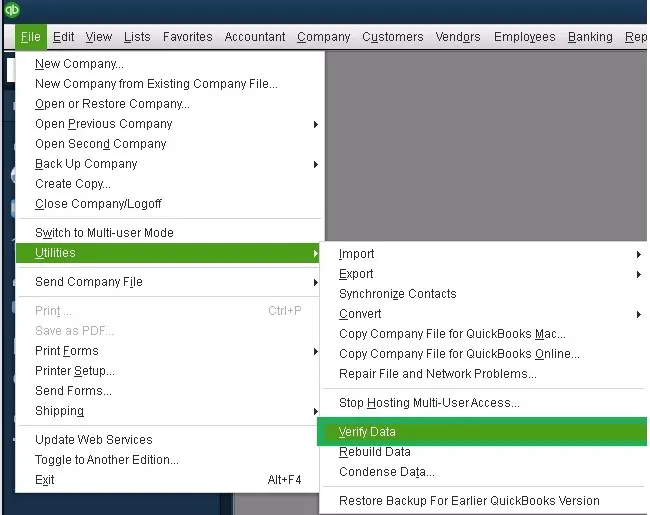
If QuickBooks finds no problems, move on to the report checks below. If it finds damage, protect your backup before attempting repairs.
Do not run Rebuild Data simply because you moved computers. Intuit recommends it when verification finds data damage and requires a backup first. Assisted Payroll users should contact Intuit before rebuilding.
Compare Reports and Recent Transactions
Run the same reports you saved before the move and check that the totals match. Use the same dates, filters, and cash or accrual basis.
| What to check | What should match |
|---|---|
| Balance Sheet | Bank, credit card, asset, and liability balances |
| Profit and Loss | Income, expenses, and net profit |
| Customer balances | Amounts customers still owe |
| Vendor balances | Unpaid bills |
| Recent transactions | Latest invoices, payments, bills, and deposits |
| Payroll and inventory, if used | Relevant totals and records |
If a report differs, check its settings before assuming data is missing. A report set to cash basis can show different results from one set to accrual basis.
Also open a few recent transactions. Matching report totals alone may not reveal that you selected the wrong backup.
Test Your Daily Tasks and Create a New Backup
Check the tasks you use most often, then back up the verified file. This gives you a fresh recovery point on the new computer.
Preview an invoice, print a report, and check email settings. Review attached documents and connected apps where used.
Confirm that scheduled backups point to the correct location. A backup path from the old PC may no longer be available.
What Should You Do if QuickBooks Does Not Work After the Move?
Start with the exact symptom or error message. A program that will not start needs different checks from a company file that will not open.
QuickBooks Will Not Open on the New Computer
Check that your QuickBooks version supports the new system and that installation finished correctly. Then use the troubleshooting tool that matches the problem.
Restart the computer and note whether QuickBooks shows an error or closes without a message. For program and installation tools, follow our QuickBooks Tool Hub guide.
If the program starts and then closes, see our guide to QuickBooks opening and closing immediately.
Avoid making several unrelated changes at once. Test after each step so you know what helped.
Your Company File Will Not Open
Check the file type, location, and QuickBooks version first. A backup file needs to be restored, while a working company file can be opened.
- .QBB: Use Restore a backup copy.
- .QBW: Open it as an existing company file.
- File on a USB drive: Copy it to a suitable local folder first.
- File on a server: Confirm access to the shared folder.
Write down the full error code if the file still fails to open. Do not overwrite your only backup while testing fixes.
Recent Transactions Are Missing
Check whether you restored the latest backup and opened the correct company file. Transactions entered after the backup was created will not be included in that copy.
Compare the backup date with the dates of the missing records. Then check the original file, if it is still available.
If you have already entered new work on the new PC, do not replace that file without a plan. Preserve both copies and identify which transactions each contains before restoring again.
The Migrator Tool Fails or Does Not Start
Confirm that your setup meets the tool’s requirements and that the USB transfer finished. If the same error continues, use manual backup and restore.
Keep the original files and a separate backup. Note the error message so you can troubleshoot the actual cause rather than repeat the transfer without changes.
Other Users Cannot Open the Shared File
Check the host computer and shared-folder setup if the file opens locally but other users cannot access it. Moving the file alone does not complete a server migration.
Review our QuickBooks Database Server Manager guide for the host setup. Then follow the multi-user mode guide to check access from each workstation.
Make sure everyone connects to the same working file. Leaving some users connected to the old server can split new transactions between two copies.
Can You Move QuickBooks 2020, 2021, or 2023 to Windows 11?
Check your exact QuickBooks version before moving it to Windows 11. Copying the data does not guarantee that the software will install, activate, or work correctly.
Older versions need extra care. A program that worked on your old computer may have problems on a newer system.
| QuickBooks version | What to know before moving |
|---|---|
| QuickBooks Desktop 2020 | Intuit’s guidance does not identify it as certified for Windows 11. Do not assume it will work because it ran on Windows 10. |
| QuickBooks Desktop 2021 | Intuit has stated that Windows 11 was not certified as fully compatible with this version. Check your options before retiring the old PC. |
| QuickBooks Desktop 2023 | Check its system requirements, but also account for its service discontinuation after May 31, 2026. |
These limits matter even if you still have the original installer and license. Operating-system compatibility, activation, and access to connected services are separate issues.
If you plan to upgrade during the move, keep an untouched backup from the old version. Follow the supported upgrade path for your file rather than opening your only copy in a different version.
For QuickBooks 2023, moving computers will not restore discontinued payroll, bank feeds, technical support, or security updates. Review your product options before depending on those features.
What Changes When Moving QuickBooks to a Server or Mac?
A server move requires shared access to be set up again. Moving from Windows to QuickBooks for Mac requires a separate file conversion.
How to Move QuickBooks Multi-User to a New Server
Plan the server move for a time when all users can stop working. Back up the shared company file, set up the new host, and test access from each workstation.
Use this order as your planning checklist:
- Have all users close QuickBooks.
- Create the final backup of the shared file.
- Set up the correct QuickBooks hosting components on the new server.
- Restore the company file to its new location.
- Configure folder access and the database service.
- Connect each workstation to the new shared file.
- Check the records and test multi-user access.
- Make sure users no longer open the old working copy.
Can You Move QuickBooks From Windows to Mac?
You can convert eligible Windows company files for QuickBooks Desktop for Mac, but some features and data will not transfer. Review those limits before choosing this route.
Intuit’s conversion guidance applies to Pro, Premier, and Premier Accountant files. It also states that files that have used multiple currencies cannot be converted to QuickBooks for Mac.
The process uses File > Utilities > Copy Company File for QuickBooks Mac to create a special MAC.qbb backup. You then restore that file in the appropriate Mac product.
Check what will be excluded, including integrated payroll data and certain other features. Do not treat this as the same process as restoring a Windows backup on another Windows PC.
Case Study: Missing Invoices After a QuickBooks Move
An outdated backup can make a completed move look like it lost data. Checking the backup date and recent transactions can reveal the cause.
This is a fictional example for learning purposes, not a verified client case.
A small repair business replaces its office computer. The owner installs QuickBooks on the new PC and restores a backup saved on a USB drive.
The file opens, but two recent invoices are missing. The owner checks the backup date and finds that it was created before those invoices were entered.
The original company file on the old PC still contains both invoices. Since no new work has been entered on the new computer, the owner takes these steps:
- Stops all data entry on the old PC.
- Creates a fresh backup from the correct company file.
- Restores it to a separate folder on the new PC.
- Checks the missing invoices and recent payments.
- Compares reports using the same dates and settings.
- Selects the checked file as the new working copy.
In this example, the transfer did not remove the invoices. The backup simply did not contain them. A final backup taken after work stops helps prevent this problem.
Conclusion
To move QuickBooks to a new computer safely, start with a fresh backup and use the transfer method that fits your setup. Install and activate the correct version, restore your company file, and compare your records before entering new transactions.
Keep your original backup until you have checked reports, recent payments, and key settings. Once everything matches, create a new backup and use only the confirmed working file.
For more details, follow Intuit’s guide to moving your QuickBooks company file to another computer.
Frequently Asked Questions
The right transfer method depends on your QuickBooks version, access to the old computer, and file setup. These answers address common questions before and after the move.
What Is the Easiest Way to Transfer QuickBooks Desktop to a New PC?
Manual backup and restore is a clear way to move your company data after installing QuickBooks on the new PC. The Migrator Tool can help with eligible single-user setups, but you should still keep a separate backup.
How Do I Transfer My QuickBooks License to a New Computer?
Install the QuickBooks product covered by your license and follow the activation prompts using the matching product details. Reinstalling for the same owner is different from transferring license ownership to another person or business.
Why Is QuickBooks Asking for a License After Moving to a New PC?
The new installation may need your license details and activation even though you already restored the company file. The backup contains your accounting data; it does not replace the software installation and activation process.
Can I Move QuickBooks if My Old Computer No Longer Works?
You can restore an available company backup after installing a compatible QuickBooks product. If you have no backup, recovery depends on whether the company data can be retrieved from the old drive or another saved location.
Does a QuickBooks Backup Include Every File and Setting?
No, a company backup includes accounting data and many supporting files, but it is not a full copy of your computer. Saved payroll forms need separate attention, and you should check connected apps and computer-specific settings after the move.
Can I Use a USB Drive to Move QuickBooks?
Yes, you can copy your company backup to a USB drive, then copy it to the new computer’s local drive before restoring it. The Migrator Tool also uses a USB drive, but follows a separate transfer process.
How Long Does It Take to Move QuickBooks to a New Computer?
There is no fixed time for every move. Allow time for downloading, installation, file transfer, and data checks; larger files and multi-user setups may take longer.
