The QuickBooks Outlook Is Not Responding error can occur when you send invoices or other emails from QuickBooks Desktop. Outlook may freeze while connecting to QuickBooks, stop responding after sending one invoice, or fail to open even when it works normally on its own. The issue can also appear after a Microsoft 365 update or switching to the new Outlook for Windows.
Common causes include compatibility issues, incorrect email settings, a damaged Outlook profile, or problems with Office components. In this blog, we’ll walk you through simple solutions to fix QuickBooks Outlook not responding and get your emails sending smoothly again.
Why Is QuickBooks Outlook Not Responding?
The QuickBooks Outlook not responding error can occur for several reasons, depending on when the problem starts and how it affects email sending.
Here are the most common scenarios and their possible causes:
| Error or scenario | Why it happens |
| QuickBooks freezes when sending invoices through Outlook | Outlook may struggle to process invoice attachments or complete the email handoff. |
| Outlook works, but QuickBooks cannot send emails | Incorrect QuickBooks email preferences, a damaged Outlook profile, or integration issues may prevent sending. |
| QuickBooks freezes when connecting to Outlook | QuickBooks may be unable to communicate with the configured Outlook application. |
| QuickBooks sends one email, then freezes | A problematic attachment, pending message, or Outlook add-in may interrupt subsequent emails. |
| QuickBooks Outlook is not responding after an Office update | A Microsoft 365 update may introduce compatibility issues or affect existing Office components. |
| Outlook is missing from QuickBooks email preferences | QuickBooks may not detect a supported Outlook installation or properly configured email profile. |
| QuickBooks reports a missing component after switching to New Outlook | New Outlook may lack desktop email integration features required by your QuickBooks version. |
Before troubleshooting: Identify which scenario matches your issue and check whether you’re using New Outlook or classic Outlook. This will help you narrow down the cause and avoid trying unnecessary fixes.
How to Fix QuickBooks Outlook Is Not Responding
When QuickBooks Desktop freezes while sending an invoice or connecting to Outlook, it can interrupt your work. Use the solutions below to troubleshoot QuickBooks Outlook not responding without jumping straight to reinstalling either application.
1. QuickBooks Outlook Not Responding When Sending Emails
Start with the email settings in QuickBooks Desktop. An incorrect configuration can prevent QuickBooks from communicating with Outlook properly.
Solution 1: Check QuickBooks email preferences
- Open QuickBooks Desktop.
- Select Edit, then Preferences.
- Choose Send Forms from the left menu.

- Open the My Preferences tab.
- Select Outlook as the email option.
- Select OK to save the changes.
- Try sending a test invoice or report.
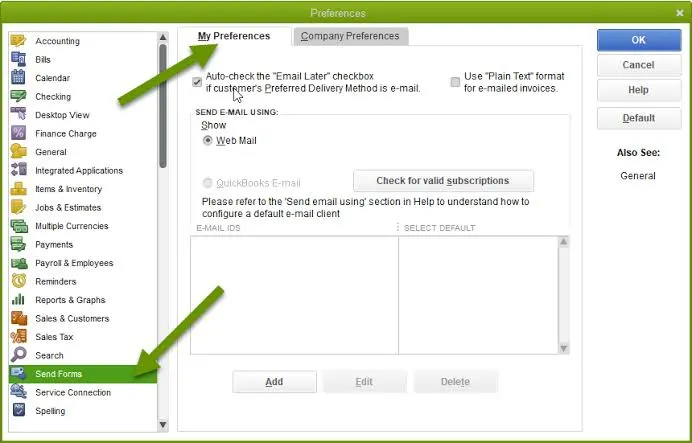
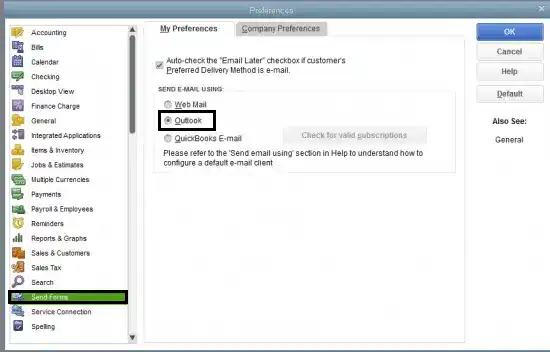
QuickBooks may need its email preference refreshed before it can connect to Outlook again.
If resetting the email preferences does not resolve the issue, the problem may be related to how Outlook handles messages initiated by QuickBooks. The next step is to check whether Outlook itself is freezing while processing invoices.
If Outlook is missing from the Send Forms options or your email account is not configured correctly, see our guide on how to set up email in QuickBooks Desktop for step-by-step instructions.
2. QuickBooks Freezes When Emailing Invoices Through Outlook
QuickBooks may become unresponsive when you select email on an invoice, estimate, or other sales form. Before changing advanced settings, check whether the problem affects Outlook itself or only the connection between the two applications.
Solution 1: Test email from another Office application
This check helps narrow down the source of the problem.
- Save your work and close QuickBooks.
- Open Microsoft Word.
- Create a blank document.
- Use Word’s available email or sharing option to test whether Outlook can send a document.
- Check whether Outlook opens and responds normally.
Solution 2: Check whether Outlook is already waiting for input
- Open Outlook directly from the Windows Start menu.
- Check whether it displays a sign-in prompt, warning, or dialog box.
- Complete any required prompts.
- Confirm that Outlook can open a new message and respond to clicks.
- Return to QuickBooks and try sending the invoice again.
If Outlook continues to freeze or stop responding when used outside QuickBooks, follow Microsoft’s guide to troubleshoot Outlook when it hangs, freezes, or stops working to check for Outlook-specific problems.
Once you have confirmed that Outlook opens and responds normally, check how Windows routes email requests from QuickBooks. A default email application or profile issue may prevent the two programs from communicating properly.
3. Outlook Not Responding When Sending Email From QuickBooks
Outlook may work normally for regular emails but stop responding when QuickBooks tries to open a message. A Windows email configuration or Outlook profile issue may be responsible.
Solution 1: Set Outlook as the default email application
- Close QuickBooks and Outlook.
- Open Windows Settings.
- Go to Apps > Default apps.
- Search for Outlook.
- Set Outlook as the default for the relevant email protocols and file associations available on your system.
- Reopen Outlook and sign in.
- Open QuickBooks and test the email function.
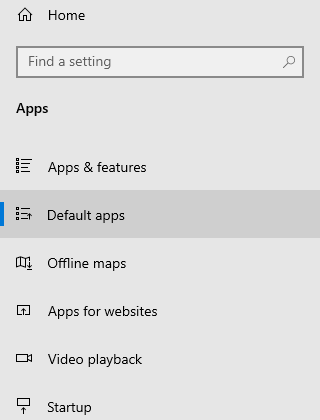
The labels may differ between Windows versions and Outlook installations. The objective is to make sure Windows recognizes the intended Outlook installation as the default email application.
With the default email application and Outlook profile checked, the next step is to look at QuickBooks permissions and its messaging components. These settings are particularly relevant when QuickBooks displays an error stating that it cannot send an email to Outlook.
4. QuickBooks Unable to Send Emails to Outlook
QuickBooks may display an error stating that it is unable to send an email to Outlook because of program permissions and email preferences.
Solution 1: Check whether QuickBooks is running as an administrator
Here’s how to check:
- Close QuickBooks Desktop.
- Open the Windows Start menu and search for QuickBooks.
- Right-click the QuickBooks shortcut and select Open file location.
- Right-click the QuickBooks application file and select Properties.
- Open the Compatibility tab.
- Check whether Run this program as an administrator is selected.
- If it is selected, clear the checkbox.
- Select Apply, then OK.
- Open QuickBooks normally and test email delivery.
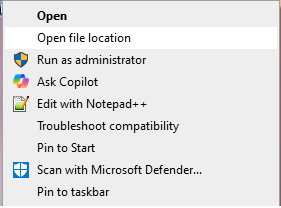
You may need to select Show settings for all users to view the option. Avoid changing unrelated Windows permissions.
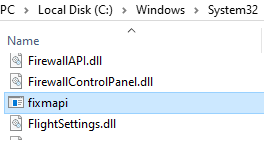
Solution 2: Repair the MAPI component
QuickBooks uses Windows messaging components to communicate with supported desktop email applications. A problem with the MAPI component may prevent emails from opening correctly.
Before attempting a repair, test whether another Office application can send through Outlook. Intuit recommends contacting Microsoft support if that test fails.
When the Office email test works but QuickBooks still cannot send, Intuit documents the following repair procedure:
- Close all open programs.
- Open File Explorer.
- Navigate to C:\Windows\System32.
- Locate Fixmapi.exe.
- Run the utility and follow any on-screen instructions.
- Restart your computer.
- Open QuickBooks and send a test email.
If the permission and MAPI checks do not help, consider whether the issue started after a Microsoft Office update. Checking your installed version can help determine whether a compatibility issue needs further investigation.
If QuickBooks still cannot send emails after you check Outlook permissions and repair MAPI, follow our guide on how to fix QuickBooks when it is unable to send emails for additional troubleshooting methods.
5. QuickBooks Outlook Not Working After an Office Update
A Microsoft Office update can coincide with changes in how QuickBooks connects to Outlook. This is especially worth checking when the email function worked before the update and stopped immediately afterward.
Solution 1: Check your Outlook version
- Open Outlook.
- Select File.
- Choose Office Account.
- Select About Outlook.
- Note the version and build information.
- Compare it with Intuit’s guidance for your QuickBooks Desktop version and the Outlook issue you are experiencing.
Solution 2: Check compatibility before changing Outlook
QuickBooks Desktop’s supported Outlook configurations depend on the QuickBooks release and Office installation.
- Identify your QuickBooks Desktop year and release.
- Check the system requirements for that version.
- Confirm whether your installed Outlook version and installation type are supported.
- Check whether you are using classic Outlook or the newer Outlook application.
- Contact Intuit or Microsoft support if compatibility remains unclear.
Note: Do not uninstall updates or switch Outlook versions without confirming that the alternative is compatible with your QuickBooks release. A version change can introduce additional setup issues.
Once you have checked the Office version and compatibility requirements, return to the connection between QuickBooks and Outlook. A missing profile or damaged Office installation may still prevent QuickBooks from opening an email window.
If QuickBooks itself also freezes or stops opening after an update, see our guide on how to fix QuickBooks when it stops working after an update for additional program-level troubleshooting.
6. QuickBooks Freezes When Connecting to Outlook
The problem may occur before an email is sent. For example, QuickBooks may hang when you select Outlook in Send Forms preferences or attempt to open an email window.
Solution 1: Confirm Outlook is installed and configured
- Close QuickBooks.
- Open Outlook directly.
- Confirm that your email account is configured and signed in.
- Check whether Outlook opens without a warning or sign-in error.
- Confirm that you have a usable Outlook profile.
- Reopen QuickBooks.
- Go to Edit > Preferences > Send Forms.
- Select Outlook and save the preference.
If Outlook is missing from the available email options, check whether your QuickBooks version supports the installed Outlook configuration.
Solution 2: Repair Microsoft Office
Repairing Office may help when Outlook itself is damaged or behaving unexpectedly. Microsoft provides built-in repair options for supported Office installations.
For Windows 11:
- Close Outlook and QuickBooks.
- Right-click Start and select Installed apps.
- Find Microsoft 365 or your installed Office product.
- Select the three-dot menu and choose Modify.
- Choose Quick Repair and follow the instructions.
- Test Outlook again.
- If the issue persists, consider Online Repair, which is more comprehensive and may require an internet connection.
If Outlook opens correctly and Office repair does not resolve the connection problem, observe what happens after QuickBooks sends its first message. This can help narrow down issues that occur during repeated email attempts.
7. QuickBooks Sends One Email Then Outlook Stops Responding
QuickBooks may successfully send one invoice or report, then freeze or stop opening Outlook for subsequent emails. This pattern does not point to one confirmed cause, so test the workflow before making system changes. You can either test different email types or check the status of outlook.
Solution 1: Check Outlook’s status before trying again
- Open Outlook directly.
- Check whether it is still responding.
- Look for an unfinished message window or a prompt waiting for your input.
- Check the Outbox for a message that may still be processing.
- Avoid sending the same invoice repeatedly until you confirm whether the original message was delivered.
- Reopen QuickBooks only after Outlook is responding normally.
If Outlook continues to freeze after the first email, review the email preferences once more and confirm that the integration is configured correctly. The final set of checks covers cases where Outlook works independently but QuickBooks still cannot send messages.
8. Outlook Works but QuickBooks Cannot Send Email
When Outlook can send regular emails but QuickBooks cannot send invoices or reports, the problem may lie in the integration between the applications rather than the email account itself.
Solution 1: Recheck Send Forms preferences
- Open QuickBooks Desktop.
- Select Edit > Preferences.
- Select Send Forms.
- Under My Preferences, confirm that Outlook is selected.
- Save the setting and restart QuickBooks.
- Try sending a test transaction.
If Outlook is not listed, check the supported configurations for your QuickBooks version and confirm that Outlook has a working profile and is set up as the default email application.
Solution 2: Reinstall QuickBooks only after other checks fail
Before reinstalling QuickBooks, consider using the appropriate repair options in QuickBooks Tool Hub to troubleshoot supported program problems
Reinstalling QuickBooks is a more involved step and should not be the first response to an Outlook problem. Intuit includes reinstalling QuickBooks among its troubleshooting options for persistent email errors.
Before proceeding:
- Back up your QuickBooks company file.
- Confirm your QuickBooks product and license information.
- Review Intuit’s instructions for reinstalling your specific version.
- Reinstall QuickBooks using the appropriate installation files.
- Open your company file and configure the Outlook email preference again.
- Test email delivery.
Once you have worked through the relevant fixes, take a few preventive steps to reduce the chances of encountering the same email problem again.
Tips to Prevent QuickBooks Email Problems
- Keep QuickBooks updated: Install available QuickBooks Desktop updates to maintain compatibility and receive the latest fixes.
- Update Outlook regularly: If you use Outlook, keep Microsoft Office updated to avoid compatibility problems.
- Check email settings: Review your email preferences whenever you change your email account or email application.
- Test your email separately: Make sure Outlook or your webmail account can send messages outside QuickBooks.
- Check security software: Make sure your antivirus or firewall is not blocking QuickBooks or outgoing email connections.
- Verify recipient details: Double-check customer email addresses before sending invoices and other forms.
- Restart after making changes: Close QuickBooks and related programs, then restart your computer after changing email or system settings.
We hope that now you will be able to successfully send emails through your QuickBooks account.
Conclusion
QuickBooks Outlook not responding issue can disrupt your work, especially when you need to send invoices or share important reports. With the right approach, you can get back to sending invoices, sharing reports, and managing your business without unnecessary interruptions. A reliable email workflow helps you spend less time dealing with technical problems and more time focusing on your business.
FAQ’s
Should Outlook be open when sending from QuickBooks?
Keeping Outlook open and signed in can help when troubleshooting email problems in QuickBooks Desktop. If QuickBooks cannot send emails to Outlook, open Outlook first and confirm that your account is working before trying again.
Will switching to classic Outlook fix the QuickBooks error?
Switching to classic Outlook may help if your QuickBooks Desktop version relies on MAPI, which new Outlook does not currently support. However, the result depends on your QuickBooks version and the cause of the error.
Why did the error start after a Microsoft 365 update?
A Microsoft 365 update may introduce compatibility issues that affect communication between QuickBooks Desktop and Outlook. If you experience QuickBooks Outlook not responding after an Office update, check your installed Outlook version, install available updates, and review Intuit’s troubleshooting guidance for the specific error.
Why does QuickBooks report a missing component after switching to new Outlook?
QuickBooks Desktop may report a missing component after switching to new Outlook because some QuickBooks email workflows rely on MAPI, which new Outlook for Windows does not currently support. Switching to classic Outlook may resolve the issue if your QuickBooks version supports that configuration.
Accounts Confidant is an independent accounting and bookkeeping service provider and is not affiliated with Intuit.
