
You removed QuickBooks, installed it again, and got the same error. Now an older guide tells you to run the QuickBooks Clean Install Tool, but you cannot find it.
You can still do a clean install without that button. The key is to stop the new setup from using old, damaged program folders. First, protect your company files. Then check whether the fault is in QuickBooks, Windows, or the file you need to open.
This guide covers the manual Windows method, a separate Mac process, and what to do if the error comes back.
Is the QuickBooks Clean Install Tool still available?
The old Clean Install option is no longer part of the workflow in Intuit’s current Tool Hub guide. Intuit now gives a reinstall process, with manual folder renaming as a fallback.
Older articles may call the utility the QuickBooks Clean Install Utility or QB Clean Install Tool. Do not assume that those older screens will match your Tool Hub version.
Use Intuit’s official QuickBooks reinstall guide as the reference for the current Windows process. It also links to the installer download. No verified removal date or official reason for removing the old option was found in the sources reviewed for this guide.
What should you download for a clean install?
Download the QuickBooks Desktop installer for your product, year, and country. Download Tool Hub only if you need its repair tools as well.
A search for “QuickBooks Clean Install Tool download” may lead to an old executable. The manual method below does not need that file. Do not install an unknown utility just because its name looks right.
When should you clean install QuickBooks?
A clean install may help when damaged program files cause faults that remain after repairs. It cannot fix every problem with Windows, a network, or your company data.
Note when the error appears. Does setup stop before it ends? Does QuickBooks close before you choose a file? Or does the problem start only when you open one company?
| What happens? | Where to start |
|---|---|
| Setup fails before QuickBooks is installed | Check the error code and run installation diagnostics. |
| QuickBooks fails before you open a company file | Check the program and its Windows components. |
| QuickBooks opens, but one company file does not | Check the file, its location, and access rights. |
| Other users cannot reach a shared file | Check the host computer and network setup. |
| Program faults remain after repair and reinstall | Consider a manual clean install. |
For a file-specific fault, see how QuickBooks File Doctor checks company-file and network issues. Running a clean install again is unlikely to help if the fault lies in the data itself.
What is the difference between repair, reinstall, and clean install?
A repair works on the installed program. A manual clean install adds a deliberate folder-renaming step before you install QuickBooks again.
| Method | What changes? | When it may help |
|---|---|---|
| Repair | Repairs parts of the existing setup. | Program faults that do not yet need removal. |
| Uninstall and reinstall | Replaces the application. Intuit says its current process also creates new folders and renames old ones. | Problems that remain after a repair. |
| Manual clean install | Renames remaining installation folders before the fresh setup. | Problems that remain after the usual reinstall. |
Back up first for all three methods. A clean install is not a data-recovery tool or a way to bypass a license problem.
What should you save before removing QuickBooks?
Save your data, license details, and matching installer before you uninstall. Keep the backup away from the folders you plan to change.
- Record the product, year, country edition, and release if available.
- Keep the product and license numbers in a private place.
- Confirm where the working company file is stored.
- Check that the correct installer is ready.
- Make sure you have Windows admin access.
- Ask all users to close QuickBooks before work on a shared setup.
If you use hosted QuickBooks, ask your hosting provider to handle the server work. A change on the host can affect every user.
How do you back up your company file?
If QuickBooks opens, create a local backup and confirm that it finishes. A backup saved outside the installation folders is easier to protect during cleanup.
- Ask other users to close the company file.
- Go to File → Switch to Single-user Mode, if needed.

- Select File → Back Up Company → Create Local Backup.
- Choose Local Backup, then select a safe location.
- Use Complete verification in the backup options.
- Choose to save the backup now and wait for confirmation.
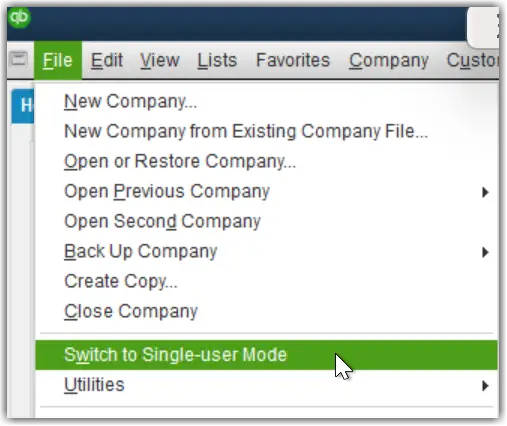
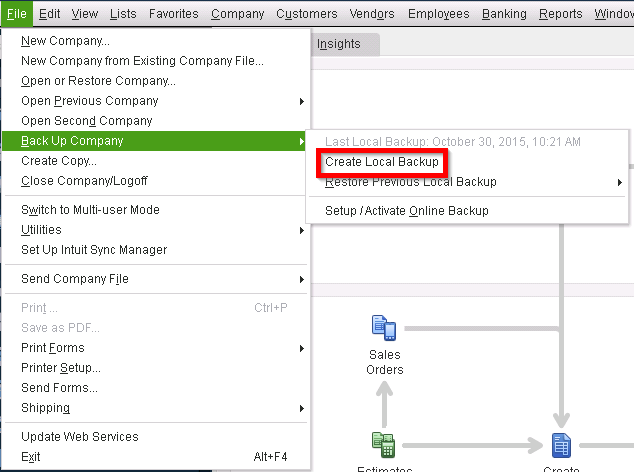
The backup uses a .qbb file extension. Save payroll tax forms separately; they are not automatically included in this backup. Also check any separately stored documents your business needs.
What if QuickBooks will not open to make a backup?
Keep your existing company files and backups safe before changing any folders. A file copy is useful, but it is not a backup that QuickBooks has checked.
With all users out of QuickBooks, have the company file folder copied to a safe location. Keep the original files, including related files, intact. If you cannot find the current company file or confirm that no one is using it, get help before you proceed.
Do not delete files ending in .qbw or .qbb as part of program cleanup.
How do you manually clean install QuickBooks on Windows?
Remove the affected version, rename its remaining installation folders, and reinstall. Use this fallback when the normal reinstall has not fixed the fault.
- Close QuickBooks and all shared sessions.
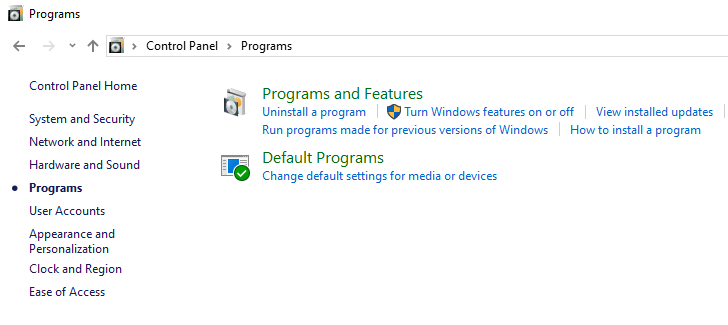
- Open Control Panel → Programs and Features.
- Select the affected QuickBooks version. Choose Uninstall/Change → Remove and follow the prompts.
- Open File Explorer. On Windows 11, select View → Show → Hidden items.
- Locate the matching installation folders below. Add
.oldto their names. - Reinstall using the matching QuickBooks installer.
| Common location | What to check |
|---|---|
C:\ProgramData\Intuit\QuickBooks [year] | The year must match. |
C:\Users\[user]\AppData\Local\Intuit\QuickBooks [year] | Use the affected Windows account. |
C:\Program Files\Intuit\QuickBooks [year] | Names can vary by edition. |
C:\Program Files (x86)\Intuit\QuickBooks [year] | Check older or different installations here. |
Check before renaming: These are common paths, not a list of folders to create. Preserve any company data found there. Do not rename the whole Intuit folder or folders used by other versions.
What if Windows will not let you rename a folder?
An active process or missing access rights may block the rename. Make sure all users have signed out before you stop any QuickBooks process.
In Task Manager, check for Qbw32.exe, QBDBMgrN.exe, QBDBMgr.exe, and QBCFMonitorService.exe. End the affected processes only after closing active sessions, then retry.
On a shared server, let the administrator handle this step. If access remains blocked, stop and have the permissions checked. Do not force-delete the folder.
Which setup option should you choose when reinstalling?
Use Express for a standalone setup. Use Custom and Network Options when the computer is part of a shared QuickBooks network.
The network choices depend on whether the computer runs QuickBooks, hosts the company file, or does both. Our guide to installing QuickBooks Desktop explains those choices.
Complete the installer, activate QuickBooks when prompted, and apply the latest release for that version. Reinstalling the same product is different from upgrading to a newer year. Do not change versions just to complete these steps.
Can you clean install QuickBooks on Windows 11?
Yes, if your QuickBooks release and hardware meet Intuit’s requirements. Windows 11 alone does not prove that an older QuickBooks version will work.
Check the requirements for your exact release before uninstalling. For example, QuickBooks Desktop 2024 requires a supported 64-bit Windows setup and does not support ARM processors. A clean install will not fix that mismatch.
How do you clean install QuickBooks for Mac?
On Mac, remove the QuickBooks app and its version-specific settings files, then reinstall. The Windows Tool Hub process does not apply.
Back up your company file and keep the matching Mac installer and license details ready.
- Quit QuickBooks.
- Open Finder → Applications. Move the affected QuickBooks app to Trash.
- In Finder, open Go, hold Option, and select Library.
- Open Preferences. Locate the matching
com.intuit.QuickBooks20XXPLIST files. - Remove only the files for the version being reinstalled.
- Check Macintosh HD → Library → Preferences for the matching system PLIST files and remove those too.
- Check the Trash contents before emptying it. Confirm that no company files or backups are included.
- Restart the Mac and reinstall QuickBooks.
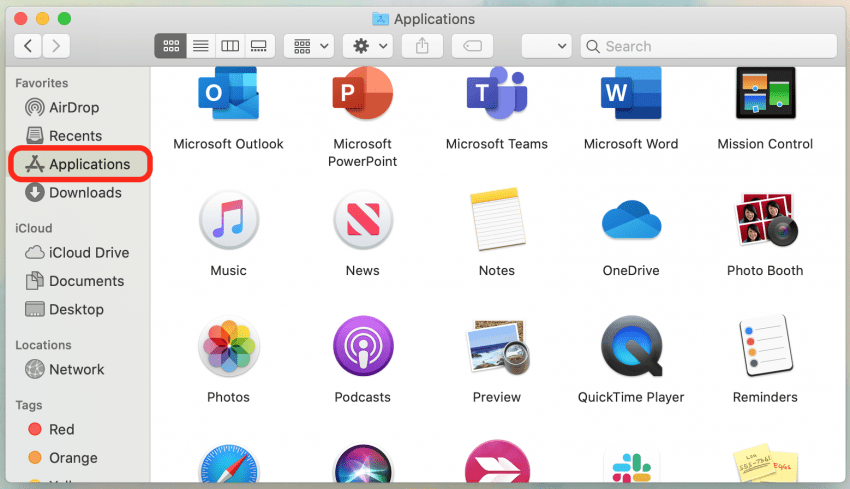
PLIST files store settings. Removing them resets preferences and may require registration again. Do not apply Windows folder paths or registry steps on a Mac.
Do you need to clean the Windows registry?
Broad registry cleanup is not a normal clean-install step. Do not delete entries just because they contain the name QuickBooks or Intuit.
The registry stores settings used by Windows and programs. A wrong change can affect more than QuickBooks. Folder renaming does not mean you have removed every registry entry, nor do you need to do so for a routine clean install.
If an error names a registry key, record the full message. Let a qualified technician check that specific issue. Before a justified change, back up the affected key and have a recovery plan. Avoid registry cleaners that promise to fix every error at once.
How do you check that the clean install worked?
Open QuickBooks and test the task that failed before. Completing setup does not prove that the original problem is fixed.
- Confirm that QuickBooks starts without the same error.
- Finish activation and updates.
- Open the existing company file from its known location.
- Check the company name and a recent transaction.
- Repeat the task that caused the fault.
- Test shared access if other people use the file.
You do not need to restore a backup if the current company file is intact and opens normally. Restoring an older backup over it could replace newer work.
If only shared access fails, review your QuickBooks multi-user setup before repeating the clean install.
What if QuickBooks still will not install or open?
Use the error message and the stage where it fails to choose the next step. The cause may sit outside the QuickBooks program folders.
| What you see | What to try next |
|---|---|
| QuickBooks will not uninstall | Record the error. Have an IT professional check Windows installation problems. |
| Error 1603 or 1722 during setup | Run Install Diagnostic Tool, restart, and check Windows updates. Further component repair may be needed. |
| Error 1904 | Record the file that failed to register. Follow the error-specific component and access-rights checks. |
| Error 3371 at launch | Use the dedicated 3371 Error Fix under Installation Issues in Tool Hub. |
| QuickBooks opens but one company file fails | Check that file, its path, and access rights. Use file repair tools where appropriate. |
| QuickBooks closes before you can work | Follow program-startup checks rather than assuming the install failed. |
| Setup works only with other apps disabled | Investigate a software conflict and restore normal startup after testing. |
For installation diagnostics, open Tool Hub → Installation Issues → QuickBooks Install Diagnostic Tool. Let it finish, then restart. Intuit notes that the tool can take up to 20 minutes.
If the app starts and then closes, use our guide to QuickBooks opening and closing immediately to narrow down the fault.
Should you try Selective Startup?
Selective Startup can help when another program blocks setup. It limits background services while you test the install.
Use it with IT help if you are unsure which services to change. The Windows Installer service must remain available. Restore normal startup when the test is done; do not leave the computer in a reduced startup state.
If the same error remains, collect the exact message, a screenshot, and the steps already tried. Avoid another round of file deletion without a clear reason.
Case study: A reinstall does not fix a startup error
This shows how to choose the next step after a failed reinstall.
The problem: A bookkeeper whose QuickBooks app closes at launch. A normal reinstall makes no difference, and an old guide points to a missing Clean Install button.
The first check: The bookkeeper protects the data and records the version and error. They check whether QuickBooks can reach the screen where a company file is selected.
The next step: If the program itself still fails after repair, the manual clean-install route may be appropriate. The bookkeeper changes only the affected installation folders.
The result to test: If the program now opens but the company file does not, the next task is file diagnosis. Another program reinstall would repeat work without addressing that new evidence.
The lesson: Test the program and the company file separately. Let the test result guide the next step.
Conclusion
A QuickBooks clean install may help when damaged program files cause errors that remain after a normal reinstall. If the Clean Install Tool is missing, you can use the manual method. Back up your company data, rename only the correct installation folders, and reinstall the matching version.
If the error returns, check its cause before repeating the process. Windows, license, network, and company-file issues may need a different fix.
Frequently Asked Questions
These answers address common concerns about missing tools, data safety, and failed repairs. Use the full steps above before changing files.
How do I download the QuickBooks Clean Install Tool?
A currently supported standalone QuickBooks Clean Install Tool download was not verified for this guide. Use Intuit’s current reinstall process instead. Get the matching Desktop installer, and use the manual folder-renaming method when a normal reinstall has failed.
Where is the Clean Install Tool in Tool Hub?
Older guides place the Clean Install Tool under Installation Issues. Intuit’s current Tool Hub instructions no longer list that workflow. If the button is missing, use the manual method. The Install Diagnostic Tool is a separate repair tool, not the same utility.
Does a QuickBooks clean install delete company data?
A QuickBooks clean install is meant to replace program files, not delete company data. Back up first, since deleting or renaming the wrong folder can still cause problems. Keep your working company files and backups separate from the program folders being changed.
Should I use File Doctor before a clean install?
Use File Doctor when the problem points to a company file or a supported network issue. It is not a required first step for every failed installation. If setup itself fails, start with the error code and installation diagnostics.
What if the Clean Install Tool will not open?
If an old Clean Install Tool executable will not open, use the current manual process rather than forcing that file to run. If Tool Hub itself will not open, check its installation separately. You do not need the old utility to rename installation folders manually.
Why does QuickBooks keep showing errors after reinstalling?
The fault may be in Windows, access rights, security software, or the company file. A reinstall does not fix all of those causes. Record the exact message and check whether it appears during setup, at launch, or when opening a file.
Why did Intuit remove the Clean Install Tool?
No official reason or removal date was verified in the sources reviewed for this guide. The current documented process uses reinstalling and, if needed, manual folder renaming. Claims that the change was made for a specific security or performance reason should not be treated as fact without a source.
What is the success rate of a QuickBooks clean install?
No verified success-rate figure was found in the Intuit guidance reviewed. A clean install may help with damaged program files. It will not reliably fix a fault caused by an unsupported system, damaged company data, or a separate network problem.
Accounts Confidant is an independent accounting and bookkeeping service provider and is not affiliated with Intuit.
