QuickBooks Desktop may fail to install or display errors such as 1603, 1904, or 1935 when installation files or required Windows components are not working correctly. The QuickBooks Install Diagnostic Tool can help diagnose and repair some of these problems without requiring you to reinstall QuickBooks immediately.
You can access the tool through QuickBooks Tool Hub. It checks for supported installation issues, including problems involving Microsoft components used by QuickBooks Desktop.
This guide explains how to download and run the diagnostic tool, identify the errors it may help resolve, and troubleshoot problems when the tool fails to run or the installation error continues.
What Is the QuickBooks Install Diagnostic Tool?
The QuickBooks Install Diagnostic Tool is an Intuit troubleshooting utility that helps diagnose and repair common QuickBooks Desktop installation problems on Windows.
It focuses on issues involving installation components that QuickBooks depends on, including:
- Microsoft .NET Framework: Provides software components and services required by QuickBooks Desktop.
- Microsoft MSXML: Helps applications process XML data. Damaged MSXML components can prevent QuickBooks from installing or running correctly.
For example, if QuickBooks installation stops because a required Microsoft component is damaged, the diagnostic tool may help address the underlying issue.
However, it cannot fix every installation error. Problems involving unsupported software versions, Windows permissions, or conflicting applications may require separate troubleshooting.
The diagnostic utility is available under Installation Issues in QuickBooks Tool Hub.
What Errors Can QuickBooks Install Diagnostic Tool Help Fix?
The QuickBooks Install Diagnostic Tool may help with several errors that occur during installation or when opening QuickBooks after setup.
| Error code | What the error may indicate |
| QuickBooks Error 1603 | The installation or update fails, sometimes because of a Microsoft .NET Framework or installer problem. |
| QuickBooks Error 1722 | A Windows Installer package cannot complete a required installation action. |
| QuickBooks Error 1903 | QuickBooks encounters an installation problem that may involve Windows components. |
| QuickBooks Error 1904 | A file or module fails to register during installation. |
| QuickBooks Error 1935 | A required assembly or Microsoft .NET Framework component cannot be installed correctly. |
Intuit includes the Install Diagnostic Tool in its troubleshooting instructions for several of these errors, including 1903 and 1904.
The exact cause matters. For example, Error 1603 can appear during a QuickBooks update or while installing Microsoft .NET Framework. Error 1935 may involve damaged .NET Framework files, another installation using those files, or interference from security software.
For Error 1722, the tool may be worth trying if the problem involves installation components, but the specific Windows Installer failure may require additional investigation.
What about QuickBooks Error 1628?
Error 1628, which may display the message Failed to complete script-based install, can occur when the Windows Installer service is not working correctly.
Intuit recommends contacting an IT professional or Microsoft specialist if that service needs repair.
The diagnostic tool is therefore a troubleshooting option, not a guaranteed solution for every error listed above.
How to Download QuickBooks Install Diagnostic Tool
You can obtain the QuickBooks Install Diagnostic Tool by downloading QuickBooks Tool Hub from Intuit. The current official procedure does not require a separate standalone diagnostic-tool installer.
Follow these steps:
- Close QuickBooks Desktop if it is running.
- Open Intuit’s official QuickBooks Desktop repair guide.
- Find the Download the QuickBooks Tool Hub section and select the download link.
- Save the QuickBooksToolHub.exe file in your Downloads folder or another location you can easily access.
- Double-click the downloaded file and follow the installation prompts.
- Accept the terms and conditions to complete the setup.
After installation, double-click the QuickBooks Tool Hub icon on your desktop.
If you cannot find the shortcut, open Windows Search, type QuickBooks Tool Hub, and select the application.
Which QuickBooks Tool Hub Version Should You Use?
Intuit’s repair guide, updated August 3, 2026, identifies QuickBooks Tool Hub version 1.6.0.8.
However, some other Intuit support articles still reference the older version 1.4.0.0. Because these support pages contain different version information, use the download provided in the current repair guide rather than relying on an older standalone installer.
To check your installed version, open Tool Hub, select Home, and look for the version number near the bottom of the window.
How to Run QuickBooks Install Diagnostic Tool
Once QuickBooks Tool Hub is installed, you can run the diagnostic utility from its Installation Issues section.
Close QuickBooks Desktop before starting and save any unfinished work in other applications.
Step 1: Open QuickBooks Tool Hub
Launch QuickBooks Tool Hub using its desktop shortcut or Windows Search.
Wait for the application to open before selecting a troubleshooting tool.
Step 2: Select Installation Issues
In the left-hand menu, click Installation Issues.
This section provides access to troubleshooting tools for QuickBooks Desktop installation problems.
Step 3: Run QuickBooks Install Diagnostic Tool
Select QuickBooks Install Diagnostic Tool.
Follow any prompts that appear and allow the process to finish.
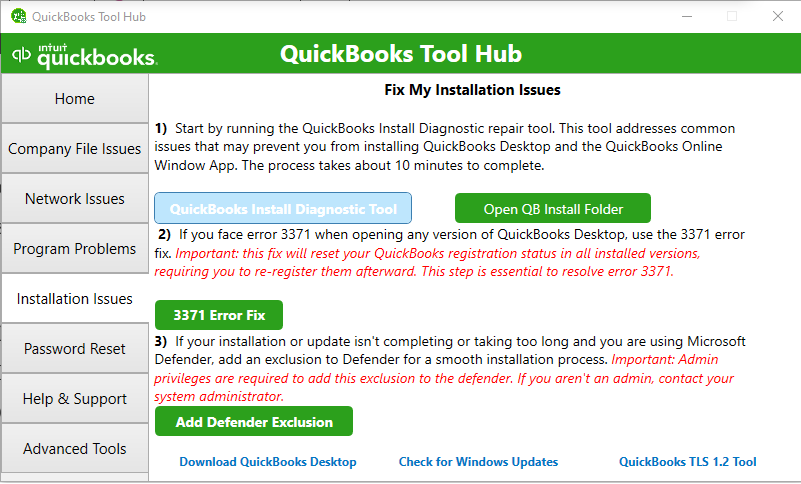
According to Intuit, the tool can take up to 20 minutes to run. The actual time may vary depending on your computer and the installation components being checked.
Avoid closing the utility while it is actively working.
Step 4: Restart Your Computer
When the diagnostic process finishes, close Tool Hub and restart Windows.
Restarting is part of Intuit’s recommended procedure and allows the system to complete changes that may have been made during the repair.
Step 5: Check Whether the Installation Error Is Resolved
After restarting, repeat the action that originally caused the problem.
| Original problem | How to test the repair |
| QuickBooks installation stopped with an error | Run the installer again and check whether setup completes. |
| QuickBooks installed but would not open | Launch QuickBooks Desktop and check whether it opens. |
| An installation-related error appeared during an update | Retry the update and check whether the same error returns. |
For example, if Error 1904 appeared while installing QuickBooks, retry the installation and check whether the file-registration error appears again.
If QuickBooks installs successfully, you can continue with the remaining steps in our QuickBooks Desktop installation guide.
If the same error returns, record the complete message, including any file name or path it mentions. That information can help you select the correct next repair.
What If QuickBooks Install Diagnostic Tool Is Not Working?
The diagnostic utility may fail to open, appear missing from Tool Hub, or become unresponsive during a repair.
Identify which problem you are experiencing before changing Windows settings or reinstalling QuickBooks.
Why Won’t QuickBooks Install Diagnostic Tool Open?
If clicking the diagnostic tool does nothing, first check whether QuickBooks Tool Hub itself is working.
- Close QuickBooks Tool Hub.
- Restart Windows.
- Open Tool Hub again using Windows Search.
- Select Installation Issues.
- Try launching QuickBooks Install Diagnostic Tool again.
If the utility still does not open, check the Tool Hub version on its Home tab.
A reasonable next step is to reinstall Tool Hub using the official Intuit installer. This can help if its application files are incomplete or damaged, although it does not establish that Tool Hub itself caused the original problem.
If Windows displays an installer or security error, record the message instead of disabling security software or repeatedly trying different downloads.
What If QuickBooks Install Diagnostic Tool Is Missing?
If you cannot find the diagnostic utility, confirm that you have opened the correct section.
The expected navigation in Intuit’s current repair guide is:
QuickBooks Tool Hub → Installation Issues → QuickBooks Install Diagnostic Tool
Do not confuse it with Quick Fix my Program, which appears under Program Problems.
If the option is still unavailable, check the installed Tool Hub version and reinstall the application from Intuit if necessary.
Avoid downloading an old QBInstall_Tool executable from an unfamiliar website. Intuit’s current instructions provide access through Tool Hub, and an older standalone file may not match your QuickBooks or Windows environment.
If the option remains missing after reinstalling Tool Hub, further investigation may be needed. Intuit’s cited repair guide does not provide a separate, verified procedure specifically for restoring a missing diagnostic-tool button.
What If QuickBooks Install Diagnostic Tool Gets Stuck?
The tool can take up to 20 minutes to complete. A period without visible progress does not necessarily mean it has frozen.
If the process takes longer than expected:
- Check whether the diagnostic window is displaying a message or waiting for confirmation.
- Look for another prompt that may have opened behind the main window.
- Open Task Manager using Ctrl + Shift + Esc.
- Check whether Windows reports the diagnostic application as Not responding.
A Not Responding message alone does not prove that a repair has stopped permanently. Avoid ending the process while it may still be changing installation components.
If the application remains unresponsive and you cannot determine whether it is still working, seek technical assistance before forcing it to close.
There is no confirmed universal timeout or safe force-close procedure for this tool in the Intuit repair instructions reviewed here.
What to Do If QuickBooks Install Diagnostic Tool Doesn’t Fix the Error
If the diagnostic process finishes but QuickBooks still fails to install, the next step depends on the original error message.
Intuit recommends checking Windows updates and, for certain installation errors, repairing Microsoft components or investigating software conflicts.
Update Windows and Retry the Installation
Windows updates may repair or replace components used during QuickBooks installation.
On Windows 11, follow these steps:
- Open the Windows Start menu.
- Select Settings.
- Click Windows Update.
- Select Check for updates.
- Install the available updates.
- Restart the computer if prompted.
After restarting, run the QuickBooks installation again.
For example, if QuickBooks displayed Error 1903 because an installation component was not working correctly, updating Windows may resolve the problem.
If the original error disappears and QuickBooks installs successfully, no further repair is needed.
Check the QuickBooks Installer and Compatibility
If the same error returns, confirm that you are using the correct installer.
Check the following:
- Product and year: Make sure the installer matches your licensed QuickBooks Desktop product and version.
- Download source: Use an installer obtained from Intuit or another authorized source.
- Windows compatibility: Confirm that your QuickBooks Desktop version supports the Windows operating system installed on your computer.
- Installation permissions: Make sure you are using an account with the permissions required to install software.
For instance, an older QuickBooks Desktop version may not be supported on a newer Windows system. Running the Install Diagnostic Tool cannot make an unsupported version compatible.
If the installer may be incomplete or damaged, obtain a fresh copy from the appropriate Intuit source and retry setup.
Investigate Microsoft .NET Framework or MSXML Errors
If Windows updates and the diagnostic utility do not resolve the problem, the remaining error may involve Microsoft components.
The next action should match the message displayed during installation.
| Installation symptom | What to investigate |
| Error 1935 mentions .NET Framework or assembly installation | Check whether .NET Framework is damaged, missing, or being used by another installation. |
| Error 1904 identifies a file that failed to register | Record the exact file name and follow the error-specific instructions. |
| Setup stops while installing MSXML | Investigate the relevant MSXML component rather than reinstalling QuickBooks repeatedly. |
| An error identifies a Visual C++ component | Follow the applicable Microsoft component or QuickBooks installation guidance. |
For example, Intuit’s Error 1904 guidance includes special cases when the error identifies QBversionTool.dll. Those cases may require different steps from the standard diagnostic process.
Manual repair of .NET Framework, MSXML, or Visual C++ components can affect other Windows applications. Intuit recommends that such repairs be handled by an IT professional, a confident Windows user, or someone working with Microsoft support.
Do not download individual DLL files from unknown websites or change Windows registry settings without a verified procedure for your specific error.
Check Whether Another Application Is Blocking Installation
Some installation errors occur because another application or background service interferes with setup.
For example, Intuit identifies antivirus or anti-spyware interference as one possible cause of Error 1935.
For certain persistent installation errors, Intuit recommends installing QuickBooks using Selective Startup, which temporarily limits the services running in Windows.
This is an advanced procedure and should not be the first repair attempted.
Avoid permanently disabling antivirus protection or changing Windows services without understanding the effects.
If the error appears related to a software conflict, use Intuit’s error-specific instructions or ask an IT professional to help perform the necessary checks.
Repair or Reinstall QuickBooks Desktop
If QuickBooks was installed previously but its program files are damaged, a repair or reinstallation may be needed.
Before proceeding, back up your company data and keep the correct installer and license information available.
A regular repair or reinstall may help restore damaged application files. However, if the same problem returns after reinstalling, old installation folders or Windows components may need further investigation.
Our QuickBooks Clean Install Tool guide explains how to perform a clean installation when standard repair and reinstallation methods fail.
A clean install should not be used automatically for errors caused by an unsupported Windows version, damaged company file, or unrelated network problem.
When Should You Use a Different QuickBooks Repair Tool?
QuickBooks Tool Hub includes several utilities, but each addresses a different type of problem.
| Problem | Recommended tool |
| QuickBooks Desktop installation fails | QuickBooks Install Diagnostic Tool |
| QuickBooks freezes or does not open | Quick Fix My Program |
| Company file cannot be opened because of a supported file issue | QuickBooks File Doctor |
| Certain company-file network errors | QuickBooks File Doctor |
| QuickBooks displays Error 3371 | 3371 Error Fix |
For example, if QuickBooks installed successfully but closes before you can open a company file, begin with the relevant program-startup troubleshooting rather than assuming the installation is damaged.
Our QuickBooks Won’t Open guide covers startup problems, including cases involving damaged program files.
If QuickBooks opens normally but fails when accessing a particular company file, use QuickBooks File Doctor to investigate supported company-file or network-related issues.
The Install Diagnostic Tool does not replace those utilities.
Conclusion
The QuickBooks Install Diagnostic Tool can help resolve certain QuickBooks Desktop installation errors, particularly those involving Microsoft components.
Run it through QuickBooks Tool Hub, restart Windows after the process finishes, and retry the installation or action that failed.
If the same error returns, use its exact code and message to determine whether Windows updates, component repair, or reinstallation is appropriate. For persistent Windows Installer or Microsoft-component problems, professional assistance may be necessary.
Frequently Asked Questions
Is QuickBooks Install Diagnostic Tool free to use?
Yes, the diagnostic utility is included with QuickBooks Tool Hub, which Intuit provides as a free troubleshooting application.
You do not need to purchase a separate diagnostic tool.
Can I download the QuickBooks Install Diagnostic Tool separately?
Intuit’s current support instructions provide access to the diagnostic utility through QuickBooks Tool Hub.
Download Tool Hub from Intuit and open Installation Issues to run the tool. Avoid relying on older standalone installers from unverified websites.
How long does QuickBooks Install Diagnostic Tool take to run?
Intuit states that the tool can take up to 20 minutes.
The actual duration may vary. Allow the process to complete and restart Windows before testing QuickBooks again.
Does QuickBooks Install Diagnostic Tool work on Windows 11?
Intuit recommends using QuickBooks Tool Hub on 64-bit Windows 11 for the best experience.
However, compatibility with Tool Hub does not guarantee that an older QuickBooks Desktop version supports Windows 11.
Check the requirements for your specific QuickBooks Desktop product and year before installation.
Does the QuickBooks Install Diagnostic Tool delete company files?
The diagnostic utility is intended to troubleshoot installation components rather than modify QuickBooks company-file data.
However, that purpose should not be treated as a guarantee against every possible system problem. Keep a current backup of your company files, especially before performing more extensive repairs or reinstalling QuickBooks.
If a particular company file is damaged, use the appropriate company-file troubleshooting utility instead.

