A failed payroll update can leave you stuck at the very moment you need QuickBooks Desktop to work. You try downloading the latest payroll update, but instead of completing the installation, QuickBooks displays error PS032. Now, you need to figure out whether the problem lies with your payroll subscription, the files used to install updates, or the software itself.
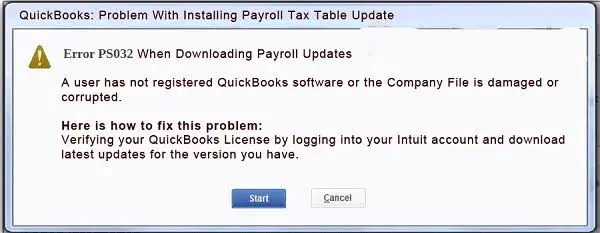
QuickBooks Error PS032 can occur when the application has trouble verifying your payroll subscription or processing payroll updates. Issues involving the CPS folder, incorrect subscription details, and restricted internet access may also prevent the update from completing.
Start by identifying the cause rather than trying random solutions. In this blog, you’ll learn how to fix QuickBooks Error PS032 through practical troubleshooting steps. We’ll also explain what to do if the error returns after you’ve tried the recommended fixes.
What Causes QuickBooks Error PS032?
Before changing any settings or files, check the likely causes below. Identifying the problem first can save time, especially when you’re working against a payroll deadline.
| Possible cause | What it means | What to check |
| Payroll subscription or service key issue | QuickBooks may be unable to verify your payroll service details. | Check the subscription status and service key. |
| QuickBooks Desktop is not registered or updated | Registration or an outdated software release may interfere with the update process. | Confirm activation and install the latest applicable QuickBooks update. |
| Damaged CPS folder files | A damaged file in the payroll components folder can prevent the payroll update from completing. | Investigate the CPS folder using the applicable troubleshooting procedure. |
| Internet connection or firewall restrictions | QuickBooks may be unable to connect to the services required to download payroll updates. | Check your internet connection and review firewall settings. |
| Persistent application or licensing problems | If the error continues after the initial checks, another application or licensing issue may need investigation. | Use the appropriate QuickBooks repair tools or contact Support. |
Let’s learn how to troubleshoot the PS032 QuickBooks Desktop payroll error now.
7 Ways To Fix QuickBooks Payroll Error PS032
Once you’ve identified the likely cause, work through the following fixes in order. After each step, reopen the payroll update screen and check whether QuickBooks can download the update successfully. If the PS032 error code disappears, you can stop there instead of making additional changes.
Solution 1: Verify Your QuickBooks Payroll Subscription
An incorrect service key or a payroll subscription that QuickBooks cannot verify may prevent the update from completing. Start by checking your payroll service details.
Follow these steps:
- Close any open QuickBooks company files and restart your computer.
- Open QuickBooks Desktop.
- Select Employees → My Payroll Service → Manage Service Key.

- Check the service name and confirm that the status shows Active.
- Select Edit and verify that the service key matches the one associated with your payroll subscription.
- If the key is incorrect, enter the correct service key.
- Select Next, clear the Open Payroll Setup checkbox if it appears, and select Finish.
- Allow QuickBooks to download the payroll update.
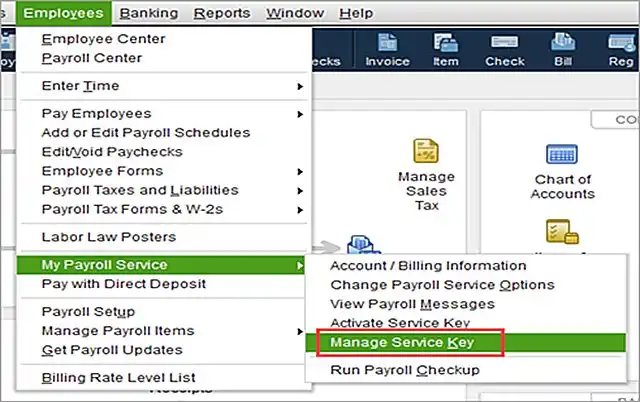
If the subscription is active and the service key is correct but PS032 still appears, continue to the next fix.
Solution 2: Check QuickBooks Registration and Install Updates
QuickBooks Desktop must be properly activated, and using an outdated release can introduce additional software problems. Check these items before troubleshooting payroll files.
- Open QuickBooks Desktop.
- Press F2 to open the Product Information window.
- Check the activation status beside the license information.
- If QuickBooks is not activated, activate it.
- Select Help → Update QuickBooks Desktop.
- Open the Update Now tab and select Get Updates.
- Select Reset Update first if prompted.
- Once the product update finishes, close and reopen QuickBooks.
- Go to Employees → Get Payroll Updates and try downloading the payroll update again.
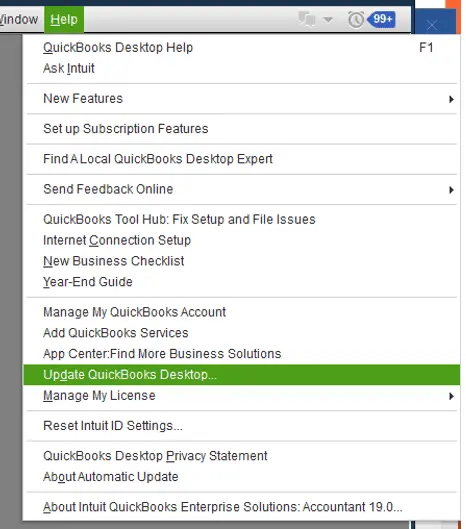
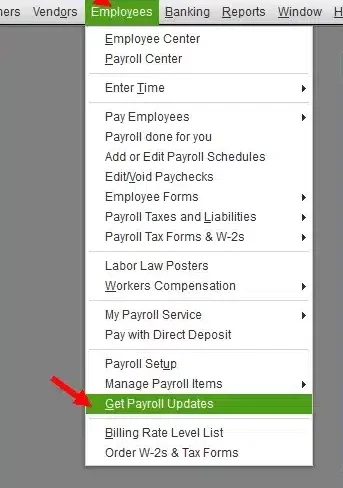
If PS032 persists, proceed to the CPS folder troubleshooting steps rather than repeatedly downloading the same update.
Solution 3: Rename the CPS Folder
If your payroll subscription is active and the earlier checks haven’t helped, investigate the CPS folder. QuickBooks uses payroll-related components during the update process, and damaged files in this area can contribute to update failures.
Before changing the folder, close QuickBooks Desktop and back up your company file.
- Press Windows + E to open File Explorer.
- Select This PC and open the drive where QuickBooks Desktop is installed.
- Locate the installation folder matching your QuickBooks version.
- Open Components, then Payroll, if those folders are present.
- Locate the CPS folder.
- If renaming is recommended for your version, change the folder name to CPS.old or another clearly identifiable name.
- Reopen QuickBooks Desktop.
- Select Employees → Get Payroll Updates and check whether the update completes.
Note: The folder path can vary depending on the QuickBooks release and installation configuration. If you cannot locate the correct folder, don’t rename a similarly named directory or delete unrelated files.
If you’re still experiencing QuickBooks Error PS032 when downloading payroll updates, check whether Windows Defender is blocking a required QuickBooks process and use the QuickBooks Tool Hub repair utility.
Solution 4: Check Windows Defender Settings and Run Quick Fix My Program
Sometimes, Windows security settings or a problem within the QuickBooks program can interfere with update installation.
To review Windows Defender settings:
- Close your company file and exit QuickBooks Desktop.
- Open QuickBooks Tool Hub and open the Installation Issues section.
- Follow any on-screen prompts to allow the tool to add the appropriate QuickBooks files to the Microsoft Defender exclusion list.
- If Add Defender Exclusion is grayed out, your Windows account may not have the required administrator rights. Ask your system administrator to perform this step.
- Once the exclusion process is complete, restart Windows so the changes can take effect.
- Reopen QuickBooks Desktop. Open your company file and navigate to Employees → Get Payroll Updates.
- Download the payroll update again. Follow the on-screen instructions and check whether QuickBooks Error PS032 has been resolved.
To Run Quick Fix My Program:
- Open QuickBooks Tool Hub.
- Select Program Problems.
- Click Quick Fix My Program and allow the utility to complete its process.
- Reopen QuickBooks Desktop.
- Install the latest QuickBooks Desktop release if an update is still required.
- Finally, download and install the latest applicable payroll tax table.

Try the payroll update again. If QuickBooks Error code PS032 continues to appear, move to the next troubleshooting step rather than repeatedly running the same repair.
Solution 5: Check Your Internet Connection and Firewall Settings
QuickBooks needs access to the appropriate online services to download payroll updates. If your internet connection is unstable or a firewall blocks the required connection, the update may fail.
Try these checks before changing any security settings:
- Open a web browser and confirm that your internet connection is working.
- If you’re using a VPN or proxy, check whether it is interfering with the connection.
- Review your firewall or antivirus logs for blocked QuickBooks connections.
- Confirm that QuickBooks Desktop has the required network permissions.
- Reopen QuickBooks and try downloading the payroll update again.
Note: Avoid permanently disabling your firewall or antivirus.
Solution 6: Run the QuickBooks Install Diagnostic Tool
If QuickBooks Desktop has installation-related problems, the Install Diagnostic Tool may help identify or repair certain issues.
Here’s what to do:
- Close QuickBooks Desktop.
- Open QuickBooks Tool Hub.
- Select Installation Issues.
- Choose QuickBooks Install Diagnostic Tool, if available.
- Allow the tool to complete its checks. This may take several minutes.
- Restart your computer if prompted.
- Open QuickBooks Desktop and retry the payroll update.
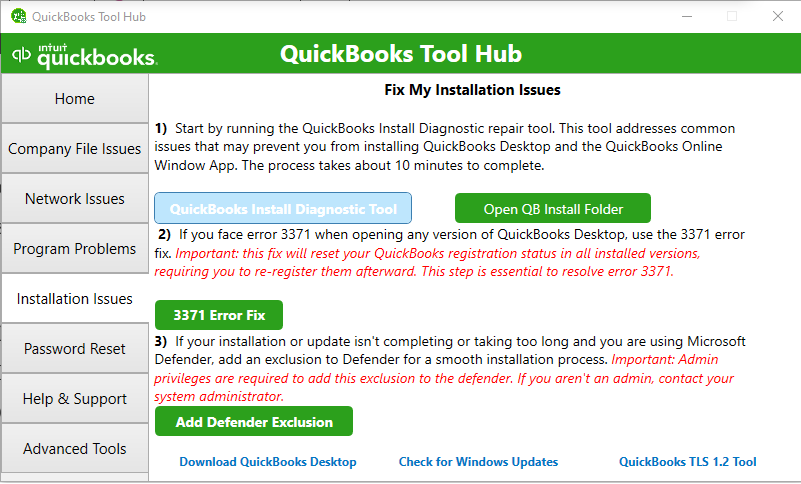
If the tool reports an issue it cannot resolve, keep a note of the message. That information may help when contacting expert.
Solution 7: Verify Your QuickBooks License and Billing Details
If you still encounter QuickBooks Payroll update error PS032 when installing payroll update files, review the associated license and billing information.
- Open QuickBooks Desktop.
- Press F2 or Ctrl + 1 to open the Product Information window.
- Note your product name, version, and license information.
- Sign in to your Intuit account and review your QuickBooks product and payroll subscription details.
- Check whether the subscription is active and whether any billing or service information needs attention.
- Correct any confirmed discrepancies using Intuit’s official instructions.
- Reopen QuickBooks Desktop and retry the payroll update.
Note: Don’t post your license number, service key, or other account details in a public support forum.
Apart from QuickBooks Desktop Error PS032, users may encounter other errors while downloading or installing payroll updates in QuickBooks Desktop.
Related QuickBooks Payroll Errors
The table below summarizes the error codes and their commonly reported causes based on your provided content.
| QuickBooks Error Code | Error Description and Possible Causes |
| PS038 | Occurs when QuickBooks has trouble updating the payroll tax table, potentially due to outdated software or company file issues. |
| PS077 | Prevents payroll updates from downloading. Possible causes include outdated QuickBooks software or an incorrect payroll service key. |
| PS034 | Occurs when QuickBooks cannot verify the payroll subscription. Possible causes include permission issues or damaged company files. |
| 12031, 12007, 12002, 12009, 12029 | These errors are associated with internet connectivity problems that can interrupt payroll update downloads. |
| 12152 | May occur because of internet connectivity issues or firewall settings that interrupt the QuickBooks Desktop update process. |
| 15271 | May be associated with company file problems or insufficient permissions during an update. |
| 15240 | May occur due to incorrect date or time settings or other application-related issues that interrupt payroll updates. |
| 15270 | Can occur while downloading or installing payroll updates. Possible causes include outdated software, subscription issues, incorrect date and time settings, network problems, or firewall restrictions. |
These errors can have different causes, so identifying the exact error code is the first step toward choosing the appropriate troubleshooting method.
Conclusion
If you’re trying to fix the QuickBooks Error PS032 on Windows 11 or another supported Windows version, work through the solutions one at a time and verify that the latest applicable payroll tax table has been installed successfully. Avoid deleting or renaming licensing and payroll files without following the correct instructions for your QuickBooks version.
Resolving the underlying issue promptly can help you get back to processing payroll with fewer delays and keep your payroll tasks on schedule.
Frequently Asked Questions
What is the difference between PS032 and PS077?
Both PS032 and PS077 are QuickBooks Desktop payroll errors associated with payroll update or subscription verification problems. However, their causes may differ. Check the exact error displayed and follow the troubleshooting steps that apply to that specific code.
Will PS032 corrupt my company file or payroll data?
No, seeing PS032 does not automatically mean your company file or payroll data is corrupted. The error generally relates to payroll update or subscription verification issues.
Where is the CPS folder located in QuickBooks?
The CPS folder is usually inside your QuickBooks Desktop installation directory, under Components\Payroll\CPS. A common location is C:\Program Files (x86)\Intuit\QuickBooks [version]\Components\Payroll\CPS. The exact path may vary depending on your QuickBooks version and installation settings.
What is the EntitlementDataStore.ecml file, and how does it relate to PS032?
The EntitlementDataStore.ecml file stores QuickBooks Desktop licensing and entitlement information. It is separate from the CPS payroll folder. If you suspect a licensing problem, check your product activation first and avoid deleting or renaming this file unless the recommended troubleshooting procedure specifically calls for it.
What should I do if none of the PS032 fixes work?
If the QuickBooks payroll update failed and PS032 keeps appearing, have your QuickBooks version, the exact error message, and a list of attempted fixes ready. This will help narrow down the issue and get you closer to completing your payroll update. You can also contact Accounts Confidant to get a professional QuickBooks expert.
