You try to email an invoice from QuickBooks Online, but instead of sending it, QuickBooks displays the “Delivery Server Down” error. The invoice may be saved, but you cannot complete the email delivery.
According to Intuit, this error is usually related to attachments or company email settings. It can also occur during a QuickBooks service interruption.
Before changing your settings, check whether the problem affects one invoice or all your invoices. This guide covers the recommended fixes and explains how to deliver an invoice manually if the error continues.
What Does the Delivery Server Down Error Mean in QuickBooks Online?
The QuickBooks Delivery Server Down error indicates that QuickBooks Online encountered a problem while emailing an invoice or another sales form, such as an estimate.
Although the message mentions a server, it does not necessarily mean Intuit’s email service is unavailable. Incorrect email addresses, problematic invoice content, attachments, and PDF settings are among the issues Intuit recommends checking.
This error is also different from a bounced invoice email. A sending error can interrupt the initial email process, while a bounced email is rejected or reported as undeliverable after it has been sent.
What Should You Check First?
Use the following table to decide where to start troubleshooting.
| Problem | What to check first |
| All invoices suddenly stop sending | QuickBooks service status and company email settings |
| Only one invoice fails | Invoice content, attachment, and recipient details |
| Invoices from one business location fail | Location-specific email address |
| An invoice fails when a file is attached | Attachment type, size, and filename |
| An invoice shows as sent, but the customer has not received it | Delivery status and bounced-email details |
| QuickBooks Online also fails to load | Browser or connection problems |
For example, if four invoices send successfully but one fails, inspect the affected invoice before making company-wide changes.
If QuickBooks cannot load the invoice page at all, see our guide to QuickBooks Online not opening.
How to Fix the QuickBooks Delivery Server Down Error
Intuit recommends checking company email addresses, location settings, invoice formatting, PDF delivery preferences, and PDF handling settings.
Follow the methods relevant to your situation. After each change, try sending the affected invoice again. If it still fails, continue to the next check.
Solution 1: Check Your Company and Customer-Facing Email Addresses
An incorrectly formatted company email address can interfere with sales-form delivery.
For example, QuickBooks may encounter a problem if an address contains an unnecessary prefix such as email:.
Follow these steps to review your company email settings:
- Sign in to QuickBooks Online.
- Select Settings (⚙).
- Choose Account and settings.

- Select the Company tab.
- Review the company and customer-facing email addresses.
- Correct any missing information, unnecessary prefixes, or formatting errors.
- Save your changes.
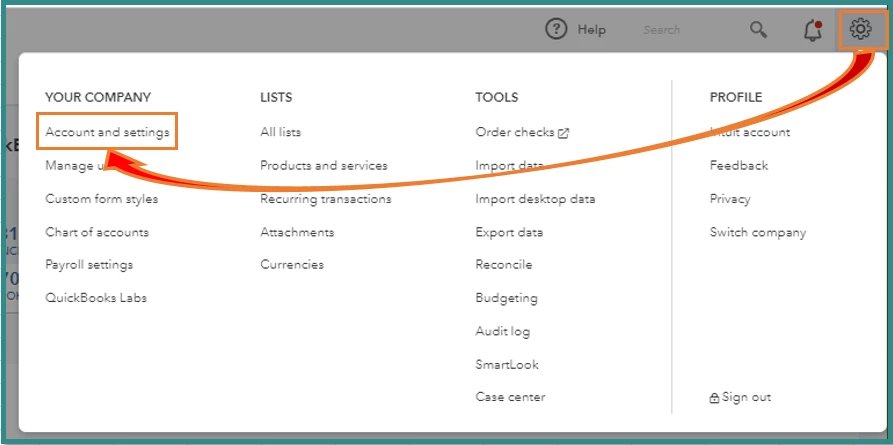
Here is an example of the formatting Intuit recommends:
- Correct: billing@example.com
- Incorrect: email:billing@example.com
Make sure the customer-facing address is one your business uses to communicate with customers.
If the problem affects only one recipient, also check the email address saved in that customer’s profile. An incorrect customer address may cause delivery problems, although it does not establish the cause of every Delivery Server Down message.
Solution 2: Correct the Email Address for Your Business Location
If you use location tracking in QuickBooks Online, a location may have its own customer-facing email address.
For example, a company with two offices might use billing@example.com for its main location and eastoffice@example.com for another location.
If invoices associated with one location fail to send, check that location’s email information.
- Open Settings (⚙).
- Select All lists, then Locations.
- Find the location assigned to the affected invoice.
- Under Action, open the dropdown and select Edit.
- Find the field labeled “This location has a different email address for communicating with customers.”
- Check the address for typing errors or incorrect formatting.
- Make any necessary corrections and select Save.
This method applies only if your company uses location tracking. Otherwise, continue to the next solution.
Solution 3: Check Invoice Content for Problematic Characters
If the email addresses are correct, check the information entered on the affected invoice.
Intuit recommends reviewing the following fields for problematic special characters:
- Product or service descriptions
- Attachment filenames
- Messages included with the invoice
- Email address fields
- Custom form templates
To inspect an invoice:
- Open the affected invoice in QuickBooks Online.
- Review the product or service descriptions and customer message.
- Check the filenames of any attached documents.
- Inspect the email address for unexpected characters or prefixes.
- Correct any suspicious formatting and save the invoice.
For example, if an attachment is named Invoice#1045&Final!.pdf, try renaming it to Invoice-1045.pdf.
This is a troubleshooting test, not proof that punctuation caused the error. Do not remove characters that are required for valid information. An email address needs the @ symbol, and invoice descriptions may legitimately contain currency signs or other punctuation.
If a particular invoice still fails, compare its content with an invoice that sends successfully.
Solution 4: Check Invoice Attachments and File Size
Attachments are one of the primary areas Intuit identifies when troubleshooting the Delivery Server Down error.
According to Intuit’s official troubleshooting guide, attached files should not be ZIP files or exceed 25 MB.
To check an attachment:
- Open the affected invoice.
- Review the files attached to it.
- Check whether any file is in ZIP format.
- Verify that the individual attachment does not exceed 25 MB.
- Review the filename for problematic characters.
- If appropriate, temporarily remove an optional attachment.
- Save the invoice and test email delivery.
Suppose invoice #1045 includes a large supporting document. If the invoice sends after that document is removed, check the document’s file size, format, and name before attaching it again.
You may need to reduce the file size or send the supporting document separately.
Do not remove a document required by the customer without arranging another way to provide it.
Solution 5: Change the PDF Attached Setting in QuickBooks Online
QuickBooks Online has a setting that controls whether a PDF copy is attached when sales forms are emailed.
Intuit recommends testing this setting when the Delivery Server Down error occurs.
Follow these steps:
- Select Settings (⚙).
- Open Account and settings.
- Select the Sales tab.
- Find and expand Online delivery.
- Locate the PDF Attached checkbox.
- Select or clear the checkbox to change its current setting.
- Select Save.
- Test the affected invoice again.
For example, if PDF Attached is currently selected, clear it and test whether the invoice sends.
If delivery succeeds, review whether your customers still require attached PDF copies before keeping the new setting.
Important: Changing the PDF attachment preference affects how sales forms are delivered. It should be treated as a troubleshooting test, not a permanent fix for every invoice email error.
Solution 6: Review Adobe Acrobat and Browser PDF Settings
If the error continues, check the PDF handling settings recommended by Intuit.
These checks are particularly useful if you also encounter problems opening, printing, or downloading invoice PDFs.
Check Adobe Acrobat or Reader settings
If you use Adobe Acrobat or Reader on Windows, Intuit recommends the following print settings:
| Print option | Recommended setting |
| Size | Actual size |
| Orientation | Automatic |
| Choose paper source by PDF page size | On |
Open a PDF in Adobe Acrobat or Reader, review the available print options, and make any necessary changes.
Check browser PDF settings
If you use Google Chrome, verify that the browser can open or download PDF files correctly.
For Firefox, review the PDF handling preference and the application selected to open PDF documents.
After checking the relevant settings, return to QuickBooks Online and test invoice delivery.
These checks are included in Intuit’s official procedure, but they do not establish that every Delivery Server Down error originates from the user’s PDF viewer.
If QuickBooks works in another supported browser but has problems in Chrome, see our guide to QuickBooks not working in Chrome for additional browser troubleshooting.
Additional Fix: Reconnect Gmail If You Use a Connected Gmail Address
QuickBooks Online supports sending invoices through a connected Gmail account where the feature is available.
If you use Gmail for invoice delivery, an authorization problem may prevent QuickBooks from sending emails through that address.
Intuit recommends removing and reconnecting the Gmail address when delivery problems occur.
- Open an invoice in QuickBooks Online.
- Select Review and send.
- Open the From dropdown.
- If a Gmail address is connected, select Remove Gmail address.
- Select Add Gmail address to connect it again.
- Follow the Google authorization steps.
- Make sure you grant the Send email on your behalf permission.
- Try sending the invoice again.
Intuit states that only one Gmail address can be connected to a QuickBooks Online account through this feature.
This method is relevant only if you use a connected Gmail address. Invoice-sending features may also vary by QuickBooks Online plan.
See Intuit’s instructions for sending invoices from a connected Gmail address.
How Do You Check Whether QuickBooks Online Servers Are Down?
If several invoices suddenly fail to send, check whether Intuit has reported a service interruption before making further changes.
- Visit the official QuickBooks Status page.
- Find QuickBooks Online.
- Check whether the service is operational or experiencing an incident.
- Review the incident details to see whether email or invoice delivery is affected.
- Follow the official updates if the reported issue matches your problem.
A service status marked Operational does not guarantee that every account or feature is working correctly. It only indicates that no relevant interruption is currently reported through that status.
Can a QuickBooks outage cause the Delivery Server Down error?
Yes, On April 6, 2023, Intuit acknowledged a service issue that prevented some QuickBooks Online users from emailing invoices. Intuit recommended manually downloading and emailing sales forms while the issue was investigated. Representatives later reported that the incident had been resolved.
You can review the historical discussion in the Intuit Community.
That incident is evidence that an outage can cause invoice-delivery failures. It does not indicate that the same outage is occurring now.
How Can You Send Invoices When the Delivery Server Down Error Continues?
If an invoice must reach your customer before the email problem is resolved, download it as a PDF and send it using your business email account.
Intuit has recommended this workaround during a documented QuickBooks Online invoice-delivery interruption.
Step 1: Download the Invoice as a PDF
For the newer QuickBooks Online invoice layout:
- Open All apps → Customer Hub → Customers & leads.
- Select the customer whose invoice you need to send.
- Open the Transaction List tab.
- Find the invoice and select View/Edit.
- Select the available print or download option.
- Use the download icon to save the invoice as a PDF.
If you use the older invoice layout, open the invoice and select Print or Preview, then Download.
These paths follow Intuit’s instructions for downloading sales forms.
Step 2: Email the Invoice Manually
Attach the downloaded PDF to a message from your business email account.
Before sending, verify the customer’s address, invoice number, amount, and due date.
Keep a copy of the outgoing email. If receipt is important or delivery remains uncertain, ask the customer to confirm that the attachment arrived.
Check the PDF payment link
If your customers normally pay through QuickBooks Payments, check whether the downloaded PDF contains the expected payment link.
In the newer invoice layout, the relevant setting is under:
Manage → Design → Add payment link to PDF
Intuit confirms that this setting applies to PDF copies of all invoices, not individual invoices. Changing it can therefore affect other invoices your business downloads or prints.
Step 3: Keep Your Invoice and Payment Records Accurate
Sending an invoice through an external email account does not necessarily update QuickBooks’ built-in email delivery status.
Keep a record of which invoices were emailed manually so you do not send duplicates after the delivery service starts working again.
If the customer pays through an external payment method, you may also need to record that payment in QuickBooks Online.
What If an Invoice Shows as Sent but the Customer Never Receives It?
An invoice that was sent but later marked undeliverable is a different problem from a Delivery Server Down message that interrupts sending.
QuickBooks Online provides invoice statuses and bounced-email details to help investigate this situation.
Check the Invoice Delivery Status
- Go to All apps → Sales & Get Paid → Invoices.
- Find the affected invoice.
- Check the Status column.
- Look for Sent or Undeliverable.
- If the invoice is undeliverable, review the available delivery error information.
To see bounced-email details, open Tasks → Go to Task Manager, then select View the errors, if available.
The report can show the delivery date, transaction reference, customer, and associated error.
Next, verify the customer’s email address. If the address is correct, ask the customer to check their junk or spam folder.
For additional instructions, see Intuit’s guide to fixing undelivered invoices in QuickBooks Online.
What Should You Do If the Delivery Server Down Error Persists?
If none of the relevant troubleshooting steps resolves the error, contact Intuit Support through QuickBooks Online.
Before contacting support, collect the following information:
- The exact error message.
- The invoice numbers affected.
- When the error first appeared.
- Whether it happens with one invoice or all invoices.
- Whether the affected invoices contain attachments.
- Which troubleshooting steps you have already tried.
This information can help support narrow the investigation without asking you to repeat the same checks.
For urgent invoices, use the manual PDF delivery method while the issue is being investigated.
Conclusion
After resolving the QuickBooks Delivery Server Down error, review the affected invoices before resending them. Check their delivery status and confirm whether any were already emailed manually.
If an invoice still fails after the relevant email, attachment, and PDF checks, contact Intuit Support with the error details. This is more useful than repeatedly changing unrelated QuickBooks settings.
Frequently Asked Questions
Can the QuickBooks Delivery Server Down Error Occur Without Attachments?
Yes, Intuit identifies company email configuration as another possible cause of the Delivery Server Down error. Even if an invoice has no optional attachments, check the company email address, invoice formatting, and PDF delivery preferences.
Can the Delivery Server Down Error Affect Estimates?
Yes, Intuit’s troubleshooting instructions apply to emailed sales forms, including invoices and estimates. The same email address, formatting, and delivery-setting checks may be relevant when an estimate cannot be sent.
What Is the Maximum Attachment Size When Troubleshooting This Error?
25 MB per attached file, according to Intuit’s Delivery Server Down troubleshooting guidance. Intuit also recommends avoiding ZIP attachments and checking filenames for problematic special characters. The guidance does not establish a separate combined limit for multiple attachments.
Does a Sent Status Mean the Customer Received the QuickBooks Invoice?
No, A Sent status does not guarantee inbox delivery. An email can later bounce or be marked Undeliverable. If the customer reports nonreceipt, check the invoice status, bounced-email details, and recipient address.
Can QuickBooks Identify Which Email Address Failed When an Invoice Has Multiple Recipients?
Not always. Intuit states that when an invoice is sent to multiple recipients and one delivery fails, QuickBooks may mark the invoice as Undeliverable without identifying the specific address that failed. Check each recipient’s address before resending.
