QuickBooks not working in Chrome can show up in several ways. QuickBooks Online may keep loading, display a blank screen, freeze while opening a page, or fail to respond normally after you sign in.
When QuickBooks Online is not loading in Chrome, the cause may be related to the browser, stored browsing data, extensions, available device memory, internet connection, security software, or a temporary problem with the website.
This guide covers verified browser troubleshooting steps that you can use to diagnose and resolve common QuickBooks Online loading problems.
Table of Contents
Why Is QuickBooks Online Not Working in Chrome?
There are several reasons you might experience QuickBooks not working in Chrome browser. Some of the problems are listed below.
- Chrome is not up to date.
- Stored browser cache or cookies are interfering with QuickBooks.
- A Chrome extension is affecting the page.
- Chrome does not have enough available device memory.
- Your internet connection is having problems.
- Firewall or antivirus software is blocking the connection.
- QuickBooks or another website is experiencing downtime.
- Chrome needs to be restarted.
- Browser settings are preventing the website from working as expected.
Moving forward, we will discuss the fixes.
Here is a snapshot and a table of the problem and its solution.
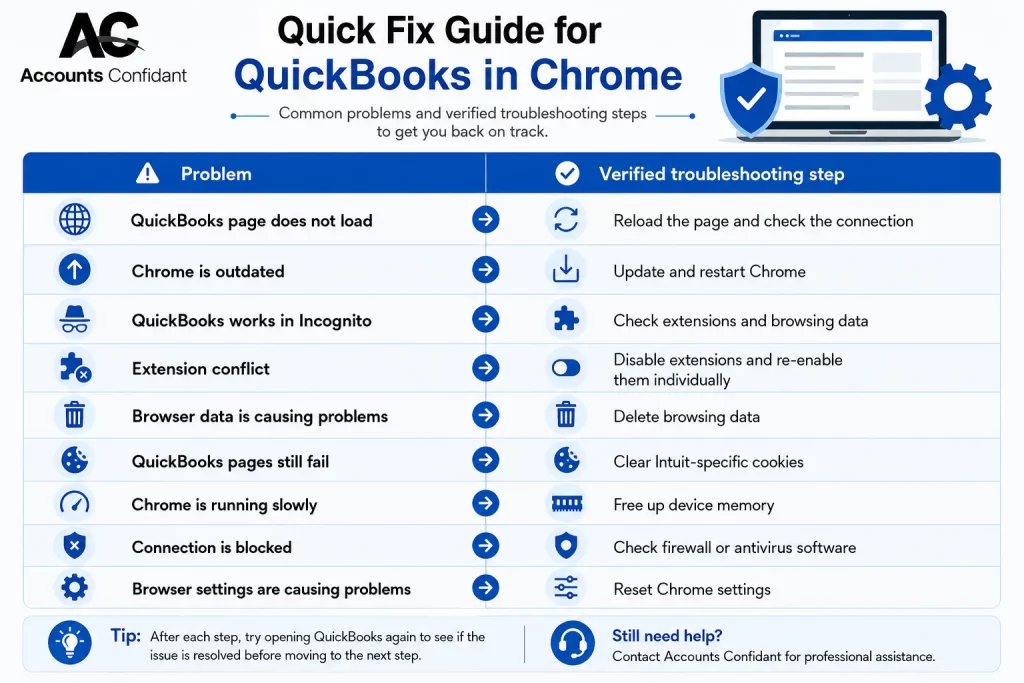
| Problem | Verified troubleshooting step |
| QuickBooks page does not load | Reload the page and check the connection |
| Chrome is outdated | Update and restart Chrome |
| QuickBooks works in Incognito | Check extensions and browsing data |
| Extension conflict | Disable extensions and re-enable them individually |
| Browser data is causing problems | Delete browsing data |
| QuickBooks pages still fail | Clear Intuit-specific cookies |
| Chrome is running slowly | Free up device memory |
| Connection is blocked | Check firewall or antivirus software |
| Browser settings are causing problems | Reset Chrome settings |
How to Fix QuickBooks Not Working in Chrome
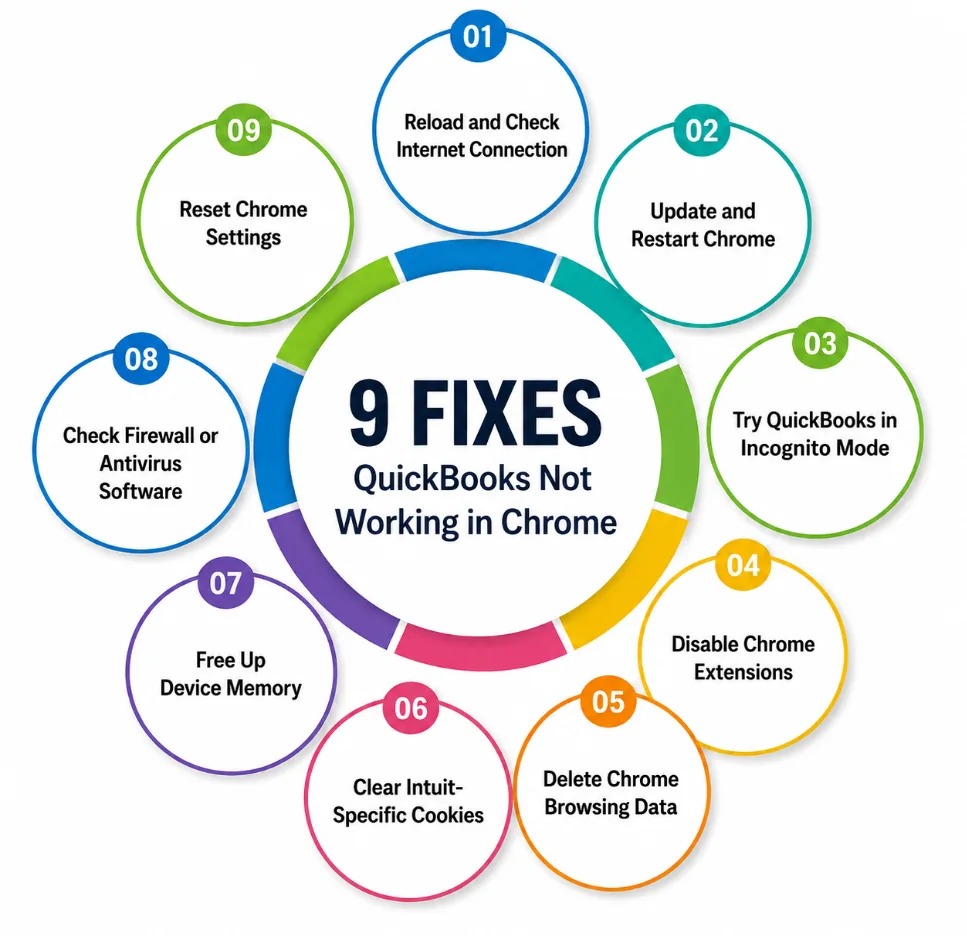
We have 9 verified solutions to help you with the issue.
Solution 1. Reload QuickBooks and Check Your Internet Connection
If QuickBooks Online is not loading in Chrome, start with the basic browser and connection checks.
Check the website address and reload the page when Chrome has a connection or loading error. Also, check whether the problem affects one website or multiple websites. If multiple websites are affected, try checking the internet connection with the following steps.
- Check that the QuickBooks website address is correct.
- Select Chrome’s Reload button.
- Check whether other websites load normally.
- Make sure your device is connected to the internet through Wi-Fi or Ethernet.
- If necessary, check that your modem and router are working correctly.
You may need to reboot your modem or router or contact your internet service provider if there is an internet connection problem.
This is an important first check because a QuickBooks loading problem is not necessarily a Chrome problem.
Solution 2. Update and Restart Chrome
An outdated browser can create compatibility problems with web applications.
You should use a supported, up-to-date browser for the best and most secure QuickBooks Online experience and try updating Chrome with below steps and restarting it.
- Open Google Chrome.
- Check whether an update is available.
- Install the available update.
- Restart Chrome.
- Open QuickBooks Online again.
If Chrome is already up to date and there are no updates available, you should manually restart the browser.
If you’re unsure how to update your browser, follow Google’s official instructions for updating Google Chrome
Solution 3. Try QuickBooks in Chrome Incognito Mode
If QuickBooks Online is freezing in Chrome or refusing to load, Incognito mode is a useful diagnostic step.
Intuit recommends trying a private or Incognito browser as part of its basic browser troubleshooting process. If the issue disappears in Incognito mode, you should proceed by checking extensions or deleting browsing data. To test QuickBooks in Incognito with these steps.
- Open Chrome.
- Open a new Incognito window.

- Open QuickBooks Online.
- Sign in.
- Check whether the page loads normally.
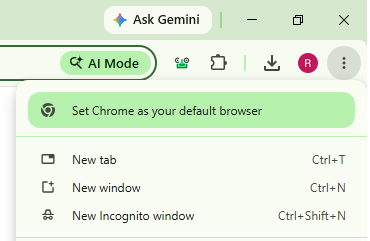
If QuickBooks works in Incognito, Continue with the extension and browsing-data checks below.
If QuickBooks still does not work, The problem may not be caused by your regular Chrome browsing data or extensions. Continue with the remaining Chrome and connection troubleshooting steps.
Incognito mode is therefore best used as a diagnostic test, not automatically as the permanent solution.
If you can open the QuickBooks Online Login Page but are unable to access your account, you may be dealing with QuickBooks Online login problems rather than a Chrome loading issue.
Solution 4. Disable Chrome Extensions
A QuickBooks Online Chrome extension conflict can interfere with loading.
Try disabling extensions when a connection or loading issue occurs. If disabling them resolves the problem, re-enable the extensions one at a time to identify which extension is causing the issue. Follow the steps to disable extensions.
- Open Chrome.
- Open the Chrome extensions management area.
- Disable your extensions and reload QuickBooks Online.
- Check whether the problem is resolved.
If QuickBooks works after the extensions are disabled, enable the extensions individually.
This allows you to determine whether a particular extension is associated with the problem rather than removing every extension permanently.
Solution 5. Delete Chrome Browsing Data
If QuickBooks Online blank screen Chrome problems continue, stored browsing data may be worth checking.
QuickBooks Online uses browser cache and cookies, but outdated browser data can sometimes prevent pages from loading correctly. Try clearing your browser cache when you have trouble loading specific QuickBooks pages.
We also recommend deleting browsing data as a troubleshooting step for Chrome loading problems. Follow the steps to Clear browsing data in Chrome.
- Open Chrome and select the three-dot menu.
- Select Delete browsing data then choose the appropriate time range.
- Select the browsing data you want to delete and then Delete data.
- Restart Chrome.
- Open QuickBooks Online again.
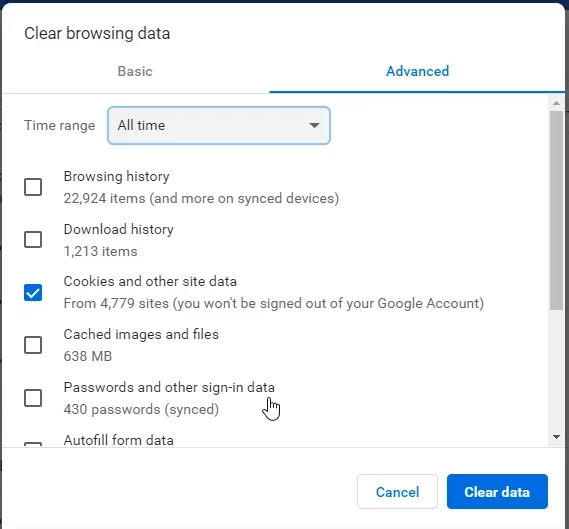
NOTE: Deleting cookies can sign you out of websites and remove saved preferences.
Solution 6. Clear Intuit-Specific Cookies
If clearing the browser cache does not resolve the problem, there is a more targeted option: clear Intuit-specific cookies.
This is particularly useful when you want to troubleshoot QuickBooks without unnecessarily deleting cookies for every website.
In most cases, clearing the browser cache is enough. If the problem continues, try clearing only Intuit-specific cookies.
- Open Chrome on your computer.
- Click the More icon (⋮) in the top-right corner.
- Select Settings.
- Click Privacy and security on the left menu, then select Third-party cookies.
- Click See all site data and permissions.
- Type the intuit in the search bar at the top right.
- Click the Delete (trash can) icon.
- Click Delete again to confirm.
Solution 7. Free Up Device Memory
If QuickBooks is extremely slow or QuickBooks Online freezing in Chrome occurs, available device memory can be another factor. Insufficient available memory can reduce performance and lead to problems such as page crashes and loading errors. Free up memory by follow these steps.
- Closing unused Chrome tabs.
- Stopping unwanted tasks in Chrome.
These actions free up device memory and improve Chrome performance. After freeing memory, return to your QuickBooks tab and reload the page. This is particularly relevant when QuickBooks is not the only website behaving slowly or when Chrome has many tabs and tasks running simultaneously.
Solution 8. Check Firewall or Antivirus Software
Chrome loading problems can also occur if firewall or antivirus software blocks the connection.
If QuickBooks Online is not loading:
- Check whether your firewall or antivirus software is blocking the connection.
- Review the relevant security settings.
- Follow your security software’s instructions for permitted connections.
Do not assume that disabling security software is required. The official guidance is to check whether firewall or antivirus software is blocking the connection.
If the computer is managed by an organization, you may need assistance from a professional. Now let’s look at the final solution.
Solution 8. Reset Chrome Settings If the Problem Continues
If the previous troubleshooting steps do not resolve Fix QuickBooks Chrome issues, there is one more browser-level option: reset Chrome settings to their defaults.
Because resetting browser settings is a broader change than clearing QuickBooks-specific cookies, it makes sense to leave this option toward the end of the troubleshooting process.
Also, uninstalling and reinstalling Chrome can fix many Chrome problems if the earlier troubleshooting steps do not work.
However, you should not jump to reinstalling Chrome before working through the simpler browser troubleshooting steps above.
QuickBooks Online Blank Screen in Chrome: What to Check
A QuickBooks Online blank screen Chrome problem should be approached as a loading issue rather than immediately assuming that your QuickBooks account is damaged.
Use this sequence:
Reload QuickBooks → Check internet connection → Update Chrome → Restart Chrome → Test Incognito → Disable extensions → Delete browsing data → Clear Intuit-specific cookies → Check memory and security software
If the problem remains after these steps, testing QuickBooks in another supported browser can help determine whether the problem is isolated to Chrome.
Does QuickBooks Online Work Better in Another Browser?
QuickBooks Online supports multiple browsers, including Chrome, Firefox, Microsoft Edge, Safari for Mac, and Opera. It generally supports the current and two previous versions of supported browsers.
Therefore, switching browsers can be a useful diagnostic test.
For example, if QuickBooks loads correctly in Microsoft Edge but continues to display a blank screen in Chrome, the problem may be isolated to your Chrome environment.
If QuickBooks fails across multiple supported browsers, the issue may require investigation beyond Chrome.
QuickBooks Online Chrome Troubleshooting Checklist
Before contacting support, work through this checklist.
- Confirm the QuickBooks URL and reload the page.
- Check your internet connection.
- Update Chrome.
- Restart Chrome.
- Open QuickBooks in Incognito mode.
- Disable Chrome extensions.
- Delete Chrome browsing data.
- Clear Intuit-specific cookies.
- Free up device memory.
- Check firewall or antivirus software.
- Reset Chrome settings if necessary.
- Test QuickBooks in another supported browser.
Conclusion
When QuickBooks is not working in Chrome, start with the official browser troubleshooting sequence rather than making unnecessary changes to your computer.
Because Chrome is an officially supported browser for QuickBooks Online, a loading problem does not automatically mean that you need to switch browsers permanently. Testing another supported browser is simply another way to determine whether the problem is specific to your Chrome environment.
If the issue continues after completing these verified browser troubleshooting steps, document what you have already tested and contact QuickBooks support for further assistance.
Frequently Asked Questions
Why is QuickBooks Online not working in Chrome?
QuickBooks Online not loading in Chrome can be related to browser data, extensions, an outdated browser, available memory, internet connectivity, security software, or a website-side issue.
How do I fix QuickBooks Online freezing in Chrome?
Start by updating and restarting Chrome. Then test QuickBooks in Incognito mode. If it works there, disable Chrome extensions and delete browsing data. You can also clear Intuit-specific cookies if the problem continues.
Is QuickBooks Online down or is it just my Chrome browser?
Check whether other websites load normally and test QuickBooks in another supported browser.
Do Chrome extensions interfere with QuickBooks Online?
They can contribute to Chrome loading problems. Try disabling extensions and then re-enabling them one at a time if disabling them resolves the issue.
Should I clear my cache to fix QuickBooks in Chrome?
Outdated cached data can cause problems loading specific QuickBooks pages.
Does QuickBooks Online work better in a different browser?
Chrome is a supported QuickBooks Online browser. Intuit also supports other browsers, including Firefox, Edge, Safari on Mac, and Opera. Testing another supported browser can help determine whether a problem is specific to Chrome.
How do I fix QuickBooks Online loading issues in Chrome?
Check the URL and reload the page, verify your internet connection, update and restart Chrome, test Incognito mode, disable extensions, delete browsing data, and check firewall or antivirus software.
Is QuickBooks down, or is it just my browser?
Test QuickBooks in another supported browser and check whether other websites work. Google identifies website downtime as one possible cause of Chrome loading problems.
Do I need to clear my cache and cookies for QuickBooks Online to work?
Not necessarily. Clear the browser cache when specific QuickBooks pages have trouble loading. If the problem continues, then clear Intuit-specific cookies rather than automatically deleting all cookies.
Can Chrome extensions cause problems with QuickBooks Online?
Chrome extensions can contribute to connection and loading problems indeed.
Does QuickBooks Online work in Chrome Incognito mode?
QuickBooks Online can be tested in Chrome Incognito mode. If QuickBooks works in Incognito but not regular Chrome, try checking extensions and browsing data next.
Why does QuickBooks Online show a blank or white screen in Chrome?
A blank screen can be treated as a browser loading problem. Start by reloading the page, checking your connection, updating Chrome, and testing Incognito mode. If Incognito works, check extensions and browsing data.
Should I update Chrome to fix QuickBooks Online issues?
Yes, it is advised to use a supported, up-to-date browser for QuickBooks Online.


