You sit down, open your browser, and get ready to jump into your books. But instead of your QuickBooks Online dashboard, you’re staring at a blank screen, a loading spinner that refuses to move, or a page that simply won’t open. You refresh it once. Then again. Still nothing.
If you also see a “QuickBooks Online won’t open” message when you try to access your account, you’re not alone. A slow internet connection, browser issues, cached data, or a temporary QuickBooks service problem can all prevent QuickBooks Online from loading properly. The good news is that you usually don’t need to panic or start changing complicated settings.
In this guide, we’ll walk through the common reasons QuickBooks Online may not open and the practical troubleshooting steps you can try to get back to your accounting work.
Why Is QuickBooks Online Not Opening or Loading?
There isn’t one universal reason why QuickBooks Online stops working. The problem may be with your browser, device, connection, application, or QuickBooks itself.
Common causes include:
- An unstable internet connection
- An outdated or unsupported browser
- Corrupted browser cache or cookies
- Browser extensions interfering with QuickBooks
- Problems with the QuickBooks Online desktop app
- An outdated mobile app or operating system
- Login or account-access issues
- A temporary QuickBooks service interruption
Before changing anything, check whether the problem occurs only on one device or browser. That simple comparison can often tell you where to start.
To begin with, we will discuss the system requirements for QBO.
QuickBooks Online System Requirements
Before troubleshooting why QuickBooks Online is not opening or loading, check that your browser, device, and internet connection meet QuickBooks’ current requirements. We advise you to use supported and up-to-date browsers for the best experience.
- Internet connection: QuickBooks Online requires an internet connection. The required connection speed can vary depending on your system.
- Google Chrome: Supported on web and mobile devices. QuickBooks generally supports the current version and two previous versions.
- Mozilla Firefox: Supported on web and mobile devices. Mac users may also need the Firefox PDF plugin to preview and print forms.
- Microsoft Edge: Supported on web and mobile devices.
- Safari: Supported on Mac.
- Opera: Supported on web and mobile devices.
- Samsung Internet: Supported on supported mobile devices.
- Internet Explorer: No longer supported by QuickBooks.
- Linux: QuickBooks Online can be accessed through a web browser on Linux, but the QuickBooks Online Advanced desktop app isn’t supported on Linux.
If your browser and connection meet these requirements, but QuickBooks Online still won’t open, continue with the fixes below to identify and resolve the problem.
9 Ways to Fix QuickBooks Online Not Opening or Loading
If QuickBooks Online meets the requirements but still won’t open or load, work through these nine fixes one by one.
1. Check Your Internet Connection
Sometimes QuickBooks gets blamed for a problem that’s actually coming from the internet connection.
If the connection keeps dropping or is unusually slow, QuickBooks Online may take a long time to load or remain stuck on the loading screen. Check whether other websites are working normally before moving on.
Try the following:
- Open another website in the same browser.
- If you’re using Wi-Fi, check whether other devices are connected normally.
- Restart your router if the connection seems unstable.
- Switch between Wi-Fi and mobile data when using a mobile device.
- Try QuickBooks Online again once the connection is stable.
QuickBooks Online performance can be affected by internet bandwidth, browser efficiency, computer processing power, and available memory.
2. Check the QuickBooks Service Status
What if nothing is wrong with your browser or internet connection?
QuickBooks Online can occasionally experience service interruptions. When that happens, changing your browser settings won’t solve the problem.
If QuickBooks Online is not loading, check the official QuickBooks Status page to see whether there is an ongoing incident.
If QuickBooks reports an outage or degraded service, the best option is usually to wait for the issue to be resolved. If all services are operating normally, continue with the fixes below.
3. Clear Your Browser Cache and Cookies
Your browser stores information from websites to make them load faster. Occasionally, that stored data can become outdated or corrupted and interfere with QuickBooks Online.
To clear cache and cookies in Chrome:
- Open Chrome.
- Select the three-dot menu.
- Go to Settings > Privacy and security.

- Select Delete browsing data.
- Choose the appropriate time range.
- Select the options for cached images and files and cookies/site data.
- Select Delete data.
- Close and reopen Chrome.
- Sign in to QuickBooks Online again.
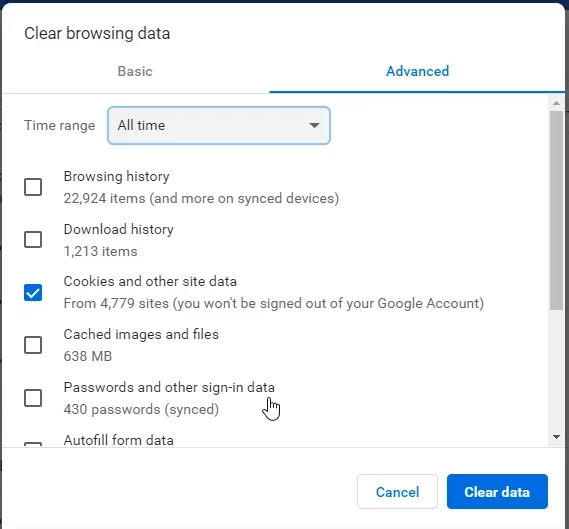
After clearing the data, try opening QuickBooks again. If it loads normally, the browser’s stored data was likely getting in the way.
4. Update Your Browser and Try Another Supported Browser
If QuickBooks is not working in Chrome, don’t overlook the browser version itself. QuickBooks recommends using a supported and up-to-date browser.
First, check for a Chrome update:
- Open Chrome.
- Select the three-dot menu.
- Go to Help > About Google Chrome.
- Let Chrome check for updates.
- Restart the browser if an update is installed.
- Open QuickBooks Online again.
If QuickBooks Online still won’t load in Chrome, follow our guide to fix QuickBooks not working in Chrome for additional troubleshooting steps.
5. Disable Browser Extensions and Check Browser Settings
Browser extensions can be useful, but some can interfere with how websites load or handle sign-in sessions.
If QuickBooks not working on Chrome is the problem, temporarily turn off your extensions and test QuickBooks again.
In Chrome:
- Select the three-dot menu.
- Go to Extensions > Manage extensions.
- Temporarily turn off unnecessary extensions.
- Restart Chrome.
- Open QuickBooks Online again.
If QuickBooks starts working, turn your extensions back on one at a time. This can help you identify which extension is causing the conflict.
You can also test QuickBooks Online in an incognito window to help determine whether stored browser data or extensions are involved.
6. Reset the QuickBooks Online Desktop App
Using the QuickBooks Online Desktop app instead of your browser. If the QuickBooks Online Desktop app won’t open, the problem may be limited to the application.
We recommend resetting the QuickBooks Online Desktop app before reinstalling it.
To reset the app:
- Open the QuickBooks Online desktop app.
- Select Help.
- Select Reset App Data.
- Wait for the app to reload.
- Try opening QuickBooks again.
Resetting the app refreshes its local data. Your accounting information remains stored in QuickBooks Online.
If the QuickBooks Online desktop app is not opening after the reset, try uninstalling and reinstalling the application using its current desktop-app troubleshooting procedure.
7. Update or Reinstall the QuickBooks Mobile App
If the QuickBooks app won’t open, keeps crashing, or gets stuck on the loading screen, start with the basics.
Use these steps for common QuickBooks mobile app problems:
- Switch between Wi-Fi and mobile data.
- Close and reopen the QuickBooks app.
- Restart your phone or tablet.
- Check for a QuickBooks app update.
- Update your device’s operating system.
- Reinstall the QuickBooks app if the problem continues.
8. Fix QuickBooks Online Login and Account Access Problems
Sometimes QuickBooks Online opens, but you can’t get past the sign-in screen. You might be asked to log in repeatedly, see an error after entering your credentials, or find that your account doesn’t load after signing in.
Start by checking that you’re using the correct Intuit account credentials.
Then try signing in through another supported browser. You can also use a private browsing window as a diagnostic step. If you can sign in there, your regular browser’s stored data may be contributing to the problem.
If you can open QuickBooks Online but cannot sign in, read our guide to QuickBooks Online login problems for help with credentials, verification codes, and account access.
Finally, let’s move to the last step.
9. Restart Your Device and Reinstall the App if Needed
Close QuickBooks completely, restart your computer or mobile device, and then try opening the app again.
For the mobile app, try restarting the app and device, checking for updates, and reinstalling the app when necessary.
For the QuickBooks Online desktop app, reset the app first. If that doesn’t help, reinstall it using Intuit’s recommended procedure.
If QuickBooks works in your browser but not in the app, you can use the browser version temporarily while you troubleshoot the application.
If QuickBooks keeps freezing or crashing after you open it, see our guide on how to fix QuickBooks when it keeps crashing
What to Do If QuickBooks Online Still Won’t Open?
If you’ve tried all nine fixes and QuickBooks Online is still not opening, check whether the problem follows you across different devices and browsers.
Try accessing QuickBooks Online:
- From another supported browser
- From another device
- Using a different reliable internet connection
- Through the mobile app if the browser isn’t working
- Through a browser if the app isn’t working
If QuickBooks works on another device or browser, the issue is probably specific to your original setup.
If it doesn’t work anywhere, check the QuickBooks Status page again. If there isn’t a reported outage, contact QuickBooks Support for further help with your account or product.
Frequently Asked Questions
Why won’t QuickBooks Online open?
QuickBooks Online may not open because of browser cache and cookies, an outdated browser, internet connection problems, browser extensions, login issues, or a temporary service interruption. Start by checking your connection and the QuickBooks Status page, then clear your browser cache and make sure you’re using a supported browser.
Should I reinstall the QuickBooks app?
Reinstalling the app can help when the QuickBooks mobile app continues to crash or won’t open after restarting and updating it. For the QuickBooks Online desktop app, try Reset App Data first and reinstall the app if the reset doesn’t resolve the issue.
How do I fix QuickBooks Online blank screen?
A blank screen can be related to browser data or compatibility problems. Clear your browser cache and cookies, update your browser, and temporarily disable extensions. If the problem continues, test QuickBooks Online in another supported browser.
Why won’t my QuickBooks app open on iPhone?
Check your internet connection, restart the QuickBooks app and iPhone, update the app and iOS, and reinstall the app if necessary. If you’re using Safari, make sure Private Browsing is turned off because QuickBooks Online requires cookies.
How do I fix QuickBooks mobile app problems?
Switch between Wi-Fi and mobile data, restart the app and device, install available updates, and reinstall the QuickBooks mobile app if the issue continues.
Why does the QuickBooks app keep crashing?
An outdated app or operating system, connection problems, or temporary application issues can cause crashes.
Why is QuickBooks not working in Chrome?
QuickBooks may not work correctly in Chrome because of outdated browser data, an outdated browser version, or an interfering extension.
How do I clear QuickBooks Online cache?
You can clear your browser cache through your browser’s privacy settings. Intuit also recommends clearing Intuit-specific cookies when regular cache clearing doesn’t resolve a QuickBooks Online loading or sign-in problem.
What browser works best with QuickBooks Online?
You should try using Google Chrome for the best QuickBooks Online experience. QuickBooks also supports browsers such as Firefox, Microsoft Edge, Safari on Mac, Opera, and Samsung Internet, depending on the device and current browser requirements.
Is QuickBooks Online better than hosted QuickBooks Desktop?
QuickBooks Online and hosted QuickBooks Desktop are designed for different needs. QuickBooks Online provides browser-based access, while hosted QuickBooks Desktop provides access to desktop software through a hosted environment. The better choice depends on the features, workflows, integrations, and access requirements of your business.
If your business needs to keep using QuickBooks Desktop while working remotely, explore our QuickBooks cloud hosting services
How can I access QuickBooks reliably from anywhere?
QuickBooks Online provides access through supported web browsers and mobile devices. For the most reliable experience, use a supported and updated browser, maintain a stable internet connection, and keep your QuickBooks app and device operating system updated.
What is the best cloud solution for QuickBooks users?
QuickBooks Online is a cloud-based accounting solution that allows users to access their accounting data through supported browsers and mobile apps. Businesses that require specific QuickBooks Desktop features may have different requirements and should choose their setup based on their workflows and software needs.
