QuickBooks Online running slow can make everyday accounting tasks frustrating. You might wait longer than usual for invoices to save, reports to appear, or transactions to load. Sometimes, even switching between pages takes several seconds.
Slow performance can result from an outdated browser, limited computer memory, an unstable internet connection, or a temporary issue with QuickBooks itself.
The good news is that you can often narrow down the cause with a few simple checks. This guide explains how to identify what’s slowing down QuickBooks Online and what you can do to improve its performance.
Why Is QuickBooks Online Running Slow?
QuickBooks Online relies on your browser, computer, and internet connection to work properly. If any of these struggle, the application may take longer to respond.
Some common reasons include:
- Outdated browser: Older browser versions may not handle QuickBooks Online efficiently.

- Limited computer memory: Too many open tabs or applications can leave insufficient RAM for QuickBooks.
- Slow or unstable internet: A weak Wi-Fi connection or limited bandwidth can delay loading.
- Browser extensions: Some extensions may interfere with website performance.
- Stored browser data: Outdated or conflicting cache files can affect how certain pages load.
- Complex reports: Reports covering large amounts of data may take longer to process.
- Temporary service issues: Problems on Intuit’s side can affect performance even when your computer works normally.
According to Intuit’s official performance guidance, frequently used QuickBooks Online pages are expected to load in approximately 10 seconds. This is a performance target, not a guarantee for every page or task.
If loading regularly takes much longer, it’s worth checking whether the problem comes from your device, browser, connection, or the service itself.
Is QuickBooks Online Slow for Everyone or Just You?
Before changing browser settings, check whether the delay affects only your device or other QuickBooks users as well.
This simple comparison can prevent unnecessary troubleshooting.
| What you notice | Possible cause | First thing to check |
| QuickBooks is slow on every device | Connection or service issue | Intuit status and internet connection |
| QuickBooks is slow on one computer | Device or browser issue | Memory usage and browser version |
| Only one QuickBooks company is slow | Account-specific or task-related issue | Compare the same action in another company |
| Reports are slow, but other pages work | Report size or processing | Date range and filters |
| QuickBooks is slow during busy office hours | Shared bandwidth or device usage | Network and background activity |
Check for QuickBooks Online Service Issues
Sometimes, slow performance has nothing to do with your computer.
If QuickBooks suddenly becomes sluggish across multiple devices, visit the official QuickBooks status page to check for reported service disruptions.
Look for incidents affecting QuickBooks Online or the feature you are using.
If Intuit reports an active performance issue, changing your browser settings may not help. You can check the status page for updates while the service is being restored.
Test QuickBooks on Another Device or Connection
Open QuickBooks Online on another supported browser or device and repeat the same task.
For example, if opening your Profit and Loss report takes 30 seconds on your office computer but works normally on another computer using the same network, the issue may be local to the first device.
If both computers are slow, try comparing performance on another reliable internet connection, where available.
Change only one factor at a time so you can tell which difference matters.
Check Whether One Task Is Slower Than Everything Else
Not every performance issue affects the entire application.
If your dashboard opens normally but a detailed report takes much longer, focus on that report rather than troubleshooting every browser setting.
However, if QuickBooks pages fail to open at all, follow our separate guide on QuickBooks Online not opening. That problem requires a different troubleshooting approach.
How to Fix QuickBooks Online Running Slow
Start with the easiest fixes. After each step, repeat the same accounting task and check whether the loading time improves.
1. Refresh QuickBooks and Close Unnecessary Browser Tabs
Too many open tabs can consume memory and make QuickBooks Online less responsive, especially on older computers.
Start by saving any unfinished work. Then:
- Close browser tabs you no longer need.
- Exit unnecessary applications running in the background.
- Return to QuickBooks Online.
- Refresh the page after confirming your recent changes are saved.
- Open the page or report that was running slowly.
If you regularly work with spreadsheets, email, and multiple QuickBooks tabs, closing unused windows may free up enough memory to improve responsiveness.
Avoid refreshing a page while a transaction is still being submitted. Confirm whether it was saved before trying again, so you do not create duplicate entries.
2. Check Your Internet Speed and Connection Stability
QuickBooks Online needs a reliable internet connection because your accounting data is accessed through the web.
A slow or unstable connection can delay reports, searches, and page navigation.
To check your connection:
- Open a new browser tab.
- Run an internet speed test using a reliable service, such as Google’s internet speed test.
- Review your download speed and latency.
- Repeat the test if results appear unusually poor.
- Compare performance with another reliable connection if possible.
If your office shares one internet connection among several employees, video meetings, large downloads, or cloud backups may compete for bandwidth.
A wired Ethernet connection can also help rule out weak Wi-Fi coverage on computers that support it.
Intuit notes that shared and mobile connections may deliver speeds different from their advertised rates.
3. Update Your Browser and Operating System
An outdated browser can cause compatibility and performance problems with QuickBooks Online.
Intuit recommends Google Chrome for the best experience, although QuickBooks Online also supports other browsers.
To update Chrome:
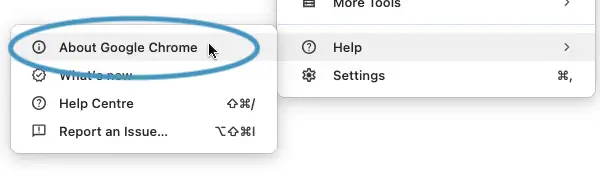
- Open Google Chrome.
- Click the three-dot menu in the upper-right corner.
- Select Help > About Google Chrome.
- Allow Chrome to check for available updates.
- Click Relaunch if an update was installed.
- Open QuickBooks Online and test its performance.
If you use Microsoft Edge, Firefox, or Safari, check for updates through the browser’s settings.
Make sure your operating system is also supported and up to date. You can review Intuit’s QuickBooks Online system requirements to check compatibility.
4. Review Browser Extensions and Available Memory
Browser extensions can affect website performance, particularly when they inspect page content, block scripts, or run additional background tasks.
If QuickBooks becomes slower after installing a new extension, test whether disabling that extension makes a difference.
In Chrome:
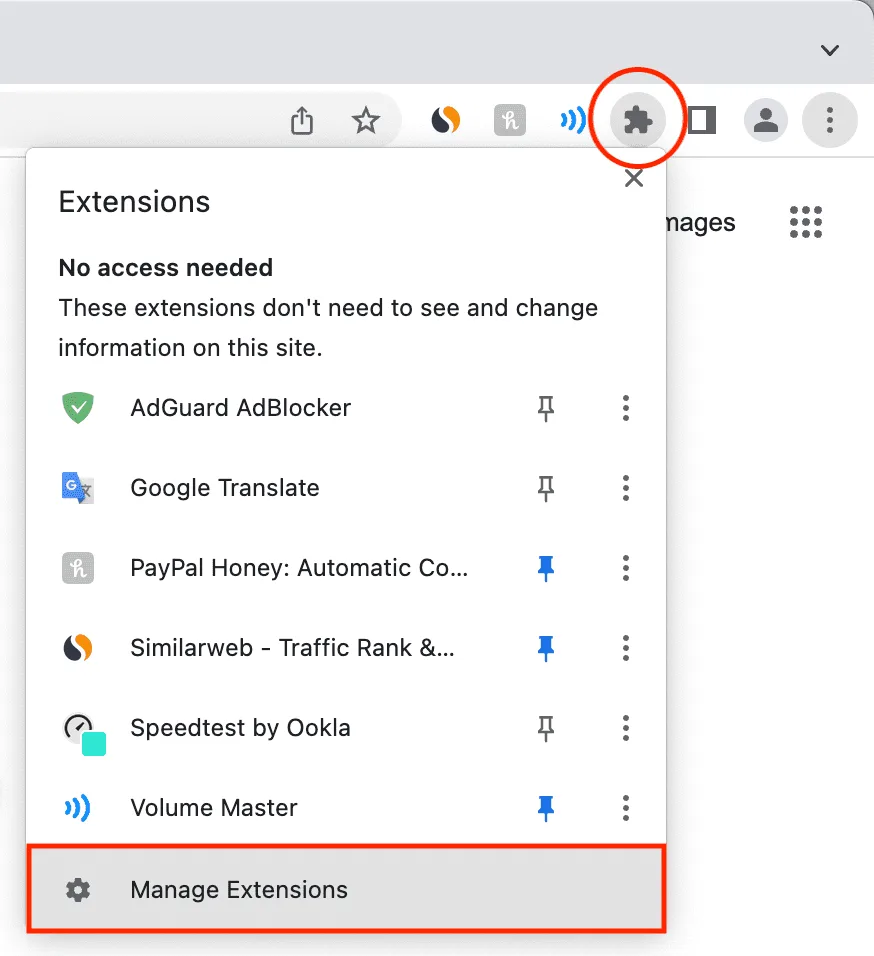
- Click the three-dot menu.
- Select Extensions > Manage Extensions.
- Temporarily turn off extensions you do not need.
- Reload QuickBooks Online and test the same task.
- Re-enable extensions individually to identify any that cause delays.
You can also press Shift + Esc in Chrome to open its Task Manager and inspect the resources used by open tabs and extensions.
Do not remove every extension without checking whether one is causing the issue.
For more detailed browser-specific troubleshooting, read our guide on QuickBooks not working in Chrome.
5. Check Whether Browser Cache or Cookies Are Causing Delays
QuickBooks Online uses cached files and cookies to improve loading and maintain your session. However, outdated or conflicting browser data can sometimes cause specific pages to behave incorrectly.
If QuickBooks is unusually slow on one page, you can test whether stored browser data is involved.
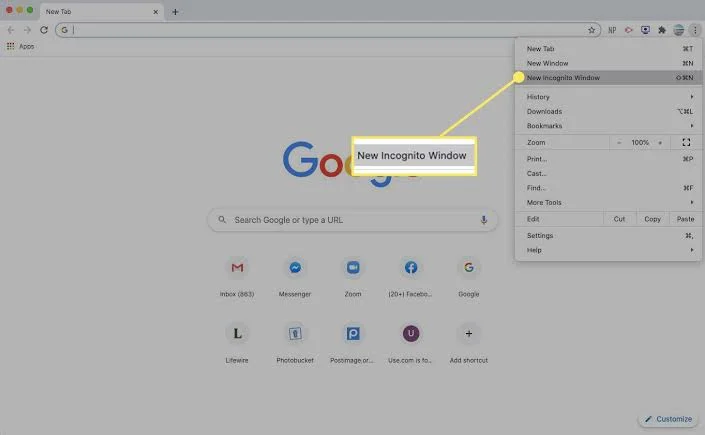
A private browsing window may help isolate the problem:
- Open a private or Incognito window.
- Sign in to QuickBooks Online.
- Repeat the affected task.
- Compare the result with your regular browser session.
If the problem disappears, review extensions or consider clearing Intuit-related browsing data in your regular browser.
Important: Incognito mode is useful for testing but not recommended for regular QuickBooks Online use. Intuit explains that private sessions may load more slowly because the browser cannot reuse stored data in the usual way.
Clearing cookies may also sign you out, so avoid deleting all browser data unless necessary.
6. Try Another Supported Browser
If QuickBooks Online remains slow after updating your browser, test the same task in another supported browser.
For example, if QuickBooks is sluggish in Chrome, try Microsoft Edge or Firefox.
Use the same computer and internet connection for a fair comparison.
If QuickBooks works normally in another browser, the problem is more likely related to your original browser’s settings, extensions, or stored data.
If every supported browser performs poorly, continue checking computer resources and the specific QuickBooks tasks involved.
7. Check Your Computer’s Memory and CPU Usage
Even though QuickBooks Online runs in a browser, it still uses your computer’s processor and memory.
If your system is already busy with other programs, QuickBooks may become less responsive.
On Windows:
- Press Ctrl + Shift + Esc to open Task Manager.
- Select the Performance tab.
- Review CPU and memory usage while QuickBooks is running.
- Identify applications using excessive resources.
- Close programs you no longer need.

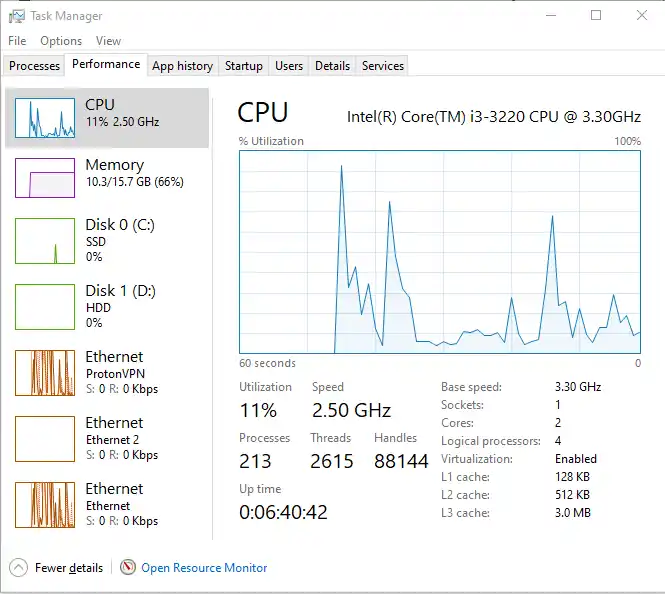
For example, a computer running several large spreadsheets alongside many browser tabs may have little memory left for QuickBooks.
If memory usage regularly approaches the computer’s limit, consider whether your device meets the recommended system requirements.
Do not assume that upgrading hardware will solve every slow-loading problem. First confirm that limited resources are contributing to the delay.
Why Is QuickBooks Online Slow Even With Fast Internet?
A fast internet connection does not always mean QuickBooks Online will load quickly.
Your browser and computer still need to process the information received from QuickBooks. If either is struggling, pages can respond slowly despite a strong connection.
For example, you might have a fast fiber connection but experience delays because your computer has limited available RAM or several extensions are running.
Slow performance can also occur when:
- Your browser is handling too many open tabs.
- Your computer’s CPU is under heavy use.
- A particular report requires additional processing.
- Intuit is experiencing a temporary service issue.
- Your connection has high latency or intermittent interruptions despite good download speeds.
If your internet speed is normal, avoid repeatedly restarting your router without evidence of a connection problem.
Instead, compare QuickBooks performance across devices and browsers. If the delay affects everyone using the service, check Intuit’s status page before changing local settings.
Why Are QuickBooks Online Reports or Transactions Loading Slowly?
Some accounting tasks require more processing than others. A report covering several years of transactions may take longer than one showing only the current month.
If QuickBooks Online runs normally until you open a large report, try narrowing the information it needs to display.
For example, if a Profit and Loss report covering five years takes too long to load, run the same report for a single month. If the shorter report loads faster, the amount of data being processed may be contributing to the delay.
What to Do When QuickBooks Online Reports Are Slow
Try these steps:
- Open the affected report.
- Change the reporting period to a shorter date range.
- Remove filters or columns you do not need.
- Run the report again.
- Compare the loading time with the original report.
A shorter report may be easier to process. However, do not change the reporting period if you need the complete financial history for an accounting or compliance task.
What If QuickBooks Online Is Slow When Saving Transactions?
If invoices, expenses, or other transactions take longer than usual to save, first check whether the problem affects every transaction or only specific ones.
Try saving a normal transaction and observe how long the process takes. If the delay occurs only with a particular transaction, review its details and any related attachments or connected applications.
If several users experience the same delay while saving transactions, check the service status and report the problem to Intuit if necessary.
Do not repeatedly click Save while the page is processing. Wait for confirmation, then check the transaction list before trying again. This helps prevent accidental duplicate entries.
How to Prevent QuickBooks Online Performance Problems
You cannot prevent every slowdown, particularly those caused by temporary service issues. However, a few regular habits can help your browser and computer run more efficiently.
- Keep your browser updated. Install supported updates so QuickBooks can work with current browser features.
- Close unused tabs. Avoid leaving dozens of resource-heavy pages open throughout the workday.
- Review extensions. Remove or disable extensions you no longer use, especially those that cause noticeable delays.
- Check available memory. If your computer frequently struggles with everyday applications, review its resource usage.
- Use focused reports. Select the date ranges and information you actually need.
- Maintain a stable connection. Avoid large background downloads during important accounting tasks when bandwidth is limited.
Clearing your entire browser cache every day is not necessary. Cached data usually helps websites load efficiently. Only clear it when troubleshooting suggests that stored data is contributing to a problem.
When Should You Contact Intuit Support?
If QuickBooks Online remains slow after checking your browser, computer resources, and internet connection, contact Intuit support.
Support may be particularly useful when the problem affects multiple users, continues across different devices, or occurs only within a specific QuickBooks company.
Before contacting support, collect the following information:
- The browser and operating system you use
- The pages or transactions that load slowly
- When the problem started
- Whether other users experience the same issue
- Any error messages that appear
- The troubleshooting steps you have already tried
If QuickBooks repeatedly asks you to sign in or prevents you from accessing your account, that is different from slow performance. Our guide on QuickBooks won’t let me sign in covers authentication problems in more detail.
Conclusion
If QuickBooks Online is running slow, start by checking whether the problem affects your browser, device, or other users. Update your browser, review resource usage, and test the tasks that take longer than expected.
If performance remains poor across multiple devices or connections, check for service issues and contact Intuit support. Finding the source of the delay is more useful than repeatedly clearing your cache or changing settings without a clear reason.
Frequently Asked Questions
Why Is QuickBooks Online So Slow Today?
QuickBooks Online may be slow because of a temporary service issue, browser resource usage, or an unstable internet connection. Check Intuit’s service status and compare performance on another device before changing your settings.
Does Clearing the Cache Make QuickBooks Online Faster?
Clearing the cache may help when outdated browser data causes specific pages to load incorrectly. However, cached files usually improve loading speed. Clearing them regularly is not a guaranteed performance fix.
Why Does QuickBooks Online Take So Long to Load Reports?
Reports containing large amounts of accounting data may require more processing. Try using a shorter reporting period or fewer filters to see whether performance improves. If even small reports load slowly, investigate other causes.
Does QuickBooks Online Run Faster in Google Chrome?
Intuit recommends Google Chrome for the best QuickBooks Online experience. However, performance also depends on your computer, browser settings, and internet connection. Another supported browser may work better on your particular device.
Is QuickBooks Online Slower Than QuickBooks Desktop?
Neither version is always faster. QuickBooks Online relies on a browser and internet connection, while QuickBooks Desktop depends more directly on local computer resources, company file performance, and network configuration.
If you use the installed application, see our separate guide on QuickBooks running slow for Desktop-specific solutions.
Accounts Confidant is an independent accounting and bookkeeping service provider and is not affiliated with Intuit.

