
QuickBooks Running Slow can turn simple accounting tasks into long delays. You may notice invoices taking longer to save, reports loading slowly, or QuickBooks responding late when you switch between windows.
The problem often comes from limited computer resources, a large company file, or a slow network connection. Sometimes, a few changes to QuickBooks settings can improve its performance.
Before making changes, check whether QuickBooks is slow with every company file or just one. This can help you find the cause without wasting time on unnecessary fixes.
Why Is QuickBooks Running Slow?
QuickBooks Desktop can slow down when your computer or company file needs more resources than are available. The cause depends on what you are doing when the delay occurs.
Common reasons include:
- Large company files: Years of transactions, customer records, and inventory data can take longer to process.
- Low system resources: Insufficient available RAM, high CPU usage, or limited storage can reduce performance.
- Background programs: Other applications may use the memory and processing power QuickBooks needs.
- Outdated software: Older QuickBooks releases may lack important performance improvements and fixes.
- Network delays: In multi-user mode, a slow connection between a workstation and the company file server can affect response times.
- QuickBooks preferences: Automatic reminders, search indexing, and report settings can add extra processing work.
According to Intuit’s Desktop performance guidance, larger company files and certain background activities can reduce QuickBooks performance. However, a large file does not always mean something is wrong with your accounting data.
How to Find Out What Is Slowing Down QuickBooks
Start by identifying when QuickBooks becomes slow. A delay while opening a company file may have a different cause from a report that takes several minutes to load.
Use this table to narrow down the problem.
| What you notice | What to check first |
| Every company file runs slowly | Computer resources and QuickBooks installation |
| Only one company file is slow | Company file size and data integrity |
| QuickBooks slows down in multi-user mode | Network connection and server performance |
| Reports take longer than usual | Report settings and amount of data |
| QuickBooks slows down after an update | Installed release and system compatibility |
| Payroll processing is unusually slow | Other connected users and background activity |
For example, if QuickBooks works normally in single-user mode but slows down when several employees connect, investigate the shared environment before changing company file data.
If the program stops responding altogether rather than simply taking longer, follow our guide on QuickBooks not responding.
How to Fix QuickBooks Running Slow
Start with the simpler checks below. After each change, repeat the task that was slow, such as saving an invoice or opening a report. This will help you identify what actually improves performance.
1. Close Unnecessary Programs and QuickBooks Windows
Running several programs at once can leave fewer system resources available for QuickBooks. This is especially noticeable on computers with limited RAM.
To check resource usage in Windows:
- Press Ctrl + Shift + Esc to open Task Manager.

- Select the Processes tab.
- Check which applications are using the most CPU or memory.
- Close programs you do not currently need.
- Return to QuickBooks and repeat the slow task.

Inside QuickBooks, go to Window > Close All to close unnecessary open windows.
If you have several large reports open while entering transactions, closing those reports may improve responsiveness.
Do not force-close QuickBooks through Task Manager while it is saving data, creating a backup, or running another important operation.
2. Check Your Computer’s RAM and Available Storage
QuickBooks may respond slowly when the computer has too little available memory or storage space. Increasing company file size and running multiple applications can make the problem more noticeable.
First, check your computer’s memory:
- Right-click the Windows Start button and open Task Manager.
- Select Performance > Memory.
- Check how much RAM is installed and how much is currently in use.
- Review CPU and disk activity while QuickBooks is running.
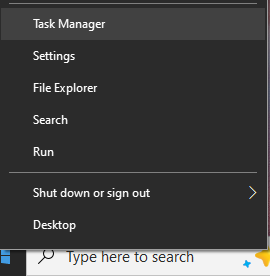
Next, open File Explorer > This PC and check the available space on the drive where QuickBooks and its company file are stored.
If memory usage stays close to its limit during normal accounting tasks, closing unused applications may help. A RAM upgrade might be worth considering if the computer consistently lacks available memory.
Also, check the official system requirements for your QuickBooks Desktop version before making hardware changes.
3. Update QuickBooks Desktop to the Latest Available Release
QuickBooks updates include software fixes, security improvements, and changes that may affect performance. Running an outdated release can leave known problems unresolved.
To update QuickBooks Desktop for Windows:
- Open QuickBooks Desktop.
- Go to Help > Update QuickBooks Desktop.
- Select the Update Now tab.
- Click Get Updates.
- Once the download finishes, close and reopen QuickBooks.
- Select Install Now if prompted.
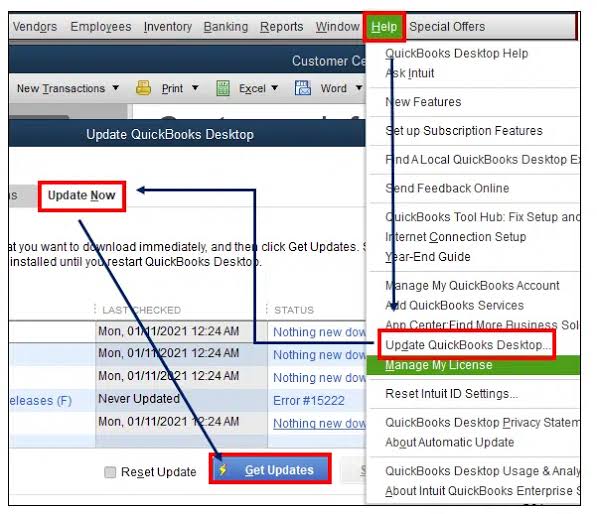
You can press F2 or Ctrl + 1 to view your installed version and release information.
If your company file is hosted on a server, check whether the QuickBooks Database Server Manager also needs updating.
An update does not guarantee better speed, but it helps rule out problems already addressed in a maintenance release.
If QuickBooks starts malfunctioning immediately after installing an update, see our separate guide on QuickBooks not working after an update rather than repeatedly reinstalling the software.
4. Adjust QuickBooks Preferences That Affect Performance
Certain QuickBooks preferences can create additional work whenever you open a company file, run a report, or enter a transaction.
You can adjust some of these settings if they are not essential to your daily workflow.
Stop the Home Page from opening automatically
- Open Edit > Preferences.
- Select Desktop View > My Preferences.
- Uncheck Show homepage when opening a company file.
- Select OK.
This reduces the number of items QuickBooks opens when you access your company file.
Change automatic report refresh settings
- Go to Edit > Preferences.
- Select Reports & Graphs > My Preferences.
- Choose Don’t Refresh in the report refresh settings.
- Select OK.
This may reduce processing while you work with reports, but you will need to refresh them when you want current figures.
Review automatic search indexing
- Go to Edit > Preferences.
- Select Search > Company Preferences.
- Uncheck Update automatically.
- Select OK.
Turning off automatic indexing may reduce background work. However, searches can take longer, so restore the setting if you do not notice an improvement.
Intuit also recommends reviewing reminders and automatic pop-ups when troubleshooting company file performance. Only disable alerts your business can safely operate without.
5. Check Your Company File Size and Verify Data
A large QuickBooks company file can take longer to open, search, and process transactions. However, file size alone does not tell you whether the file has a problem.
To check your company file:
- Open the affected company file in QuickBooks Desktop.
- Press F2 or Ctrl + 1.
- Find the File Information section.
- Review the file size and number of database fragments.
If only one company file runs slowly, checking its data integrity is a useful next step.
To run Verify Data:
- Go to Window > Close All.
- Select File > Utilities > Verify Data.
- Wait for QuickBooks to complete the verification.
- Review the result.
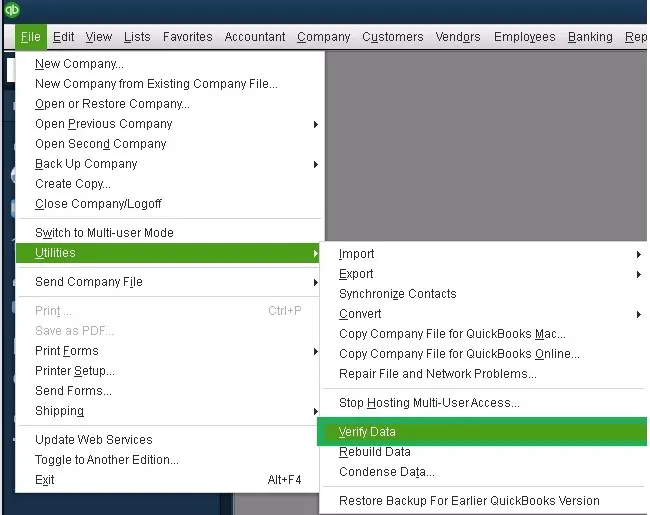
If QuickBooks reports no problems, you do not need to rebuild the data. If it finds damaged data, follow Intuit’s Verify and Rebuild Data instructions.
Create a verified backup before performing any repair. The Rebuild Data utility is intended to correct data integrity problems, not simply make every company file run faster.
6. Review Large Lists and Company File Maintenance
Company files can become harder to process as customer lists, inventory items, and transaction histories grow.
Start by reviewing lists containing duplicate or unused entries. For example, a business that has created separate customer records for the same client over several years may benefit from carefully merging duplicate records.
You should also check whether transaction logs have become unusually large.
Intuit recommends creating a manual backup with complete verification to help reset the transaction log.
To do this:
- Open File > Back Up Company > Create Local Backup.
- Select Local Backup, then Next.
- Choose the backup location.
- Select Options and set verification to Complete verification.
- Follow the prompts to create the backup.
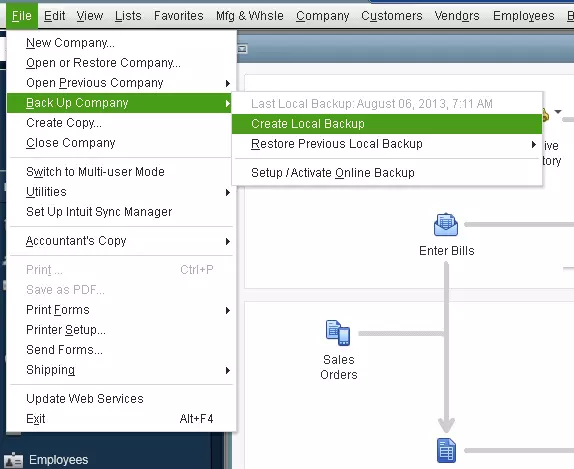
Complete verification helps check data integrity during backup.
Avoid manually deleting transaction log files or removing accounting records to make the company file smaller. These actions can create problems that are more serious than slow performance.
7. Troubleshoot QuickBooks Multi-User Performance
When QuickBooks runs slowly only in multi-user mode, check the server and network before making changes to your accounting data.
Start with these checks:
- Ask whether all users experience the same delay.
- Check whether the company file works faster when other users are signed out.
- Confirm that the file is stored on the intended host computer or server.
- Check CPU, memory, and disk usage on the server.
- Make sure QuickBooks Database Server Manager is updated.
For example, if five employees access the same company file and only one experiences delays, the problem may be related to that employee’s workstation or network connection.
If everyone experiences slow performance, investigate the server, hosting configuration, and shared file access.
Intuit also advises storing active company files on a properly configured computer or server rather than using file-sync services such as Dropbox as the live company file location.
8. Consider Condensing the Company File When Necessary
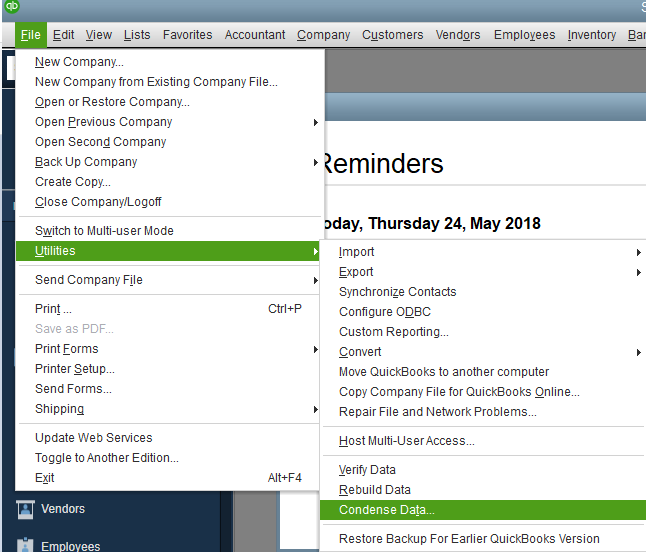
If your company file has grown significantly and other performance fixes have not helped, the Condense Data utility may be an option.
Depending on the version and options selected, condensing can remove certain historical transaction details or audit trail information. It may reduce file size, but it is not guaranteed to improve performance.
To find the utility:
- Open your company file in QuickBooks Desktop.
- Go to File > Utilities > Condense Data.
- Review the available options for your version.
- Do not proceed until you understand what information may change.
Important: Condensing cannot simply be undone. Keep a separate, verified backup of the original company file, and consult your accountant if the data includes inventory, payroll, or records needed for financial reporting.
Intuit recommends trying other solutions before condensing company data.
Why Does QuickBooks Run Slowly in Multi-User Mode?
QuickBooks Desktop may run more slowly in multi-user mode because several computers must communicate with the same company file.
Each user’s actions depend partly on network performance and the resources available on the hosting computer.
If the server is handling other demanding applications, QuickBooks may take longer to process requests.
A useful test is to ask other users to sign out temporarily, then repeat a task that normally runs slowly. If performance improves, investigate shared resource usage and network conditions.
However, a faster single-user session does not automatically mean the network is faulty. The delay could also involve server capacity or a task that becomes more demanding when several users work simultaneously.
How to Keep QuickBooks Desktop Running Smoothly
Regular maintenance can help prevent performance issues from building up.
- Keep QuickBooks updated: Install supported maintenance releases and check for relevant server updates.
- Back up company files regularly: Use complete verification when appropriate and keep backups in a safe location.
- Monitor company file growth: Review file size and performance periodically, especially when managing years of accounting records.
- Close unused windows: Avoid leaving large reports and unnecessary QuickBooks windows open.
- Schedule demanding tasks: Run large reports, batch printing, or payroll when fewer employees are using the file, where practical.
- Review system resources: Check available memory, storage, and server capacity as your business grows.
If QuickBooks repeatedly locks up instead of responding slowly, see our guide on QuickBooks freezing for troubleshooting steps specific to that symptom.
When Should You Contact QuickBooks Support?
Contact Intuit support or a qualified QuickBooks professional if performance remains poor after checking your computer, company file, and network.
You should also seek assistance if Verify Data reports errors that cannot be resolved safely.
Before contacting support, prepare the following information:
- QuickBooks Desktop version and release number
- Company file size and approximate number of users
- The task that runs slowly
- Whether the problem affects one file or every file
- Any recent changes to software, hardware, or network settings
- Troubleshooting steps already completed
This information can help support identify the problem without asking you to repeat basic checks.
Conclusion
If QuickBooks is running slow, start by checking your computer’s resources and identifying whether the delay affects one company file or the entire application. Then review software updates, performance settings, and network conditions.
Most importantly, avoid making unnecessary changes to accounting data. Identify the cause first, test one solution at a time, and keep a verified backup before performing advanced maintenance.
Frequently Asked Questions
Why Is QuickBooks Desktop Suddenly Running Slow?
QuickBooks can suddenly slow down because of high memory usage, background programs, software updates, or network problems. Check whether the delay affects every company file or only one before making changes.
Does Company File Size Affect QuickBooks Speed?
Yes, large company files may take longer to process, especially when they contain extensive transaction histories or are accessed over a slow network. However, there is no single file-size limit that guarantees poor performance.
Why Does QuickBooks Take So Long to Open a Company File?
Opening a company file may take longer because of its size, available computer resources, or its location on a network. Check whether another company file opens normally. If QuickBooks Desktop itself cannot start, see our guide on QuickBooks won’t open.
How Can I Speed Up Reports in QuickBooks Desktop?
Close unnecessary windows, review report refresh preferences, and run large reports when fewer users are working. You can also narrow report date ranges if you do not need the full transaction history.
Will Adding More RAM Make QuickBooks Faster?
Adding RAM may improve performance if your computer regularly runs short of available memory. However, additional RAM will not necessarily fix slow network connections, damaged company data, or inefficient report settings.
Accounts Confidant is an independent accounting and bookkeeping service provider and is not affiliated with Intuit.


