Payroll leaves little room for mistakes. Tax rates change, deadlines get closer, and QuickBooks Desktop is supposed to keep up. But when the payroll tax table won’t update, things can get frustrating fast. You retry the download, check the settings, and still end up with the same problem.
The QuickBooks Payroll Tax Table Not Updating issue can happen for several reasons. Your payroll subscription might need attention, the download may have failed, or QuickBooks might be struggling to install the update. In some cases, the update appears successful, but the old tax table is still in use.
So, where do you start? In this blog, we’ll look at the common causes of this issue and walk through practical ways to fix it. Let’s get into it.
Why Is the QuickBooks Payroll Tax Table Not Updating?
Before trying different fixes, it helps to understand what might be stopping the update.
Here are a few common reasons for the QuickBooks tax table not updating:
- Inactive payroll subscription: QuickBooks Desktop requires an active payroll subscription to download the latest tax table.
- Incomplete download: A weak internet connection or interrupted download may prevent the update from completing.
- Outdated QuickBooks release: An older software release can sometimes interfere with payroll update processes.
- Incorrect subscription information: QuickBooks may have trouble verifying your payroll service details.
- Firewall or security restrictions: Security software may block QuickBooks from connecting to its update servers.
- Update errors: Errors such as PS038, other PSXXX codes, or 15XXX errors can point to different payroll or update-related problems.
Another possibility for the QuickBooks payroll tax table updates not installing is that the update actually completed, but the tax table version hasn’t changed because there was no newer applicable release available. That’s why checking the installed version should be your first step.
Below is a quick overview of the errors.
Common Errors Related to Payroll Tax Table Not Updating in QuickBooks
| Error or problem | Solution |
| PS038 error | Resolve paychecks stuck in the Online to Send status so QuickBooks can complete payroll data transmission. |
| PSXXX errors | Correct the underlying payroll subscription, service key, or update configuration issue causing the error. |
| 15XXX errors | Resolve download permission issues, firewall restrictions, or damaged QuickBooks update components. |
| UEXP error | Repair the specific update or installation issue responsible for the error. |
| Payroll update won’t download | Restore the internet connection or correct security settings that are blocking the download. |
| Payroll subscription isn’t recognized | Reactivate the eligible payroll subscription or correct the invalid service key. |
| Tax table version remains unchanged | Install the latest applicable tax table if a newer release is available. |
| Payroll taxes remain incorrect after updating | Correct employee tax settings or update the employer-specific SUI rate, if applicable. |
Things to Check Before Troubleshooting the Payroll Tax Table
Before changing settings or attempting repairs, run through these basic checks. They can save you from spending time on fixes you don’t need.
- Verify your payroll subscription status.
- Check your current payroll tax table version.
- Confirm your QuickBooks product year and release.
- Ensure you have a stable internet connection.
- Verify user permissions for downloading and installing updates.
- Back up your QuickBooks company file.
- Record any existing payroll update error codes or messages.
Once these checks are complete, move on to the update process.
How to Fix QuickBooks Payroll Tax Table Update Not Working
Try the following solutions in order, starting with the simplest checks if you want to know how to update payroll tax tables in QuickBooks Desktop.
Download the Latest Payroll Tax Table Again
If you simply want to update the payroll tax table without updating the entire QuickBooks program, start here.
- Open QuickBooks Desktop and your company file.
- Go to Employees > Get Payroll Updates.

- Check the number next to You are using tax table version.
- Select Download Entire Update.
- Click Update.
- Wait for the informational window confirming that the download is complete.
- Check the tax table version again and compare it with the latest applicable payroll update information.
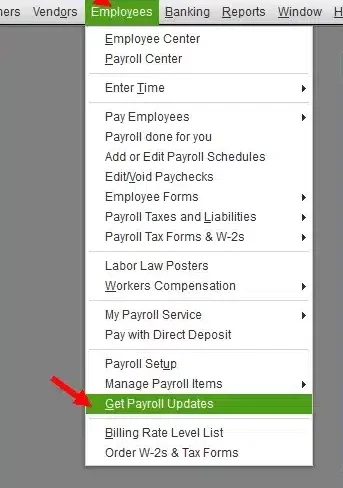
If the download fails or the version remains unchanged, continue with the troubleshooting steps below.
Run QuickBooks as an Administrator
If QuickBooks displays a 15XXX error while downloading payroll updates, including QuickBooks Error 15240, Windows permissions or update components may be preventing the process from completing.
Try downloading the update with administrator permissions:
- Close your company files and QuickBooks Desktop.
- Right-click the QuickBooks Desktop icon.
- Select Run as administrator.
- Approve the Windows permission prompt if it appears.
- If the troubleshooting instructions for your error require it, download the latest QuickBooks Desktop product update.
- Return to Employees > Get Payroll Updates and download the latest payroll tax table.
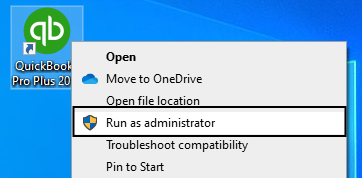
Running QuickBooks as an administrator may resolve certain permission-related issues, but it won’t fix every update error. If the problem continues, try the next solution.
Run Quick Fix My Program
Sometimes, QuickBooks has background processes that interfere with payroll updates. The QuickBooks Tool Hub includes a utility called Quick Fix My Program, which closes lingering QuickBooks processes and performs a quick program repair.
Here’s how to use it:
Step 1: Install QuickBooks Tool Hub
- Close QuickBooks Desktop.
- Download the latest QuickBooks Tool Hub from the official Intuit website.
- Open the downloaded installer, usually named QuickBooksToolHub.exe.
- Follow the on-screen instructions to complete the installation.
- Open QuickBooks Tool Hub from your desktop or Windows search.
Step 2: Run Quick Fix My Program
- Open QuickBooks Tool Hub.
- Select Program Problems.
- Click Quick Fix My Program.
- Wait for the tool to finish.
- Reopen QuickBooks Desktop.
- Go to Employees > Get Payroll Updates and try downloading the tax table again.

If the update still fails, check whether the error code points to a damaged installation or another specific issue.
Check Your Internet Connection and Security Settings
A blocked connection can prevent QuickBooks from downloading payroll tax table updates.
If the QuickBooks payroll tax table update failed, check the following:
- Confirm that your internet connection is stable.
- Check whether your firewall or security software is blocking QuickBooks.
- If you’re using a business network, ask your IT administrator to review the relevant connection settings.
- Retry the download after resolving any connection problems.
For certain PSXXX errors, we also recommend checking Windows Defender settings.
Verify Your Payroll Service Key and Subscription
If QuickBooks cannot verify your payroll subscription, it may prevent you from downloading the latest tax table.
To check your payroll service information:
- Close all open company files.
- Restart your computer.
- Open QuickBooks Desktop.
- Go to Employees > My Payroll Service > Manage Service Key.
- Check that the service name and status are correct and that the status shows Active.
- Select Edit and verify the service key.
- If the key is incorrect, enter the correct key supplied for your payroll subscription.
- Select Next, clear the Open Payroll Setup checkbox, and select Finish.
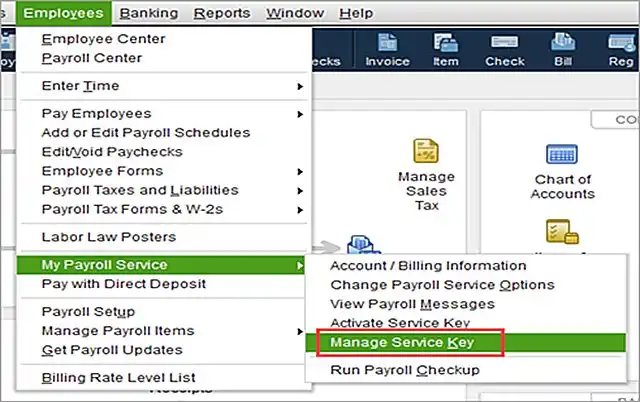
QuickBooks should download the payroll update as part of this process. If the error remains, check whether your QuickBooks installation is registered and updated to the latest applicable release.
Important: Don’t guess or generate a service key. Use the valid key associated with your payroll subscription.
Register and Update QuickBooks Desktop
An unregistered QuickBooks Desktop installation or an outdated software release can interfere with payroll update troubleshooting.
Here’s how to check your registration status:
- Open QuickBooks Desktop.
- Press F2 to open the Product Information window.
- Look beside the license number and confirm that QuickBooks is activated.
- If it isn’t activated, complete the appropriate registration process.
- Select Help > Update QuickBooks Desktop.
- Open the Update Now tab and download available product updates.
- Restart QuickBooks if prompted.
- Return to Employees > Get Payroll Updates and download the payroll tax table.
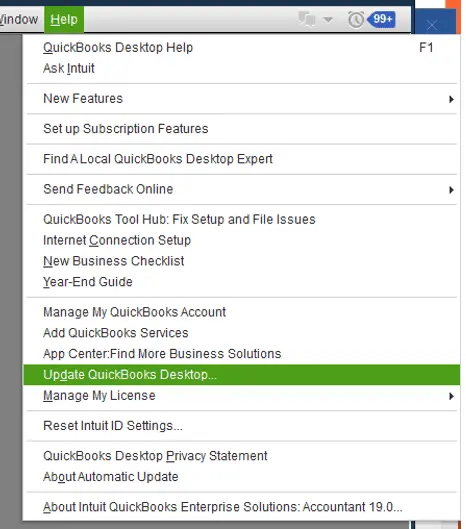
This solution involves updating the QuickBooks program itself. If your only issue is downloading a payroll tax table and the other checks are successful, you may not need to perform this step.
Repair QuickBooks Desktop if the Update Still Fails
If QuickBooks payroll tax table updates are still not installing, the problem may involve damaged installation files or missing components.
Before attempting a repair:
- Back up your company file.
- Close QuickBooks Desktop.
- Open QuickBooks Tool Hub.
- Follow the applicable Intuit troubleshooting instructions for your installation problem.
- Run the recommended diagnostic or repair tool.
- Reopen QuickBooks and try the payroll tax table download again.
If the repair doesn’t resolve the issue, reinstalling QuickBooks Desktop may be necessary. Reinstallation is a more involved step, so use it only after trying the simpler fixes and following the guidance for your specific error.
If damaged installation files are causing the problem, follow our guide to using the QuickBooks Clean Install Tool to perform a clean installation of QuickBooks Desktop.
Conclusion
The QuickBooks Payroll Tax Table Not Updating issue can often be resolved by checking your subscription, downloading the latest tax table, or troubleshooting the specific error. After applying a fix, verify the installed version and review your payroll calculations to ensure everything is correct before processing payroll.
Frequently Asked Questions
How do I download and install the latest QuickBooks payroll tax table update?
Open QuickBooks Desktop and go to Employees > Get Payroll Updates. Select Download Entire Update, click Update, and wait for the download to finish. Once it’s complete, check the tax table version to make sure the update was installed.
What is the latest QuickBooks Desktop payroll tax table version?
The latest US QuickBooks Desktop Payroll release I verified is Payroll Update 22616, released September 22, 2026. Since Intuit releases updates throughout the year, check its official payroll update page for the newest version before updating your software.
Why are QuickBooks payroll taxes incorrect after update?
The latest tax table doesn’t guarantee that every paycheck will calculate correctly. Employee tax settings, filing status, taxable wages, wage limits, or an incorrect employer SUI rate can also affect the results. Review the employee’s payroll setup and applicable tax rules before making any corrections.
Does updating QuickBooks Desktop also update the payroll tax tables?
No, these are separate updates. Updating QuickBooks Desktop refreshes the software, while a payroll tax table update refreshes the applicable payroll tax information. After updating the program, go to Employees > Get Payroll Updates to download the latest available tax table.
Does a payroll tax table update change my company’s SUI rate?
No, in QuickBooks Desktop Payroll, your employer-specific State Unemployment Insurance (SUI) rate must be updated separately. Check the rate provided by your state unemployment agency and enter it in the appropriate payroll item before processing payroll.
Will installing a new tax table change paychecks I already processed?
Installing a new tax table doesn’t automatically correct every paycheck you’ve already processed. However, certain payroll changes can affect earlier paycheck calculations, depending on the circumstances. Review any affected transactions and payroll liabilities before making adjustments to avoid creating additional discrepancies.
Can I update payroll tax tables without an active payroll subscription?
Generally, no. QuickBooks Desktop Payroll requires an eligible, active payroll subscription to download the latest tax table. If QuickBooks doesn’t recognize your subscription, verify its status and check whether your product version is still eligible for payroll services.
Are QuickBooks payroll tax table updates the same in the US and Canada?
No, US and Canadian payroll products follow different tax rules, tax tables, and update schedules. Make sure you check the official Intuit update information for your country and specific QuickBooks product before downloading a tax table.
What information should I collect before contacting about a failed payroll update?
Before reaching out for help, note your QuickBooks version and release, payroll subscription status, current tax table version, and any error code displayed. It also helps to record what you’ve already tried and whether the download or installation failed. Keep a recent company file backup ready before attempting advanced troubleshooting.

