QuickBooks Rebuild Data may stop responding while repairing a company file. The progress bar may appear stuck, Windows may display “Not Responding,” or QuickBooks may close before the repair finishes.
A QuickBooks Rebuild Not Responding message does not always mean the repair has failed. According to Intuit, QuickBooks can appear unresponsive while Rebuild Data continues processing company-file records.
If the rebuild is still running, avoid forcing QuickBooks to close. If the program crashes, reports errors it cannot fix, or repeatedly asks you to rebuild, the next step is to identify the specific problem before attempting another repair.
This guide focuses on QuickBooks Desktop for Windows and explains what to do when Rebuild Data freezes, fails, or leaves company-file errors unresolved.
Why Is QuickBooks Rebuild Not Responding?
QuickBooks Rebuild Data can appear unresponsive while it examines and repairs damaged company-file records. However, an actual failure may occur because of a company-file integrity problem, insufficient system resources, or an issue with the QuickBooks application.
The possible causes depend on what happens during the process.
A rebuild that appears frozen may still be processing records. A large or complex company file can require more time, but file size alone does not confirm why the operation is slow.
A rebuild that crashes may involve damaged data, a program error, or a computer problem. An unrecoverable error can also occur during certain data-repair operations.
A rebuild that finishes but leaves errors indicates that the utility did not resolve every detected issue. Some errors involve specific transactions or links between accounting records and may need a different repair procedure.
The following table can help identify which situation applies to your company file.
| What happens during Rebuild | What it may indicate | What to do |
| Windows displays “Not Responding” | Rebuild may still be working | Allow the process to continue |
| The progress bar stops moving | Slow processing or a stalled operation | Check for an error before interrupting it |
| QuickBooks closes unexpectedly | Application crash or data-related failure | Record the error and investigate |
| Rebuild finishes but errors remain | Some integrity problems were not repaired | Review Verify Results and QBWin.log |
| QuickBooks repeatedly requests a rebuild | An unresolved or recurring integrity issue | Check whether the same errors return |
| The company file will not open after rebuilding | Possible file damage or another access problem | Preserve the file and review recovery options |
The correct fix depends on the outcome. Repeating Rebuild Data without identifying the error can waste time and may complicate recovery.
What Should You Do When QuickBooks Rebuild Is Stuck?
If Rebuild Data is currently running and QuickBooks appears frozen, give the utility time to finish before attempting another repair.
Intuit’s company-file data damage guide confirms that QuickBooks may appear stuck while the rebuild is processing.
Follow these precautions:
- Leave the Rebuild Data window open while the operation may still be active.
- Avoid repeatedly clicking inside the frozen window.
- Do not start another rebuild or open a second session with the affected company file.
- Check whether QuickBooks displays an error or closes unexpectedly.
- Allow additional time if the utility has not reported a failure.
You can use Windows Task Manager to check whether QuickBooks is using CPU, memory, or disk resources. However, resource activity does not confirm that the rebuild is progressing correctly. Likewise, low activity does not prove the process has failed.
How Long Should You Wait for Rebuild Data?
There is no fixed rebuild duration that applies to every QuickBooks company file.
The time required may depend on the file’s size, the condition of its records, and the work the repair utility is performing.
Intuit advises contacting support if the first rebuild takes two hours or more. This is a support threshold, not a guarantee that a rebuild running for two hours has failed.
If QuickBooks is still processing, avoid using End Task solely because the progress bar has not moved. If the operation remains unusually long, seek guidance before interrupting it.
If QuickBooks has already crashed or displayed a failure message, move to the troubleshooting steps below.
What Should You Check Before Running Rebuild Again?
Before another repair attempt, protect the existing company file and backups.
QuickBooks Desktop normally uses a .QBW company file and a .QBB backup file. Rebuild Data requires a backup before the standard repair procedure begins.
Check the following:
- Locate the backup created before the failed rebuild.
- Keep earlier backups rather than replacing them with newer copies.
- Preserve the current company file, even if you suspect damage.
- If QuickBooks is closed and the file is accessible, keep an unchanged copy before further testing.
- Make sure other users have closed the shared company file before another repair.
- Record any error code, missing transaction, or unusual behavior associated with the failure.
If you use QuickBooks Assisted Payroll, Intuit advises contacting its support team before rebuilding company data.
Do not start another rebuild if QuickBooks cannot create the required backup. Resolve the backup problem first.
If you need the standard instructions for running these utilities, see our separate guide on how to Verify and Rebuild Data in QuickBooks Desktop.
How to Fix QuickBooks Rebuild Not Responding
If the rebuild has stopped or failed, use the following checks to determine whether the issue involves the QuickBooks program, the company file, or a specific data error.
Check Whether QuickBooks Is Crashing or Only Rebuild Data Is Failing
Start by identifying when QuickBooks becomes unresponsive.
If QuickBooks works normally until you select Rebuild Data, the problem may be related to the company file or the repair operation.
If the program also freezes while opening a company file, signing in, or performing unrelated tasks, investigate the application before running another rebuild.
One useful test is to open a QuickBooks sample company file after the failed operation has fully ended.
- If the sample file opens normally, the problem may be limited to the original file or its environment.
- If the sample file also crashes, the QuickBooks installation or Windows environment may need attention.
This test helps narrow the investigation but does not prove that the original company file is corrupt.
For application-wide freezes, follow the QuickBooks Not Responding troubleshooting guide. It covers program updates, Quick Fix my Program, and installation-related repairs.
Avoid running these tools while a rebuild is still active.
Check Whether Verify Data Still Detects Damage
If QuickBooks opens after the failed rebuild, run Verify Data to determine whether the company file still contains detectable integrity problems.
In QuickBooks Desktop:
- Open the affected company file.
- Go to File > Utilities > Verify Data.

- Allow verification to finish.
- Review the result.
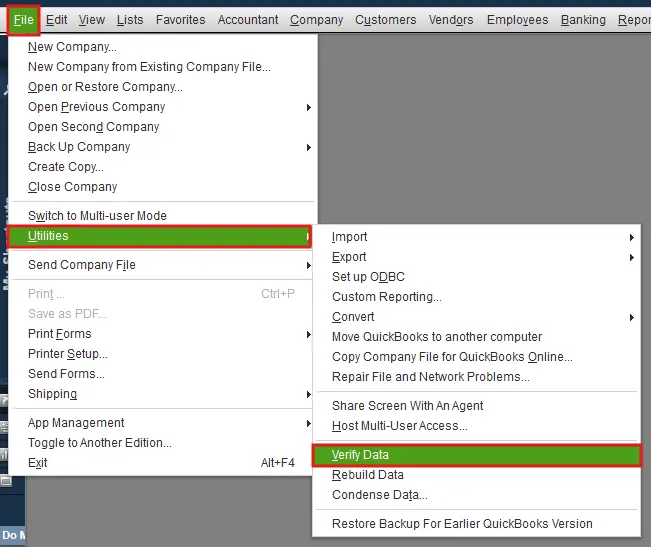
QuickBooks generally reports one of three outcomes.
| Verify Data result | What it means |
| QuickBooks detected no problems with your data | Verify did not detect integrity problems during this check |
| Your data has lost integrity | QuickBooks detected data damage that may require rebuilding |
| A specific error message appears | The reported error may require its own troubleshooting steps |
If Verify Data reports no problems but you still see incorrect balances or transactions, investigate the affected accounting records. A clean verification result does not establish that every bookkeeping entry is correct.
If QuickBooks reports lost integrity, another rebuild may be appropriate when the previous attempt completed and you have a reliable backup.
However, if rebuilding repeatedly crashes or reports the same unresolved error, investigate that failure instead of restarting the utility indefinitely.
Review QBWin.log When Rebuild Cannot Fix the Errors
QuickBooks Desktop for Windows records diagnostic information in a file called QBWin.log.
This file contains messages associated with operations such as Verify Data and Rebuild Data. It can help identify errors that the repair utility could not resolve.
To open QBWin.log:
- Open QuickBooks Desktop.
- Press F2 or Ctrl + 1 to open the Product Information window.
- Press F3 or Ctrl + 2 to open the Tech Help window.
- Select the Open File tab.
- Choose QBWin.log, then select Open File.
- Press Ctrl + F and search for Begin Verify to locate the relevant verification session.
Review the messages associated with the latest verification or failed rebuild.
For example, an error may reference a transaction link, item record, or account entry that QuickBooks could not repair.
Record the exact error text before making changes. QuickBooks maintains version-specific logs and may rename earlier logs when the program starts again, so the most relevant information may not always be in the newest visible entry.
Not every logged error indicates company-file damage. Intuit specifically notes that some lock-file messages, including certain .LCK can’t be found errors, should not be treated as proof of data corruption.
For additional details, refer to Intuit’s QBWin.log documentation.
Do not delete or modify the transactions identified in the log without understanding the error. Some records are connected to payments, invoices, journal entries, or inventory transactions.
Follow the Repair Instructions for the Specific Error
Once you identify the error, use the repair procedure that applies to it.
You can find additional information through QuickBooks Verify Results:
- Open File > Utilities > Verify Data.
- Let verification complete.
- In the Verify Results window, select Expand All.
- Review the errors that remain.
- Select See Online Article when QuickBooks provides a related help article.
This is particularly important for errors involving relationships between transactions.
Example: Target Chaining Error During Rebuild
A Target Chaining error can occur when links between accounting transactions become inconsistent.
For example, in a documented QuickBooks Desktop Enterprise scenario, a bill or invoice may become disconnected from its related payment. QBWin.log may then report a Target Chaining error.
Intuit provides separate instructions for this condition. For affected Enterprise files smaller than 1 GB, those instructions include rebuilding locally on the host computer rather than over the network and checking available memory.
If the file is larger than 1 GB, Intuit advises contacting support.
These steps are specific to the documented Target Chaining problem. They should not be applied automatically to every unresponsive rebuild.
See Intuit’s Target Chaining Error repair instructions for the exact conditions and recovery procedure.
Use QuickBooks File Doctor Only When It Applies
If verification continues to detect company-file damage and the error is suitable for File Doctor, Intuit recommends trying the utility.
QuickBooks File Doctor is available through QuickBooks Tool Hub. It can investigate certain company-file and network-related issues, but it cannot repair every damaged transaction or failed rebuild.
There is an important exception.
If customer, vendor, employee, item, or account names are missing, and the company file has been rebuilt since you first noticed the missing names, do not run File Doctor on that recently rebuilt file.
Intuit advises restoring the backup created before the rebuild in this situation.
You can check whether the file was rebuilt by pressing F2 and looking for the RB entry under Versions Used on File.
For other supported company-file problems, see our QuickBooks File Doctor guide.
If File Doctor does not resolve the issue, avoid repeatedly running it without reviewing the reported results.
What If QuickBooks Rebuild Keeps Failing?
A failed rebuild may produce different outcomes. The most useful next step is to investigate the exact symptom rather than repeat the same repair.
QuickBooks Closes With an Unrecoverable Error During Rebuild
An unrecoverable error means QuickBooks encountered a problem that caused it to close.
It does not automatically mean the company file is permanently damaged.
Record the full error code and check whether QuickBooks also crashes during other tasks.
If the application crashes repeatedly outside the Rebuild Data utility, check for QuickBooks updates and program-related problems.
If the error occurs only with one company file, investigate the file and its verification results.
For the broader diagnostic procedure, see how to fix an Unrecoverable Error in QuickBooks Desktop.
If the crash involves a specific Target Chaining error, follow the error-specific Intuit instructions rather than a general crash repair.
Rebuild Completes but Reports Errors It Could Not Fix
If Rebuild Data finishes but reports unresolved errors, run Verify Data again and compare the results.
Intuit allows another rebuild attempt when data problems remain. However, the decision should depend on the errors and what happened during the previous repair.
For example, one rebuild may resolve an item-related problem while another verification still finds an unrelated transaction error.
By contrast, if the same invoice-payment link error appears after every attempt, repeating Rebuild Data may not resolve it.
Use QBWin.log and Verify Results to identify the remaining problem.
If no applicable repair instructions are available, contact Intuit support before making manual accounting changes.
QuickBooks Keeps Asking You to Rebuild Data
If QuickBooks requests another rebuild every time you open or close the company file, check whether the same integrity error keeps returning.
Do not rely only on the previous rebuild completion message.
Instead, compare the latest Verify Results with earlier errors when those results are available.
If the same transaction or list entry continues to appear, the underlying issue may still be unresolved.
If verification now reports no problems but QuickBooks continues requesting a rebuild, record the exact warning and when it appears. That information may help distinguish a recurring data issue from another program problem.
What If Your Company File Will Not Open After Rebuild?
If the company file becomes inaccessible after a rebuild, preserve the current file and review the available backups before attempting another repair.
Do not overwrite the damaged file with a backup or continue making changes to it.
Restore a Backup Created Before the Failed Rebuild
A usable pre-rebuild backup may provide a safer recovery point.
To restore it in QuickBooks Desktop:
- Open File > Open or Restore Company.
- Select Restore a backup copy.
- Choose Local Backup.
- Locate the .QBB backup.
- Select a separate folder for the restored company file.
- Give the restored file a unique name.
- Complete the restoration.
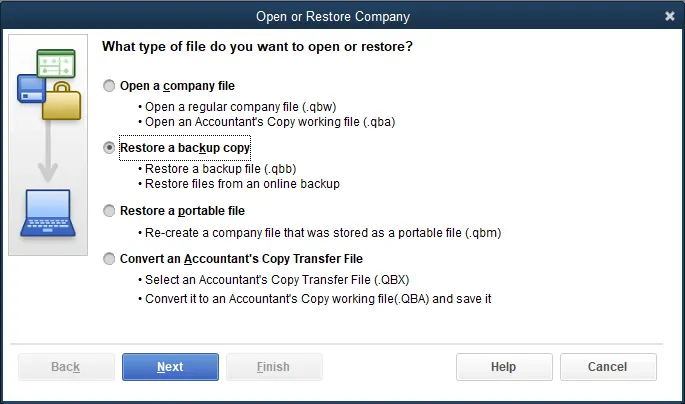
QuickBooks uses the backup to create a .QBW company file.
Do not replace the existing file unless you have deliberately chosen to do so after reviewing your recovery options.
Once the restored file opens, compare its records with the most recent reliable reports and supporting documents.
For example, suppose the backup was created on Monday and the failed rebuild occurred on Wednesday. The restored backup may not contain transactions entered after Monday. Those later records will need to be identified and accounted for before the restored file becomes the working company file.
Follow Intuit’s backup restoration instructions for the full procedure.
Can Auto Data Recovery Restore a Damaged Company File?
QuickBooks Desktop Auto Data Recovery (ADR) may help recover company data when normal repair and backup restoration options are insufficient.
According to Intuit, ADR uses available company-file and transaction-log copies to attempt recovery. Depending on the available files, recovery may include recent transactions or may exclude some of the latest entries.
ADR has specific limitations:
- It is available in supported QuickBooks Desktop Pro, Premier, and Enterprise editions for Windows.
- It is not available in Accountant Editions.
- Its file-size limitation is 1.5 GB. Intuit states that QuickBooks will not generate an ADR file if the backup exceeds this size.
- It should be considered only after appropriate troubleshooting has been attempted.
ADR is not a guaranteed solution for a damaged file.
Before copying, renaming, or replacing recovery files, follow Intuit’s Auto Data Recovery instructions.
If neither a usable backup nor a supported recovery method is available, further repair may require Intuit Data Services or another qualified data-recovery specialist.
How Can You Confirm That QuickBooks Rebuild Was Successful?
After a rebuild completes, run Verify Data again to check whether QuickBooks still detects integrity problems.
A successful verification is a useful sign that the repair addressed the detected errors. However, you should also review the records involved in the original problem.
For example:
| Problem before rebuilding | What to check afterward |
| A paid bill appears unpaid | Confirm the bill is correctly linked to its payment |
| An invoice shows an incorrect balance | Review the invoice, applied payments, and customer balance |
| Inventory quantities are inconsistent | Compare inventory reports with the relevant item records |
| A journal entry appears incorrect | Review the affected accounts and transaction details |
| An account balance changed unexpectedly | Compare the balance with reliable reports and supporting records |
These are additional accounting checks, not substitutes for Verify Data.
Consider a bill that was paid in a prior month but suddenly appears on the Unpaid Bills report. If Rebuild Data finishes successfully and Verify finds no errors, check whether the payment is still linked to the correct bill.
If the payment relationship remains incorrect, the problem may require a transaction-specific correction rather than another rebuild.
Similarly, if an inventory report still shows inconsistent quantities, investigate the item records and relevant transactions before assuming that rebuilding again will fix the balance.
A successful rebuild confirms that the repair process completed; it does not independently establish that every accounting record is correct.
If verification continues to report the same errors, important records are missing, or the company file cannot be opened, stop repeating repairs and use the error-specific support or recovery procedure.
Frequently Asked Questions
How Long Does QuickBooks Rebuild Data Normally Take?
There is no universal completion time for QuickBooks Rebuild Data. The duration depends on the company file and the repairs being performed. Intuit recommends contacting support if the first rebuild takes two hours or more. A long rebuild does not automatically indicate failure.
Should I Close QuickBooks if Rebuild Data Says Not Responding?
No, not immediately. QuickBooks may still be processing the rebuild even while Windows displays “Not Responding.” Avoid force-closing the program solely because the window appears frozen. If the process remains unusually long, seek guidance before interrupting it.
Why Is QuickBooks Rebuild Data Stuck at 99%?
A rebuild that appears stuck at 99% may still be processing data, or the operation may have encountered a problem. The percentage alone does not identify the cause. There is no verified universal fix for a rebuild that stops at this particular percentage. Review any error or failure message before deciding what to do next.
Can I Cancel QuickBooks Rebuild Data Without Losing Transactions?
There is no guarantee that interrupting an active rebuild is risk-free. Ending the program during a repair may leave the company file in an uncertain condition. Keep the pre-rebuild backup and avoid forcing the process to close unless the operation has failed and you have a suitable recovery plan.
Does a Large QuickBooks Company File Cause Rebuild to Fail?
A large company file may require more processing time and system resources, but size alone does not prove why a rebuild failed. Certain documented errors have specific file-size and memory considerations. For example, Intuit provides separate Target Chaining Error guidance for QuickBooks Desktop Enterprise files based on file size. Follow the instructions for the actual error.
What Should I Do if QuickBooks Rebuild Fails and I Have No Backup?
Preserve the existing company file and associated recovery files. Avoid repeated repairs or manual file changes. Check whether Auto Data Recovery is available for your QuickBooks edition and whether the required files exist. If a supported recovery method is unavailable, contact Intuit Data Services or a qualified data-recovery specialist.
Is QuickBooks Rebuild Data Different on Mac?
Yes, QuickBooks Desktop for Mac has its own Verify and Rebuild procedures. Its diagnostic log is called QuickBooks.log, rather than the Windows QBWin.log. Windows-only tools such as QuickBooks Tool Hub should not be used as Mac troubleshooting instructions. Follow the official Mac-specific repair guidance for your version.
