If your QuickBooks Balance Sheet shows incorrect retained earnings, the difference may come from previous-year transactions, report settings, or manual adjustments to equity accounts. In some cases, the balance is correct, but it looks wrong because you’re comparing it with the wrong financial period.
To fix incorrect retained earnings in QuickBooks, check your fiscal-year settings and accounting method, compare previous-year Profit and Loss reports, and review changes to historical transactions. If those figures are correct, examine any entries made directly to the Retained Earnings account.
QuickBooks automatically calculates the year-end earnings rollover, so you should identify the cause before changing transactions or recording a journal entry.
The following steps explain how to find and correct retained earnings discrepancies in QuickBooks Online and QuickBooks Desktop.
How Does QuickBooks Calculate Retained Earnings?
QuickBooks calculates retained earnings using the net income or loss from previous fiscal years. When a new fiscal year begins, the software automatically moves the previous year’s net income into the Retained Earnings account on the Balance Sheet.
This process does not require you to create a manual closing journal entry.
For example, suppose a business has the following results:
| Financial period | Net income | Retained earnings |
| December 31, 2024 | $8,000 | $0 |
| December 31, 2025 | $12,000 | $8,000 |
| January 1, 2026 | $0 | $20,000 |
This example assumes the company started in 2024 with no opening retained earnings, distributions, or direct equity adjustments.
On December 31, 2025, the business has accumulated $8,000 in retained earnings from the previous year. Its $12,000 profit for 2025 appears separately as current-year net income.
On January 1, 2026, QuickBooks carries that $12,000 into retained earnings, increasing the balance to $20,000.
The business starts the new fiscal year with zero current-year net income until new transactions are recorded.
Retained earnings and current-year net income are different figures. They should not be expected to match on every Balance Sheet.
Retained earnings generally reflect accumulated profits and losses from earlier years. Distributions, dividends, and certain accounting adjustments can also affect accumulated equity. However, these transactions may be recorded in separate equity accounts rather than directly in QuickBooks’ Retained Earnings account.
Intuit explains this automatic process in its official retained earnings documentation.
Why Are Retained Earnings Incorrect in QuickBooks?
Retained earnings may appear incorrect when historical income or expenses change, financial reports use inconsistent settings, or transactions are posted directly to equity.
The following table shows what to investigate.
| Possible cause | What you may notice | What to check |
| Previous-year transactions changed | Retained earnings differs from a saved year-end Balance Sheet | Edited, deleted, or backdated transactions |
| Incorrect fiscal-year settings | Net income rolls into retained earnings at an unexpected time | First month of the fiscal year |
| Different accounting methods | Retained earnings does not agree with the Profit and Loss report | Cash versus accrual reporting |
| Manual entries to Retained Earnings | The account includes amounts unrelated to the automatic rollover | Retained Earnings QuickReport |
| Incorrect opening equity balances | Total equity differs from the company’s starting records | Opening Balance Equity and other equity accounts |
| Duplicate or missing transactions | Previous-year income or expenses are overstated or understated | Transaction reports and supporting documents |
| QuickBooks migration differences | Equity balances differ between Desktop and Online | Pre- and post-migration financial reports |
Company-file damage is another possibility in QuickBooks Desktop, but it should be investigated when QuickBooks identifies data integrity problems or there is other evidence of damaged transactions.
An incorrect Opening Balance Equity account also needs careful review. It can make the overall equity section inaccurate without changing QuickBooks’ automatic retained earnings calculation.
Before choosing a correction, determine whether the difference comes from the retained earnings calculation, another equity account, or the way the reports are being compared.
How to Find the Cause of Incorrect Retained Earnings
Start with the period in which the difference first appeared. This is usually more useful than reviewing every transaction in the company file.
Step 1: Compare Previous-Year Financial Reports
Run a Balance Sheet for the date when you noticed the issue.
Then open the Profit and Loss report for the previous completed fiscal year.
For example, if retained earnings appears incorrect on January 1, 2026, check the Profit and Loss for January 1 through December 31, 2025.
Compare the result with your finalized 2025 financial statements.
If you have saved reports for several years, compare them with newly generated reports using the same dates and accounting basis. Start with the earliest year that shows a difference.
Suppose your finalized 2025 Profit and Loss showed net income of $18,000, but the same report now shows $15,000.
That $3,000 difference gives you a specific amount to investigate.
If the report has changed, examine its underlying transactions before assuming the retained earnings balance itself is wrong.
When comparing financial statements, remember that the Balance Sheet reports account balances as of a date, while the Profit and Loss covers activity over a period.
If you find broader reporting problems, see our guide to balance sheet and income statement discrepancies.
Step 2: Check Your Fiscal-Year Settings
QuickBooks uses the first month of your fiscal year to determine when prior-year earnings roll into retained earnings.
For example, a company with a fiscal year beginning July 1 should not expect the rollover to follow the same dates as a company whose year begins January 1.
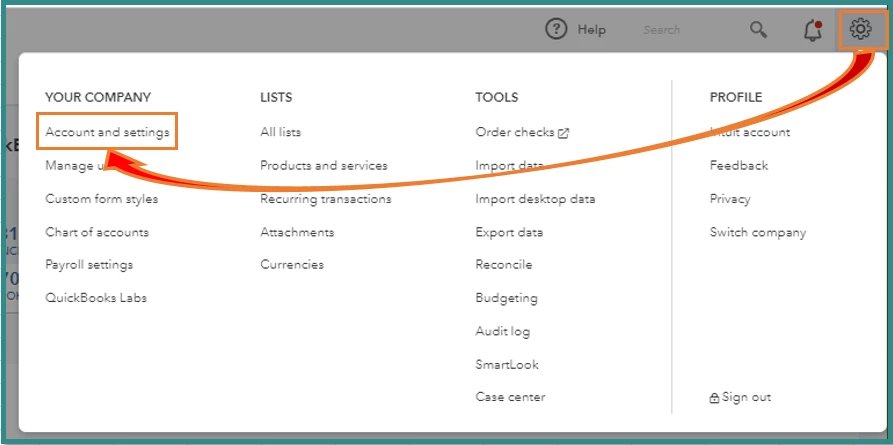
In QuickBooks Online:
- Open Settings > Account and settings.

- Select Advanced.
- Find the Accounting section.
- Review the First month of fiscal year setting.
- Confirm that the selected month matches your business’s fiscal year.
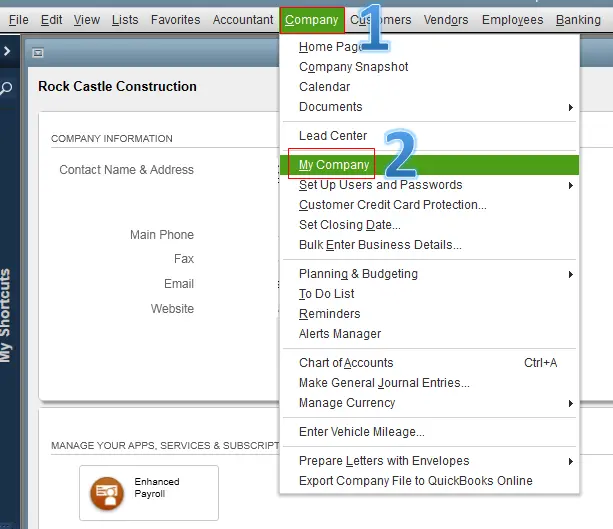
In QuickBooks Desktop for Windows:
- Go to Company > My Company.
- Select the edit icon.
- Open Report Information.
- Review the fiscal-year start month.
If the setting is incorrect, confirm the appropriate fiscal year with your accountant before changing it, particularly when previous financial statements have already been finalized.
Step 3: Use the Same Accounting Method on Both Reports
QuickBooks supports cash-basis and accrual-basis reporting. These methods can produce different income figures for the same period.
Consider a business that creates a $4,000 customer invoice in December 2025 but does not receive payment until February 2026.
Under accrual-basis reporting, the $4,000 generally appears in 2025 revenue.
Under cash-basis reporting, it generally appears when payment is received in 2026.
If you compare a cash-basis Profit and Loss with an accrual-basis Balance Sheet, the results may appear inconsistent.
Open the report settings and make sure both reports use the same accounting method.
If the difference disappears, inconsistent reporting settings may explain the mismatch. Confirm that the selected basis is appropriate for the comparison before making any accounting changes.
You can find additional instructions in Intuit’s cash and accrual reporting guide.
How to Fix Incorrect Retained Earnings in QuickBooks Online
Once you have confirmed the reporting period and accounting method, use QuickBooks Online reports to trace the balance.
Step 1: Review Previous-Year Net Income
Follow these steps:
- Sign in to QuickBooks Online.
- Go to Reports > Standard reports.
- Search for Profit and Loss.
- Set the report period to the previous fiscal year.
- Select the correct accounting method.
- Refresh the report.
- Find the Net Income amount.
If you want to compare multiple years, open Customize > Rows/Columns and use the available time-period options to display results by year.
You can also select the Net Income figure to inspect the transactions included in the report.
Compare each completed year’s net income with your finalized records. If one year differs, focus on transactions from that period.
For example, if the 2025 report is $3,000 lower than the previously finalized version, investigate expenses, income adjustments, and other entries affecting 2025 profit.
Step 2: Review the Retained Earnings Quick Report
QuickBooks Online automatically carries previous-year earnings into retained earnings without creating a normal visible transaction.
However, user-created transactions posted directly to Retained Earnings can appear in its account report.
To review them:
- Go to All apps > Accounting > Chart of accounts.
- Locate the Retained Earnings account.
- Open the Action dropdown.
- Select Run report.
- Set the report period to All Dates.
- Refresh the report.
The Chart of Accounts may also be accessible through Settings, depending on your QuickBooks interface.
Look for journal entries or other user-created transactions affecting retained earnings.
For each entry, check the transaction date, amount, description, and offsetting account.
For example, someone may have posted a $5,000 adjustment directly to Retained Earnings instead of correcting the original transaction. That entry needs to be reviewed to determine whether it is valid.
Do not delete a manual entry simply because it appears in the Retained Earnings QuickReport. Some adjustments are legitimate and may have been approved by an accountant.
Step 3: Use the Audit Log to Find Historical Changes
If the retained earnings balance changed after you finalized your books, the QuickBooks Online Audit Log can help identify when the underlying transactions were modified.
Follow these steps:
- Go to Settings > Audit log.
- Select Filter.
- Choose a user, date range, or event type.
- Select Apply.
- Locate the relevant transaction or activity.
- Select View in the History column.
Pay attention to the difference between the transaction date and the date it was entered or modified.
For example, an expense dated December 20, 2025, may have been entered in August 2026. If the expense affects 2025 net income, it can also change retained earnings reported in 2026.
Check the source document to determine whether the expense belongs to 2025.
Intuit states that QuickBooks Online Audit Log events remain available for two years and that admin access is required to review the log.
For older changes, use saved reports, exported transaction records, and accountant documentation where available.
Step 4: Check Changes Made After the Closing Date
If your company uses the Close the Books feature, review transactions changed after the closing date.
- Go to Reports > Standard reports.
- Search for Exceptions to Closing Date.
- Open the report.
- Review changes affecting earlier accounting periods.
For example, if the company closed its books on December 31, 2025, the report can help identify later changes to transactions dated on or before that date.
A closing date helps control changes to historical records. It is not required for QuickBooks to perform the automatic retained earnings rollover.
If no closing date was set, rely on the Audit Log and historical financial reports.
How to Correct Retained Earnings in QuickBooks Desktop
QuickBooks Desktop provides similar financial information, but its reporting menus and audit tools differ from QuickBooks Online.
Before changing historical transactions, create a backup of the company file.
Step 1: Compare the Profit and Loss and Balance Sheet
- Open your QuickBooks Desktop company file.
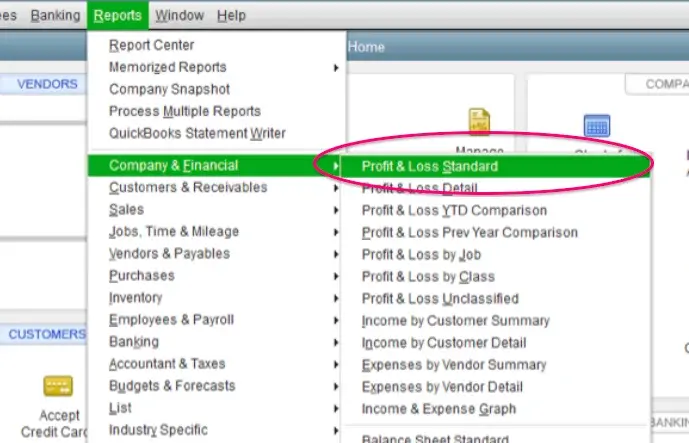
- Go to Reports > Company & Financial.
- Select Profit & Loss Standard.
- Set the dates to the previous completed fiscal year.
- Review the Net Income figure.
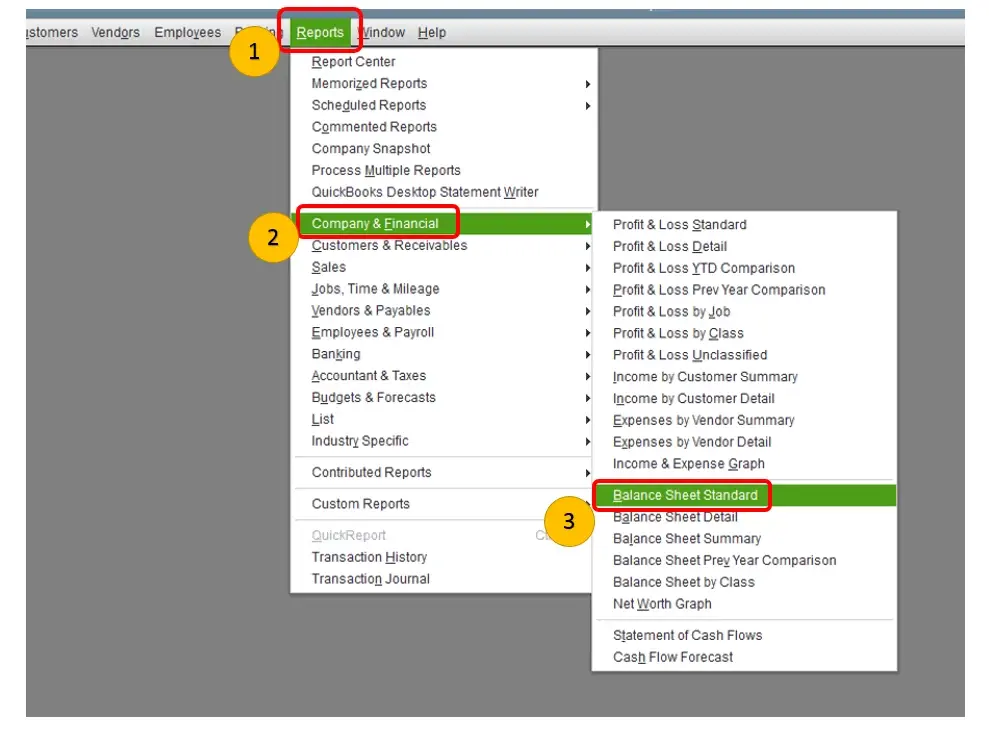
- Return to Reports > Company & Financial.
- Open Balance Sheet Standard.
- Set the Balance Sheet date to the first day of the following fiscal year.
- Review the Retained Earnings balance.
Compare the accumulated prior-year results with the Balance Sheet, accounting for any direct retained earnings adjustments.
If the figures appear inconsistent, confirm that the reports use the same accounting basis.
In QuickBooks Desktop for Windows, the default basis for summary reports can be reviewed under Edit > Preferences > Reports & Graphs > Company Preferences.
Step 2: Run the Retained Earnings QuickReport
The Retained Earnings QuickReport can display QuickBooks Desktop’s calculated closing amounts and any applicable manual entries.
To open it:
- Go to Lists > Chart of Accounts.
- Find the Retained Earnings account.
- Right-click the account.
- Select QuickReport: Retained Earnings.
- Adjust the report period and review the entries.
- You may see a calculated Closing Entry line.
This is not a normal journal entry that you can open and edit. QuickBooks calculates it from the relevant income and expense accounts.
If the closing amount looks incorrect, review the supporting financial reports and transactions rather than attempting to change the calculated line.
Intuit explains this behavior in its QuickBooks Desktop closing-books guide.
Step 3: Review the Audit Trail
The Audit Trail helps you investigate transactions that were changed or deleted.
- Go to Reports > Accountant & Taxes > Audit Trail.
- Select Customize Report.
- Apply the relevant date and transaction filters.
- Review transaction details and modification dates.
- Compare suspicious entries with their original records.
For example, if a previously reported $6,000 sale was deleted from 2025, that change may reduce 2025 net income and the amount carried into 2026 retained earnings.
The Audit Trail can help you identify the modification, but the original sales records must determine whether the transaction should be restored or corrected.
Step 4: Check the Closing Date Exception Report
If the company uses a closing date, go to Reports > Accountant & Taxes and look for the Closing Date Exception Report.
Some Desktop instructions and versions label it Closing Data Exception Report.
Review transactions dated in closed periods that were changed afterward.
If you identify an incorrect entry, document the problem and determine the proper correction before editing the closed year.
If QuickBooks reports company-file integrity errors, investigate them separately using Verify and Rebuild Data in QuickBooks Desktop.
These tools are intended to identify and address supported company-file integrity problems. They are not a substitute for correcting accounting entries.
How to Correct the Issue After Finding the Cause
Once you identify the source of the discrepancy, choose a correction based on the original accounting records.
Do not post a journal entry simply to make retained earnings match a previously saved number.
| Finding | Appropriate next action |
| Reports use different accounting methods | Rerun them using a consistent, appropriate basis. No transaction correction is needed solely because the figures differ. |
| A previous-year expense has the wrong date | Confirm the correct period using the source document. Determine whether the original transaction should be edited or a period adjustment is needed. |
| A transaction was entered twice | Confirm the duplicate and check its reconciliation and reporting status before deciding whether to delete, void, reverse, or otherwise correct it. |
| A manual entry was posted to Retained Earnings | Review the entry’s purpose, documentation, and offsetting account before making changes. |
| Opening Balance Equity is incorrect | Compare starting balances with the original accounting records. Do not assume the Retained Earnings account itself needs adjustment. |
| A closed-year transaction needs correction | Ask your accountant to assess the financial-statement and tax effects before changing the historical record. |
| The balance changed after migration | Compare equivalent reports and opening balances in the original Desktop file and converted Online company. |
Example: A Backdated Expense Changes Retained Earnings
Suppose your finalized 2025 Profit and Loss showed $18,000 in net income.
In August 2026, a bookkeeper enters an additional $3,000 expense dated December 2025.
Assuming the expense is recognized in 2025 under the reporting method used, the updated results become:
| Item | Before entry | After entry |
| 2025 net income | $18,000 | $15,000 |
| Amount carried into 2026 retained earnings | $18,000 | $15,000 |
| Difference | — | −$3,000 |
The lower retained earnings balance does not prove the transaction is wrong.
The correction depends on the evidence.
If the $3,000 expense genuinely belongs to 2025, the updated profit may be correct. An accountant should determine whether any further reporting or tax action is required.
If the expense belongs to 2026, its date or accounting treatment may need correction.
If the expense was already recorded, the duplicate must be investigated without disrupting valid reconciliations.
This is why identifying the original transaction matters more than entering a $3,000 adjustment directly to retained earnings.
When investigating bank-related transactions, account reconciliation can help establish whether payments, deposits, and balances agree with the supporting records.
What If Retained Earnings Are Zero, Negative, or Different After Migration?
Some situations need a different explanation from an ordinary transaction error.
Why Does QuickBooks Show Zero Retained Earnings?
A zero balance may be correct during a company’s first fiscal year.
For example, a business that starts in January 2026 may have no prior-year earnings to carry forward. Its 2026 profit appears as current-year net income until the following fiscal year begins.
If a company has completed previous fiscal years, check the fiscal-year start month, prior-year net income, and any direct equity adjustments before treating the zero balance as an error.
Why Are Retained Earnings Negative in QuickBooks?
Negative retained earnings can reflect accumulated losses from previous years.
Suppose a company entered 2026 with a $25,000 accumulated deficit. It then earns $10,000 during 2026.
On December 31, 2026, it can show a $10,000 current-year profit while retained earnings still reflect the prior $25,000 deficit.
When the next fiscal year begins, that profit reduces the accumulated deficit to $15,000, assuming no other adjustments.
Negative retained earnings do not automatically mean the company lost money during the current year.
Why Did Retained Earnings Change After Moving From QuickBooks Desktop to Online?
If retained earnings changed following migration, compare the original Desktop reports with the converted Online reports.
Check the same Balance Sheet dates, completed fiscal-year periods, accounting basis, and equity account balances.
Also review transactions or adjustments entered after the conversion.
For example, suppose the Desktop Balance Sheet showed $42,000 in retained earnings immediately before migration, while the Online Balance Sheet shows $39,500 for the same date and basis.
The $2,500 difference needs to be traced to the relevant accounts or transactions. Do not automatically assume the conversion failed or enter an offsetting journal entry.
If the original reports already disagreed, investigate the Desktop records first.
For the broader conversion process, see our guide to migrating from QuickBooks Desktop to Online.
When Should You Adjust Retained Earnings With a Journal Entry?
A journal entry may be appropriate when a documented accounting correction requires a direct adjustment to retained earnings.
However, the need for an adjustment depends on the type of error, the reporting framework, its materiality, and whether the affected financial statements have already been issued.
For example, correcting a small classification mistake in the current year is different from correcting a material error in a previous year’s issued financial statements.
An accountant should determine whether the correction belongs in the original transaction, the current accounting period, or a prior-period adjustment.
Before approving any entry, confirm the amount, supporting documents, debit and credit accounts, and effect on the financial statements.
Should You Zero Out Retained Earnings in QuickBooks?
No, zeroing out retained earnings is not a routine year-end task.
QuickBooks automatically carries prior-year net income or loss into retained earnings. The accumulated balance normally continues into later years.
It is also important to distinguish Retained Earnings from other equity accounts.
Opening Balance Equity is a separate account used for certain setup and opening-balance transactions. An unexplained balance there should be investigated, but that does not automatically justify moving it to Retained Earnings.
Owner’s Draw is commonly used to record withdrawals by sole proprietors. Partnerships and corporations may use other distribution or dividend accounts, depending on their structure and accounting requirements.
These transactions can affect total equity without necessarily changing the specific Retained Earnings account shown in QuickBooks.
If an adjustment affects a previously filed tax year, review it with your accountant or tax preparer. Our guide to bookkeeping for tax preparation explains which financial records should be maintained and reviewed before filing.
How Can You Keep Retained Earnings Accurate?
Retain copies of finalized year-end Balance Sheets and Profit and Loss reports so you can compare them with later versions.
Use closing-date restrictions where appropriate, document direct equity adjustments, and review changes to previously closed periods.
A consistent accounting workflow can help ensure financial reports are reviewed before the books are finalized.
Conclusion
If retained earnings appear incorrect in QuickBooks, first establish whether the difference comes from reporting settings, prior-year income, or a specific equity transaction.
When the original records support the balance, no adjustment may be necessary. When they confirm an error, correct it using the appropriate accounting treatment rather than forcing retained earnings to match an expected figure.
For discrepancies involving closed years, issued financial statements, or tax returns, obtain accounting review before making changes.
Frequently Asked Questions
Can I Delete the Retained Earnings Account in QuickBooks Online?
No, QuickBooks Online uses a default Retained Earnings account for its equity reporting. Intuit does not allow this special account to be made inactive. Although its name can be edited, Intuit recommends keeping the standard name so financial reports remain clear.
Does an Owner’s Withdrawal Reduce Retained Earnings in QuickBooks?
An owner’s withdrawal reduces equity, but it does not always reduce the specific Retained Earnings account. Sole proprietors commonly record withdrawals in an Owner’s Draw account. Partnerships and corporations may use distribution or dividend accounts. The correct treatment depends on the business structure and nature of the transaction.
Does a Positive Retained Earnings Balance Mean the Business Has Cash Available?
No, retained earnings are an accounting balance, not a separate bank account. Profits may be reflected in receivables, inventory, equipment, or other assets. A business can report positive retained earnings while having limited available cash.
Can I Correct Prior-Year Retained Earnings Without Amending a Tax Return?
Possibly, Some bookkeeping corrections do not affect taxable income, while others may change amounts previously reported. The answer depends on the error, business structure, and applicable tax rules. Have a qualified accountant or tax professional review the correction before changing records from a filed year.
Why Does Retained Earnings Differ From Opening Balance Equity?
Retained Earnings reflects accumulated prior-year earnings and applicable direct adjustments. Opening Balance Equity is used for certain beginning-balance transactions when accounts are set up or converted. The accounts serve different purposes, so their balances are not expected to match. An unexplained Opening Balance Equity balance should be reconciled against the company’s original accounting records.
