QuickBooks scheduled backup not working even though you have selected a backup time? You may notice that no new backup files appear, the schedule shows “Not Scheduled,” or manual backups work while scheduled backups fail.
In QuickBooks Desktop, scheduled local backups use Windows Task Scheduler to run at selected times. If Windows cannot start the task or QuickBooks cannot finish the backup, your company file may not be saved as expected.
Start by creating a manual backup. If it works, check the scheduled task, Windows credentials, and backup location. If both manual and scheduled backups fail, investigate the destination or any QuickBooks errors before changing the schedule.
This guide explains how to fix scheduled local backup problems in QuickBooks Desktop for Windows, including failures after software updates and issues involving company files that remain open.
Why Is QuickBooks Scheduled Backup Not Working?
QuickBooks scheduled backup may stop working because of incorrect schedule settings, Windows account permissions, Task Scheduler errors, an unavailable backup folder, or company file problems.
The symptom can help you decide which setting to check first.
| What you notice | Possible cause | First check |
| QuickBooks shows “Not Scheduled” | Missing or incomplete schedule | Review backup settings in QuickBooks |
| Backup never starts at the selected time | Disabled task or incorrect trigger | Check Windows Task Scheduler |
| Manual backup works, but scheduled backup fails | Task credentials or execution settings | Check the configured Windows account |
| Backup fails overnight | Computer sleep, shutdown, or task conditions | Review Windows power settings |
| Task runs, but no .QBB file appears | Backup destination or application error | Check task history and the save location |
| A .tmp file appears instead of a backup | The backup process may not have completed | Check QuickBooks errors and file access |
| Backups stopped after a Windows update | Task configuration or compatibility changes | Review the existing task settings |
| Both manual and scheduled backups fail | Storage, program, or company file problems | Test the backup location and review errors |
These are possible causes, not confirmed diagnoses. A successful manual backup helps narrow the problem, but it does not prove that the company file or Windows configuration is free of errors.
What Should You Check Before Troubleshooting?
Before changing the schedule, confirm that you have a recent backup of your QuickBooks company file.
Open QuickBooks Desktop and go to File > Back Up Company. Check the last backup date and time.
You can also search for *.qbb in Windows File Explorer to find saved QuickBooks backup files.
Remember that the last backup date may refer to a manual backup. It does not confirm that scheduled backups are running.
Create a Manual Backup to Test QuickBooks
A manual backup helps you find out whether QuickBooks can save a backup without relying on Windows Task Scheduler.
- Open QuickBooks Desktop and sign in to your company file.
- Select File > Switch to Single-user Mode, if necessary.

- Go to File > Back Up Company > Create Local Backup.
- Select Local Backup, then Next.
- Under Local Backup Only, select Browse and choose an accessible folder.
- Select Complete Verification, then click OK.
- Choose Save it now, then select Next.
- Follow the remaining prompts and wait for the backup confirmation.
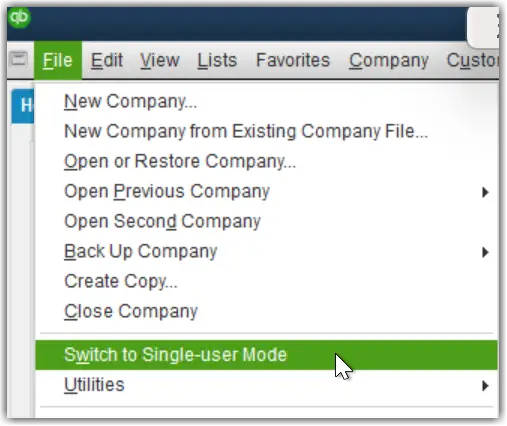
If the backup succeeds, continue with the schedule and Windows Task Scheduler checks.
If it fails, try another accessible local folder. If that backup also fails, record the QuickBooks error message and investigate the problem before changing Task Scheduler.
Keep your existing backups safe during troubleshooting.
How to Fix QuickBooks Scheduled Backup Not Working
The following fixes address different failure points. Start with the schedule itself, then use Windows Task Scheduler to check whether the backup starts and finishes.
Solution 1: Check and Recreate the Backup Schedule
A missing or incorrectly configured schedule can prevent QuickBooks from backing up the company file at the selected time.
For example, suppose your business needs a backup every Friday at 8:00 PM. If the schedule is missing, uses the wrong day, or was not saved correctly, QuickBooks will not run that backup as expected.
Check your existing schedule
- Open QuickBooks Desktop in Single-user Mode.
- Go to File > Back Up Company > Create Local Backup.
- Select Local Backup, then Next.
- Review the backup location and verification options.
- Select OK.
- Choose Only schedule future backups, then select Next.
- Review the existing schedule entries, including their names, days, and times.
If the correct schedule already exists, inspect its Windows task before replacing it.
If it is missing or incomplete, create a new schedule.
Create a scheduled backup
- In the backup scheduling window, select New.
- Enter a name for the schedule.
- Choose the days and time for the backup.
- Complete the available schedule settings.
- Select OK.
- Enter your Windows sign-in password when QuickBooks requests it.
- Select Finish to save the configuration.
If you also want an immediate backup, choose Save it now and schedule future backups earlier in the setup instead of Only schedule future backups.
You do not need to select Save backup copy automatically when I close my company file to create a separate time-based schedule. That checkbox controls the backup-on-close feature.
You can follow Intuit’s official instructions for scheduling QuickBooks Desktop backups.
Once the schedule is saved, check that the corresponding task appears in Windows Task Scheduler.
Solution 2: Check Windows Task Scheduler and Understand the Results
QuickBooks Desktop uses Windows Task Scheduler to run timed local backups.
When scheduled backups fail, Task Scheduler can help you determine whether Windows attempted to start the task or whether the task started but did not produce a backup file.
Find the QuickBooks backup task
- Press Windows + R.
- Type taskschd.msc and press Enter.
- Open Task Scheduler Library.
- Find the task associated with your QuickBooks company file.
- Select the task to view its details.
The task name may include the company file name, but the exact format can vary.
If you cannot find the task, check the computer on which the schedule was originally created. This matters in businesses where the company file is stored on a server and accessed from several workstations.
Review task status and history
Check the following fields:
| Task Scheduler field | What to look for |
| Status | Whether the task is ready, running, or disabled |
| Triggers | Whether the correct days and times are configured |
| Last Run Time | Whether Windows recently attempted to run the task |
| Next Run Time | Whether another execution is scheduled |
| Last Run Result | Whether Windows reports a status or error |
| History | Whether the task was triggered, started, or completed |
If the task is disabled, review why before enabling it.
If it has no recent execution attempt, examine the trigger, account settings, and computer availability.
If it started but no backup was saved, check the reported result and the backup destination.
The History tab can provide more detail about the task. If history is disabled, enable task history to capture future attempts.
What do common Task Scheduler result codes mean?
Windows may display hexadecimal codes under Last Run Result. Microsoft documents the following Task Scheduler status and error codes.
| Result code | Meaning | What to check |
| 0x0 | The task action reported successful completion | Check whether QuickBooks actually created a backup |
| 0x41301 | The task is currently running | Check whether it finishes or remains active unexpectedly |
| 0x41303 | The task has not yet run | Review its trigger and next run time |
| 0x41305 | Required scheduling properties have not been set | Review the task configuration |
| 0x41307 | The task has no valid active triggers | Check whether triggers are missing or disabled |
| 0x80041320 | The task cannot run because the required user is not logged on | Review the task’s logon settings |
These codes do not all indicate the same kind of problem. Some describe task status rather than a failed backup.
Other codes may come from Windows, Task Scheduler, or the application launched by the task. Do not assume that an unfamiliar code identifies a QuickBooks company file problem.
For additional code definitions, see Microsoft’s Task Scheduler error and success constants.
Important: A 0x0 result does not prove that a usable .QBB file was saved. It means the task action reported success. Check the backup folder and test the resulting file separately.
Microsoft also explains how to investigate tasks that never trigger or finish without producing the expected output in its Task Scheduler troubleshooting documentation. That guide is written for supported Windows Server versions, although its task-history checks are relevant to Windows Task Scheduler more broadly.
If the task reports a sign-in or permission issue, check the Windows account next.
Solution 3: Verify Windows Credentials and Account Permissions
QuickBooks requires Windows sign-in credentials when setting up scheduled backups.
If the configured Windows account is no longer available, its password has changed, or it lacks the required permissions, the task may fail.
For example, a business may create its backup schedule under an employee’s Windows account. If that account is later disabled, the scheduled task may no longer be able to run.
Check the account assigned to the task
- Open Windows Task Scheduler.
- Locate the QuickBooks backup task.
- Open its Properties.
- Select the General tab.
- Review the account listed under Security options.
Make sure the account still exists and can access the company file and selected backup folder.
If Task Scheduler reports an authentication error, confirm that the account and credentials are valid.
If the Windows password has changed, update or recreate the schedule through QuickBooks using the correct credentials.
The password used for a scheduled task is the Windows account password, not the QuickBooks company file password. A Windows Hello PIN is not necessarily a substitute for the full account password.
Check the logon condition
Under Security options, Windows may offer:
- Run only when user is logged on
- Run whether user is logged on or not
The second option can allow a task to run without an active user session, subject to its account credentials, permissions, and execution requirements.
If the task fails only after the user signs out, review these conditions.
Microsoft also describes using Run only when user is logged on as a diagnostic test for security-context problems.
However, changing this setting may make the task unsuitable for unattended backups. Test any change before relying on it.
Avoid giving all QuickBooks users administrator access. The appropriate fix depends on the account and permissions involved.
Solution 4: Check Task Compatibility and Computer Power Settings
If Task Scheduler shows that a backup is configured but does not start at the expected time, review the task’s compatibility and power conditions.
Check Windows compatibility settings
Open the QuickBooks backup task and select Properties > General.
Look for Configure for.
This setting specifies the Windows compatibility context for the task.
In a historical Intuit Community discussion about Windows 10 Creators Update 1709, users reported that QuickBooks created tasks configured for older Windows versions.
Some resolved their backup failures by changing the task’s Configure for setting to Windows 10.
This was a reported fix for older configurations, not a verified requirement for all current Windows 10 or Windows 11 systems.
If the problem started after a Windows upgrade, review the existing task configuration with your system administrator.
The original case is documented in Intuit’s Windows 10 scheduled backup discussion.
Do not confuse this Task Scheduler setting with Windows compatibility mode for the QuickBooks application. They are different settings.
Check sleep and power conditions
Suppose you schedule a backup for 10:00 PM, but the computer enters sleep mode at 8:00 PM.
The task may not run at the intended time unless Windows and the computer support waking for that task.
To inspect the settings:
- Open Task Scheduler.
- Select the QuickBooks backup task.
- Open Properties > Conditions.
- Review Wake the computer to run this task, if available.
- Check whether the task is restricted to AC power.
You can also review the computer’s sleep settings under Windows Settings > System > Power & battery or Power, depending on the Windows version.
A fully powered-off computer cannot run a normal Windows scheduled task.
If the task is configured to run overnight, confirm that the responsible computer is available and that its power settings meet your organization’s requirements.
Solution 5: Check the Backup Destination and Network Access
A scheduled task may start successfully but fail when QuickBooks cannot save the backup to its selected folder.
This is especially important when the backup destination is an external drive or network folder.
For example, suppose a manual backup saves correctly to a mapped network drive while you are signed in. The scheduled task may use a different Windows session or account that cannot access the same mapped drive.
To inspect the location:
- Open QuickBooks Desktop.
- Go to File > Back Up Company > Create Local Backup.
- Select Local Backup, then Next.
- Check the backup destination.
- Open that location in Windows File Explorer.
- Confirm that the folder exists and the drive has sufficient free space.
- Check whether the Windows account used by the task has access.
If the backup is saved to an external drive, make sure the drive is connected and its assigned letter has not changed.
For a network location, check the network path and access permissions from the computer responsible for running the task.
Test a different destination
To determine whether the original folder is involved:
- Create a new backup folder on an accessible local drive.
- Select that folder in QuickBooks backup settings.
- Confirm that a manual backup works there.
- Configure a short-term scheduled backup test for the new destination.
- Allow the scheduled task to execute.
- Check for a newly created .QBB file.
If the scheduled backup succeeds locally but fails at the original destination, investigate the original path, drive availability, or network permissions.
A successful local test narrows down the problem, but it does not conclusively identify one cause.
Do not disable Windows security features or antivirus protection as a general troubleshooting step. If a security tool blocks access, review the specific event and adjust only the necessary permissions.
Solution 6: Check Whether the Company File Is Open During Backup
If scheduled backup works for some company files but fails for one specific file, check whether that file remains open when the task runs.
In a December 2021 Intuit Community discussion, a QuickBooks Pro 2021 user reported that scheduled backup failed for one company file while it remained open. Manual backups worked, but the scheduled task left a temporary file instead of a completed backup.
The user later reported that running QuickBooks with administrator privileges resolved the issue in that environment.
This is a historical, case-specific report. It does not establish that QuickBooks must always run as an administrator or that every open company file prevents scheduled backups.
To investigate:
- Confirm that you can create a manual backup of the affected company file.
- Ask other users to finish their work.
- Close the affected company file normally.
- Keep the computer responsible for the backup task available.
- Run a controlled scheduled backup test.
- Check whether a new .QBB file is created.
If backups work only when the company file is closed, compare its access permissions and location with those of a file that backs up successfully.
Also review whether the task uses the expected Windows account.
See the original Intuit Community discussion about scheduled backups failing when a company file is open.
A small .tmp file may indicate an incomplete operation, but it does not identify the exact cause. Do not rename a temporary file to .QBB and assume it is a valid backup.
Solution 7: Update QuickBooks Desktop and Repair Program Errors
If the schedule, Windows task, and backup destination appear correct, check QuickBooks for application problems.
This step is more relevant when QuickBooks freezes, fails to open correctly, or displays errors during the backup process.
A backup stopping after an update does not prove the update caused the failure. Check the task’s execution history before repairing QuickBooks.
Update QuickBooks Desktop
- Open QuickBooks Desktop.
- Press F2 or Ctrl + 1 to view the installed version and release.
- Close the Product Information window.
- Select Help > Update QuickBooks Desktop.
- Open the Update Now tab.
- Click Get Updates.
- Restart QuickBooks after the download finishes.
- Install the update if prompted.
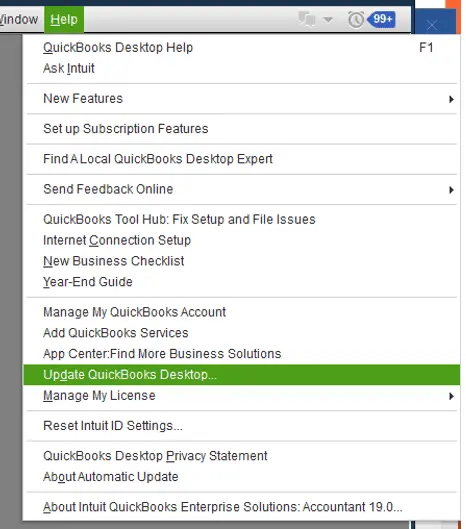
After updating, review the backup schedule and run another scheduled test.
Run Quick Fix my Program if QuickBooks has program errors
If QuickBooks behaves unexpectedly, you can use Quick Fix my Program through QuickBooks Tool Hub.
- Close QuickBooks Desktop.
- Open QuickBooks Tool Hub.
- Select Program Problems.
- Click Quick Fix my Program.
- Allow the tool to complete.
- Reopen QuickBooks and test the backup schedule.

Quick Fix my Program attempts to repair common QuickBooks application problems. It does not directly correct an invalid Task Scheduler trigger, missing Windows credentials, or an inaccessible network folder.
For installation and troubleshooting instructions, read our QuickBooks Tool Hub guide.
If a specific installation error appears, follow the relevant Intuit instructions rather than running additional repair tools without evidence of an installation problem.
Solution 8: Verify Company File Data When Manual Backup Also Fails
If manual and scheduled backups both fail, especially when QuickBooks reports a data error, use Verify Data to check the company file.
Verify Data looks for certain problems with company file integrity. It does not repair Windows Task Scheduler.
To run Verify Data:
- Open QuickBooks Desktop.
- Select Window > Close All.
- Go to File > Utilities > Verify Data.
- Wait for the scan to finish.
- Review the result.
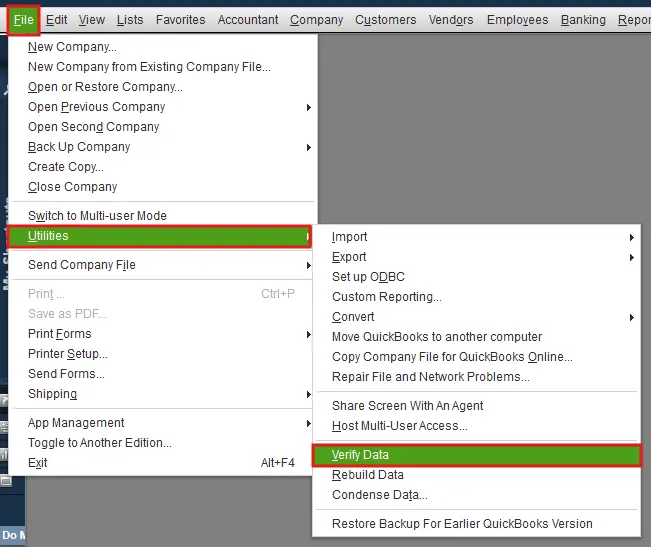
| Verify Data result | What to do |
| QuickBooks detected no problems with your data | Return to the backup error, destination, or task configuration |
| A specific error message appears | Follow troubleshooting instructions for that error |
| Your data has lost integrity | Review the Rebuild Data procedure after securing a backup |
If QuickBooks finds data damage, Rebuild Data may repair some affected records.
However, a backup is required before rebuilding. If QuickBooks cannot create the required backup, do not force the repair.
Intuit also advises Assisted Payroll users to contact its support team before rebuilding company data.
For the full procedure, see our guide on how to verify and rebuild data in QuickBooks Desktop.
How Do You Confirm QuickBooks Scheduled Backup Is Working Again?
After making a change, confirm that the scheduled task runs and creates a usable backup file.
- Set a suitable test time in the QuickBooks backup schedule.
- Make sure the computer running the task will be available.
- Allow the scheduled time to pass.
- Open Windows Task Scheduler.
- Review the task’s Last Run Time, Last Run Result, and History.
- Open the selected backup folder.
- Look for a newly created .QBB file.
- Check that it belongs to the correct company and has the expected date and file size.
If the task reports success but no backup file appears, the issue is not fully resolved. Continue investigating the task’s action, QuickBooks errors, and backup destination.
Test Whether the Backup Can Be Restored
A new backup file does not automatically guarantee that your company file can be recovered.
To test it safely:
- Open QuickBooks Desktop.
- Go to File > Open or Restore Company.
- Select Restore a backup copy, then Next.
- Choose Local Backup and select Next.
- Browse for the .QBB file.
- Select a separate folder for the restored company file.
- Complete the restoration.
- Open the restored file and check the expected records.
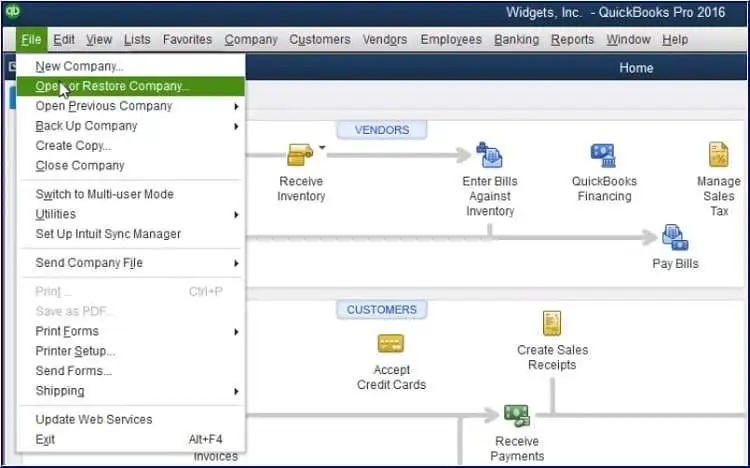
Do not overwrite your active company file when testing a backup.
If the backup is stored on an external device or online storage service, Intuit recommends copying it to a local drive before restoring.
See Intuit’s backup restoration guide for the full procedure.
Once the test succeeds, return the schedule to its normal settings and confirm that subsequent backups continue to run.
What if QuickBooks Scheduled Backup Still Does Not Work?
If scheduled backups continue to fail, collect information about the problem before making further changes.
Record your QuickBooks Desktop edition and release, Windows version, backup schedule, destination folder, and Task Scheduler’s last-run result.
Also note whether manual backup works and whether the problem affects one company file or several.
If QuickBooks is installed on a server or hosted environment, ask the system administrator to review the account running the scheduled task and its access permissions.
Until the issue is resolved, create manual backups at suitable intervals and keep a separate, secure recovery copy.
Is Intuit Data Protect the Same as Scheduled Local Backup?
No, Intuit Data Protect (IDP) is a separate online backup service with its own requirements.
Intuit’s IDP troubleshooting documentation discusses administrator sessions, remote access, and computer power settings. Those requirements should not automatically be applied to QuickBooks Desktop local scheduled backups.
If your problem involves IDP rather than a local .QBB backup, see our guide on Intuit Data Protect has stopped working.
Conclusion
QuickBooks scheduled backup failures should be diagnosed by checking whether Windows starts the scheduled task and whether QuickBooks saves the expected backup file.
Once the issue is resolved, confirm that a backup can be restored and maintain a separate recovery copy in case a future scheduled backup fails.
Frequently Asked Questions
Why Does QuickBooks Scheduled Backup Show “Not Scheduled”?
The message may indicate that a valid backup schedule has not been configured or saved for the company file.
Open File > Back Up Company > Create Local Backup and review the schedule. If it is missing, create a new one and confirm that the corresponding task appears in Windows Task Scheduler.
If Windows Task Scheduler itself reports 0x41305, Microsoft defines that code as missing required scheduling properties. The two messages should not be assumed to have identical causes.
Can QuickBooks Scheduled Backup Run When No User Is Logged In?
Windows Task Scheduler supports tasks configured to run without an active user session, subject to credentials, permissions, and task settings.
However, this does not guarantee that every QuickBooks Desktop scheduled backup will work unattended. Its behavior can depend on the QuickBooks version, account configuration, and file access requirements.
Test the schedule under the intended sign-in conditions before relying on it.
Does QuickBooks Need to Be Open for Scheduled Backup to Work?
The official sources reviewed do not establish one universal rule for every QuickBooks Desktop version and scheduling configuration.
If a scheduled backup fails while the company file remains open, test it after closing the file normally. Check the task’s history and file-access permissions if the outcome changes.
Why Does QuickBooks Scheduled Backup Create a TMP File Instead of a QBB File?
A .tmp file may indicate that the backup process started but did not complete.
Check Task Scheduler’s history, the backup destination, QuickBooks error messages, and whether the company file was open.
A temporary file does not identify the exact cause and should not be treated as a valid company file backup.
Does QuickBooks Scheduled Backup Include Payroll Tax Forms?
No, According to Intuit, a standard QuickBooks Desktop company file backup does not automatically include saved payroll tax forms.
If you use QuickBooks Payroll, save the forms separately. Intuit explains the available methods in its QuickBooks Desktop backup documentation.
