QuickBooks automatic backup not working when you close your company file? You may notice that no new backup files are being created, the last backup date has not changed, or QuickBooks displays an error while saving a backup.
In QuickBooks Desktop, you can set the program to create a local backup after closing your company file a certain number of times. If this feature stops working, check whether automatic backup is enabled and whether QuickBooks can still create a backup manually.
This guide focuses on automatic backups created when closing a company file, rather than backups that run at a scheduled time. It explains how to check the settings, identify backup failures, and restore the backup-on-close feature in QuickBooks Desktop for Windows.
Why Is QuickBooks Automatic Backup Not Working?
QuickBooks automatic backup may stop working because of incorrect backup settings, an unavailable storage location, file access restrictions, or problems with the company file.
The most common issues to investigate include:
| Possible cause | How it affects automatic backup |
| Automatic backup is disabled | QuickBooks does not create backup copies when the company file closes. |
| Incorrect backup frequency | A backup is not created until the company file has been closed the specified number of times. |
| Invalid backup location | QuickBooks may be unable to save the backup if the selected folder or drive is unavailable. |
| Insufficient permissions | Windows folder restrictions may prevent QuickBooks from saving the file. |
| Low storage space | The backup may fail if the destination does not have enough available space. |
| Company file damage | Data integrity problems may interrupt verification or prevent the backup from completing. |
| QuickBooks program errors | Problems with the installed software may interfere with backup operations. |
These are possible causes, not confirmed diagnoses. For example, if QuickBooks successfully creates manual backups but fails to back up when closing, checking the automatic backup settings is a reasonable next step.
However, if both manual and automatic backups fail, the problem may involve the backup destination, company file, or QuickBooks itself.
How to Fix QuickBooks Automatic Backup Not Working
Before changing the settings, check whether you have a recent backup.
Open QuickBooks Desktop, go to File > Back Up Company, and look at the last backup date and time displayed at the top of the menu.
You can also open Windows File Explorer and search for *.qbb to locate QuickBooks backup files. Check their dates and locations to find the most recent copy.
Keep in mind that the last backup date may reflect a manual backup. It does not, by itself, confirm that the automatic backup feature is working.
If you cannot find a recent usable backup, try creating one manually before proceeding.
Solution 1: Create a Manual Backup to Check for Errors
Start by creating a manual backup. This helps determine whether QuickBooks can complete the backup process under the current conditions.
To create a manual backup:
- Open QuickBooks Desktop and sign in to your company file.
- Go to File > Switch to Single-user Mode, if you are currently in multi-user mode.
- Select File > Back Up Company > Create Local Backup.

- Choose Local Backup, then select Next.
- In the Local Backup Only section, select Browse and choose a folder where you want to save the backup.
- Under the verification options, select Complete Verification.
- Select OK.
- Choose Save it now, then select Next.
- Follow any remaining prompts and allow QuickBooks to complete the backup.
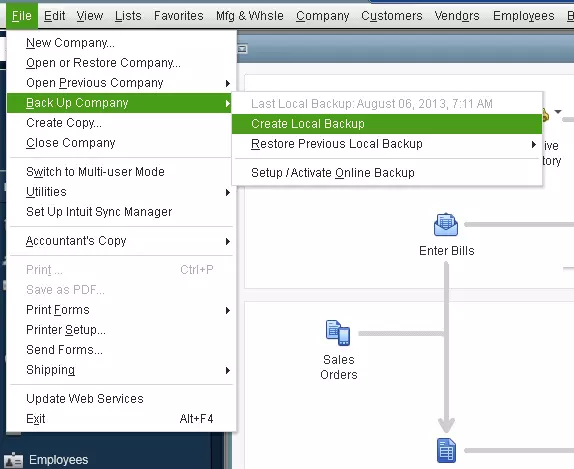
QuickBooks should display a confirmation message after successfully creating the backup.
If the manual backup works: Check the automatic backup settings in Solution 2. QuickBooks can create a backup under the tested conditions, but that does not prove why automatic backup has failed.
If the manual backup fails: Record any error message and try saving the backup to another accessible folder. If the problem continues, investigate storage, permissions, or company file errors before attempting repairs.
Do not delete or replace existing backups while troubleshooting.
Solution 2: Check and Enable Automatic Backup Settings
QuickBooks Desktop can create a backup automatically after you close the company file a specified number of times.
If this option is disabled, QuickBooks will not create backups through the backup-on-close feature. You may also think the feature has stopped working if the backup frequency is set higher than expected.
For example, if the frequency is set to five, QuickBooks is configured to create a backup after every five company-file closures, not every time you close it.
To enable or correct the settings:
- Open QuickBooks Desktop in Single-user Mode.
- Go to File > Back Up Company > Create Local Backup.
- Choose Local Backup and select Next.
- Under Local Backup Only, select Browse and confirm the backup location.
- Select Complete Verification, then click OK.
- Choose Save it now and schedule future backups, then select Next.
- Check Save backup copy automatically when I close my company file.
- Set the number of company-file closures between backups.
- Select Finish to save the configuration and complete the backup setup.
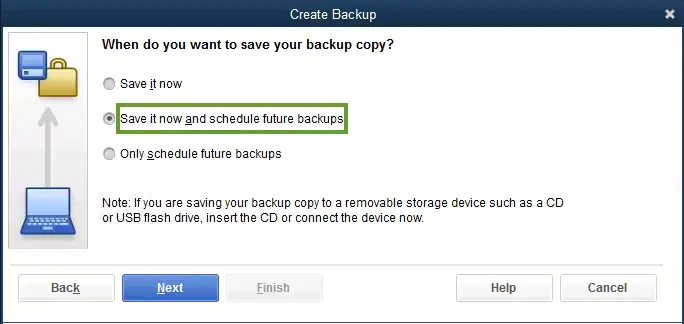
The screen also includes a New button for creating backups at specific times. You do not need to create a separate time-based schedule to use the backup-on-close option.
For a quick test, temporarily set the automatic backup frequency to 1. Then close the company file normally and allow any backup process to finish.
Check the selected backup folder for a newly created .QBB file.
If the test succeeds, change the backup frequency back to your preferred value.
Important: The setting Remind me to back up when I close my company file is different from automatic backup. A reminder asks you to create a backup, while the automatic backup option creates backup copies based on your configured closure frequency.
You can review these settings in Intuit’s official QuickBooks Desktop backup instructions.
Solution 3: Check the Backup Location and Folder Permissions
If automatic backups are enabled but QuickBooks cannot save a file, check the selected backup destination.
For example, suppose your backup location is an external drive named E:\QuickBooks Backups. If the drive is disconnected or Windows assigns it a different drive letter, QuickBooks may no longer be able to access the saved location.
A similar issue can occur when a backup folder is moved, deleted, or restricted by Windows permissions.
To inspect the location:
- Open QuickBooks Desktop.
- Select File > Back Up Company > Create Local Backup.
- Choose Local Backup, then Next.
- Check the folder listed under Local Backup Only.
- Select Browse if you need to change the location.
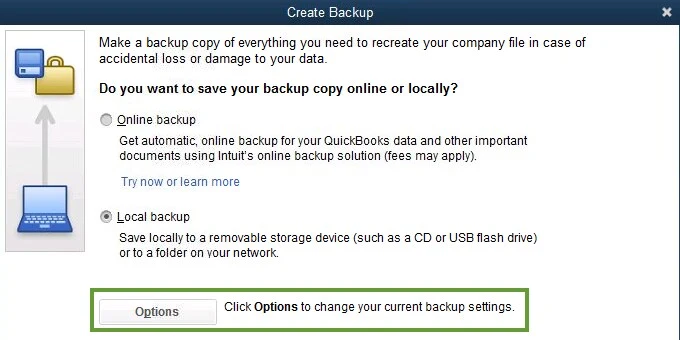
Open the selected folder in Windows File Explorer and check whether:
- The folder and drive are available.
- The destination has enough free space.
- Your Windows account can create and save files there.
- A network location, if used, is accessible.
If you suspect a problem with the folder, create a new backup folder on an available local drive and select it in QuickBooks.
Then attempt another manual backup.
If the backup succeeds in the new location but fails in the original one, investigate the original folder’s availability, permissions, and storage capacity.
You should also check the optional setting that limits the number of backup copies kept in a folder. If a retention limit is enabled, older backup copies may be removed as new ones are created. A limited number of saved files does not necessarily mean automatic backup has stopped.
Note: Saving to a local drive can help isolate destination problems, but you should also maintain a secure backup copy on separate storage. A backup stored only on the same drive as the active company file may be lost if that drive fails.
Solution 4: Check Whether QuickBooks Closes With an Error
The automatic backup-on-close feature is triggered by the configured company-file closure process.
If QuickBooks freezes, displays an error, or closes unexpectedly, check whether the backup operation was completed.
For example, if QuickBooks stops responding while you close the company file, do not assume that the automatic backup succeeded simply because the program eventually disappeared from the screen.
Instead, reopen QuickBooks and check the backup folder for a new file.
If no backup was created, record the error message or describe exactly what happened before the program closed.
Use the normal QuickBooks closing process when testing the feature. Do not force the program to end through Windows Task Manager while a backup is running.
An unexpected shutdown is a possible interruption, but it does not establish the exact cause of a backup failure. If QuickBooks repeatedly crashes when closing, that program problem should be investigated separately.
Solution 5: Update QuickBooks Desktop
If the backup settings and destination appear correct, check whether an update is available for your installed QuickBooks Desktop version.
Software problems can sometimes affect backup operations. Updating QuickBooks installs the latest maintenance release available for your version, although it does not guarantee that an automatic backup issue will be fixed.
To update QuickBooks Desktop:
- Open QuickBooks Desktop.
- Select Help > Update QuickBooks Desktop.
- Open the Update Now tab.
- Select Get Updates.
- Allow the update to download.
- Close and reopen QuickBooks.
- If prompted, select Install Now.
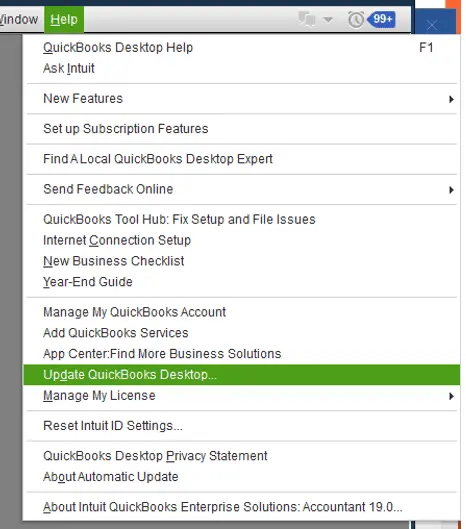
You can check your current QuickBooks release by pressing F2 or Ctrl + 1 to open the Product Information window.
After installing an update, review the backup-on-close setting and test it again.
If the issue started immediately after an update, note the installed release number and any new error messages. This information can help identify whether the problem is related to the software or backup configuration.
Solution 6: Verify Your QuickBooks Company File
If the backup process reports data errors, or both manual and automatic backups continue to fail, consider checking the company file with QuickBooks Verify Data.
The Verify Data utility scans the company file for certain data integrity problems. It does not automatically repair everything it finds.
To run Verify Data:
- Open QuickBooks Desktop.
- Select Window > Close All.
- Go to File > Utilities > Verify Data.
- Allow QuickBooks to complete the verification.
- Review the result.
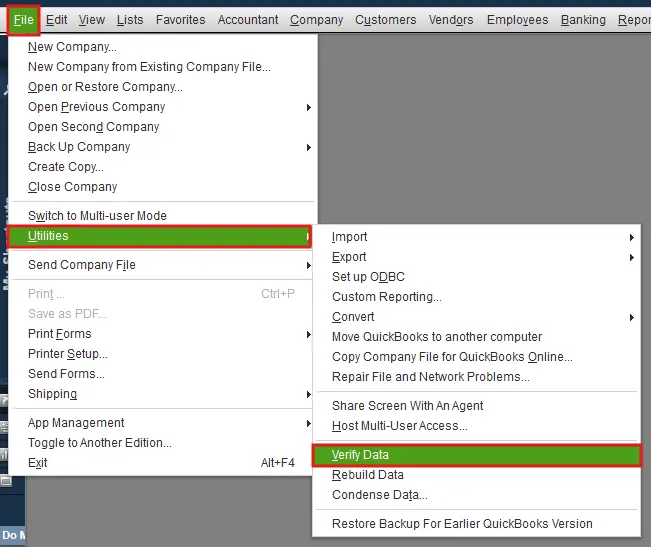
The result determines what you should do next.
| Verification result | Recommended action |
| QuickBooks detected no problems with your data | Continue investigating backup settings, the destination, or other reported errors. |
| QuickBooks displays a specific error | Follow the instructions for that error before making further changes. |
| Your data has lost integrity | Review the Rebuild Data procedure and secure a backup before attempting repairs. |
If Verify Data identifies damaged data, Rebuild Data may be able to repair some of the problems.
However, Intuit requires a backup before rebuilding a company file. If QuickBooks cannot create that backup, do not force the rebuild or proceed without protecting your data.
Intuit also advises users with Assisted Payroll to contact its support team before running Rebuild Data.
For detailed instructions, read our guide on how to verify and rebuild data in QuickBooks Desktop.
What Should You Do if QuickBooks Automatic Backup Still Fails?
If you have checked the backup settings, storage location, QuickBooks updates, and relevant company file errors, the next step depends on whether manual backups are working.
If manual backups succeed but backups on closing do not, concentrate on the automatic backup configuration and any errors that appear while closing the company file.
If manual backups fail in more than one accessible location, record the exact error message and investigate the backup process itself. Repeatedly changing the backup frequency is unlikely to help when QuickBooks cannot complete a manual backup.
Before contacting technical expert, collect the following information:
- Your QuickBooks Desktop product, version, and release number.
- Whether manual backups succeed.
- The selected automatic backup frequency.
- The backup destination and whether it is local, external, or on a network.
- Any error message displayed during backup or company-file closure.
- The date of your last successful backup.
This information can help narrow down the problem without making unnecessary changes to your company file.
Until automatic backups work again, create manual backups at intervals that fit your business needs. Keep an additional secure copy in a separate location.
How Do You Confirm QuickBooks Automatic Backup Is Working Again?
After correcting the issue, confirm that QuickBooks creates a new backup when the company file closes.
For testing, set the automatic backup frequency to one company-file closure if you have not already done so. Close the file normally and allow the backup operation to complete.
Next, open the selected backup folder in Windows File Explorer and look for a recently saved .QBB file.
Check that it belongs to the correct company and has an appropriate date and file size.
You can also review the last backup date under File > Back Up Company, although that date alone does not identify which backup method created the file.
A newly saved backup is a useful sign, but a restore test provides stronger evidence that the backup can be used for recovery.
Restore a Backup to a Separate Location for Testing
Use a separate folder so your active company file is not overwritten.
- Open QuickBooks Desktop.
- Go to File > Open or Restore Company.
- Select Restore a backup copy, then Next.
- Choose Local Backup, then select Next.
- Browse for the .QBB file you want to test.
- Select a separate location for the restored company file.
- Complete the restoration without replacing your active company file.
- Open the restored file and check that it contains the expected company data.
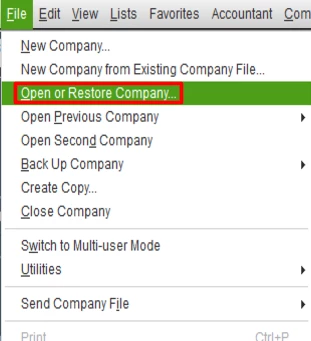
If the backup is stored on an external device or online storage service, Intuit recommends copying it to a local drive before restoring it.
A successful restore test helps confirm that you have a usable recovery copy. Once testing is complete, return the automatic backup frequency to your normal setting.
For additional guidance, see Intuit’s instructions for restoring a QuickBooks Desktop backup.
Is QuickBooks Automatic Backup Different From Scheduled Backup?
Yes, QuickBooks Desktop supports different ways to create automatic local backups.
With backup-on-close, QuickBooks creates a backup after the company file has been closed the number of times specified in its settings.
With a scheduled backup, QuickBooks is configured to create a backup on selected days and at specific times. Scheduled backups have additional setup requirements, including Windows account credentials.
If backups work when you close the company file but fail at a specific scheduled time, investigate the scheduled backup settings rather than repeatedly changing the backup-on-close frequency.
QuickBooks also offers Intuit Data Protect, a separate online backup service. If that service crashes or reports an error, see our guide on Intuit Data Protect has stopped working.
Conclusion
If QuickBooks automatic backup is not working, check whether the backup-on-close feature is enabled and test a manual backup before attempting repairs. If neither method works, investigate the backup location and any company file errors.
Once automatic backup starts working again, confirm that a new backup file is created and can be restored. Keep a separate, usable recovery copy so a future backup failure does not leave you without a way to recover your company data.
Frequently Asked Questions
Why Does QuickBooks Only Remind Me to Back Up Instead of Creating a Backup Automatically?
QuickBooks Desktop has separate options for backup reminders and automatic backup-on-close.
The reminder option prompts you to create a backup after a specified number of company-file closures. To create backup files automatically, enable Save backup copy automatically when I close my company file in the backup configuration window.
Can QuickBooks Automatically Back Up to an External Drive?
You can select an external drive as a local backup destination, provided QuickBooks can access it when the backup runs.
If the drive is disconnected, its drive letter changes, or it becomes inaccessible, the backup may fail. Check the drive connection and destination path if automatic backups stop appearing there.
Does QuickBooks Automatic Backup Include Payroll Tax Forms?
No, According to Intuit, QuickBooks Desktop company file backups do not automatically include saved payroll tax forms.
If you use QuickBooks Payroll, preserve those forms separately. Intuit explains how to locate the company’s Tax Forms folder and save copies of the forms in its QuickBooks Desktop backup guide.
