QuickBooks Error 1920 usually appears when users install or update QuickBooks Desktop and the QuickBooks Database Manager service fails to start. The error message, “Service QuickBooks Database Manager (QBCFMonitorService) failed to start,” prevents the installation from completing, leaving users unable to proceed with their work.
This issue may be related to installation problems, Windows permissions, or service configuration. The right solution depends on when the error occurs and whether you’re installing QuickBooks Desktop on your computer or updating Database Server Manager on a server.
In this blog, we’ll explain the common causes of QuickBooks Error 1920 and walk you through the troubleshooting steps to help you resolve the issue and complete the installation.
Why Do You See QuickBooks Error 1920
QuickBooks Error 1920 can occur for several reasons. The table below summarizes the possible causes and how they may affect the installation.
| Possible cause | How it may affect QuickBooks |
| Insufficient Windows permissions | The installer may not have the permissions required to configure or start the QBCFMonitorService. |
| Damaged or incomplete installation files | Missing or corrupted files may prevent the installation from completing successfully. |
| QuickBooks Database Server Manager issues | Problems with an existing installation or service configuration may prevent the service from starting. |
| Incorrect folder permissions | The service may be unable to access the files or folders it needs to run. |
| Antivirus or security software interference | Security software may block a QuickBooks component from running or accessing required resources. |
| Previous failed installation or update | Leftover files or an incomplete setup may interfere with the current installation. |
Identifying the possible cause can help you choose the appropriate troubleshooting method. The next step is to solve the issue based on when QuickBooks Error 1920 occurs.
How to Fix QuickBooks Error 1920
You don’t need to try every fix at once. Choose the procedure that matches your setup and work through the steps in order. If the first method doesn’t resolve the error, continue with the relevant troubleshooting instructions.
Solution 1: Run QuickBooks Installation with Administrator Rights
If you’re installing QuickBooks on your computer for the first time and encounter Error 1920, check whether you’re signed in to Windows with an administrator account.
Windows may require administrator permissions to install program files and configure the necessary services.
Here’s what you can do:
- Close the QuickBooks installer.
- Sign in to Windows using an account with administrator rights.
- Locate the QuickBooks installation file.
- Right-click the file and select Run as administrator.
- Follow the on-screen instructions to install QuickBooks.
- If the error continues, move on to the next solution.
Solution 2: Uninstall QuickBooks Desktop
If you’re trying to install a new version of QuickBooks or update an existing one, we recommend removing the affected QuickBooks Desktop installation first.
Follow these steps:
- Press Windows + S and search for Control Panel.
- Open Control Panel and select Programs and Features or Uninstall a program.
- Find your installed version of QuickBooks Desktop.
- Select Uninstall/Change.

- Follow the instructions on the screen to complete the uninstallation.
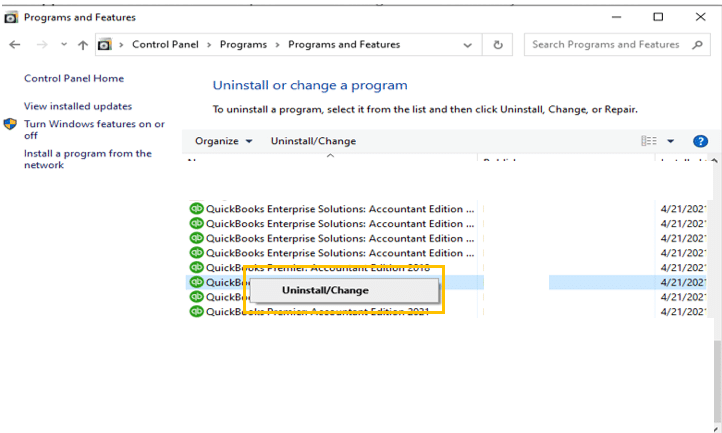
Once QuickBooks has been uninstalled, proceed to the next step.
Solution 3: Rename the QuickBooks Installation Folders
After uninstalling QuickBooks, you’ll need to rename the relevant installation folders before reinstalling the software.
Here’s how to do it:
- Press Windows + R to open the Run dialog box.
- Copy and paste the path of the relevant installation folder.
- Press Enter to open the folder.
- Locate the folder associated with your QuickBooks installation.
- Right-click the folder and select Rename.
- Add.OLD to the folder name.
Depending on your Windows version and installation, check the following locations:
- C:\ProgramData\Intuit
- C:\ProgramData\Common Files\Intuit
- C:\Users\[Username]\AppData\Local\Intuit
- C:\Program Files\Intuit
- C:\Program Files\Common Files\Intuit
Important: You don’t need to rename every folder listed above indiscriminately, rename only the relevant QuickBooks version folder inside the Intuit directory. If you can’t find ProgramData or AppData, you may need to enable the display of hidden files and folders.
Solution 4: Reinstall QuickBooks Desktop
Once you’ve uninstalled QuickBooks and renamed the appropriate installation folders, reinstall QuickBooks Desktop.
- Locate the installation file for your QuickBooks version.
- Run the installer with the appropriate Windows permissions.
- Follow the on-screen instructions to complete the installation.
- Open QuickBooks after installation and check whether the error has been resolved.
If you still encounter QuickBooks error 1920 during installation, check whether you’re actually updating Database Server Manager on a separate server, as that requires a different procedure.
Solution 5: Uninstall QuickBooks Database Server Manager
If you don’t have QuickBooks Desktop installed on your server but use Database Server Manager to share company files over the network, follow these server-specific steps.
- Press Windows + R on your keyboard.
- Type appwiz.cpl in the Run dialog box.
- Click OK or press Enter.
- Find QuickBooks Database Server Manager in the list of installed programs.
- Select it and click Uninstall/Change.
- Follow the on-screen instructions to remove the program.
After uninstalling Database Server Manager, continue with the next solution.
Solution 6: Rename the Database Server Manager Installation Folders
Before reinstalling Database Server Manager, rename the relevant installation folders using the same process described earlier.
- Press Windows + R.
- Enter the path of the relevant installation folder and press Enter.
- Find the folder associated with your QuickBooks installation.
- Right-click the folder and select Rename.
- Add .OLD to its name.
However, when renaming DBSM doesn’t work, try reinstalling it.
Solution 7: Reinstall QuickBooks Database Server Manager
After removing Database Server Manager and renaming the appropriate folders, reinstall the component to complete the troubleshooting process.
- Locate the QuickBooks installation file for your version.
- Start the installation and select the appropriate option for installing Database Server Manager on the server.
- Follow the on-screen instructions to finish the setup.
- Configure company file sharing as required by your network.
- Check whether Database Server Manager installs successfully and the service starts correctly.
Once the setup is complete, verify that the server can access the company file folders and that other authorized users can connect as expected.
If QuickBooks Error 1920 persists after following these steps, follow the tips below.
Tips to Avoid QuickBooks Desktop Installation Errors
A few simple changes to your installation routine can help prevent recurring setup problems. Keep these tips in mind before installing or updating QuickBooks Desktop.
- Keep Windows and QuickBooks Compatible: Check Windows compatibility and install available updates supported by your QuickBooks version. These checks can help reduce the risk of QuickBooks Error 1920 Windows 11 and other setup issues.
- Run Setup With Administrator Access: Use a Windows administrator account when installing or updating QuickBooks. This helps the installer configure the required services and files.
- Check QuickBooks Services: Before retrying an installation, check whether an earlier setup attempt left any related services in an incomplete state. The QBCFMonitorService error 1920 message indicates that the service failed to start.
- Review Windows Installer and Security Settings: QuickBooks error 1920 Windows Installer problems may involve installation permissions or blocked setup operations.
- Prepare the Server Before Updating: When updating QuickBooks Database Server Manager, confirm that the server has the required permissions and that the network connection is stable. This can help reduce the likelihood of an Error 1920 service QuickBooks Database Manager issue.
- Keep Company File Backups: Create a fresh backup before major updates or reinstallations. Store it separately from the working company file so you have a recovery copy available during troubleshooting.
Following these precautions when you see QuickBooks error 1920 during update or installation can help avoid installation problems.
Conclusion
QuickBooks Error 1920 can interrupt your workflow. Following the right troubleshooting steps, from checking administrator permissions to reinstalling the affected component, can help resolve the issue. Choosing the method that fits your installation setup also helps avoid unnecessary steps and gets you closer to completing the process.
Frequently Asked Questions
What is QBCFMonitorService, and why does it fail to start?
QBCFMonitorService is a QuickBooks service associated with Database Server Manager. It may fail to start because of installation problems or service configuration issues, preventing the setup process from completing.
How do I distinguish Error 1920 from H202 or H505?
How do I run the QuickBooks Install Diagnostic Tool?
Download and install QuickBooks Tool Hub. Open it, select Installation Issues, and choose QuickBooks Install Diagnostic Tool when available. Let the tool finish, then restart your computer and check the installation again.
Will QuickBooks Error Code 1920 damage my company file?
Error 1920 is primarily an installation or service startup issue. It does not automatically mean your company file is damaged. However, backing up your company file before performing significant troubleshooting is a sensible precaution.
What should I do when updating Database Server Manager on a server?
Uninstall QuickBooks Database Server Manager, rename the relevant installation folders, and reinstall the server component. You do not necessarily need to uninstall the entire QuickBooks Desktop application.
Can I install QuickBooks in Safe Mode to bypass Error 1920?
Safe Mode is not the standard solution recommended in Intuit’s Error 1920 guide. Some installation components may not work correctly in Safe Mode.
What is the QuickBooksDBXX service, and how does it relate to Error 1920?
QuickBooksDBXX is the version-specific database service used by QuickBooks Database Server Manager. It helps support access to company files in a multi-user environment. It is distinct from QBCFMonitorService, although both are associated with QuickBooks database functionality.
Do I need to uninstall QuickBooks Database Server Manager separately?
Yes, when the error occurs while updating Database Server Manager on a dedicated server, Intuit’s procedure calls for uninstalling that component separately before reinstalling it. The steps differ from those used for a standard QuickBooks Desktop installation.
What permissions does QBCFMonitorService need?
The service needs the appropriate Windows permissions to run and access the resources required by your QuickBooks installation. The exact requirements depend on your setup.
